
Creating Message Templates
In this article
Your Keys to Start the Conversation. To prevent spam, WhatsApp requires businesses to use "Message Templates" when initiating a chat or re-engaging a customer after 24 hours. These are pre-approved formats that ensure your messages like receipts, promo codes, or OTPs are delivered instantly.
Contents
Contents
Why do I need templates?
- Break the 24-Hour Barrier: You cannot message a customer first without a template. These are your "keys" to open the door to communication.
- Consistent Branding: Ensure every automated update uses your brand's voice, formatting, and variables (like @
Customer Name). - Automation Ready: Templates are required for system triggers. If you want to send a "Ready for Collection" alert automatically, it must be a template.
Choose a Category
EasyBiz provides a gallery of standard templates to help you get started quickly.
Choose a Category
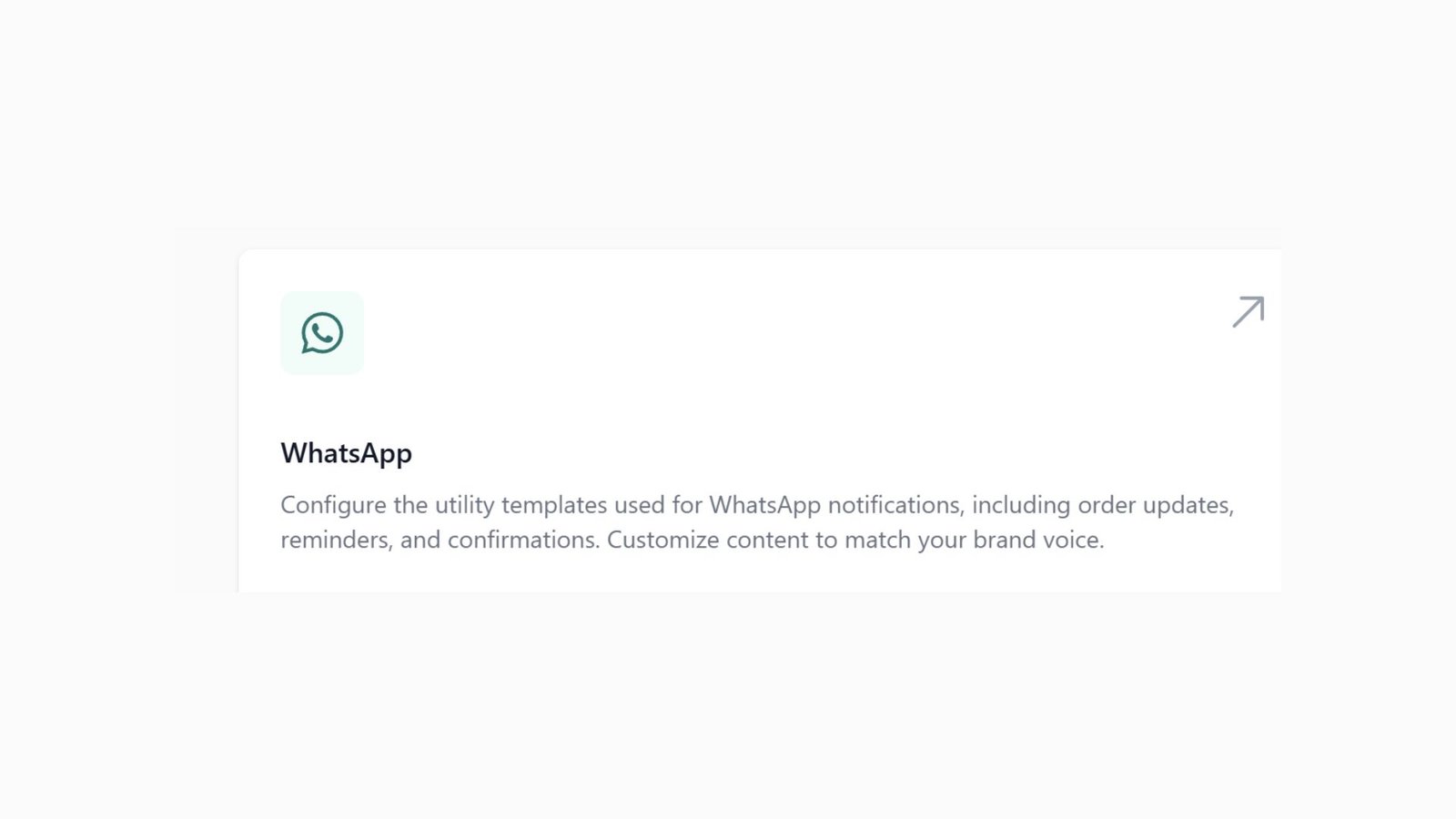
Go to Settings > Templates and select the WhatsApp card. You will see four category tabs. Select the one that matches your goal:
- Utility: For transaction updates (e.g., "Order Confirmed", "Receipt").
- Marketing: For promotions and offers (e.g., "New Menu", "Discount Code").
- Authentication: Strictly for sending OTP codes (e.g., Login verification).
- Quick Reply: Standard replies for FAQs.
Click + Add inside your chosen category.
Customize the Message
Edit the content to fit your brand voice.
Header (Optional)
- Choose to display Text, an Image, a Document, or keep it as None at the top of your message.
Body
- For Utility & Marketing: Type your message freely. Use the @ symbol to insert dynamic variables like
{{Customer Name}}or{{Order Number}}. - For Authentication: The text is fixed by Meta for security. You cannot edit the words directly. Instead, use the checkboxes to add options like:
- Add security recommendation.
- Code expiration minutes.
Do not overuse variables, keep the message readable.
A message body cannot end with a variable. You must add at least one character or punctuation mark after the last variable.
Footer
- Add a short, fixed text at the very bottom.
- This is optional and cannot contain variables.
Buttons
Add up to 10 interactive buttons
- Call Phone Number: Direct dial to support.
- Visit Website: Link to your tracking page or site.
- Open Mini App: Direct the customer to a specific Mini App inside WhatsApp. (Requires you to select a published Mini App).
- Quick Reply
Submission
When you're ready, click Submit. Meta typically reviews templates within minutes, though it can take up to 24 hours.
⚠️ Important: Why did my template move?
Meta determines the final category. Sometimes, you might create a template under the Utility tab, but after review, Meta classifies it as Marketing (due to the language used).
If your template disappears from the Utility list after approval, please check the Marketing tab. It likely got moved there automatically.
Give feedback
Up next
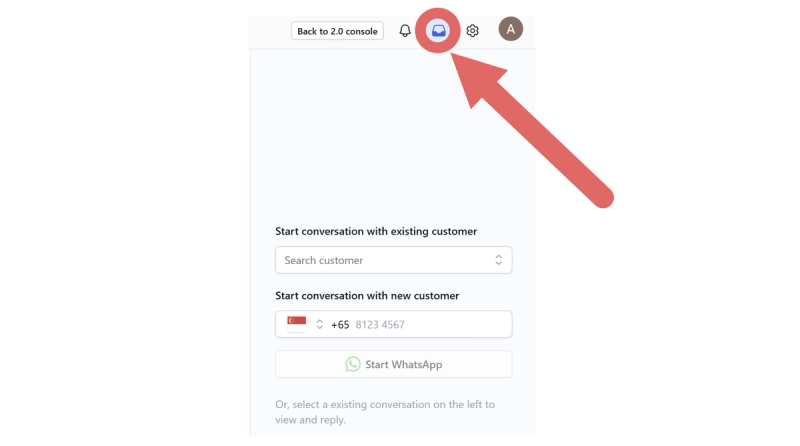
Managing Conversations InboxOne inbox, total control. Collaborate with your team to handle support tickets, assign chats, and navigate WhatsApp’s 24-hour messaging window efficiently.
Read more