Managing Conversations Inbox
In this article
Your Team's Communication Hub The Conversations Inbox is where your team collaborates to support customers. Unlike a standard WhatsApp app on a personal phone, this is a multi-user workspace designed for speed, clarity, and accountability.
Contents
Contents
Why use the Shared Inbox?
- Collaborative Support: View "Unassigned" chats and let staff "Attend" to them, ensuring clear ownership of every issue.
- Context at a Glance: See the customer's name and history while you chat, helping you resolve issues faster without asking "Who is this?".
- Navigate the Rules: The interface clearly indicates the 24-Hour Rule status, showing you exactly when you can chat freely (free-form text) and when you need to send a Template to re-open the window.
Handle unassigned chats
When a customer messages you for the first time, the chat appears in the Unassigned tab.
- Click the Unassigned tab in your Inbox.
- Select a chat to preview the message.
- Click Attend (or Assign to me) to move it to your active list and start replying.
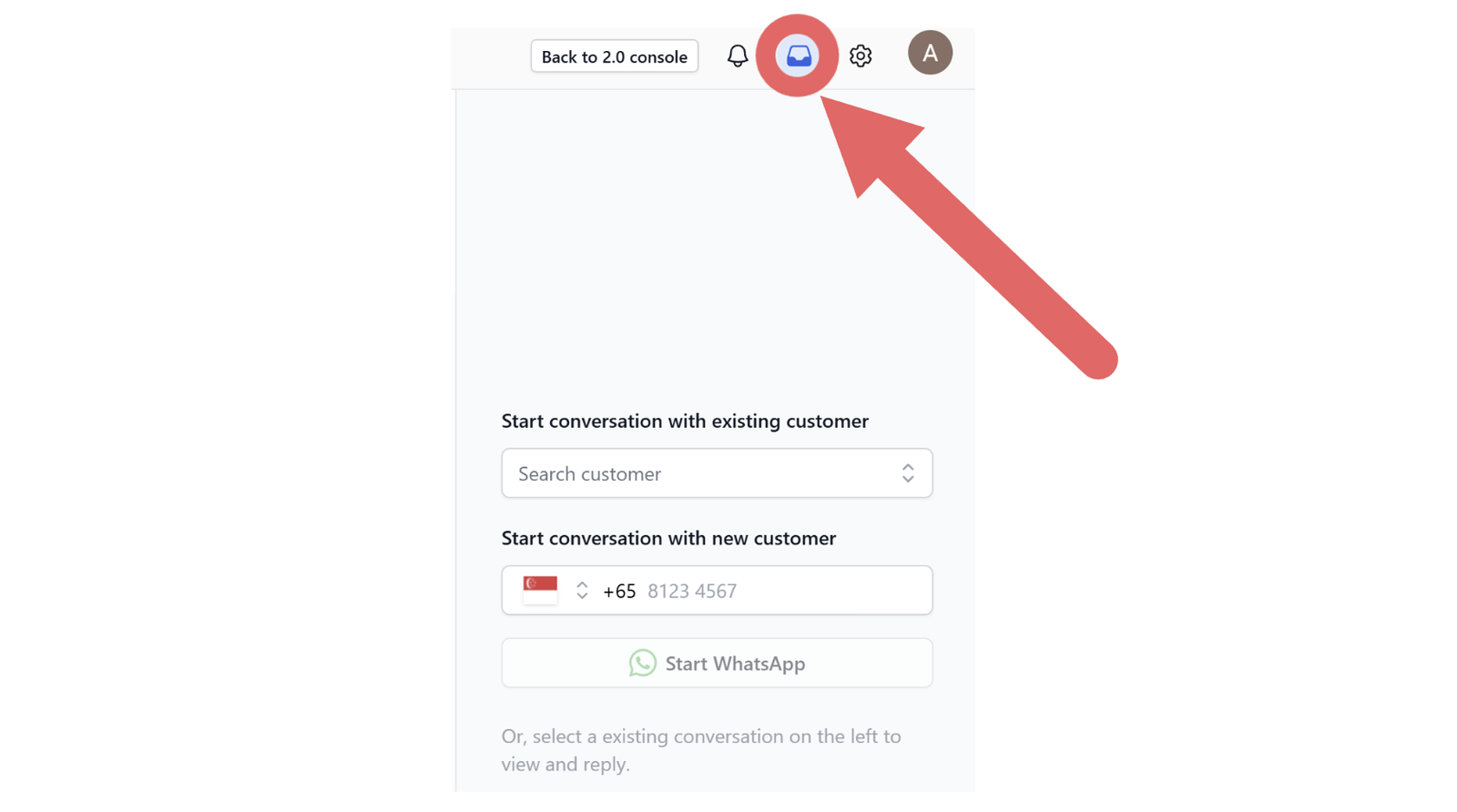
Start a new conversation
You can reach out to customers in two ways:
- Existing Customer: Search for their name or phone number in the sidebar.
- New Customer:
- Click Start conversation.
- Select the Country Code and enter the Phone Number.
Click Start WhatsApp
Understand the 24-hour rule
To prevent spam, WhatsApp enforces a messaging window.
- Window Closed: If a customer hasn't replied in the last 24 hours, the text box will be locked. You cannot send free-form text. You must send an approved Template Message to re-engage them.
- Window Open: Once the customer replies to your template, the window opens. You can chat freely (text, images, docs) for the next 24 hours.
Send a Template
Use this method to start a conversation, send an order update, or re-open the 24-hour window.
- Click the (+) Plus Icon next to the chat input.
- Select Template message.
- Choose an approved template (e.g., Welcome).
- If required, select the context (e.g., the specific Customer) to auto-fill the variables.
- Click Send.
Send free-form messages
Once the customer replies to your template, the text box unlocks. You can now communicate freely.
- Type your message in the input box and hit Enter.
- Use the toolbar icons next to the text box to quickly share emoticons images, videos, or documents.
- You can still click the (+) Plus Icon to access special features like Template Messages or Order Photos.
Take advantage of this open window to resolve complex queries quickly without needing template approvals.
Closing & Reopening Chats
- When a customer's issue is resolved, click the Close icon next to their name. This moves the chat to "Archived" and keeps your inbox organized
- To access archived chats:
- Click the All tab in the sidebar,
- Select the conversation
- Click the Reopen button at the bottom to bring it back to your main inbox.
Give feedback