
Configuring Accessories
In this article
The Accessories section allows you to manage physical items or complementary products that can be sold alongside your main inventory.
Contents
Contents
What is this feature for?
This feature is designed to manage smaller, standalone items—like brooches, belts, or lint rollers—that do not require complex service configurations. It allows your sales team to quickly add these "impulse buys" to an order without needing to set up complicated price rules.
How to Create Accessories
Follow these steps to add a new accessory to your system:
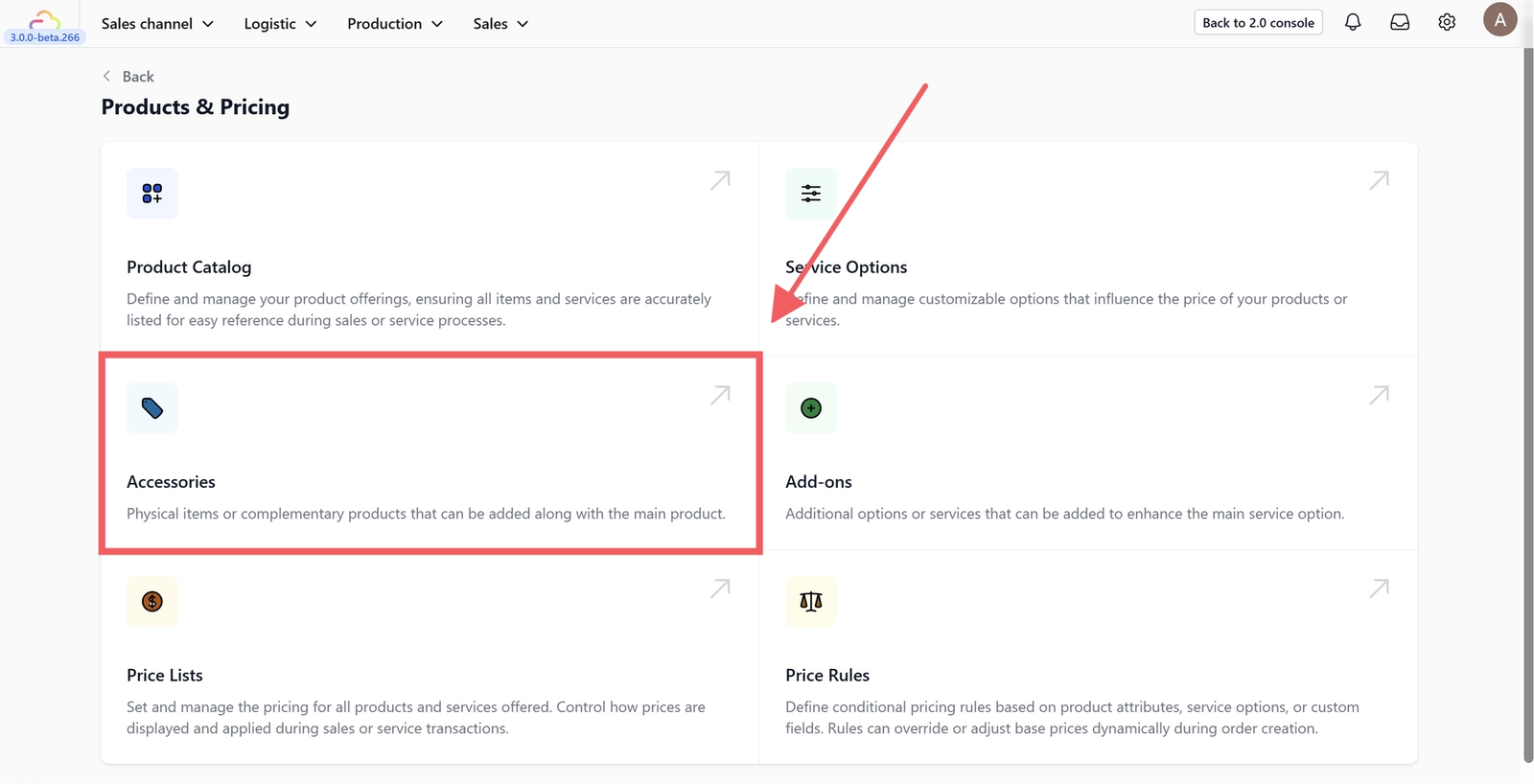
Click on the Accessories card within the Products & Pricing page.
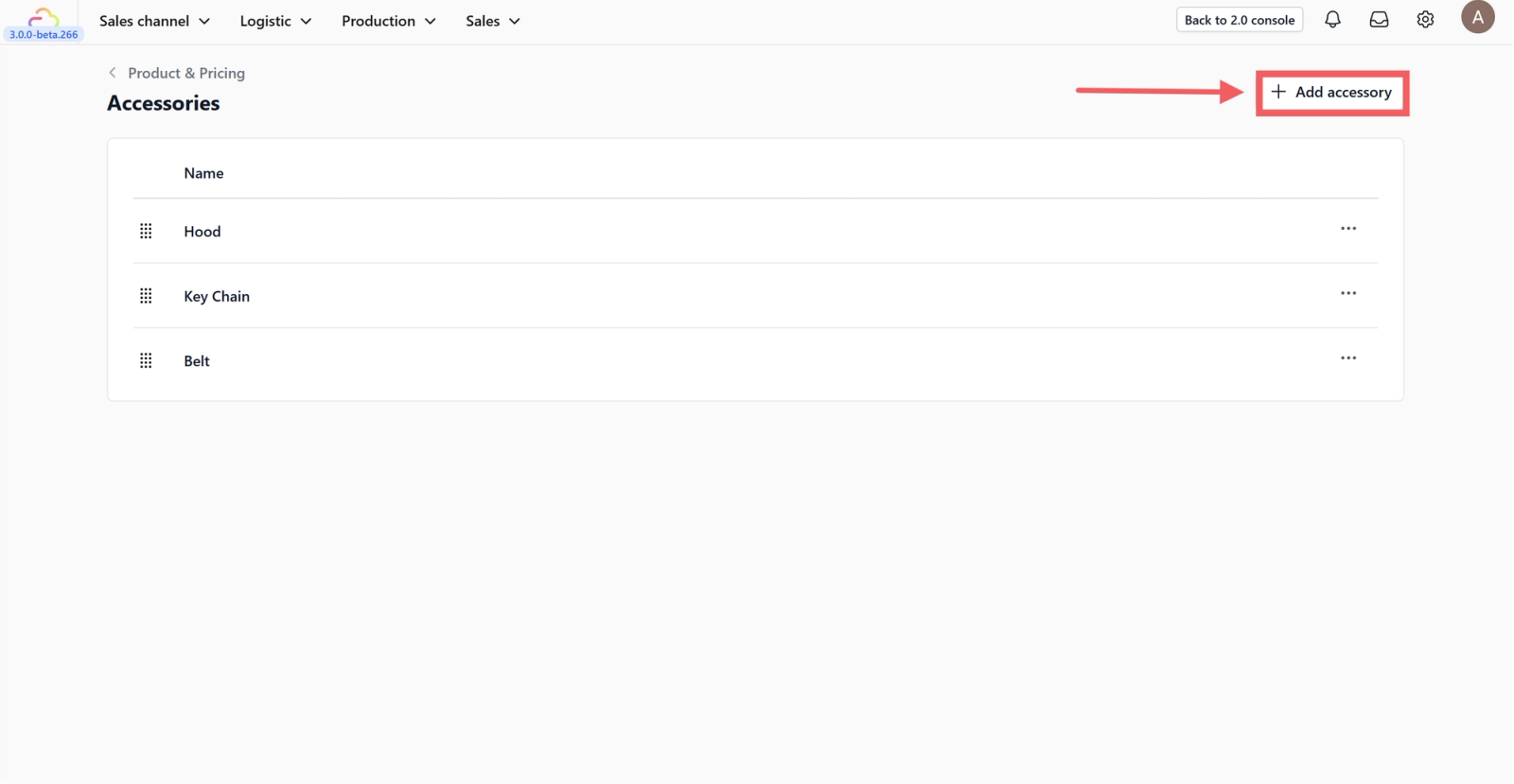
Click on the +Add accessory button located at the top right of the screen.
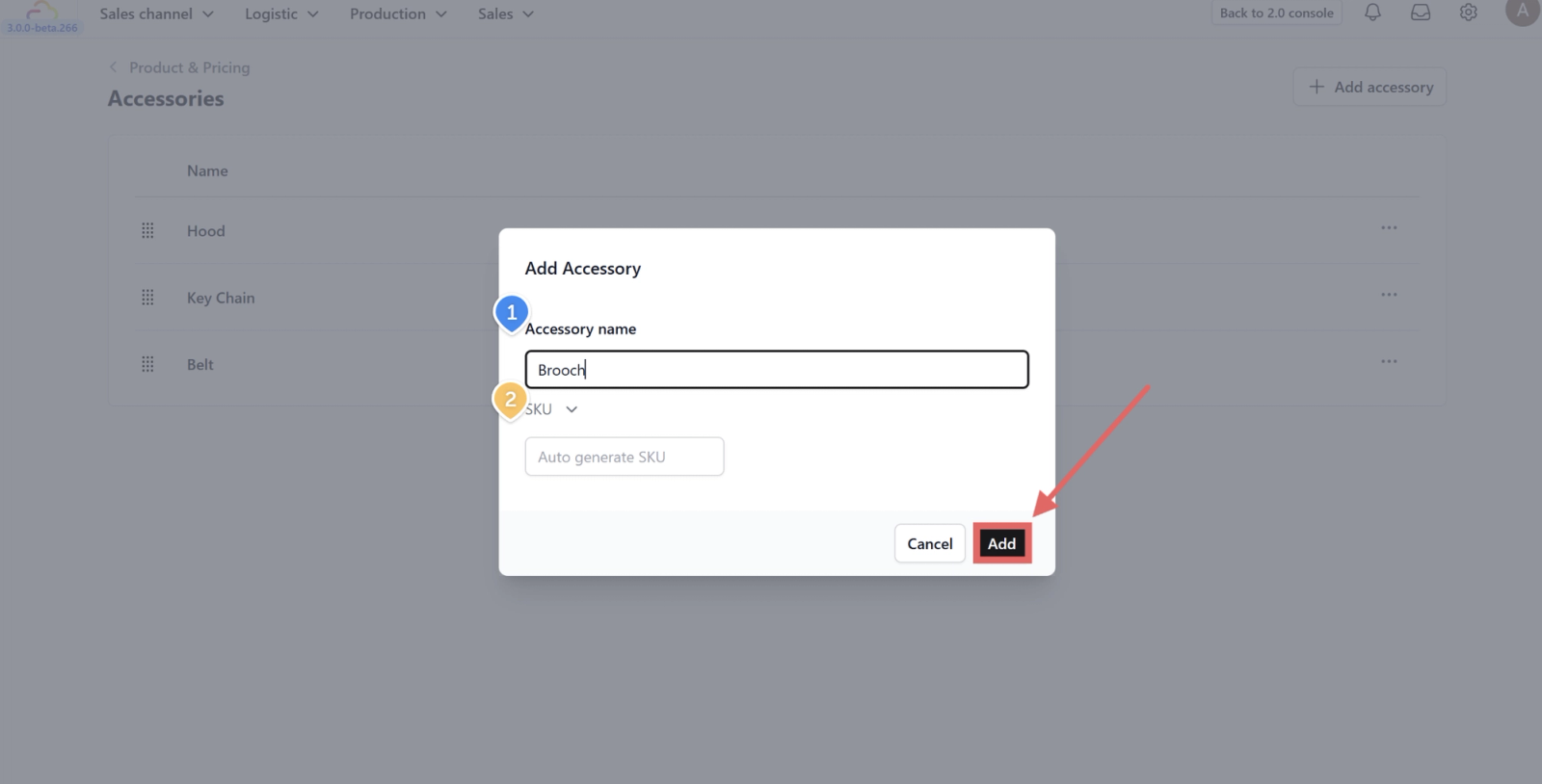
On the Add accessory window, fill in the details:
- Name: Type in the name of the accessory (e.g., Brooch, Belt).
- SKU: Enter the Stock Keeping Unit code. This is a unique alphanumeric code used to track your inventory. You can leave this empty if you want the system to auto-generate one for you.
Finally, click Add to save your new accessory.
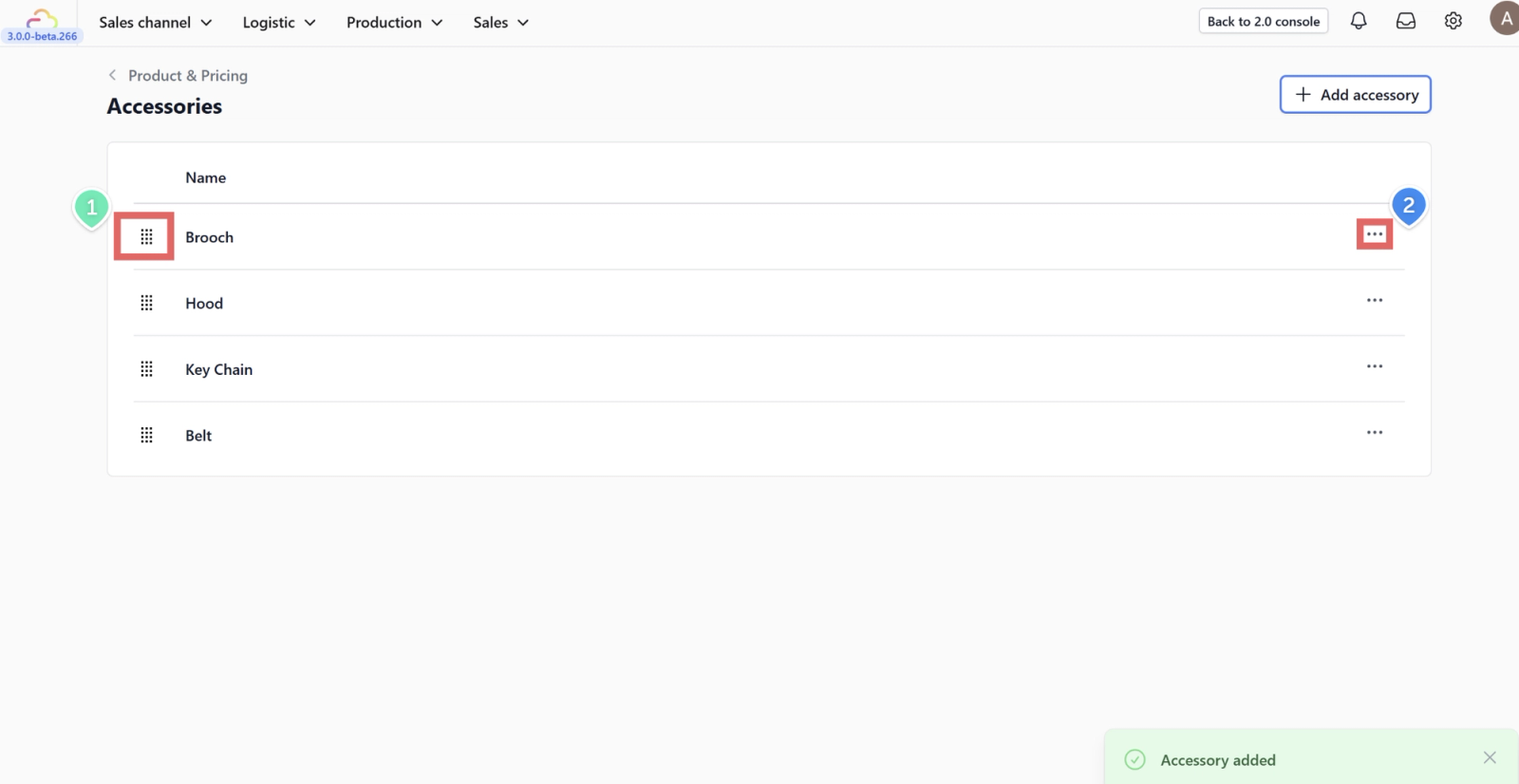
Once added, your new accessory will appear in the table. You can manage the list using the icons provided:
- Drag Icon: Click and hold the drag icon (six dots) to rearrange the order of your accessories in the list.
- Action Menu: Click on the three dots (...) to Edit or Delete a specific accessory.
Give feedback
Up next
Configuring Add-OnsLearn how to configure surcharges for extra services like express processing, gift wrapping, or special finishing.
Read more