
Introduction to Products & Pricing
In this article
Products & Pricing is where you tell EasyBiz what your business offers and how to price it. You set up the items customers bring in (Service Items), the products you sell off the shelf (Retail Products), the work your team performs (Service Options), the optional surcharges (Add-ons), the items customers leave with their belongings (Accessories), and the actual prices (Price Lists). Once this is configured, your POS shows the right items, your staff picks the right service, and the right price appears automatically. This is the most important setup step before your shop can take its first order.
Contents
Contents
Why This Section Matters
Right now, your prices probably live in your head, on a printed wall chart, or in a WhatsApp message you send to new staff. That means every order has a chance of being priced wrong, or your staff has to stop and ask. After Products & Pricing is set up, your team picks an item, picks a service, and the system handles the price for every order, every time.
What You Will Set Up
- Service Items are items customers bring in for you to work on, such as Bag, Shirt, Curtain, or Shoes. See [Setting Up Service Items].
- Retail Products are items you sell off the shelf at a fixed price, such as care kits, dust bags, or detergent. See [Setting Up Retail Products].
- Service Options are the types of work your team performs, such as Wash, Dry Clean, Repair, or Coating. Each one has a Pricing mode that tells EasyBiz how to calculate the price. See [Setting Up Service Options].
- Accessories are physical extras that come with the item your customer drops off, such as a strap, dust bag, or keychain. They are recorded at intake so nothing gets lost during service. See [Setting Up Accessories].
- Add-ons are optional paid extras your staff can attach at checkout, such as Express Service, Disinfection, or Gift Wrapping. Each one carries a fixed surcharge. See [Setting Up Add-ons].
- Consumer Price Lists are where you actually set the dollar amounts. They tie everything together, attaching prices to your service items and retail products across each sales channel. See [Setting Up Consumer Price Lists]. Once your price lists are live, you'll manage future changes through Manage Price List Versions.
- Price Rules are advanced conditional pricing for businesses with complex needs (e.g. higher prices for exotic leather, bulk discounts on multiple pieces). Coming Soon.
Where to Start
If you are setting up EasyBiz for the first time, follow this order:
- [Setting Up Service Items] -> add your items first.
- [Setting Up Retail Products]-> add anything you sell off the shelf.
- [Setting Up Service Options] -> define what work you do and how it is priced.
- [Setting Up Accessories] and [Setting Up Add-ons] -> optional but useful for shops that need them.
- [Setting Up Consumer Price Lists] -> set the actual prices and publish.
Once those are done, your POS is ready to take orders.
How to Access Products & Pricing
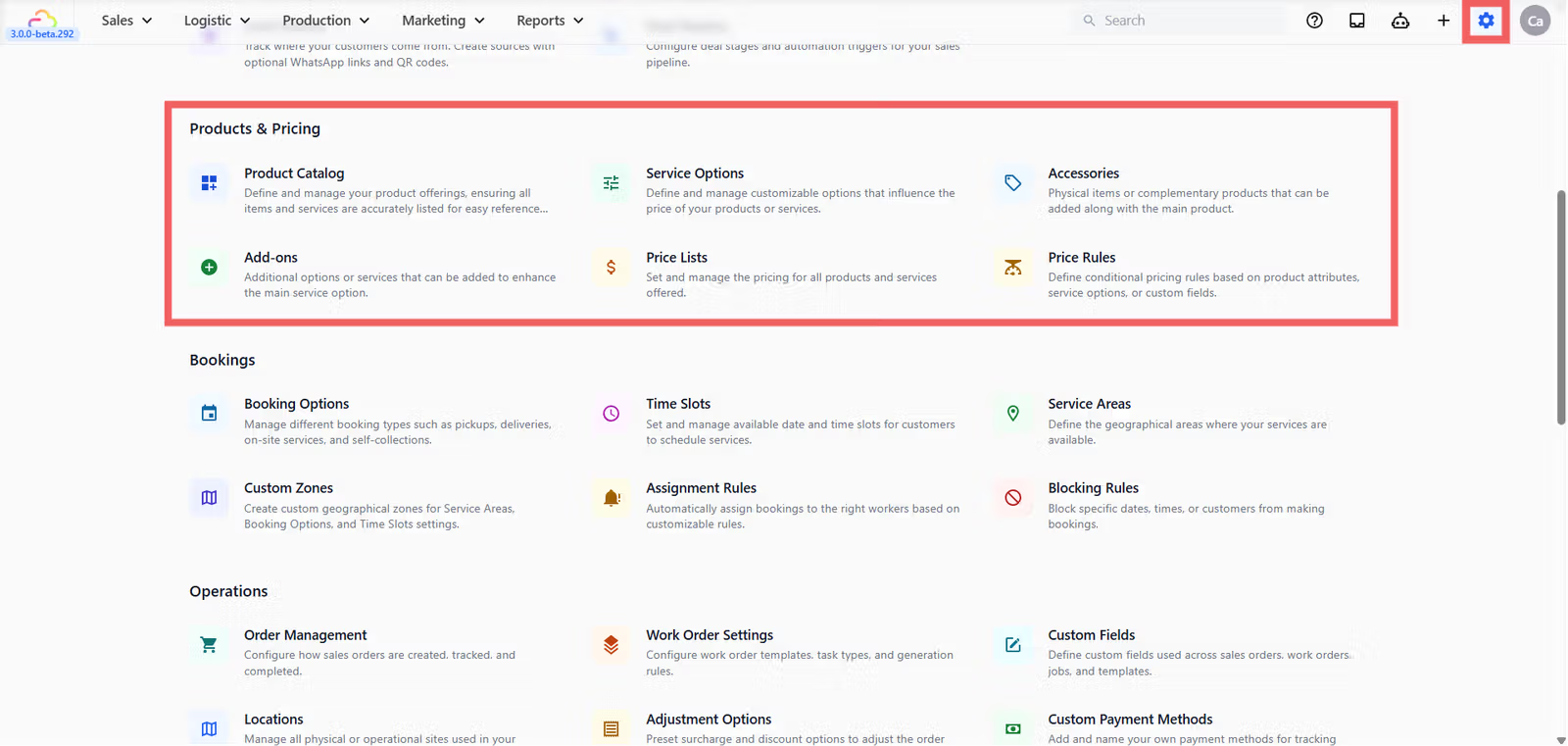
- Click the ⚙️ Settings icon in the top-right corner.
- Scroll down to the Products & Pricing section.
How Everything Connects
Your prices flow through your business in this order: a Price List is published to a Sales Channel (POS Location or Online Store), which is read by a Business Unit's catalog setup, which feeds the POS Catalog block, which is what your staff sees at the counter.
If a price is missing or wrong at the counter, the issue is somewhere along this chain. See Setting Up Your Business Unit and Create Your POS App for the surrounding setup.
FAQs
Do I need to finish everything before taking orders?
No. The minimum is one Service Item, one Service Option, and one published Consumer Price List. Add accessories, add-ons, and retail products only when you actually need them.
What is the difference between a Service Item and a Retail Product?
A Service Item is something customers bring in for your team to work on (a bag for repair, a shirt for laundry). A Retail Product is something your shop sells from stock (a dust bag, leather conditioner). Service Items need a Service Option to calculate the price; Retail Products carry a Unit Price built in.
Where is the price actually set?
In a Consumer Price List. The other modules define what exists; the price list defines how much each thing costs.
Can I have different prices at different shops?
Yes. Create a separate Consumer Price List per shop and publish each one to its own sales channel.
How does Tax work here?
Tax (GST or VAT) is set per price list, not company-wide. When you create a price list, you choose whether prices are tax-inclusive and at what rate. Receipts and customer-facing previews show the tax breakdown automatically.
When should I use Price Rules?
Only when your pricing depends on attributes like fabric, size, or material that change the base price. For most shops, Service Options with sub-options is enough. Price Rules is Coming Soon as a dedicated guide.
What's Next
Continue to [Setting Up Service Items] to create the master list of items your business works on.
Give feedback
Up next
Recurring SchedulerSet up repeat pickup or delivery orders so your regular customers do not need to book again every week or month.
Read more