
Bag Service Home Pickup Booking via WhatsApp
In this article
This guide will show you how to set up a Home Pickup Booking Flow for your Bag Service business so your customers can book directly inside WhatsApp.
Contents
Contents
Why use a Mini App for Bag Service Pickups?
- Zero Friction: Customers don't need to download an app or remember a password to book a bag service pickup. They just tap and book straight from WhatsApp.
- Convert Leads Faster: New customers are added to your database automatically. No more manually copying names and numbers from WhatsApp chats into your system.
- Know the Job Early: You will see exactly what issue the customer's bag has — whether it is stain marks, colour fading, mold, or a broken zipper — as soon as the booking comes in. This helps your team assess the job and prepare the right materials before the bag even arrives at your workshop.
- All-in-One Tracking: Every booking made via WhatsApp automatically appears as a New Sales Order in your dashboard, so nothing falls through the cracks.
Create a new Mini App
To start creating your bag service booking process, you will first need to create a new Mini App.
- From the top navigation bar, click the Settings. Under Sales Channels, click WhatsApp.
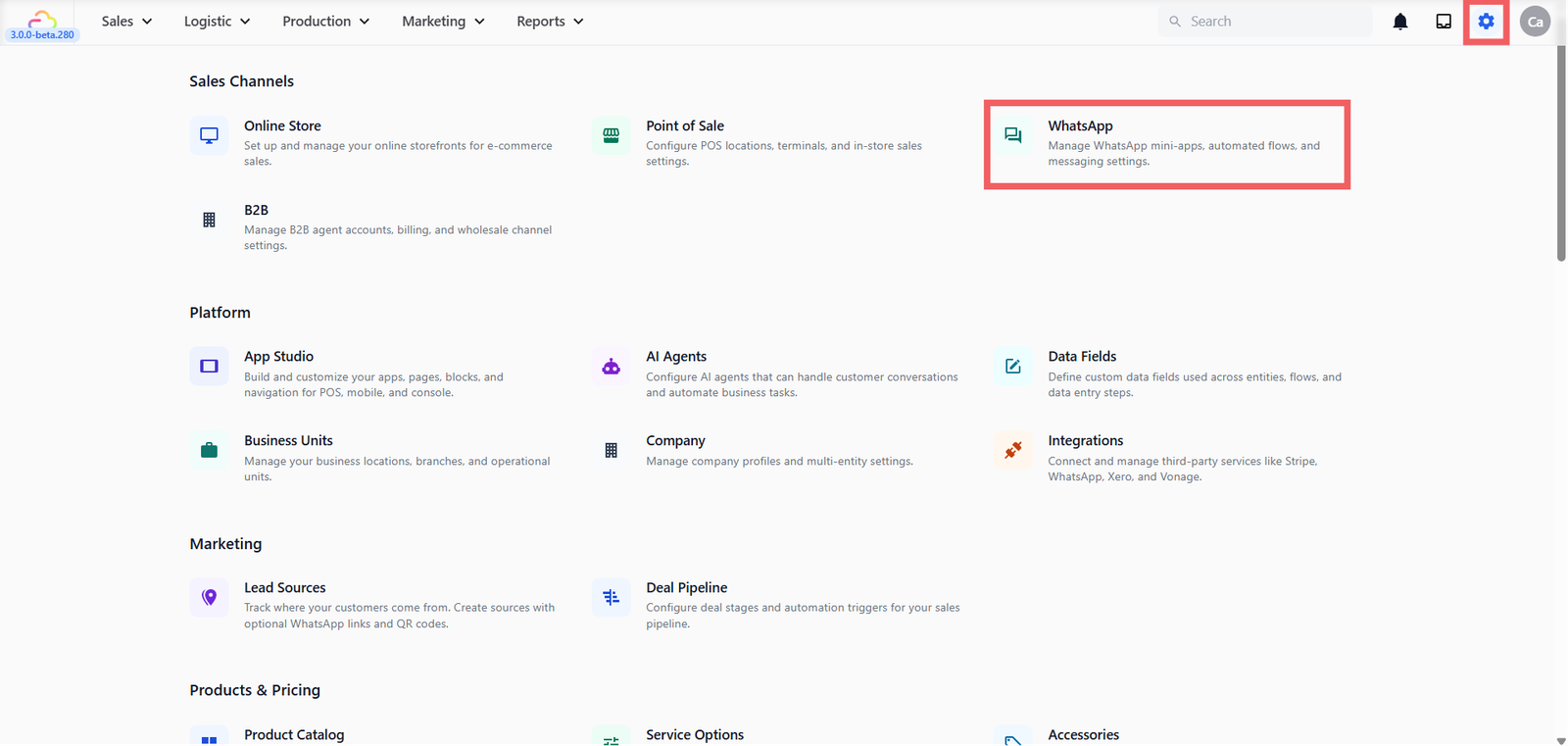
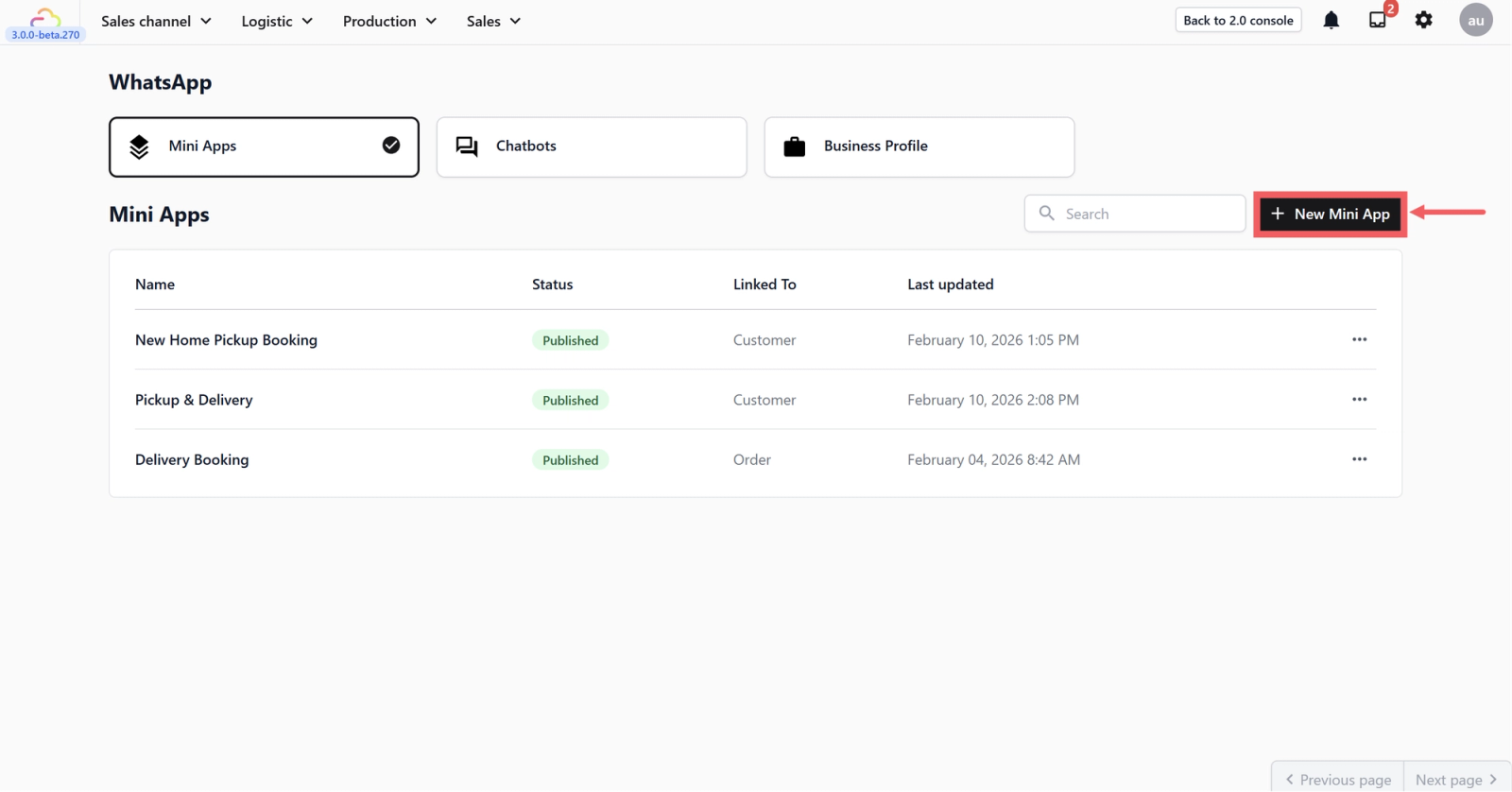
- In the WhatsApp page, you should land on the Mini Apps tab. Click on the + New Mini App button.
- A pop-up window will appear. Fill in the following:
- Name: Give your app a clear name that reflects the booking purpose (e.g., “Home Pickup Bag Service Booking” or “Bag Pickup Request”).
- Linked To: From the dropdown, select Customer. This ensures that if a returning customer books another pickup, the system finds their profile automatically. If it is a new customer, the system creates a new profile for them in your database so you don't have to type in their details yourself.
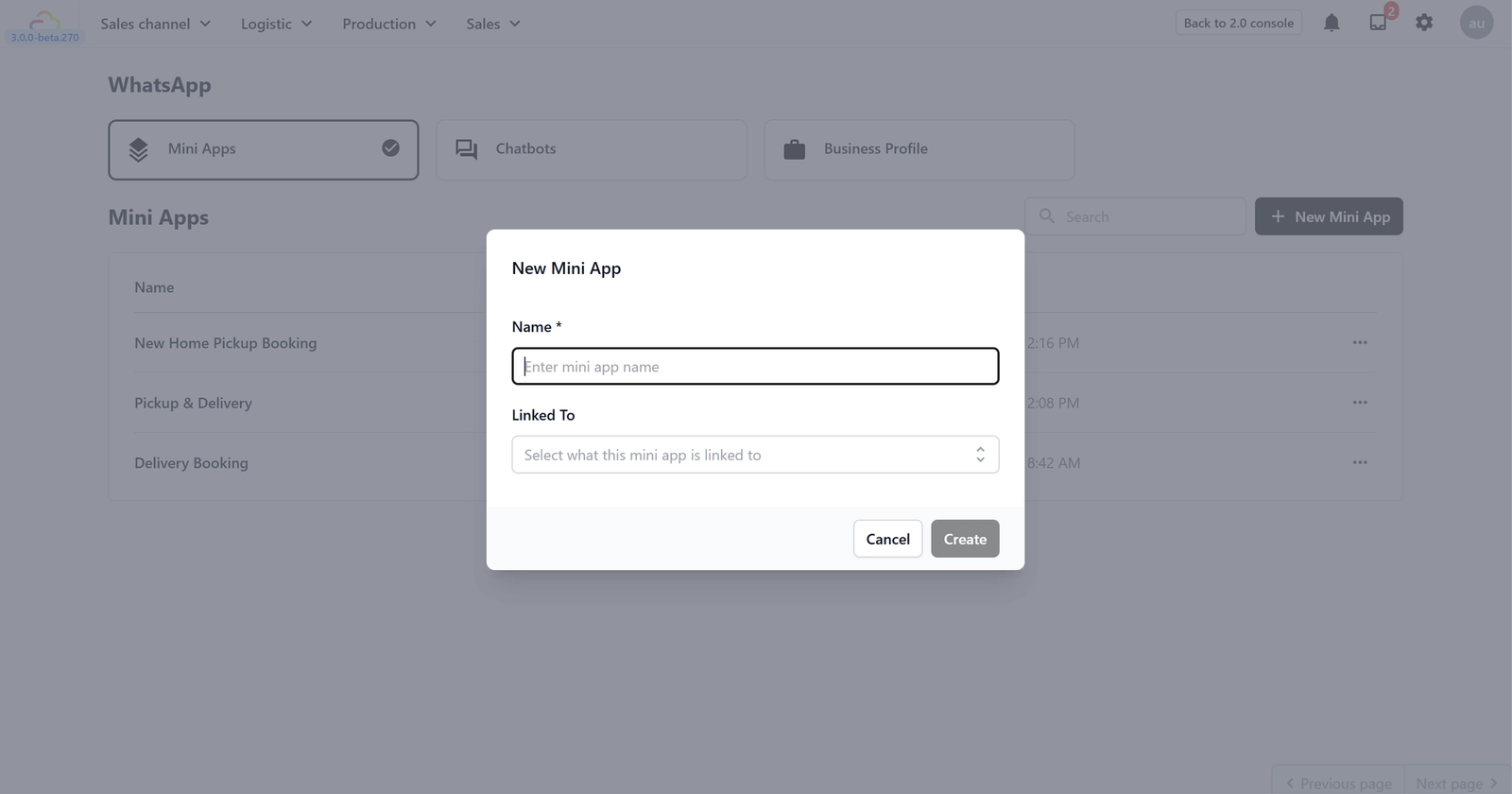
- Click Create. You should now see the newly created Mini App for your Bag Service booking.
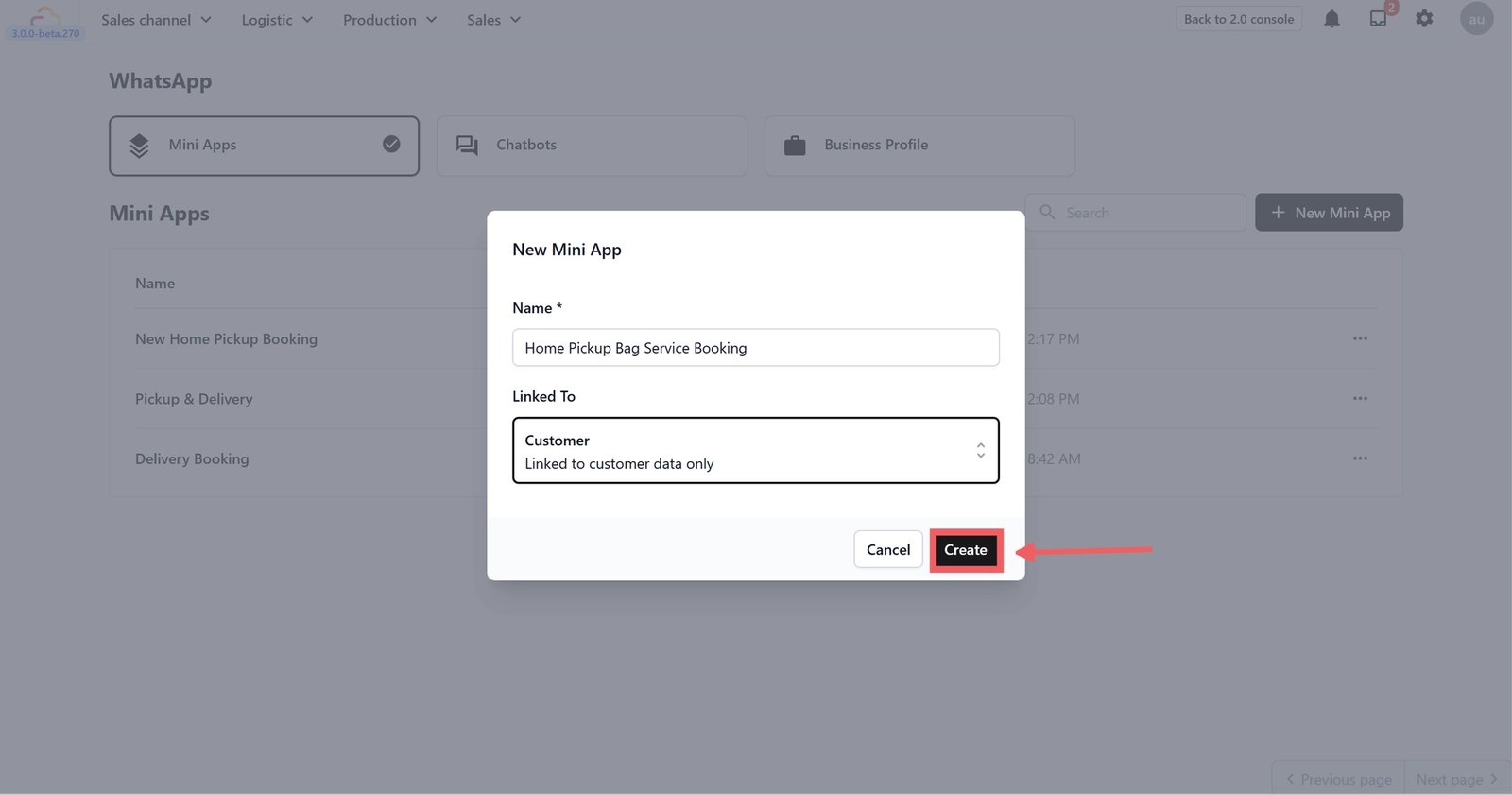
Open the Mini App Editor
Now that you have created a new Mini App, the next thing to do is to build the booking process your customers will follow to schedule a bag service pickup.
Before we start building, here is the flow your customers will follow when they use this Mini App: Contact → Address → Pickup Quantity → Bag Issue → Date & Time.
- Click on the three dots (•••) on the right of the Mini App you just created and select Edit.
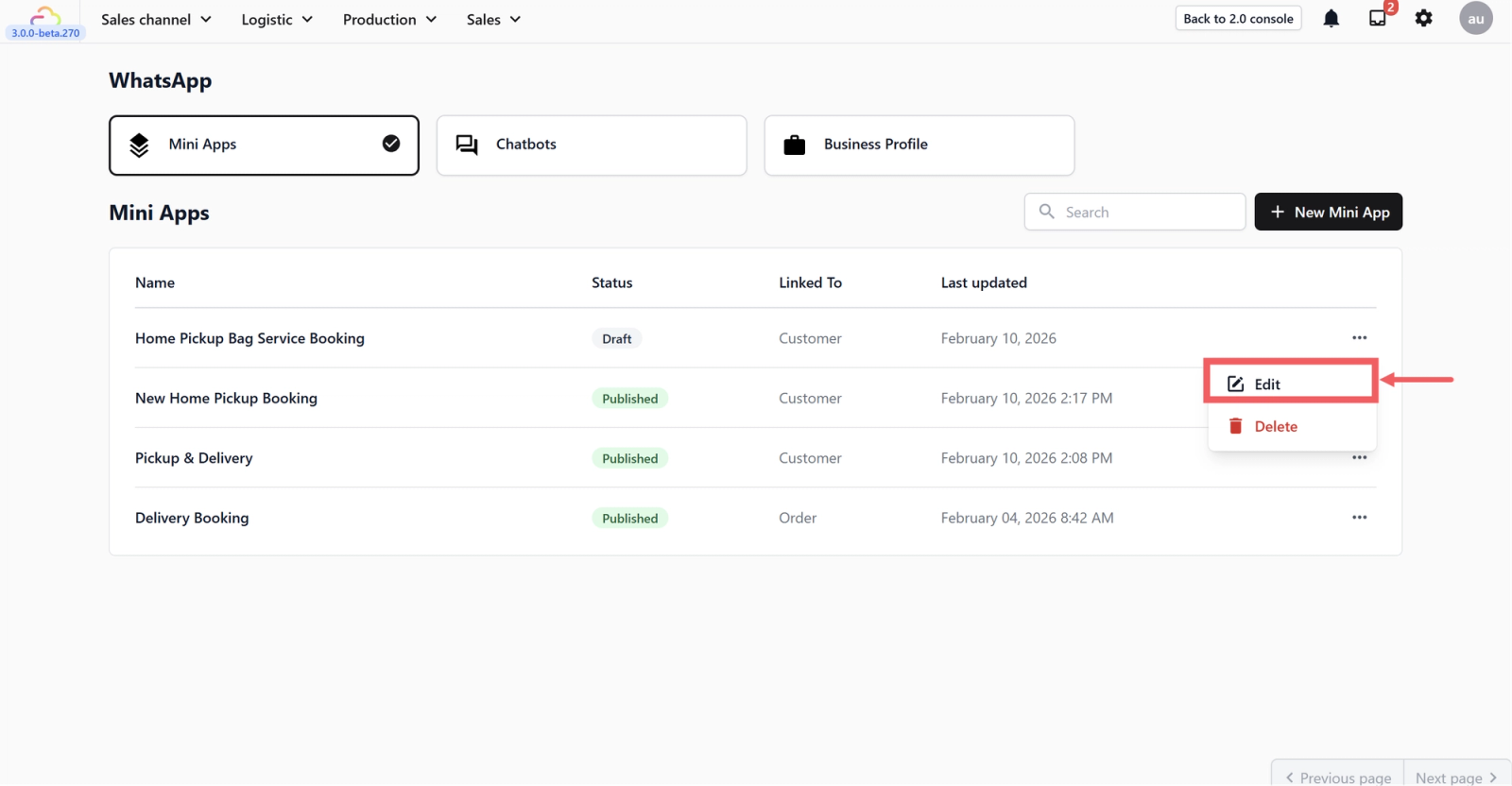
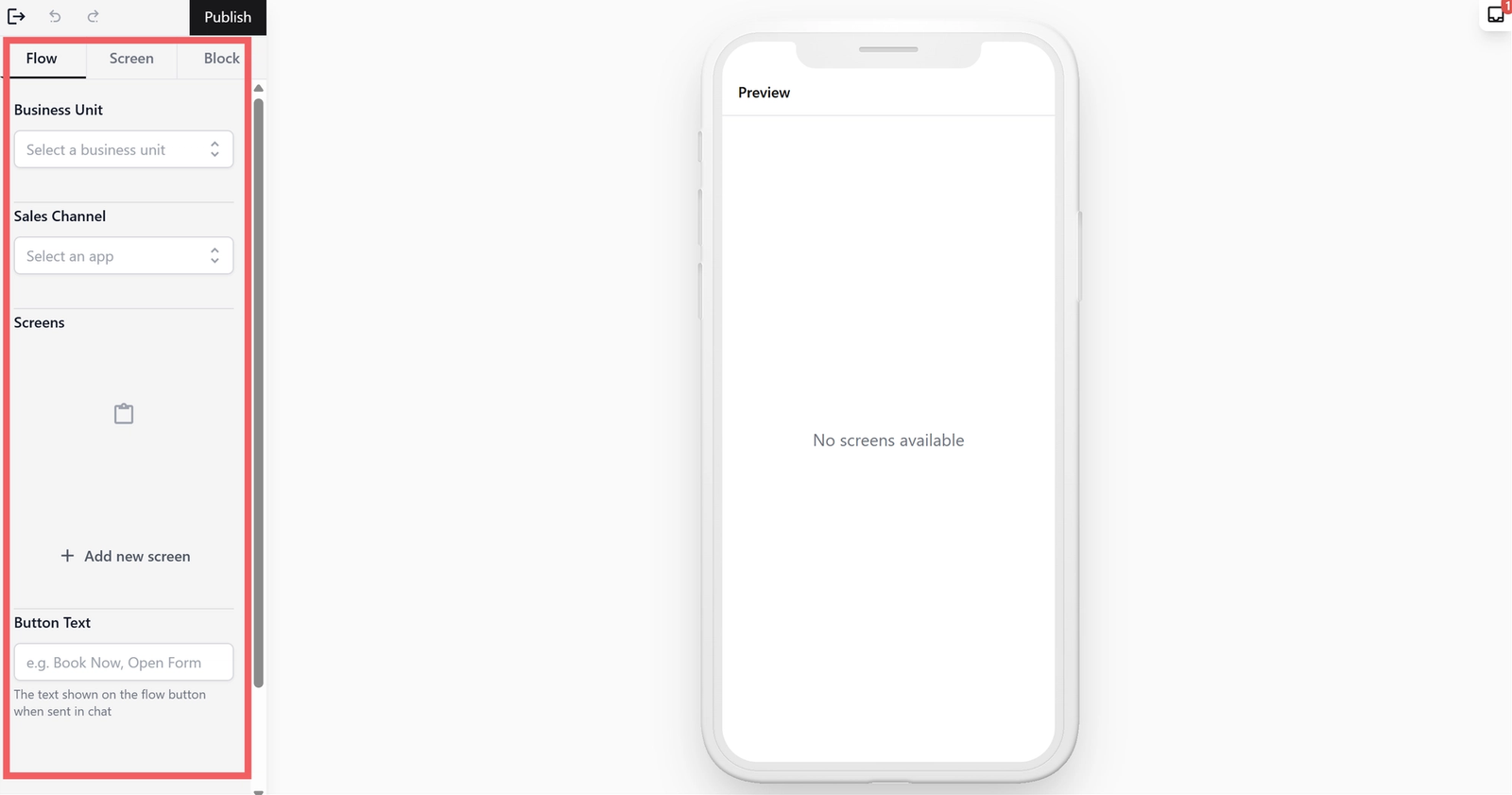
You will see two sides to the screen:
- Left Side: This is where you add contents to the form.
- Right Side: This is a Live Preview. It shows you exactly what the form looks like on a customer's phone.
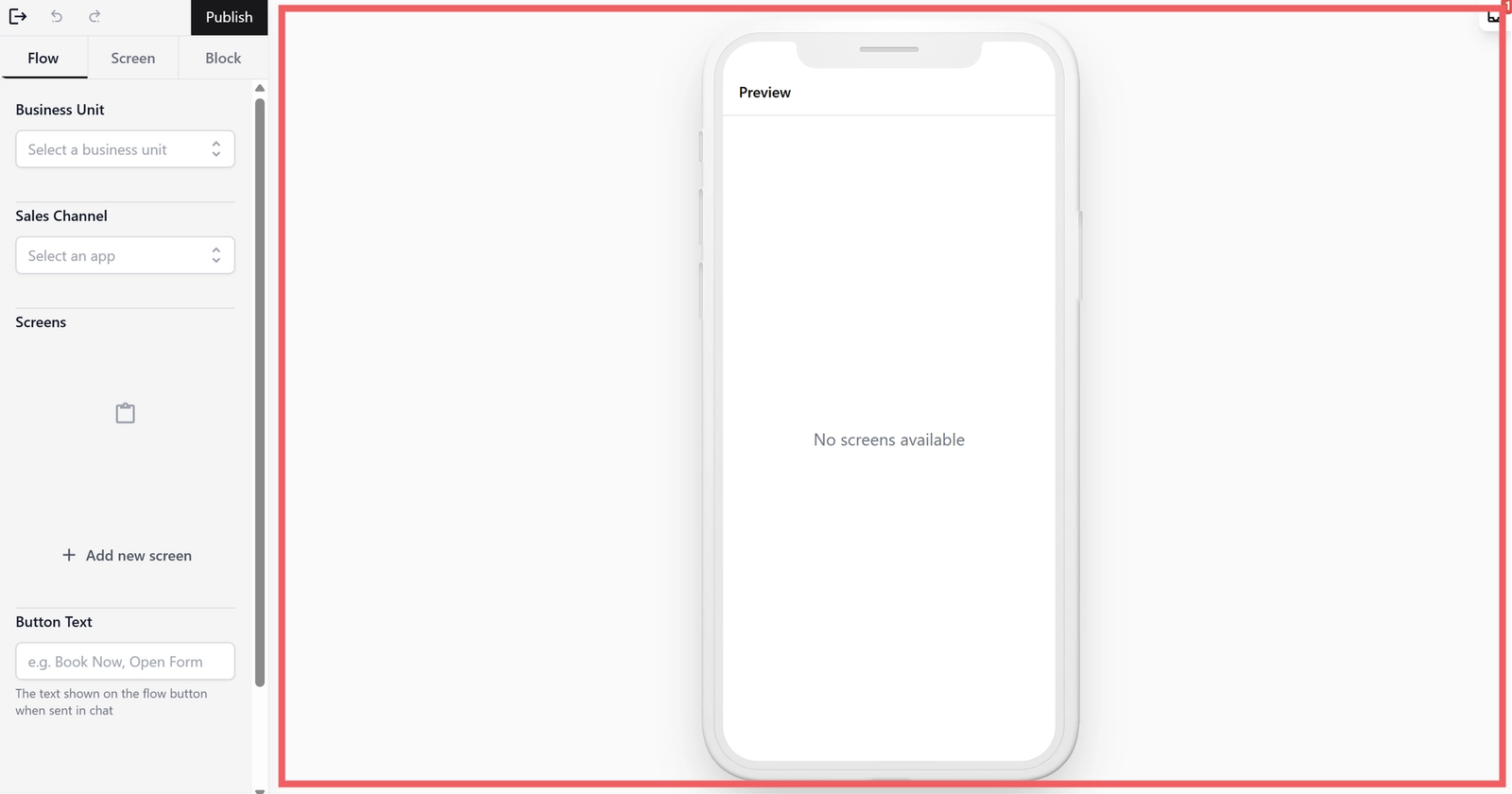
Link Your Shop and Name Your WhatsApp Button
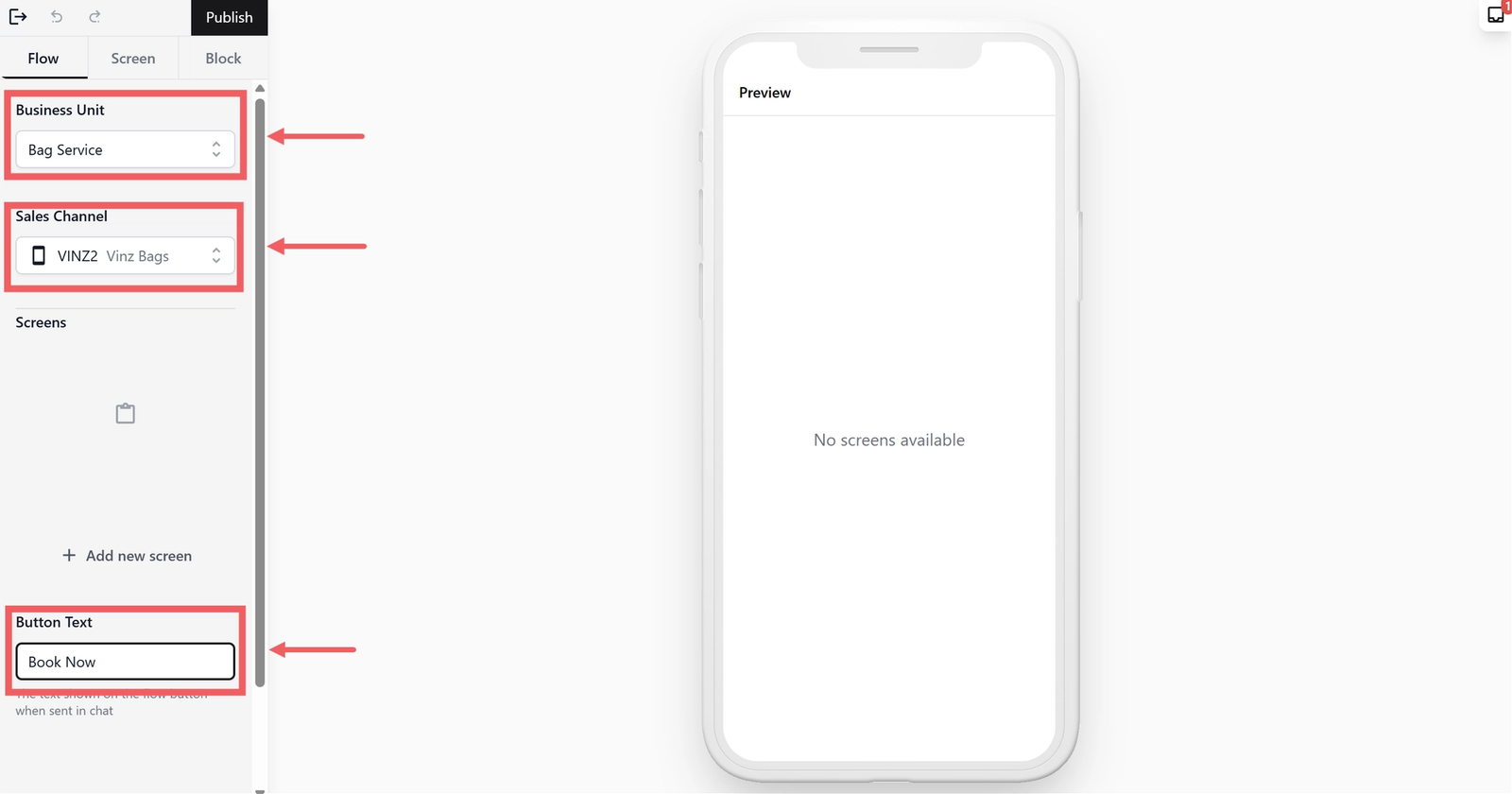
In this step, you will be working in the Flow Tab on the left side of your screen. This tab is where you set the link between your Mini App and the branch that receives the bag service orders. You can also name the button of this mini app here, so your customers know what this button links to.
- Business Unit: Select from the dropdown the business unit that will receive these bag service bookings. If your company runs multiple services, make sure you pick the one that handles bag care so orders go to the right team.
- Sales Channel: Select your Online Store. This ensures that if a customer visits your online store later, they can see a record of the bag service booking they made on WhatsApp.
- Button Text: Enter the text you want the customer to see on the WhatsApp button (e.g., "Book Now" or "Schedule Pickup").
- Note: This is the text shown on the button in the chat. Keep it short and action-oriented so customers know exactly what happens when they tap it.
Create your Screens
First, we will create all the pages (screens) needed for your booking form. Think of these as the steps your customer will take. You can choose to create all of them or skip the optional one if it doesn't fit your business.
The 5 screens we will build are:
- Contact: To get the customer's name and phone number.
- Address: To know where to go for the bag service pickup.
- Pickup Quantity: To let the customer tell you how many bags they are sending in. This helps your pickup team know what to expect and bring enough packaging or protective materials.
- Bag Issue: To let the customer describe the problem with their bag (e.g., Stain marks, Colour fading, Mold, Broken zipper). This helps your team assess the job before the bag arrives at your workshop.
- Date & Time: To let the customer pick their preferred pickup schedule.
How to create them:
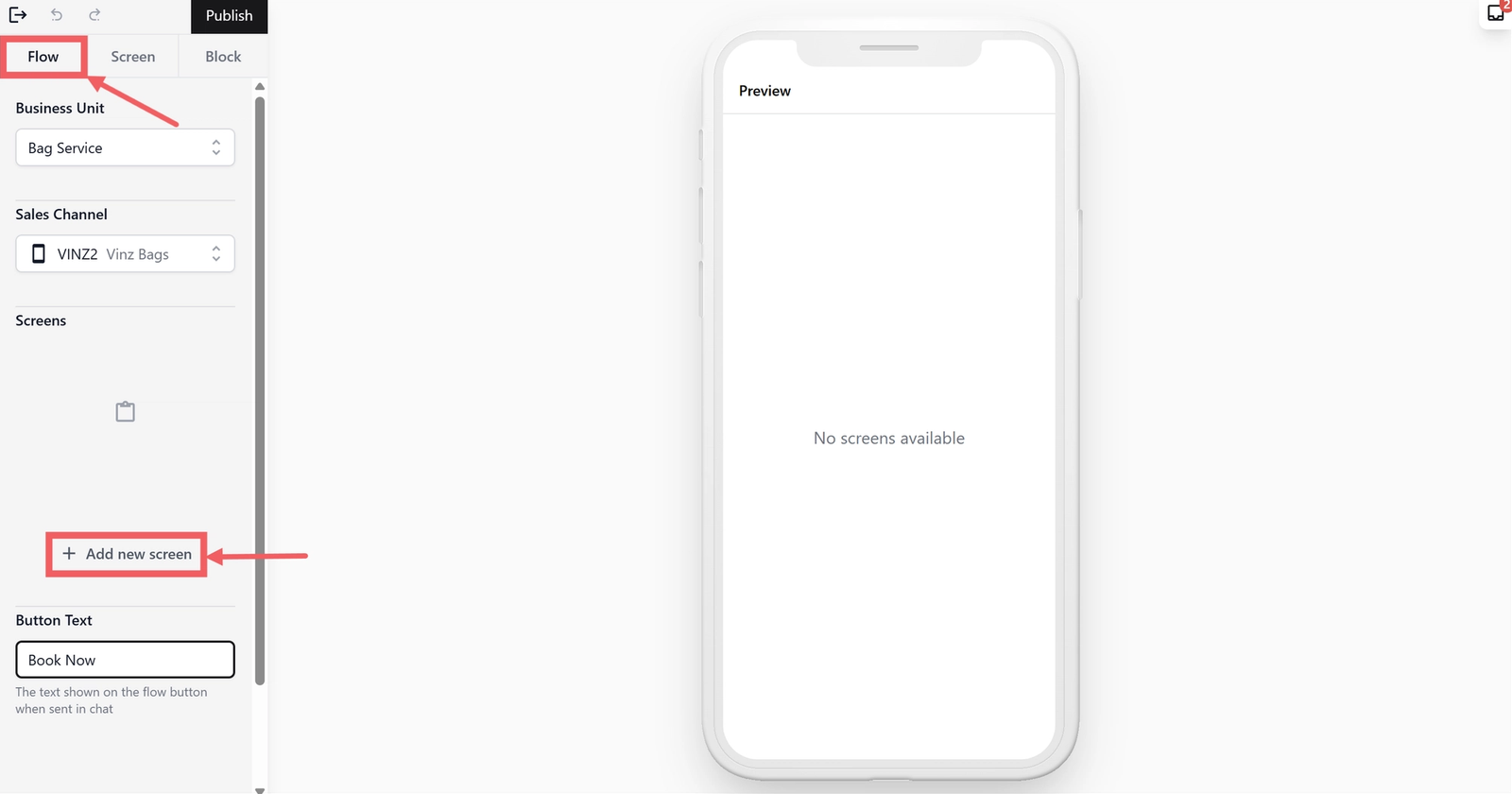
- To make a new screen, click on the Flow Tab and click the + Add New Screen button.
- A pop-up window will appear. Fill in the following:
- Screen Title: Type the name of your first screen (e.g., "Contact").This name appears at the top of the form for the customer.
- Layout Type: Leave this as Default.

- Click Add. You should now see an empty form in the preview with your Screen Title at the top.
- Repeat this process for each screen you want to use.
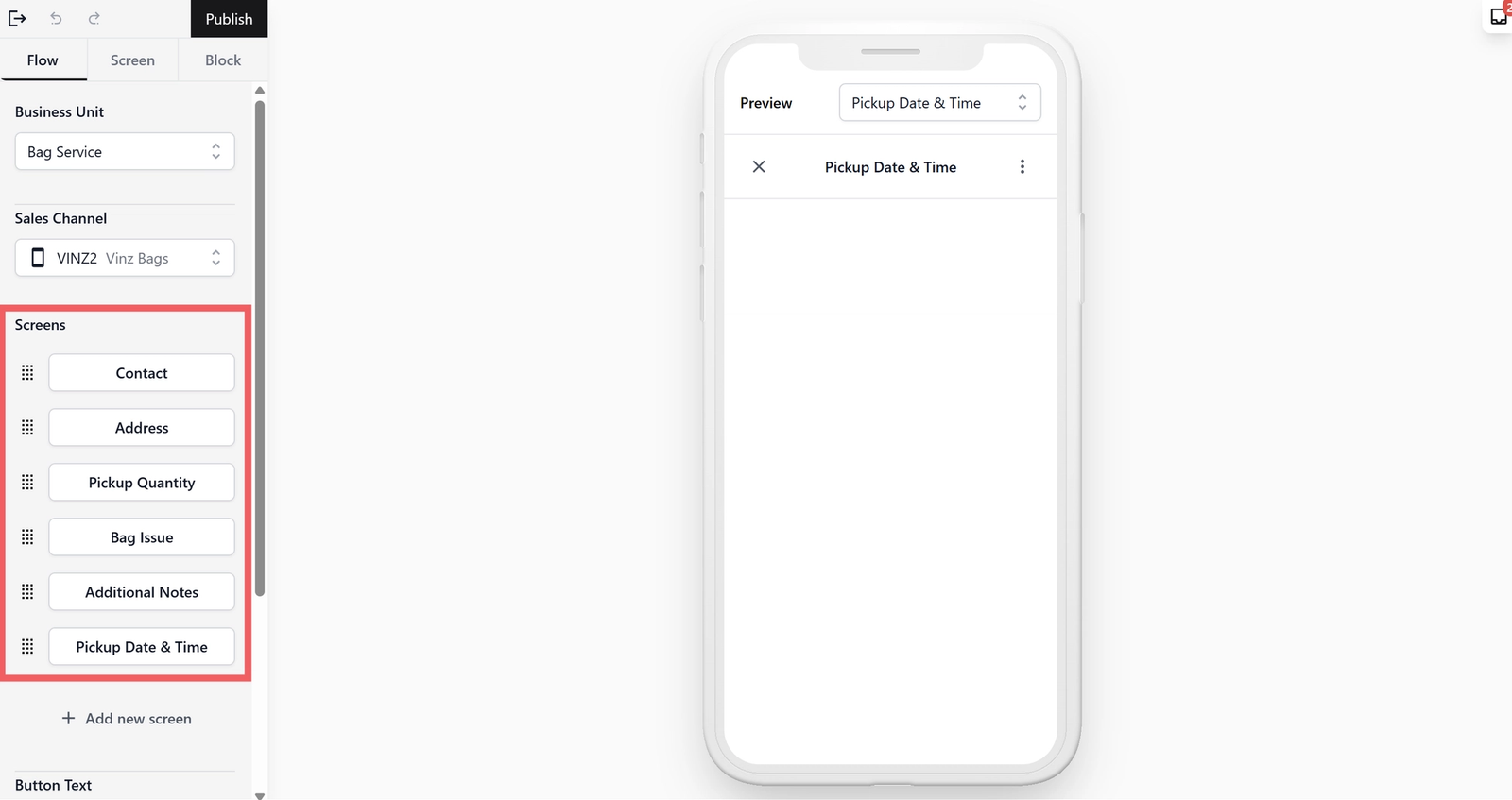
- You can now see all your screens listed in the Flow Tab. If you accidentally added a screen in the wrong order, you don't need to delete it. You can simply drag and drop them to change the order your customer sees.
Setup the Contact Screen
This screen collects the customer's basic information so you know who is requesting the bag service pickup.
Add Information Fields
We will now add the necessary blocks to capture the customer's identity.
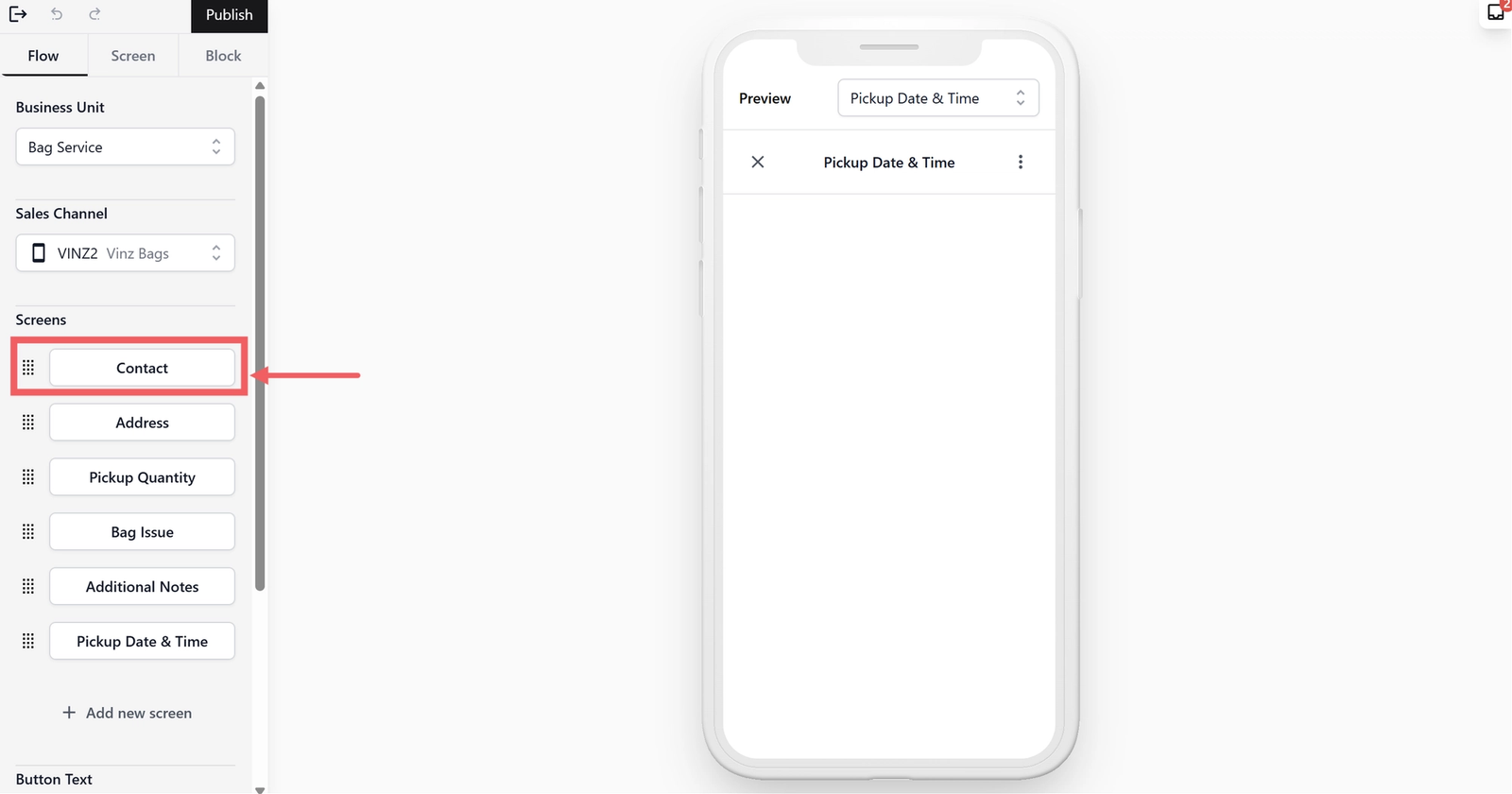
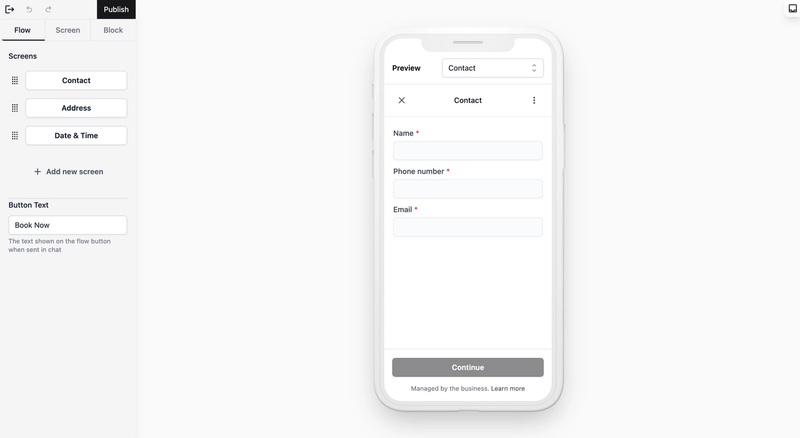
- From the Flow Tab, click on the Contact Screen to start adding the contact information fields required.
- In the Screen Tab, click + Add Block and select Text Input.
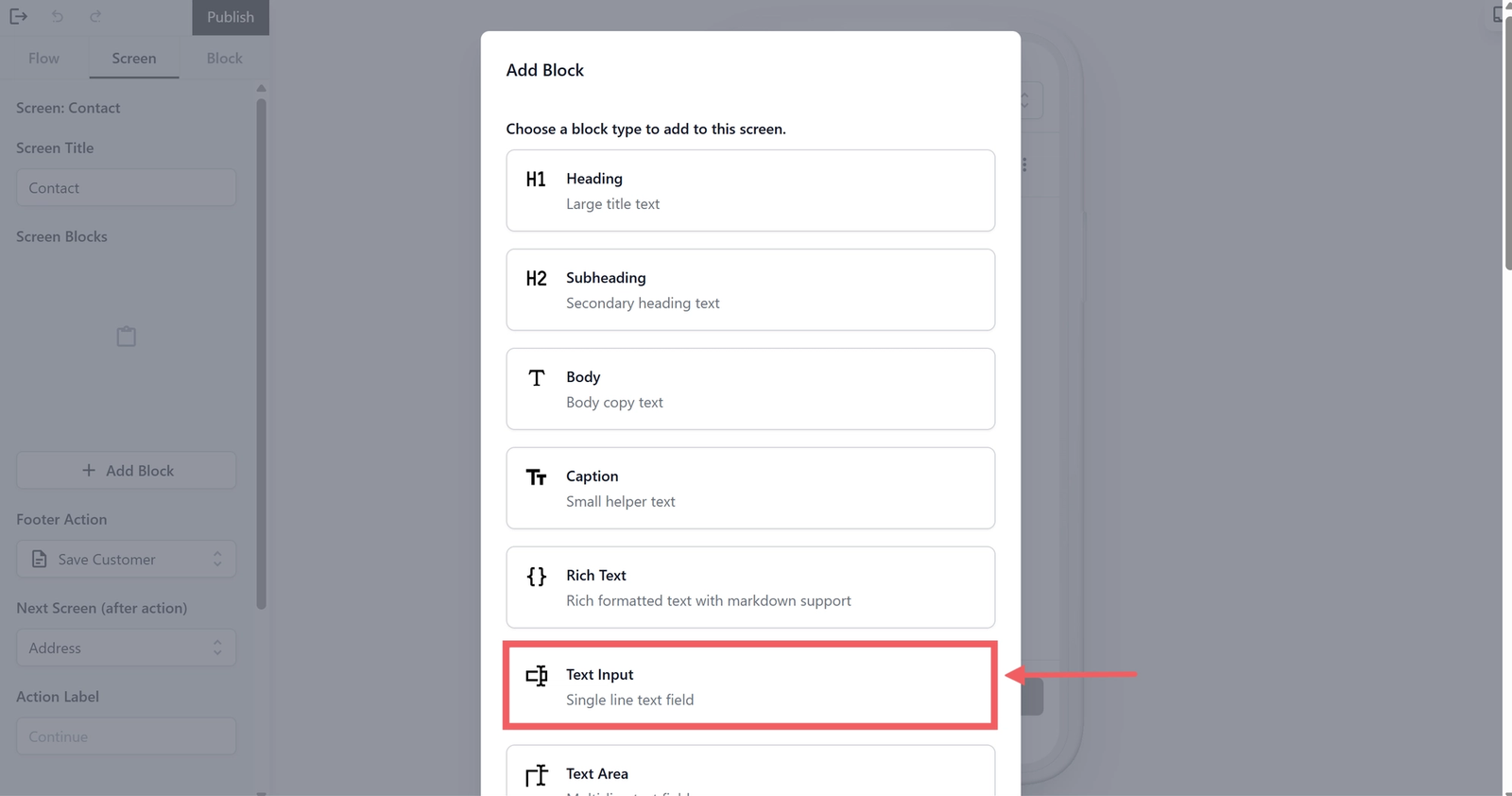
- Once selected, the view on the left changes to the Block Tab. This is where you set up the field and set rules to it. Fill in the settings for the Name field as follows:
- Input Data Field: From the dropdown list, select Customer Name. This tells the system to sync the customer with your database.
- Label: By default, the label name follows the Input Data Field name. Rename this to something clear for your customers, such as "Full Name" or "Name."
- Required: Select Required. A red asterisk (*) will appear, showing it is a must-fill field.

- To add a new field, head back to the Screen Tab and click on + Add Block.
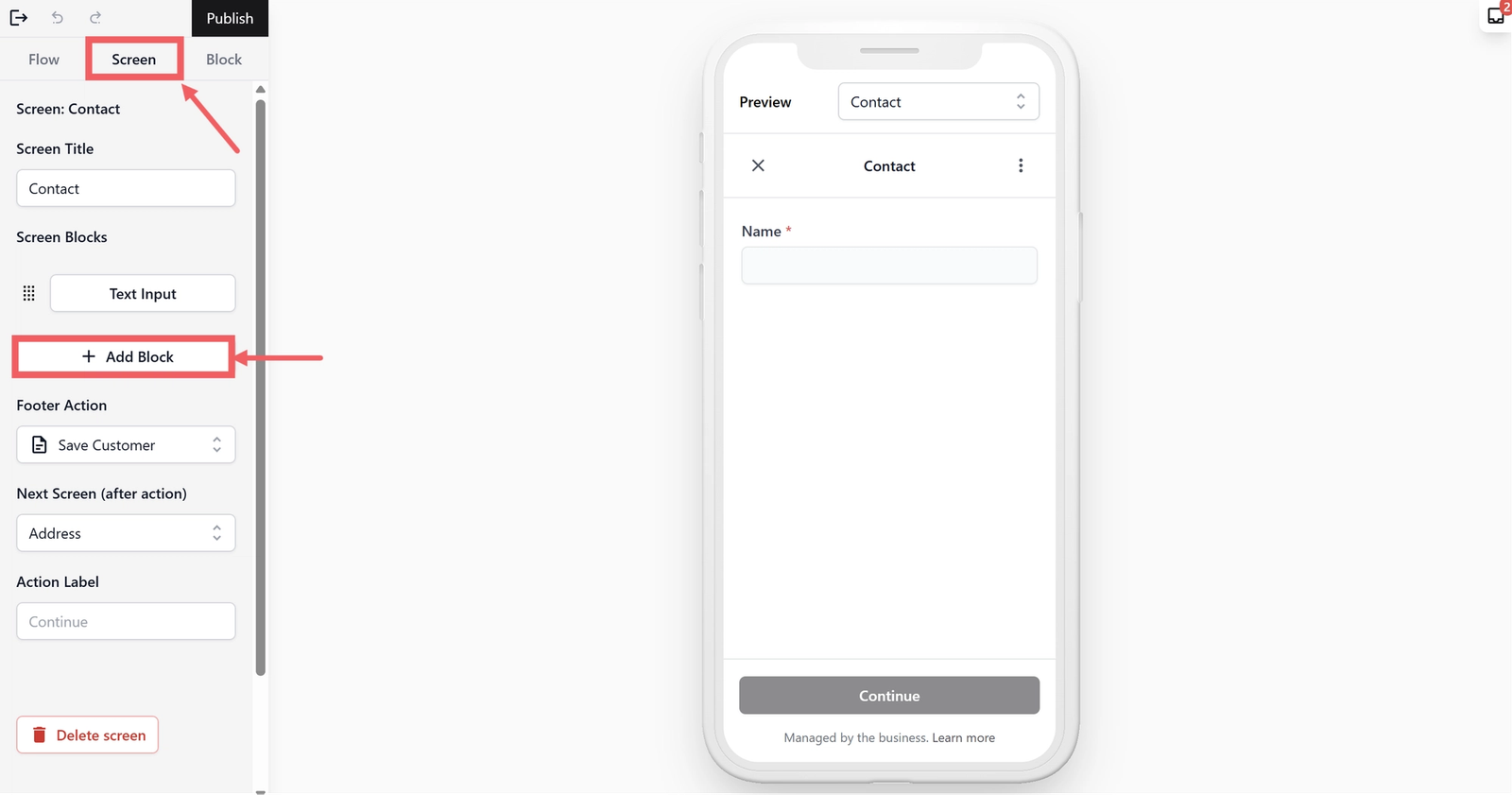
Repeat the same steps for the Phone number and Email fields:
- Select Text Input.
- Notice the view switch to the Block Tab again.
- Set the Input Data Field to Customer phone number (for Phone number field) and Customer email (for Email field).
- Update the Label to a something clear such as "Phone number" and "Email" so customers know exactly what to fill in.
- Set the Required field to Always Required.
- Refer to the video below to see a demonstration of how to add these fields for your reference.
Configure the Progress Button
You may notice that there is currently no button for the customer to click to go to the next page. We need to add a Footer Action to link this screen to the next one.
Under the Screen Tab, do the following:
- Footer Action: Select Save Customer. This ensures that all the info you just collected (Name, Phone number, Email) is saved to your customer database. This means that the next time this customer books a bag service pickup, their details are already filled in.
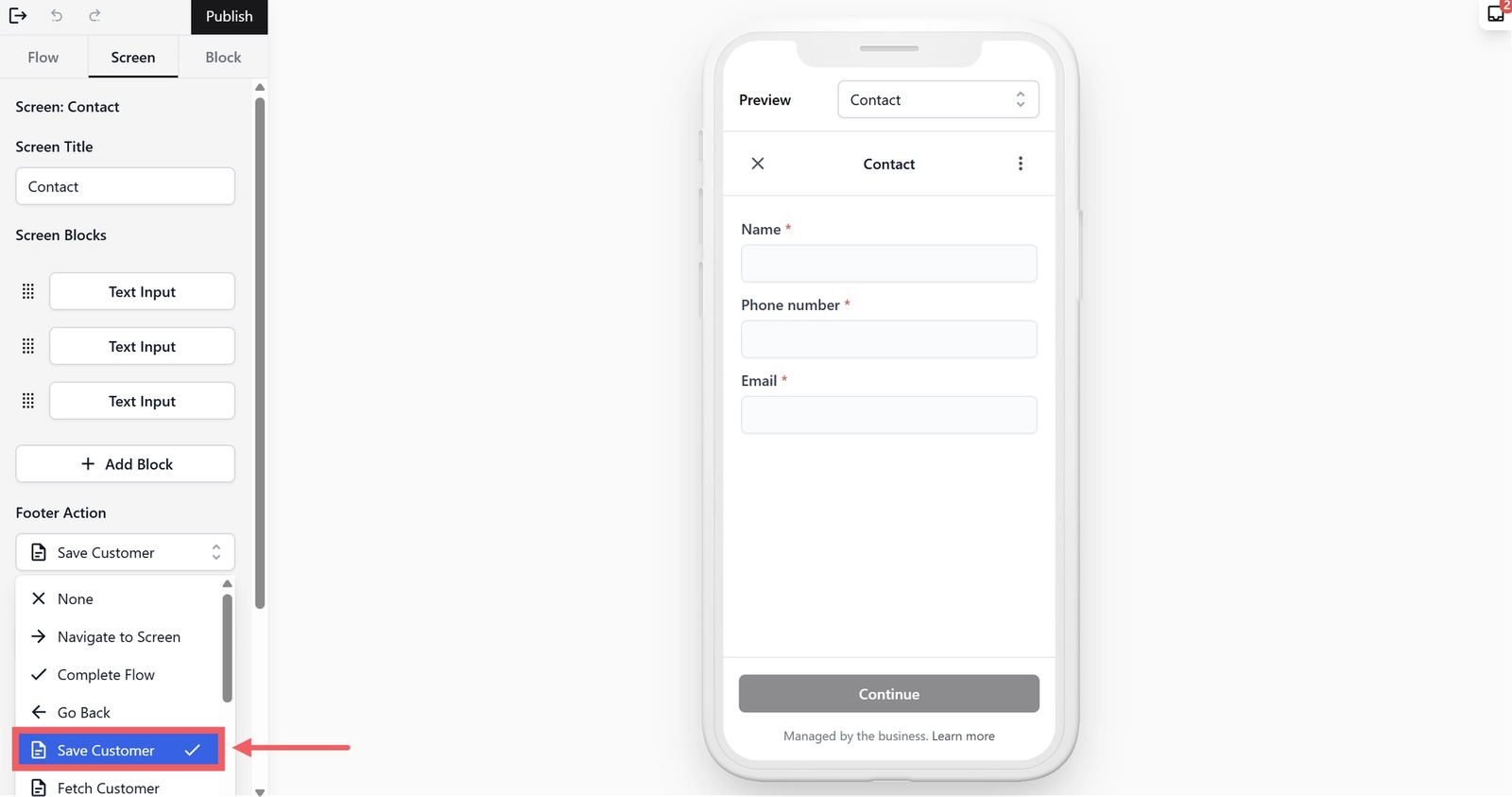
- Next Screen: Leave this as it is. The system automatically knows to go to the next screen you created.
- Action Label: The name of the button that leads to the next page. Leave as default to show "Continue" for your customers or give it a meaningful name.
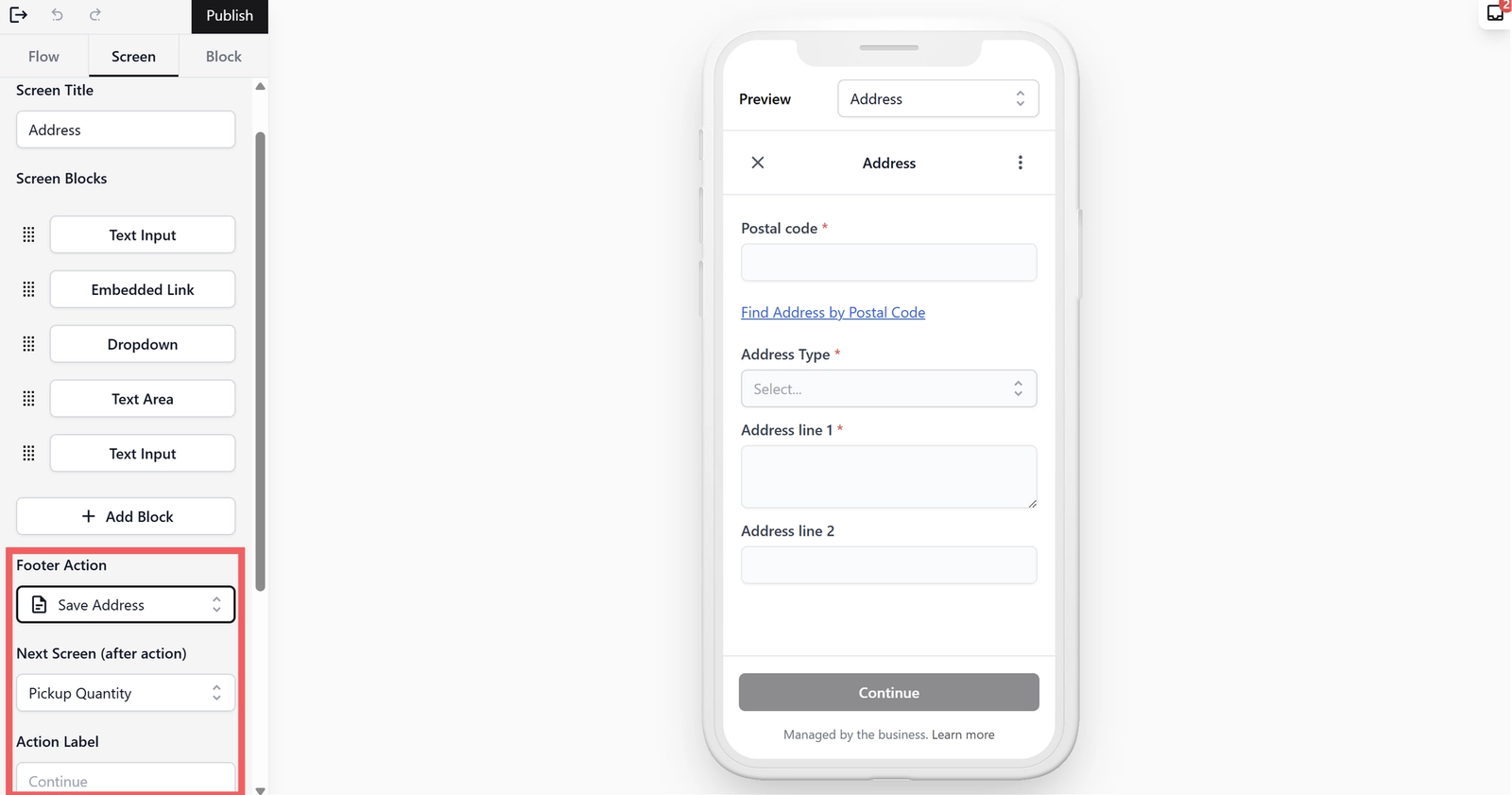
Setup the Address Screen
Now we will configure where the customer wants their bag picked up. Getting the address right is essential for your logistics team to plan efficient pickup routes.
Add Information Fields
We will add a mix of input fields and smart links to make entering a pickup address easy for your customers.
- From the Flow Tab, select your Address Screen.
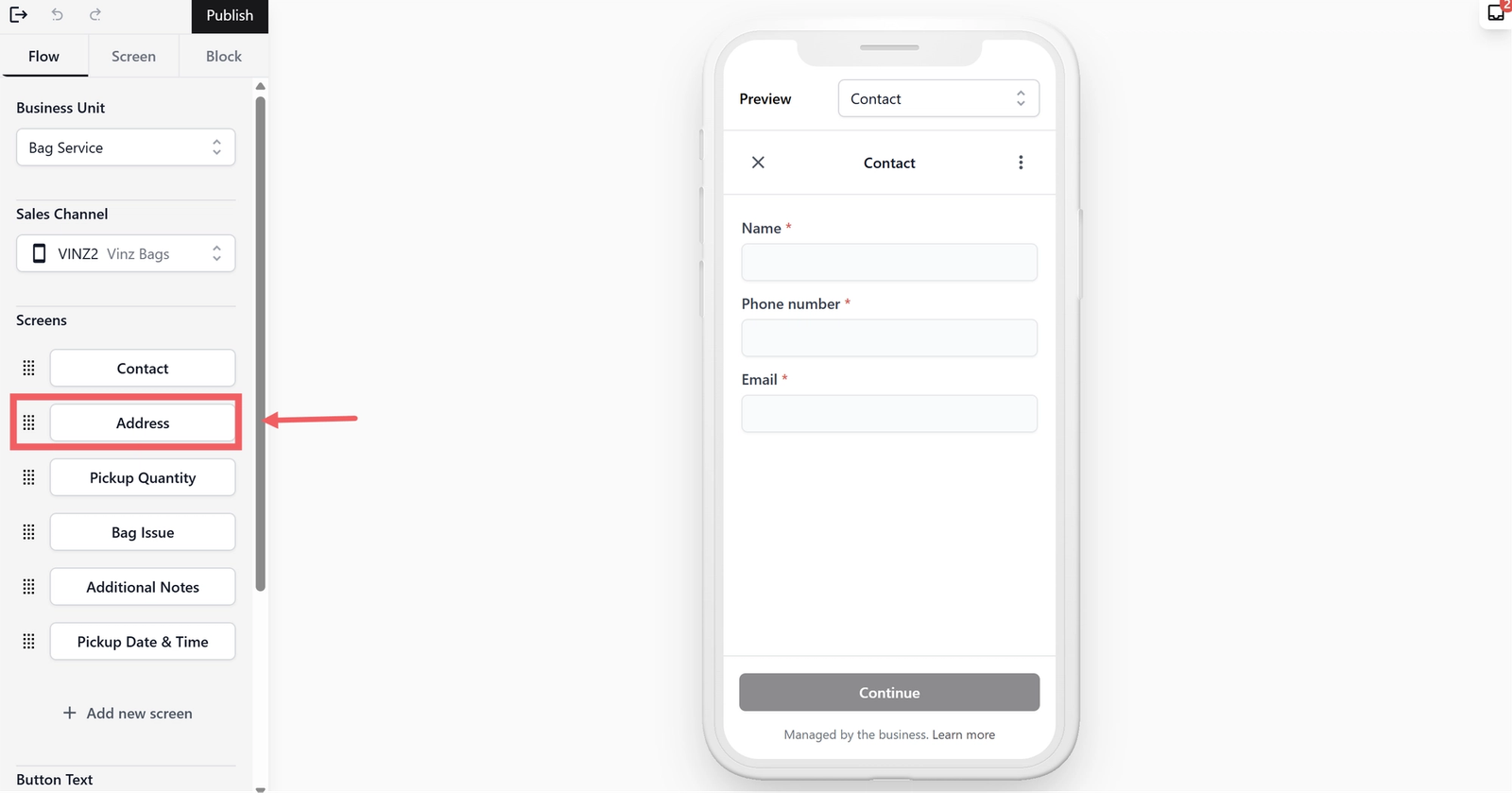
Postal Code: We use this to store the pickup location in the database so returning customers don't have to re-type their address every time they book.
- From Screen Tab, click + Add Block → Text Input.
- Input Data Field: Select Address Postal Code.
- Label: Give it a meaningful name like "Postal code" or leave it by default.
- Required: Select Always Required.
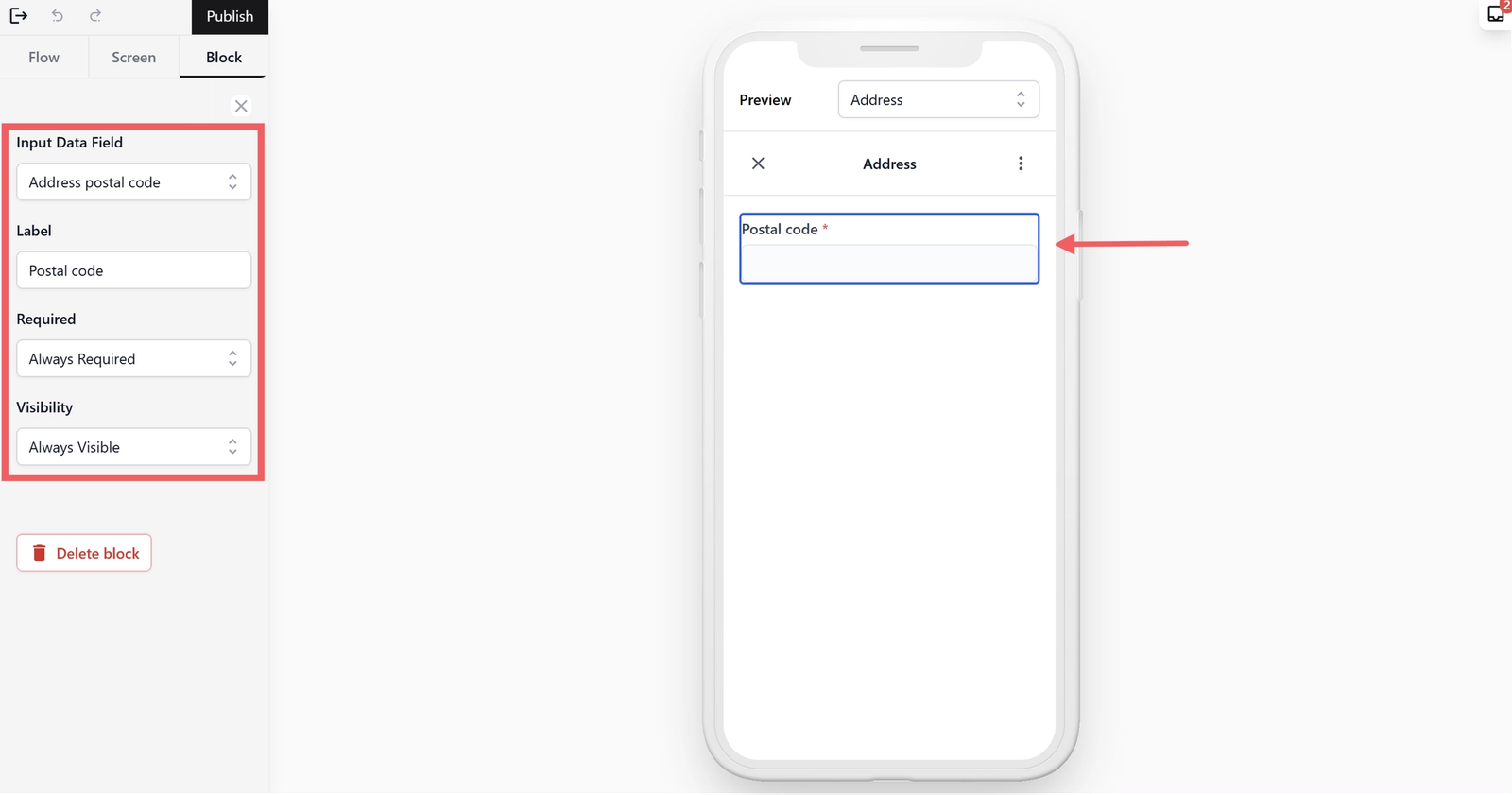
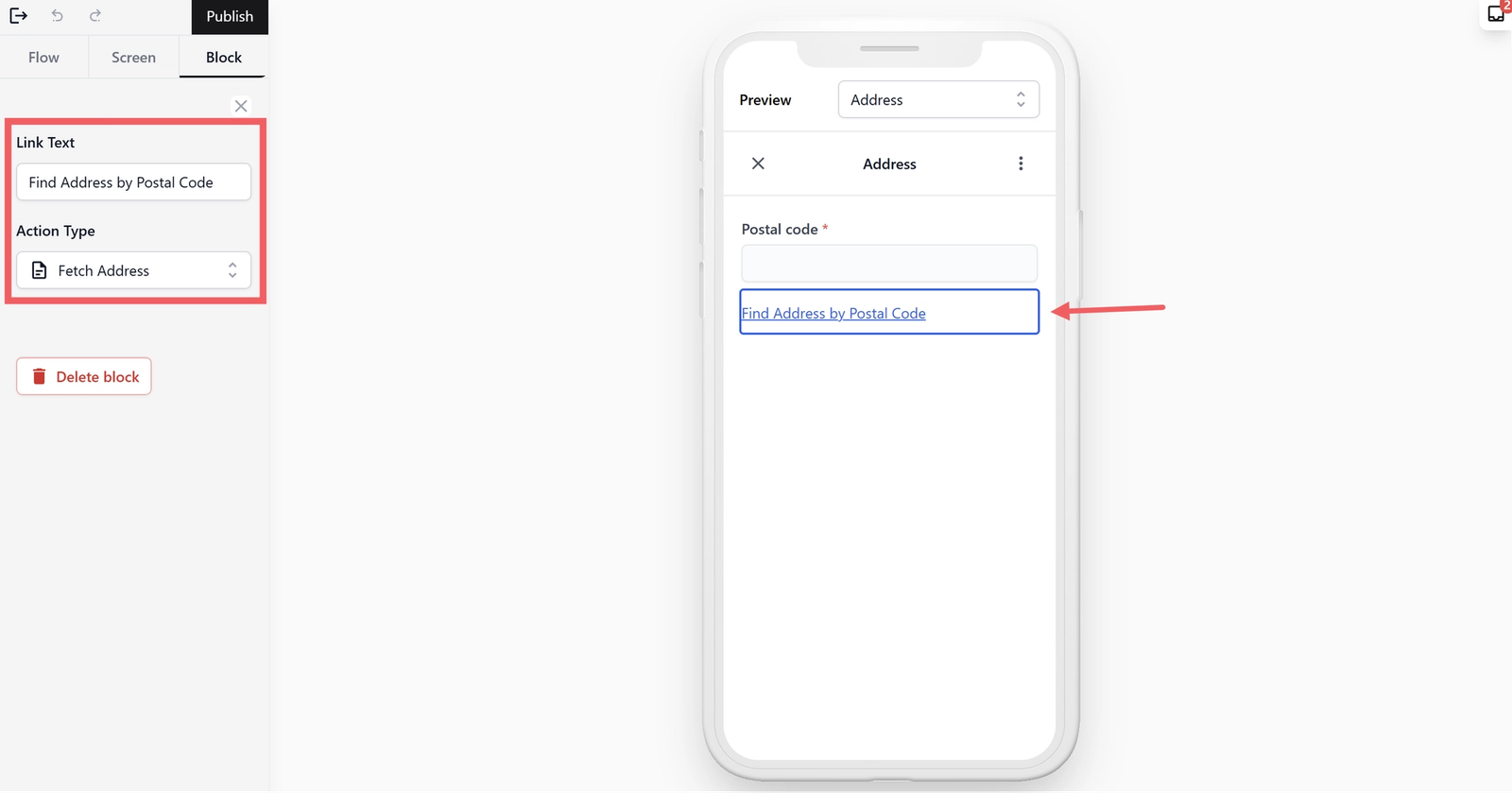
Get Address Link: This allows the customer to simply tap a link to auto-fill their street name from the postal code, which prevents typos and speeds up the booking.
- From Screen Tab, click + Add Block → Embedded Link.
- Link Text: Give it a meaningful name such as "Find address by postal code" or something similar that tells the customer what happens when they tap it.
- Action Type: Select Fetch Address. This pulls the street name based on the postal code entered above.
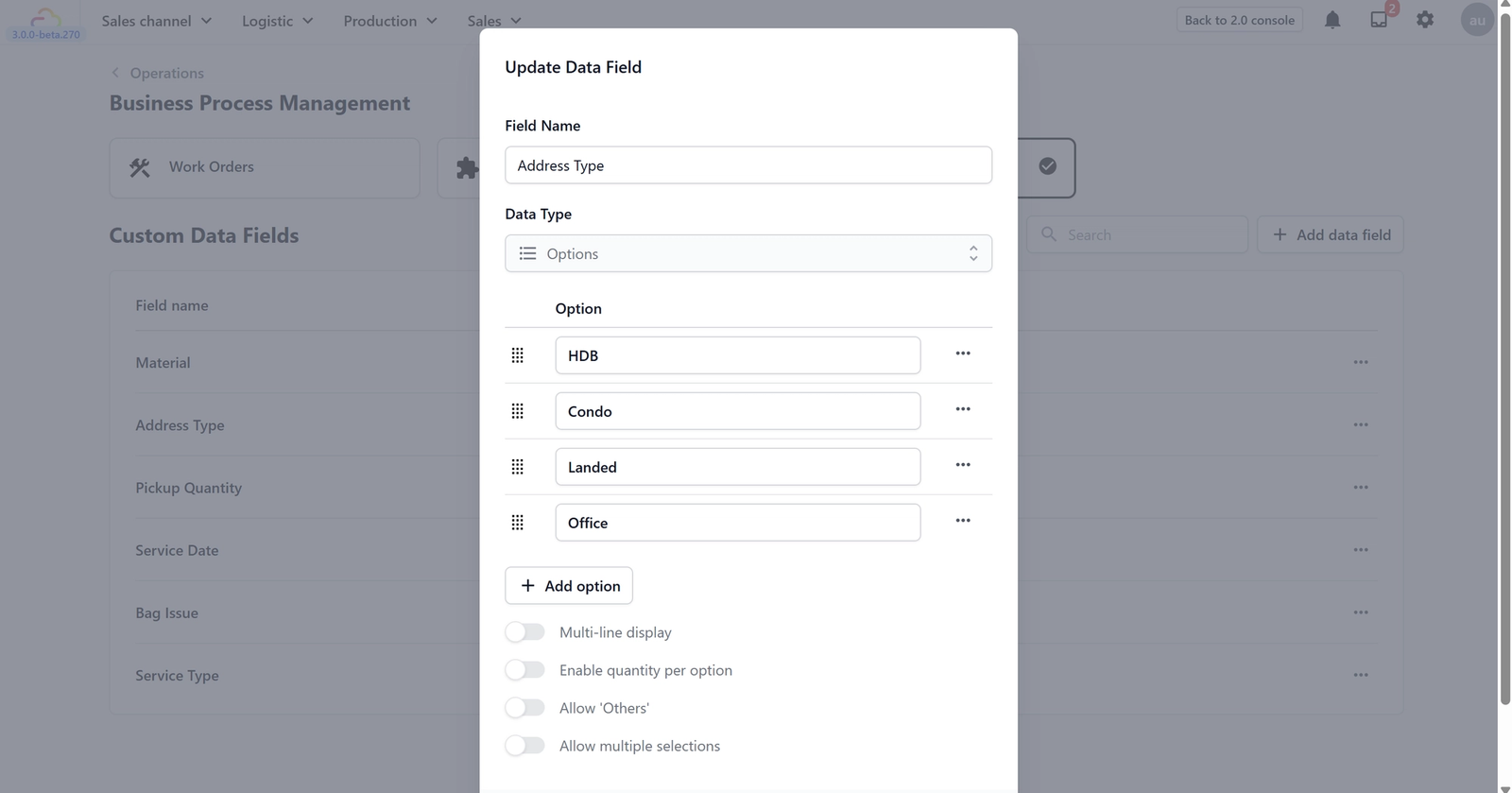
Address Type (Optional): Knowing the building type helps your pickup team know what to expect. Whether they need to clear condo security, find a specific landed house, or head to a particular HDB block. Depending on your country or local operations, Address Types like HDB, Condo, Landed, or Office may be essential for planning your pickup logistics.
- Since this is a custom data field, you will need to set this up first. Head over to Configuring Data Fields to create a new data field. Create a new field called "Address Type" and choose Options as the Data Type. Use the + Add option button to add the options, such as: HDB, Condo, Landed, Office.
- From Screen Tab, click + Add Block → Dropdown.
- Input Data Field: Select the Address Type data field you just created.
- Label: Leave as "Address Type" or a name of your choice.
- Default Value: Set this to your most common type (e.g., "HDB") or leave it blank.
- Required: Select Always Required.
- Visibility: Select Conditional. In the pop-up window, set When to Address geo location. This ensures the field only appears once a valid address is generated from the link. Set Operator to Has Value since we want this field to appear when the system successfully finds the location. Click OK when done.
Address Line 1: This captures the main street and building name generated from the postal code link.
- From Screen Tab, click + Add Block → Text Area.
- Input Data Field: Select Address Line 1.
- Label: Leave as "Address Line 1" or a name of your choice.
- Required: Select Always Required.

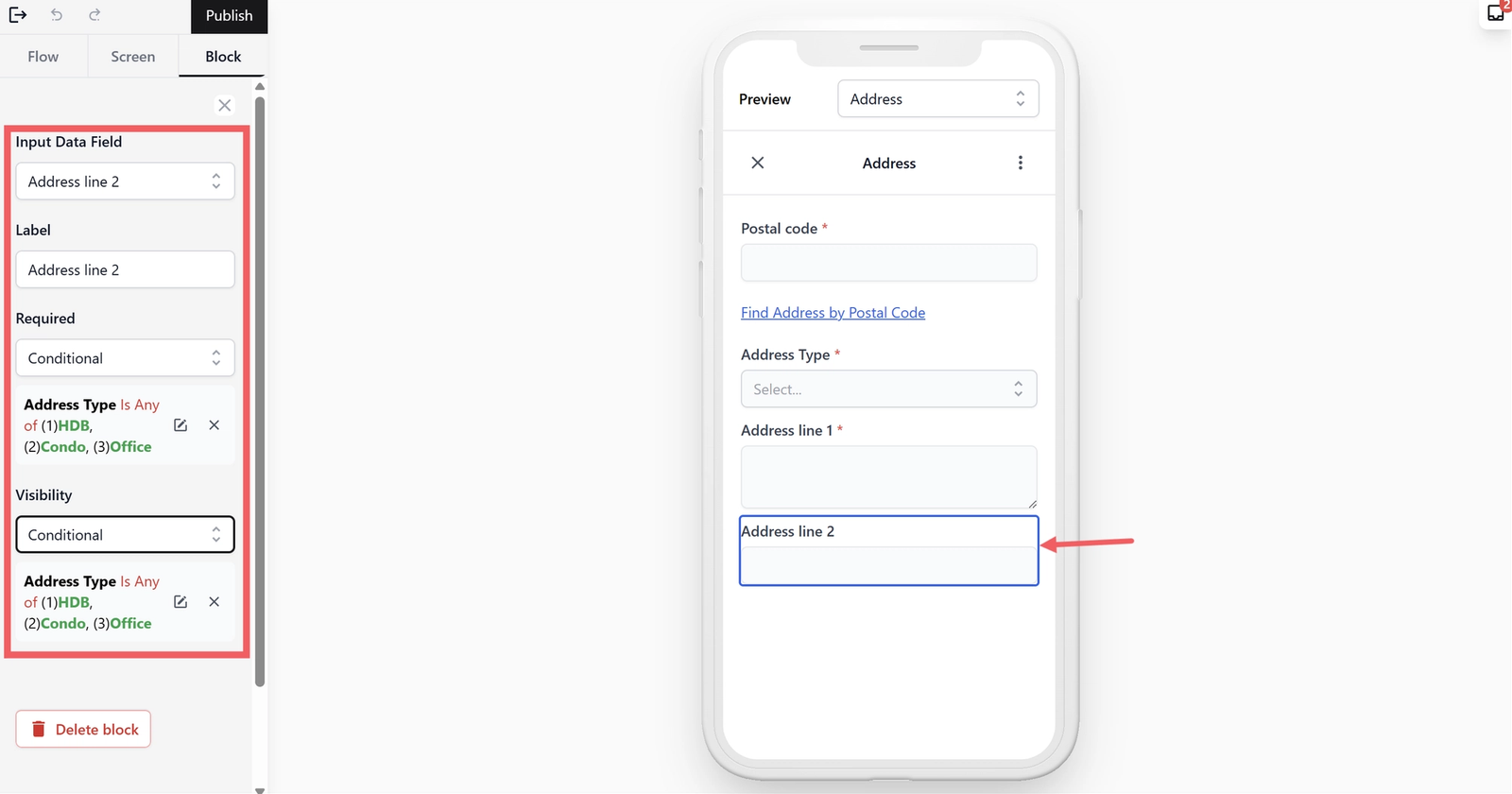
Address Line 2 (Optional): This is for specific details like unit numbers or floor levels. Your pickup driver will need this to find the exact door, especially in high-rise buildings. You might want to require this for HDB and Condo, and Office addresses but hide it for Landed properties to keep the form clean.
- From Screen Tab, click + Add Block → Text Input.
- Input Data Field: Select Address Line 2.
- Label: Leave as "Address Line 2" or a name of your choice.
- Required & Visibility: To filter this based on the address type we set up earlier, set both to Conditional. From the pop-up window, set When to Address Type, Operator to Is Any Of, and Value to HDB, Condo, and Office. (This hides the field for "Landed" selections since landed houses typically don't have unit numbers). Click OK when done.
Configure the Progress Button
Finally, specify what happens after the customer completes their pickup address.
Under the Screen Tab, do the following:
- Footer Action: Select Save Address. This remembers the customer's pickup address so it can auto-populate the next time they book a bag service pickup.
- Next Screen & Action Label: Leave these as they are to let the system handle the transition.
Setup the Pickup Quantity Screen
This section is optional. It is very useful if you want to know exactly how many items to expect before your logistics team heads out for a pickup. Knowing the volume in advance helps your logistics team plan the space in their vehicle and bring enough protective packaging for each bag.
However, you can also use this screen to ask any other question you might need for your business. For example, you could ask about "Special Instructions" or "Preferred Brand." It is a simple way to get extra details from your customer before they finish.
Add Information Fields
Before you set up this screen, you need to create a list of choices for your customer (like "1 item" or "2 items").
- Just like you did for the Address Type, go to Configuring Data Fields to create a new data field. Create a new data field called "Pickup Quantity" and choose Options as the Data Type. Add your choices, such as "1 item only" and "2 items."

- Once you have set up the data field, head back to your mini app.
- From the Flow Tab, select the Number of items screen.
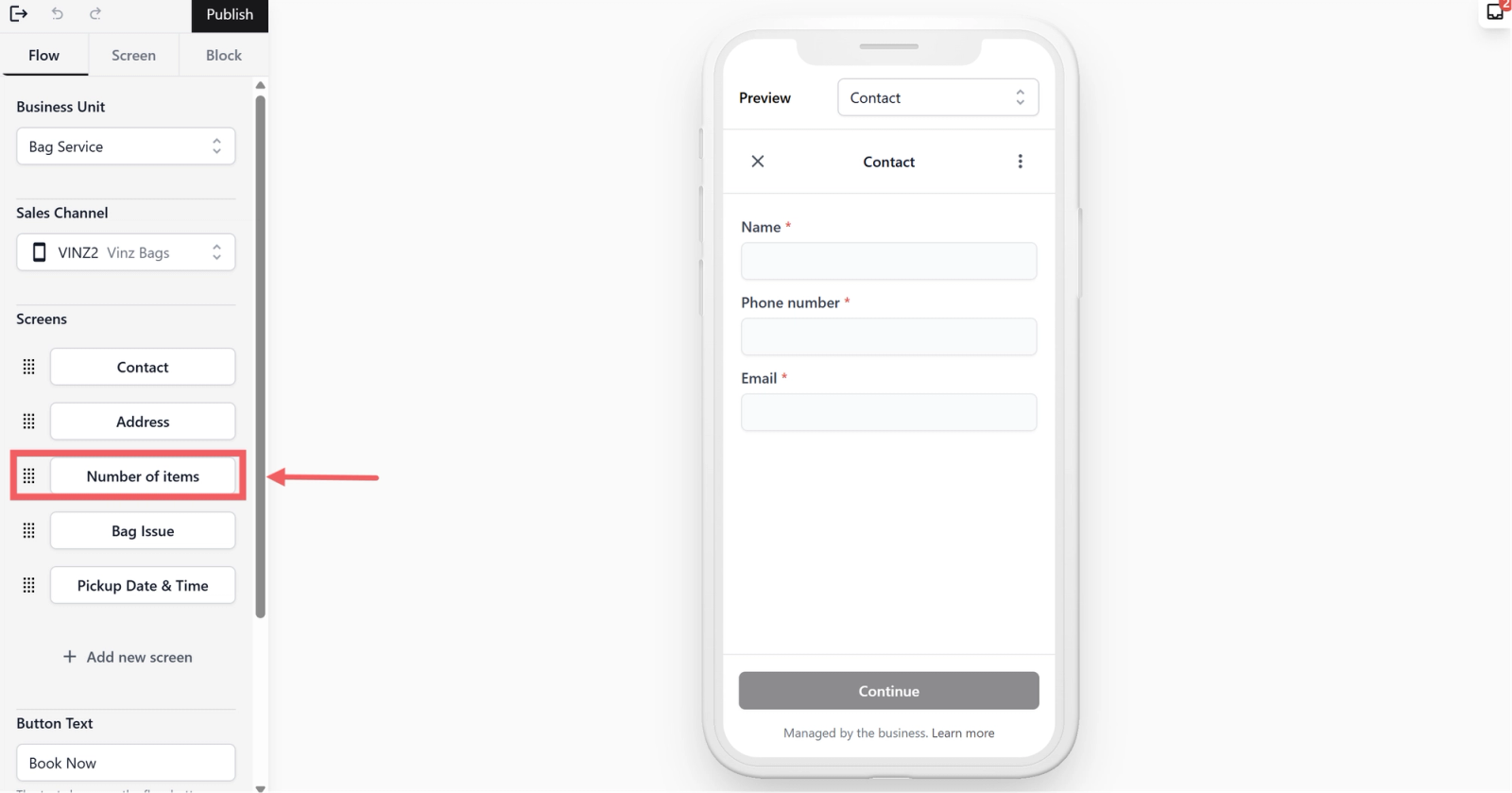
- Click the + Add Block button and select Radio Buttons. Since radio buttons show all the choices at once, this makes it easy for the customer to see all the available options and select one. This is much faster than typing for them.

- In the Block Tab, fill in these settings:
- Input Data Field: Select the Pickup Quantity data field you just created.
- Label: You can leave it as it is or give it a meaningful name such as "How many bags are you sending in?" or "Number of items."
- Default Value: You can pick the most common number or leave it blank.
- Required: Select Always Required.

Configure the Progress Button
Once again, specify what page the customer should see after they pick a quantity.
Under the Screen Tab, do the following:
- Footer Action: Select → Navigate to Screen. Since we don't need it to do update/create anything in the system, simply select Navigate to Screen.
- Navigate to Screen: From the list, select the next page, Bag Issue. This tells the system to move the current screen to the next.
- Action Label: You can leave it as "Continue." or use what you have been using so far to progress to the next screen.

Setup the Bag Issue Screen
This screen lets the customer describe what is wrong with their bag before your pickup team arrives. Unlike a laundry service where customers select a service type (e.g., Wash & Fold, Dry Cleaning), bag service customers may not know the technical name of the service they need. Instead, they know the problem — "my bag has mold" or "the colour is fading." Framing this as an issue selection makes it easy for customers to describe their needs, while your team can internally map each issue to the right service.
Add Information Fields
Before you set up this screen, you need to create a list of common bag issues your customers might face.
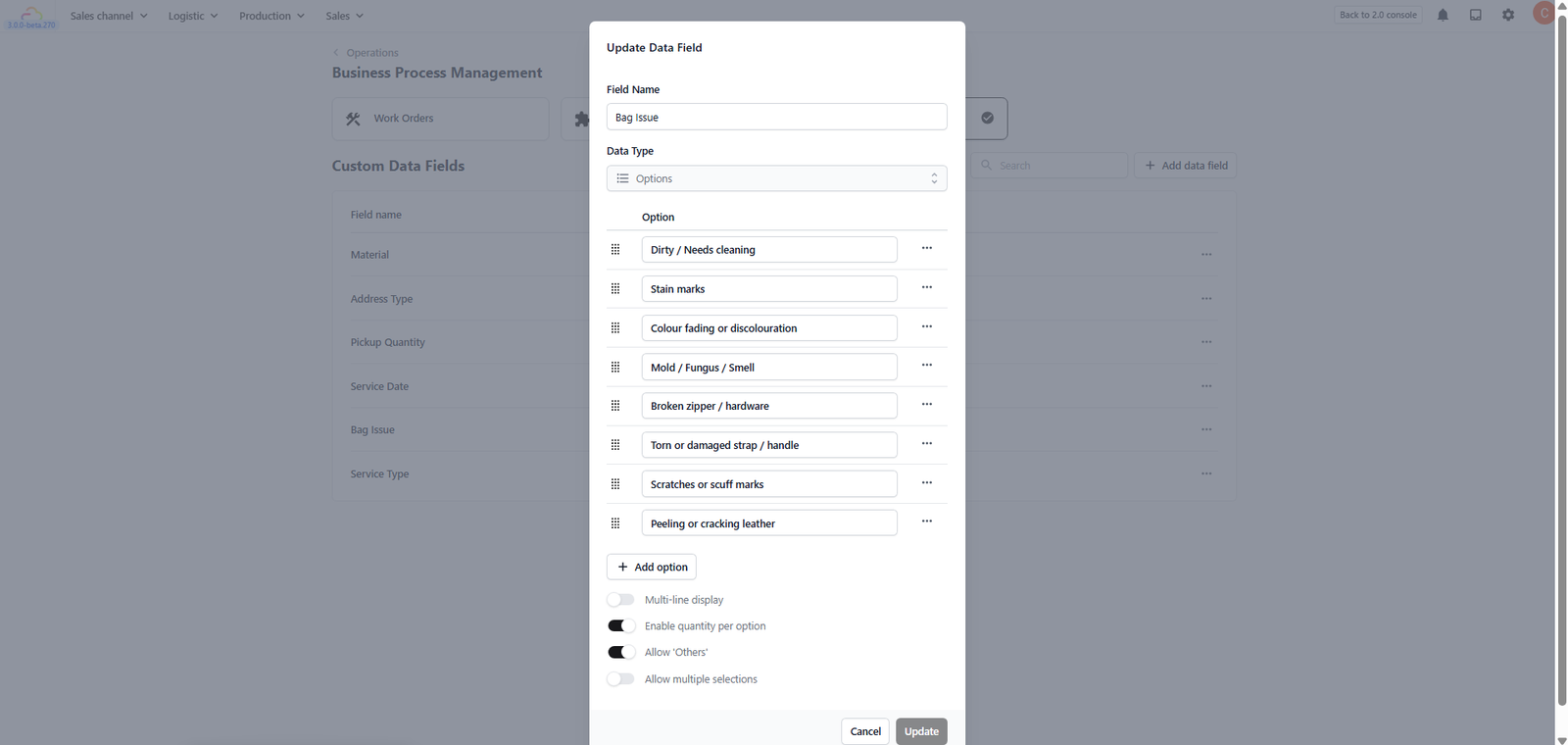
- Just like you did for the Pickup Quantity, go to Configuring Data Fields to create a new data field. Create a new data field called "Bag Issue"(or any other name) and choose Options as the Data Type. Add your service offerings, such as:
- Dirty / Needs cleaning
- Stain marks
- Colour fading or discolouration
- Mold / Fungus / Smell
- Broken zipper / hardware
- Torn or damaged strap / handle
- Scratches or scuff marks
- Peeling or cracking leather
Tip: Enable the Allow Others toggle when creating this data field. This adds an open-ended "Other" option so customers can type in issues that are not on your predefined list, such as "ink stain on front flap" or "metal hardware turning green." This ensures you never miss a customer's specific concern.
- Once you have set up the data field, head back to your Mini App.
- From the Flow Tab, select the Bag Issue screen.

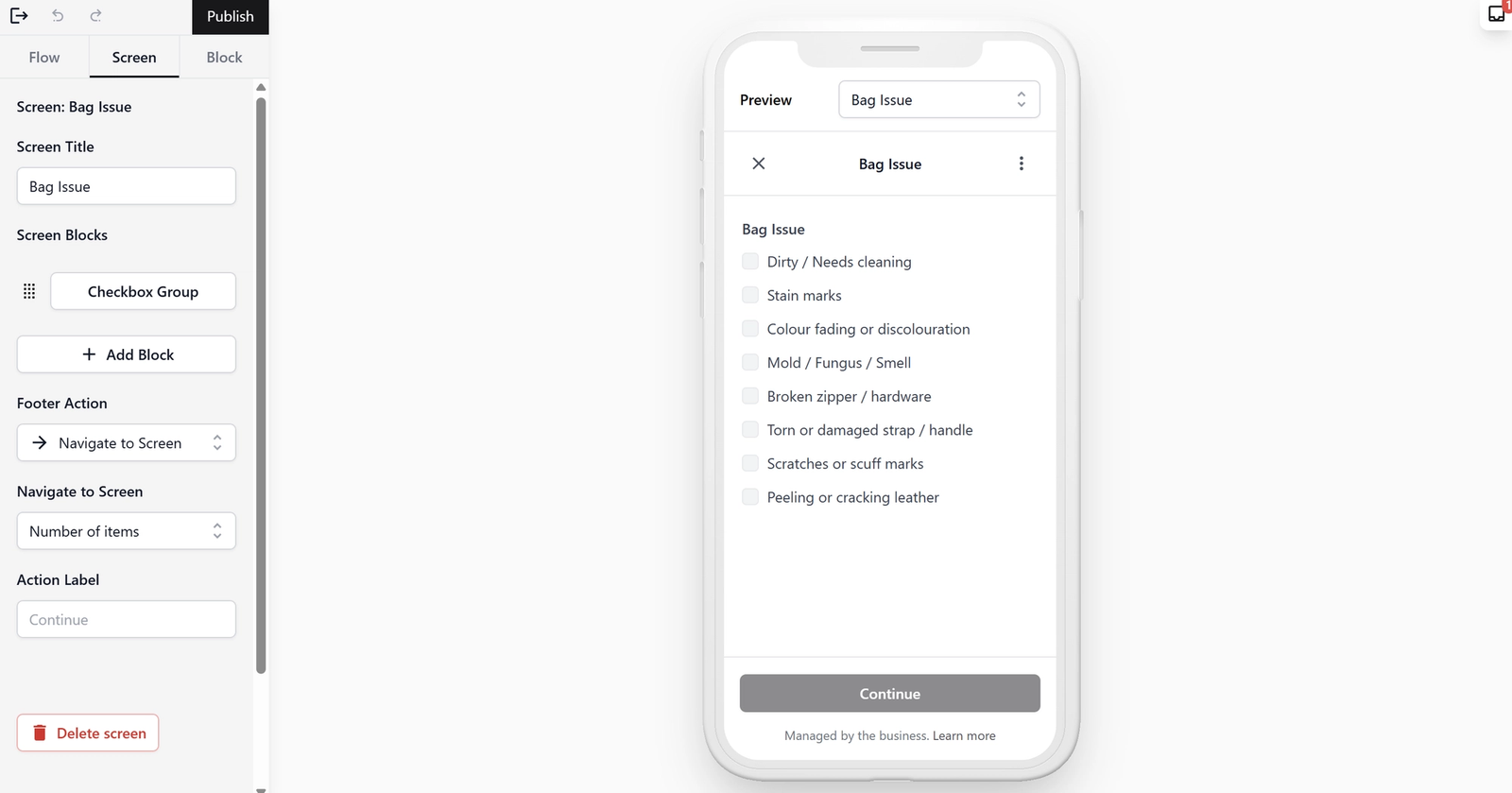
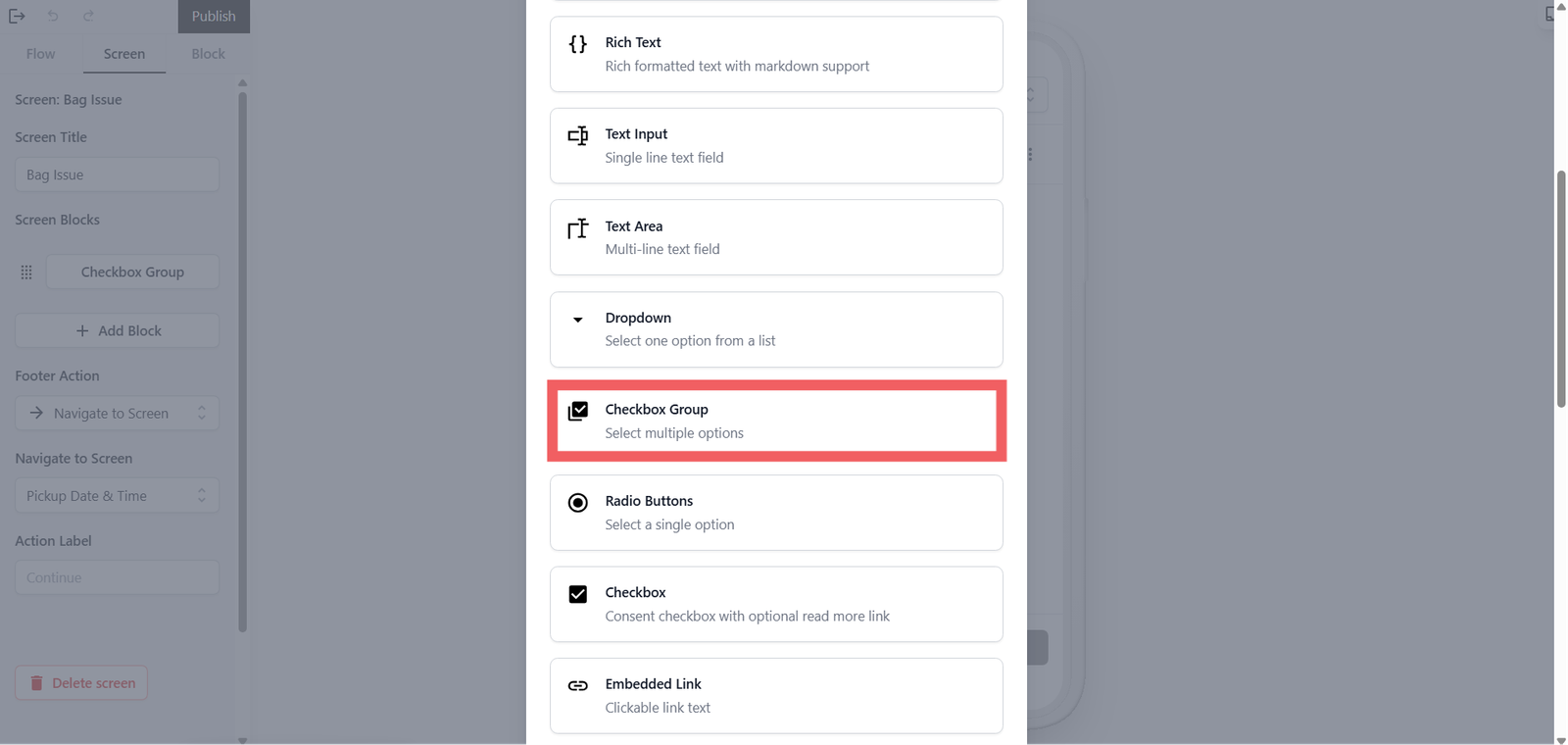
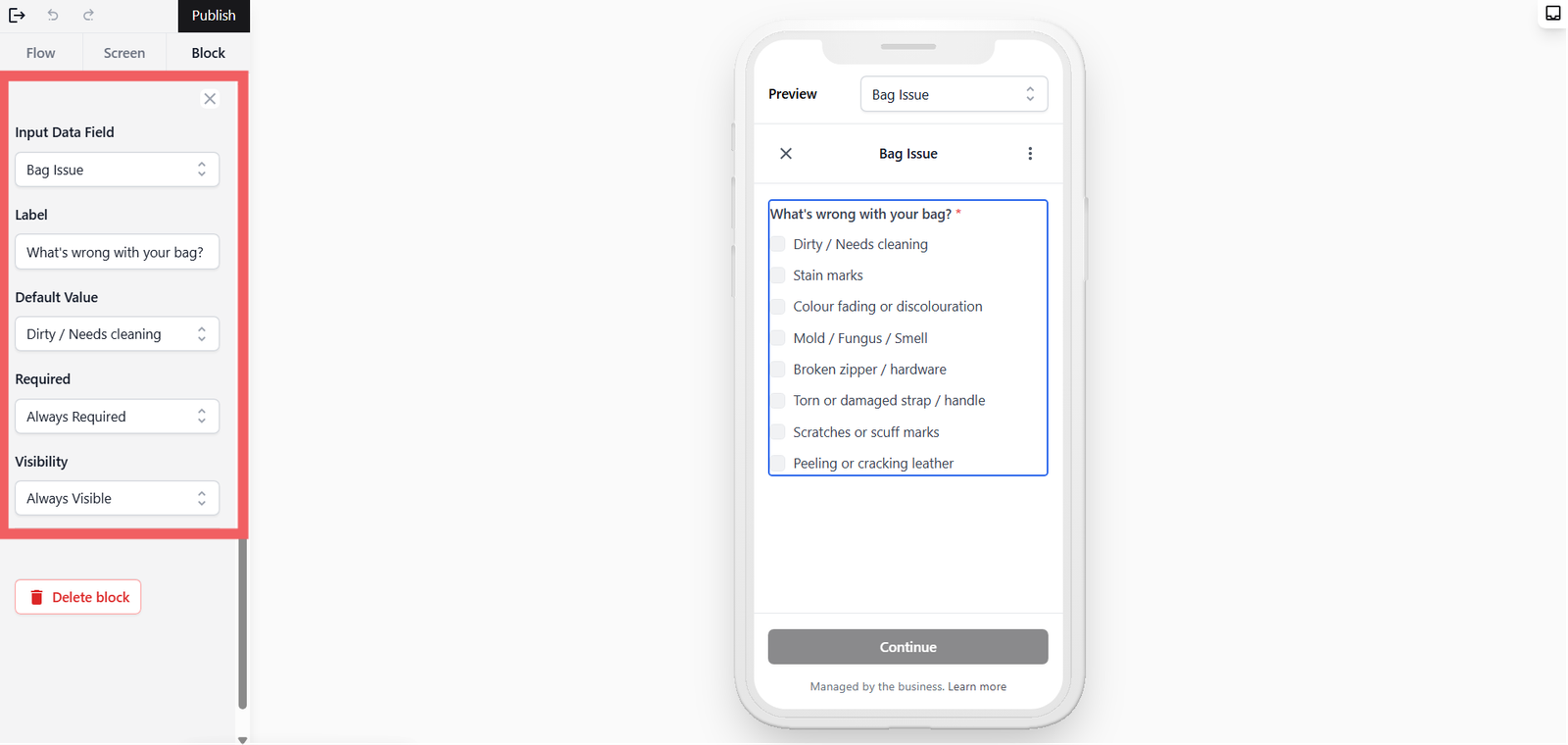
- Click the + Add Block button and select Checkbox Group. Unlike radio buttons which only allow one selection, a checkbox group lets customers select multiple services at once. This is ideal for bag services since a customer's bag might have both stain marks and colour fading, or mold and a broken zipper at the same time.
- In the Block Tab, fill in these settings:
- Input Data Field: Select the Bag Issue data field you just created.
- Label: Give it a customer-friendly label like "What's wrong with your bag?" or "Describe the issue with your bag."
- Default Value: You can leave this blank.
- Required: Select Always Required.
Configure the Progress Button
Once again, specify what page the customer should see after they select their bag issue.
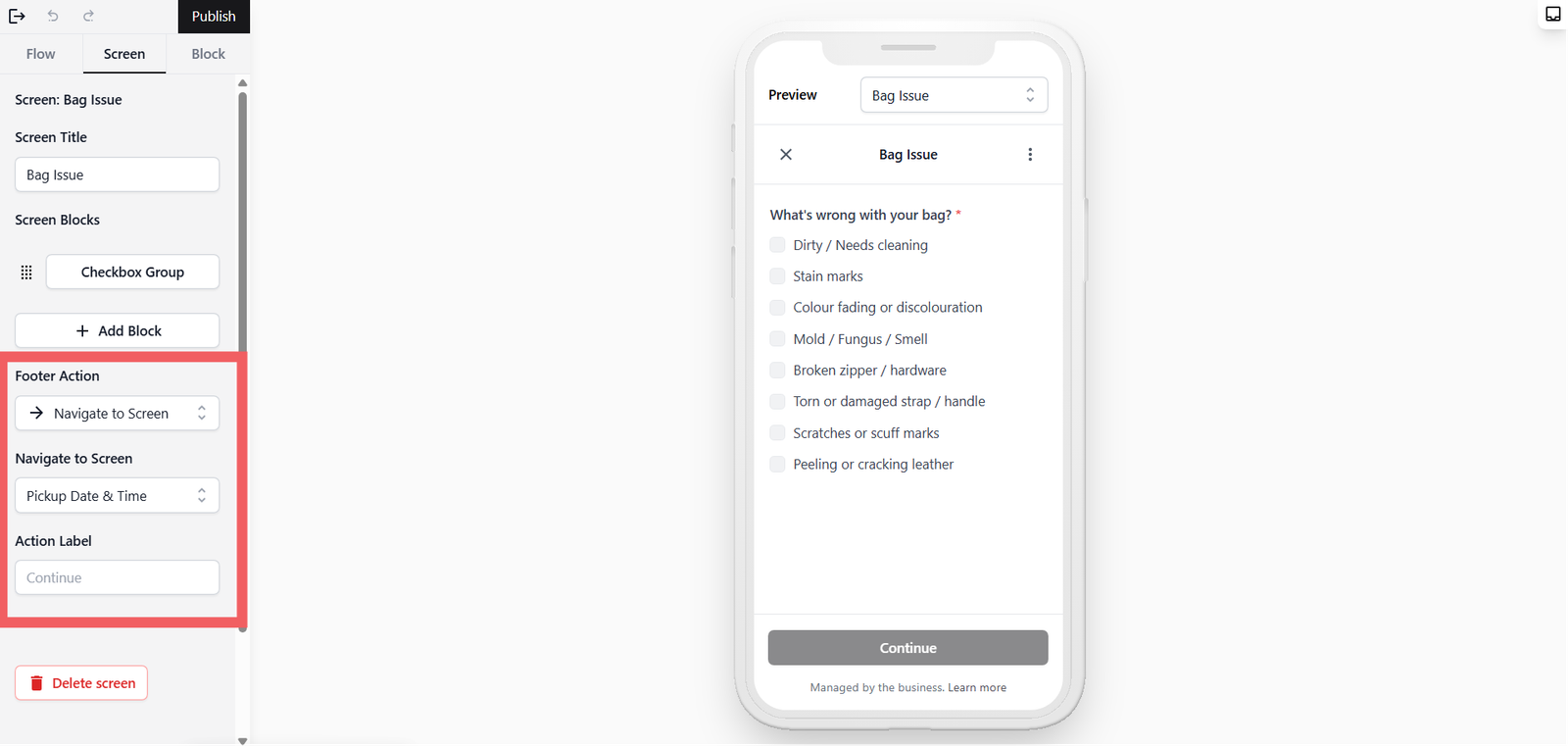
Under the Screen Tab, do the following:
- Footer Action: Select → Navigate to Screen. Since the bag issue selection doesn't need to create or update anything in the system at this point, simply navigating forward is all that's needed.
- Navigate to Screen: From the list, select the next page, Date & Time. This tells the system to move the current screen to the next.
- Action Label: You can leave it as "Continue." or keep it consistent with the button labels you have been using so far.
Setup the Date & Time Screen
This is the final step where your customer picks when they want you to come and collect their bag. Getting this right ensures your pickup team can manage their daily schedule and the customer knows exactly when to expect the driver.
Add Information Fields
From the Flow Tab, select your Date & Time screen.
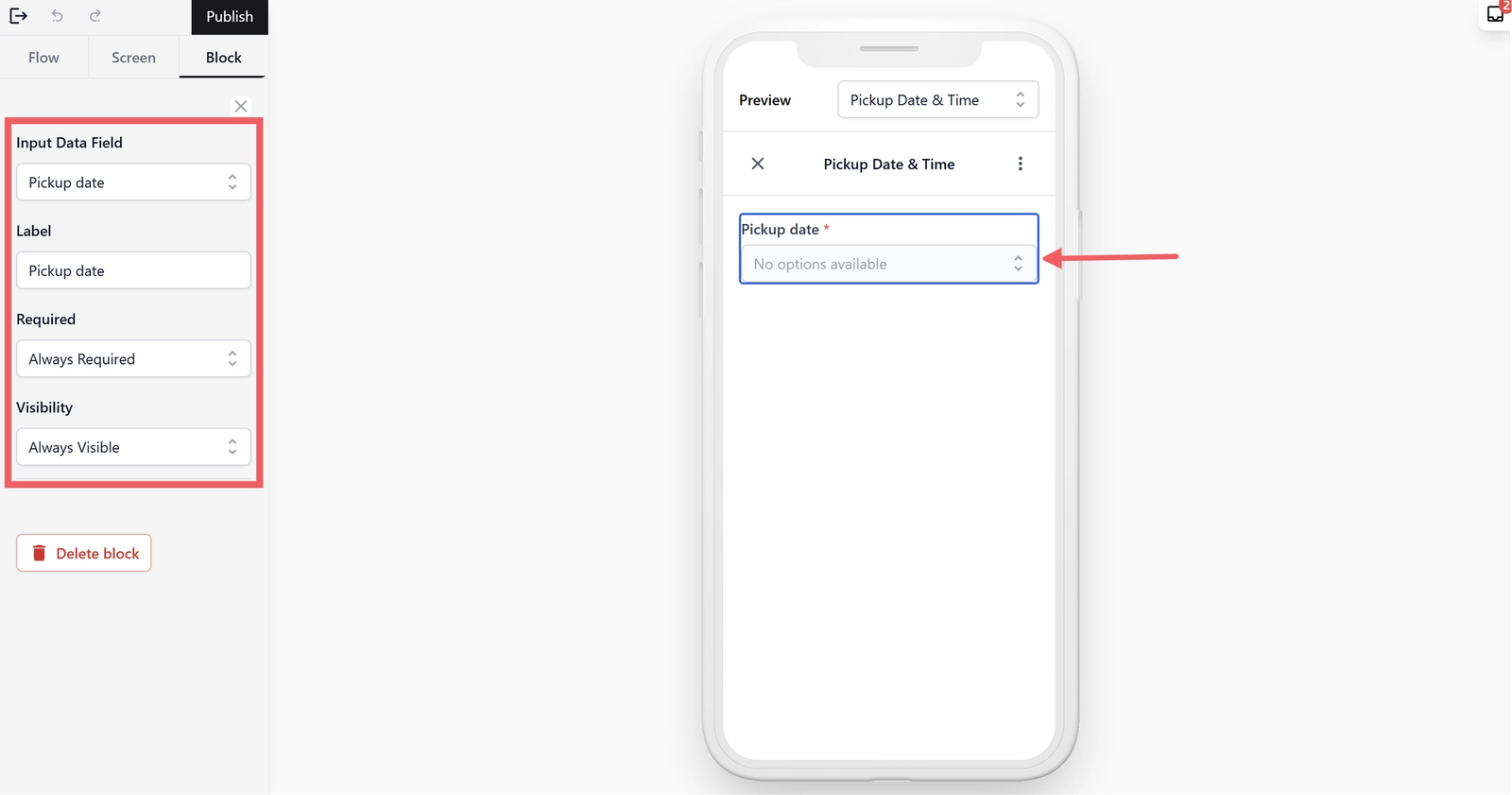
Pickup date: This allows the customer to see the available dates and choose one that works for them.
- From the Screen Tab, click + Add Block → Dropdown.
- Input Data Field: Select Pickup date.
- Label: Leave it as default or give it a meaningful name like "Pickup date."
- Required: Select Always Required.
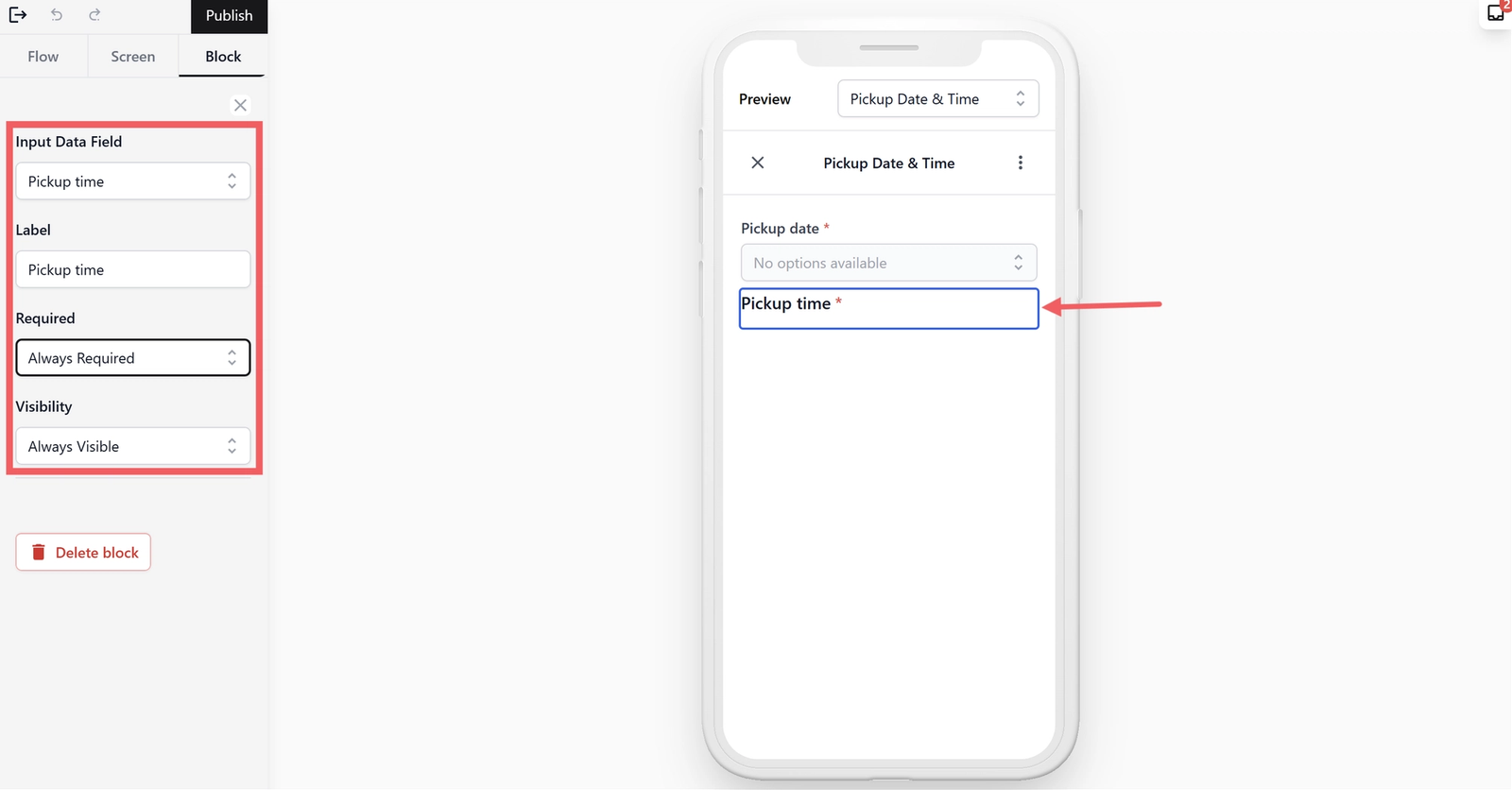
Pickup time: Once the date is chosen, we want to list the available time slots so the customer can pick a specific window that fits their schedule.
- From the Screen Tab, click + Add Block → Radio Buttons.
- Input Data Field: Select Pickup time.
- Label: Leave it as default or give it a meaningful name like "Pickup time."
- Required: Select Always Required.
Refresh Link: This allows the customer to update the screen to see the most current available time slots. This is useful if a slot was just taken by another customer while they were filling out the form.
- From the Screen Tab, click + Add Block → Embedded Link.
- Link Text: Name this "Refresh" or any name that tells the customer this will update the available dates and times when they tap it.
- Action Type: Select Fetch Booking Options. This will update the Pickup date and Pickup time fields to show the latest availability.

Configure the Progress Button
Now we set the final action to turn this booking form into a real bag service pickup order for your business.
Under the Screen Tab, do the following:
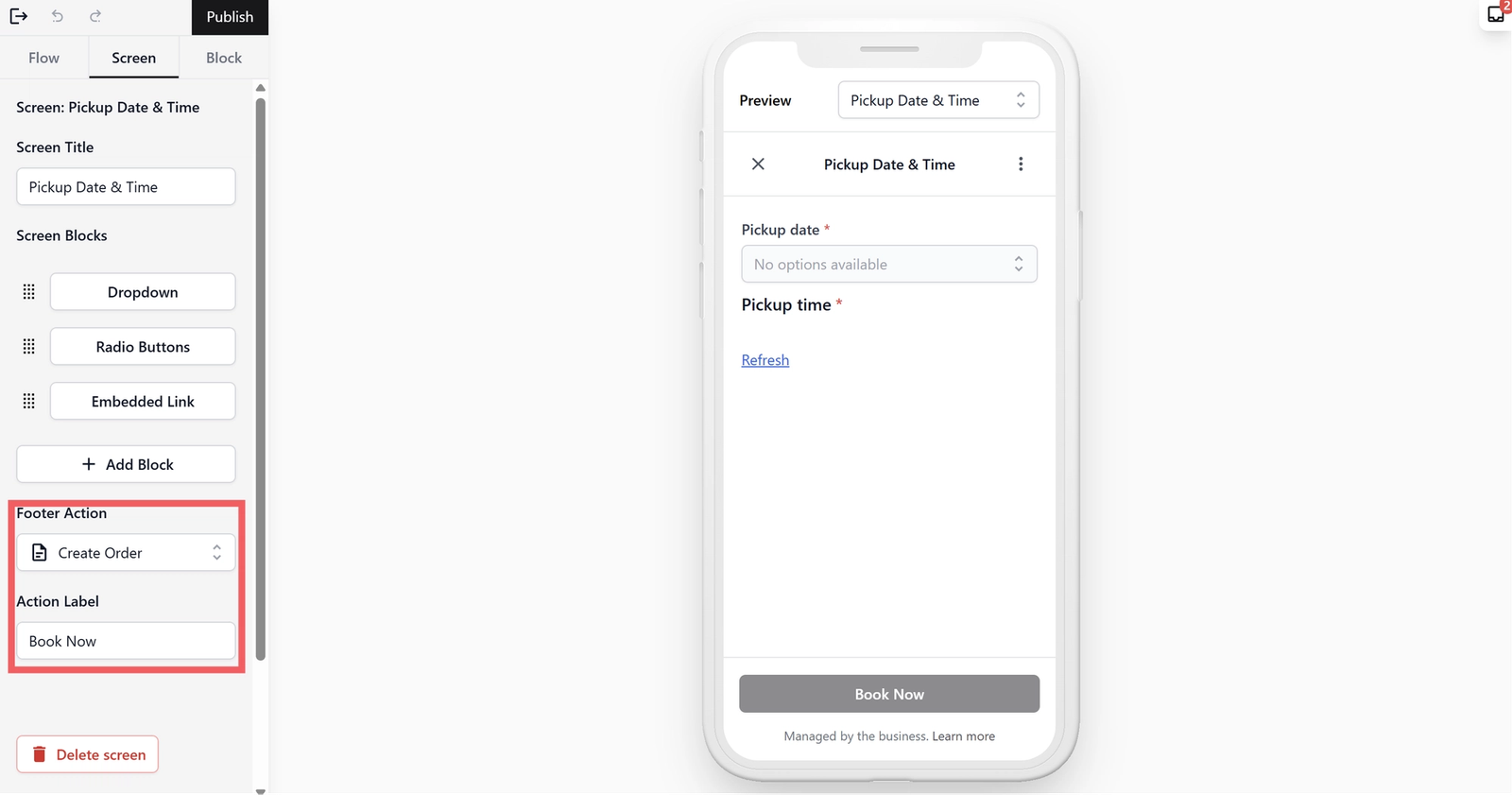
- Footer Action: Select Create Order.
- Why? As this is the final step, when the customer taps this button, it creates a new Sales Order in your system automatically. Your team will be able to see the customer's name, address, pickup quantity, bag issue, and preferred pickup time — all in one place.
- How to find your orders: You can find these bookings by heading to the top navigation bar, clicking Sales, and selecting Orders. You will see the dashboard where all the orders placed through your WhatsApp booking form will appear.
- Action Label: The system will show "Complete" by default, but you can change this to something like "Book Now" or "Confirm Pickup" to make it feel more specific to your service.
Publish Your Mini App
Once you are happy with how your bag service booking form looks in the preview, you need to Publish it. This makes the form live so your customers can actually start booking their bag service pickups on WhatsApp.
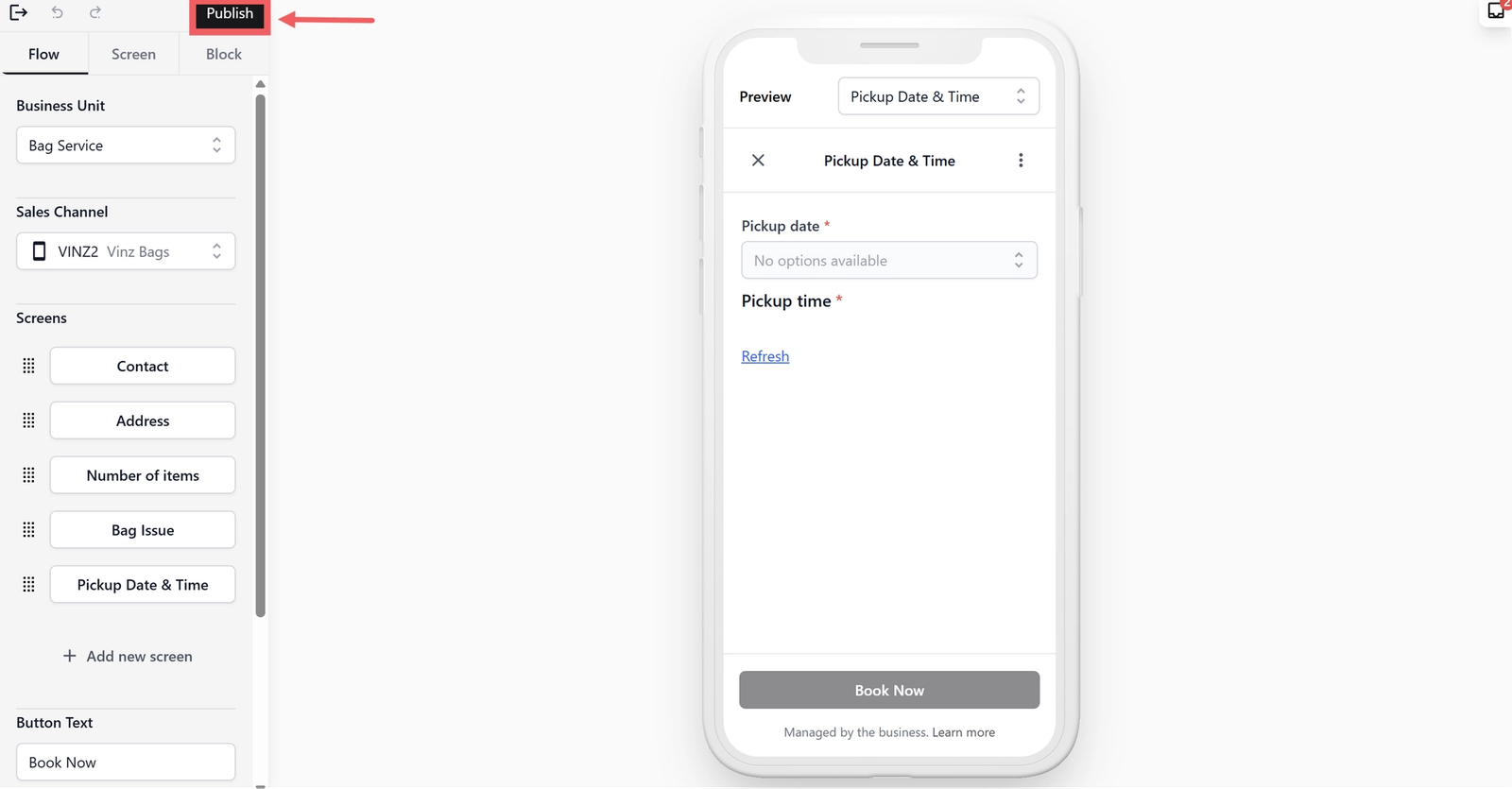
- Click the Publish Button: Look at the top right corner of the editor and click the Publish button.
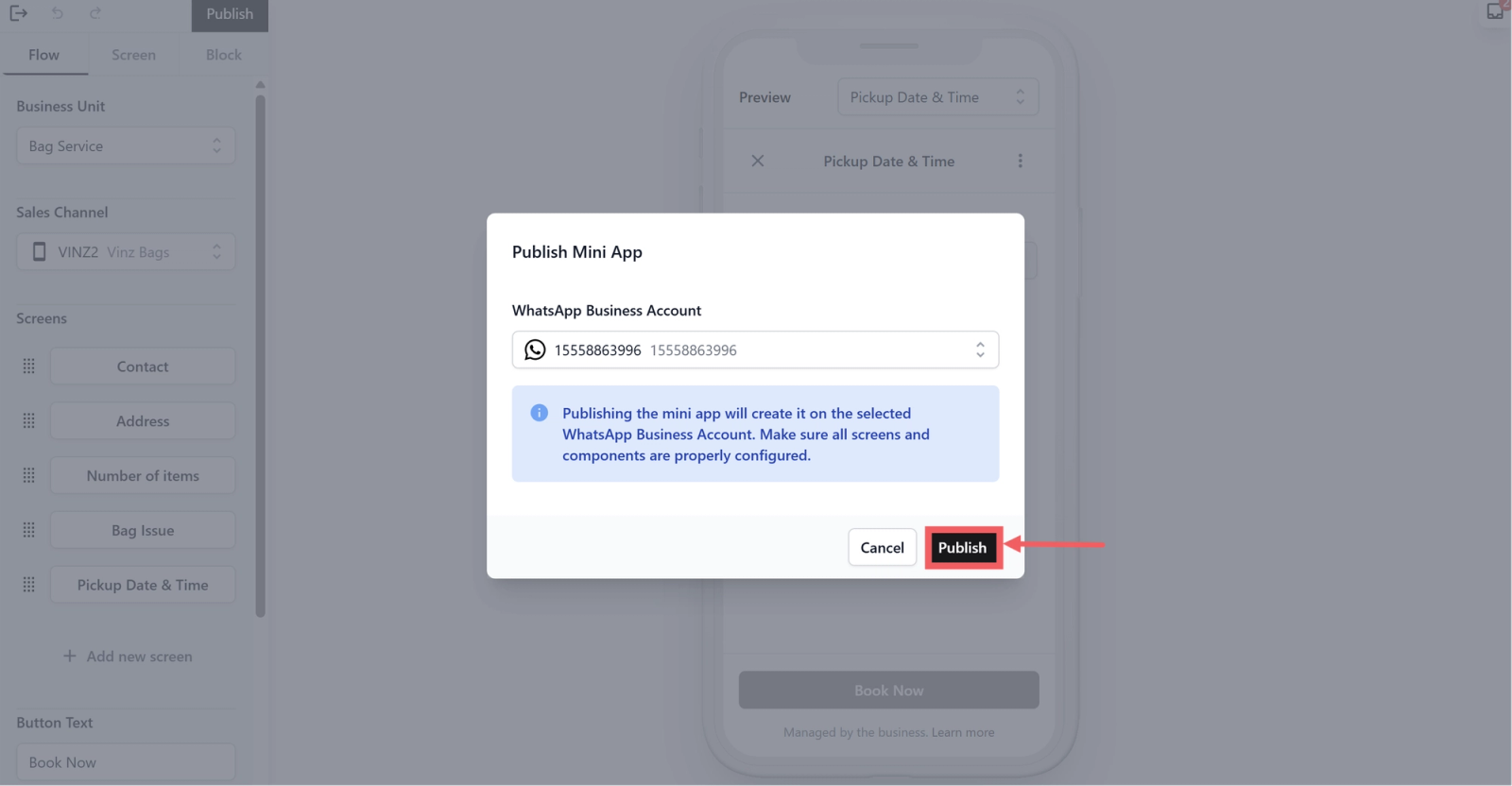
- Confirm the Action: A pop-up window will appear asking you to confirm. Click the Publish button inside that window again.
- Check the Status: After a few moments, the system will refresh and take you back to the main Mini Apps page.
- Look for your Mini App in the list. You should now see a status that says Published.
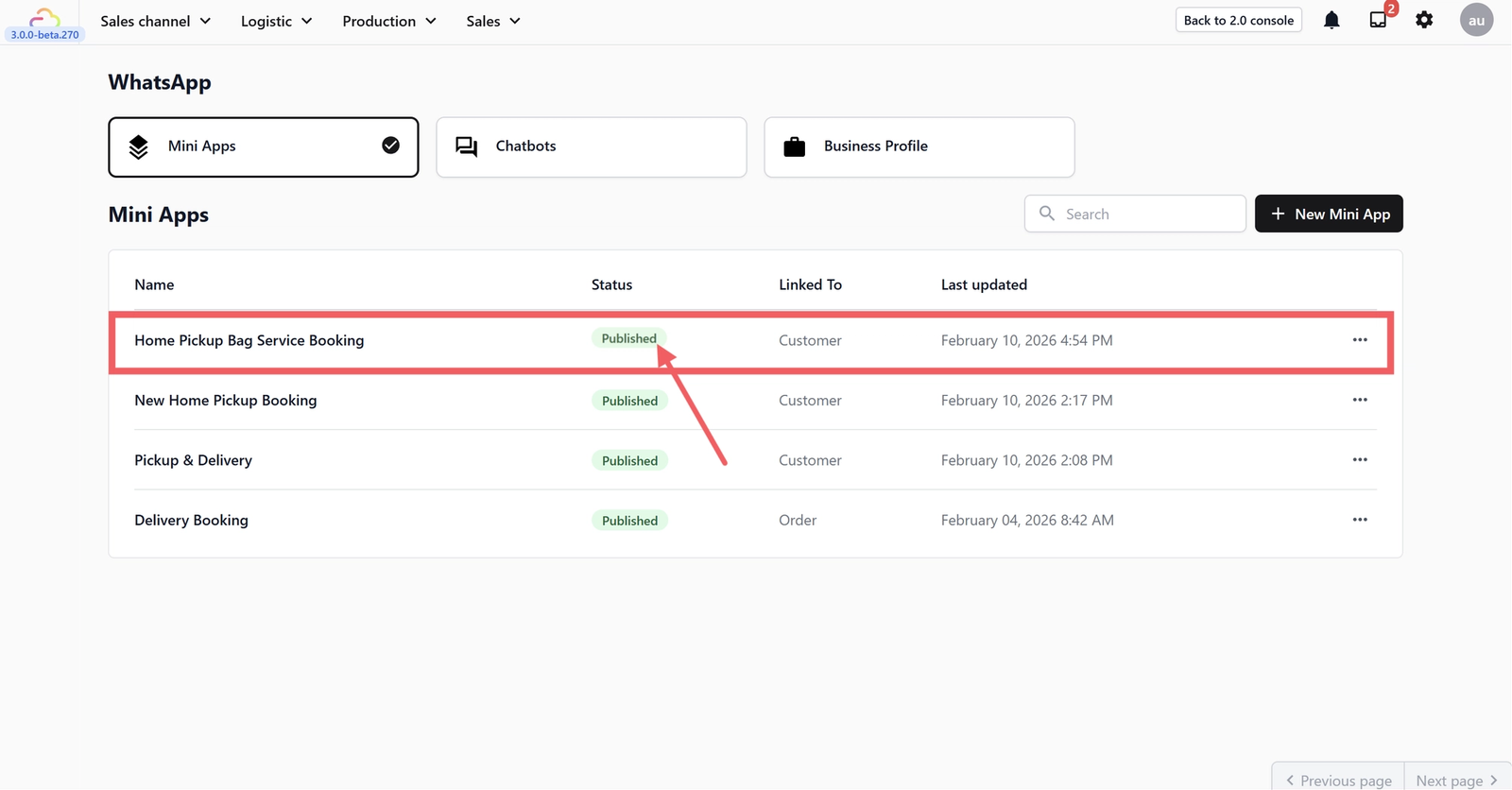
What does this mean? Your Mini App is now officially live. Customers can start booking their bag service pickups through WhatsApp, and every booking will flow directly into your Sales Orders dashboard, complete with their name, address, pickup quantity, bag issue, and preferred pickup time.
To get started, check out the guide: Sending Your Mini Apps to Customers →
Give feedback
Up next
Home Delivery Booking via WhatsAppSet up a Home Delivery Booking Flow so your customers can choose their preferred delivery date and time directly through WhatsApp.
Read more