
Track Agent Orders
In this article
Once your agents start bringing in orders, you need a way to keep track of them. Whether the orders are created by your agents through the app or by your team on their behalf, they all appear in your order dashboard. This guide shows you how to find, filter, and review agent orders.
Contents
Contents
Agent’s Orders Appears in Your Console
Before we dive into the steps, watch this short demonstration. You will see how an agent creates an order on their mobile app and how that exact order appears instantly in your console.
How the Order Information Reaches You
When your agent submits an order in the workflow app, the system instantly syncs that data to your EasyBiz Cloud console.
The Shift from Manual to Digital:
- Before: Managing orders required tracking handwritten notes, phone calls, or manual messages, then typing them into your records yourself.
- Now: The moment the agent hits Submit, a professional service record is created automatically. Pricing and job details are filled in for you, ready for immediate review.
How to Monitor Agent Orders
Now that you understand how the flow works, let's go through the steps to track an order within your dashboard.
What is the Order Dashboard?
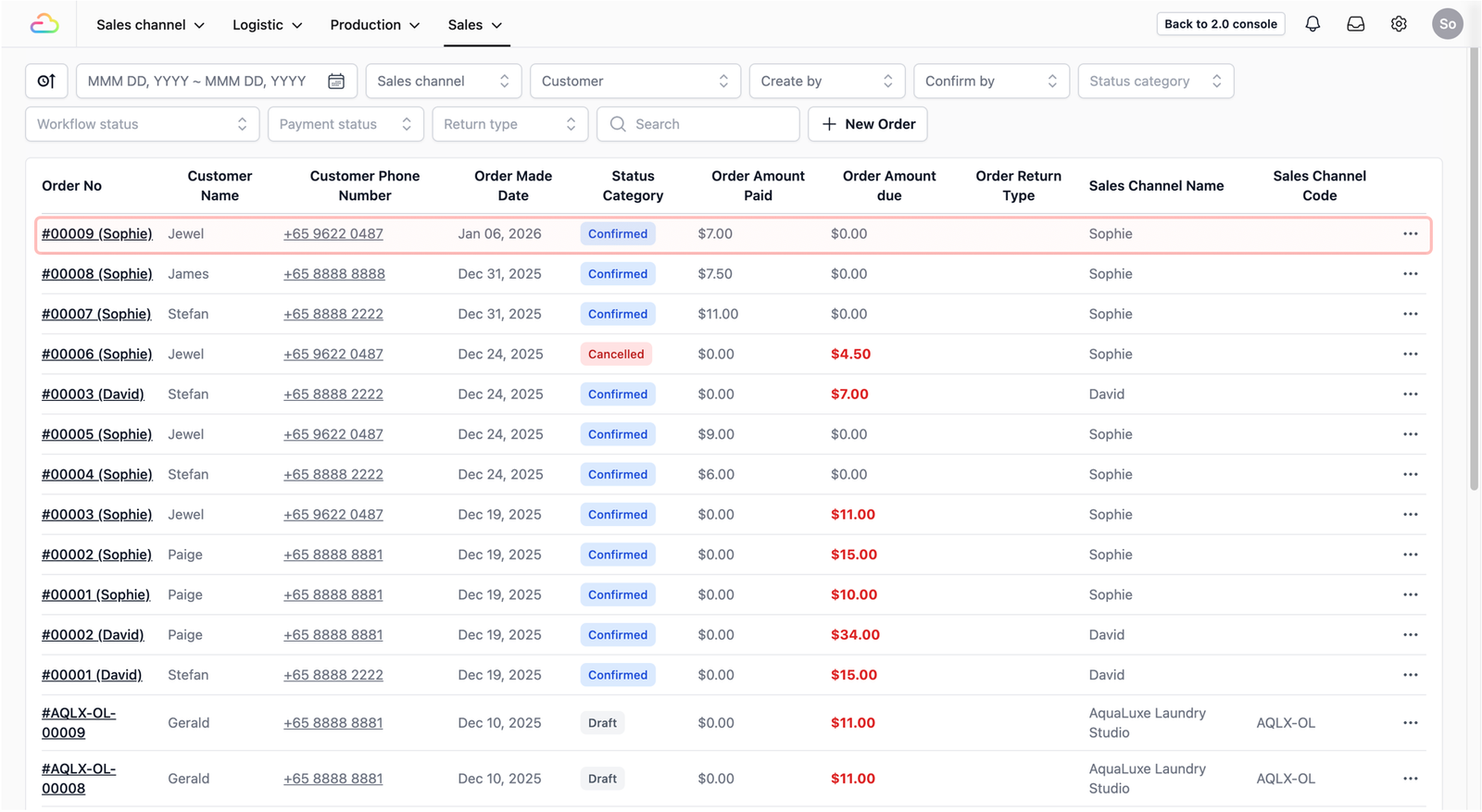
The Order Dashboard is where all your orders appear, including the ones created under your agents. From here, you can see when an order was submitted, what services were selected, and which agent it belongs to. You can also filter the dashboard to view orders from a specific agent.
Access the Order Dashboard
To see the work your agents have submitted, navigate to your Sales Order Dashboard:
- On the top navigation bar, click on Sales. Select Orders from the dropdown menu.
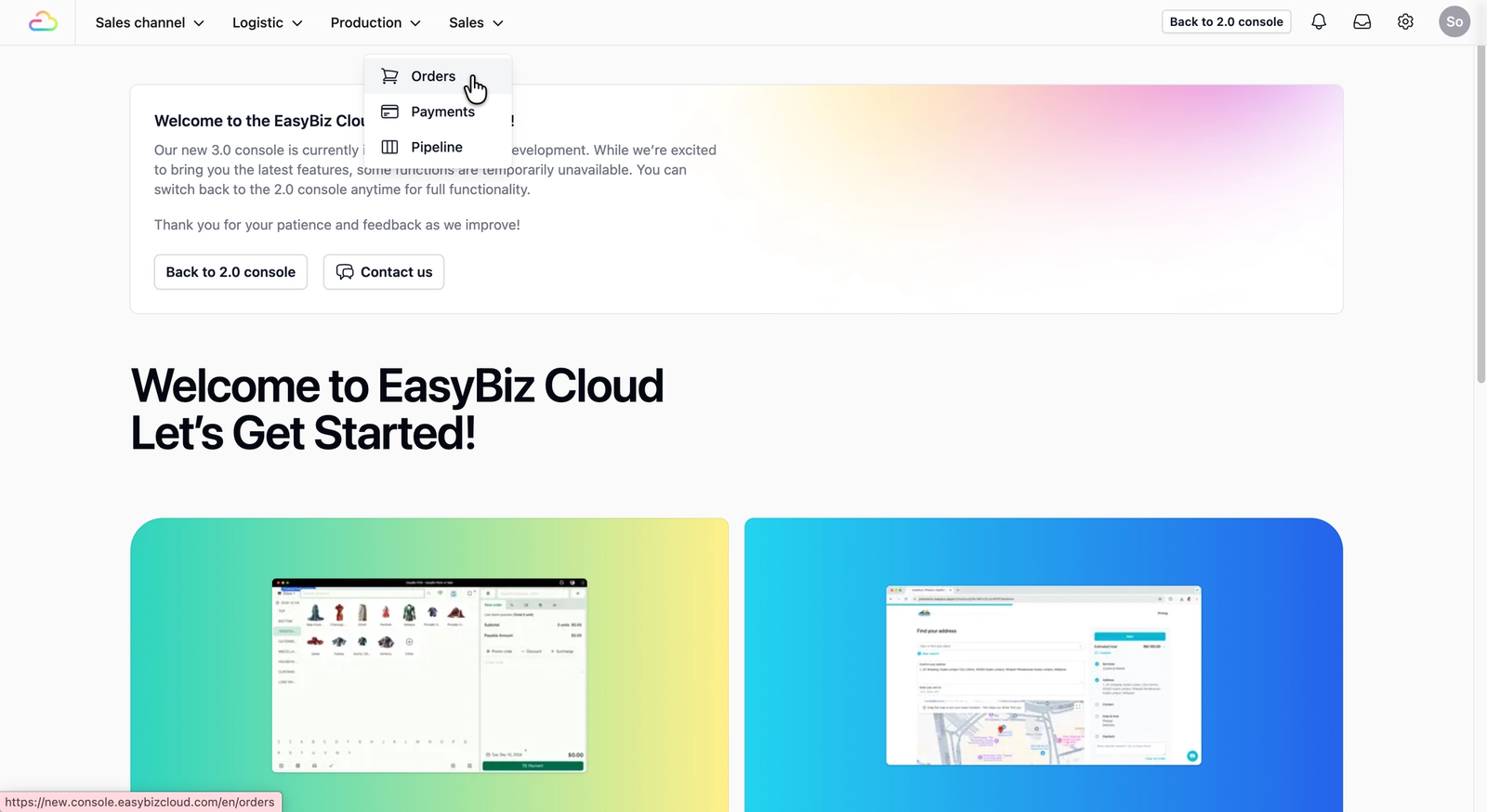
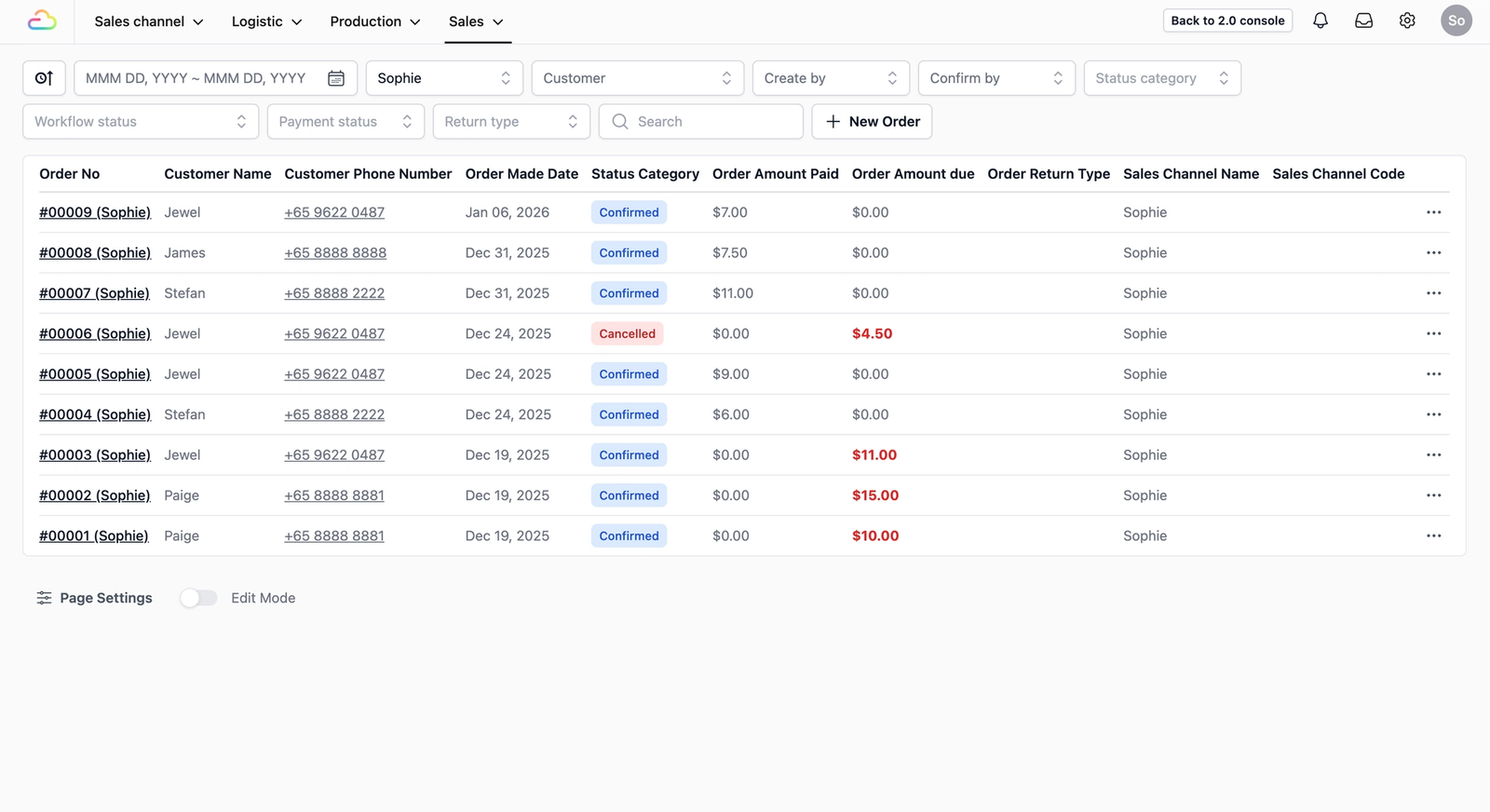
Once the dashboard appears, you will see a list of all your sales orders. Any order an agent has just placed from their app will typically appear at the top of this list.
Track a Specific Agent’s Orders
If you have multiple agents submitting orders, your dashboard can get busy. To track or find an order from a specific agent, you can use the Sales Channel filter to narrow your view.
Why use this filter? Instead of scrolling through every order in your system, this filter allows you to "zoom in" on one agent at a time. It is the fastest way to:
- Find a specific order an agent just submitted.
- Track the progress of all orders belonging to one particular agent.
- Review performance by clearing away all other sales orders to see only their work.
How to use it:
- Locate the Sales Channel dropdown filter at the top of your dashboard.
- Click the dropdown and select the name of the Agent you are looking for.
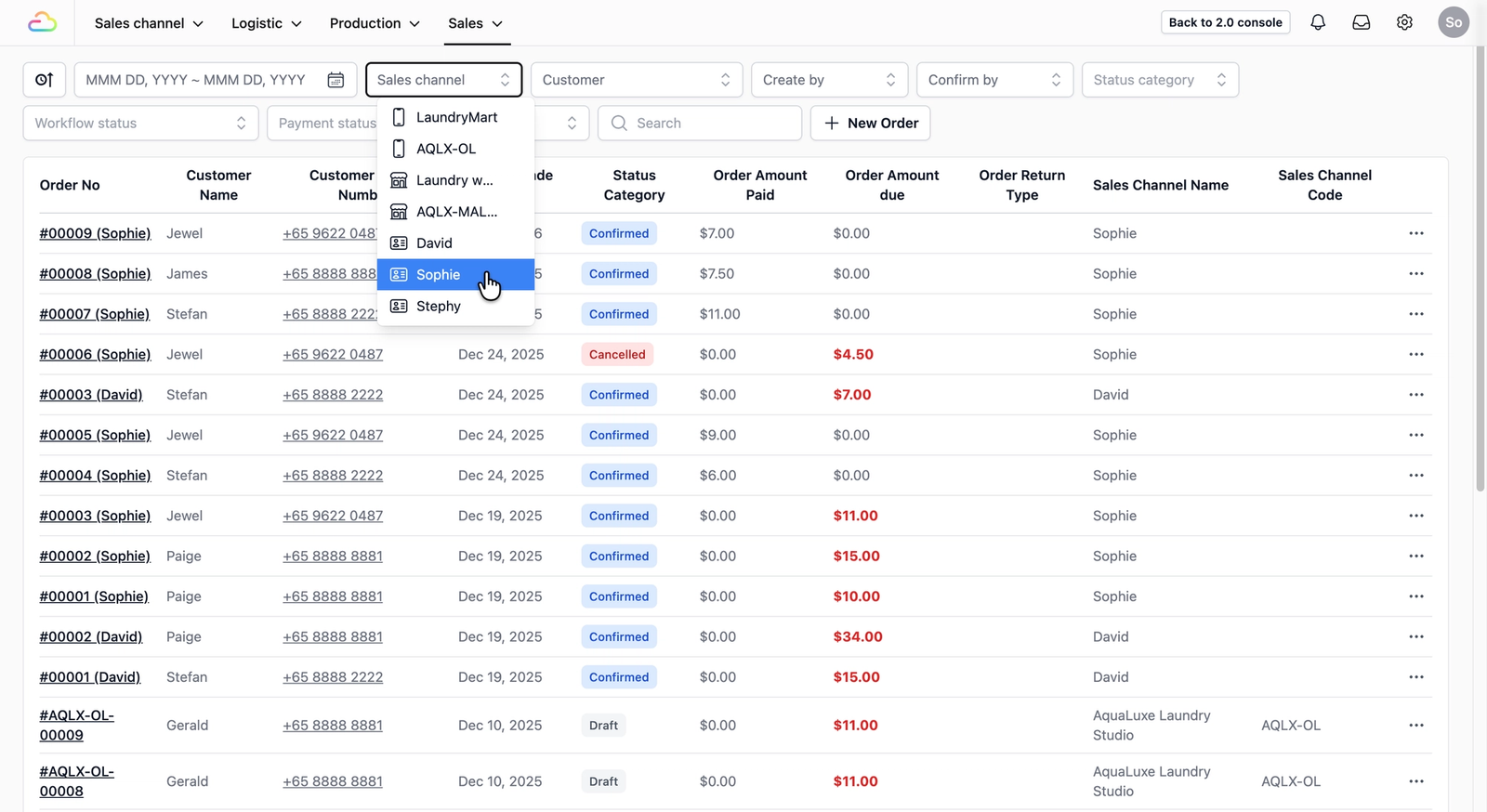
The dashboard will refresh instantly, displaying only the orders submitted by that specific agent.
Review the Agent's Order
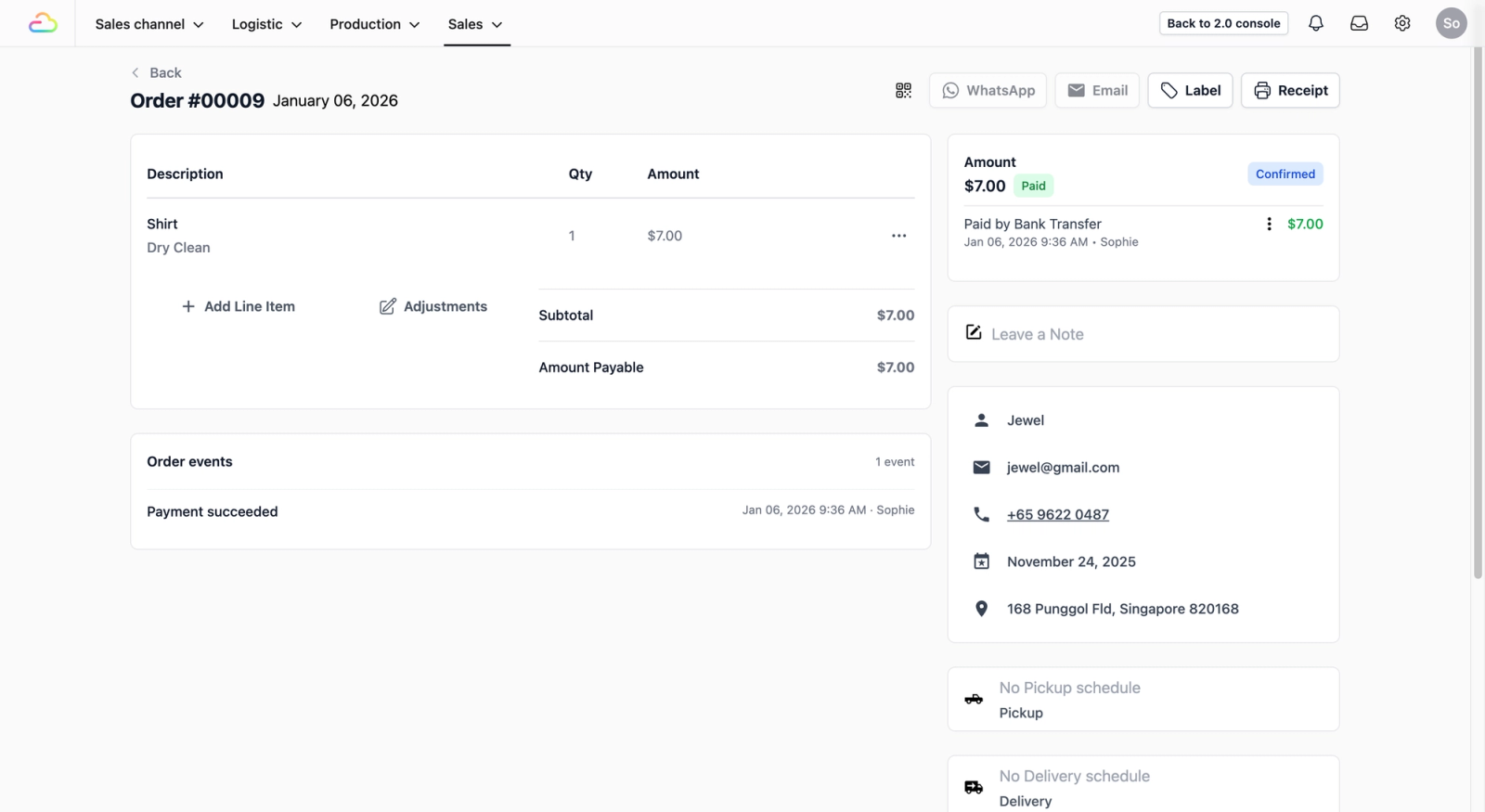
Once you have found the order you want to track, click on the Order Number (e.g., #00001). This opens a detailed view of the order where you can see all the information captured by the agent.
Here is what you can expect to find inside the order:
- Order Records: View the exact date and time the agent submitted the order.
- Service Scope: Check the specific service selected and the rates the agent applied to the client.
- Handover Details: Review any site photos, client signatures, or special instructions the agent captured during the order creation.
Next Steps & Learning
Now that you know how to find and track incoming agent orders, you can explore the Sales Order screen in more detail to understand how to navigate the various sections of a sales order.
Give feedback
Up next
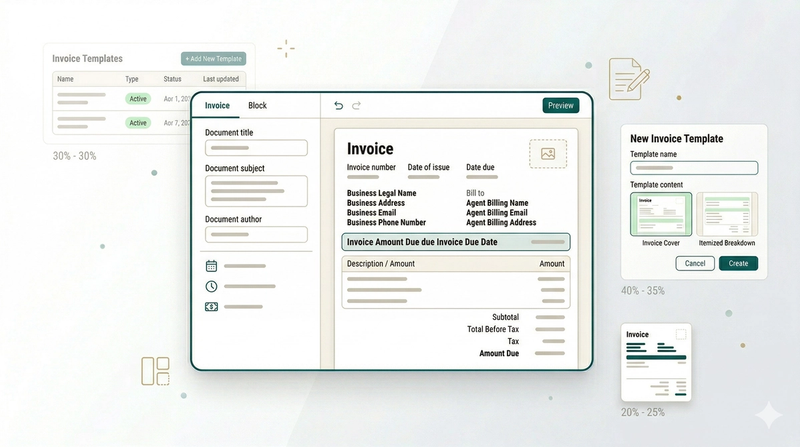
Customize Invoice TemplatesCreate and customise the invoices you send to your agents so they clearly show what they are being paid for.
Read more