Setting Up Blocking Rules

In this article
Overview: Blocking Rules work by applying restrictions at the date level or customer level. Each rule targets a specific condition under which bookings should not be allowed.
Contents
Contents
The two available blocking types are:
- Blocking Dates
- Blocking Customers
Why is this useful?
Blocking Rules help you maintain operational control by preventing bookings that cannot be fulfilled. Instead of manually managing exceptions or correcting bookings after they are created, you can proactively restrict bookings based on dates or customers.
This is useful when:
- Your business is not operating on specific dates, such as public holidays or planned downtime
- Service capacity is temporarily limited due to maintenance or operational constraints
- Certain customers require restricted access due to special agreements or policy enforcement
What is Blocking Dates?
Blocking Dates prevent bookings from being created on selected dates or within a defined date range. This is commonly used for public holidays, maintenance periods, or temporary service closures.
When blocking dates:
- Bookings cannot be created during the blocked period
- The rule can be applied to selected business units
- One or more booking types can be restricted
How to Set Up Blocking Dates:
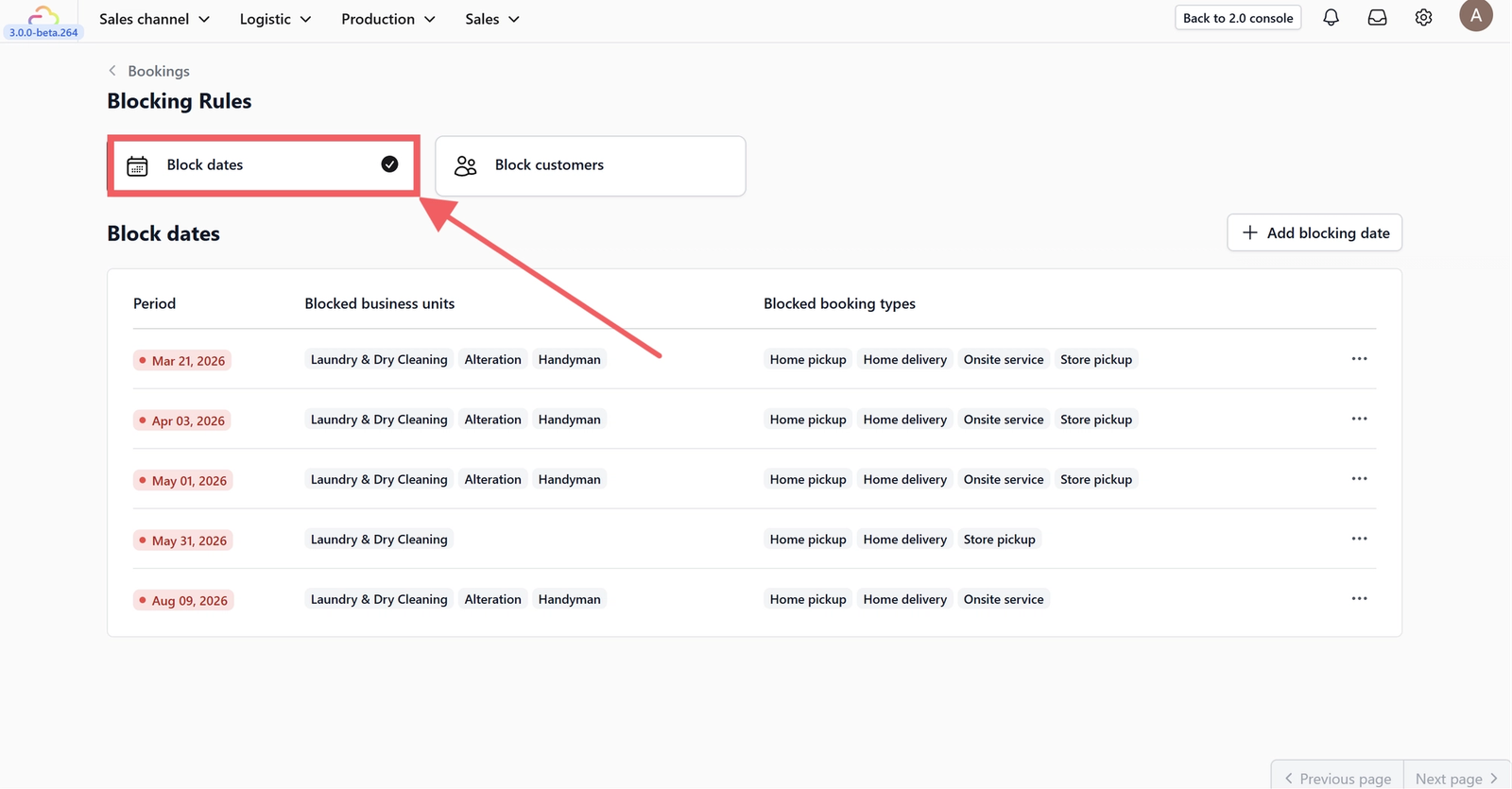
- Go to Block Dates.
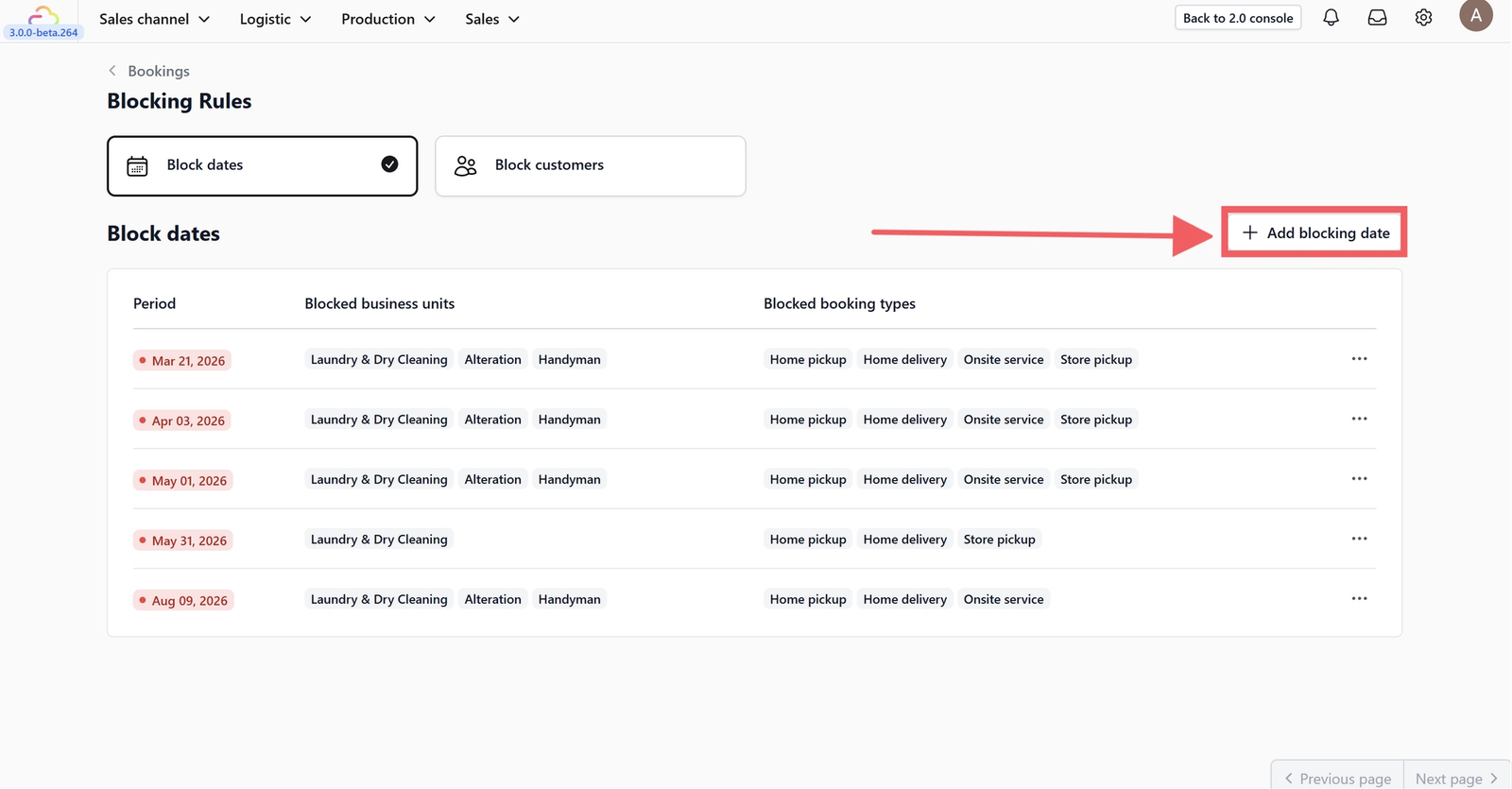
2. Click + Add Blocking Date.
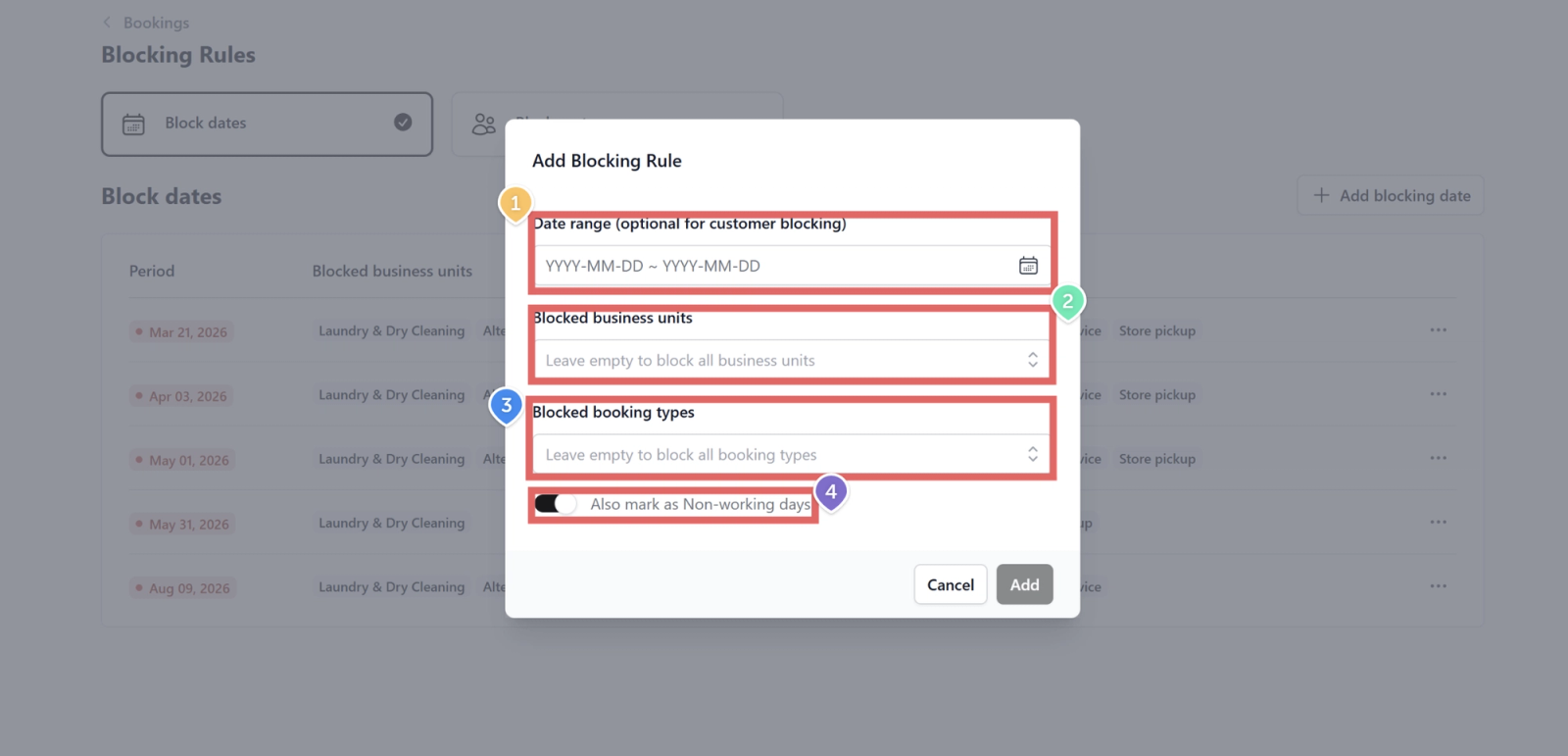
3. Configure the blocking rule based on your needs:
- 3.1 Date range: Select the start and end dates to block
- 3.2 Blocked business units: Choose one or more business units
- 3.3 Blocked booking types: Select which booking types should be blocked
- 3.4 Working day toggle: Turn on or off to mark whether the date is considered a working day
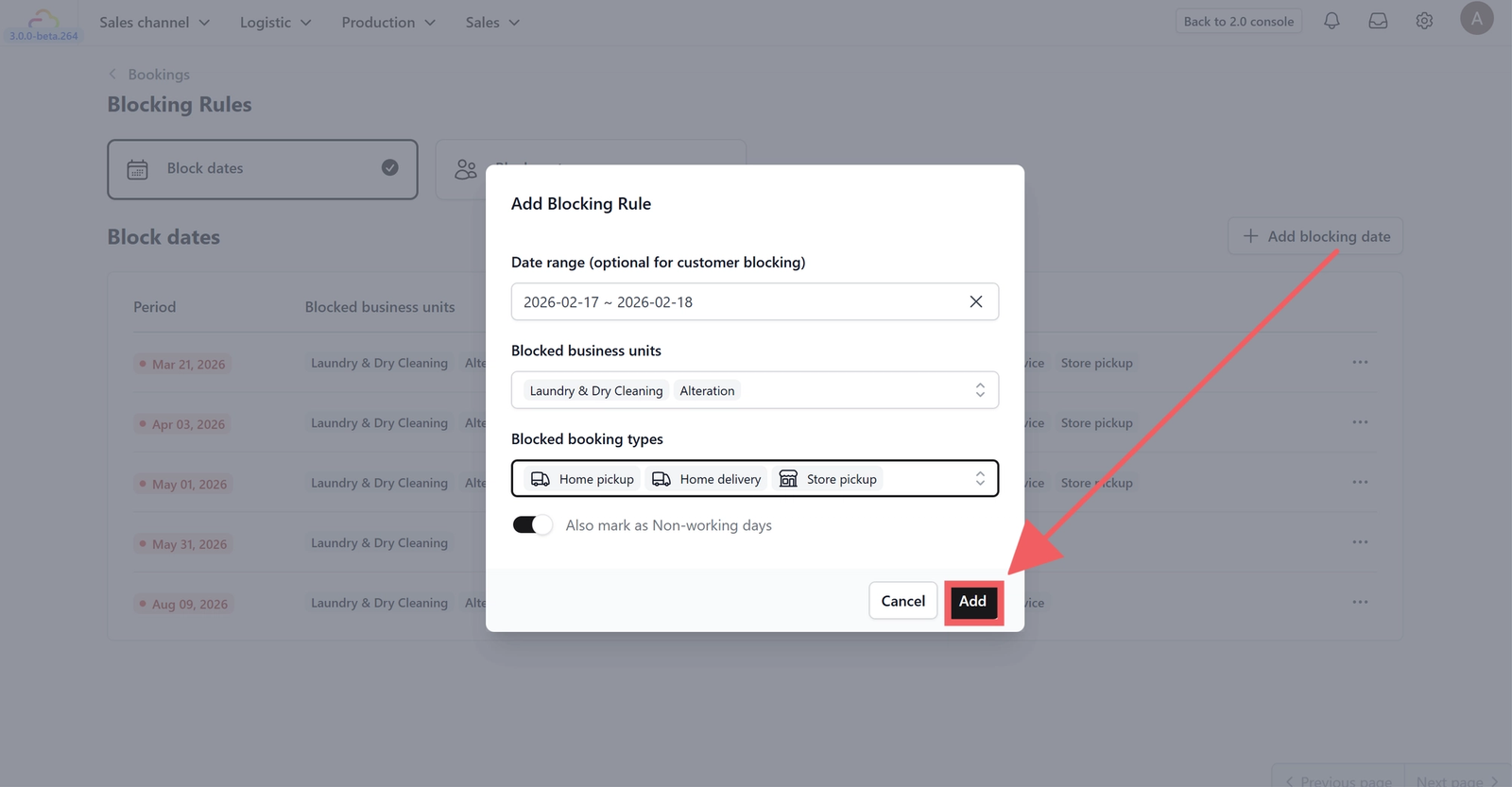
4. Click Add to save the rule.
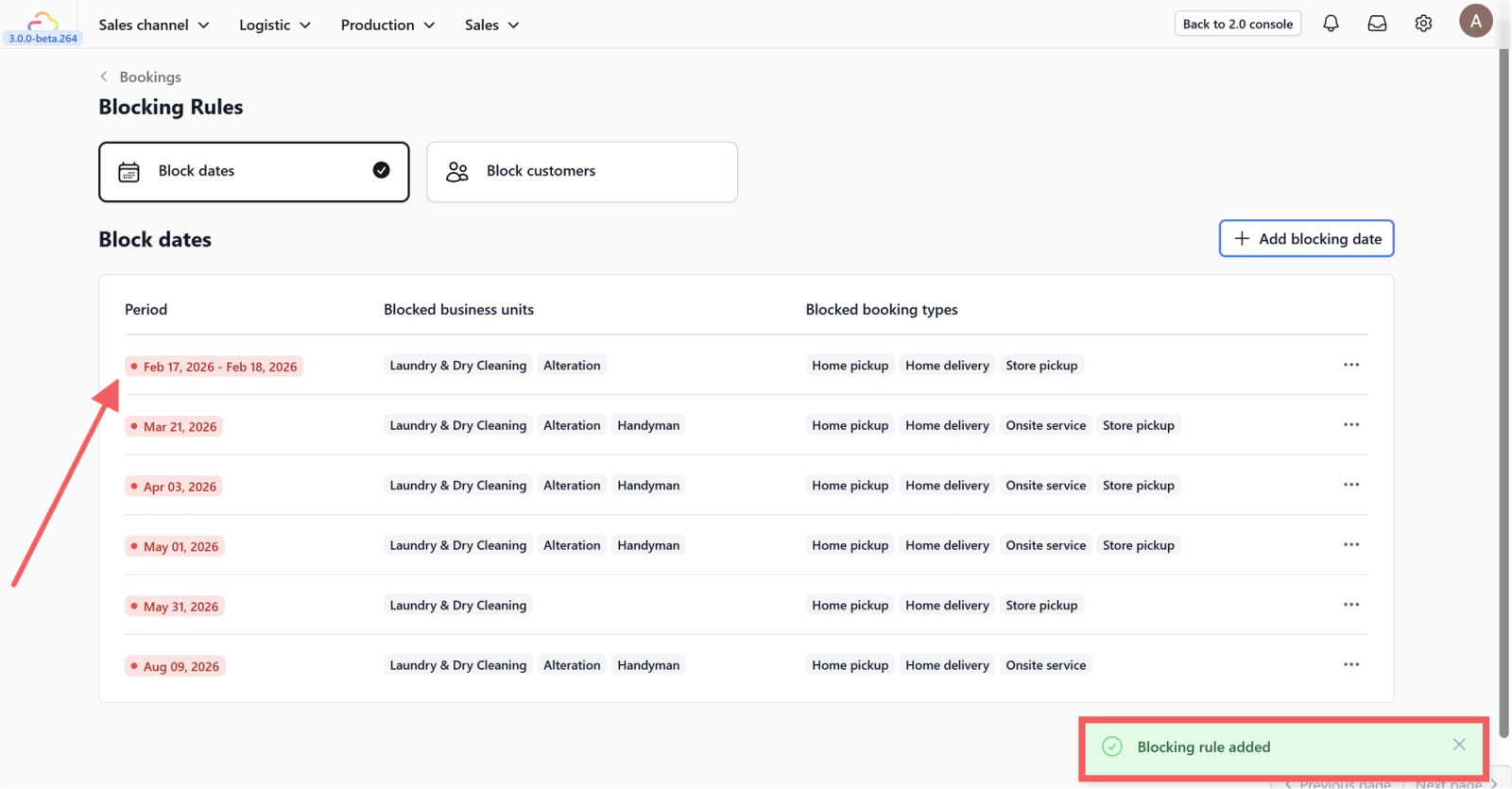
5. You will see a notification confirming that the blocked date has been added.
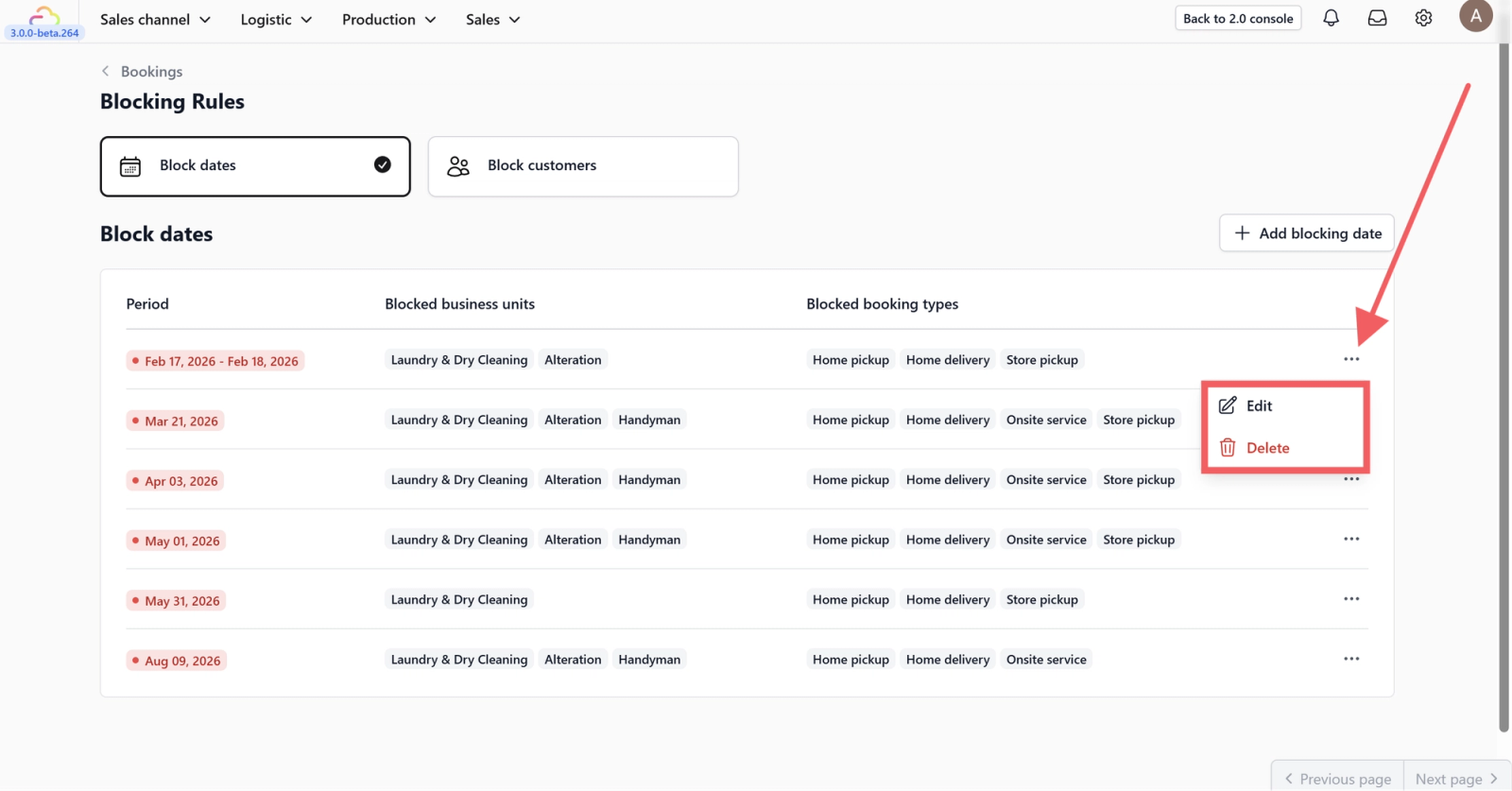
6. Use the three-dot menu to edit or delete an existing blocked date.
Note
Blocking Dates do not prevent outlets from creating new sales on blocked dates.
The blocking date setting only affects:
- POS: Available collection dates
- Online Store: Available pickup and delivery dates
Example:
If you block 25 December and select Store Pickup, then 25 December will be disabled in the collection date selection.
What is Blocking Customers?
Blocking Customers prevent selected customers from creating new bookings. This is useful for managing exceptional cases such as account reviews, policy enforcement, or restricted access.
When blocking customers:
- The selected customers cannot create new bookings
- Existing bookings are not affected
- Other customers remain unaffected
How to Set Up Blocking Customers:
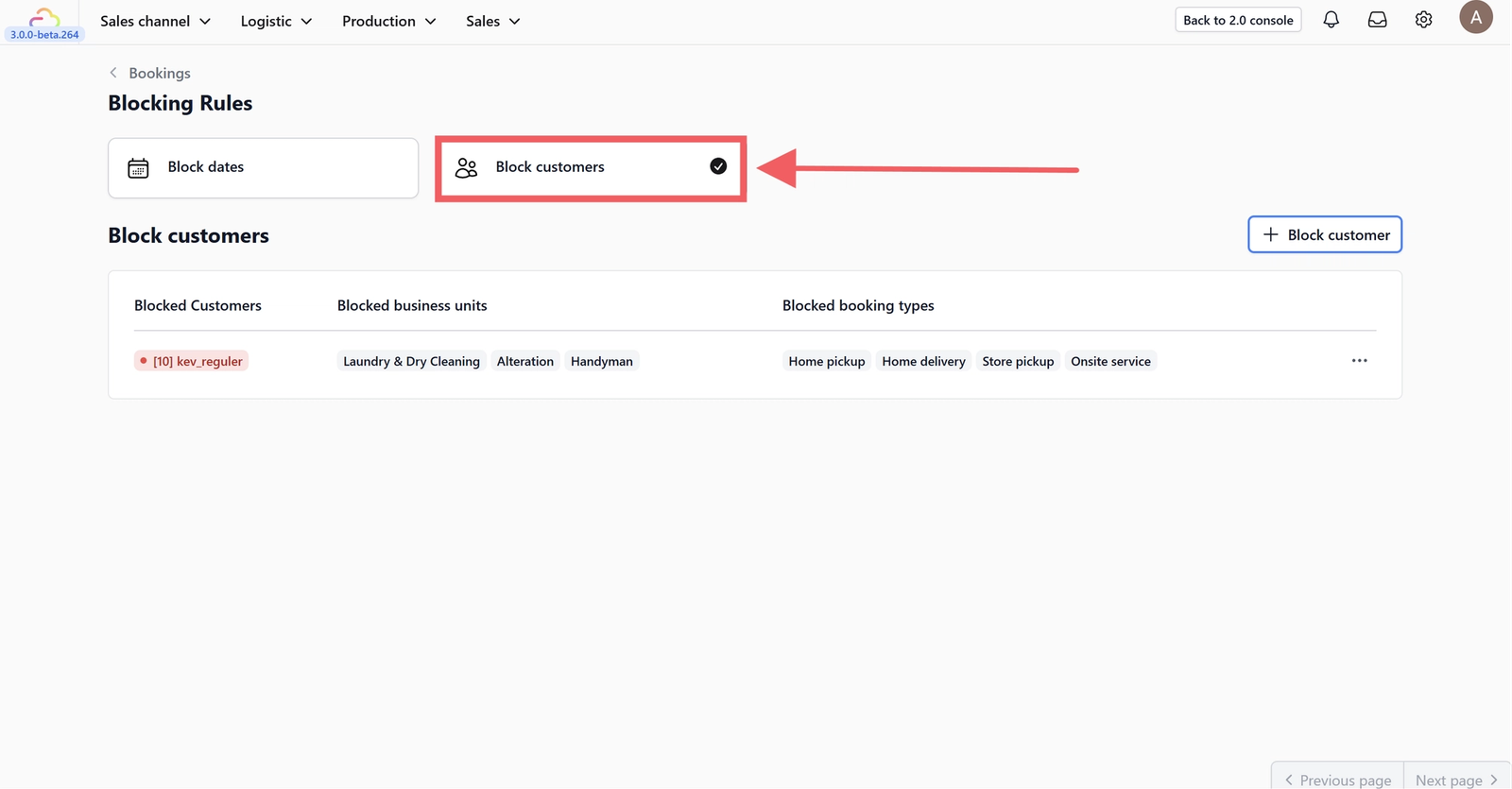
- Go to Block Customers.
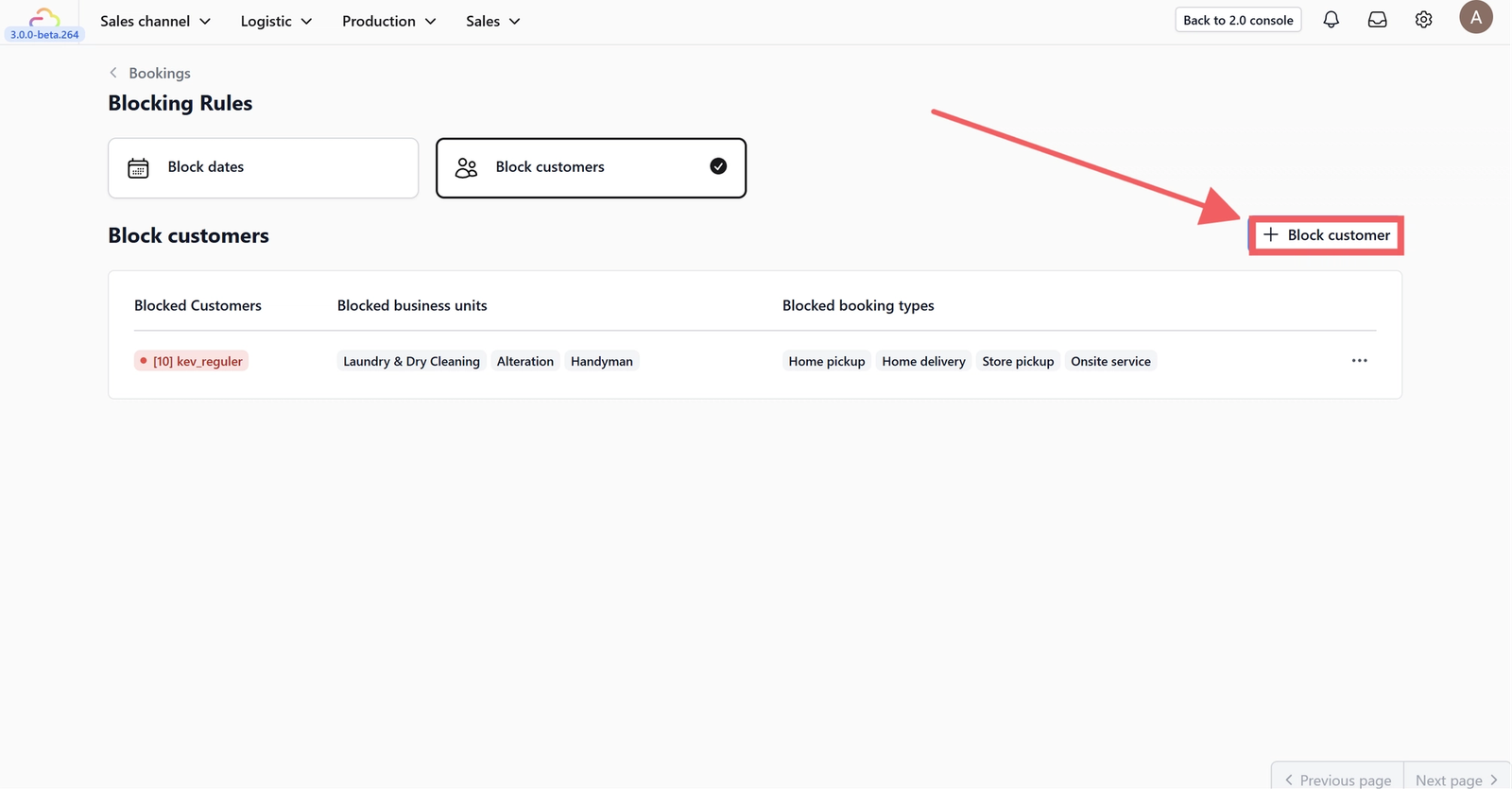
2. Click + Add Blocking Customer.
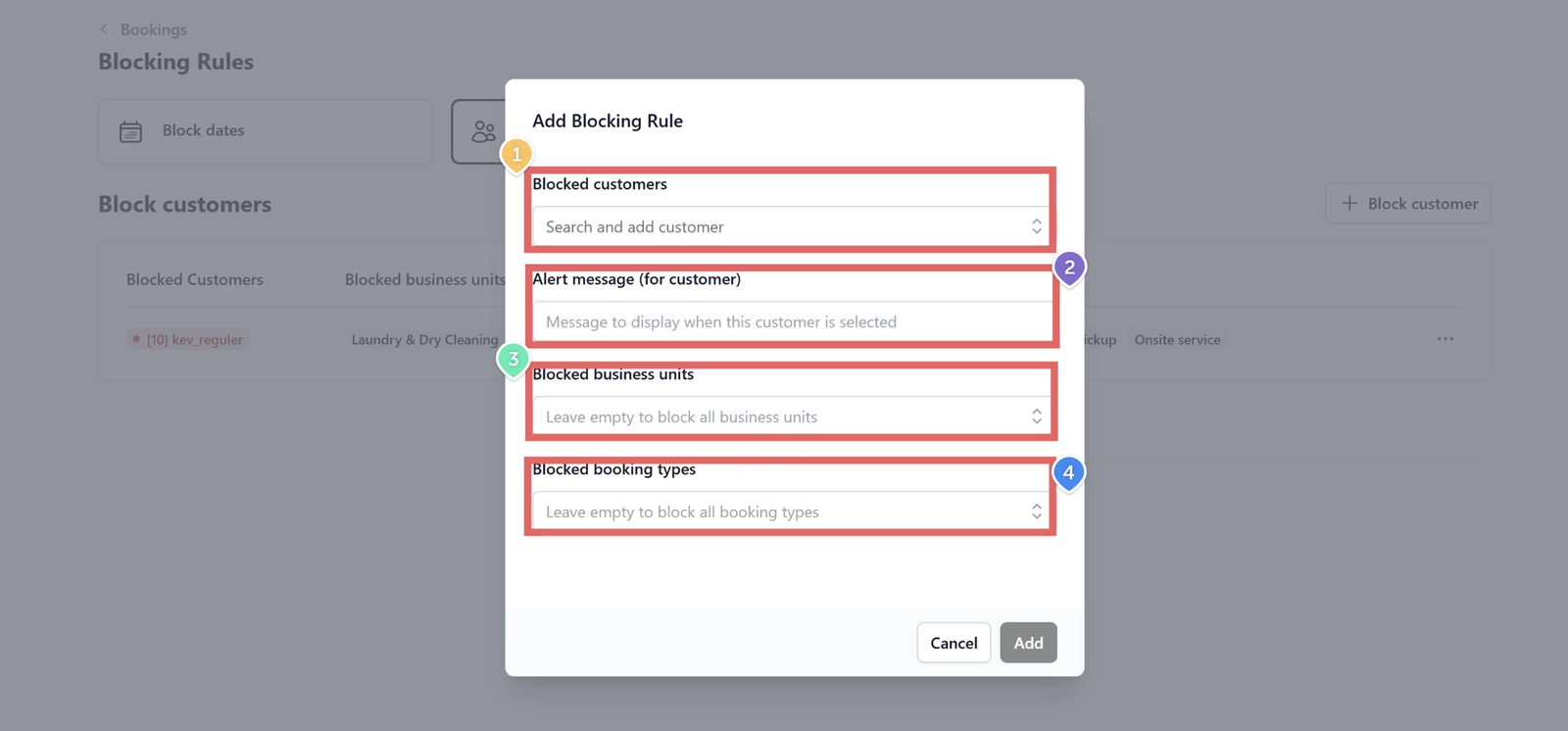
3. Configure the blocking rule based on your needs:
- 3.1 Blocked customers: Select one or more customers to block
- 3.2 Alert message: Set the message that will be shown to the customer on the online store
- 3.3 Blocked business units: Choose one or more business units
- 3.4 Blocked booking types: Select which booking types should be blocked
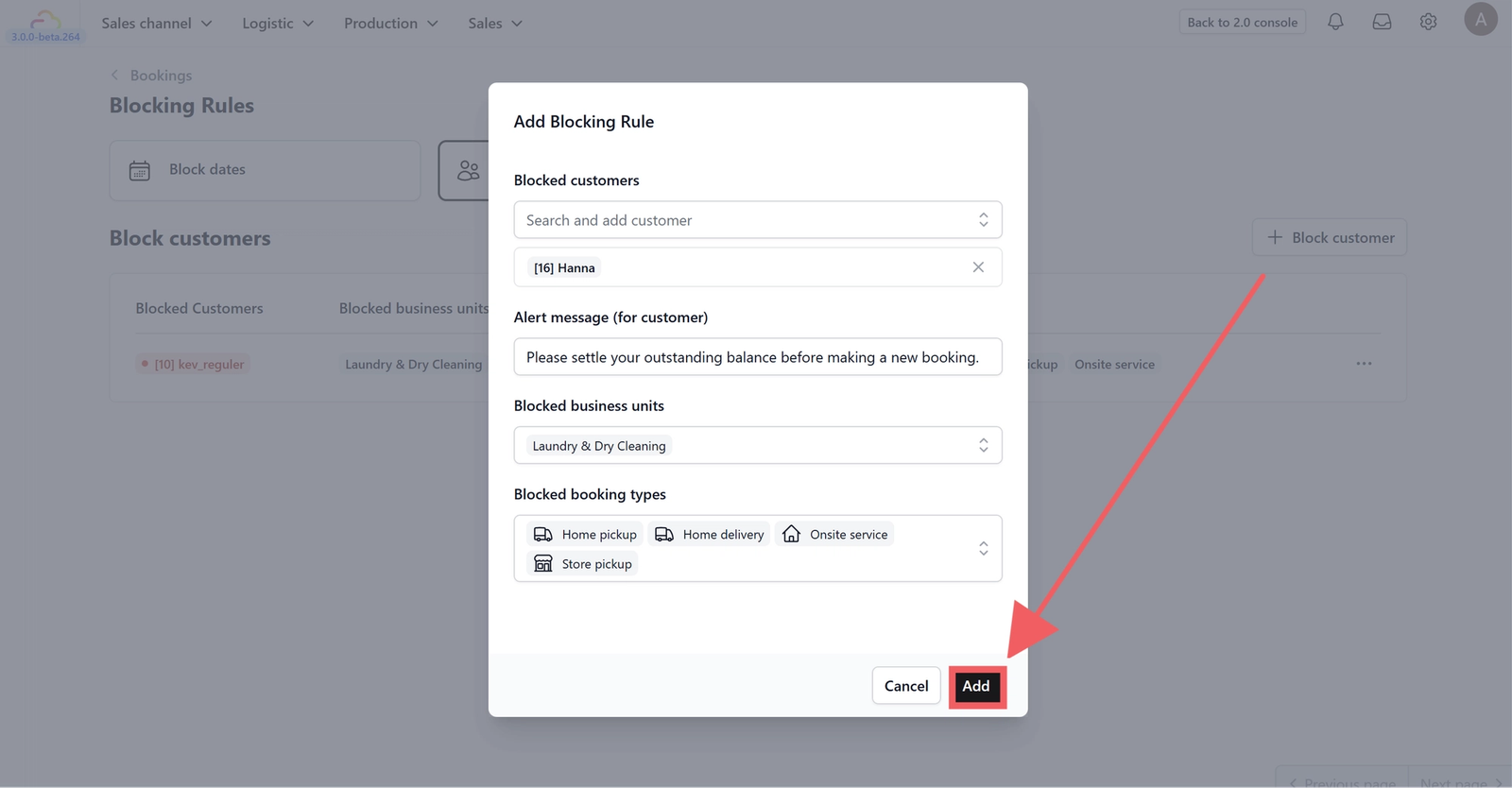
4. Click Add to save the rule.
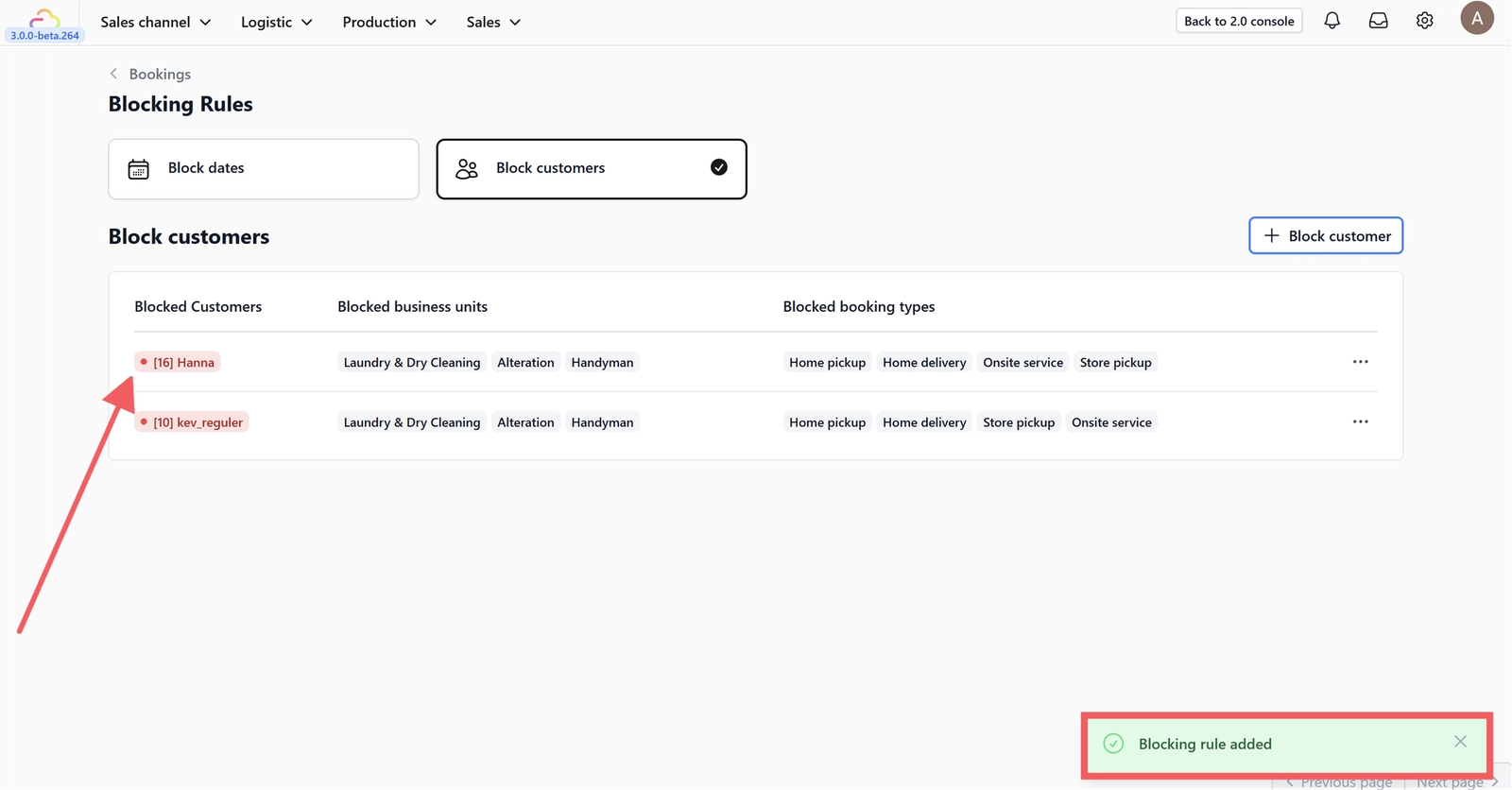
5. You will see a notification confirming that the blocked customer has been added.
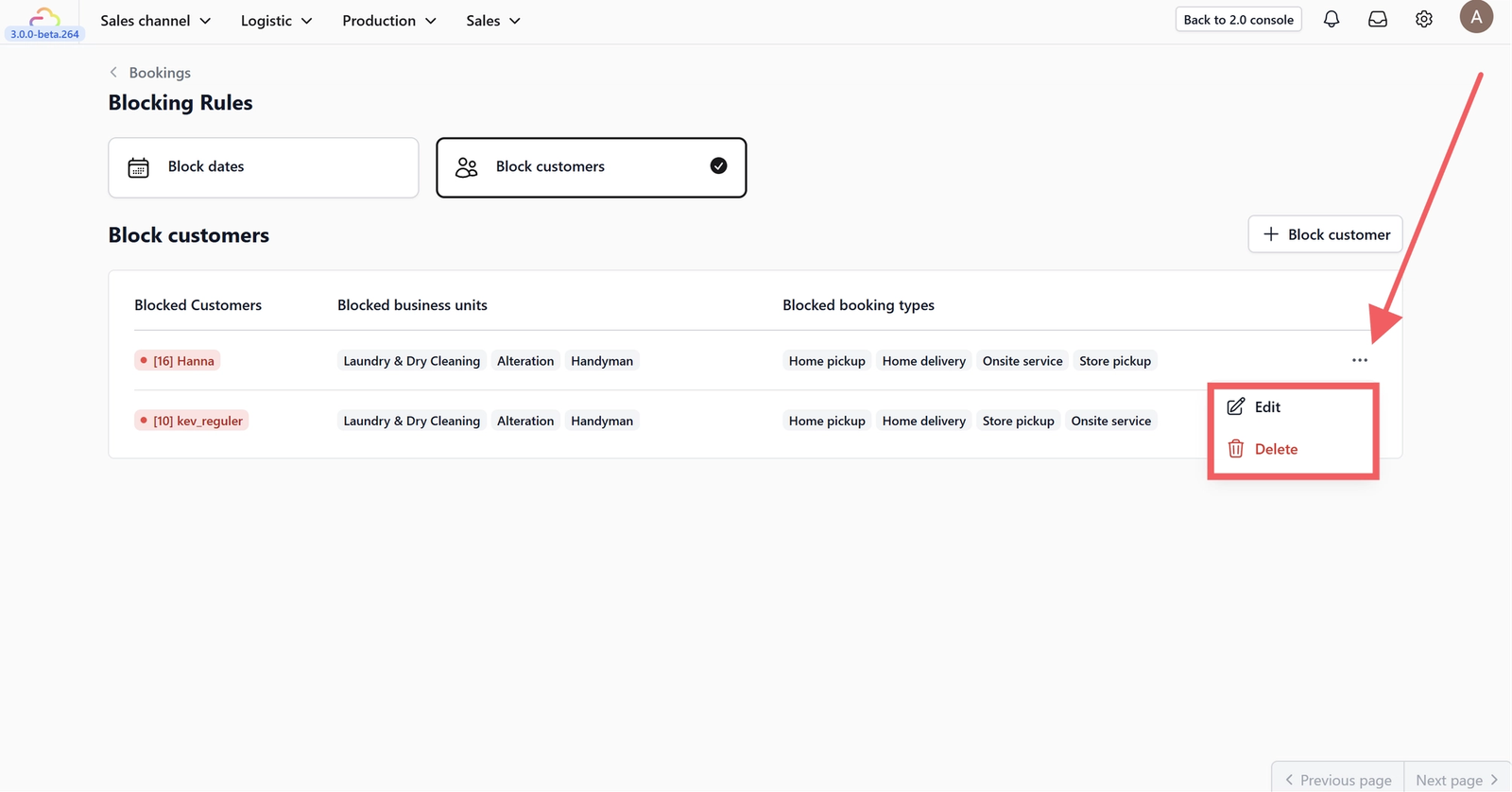
6. Use the three-dot menu to edit or delete an existing blocked customer.
Give feedback