
Setting Up Service Areas
In this article
Overview: Service Areas define where your services are available. They allow you to control which locations customers can book your services from, based on specific geographical coverage.
Contents
Contents
Why are Service Areas useful?
Service Areas give you precise control over your booking coverage. With Service Areas, you can:
- Restrict bookings to supported locations only
- Prevent orders from areas you do not serve
- Align delivery, manpower, and scheduling more accurately
By configuring Service Areas properly, you ensure customers can only book services in locations that your business can reliably support.
How Service Areas work with Custom Zones
Service Areas are built on top of Custom Zones.
Custom Zones define the geographical boundaries, while Service Areas use those zones to determine where bookings are allowed. When setting up a Service Area, you will be able to select from the Custom Zones you have already created.
How to set up Service Areas for your business unit
- Go to your Service Areas page under Booking
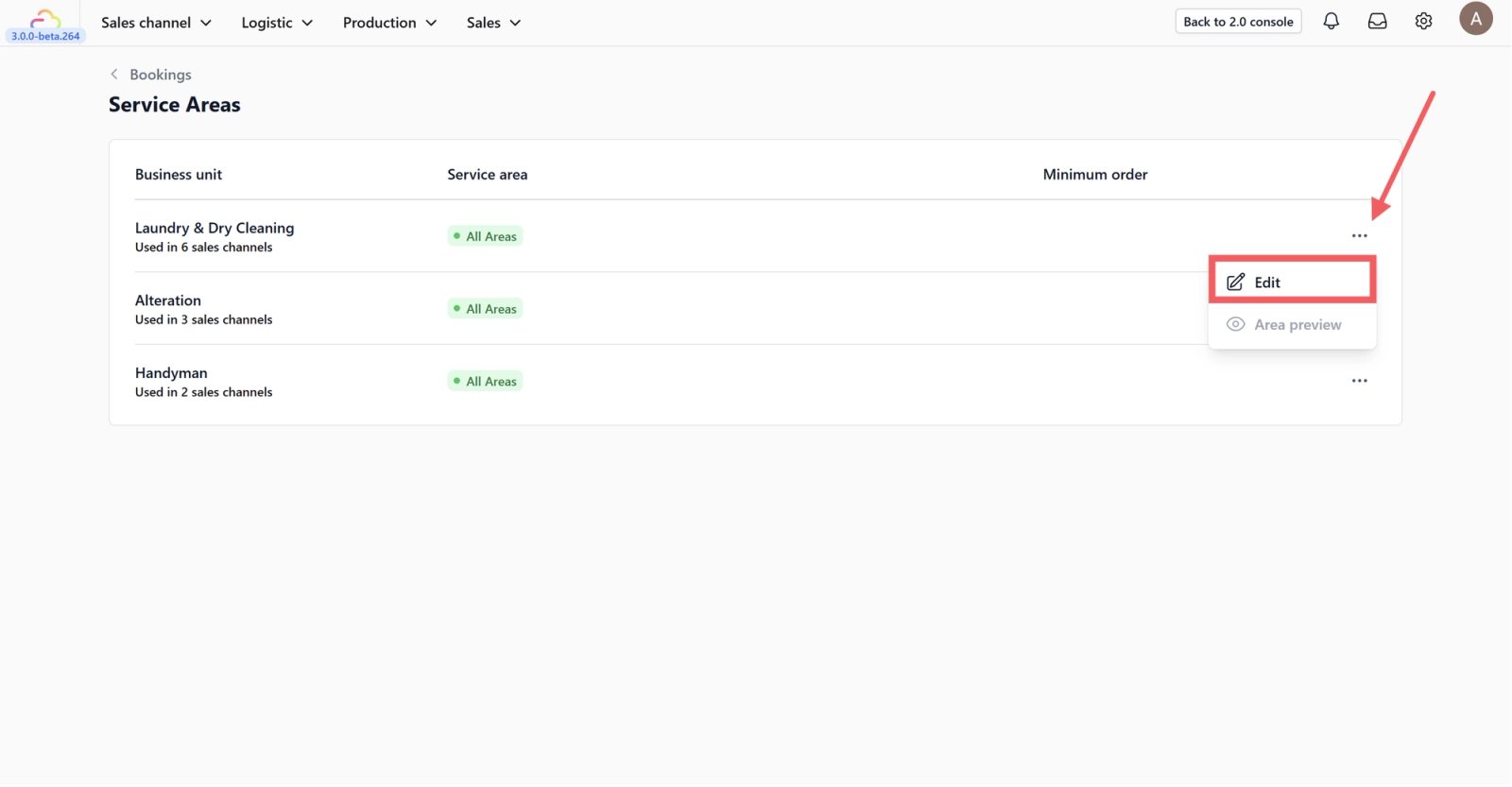
2. You will see all your business units listed. Click the three-dot menu and select Edit
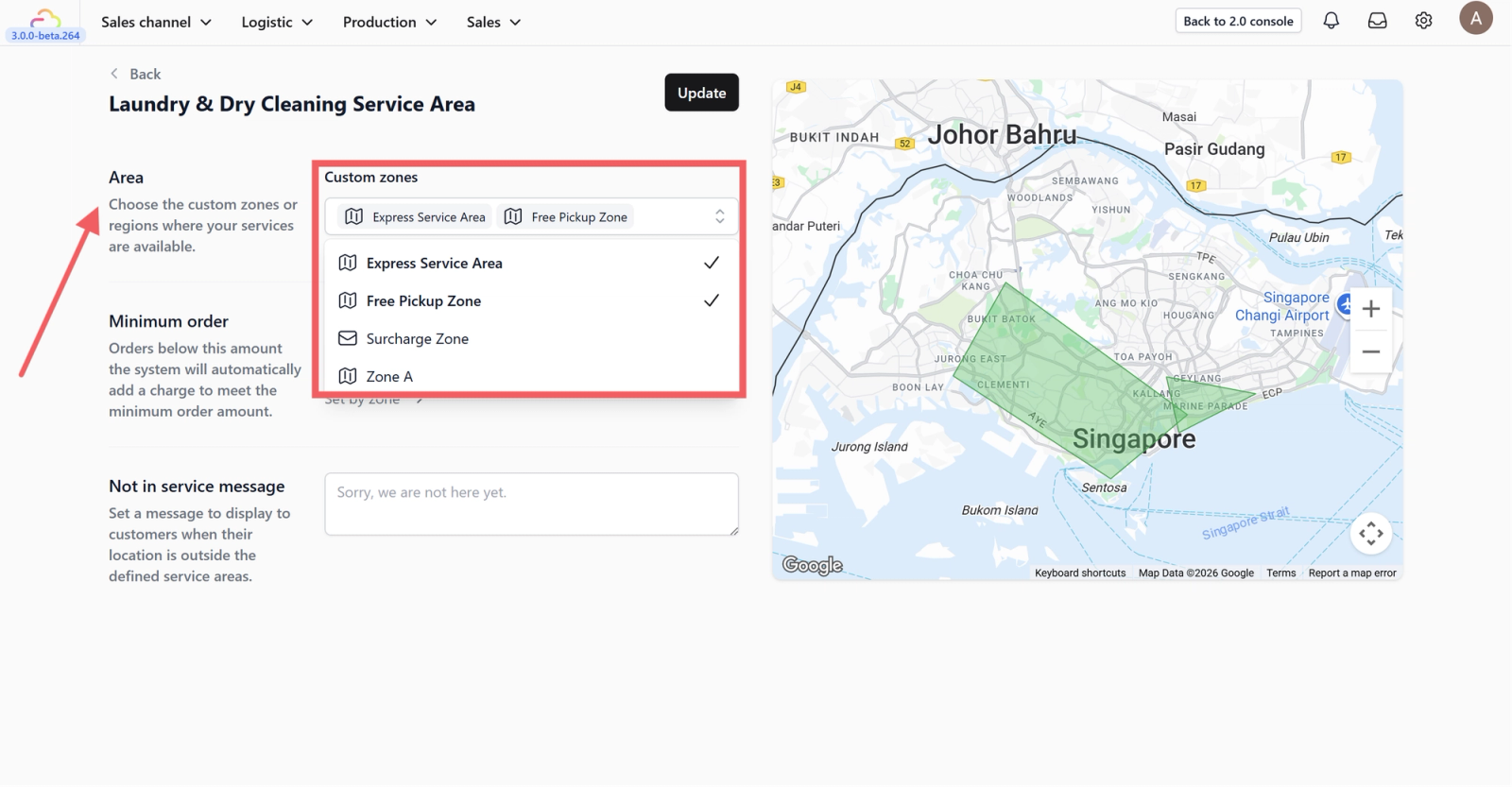
3. Under Area, select one or more zones that you have created in the Custom Zones page
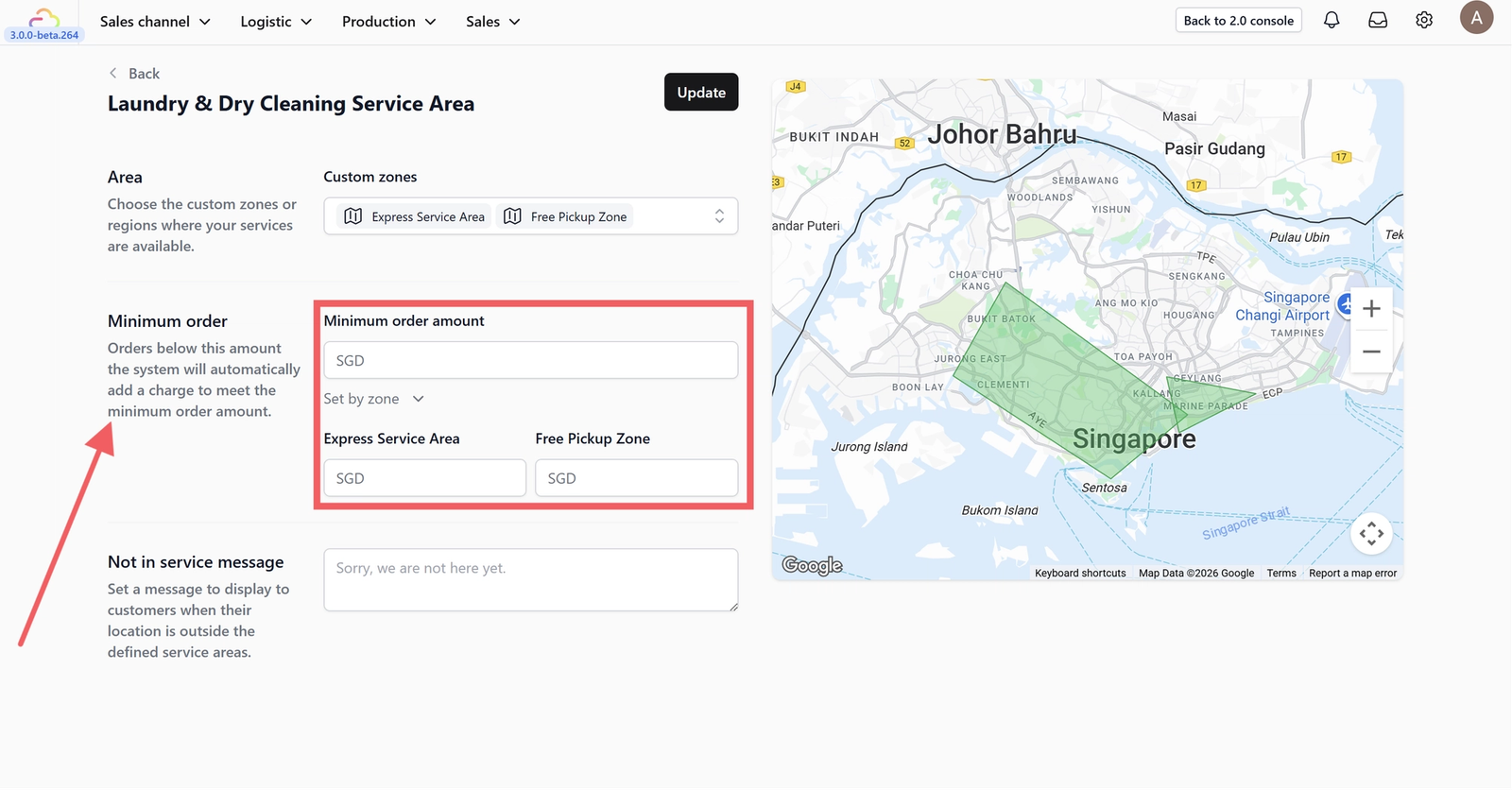
4. Under Minimum Order, choose to apply the default amount set in General or set a custom minimum by zone. Enter the required amount
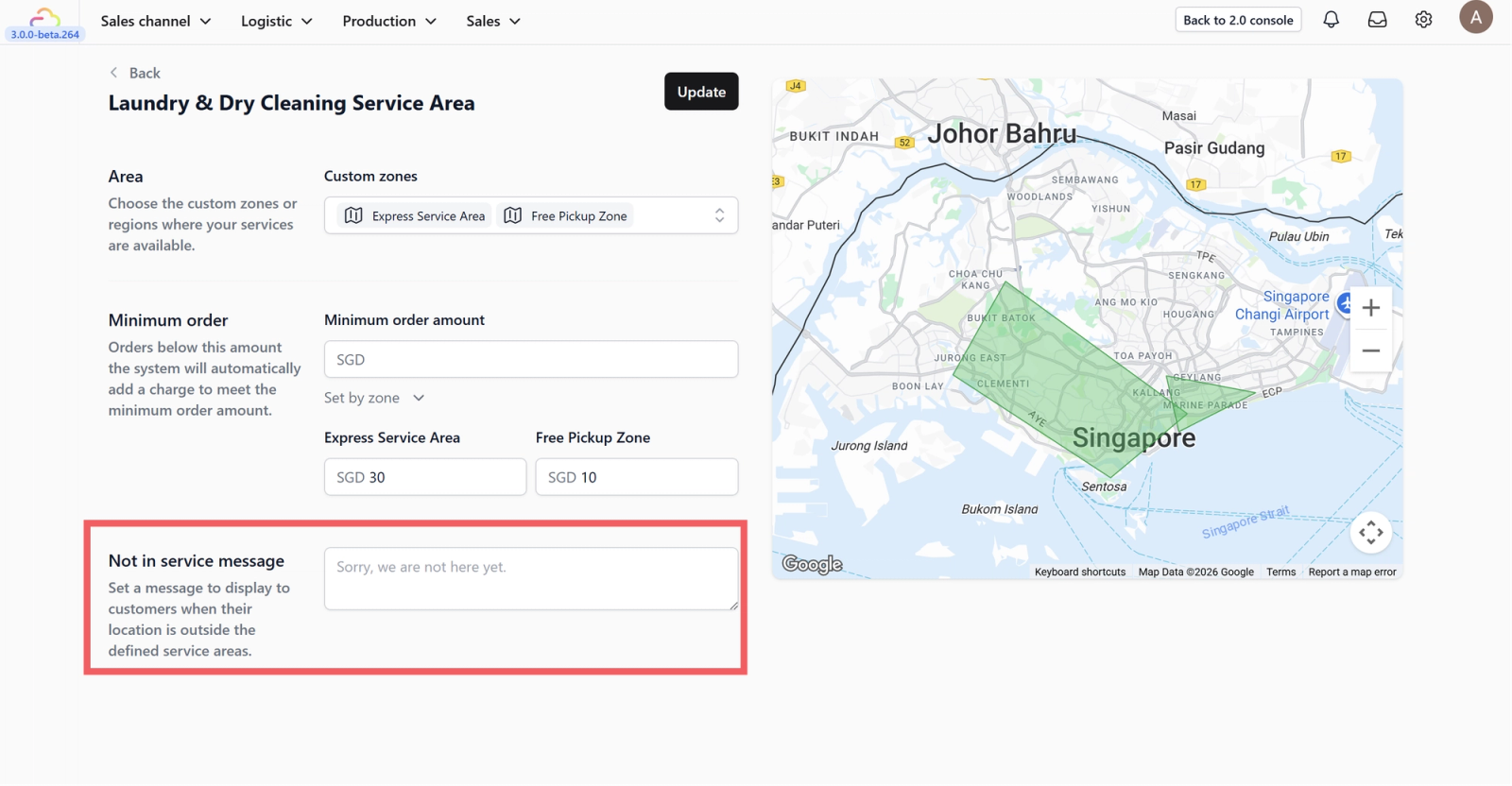
5. Under Not in Service Message, add the message that will be displayed to customers whose locations fall outside your service area
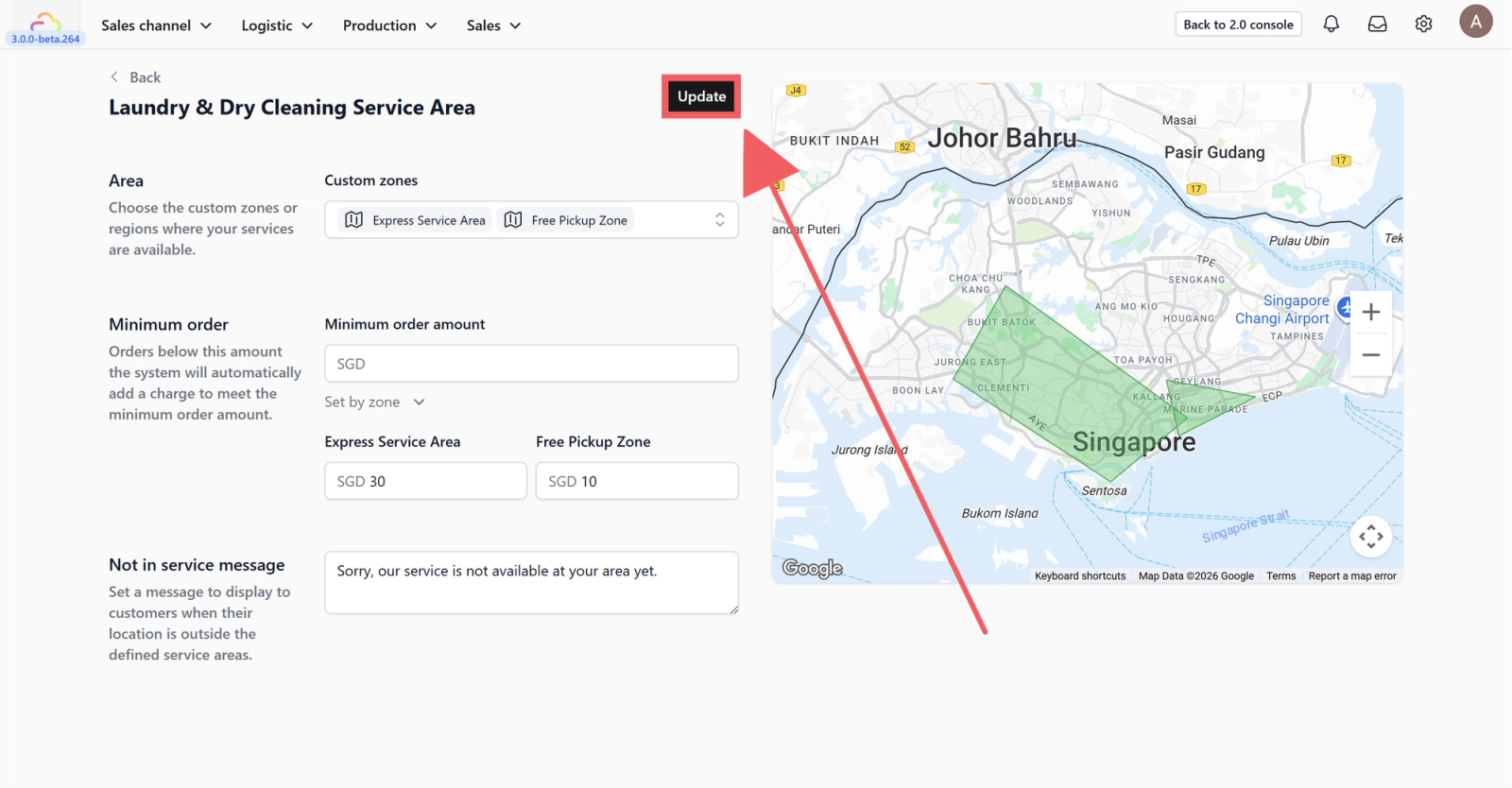
6. Click Update to save your changes
Give feedback
Up next
Setting Up Time SlotsSet available date and time slots to control exactly when your services are open for booking.
Read more