
Introduction to Bookings
In this article
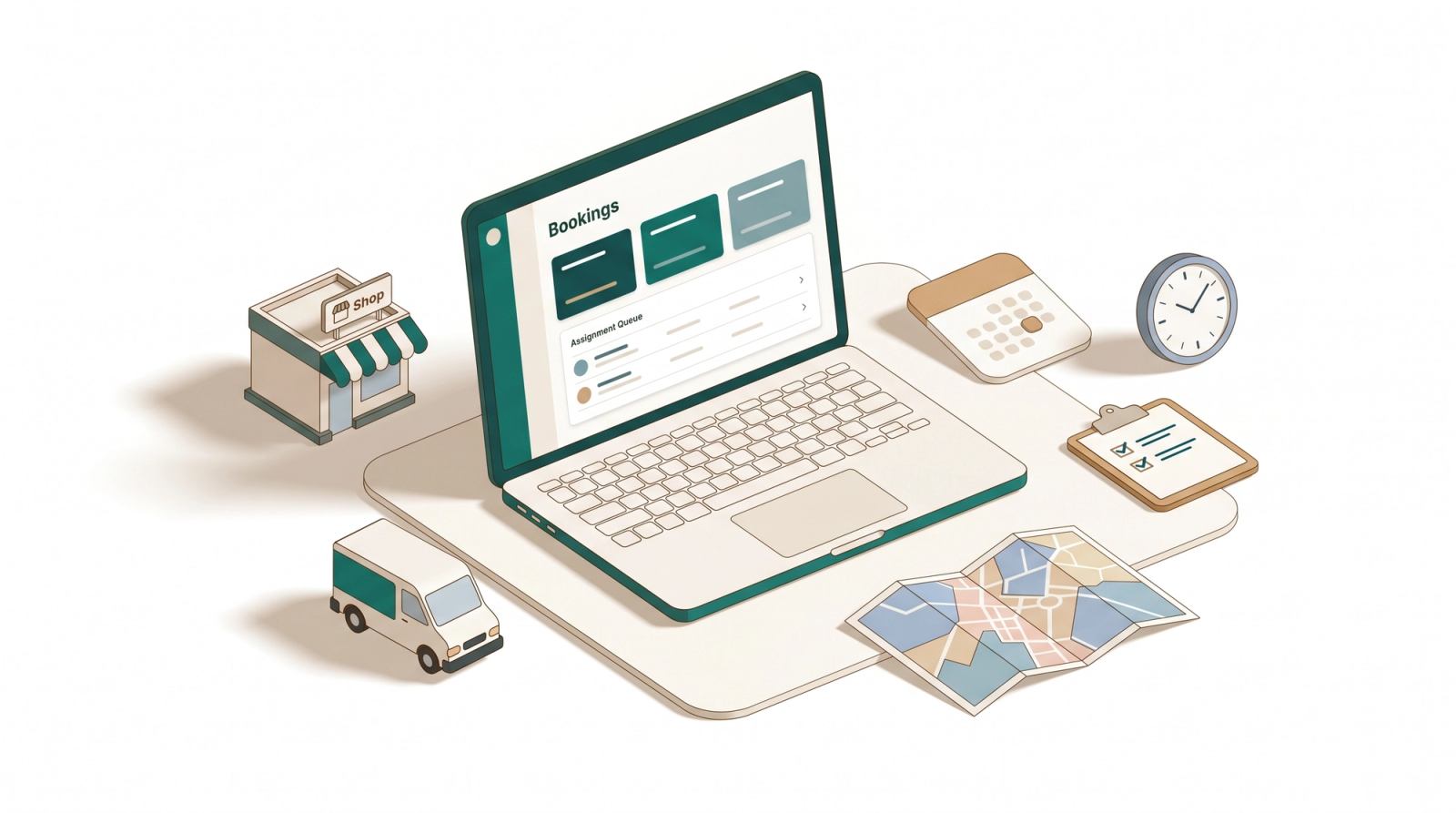
Bookings is where you tell EasyBiz how customers can schedule a pickup, delivery, onsite visit, or store drop-off. Every rule you set here flows into what your customer sees on your online store, your mini-apps, and your POS collection-date picker. Set it up in the right order and everything else falls into place.
Contents
Contents
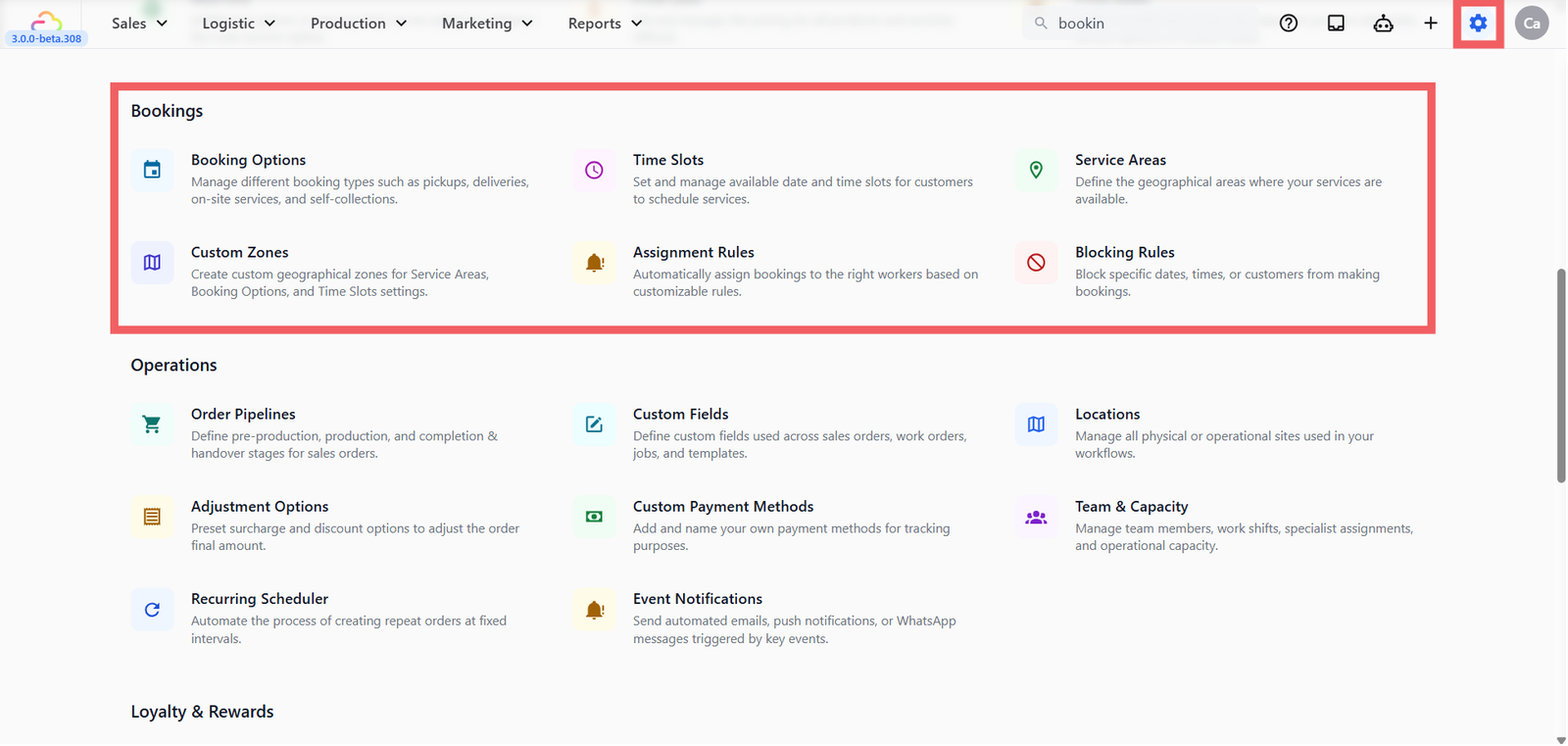
What Bookings Controls
The Bookings area connects three things:
- Which services you offer (pickup, delivery, onsite visit, store drop-off)
- When those services are available (days, time windows, lead time)
- Where you cover (zones, service areas)
Everything a customer sees when they pick a date or time on your online store comes from this section.
The Setup Order
Each piece builds on the one before it.
| Step | What it does | Always required? |
|---|---|---|
| 1. [Setting Up Booking Options] | Creates the service choices your customer sees at checkout | Yes |
| 2. [Setting Up Custom Zones] | Draws the geographic areas you use for everything else | Only if you limit by area |
| 3. [Setting Up Service Areas] | Tells the system which zones each business unit covers and the minimum order | Only if you deliver or pick up |
| 4. [Setting Up Time Slots] | Adds the exact time windows customers can choose | Yes if you offer delivery or pickup |
| 5. [Setting Up Blocking Rules] | Closes specific dates or blocks specific customers | Optional |
| 6. [Setting Up Assignment Rules] | Auto-assigns jobs to a driver or team based on area, time, or unit | Optional |
FAQs
Do I need to set up all six sections before I go live?
No. Only Booking Options is required. The minimum to take bookings online is one Booking Option and, if you deliver, one Time Slot.
What happens if I create a booking option but no time slot?
Customers will be able to pick a date but no specific time window. For delivery and pickup services, always create at least one Time Slot.
Can I change the setup later without breaking existing bookings?
Yes. Changes to Booking Options, Time Slots, Zones, and rules only affect new bookings. Orders already on the calendar stay where they are.
I only do store drop-offs. Can I skip zones and areas?
Yes. Store Pickup does not use the customer's address, so Custom Zones and Service Areas are not needed.
What's Next
Now that you understand how the Bookings setup works and what order to follow, start building your first booking option. See [Setting Up Booking Options].
Give feedback
Up next
Setting Up Booking OptionsBuild the service choices your customer sees at checkout, from a standard pickup to an express delivery.
Read more