
Configuring Procedures
In this article
Procedures are the individual stages of your workflow found on the left sidebar. Whether you are setting up a "Sales Intake" or a "Quality Check," every procedure follows the same simple setup process.
Contents
Contents
Procedures
If Templates are the "blueprints," Procedures are the actual bricks. These are the specific, actionable steps your team performs—like checking an item, taking a photo, or processing a transfer.
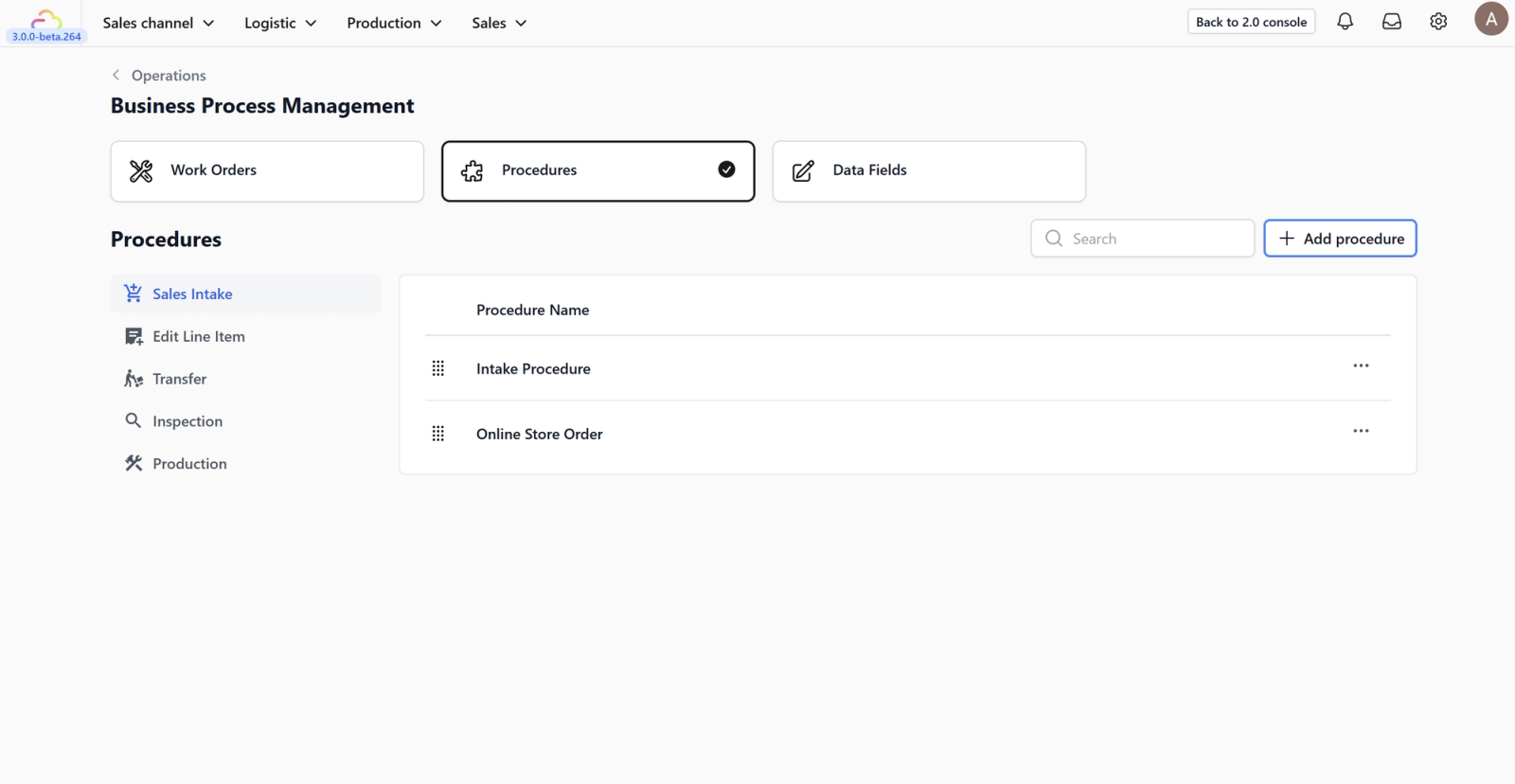
Procedures List
The Procedures tab serves as a central repository for every action your team might need to take. Here is what you are managing on this screen:
1. The Procedure Library
This list contains every distinct action available in your system.
- Intake Actions: Steps like "Sales Intake"or "Online Store Order" that happen at the start of a process.
- Operational Actions: Steps like "Edit Line Item"or "Transfer" for moving inventory.
- Quality Actions: Steps like "Inspection"or "Production" to verify item status.
2. Search & Manage
As your library grows, use the Search bar to quickly find specific tasks without scrolling. This is helpful when you need to edit an existing standard operating procedure (SOP).
3. Add Procedure
The + Add procedure button allows you to define a new task type. Once created here, it becomes immediately available to be linked to any Work Order Template.
Common Procedure Types
Procedures usually fall into three categories. You can mix and match these to build your workflows:
- Checkpoints: Simple "Pass/Fail" steps (e.g., "Inspection").
- Data Entry: Steps requiring input (e.g., "Sales Intake" where staff might enter customer details).
- Logistics: Steps that track movement (e.g., "Transfer"or "Production").
How to create a procedure (Example: Sales Intake):
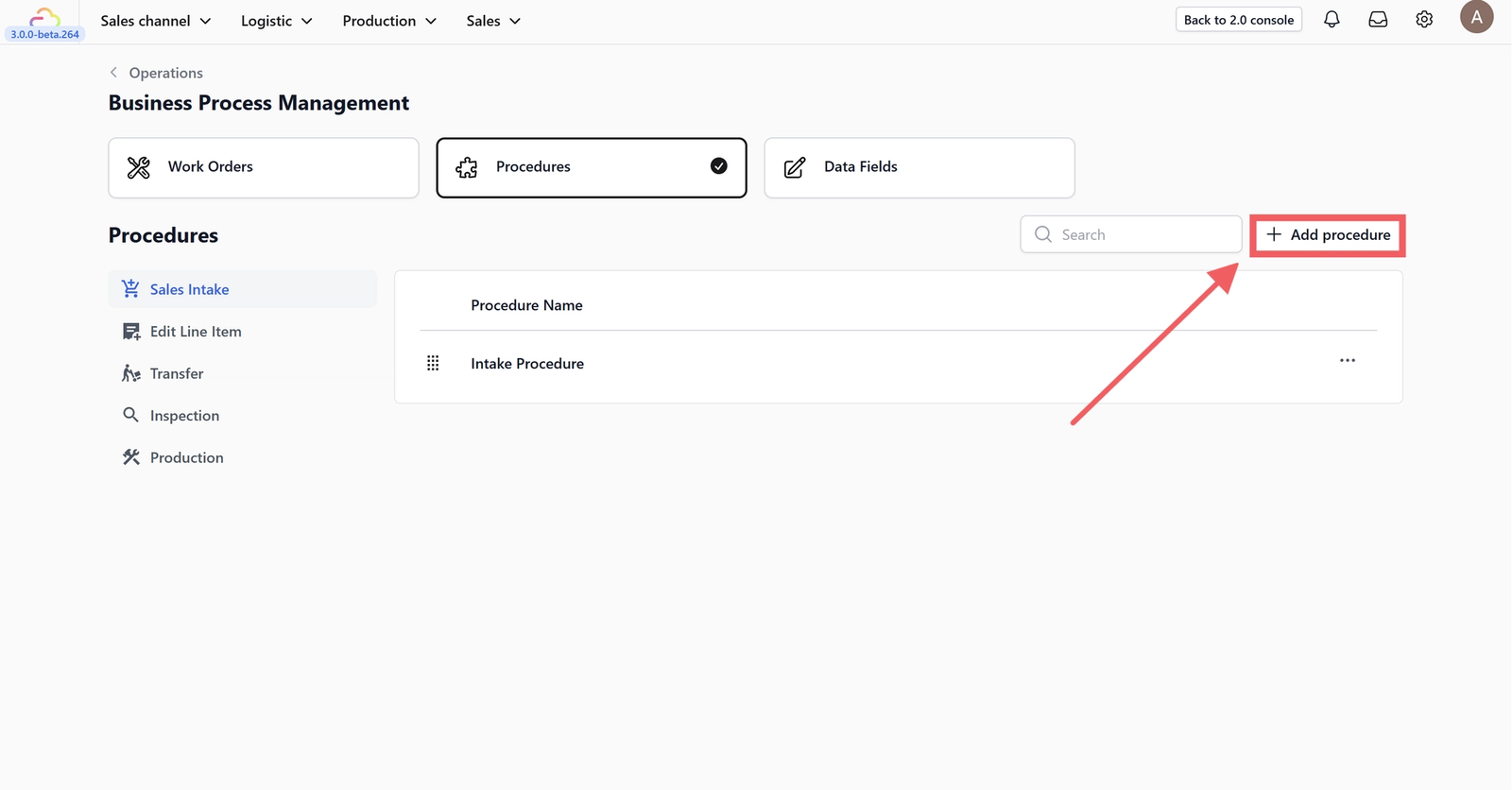
- Click the +Add procedure button.
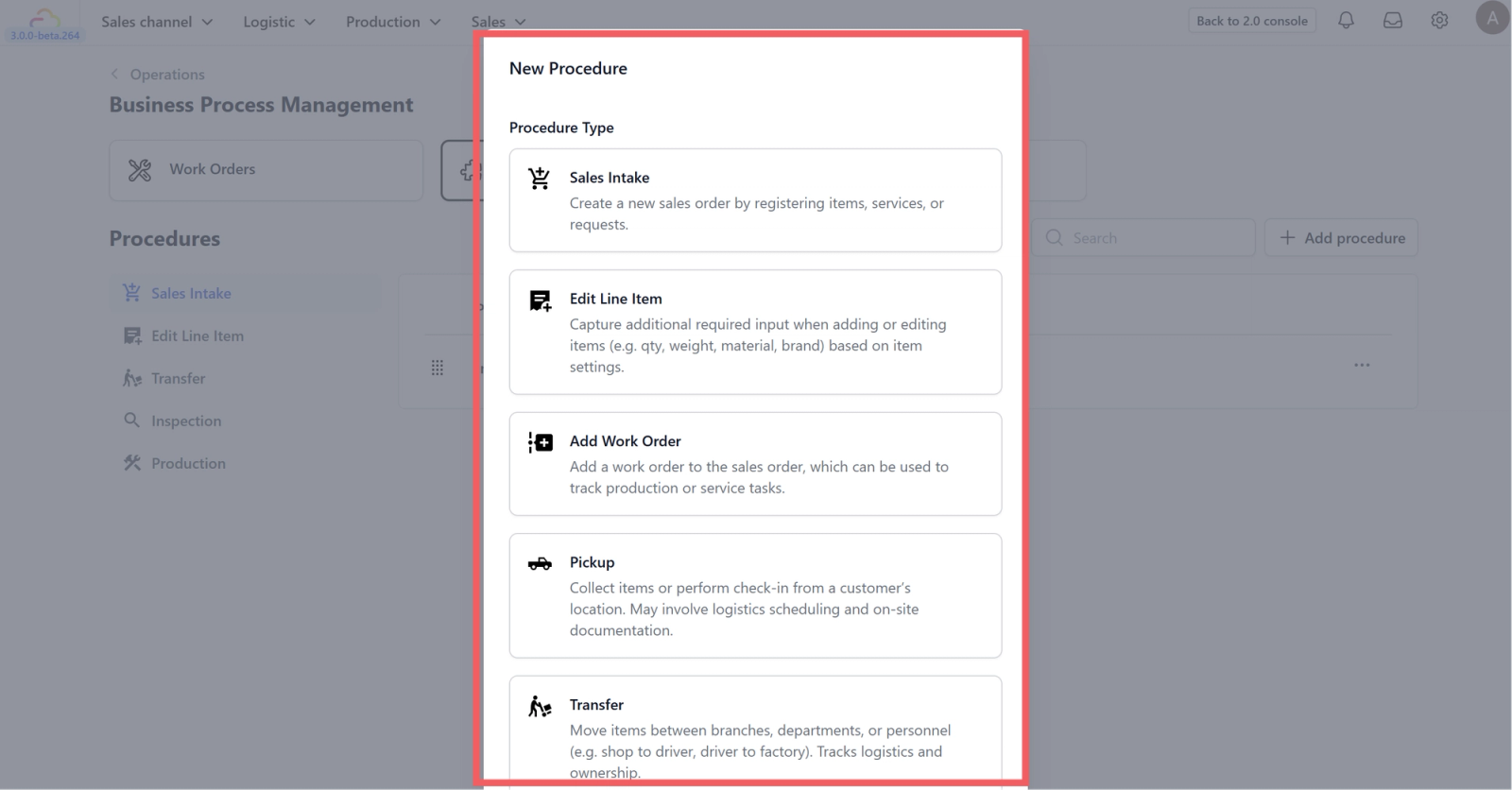
2. Select Type: Choose the procedure type that fits your workflow.
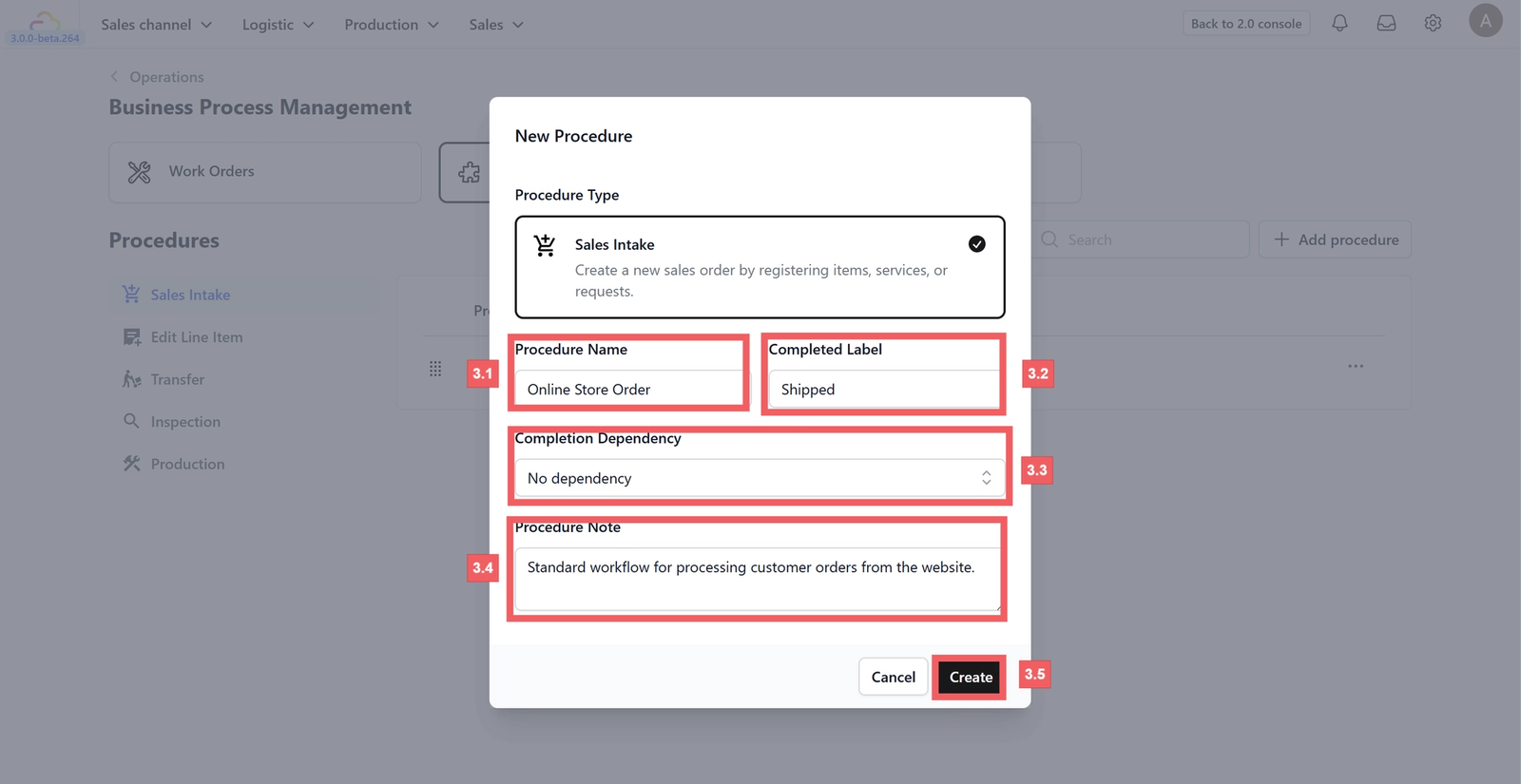
3. Configure Details:
- 3.1 Name: Enter the procedure name (e.g., "Sales Intake").
- 3.2 Completed Label: Define the status text shown when this step is finished.
- 3.3 Dependency: Choose if this step relies on other tasks being completed first.
- 3.4 Note: Add any specific instructions for your team (optional).
- 3.5 Click Create.
4. Define Procedure Actions This screen appears once you have created your procedure. Here, you can define the specific actions users need to take.
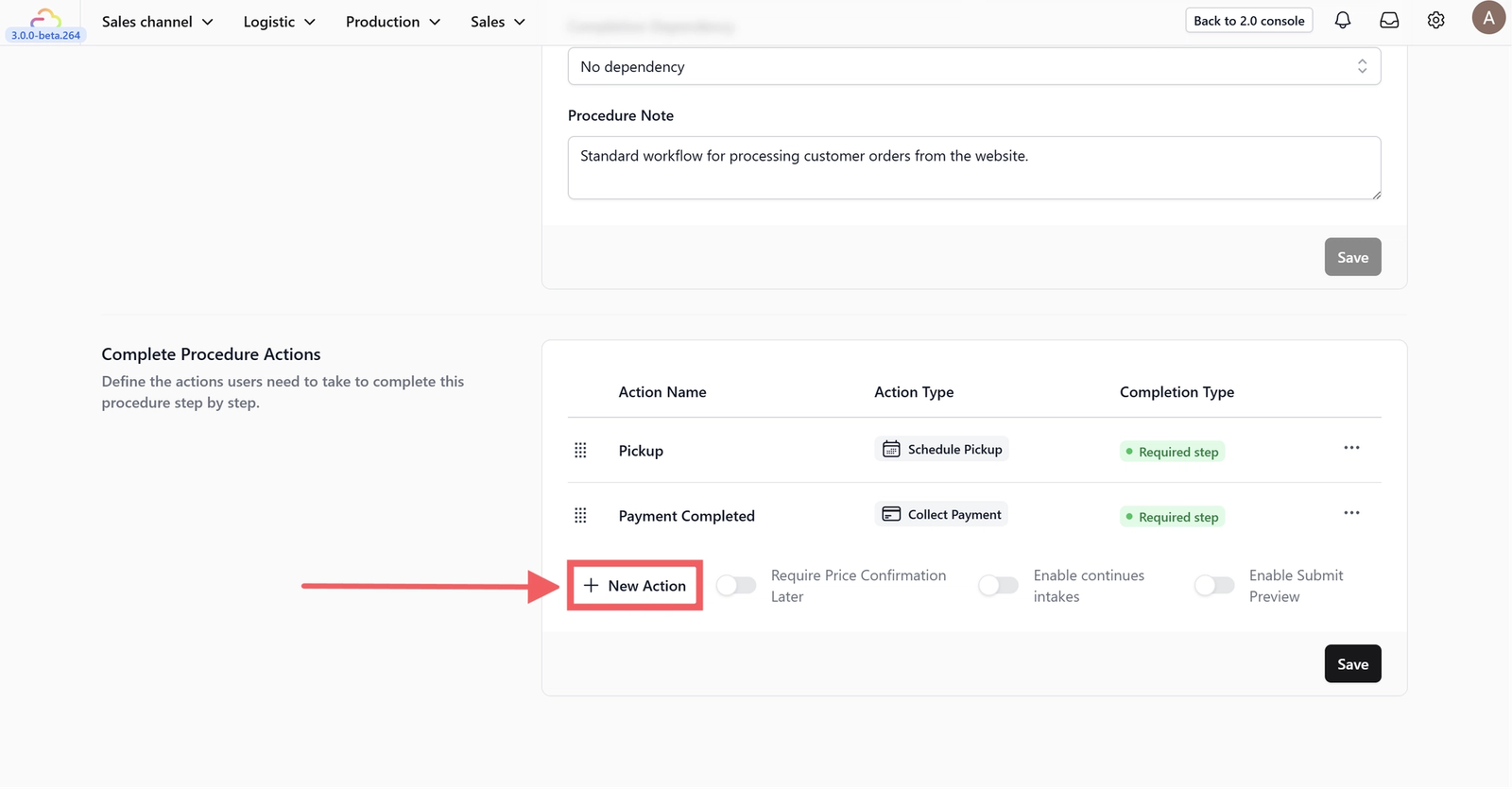
- 4.1 Click the +New Action button.
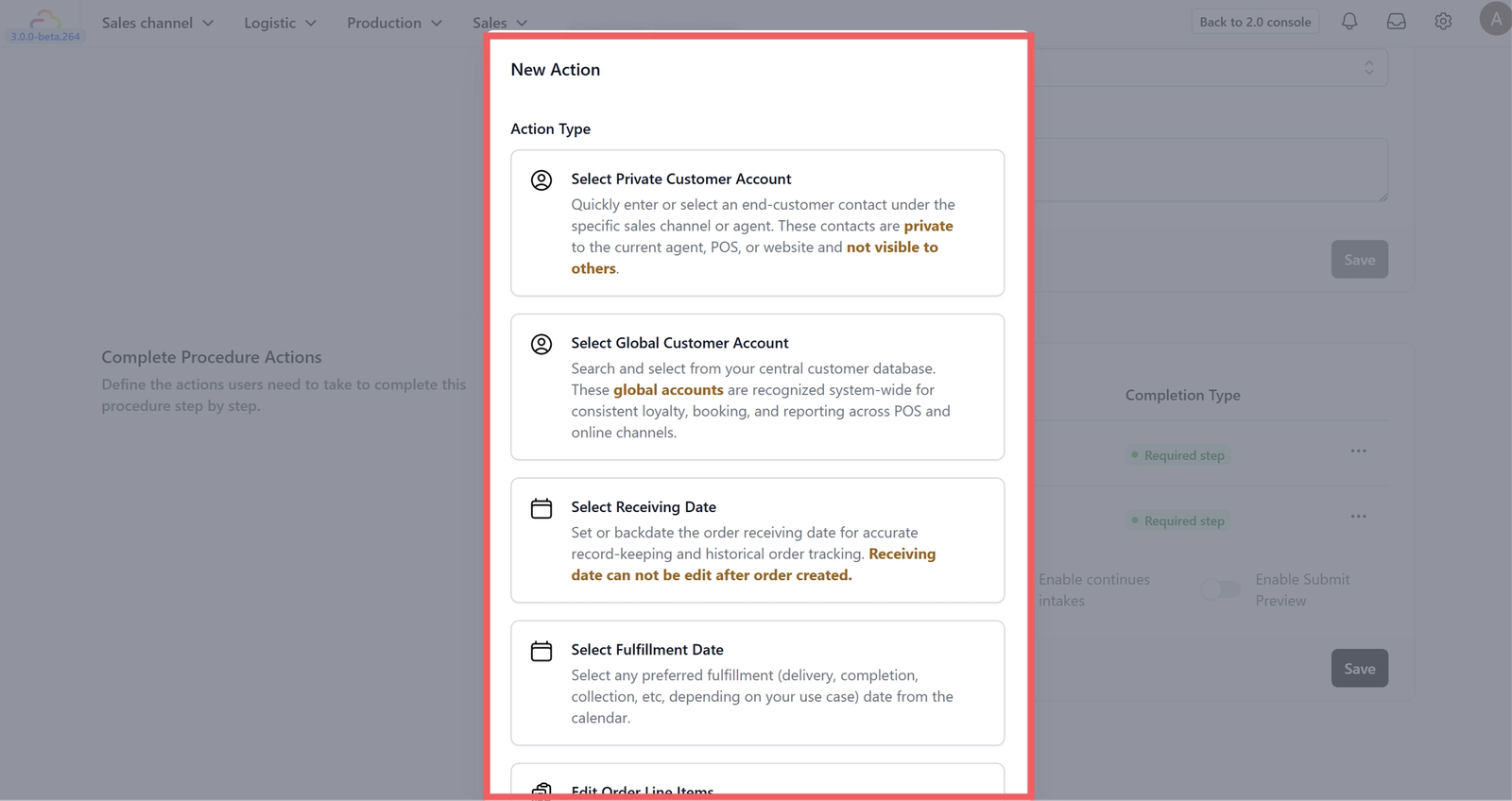
- 4.2 Select the specific Action Type for your procedure.
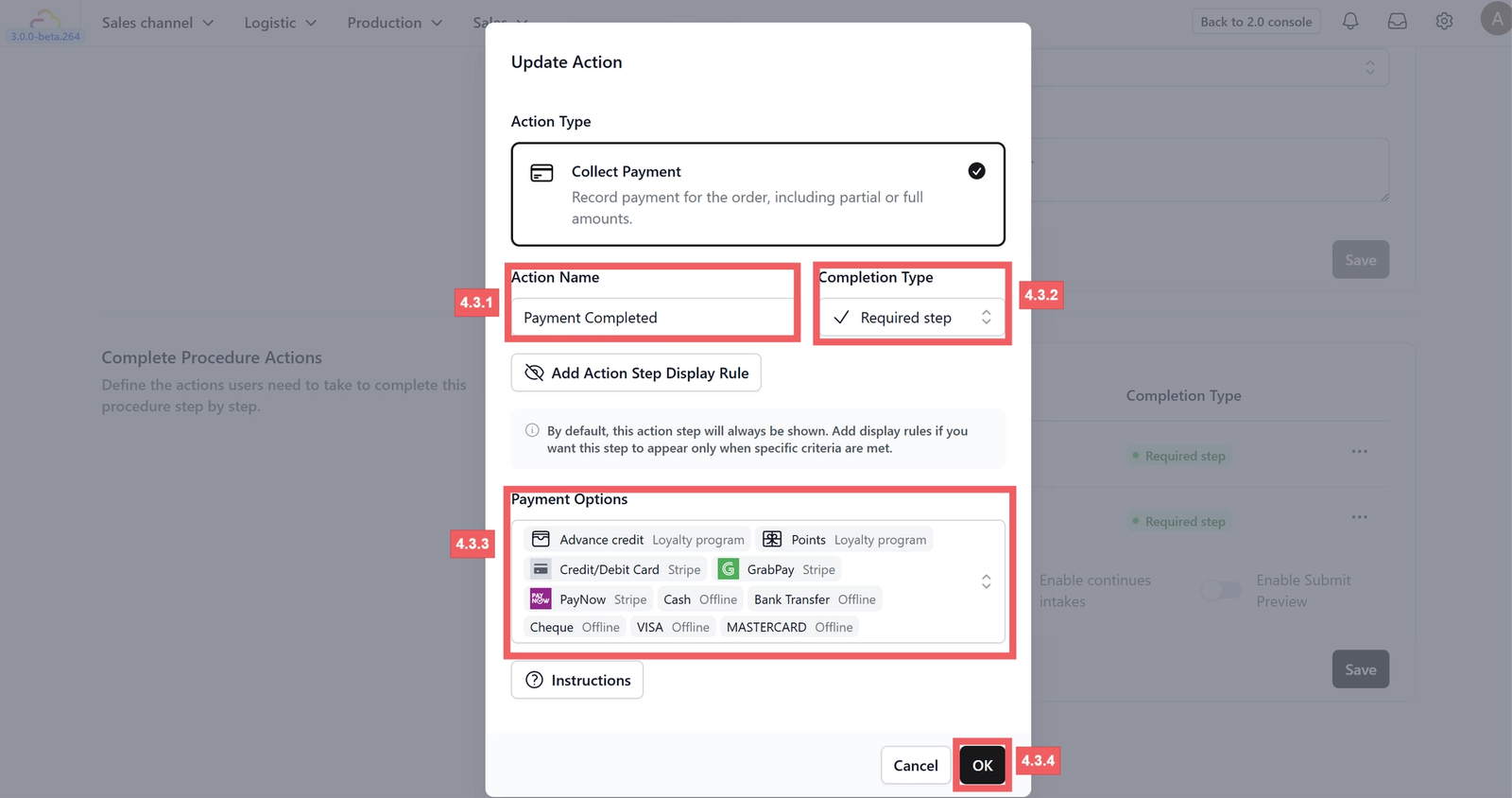
- 4.3 Example: Creating a "Collect Payment" Action
- 4.3.1 Enter the Action Name.
- 4.3.2 Select the Completion Type (e.g., Required step).
- 4.3.3 Choose the allowed Payment Options.
- 4.3.4 Click OK to save.
5. Procedure Settings
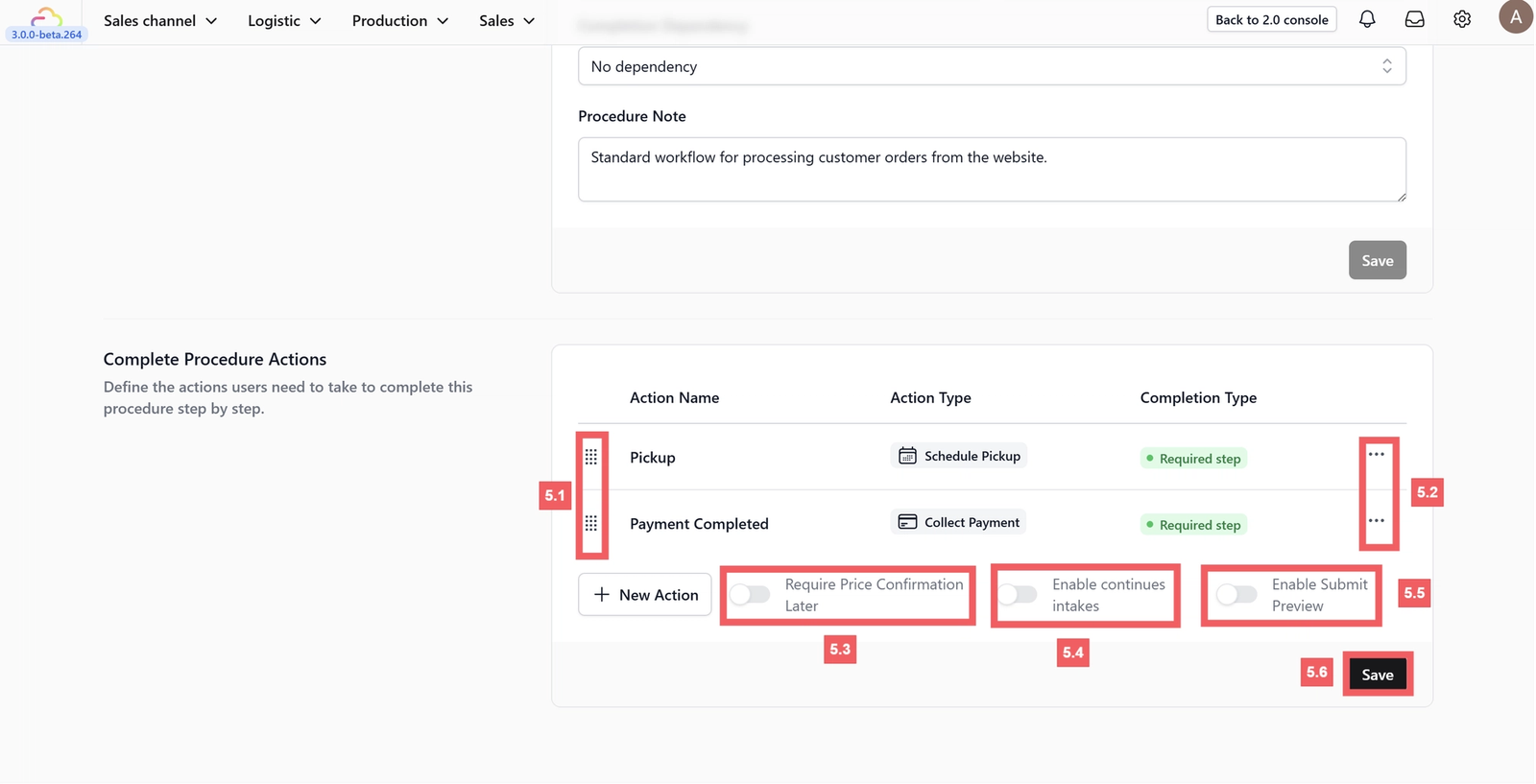
- 5.1 Drag the handle to adjust the order of your actions.
- 5.2 Click the three dots (...) to edit or delete a specific action.
- 5.3 Toggle on Require Price Confirmation Later if the final price is not set during the intake.
- 5.4 Toggle on Enable Continuous Intakes if you want to allow users to submit multiple entries back-to-back.
- 5.5 Toggle on Enable Submit Preview if users need to review the details before finalizing.
- 5.6 Don't forget to click save.
6. Managing your procedures:
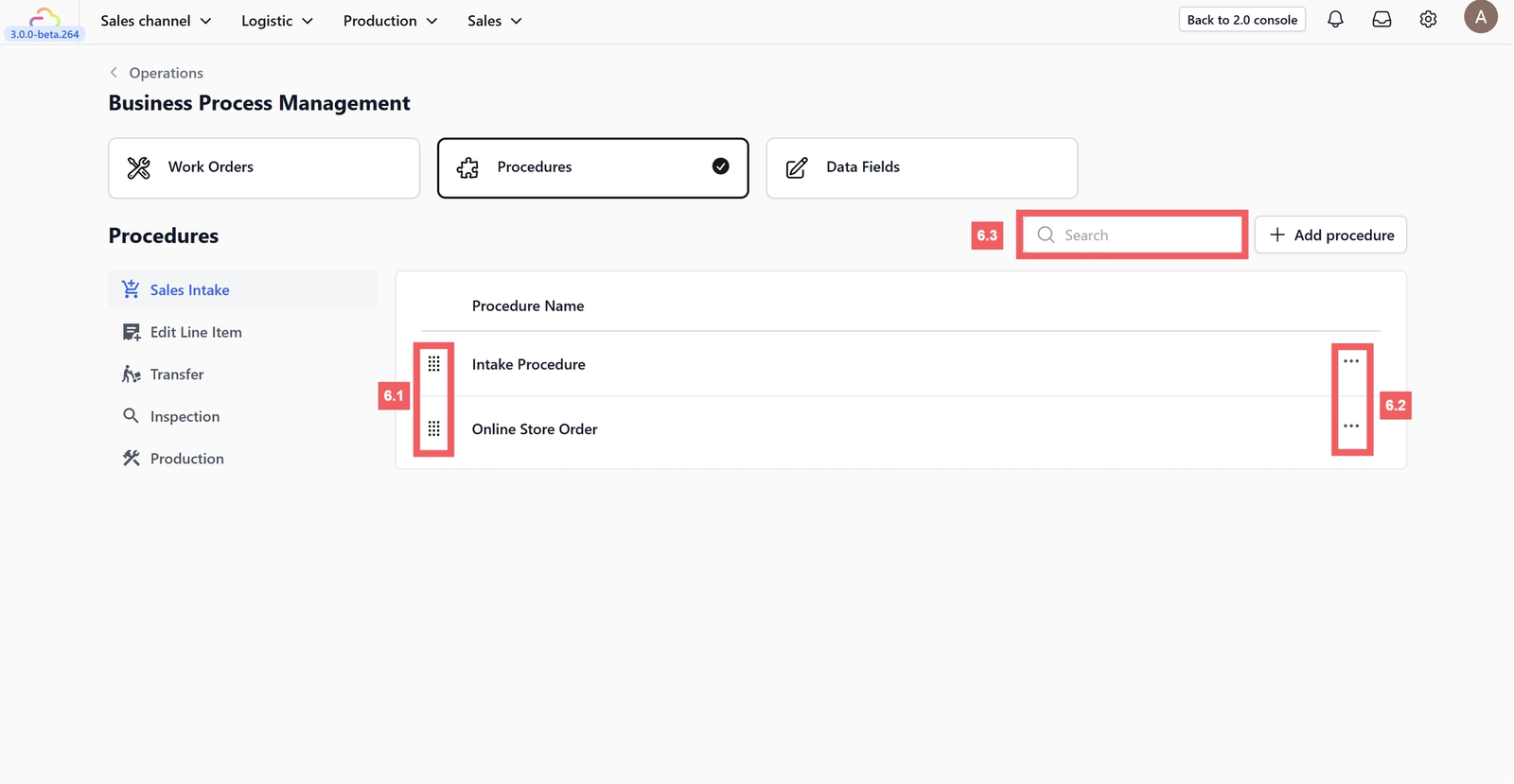
- 6.1 Reorder: Drag and drop procedures to change their sequence.
- 6.2 Edit & Actions: Click the ••• menu to Edit, Rename, Duplicate, or Delete a procedure.
- 6.3 Search: Use the search bar at the top to quickly find a specific procedure name.
Give feedback
Up next
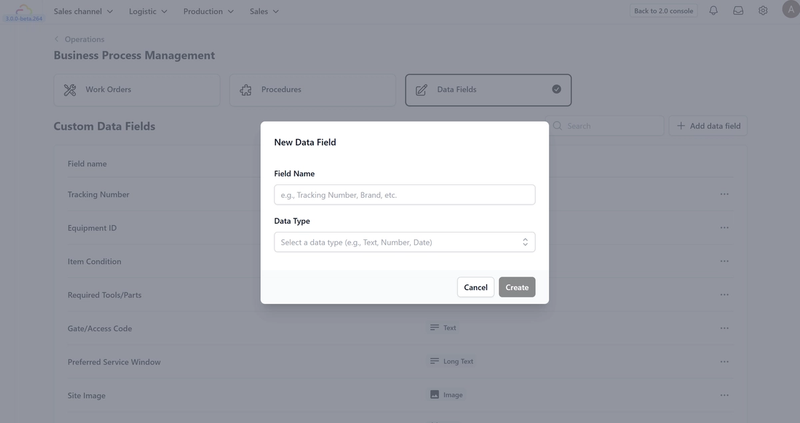
Configuring Data FieldsWhat data fields are, which type to use for different situations, and how to create and manage them in your system.
Read more