
Set up the Status Library
In this article
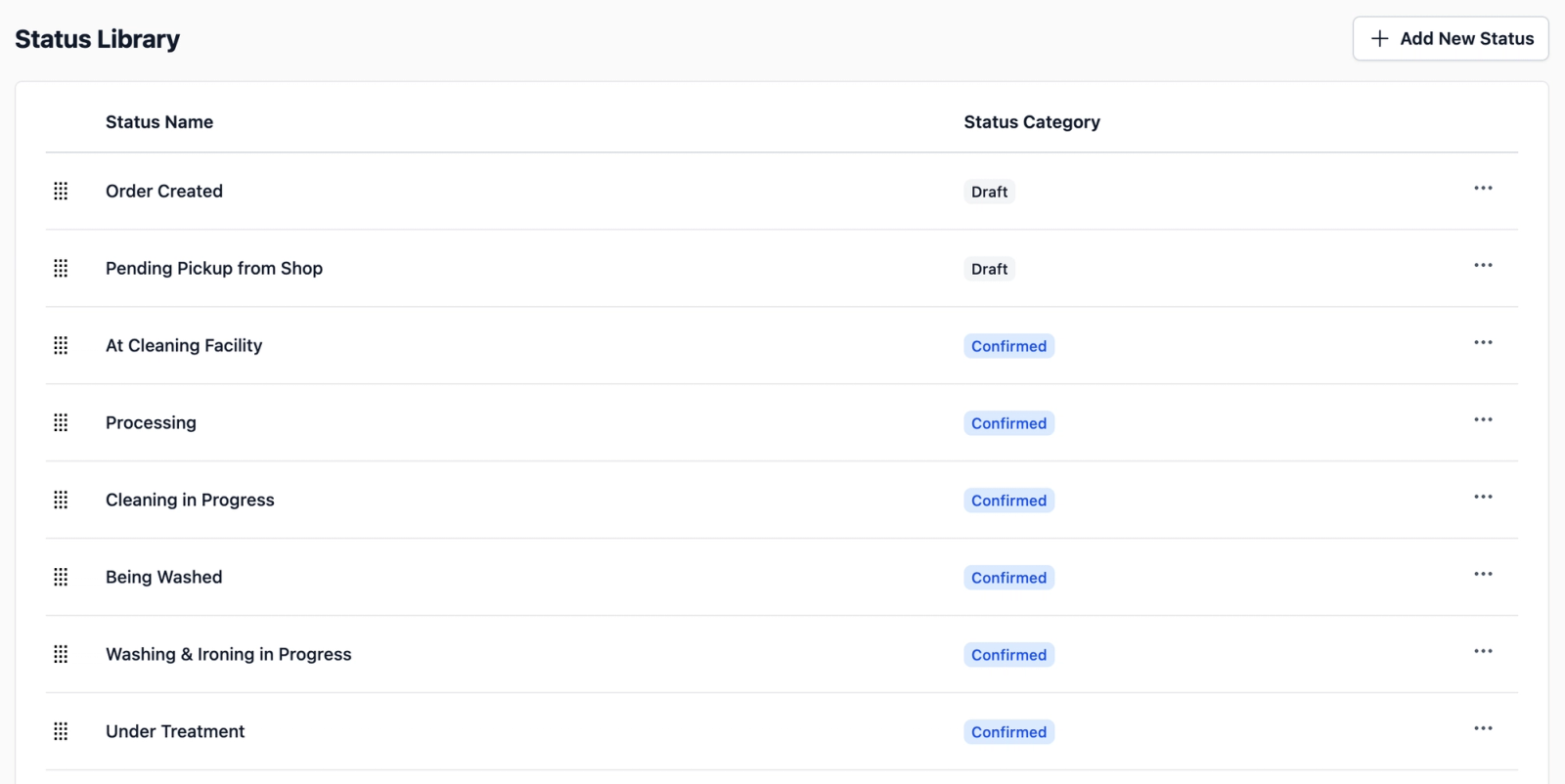
Before you can design how your orders move through your business, you first need to define the stages they go through. The Status Library is where you create these stages, such as "Order Created," "Processing," or "Ready for Pickup." This guide walks you through how to add them.
Contents
Contents
What is a Status Library?
Now that you’ve defined how orders are created, you need a way to track them as they move through your business. The Status Library is where you define the different stages an order can be in, such as "Order Created," "Processing," or "Ready for Pickup."
Think of these as the milestones in your order process. By setting them up, you can see exactly where every order is at any given moment.
Here is a practical example to help you set up your statuses. A typical service business might create statuses like:
- Pending Confirmation (Draft) — the order has been created and is waiting to be confirmed before work begins.
- Quote Sent (Quoted) — waiting for the customer to approve the price.
- In Progress (Confirmed) — the job is underway.
- Order Completed (Fulfilled) — the job is finished and the order has been completed.
Access the Status Library Tab
Head over to the Status Library tab to start defining the names of your stages in your order record.
- On the top navigation bar, click the Gear Icon (Settings).
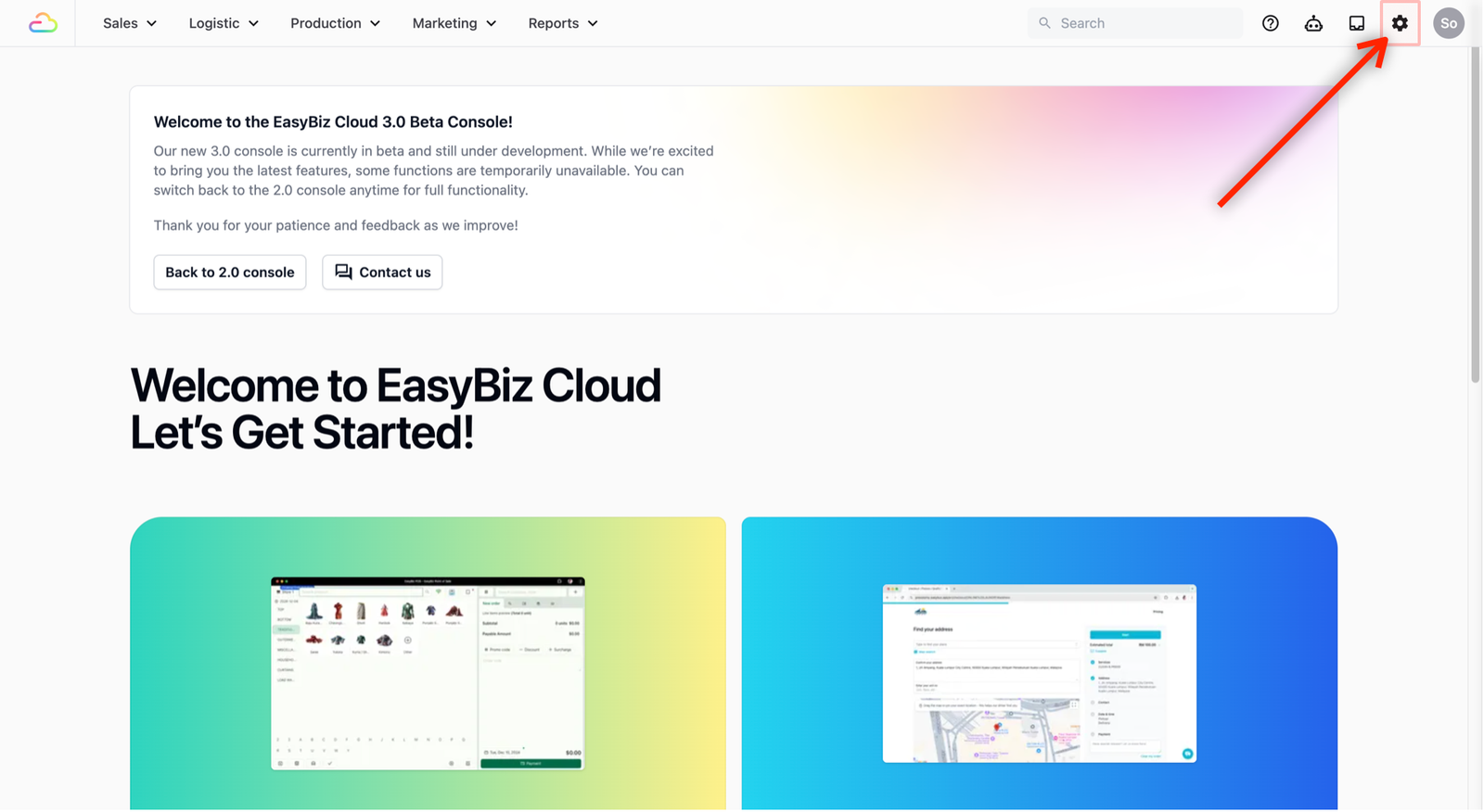
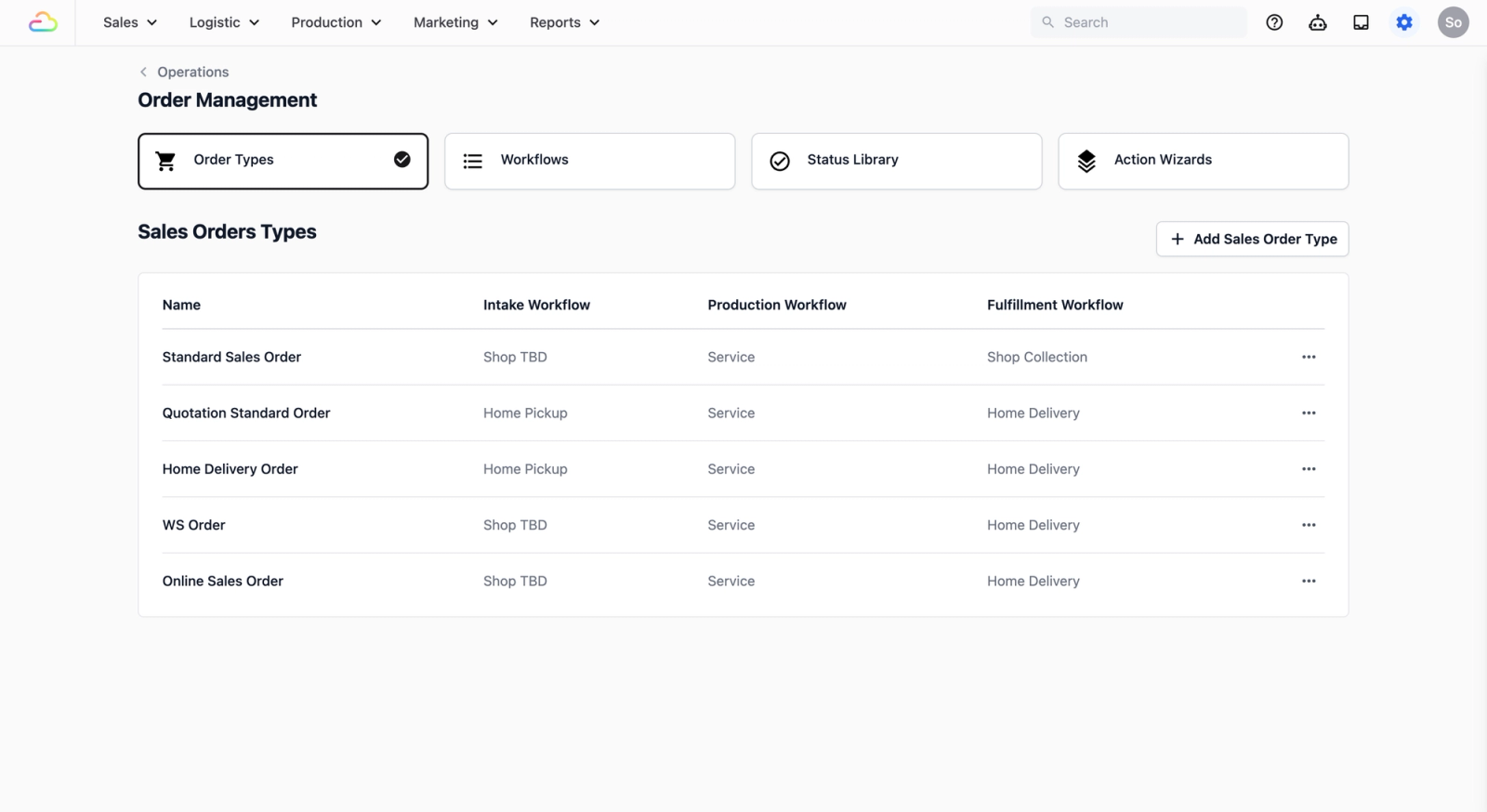
- Scroll down until you see Operations. Select Order Management.
- This is the central hub where you define your sales orders, the steps necessary for your team to create an order, and the processes tied to that order.
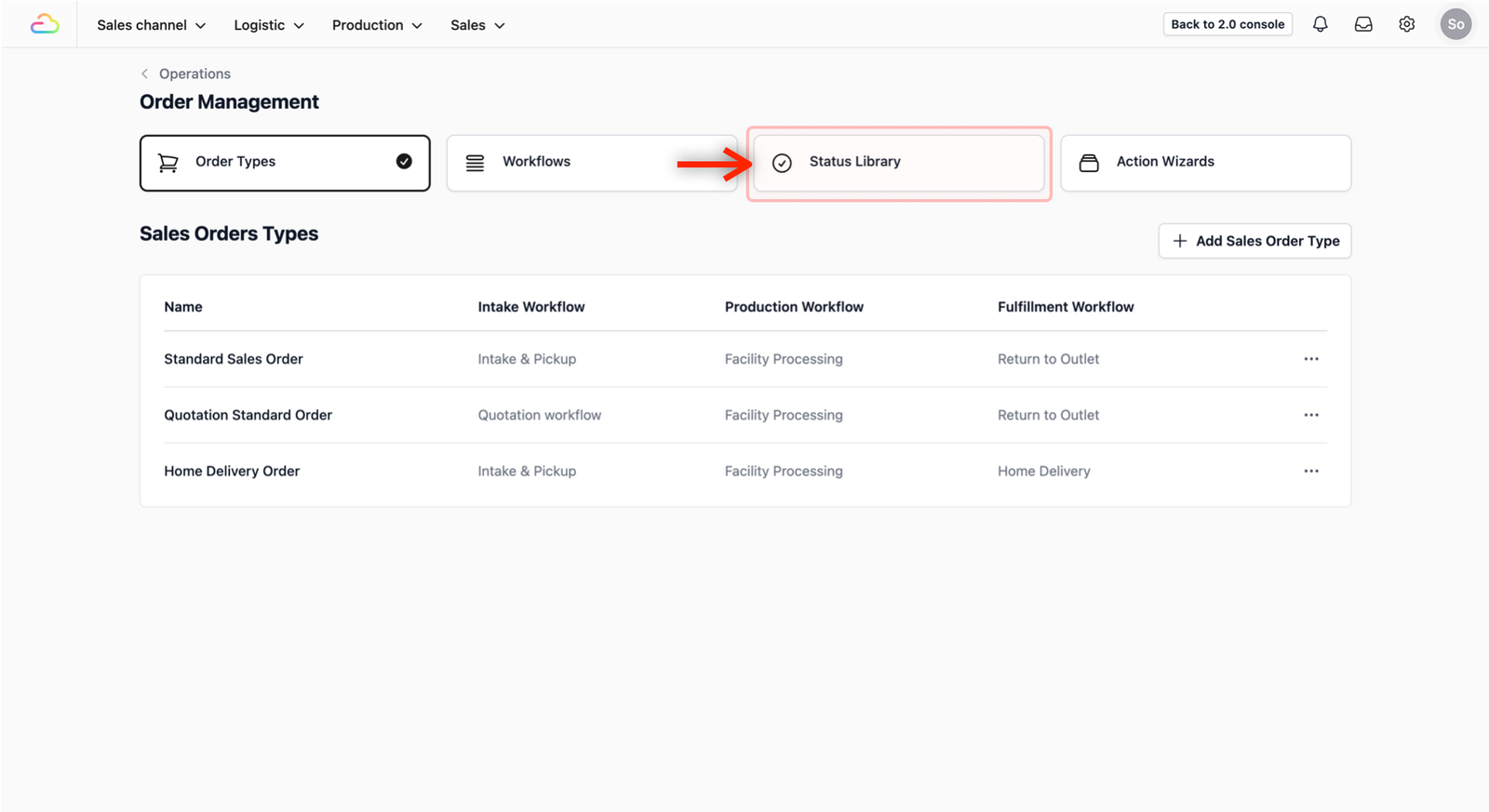
Click on the Status Library tab to start adding your statuses (the name of the different stages in an order).
Add a new Status
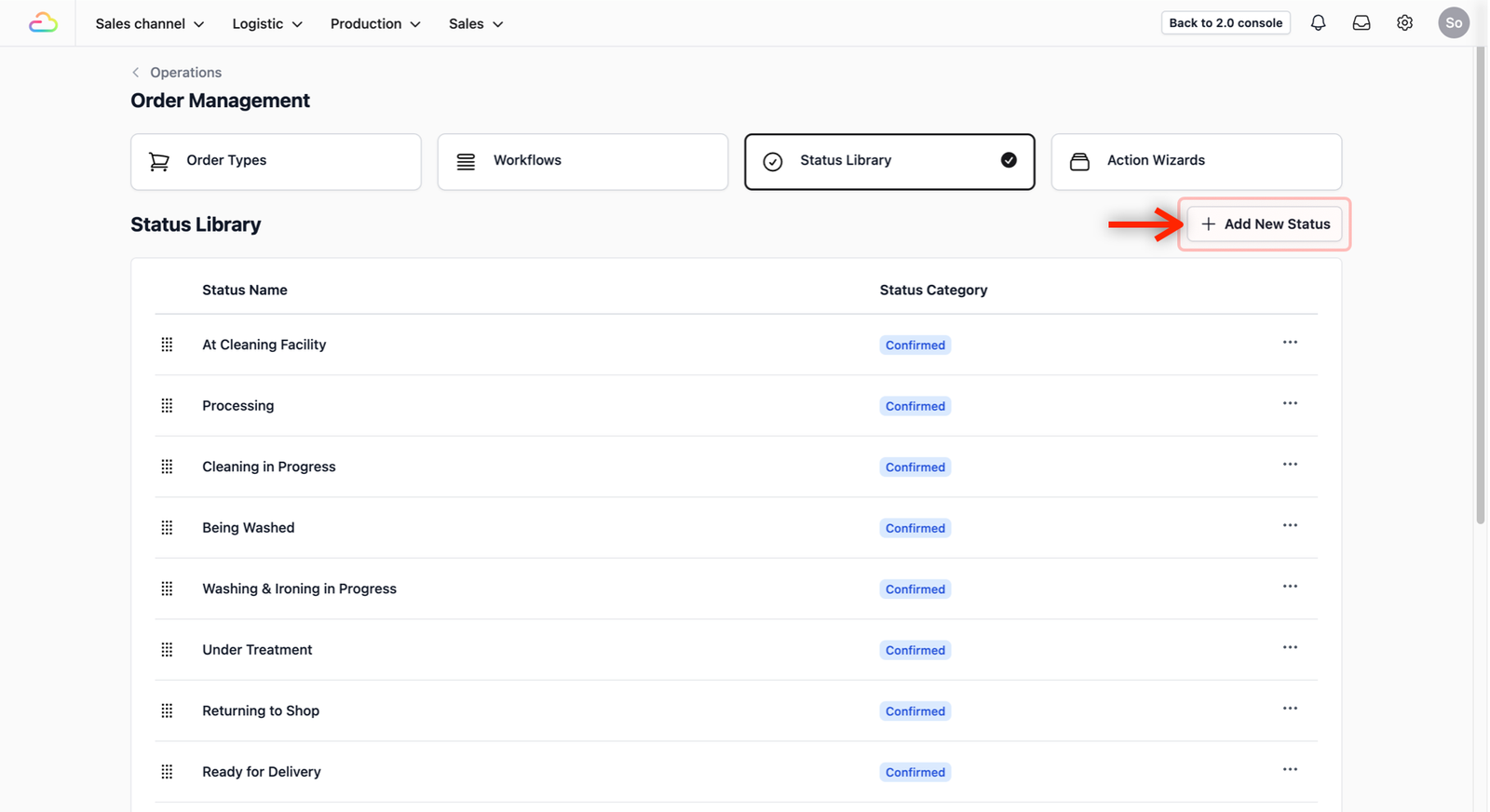
To add a new status to your library, click on the + Add New Status button.
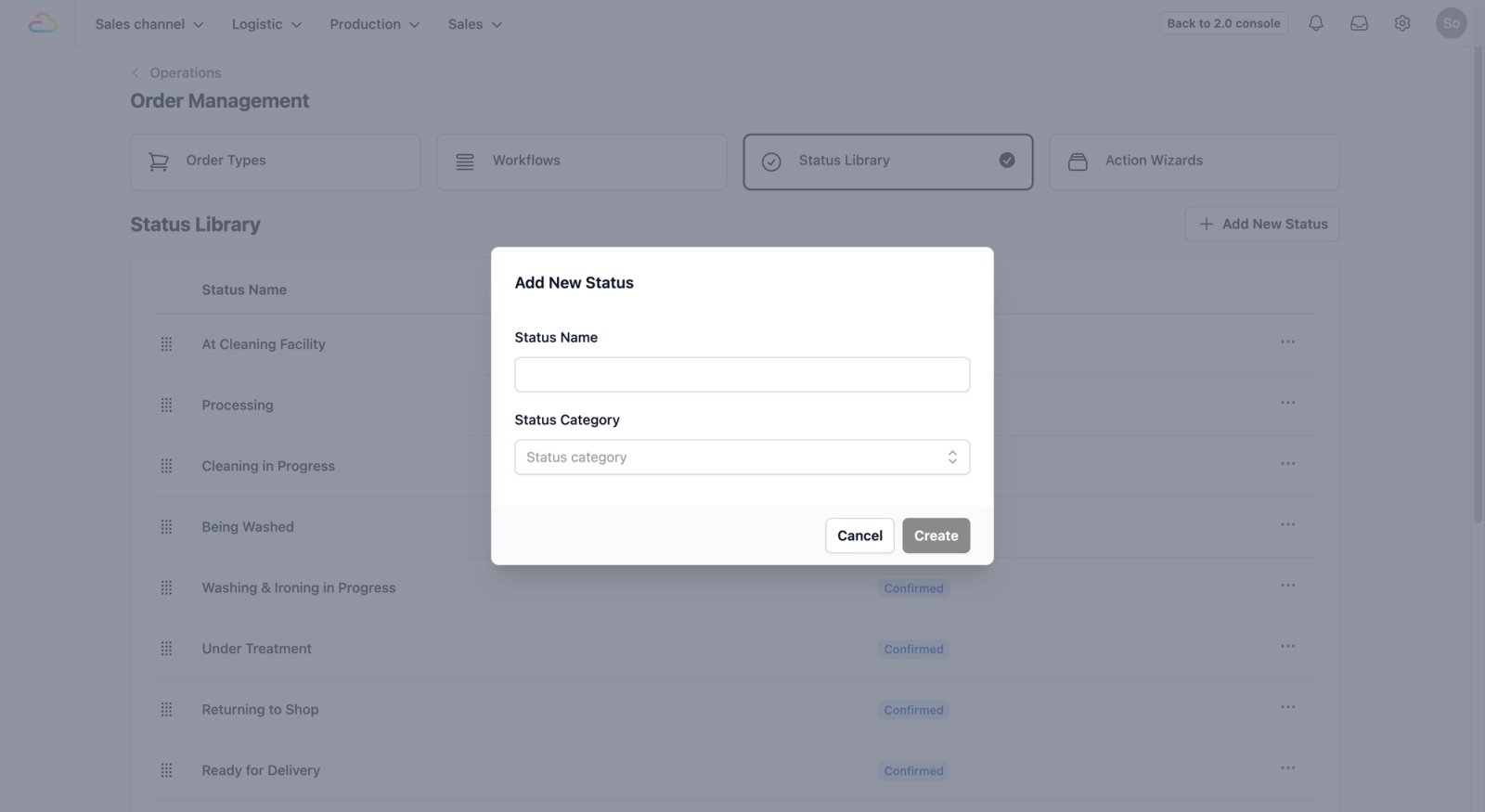
A pop-up window will appear. Here is how to set up your fields:
- Status Name: The name of the status (This will appear as a process in the order).
- Status Category: In EasyBiz Cloud, we understand that an order moves through different processes. To ensure that you gain visibility into what is happening in an order and know what process the order is in, you need to link your status name together with the current process of the order.
- Draft: The order has been created but work has not started yet. Use this for new orders waiting to be processed or sent to the production area.
- Quoted: Used when an order is awaiting price approval from the customer before any work begins.
- Confirmed: The order is now official and work is currently in progress. This indicates the order is active in your shop or factory.
- Fulfilled: The order is fully completed and has been picked up by or delivered to the customer.
- Cancelled: The order has been stopped and is no longer moving forward.
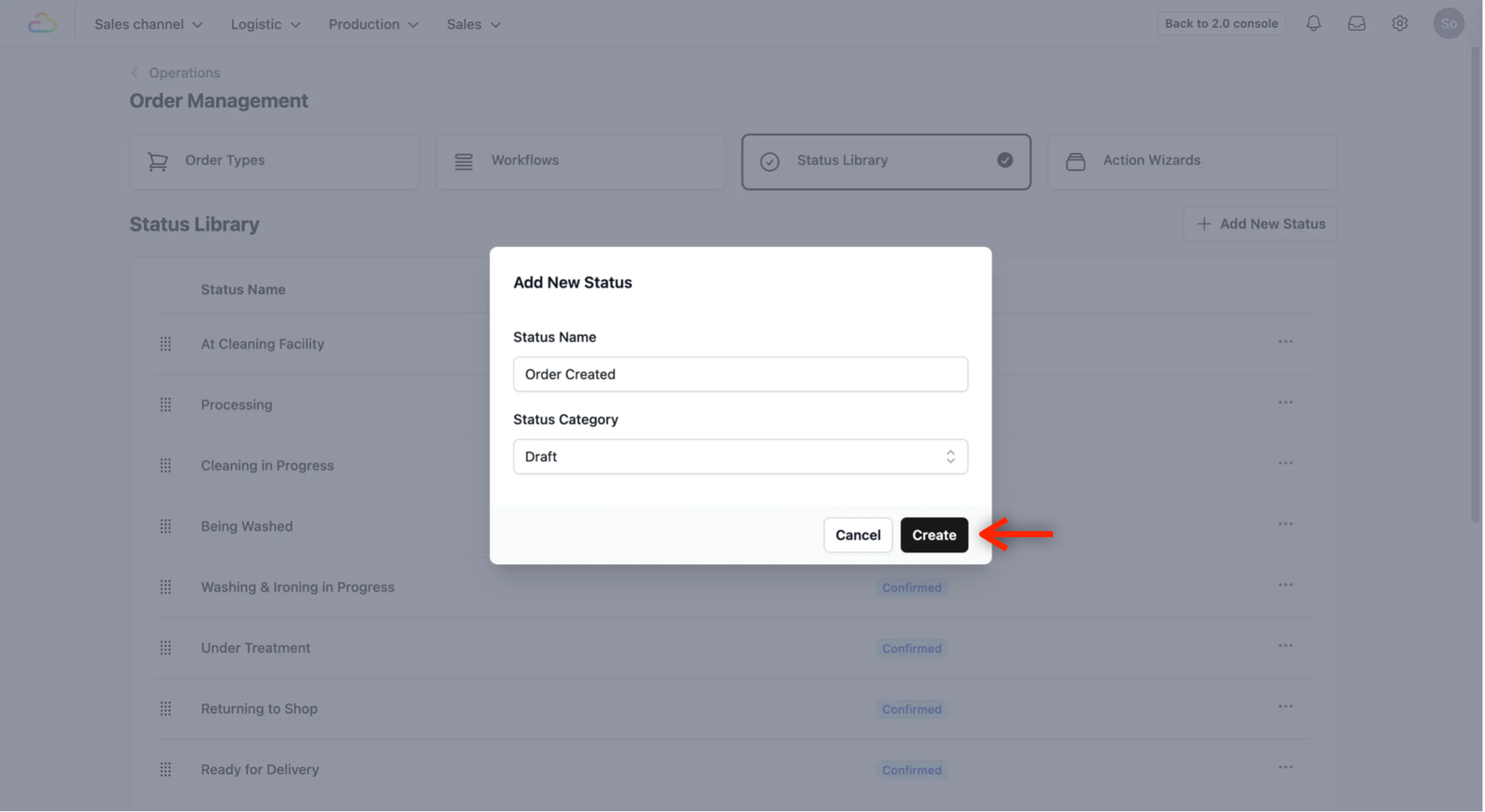
When you have filled in the details of your new status, click on the Create button to add a new status.
A confirmation on the bottom right of your screen will appear and you should now see the status you just created in the table view of your Status Library.
Give feedback
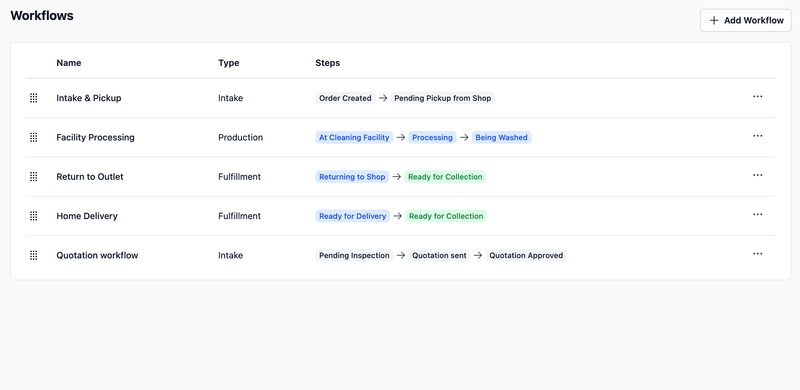
Up next
Design Your WorkflowBuild the step-by-step process your orders follow as they move through your business.
Read more