
Setting Up Blocking Rules
In this article
Block dates closes days for everyone, while Block customers pauses one or more accounts. Both tabs share the same dialog, so the fields depend on which tab you start from. The list below the form shows your rules, with an Edit and Delete menu on every row.
Contents
Contents
Where to Find It
- Click the ⚙️ Settings icon in the top-right corner.
- Under the Scheduling & Dispatch section, click Blocking Rules.
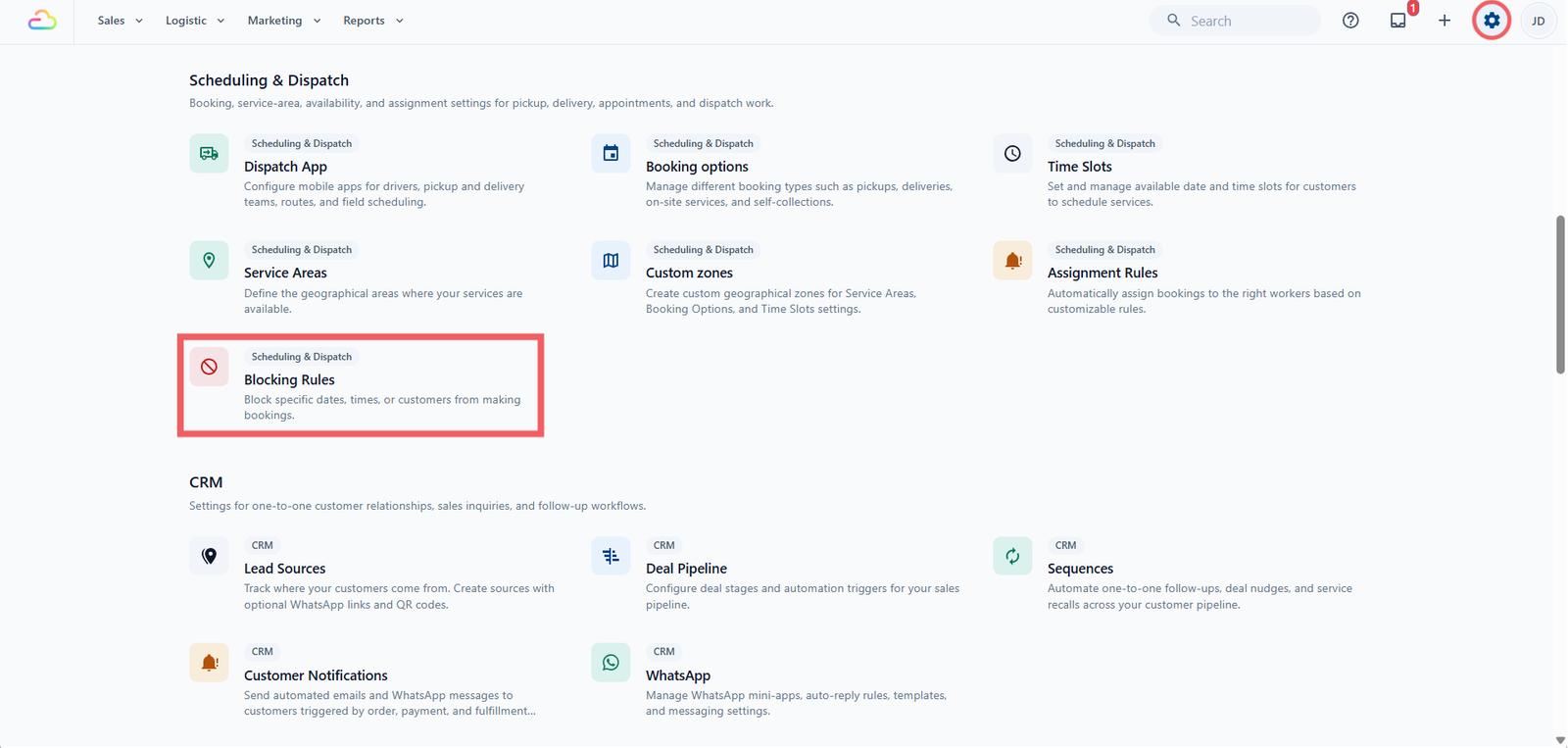
- You land on the Block dates tab. Click Block customers to switch.
Before you add any rules, each tab shows a "No data" line. The Add button stays in the top right.
The Block Dates Tab
Click + Add blocking date at the top right to open the Add Blocking Rule dialog. Fill in the fields, then click Add.
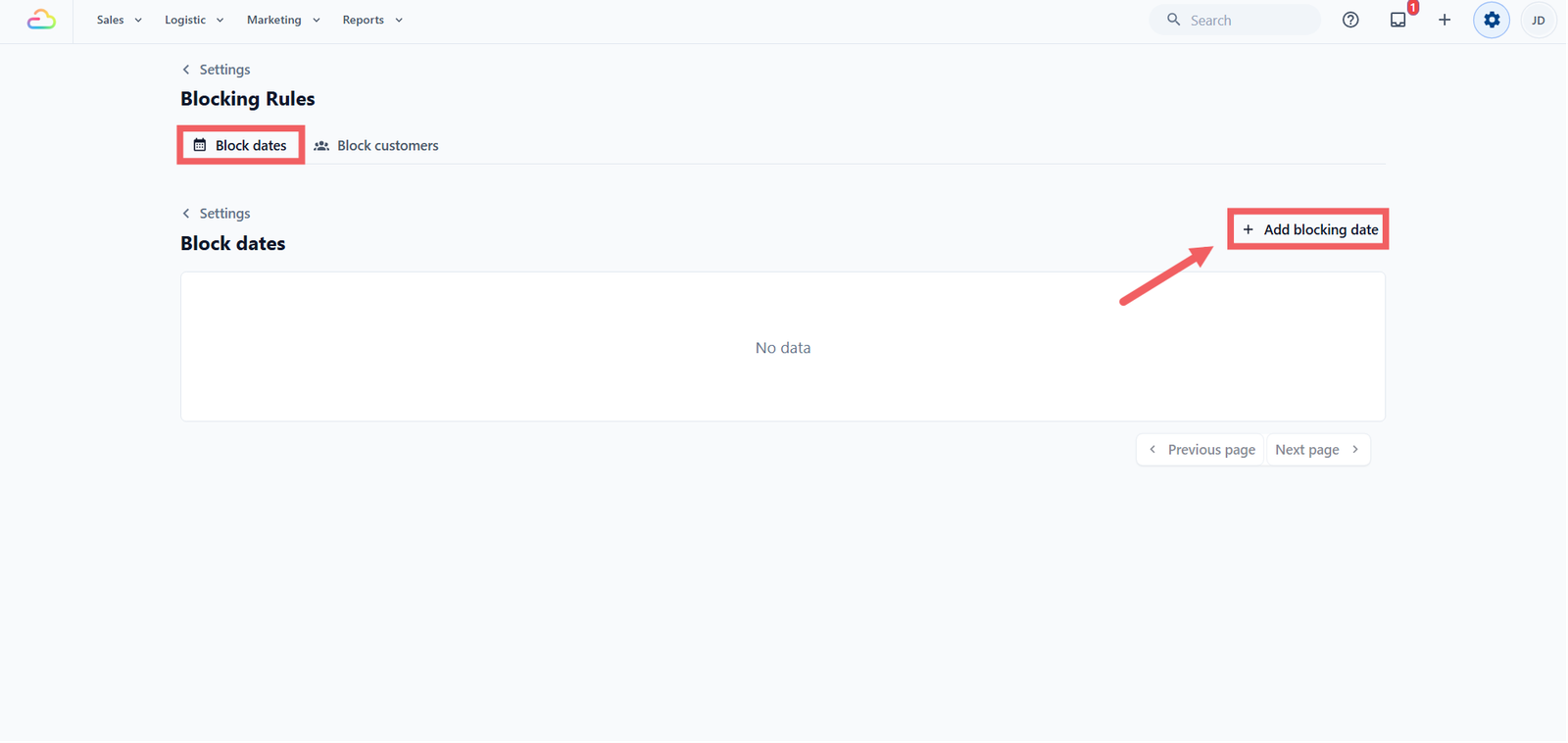
| Field | Options |
|---|---|
| Date range | Pick a start date and an end date, and every day in between is blocked. To block a single day, click the same date twice, once as the start and once as the end. Past dates cannot be picked, with today as the earliest. |
| Blocked business units | Pick one or more. Empty blocks all units. |
| Blocked booking types | Pick the booking types to block, like home pickup or delivery. Empty blocks all of them. |
| Also mark as Non-working days | On by default. "On" treats the blocked day as a closed day, so it is not counted when the system works out how soon an order can be ready. Off blocks the day but still counts it as a working day. |
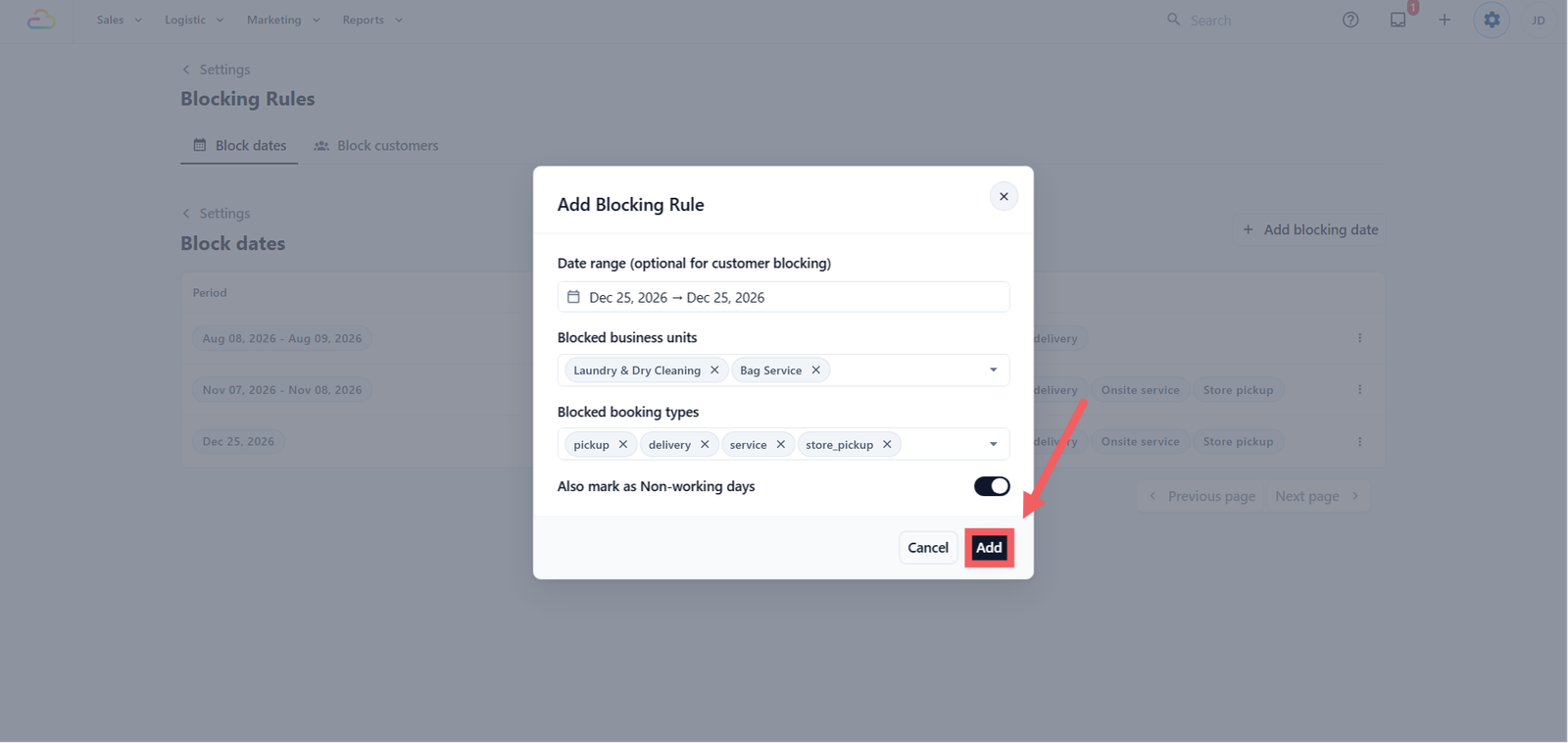
Once saved, the rule appears in the table on this tab, which lists every date rule ending today or later:
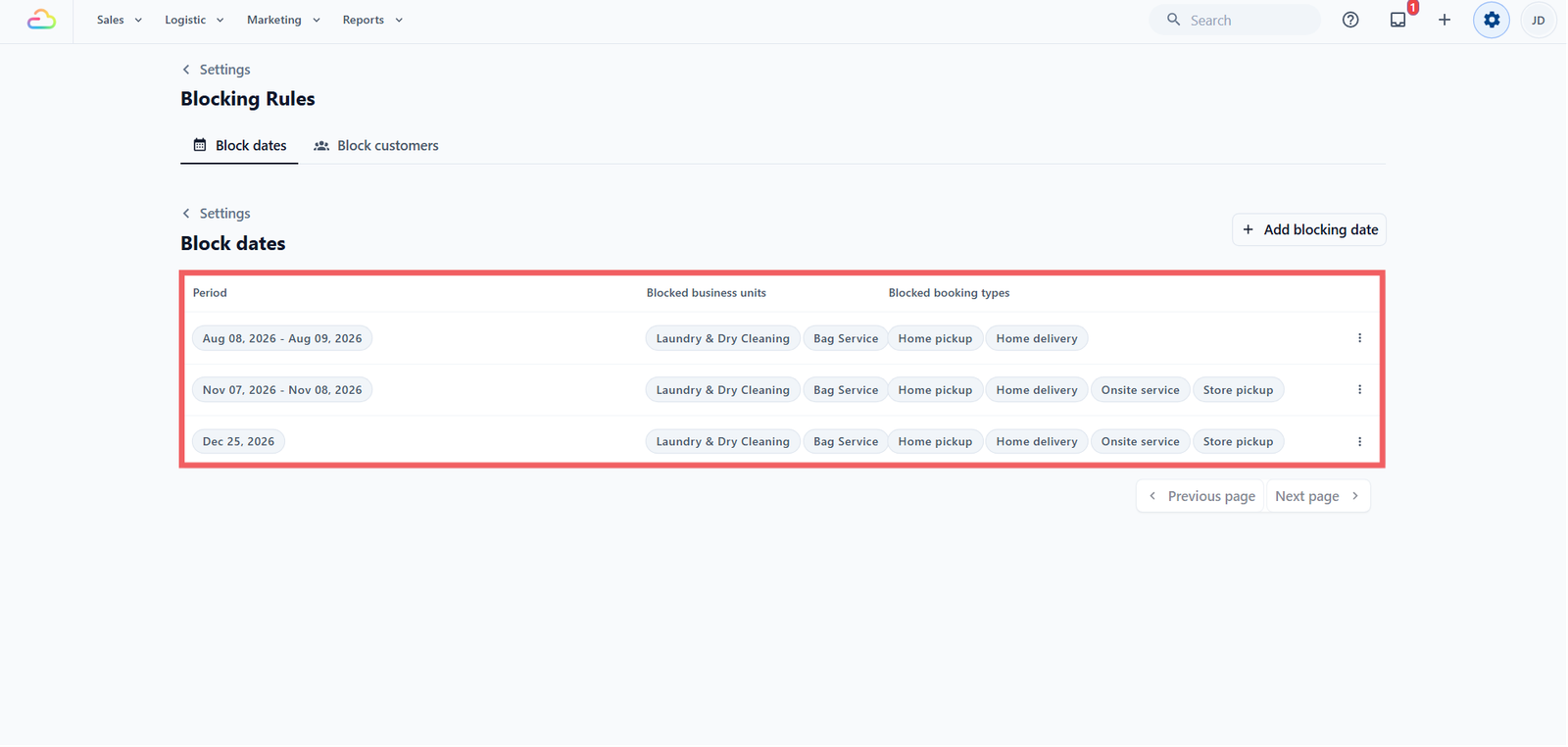
| Column | What it shows |
|---|---|
| Period | The blocked date or range, as a red badge |
| Blocked business units | The units affected, or "All business units" |
| Blocked booking types | The types affected, or "All booking types" |
| ⋮ | The three-dot menu with Edit and Delete |
The Block Customers Tab
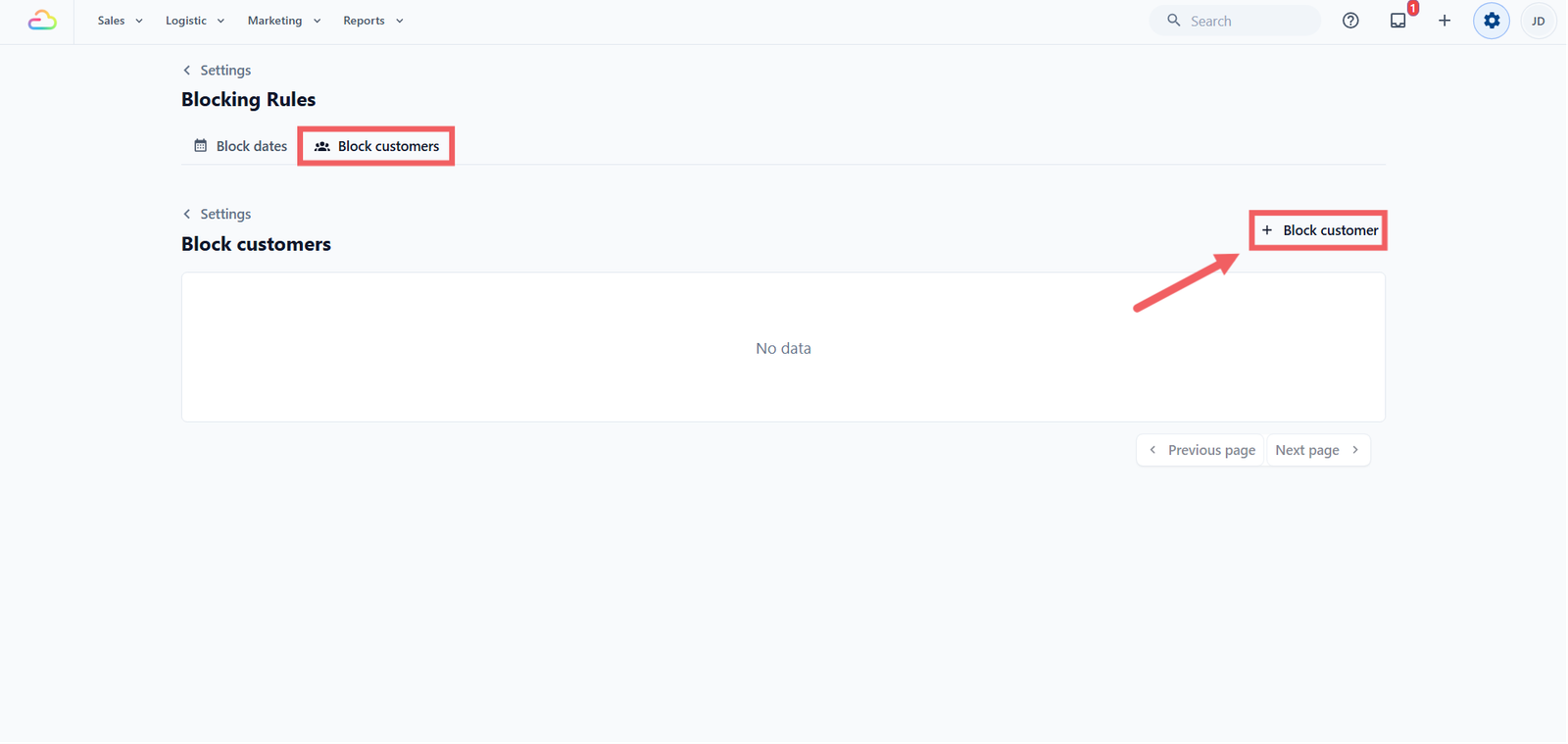
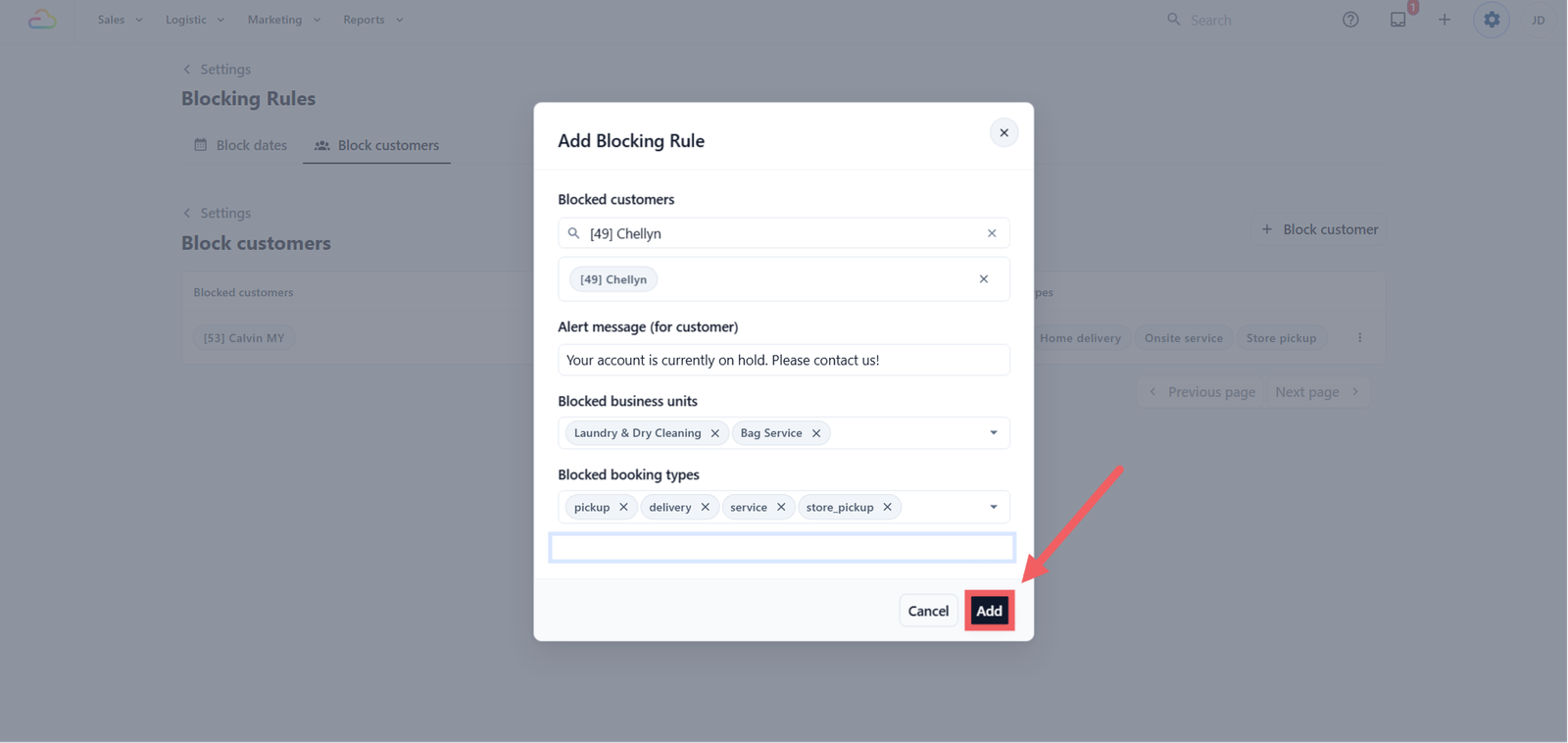
Click + Block customer at the top right to open the Add Blocking Rule dialog. Fill in the fields, then click Add.
| Field | Options |
|---|---|
| Blocked customers | Search and add one or more accounts. Each shows as a badge with the customer number and name. |
| Alert message | Free text shown to the customer when they try to book online. Leave it empty for a generic "booking unavailable" message. |
| Blocked business units | Pick one or more. Empty blocks all units. |
| Blocked booking types | Pick the booking types to block, like home pickup or delivery. Empty blocks all of them. |
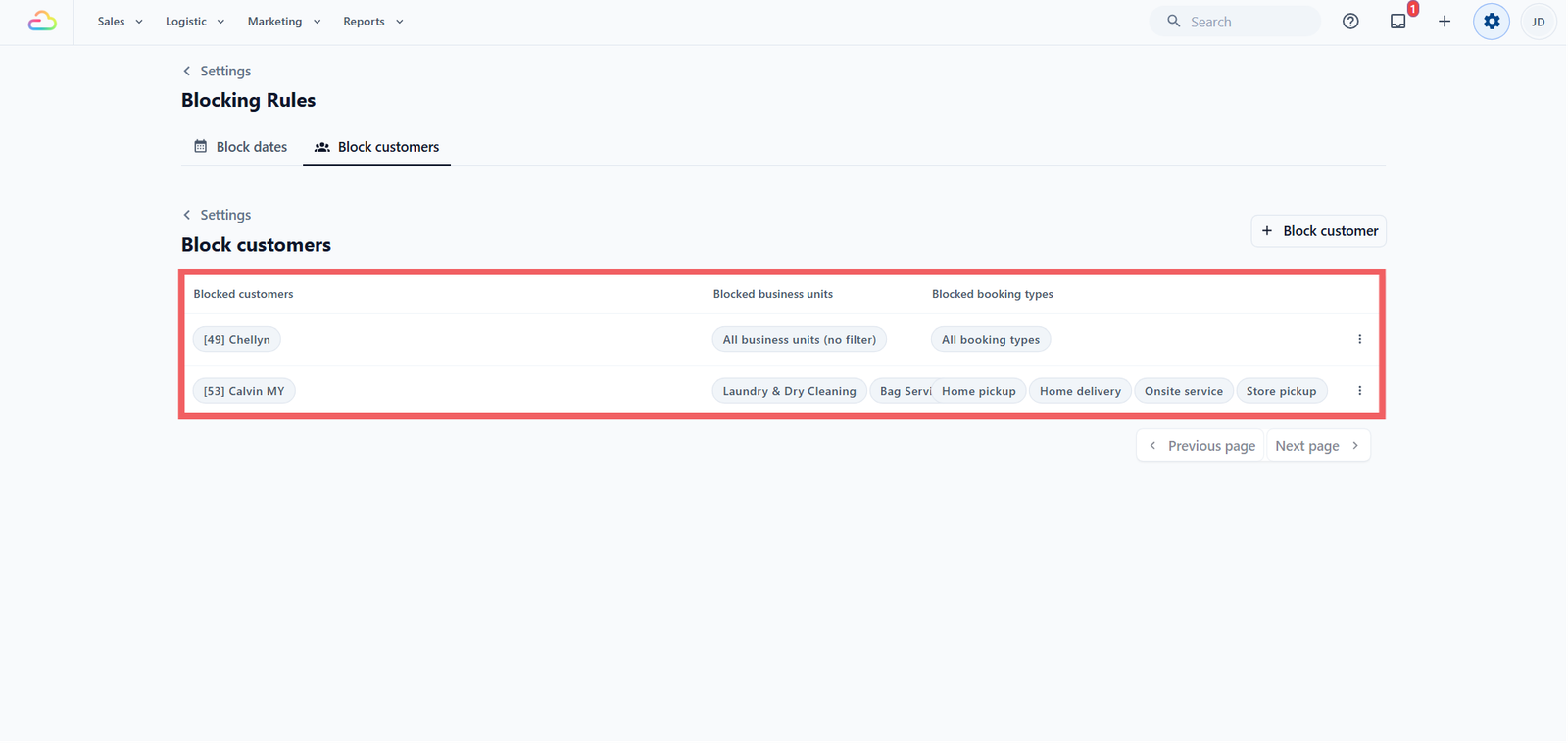
Once saved, the rule appears in the table on this tab:
| Column | What it shows |
|---|---|
| Blocked Customers | Up to three customer names as red badges, plus a "+N more" badge if there are more |
| Blocked business units | The units affected, or "All business units" |
| Blocked booking types | The types affected, or "All booking types" |
| ⋮ | The three-dot menu with Edit and Delete |
Editing and Deleting
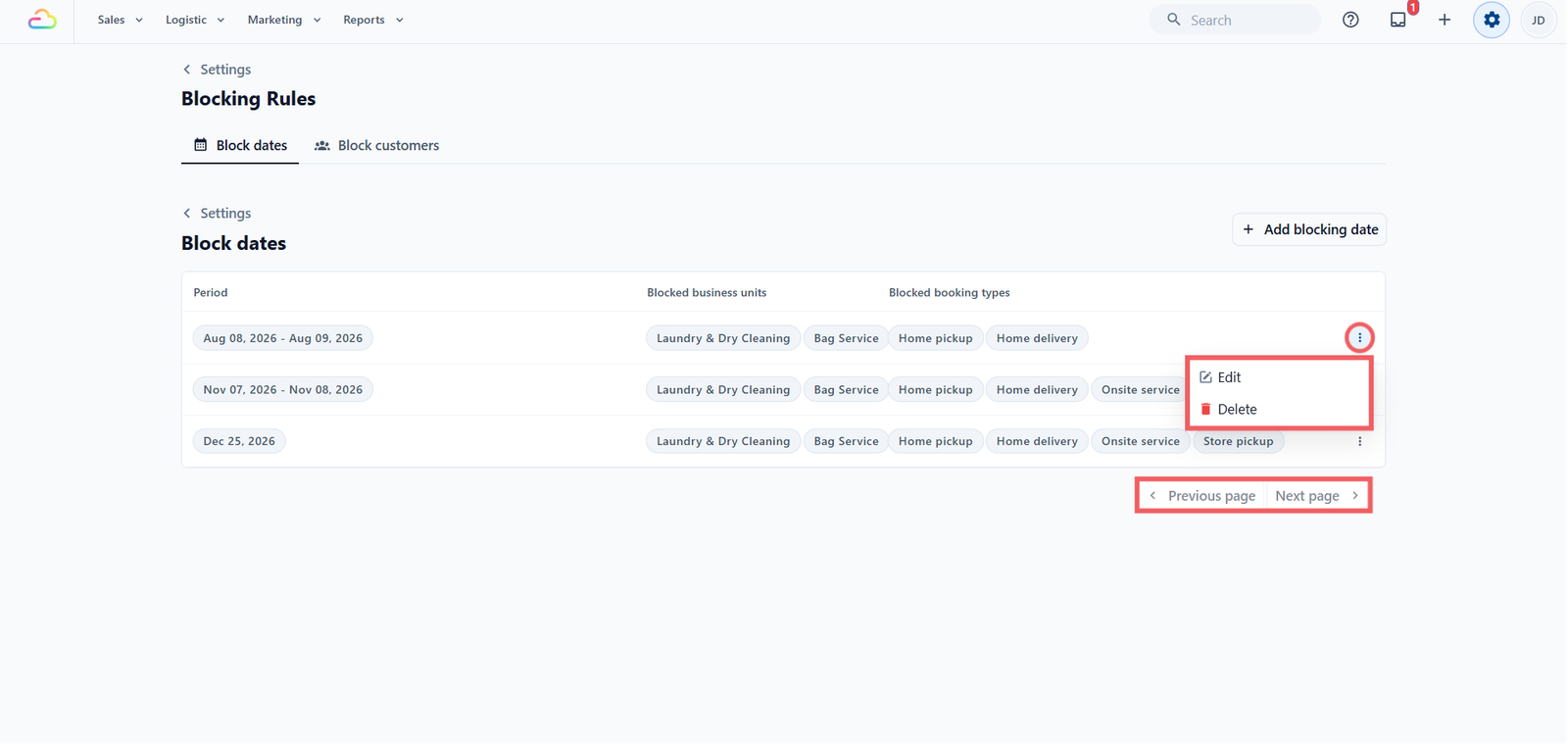
Every row has a three-dot menu with Edit (reopens the dialog with the current values) and Delete. Bookings already made while a rule was active stay as they are. When there are many rules, the list paginates, with Previous and Next buttons at the bottom right.
What Happens to Existing Bookings
A new rule only affects future bookings. Orders already on your calendar are untouched, and jobs in progress keep moving.
For recurring schedules, a date block shifts rather than cancels. If a recurring pickup lands on a blocked date, it moves to the next open day, and a paired delivery moves with it so the turnaround gap stays the same. The schedule keeps its normal day afterwards, so a Monday schedule blocked one week is served the next open day and stays on Monday. Only when a whole cadence cycle is blocked, like an entire week, is that one cycle skipped.
FAQs
If I block a date today, what happens to orders already booked for it?
Nothing. They stay scheduled and your teams complete them as planned. The block only stops new bookings.
If I block one business unit on a date, can customers still book the others?
Yes. Leave the other units out of the rule. You can close Dry Cleaning on a holiday and keep Home Laundry running. The same works for booking types.
Can my counter staff still take an order from a blocked customer or date?
Yes. The block applies online only, so staff at the POS or console can still create the order.
What happens to a recurring pickup that falls on a blocked date?
It moves to the next open day, and a paired delivery shifts with it. The schedule keeps its normal day. Recurrence only pauses when the whole cycle is blocked.
Does "Also mark as Non-working days" affect my Time Slot capacity?
No, only the timing of when an order can be ready. Time Slot capacity is set separately.
Give feedback
Up next
Booking OptionsSet up how your customers can schedule their orders: home pickup, home delivery, onsite service, or store pickup.
Read more