
Configure Data Fields
In this article
This guide walks you through creating and managing data fields in the EasyBiz Console. You'll learn how to add new fields, configure the Options type with its toggles, and edit or delete existing fields. If you're not sure what data fields are or which type to use, start with What is Data Fields article first.
Contents
Contents
Before You Start
Make sure you've read the Data Fields introduction so you understand the available types (Text, Long Text, Number, Amount, Image, Phone Number, Email Address, Date, and Options) and when to use each one. You'll be choosing a type for every field you create, and it's important to pick the right one upfront.
How to Add a Data Field
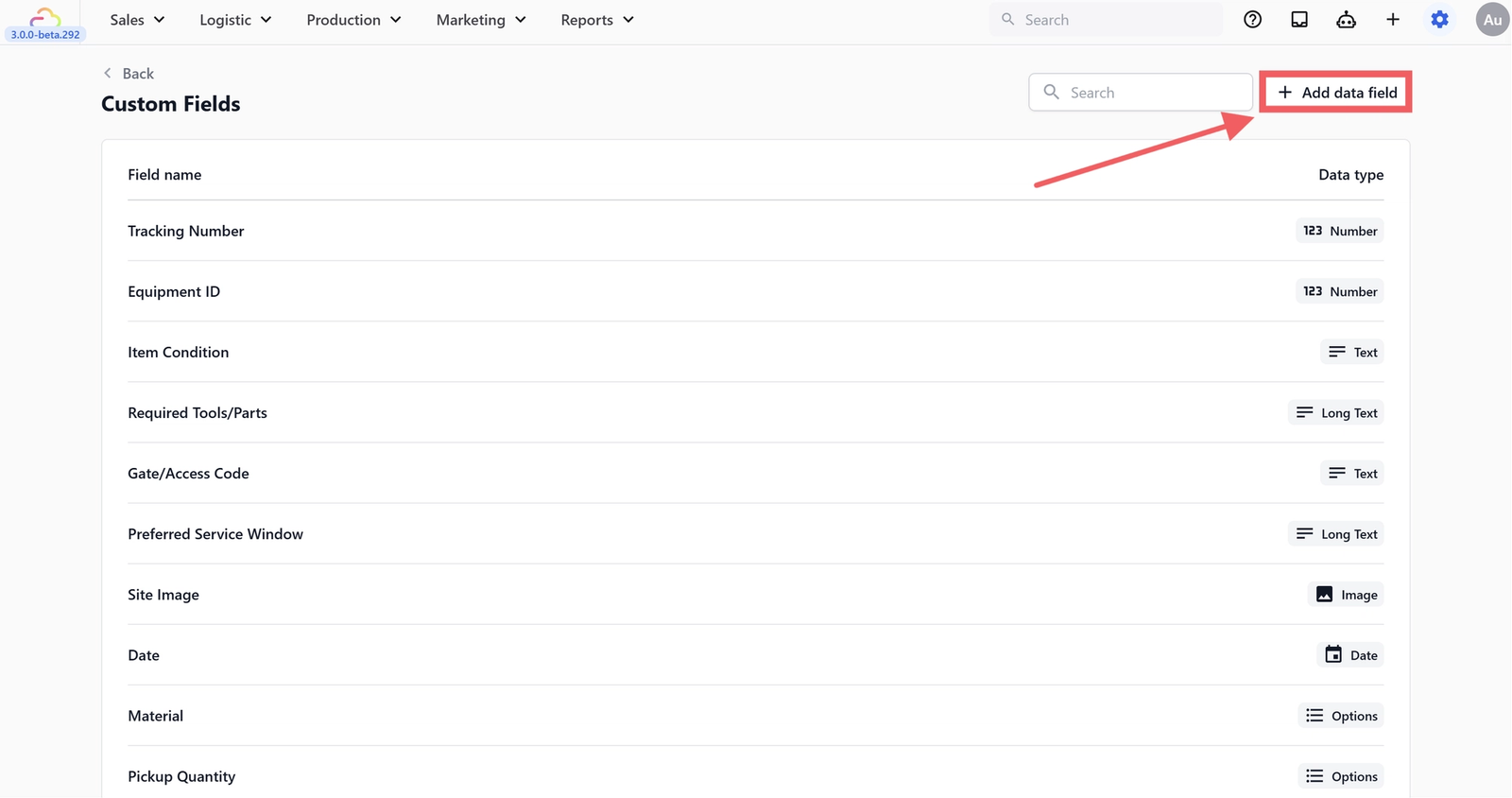
Click the + Add data field button in the top right.
A form will appear with two fields to fill in.
- Enter a Field Name — this is the label your team will see, so be specific. "Service Type" is much clearer than just "Type." If you have similar fields across different services, include the context in the name — for example, "Bag Service Type" and "Bag Issue" are easier to manage than "Service" and "Issue."
- Choose a Data Type from the dropdown. If you're not sure which type to pick, refer to the Data Fields guide for a breakdown of all nine types with examples.
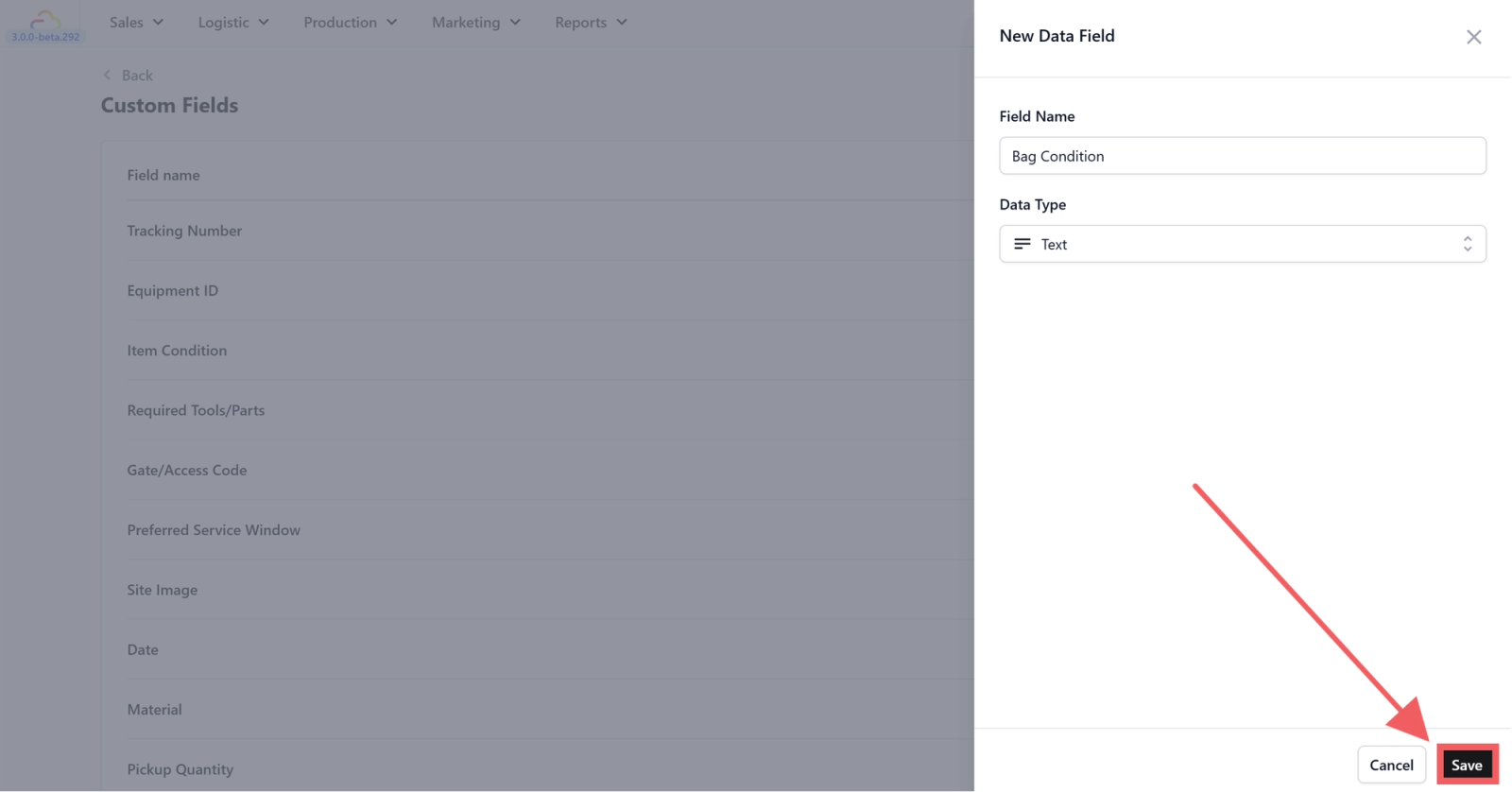
Don't forget to click Save.
Your new data field will appear in the table and is immediately available to use in your procedures.
Working with Options
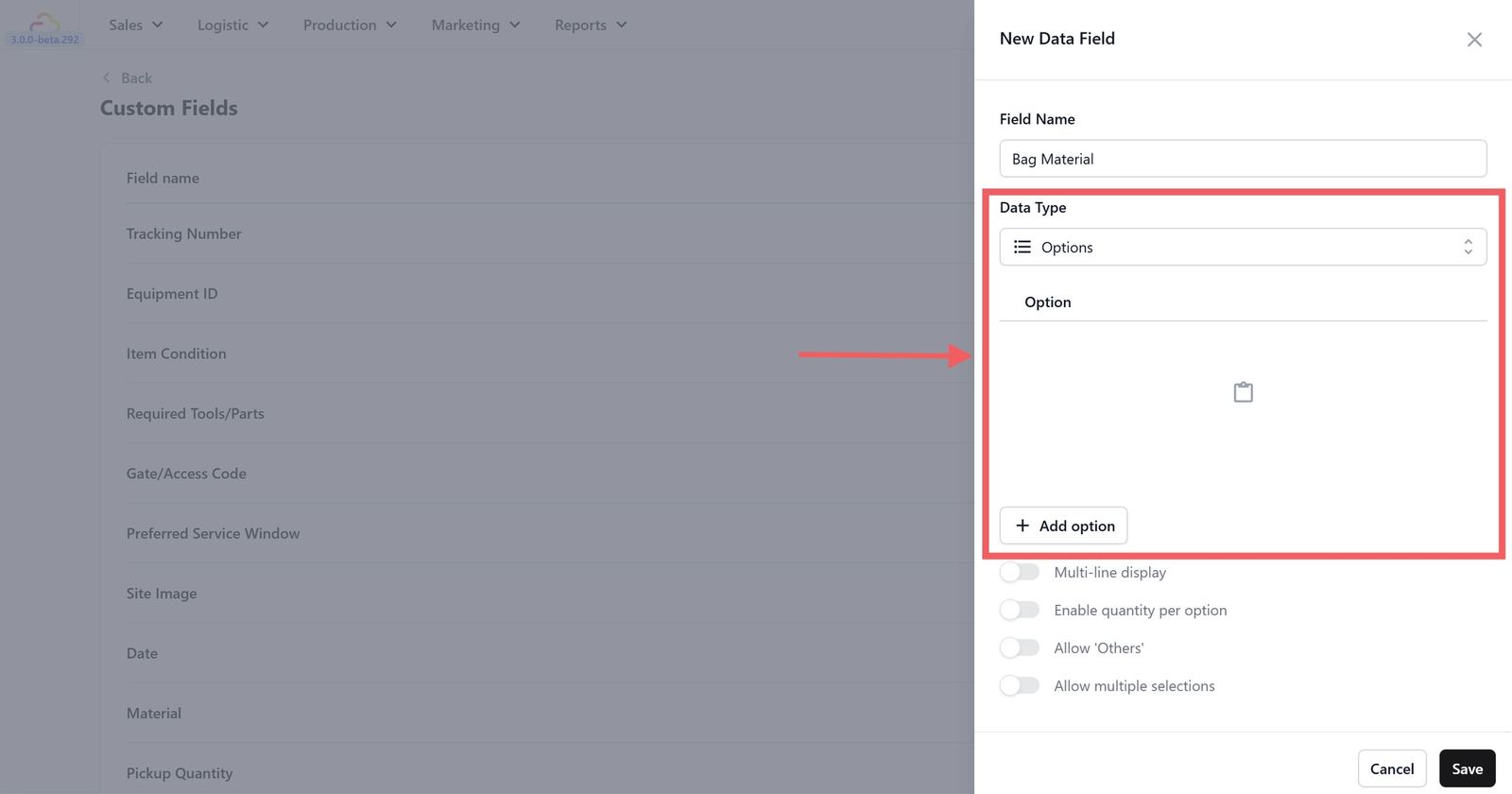
If you selected Options as your data type, you'll see additional settings below the type selector. This is where you define the choices your team can pick from.
Adding Option Values
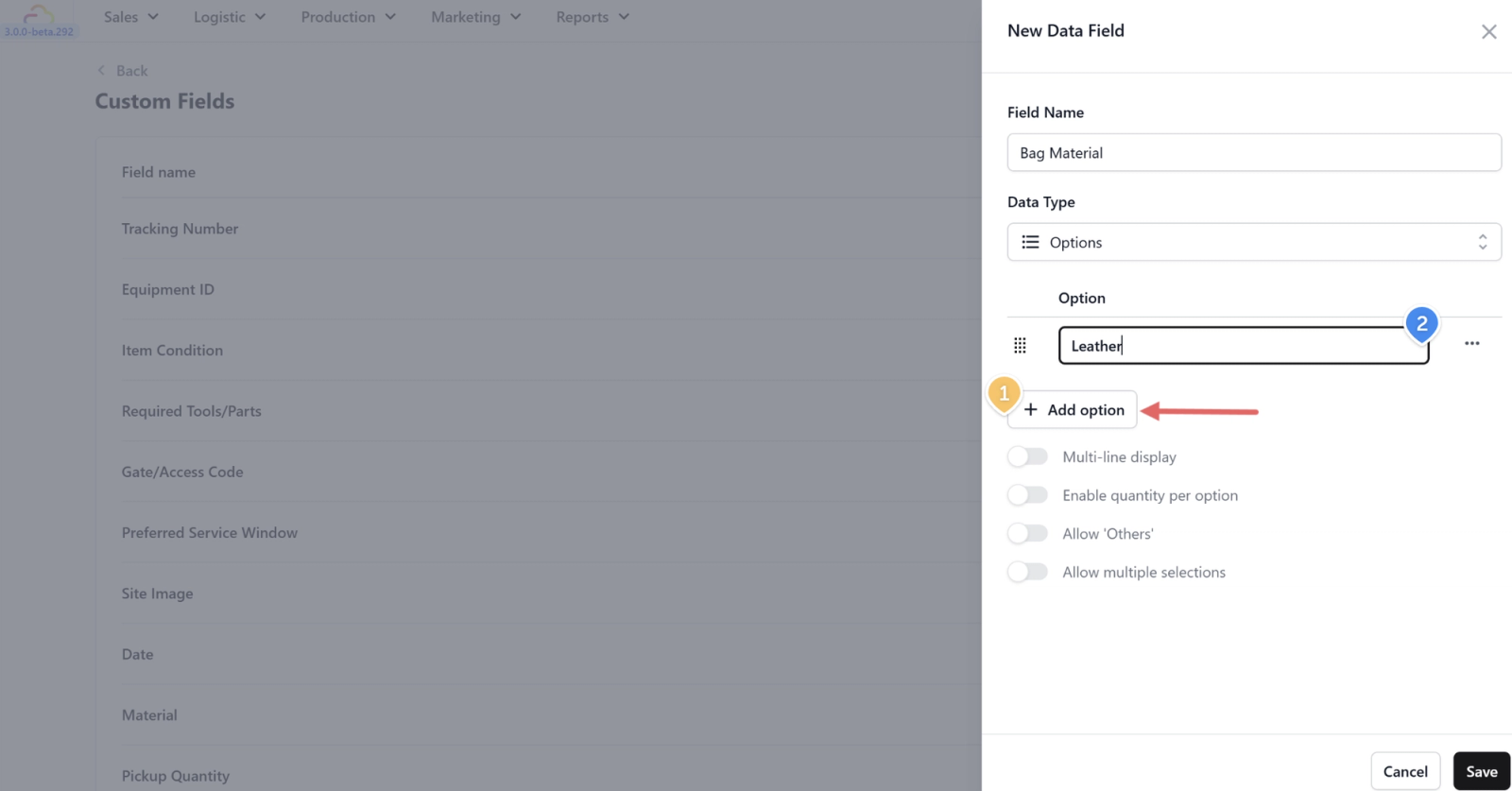
- Click + Add option to add a new row
- Type the option value (e.g. "Leather")
- Repeat for each choice you need
Option Toggles
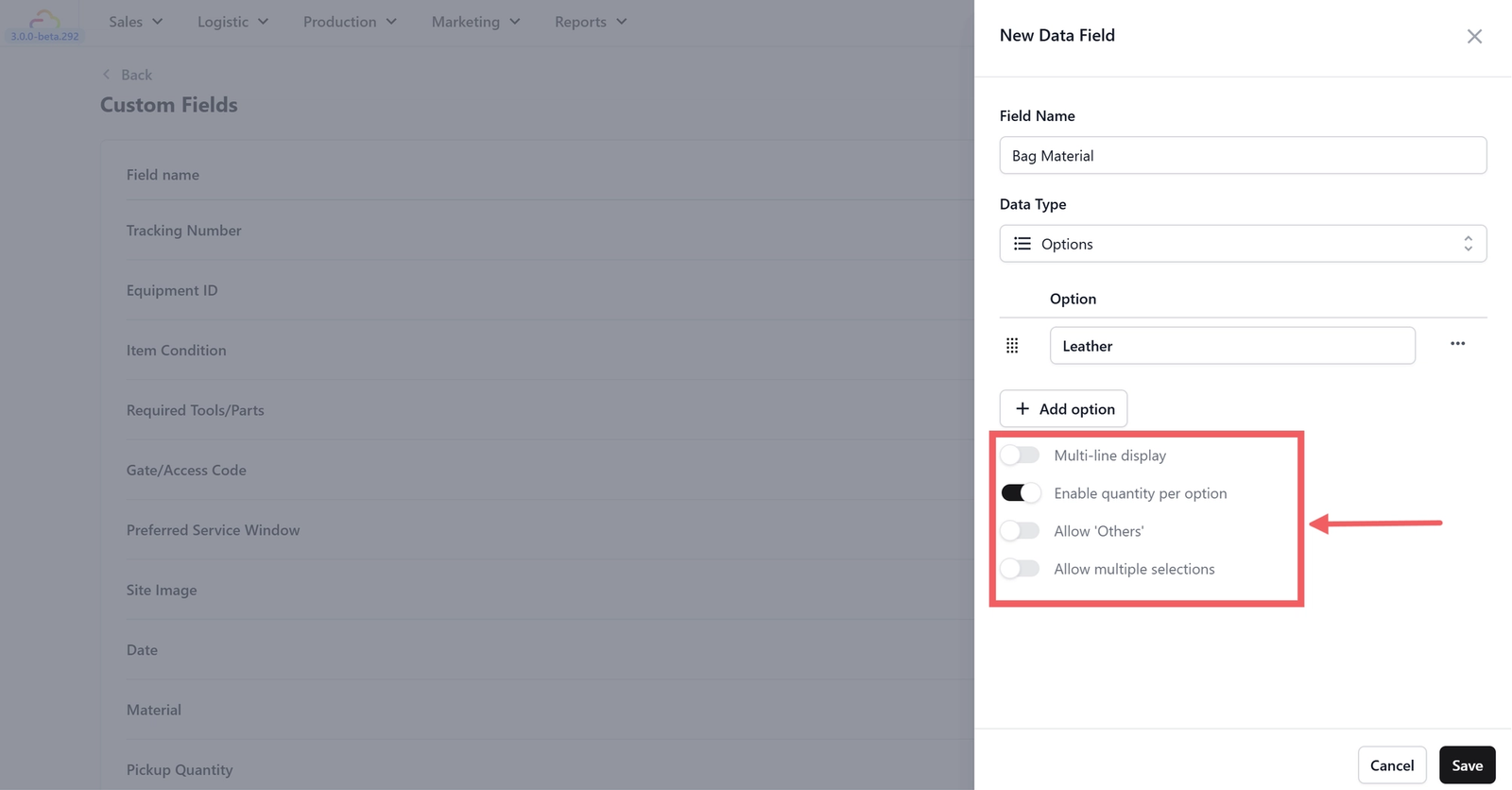
Below the options list, you'll see four toggle switches. All are off by default.
- Multi-line display — When turned on, the options display vertically (one per line) instead of in a compact row. Turn this on if you have many options or long option labels, so your staff can read them more easily on the screen.
- Enable quantity per option — When turned on, your team can enter a quantity next to each option they select. This is useful for fields like Pickup Quantity where a customer might have 3 shirts, 2 pants, and 1 jacket — your staff selects each item type and enters how many.
- Allow "Others" — When turned on, an extra free-text field appears at the end of the options list. This lets your team type in a value that isn't on your predefined list. Useful for fields like Bag Brand where you can't list every brand — your staff picks from common ones but can type in a rare brand when needed.
- Allow multiple selections — When turned on, your team can select more than one option at a time. This is useful for fields like Bag Issue where a single bag might have multiple problems — for example, "Broken Zipper" and "Faded Color" and "Torn Lining" all at once.
Managing Your Data Fields
Once you've created your data fields, you can find and manage them from the same Custom Fields page.
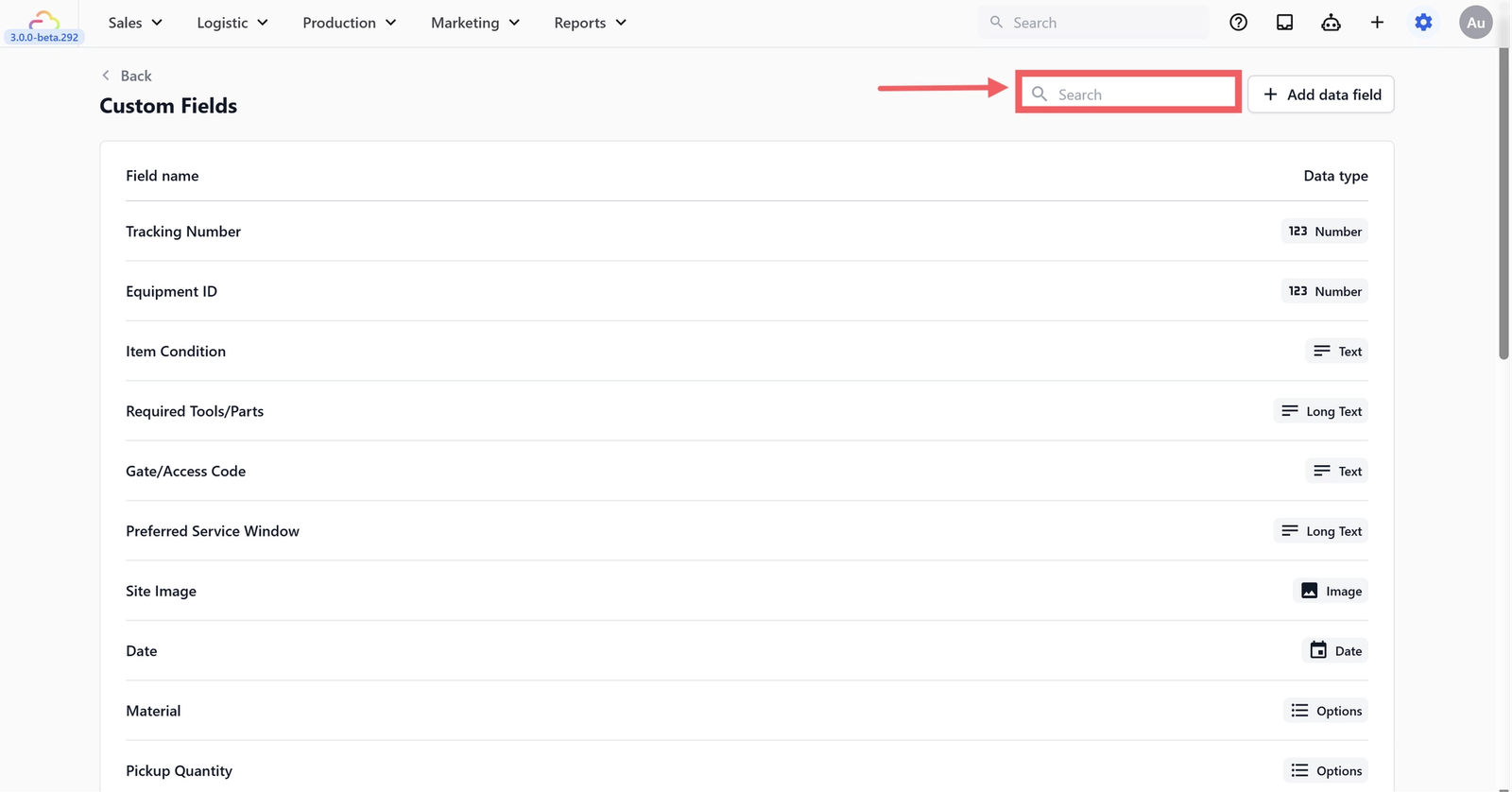
Searching
Use the search bar at the top of the page to quickly find a specific field. This is especially helpful once your list grows — just type part of the field name (e.g. "bag" to find all bag-related fields).
Editing and Deleting
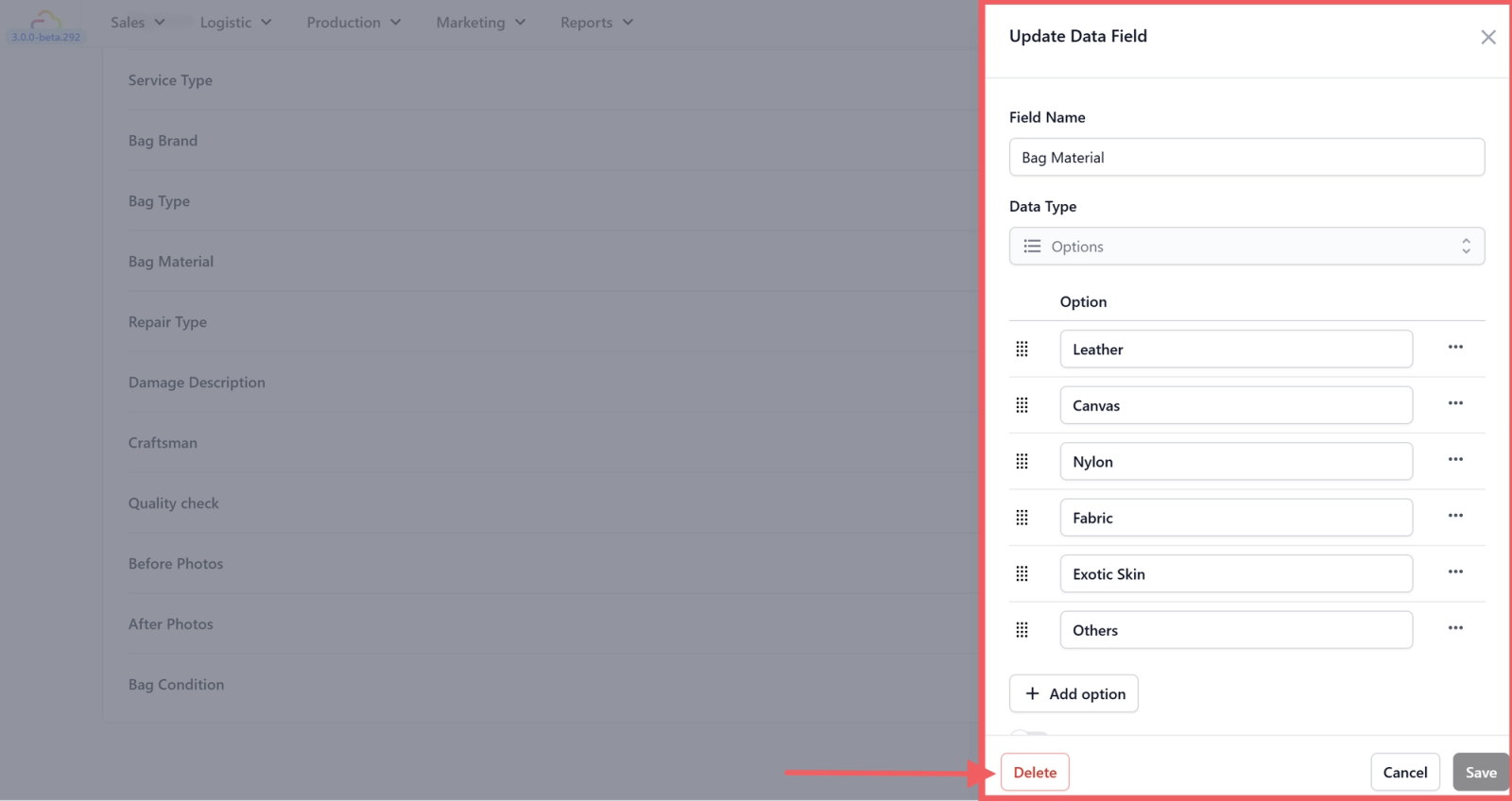
Click on any data field in the table to open it. The Update Data Field panel will appear on the right, showing the field's current name, data type, and settings.
From here you can:
- Edit — Update the field name, add or remove options (for Options fields), or adjust any toggles. When you're done, click
Save. - Delete — Click the red
Deletebutton at the bottom-left of the panel to permanently remove the field.
Give feedback
Up next
Custom ZonesDefine the geographical areas your business covers, then reuse them across Service Areas, Time Slots, and Assignment Rules.
Read more