
Setting Up Your Store Credit Program
In this article
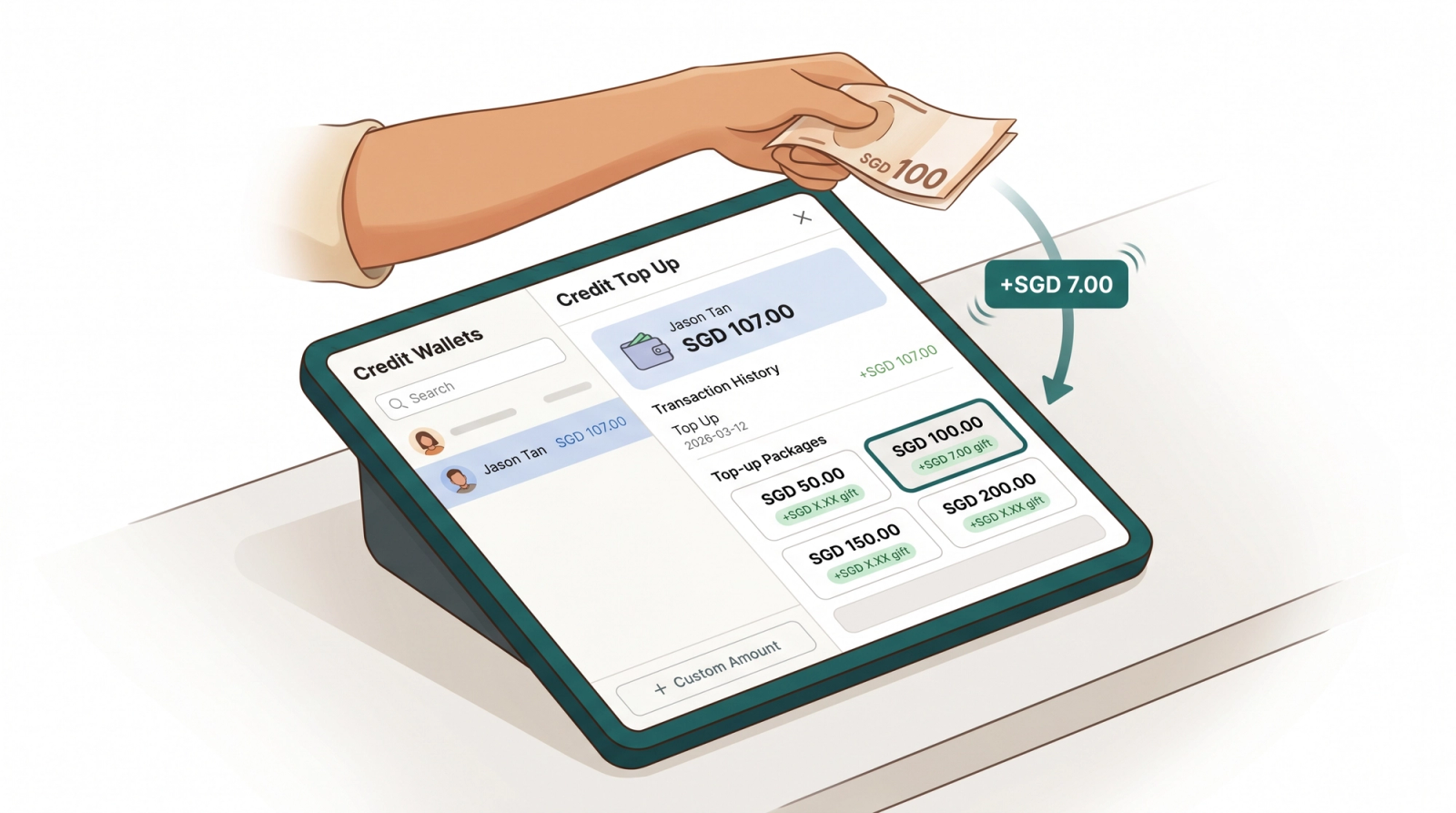
Store Credit is a prepaid wallet that sits on each customer profile. Customers pay a top-up amount at your shop and receive credit they can spend on future orders, often with a bonus gift on top. You can set how long their credit stays valid and design top-up packages with a regular gift on every top-up plus an optional one-time bonus on a customer's first top-up. Once set up, your staff can top up any customer at the POS counter in a few taps. This article covers the setup in the console, how the balance is tracked, and how staff use it at the counter.
Contents
Contents
Where to Find Store Credit Settings
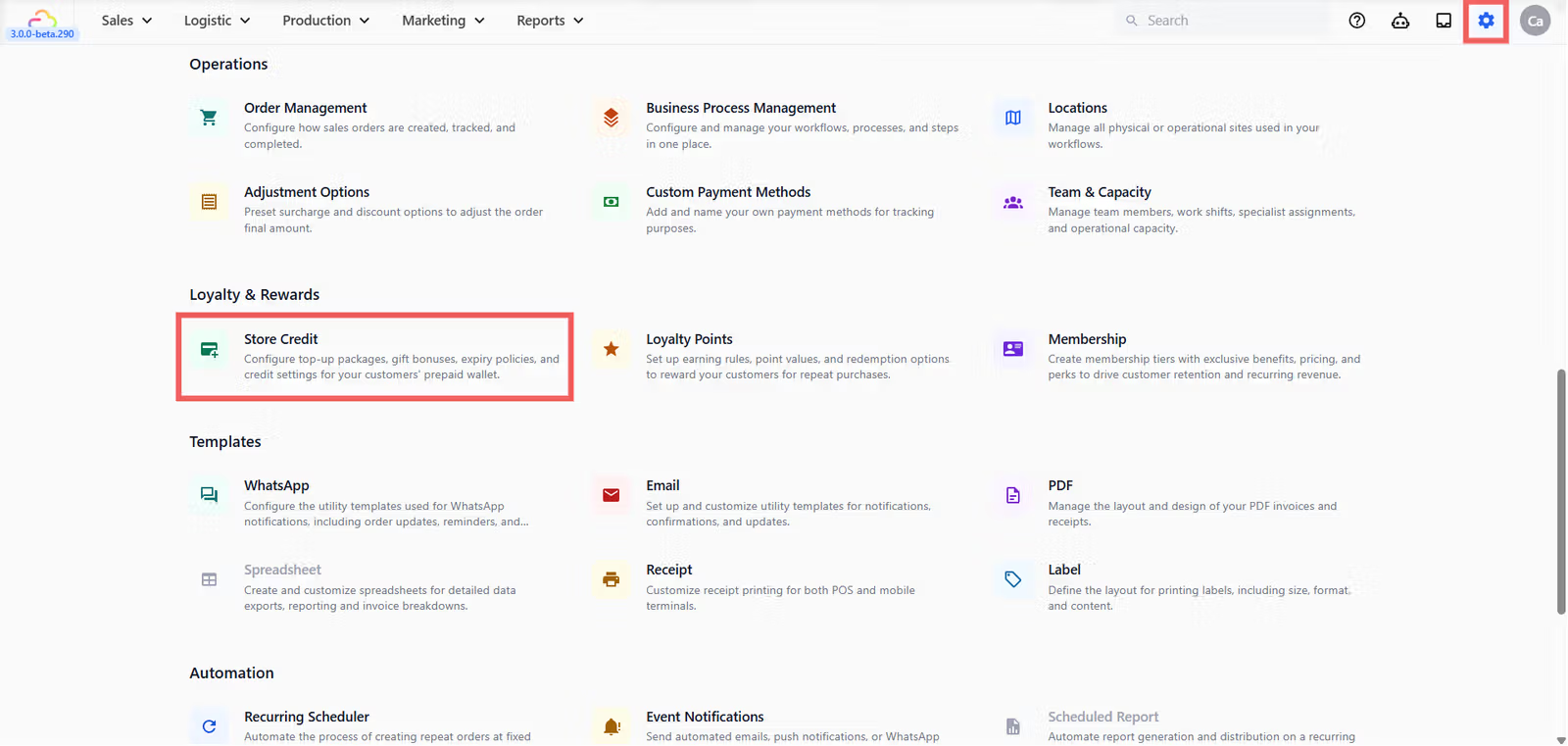
- Click the ⚙️ Settings icon in the top-right corner.
- Under the Loyalty & Rewards section, click Store Credit.
General Settings
This section sets the default expiry on credit added to customer wallets.
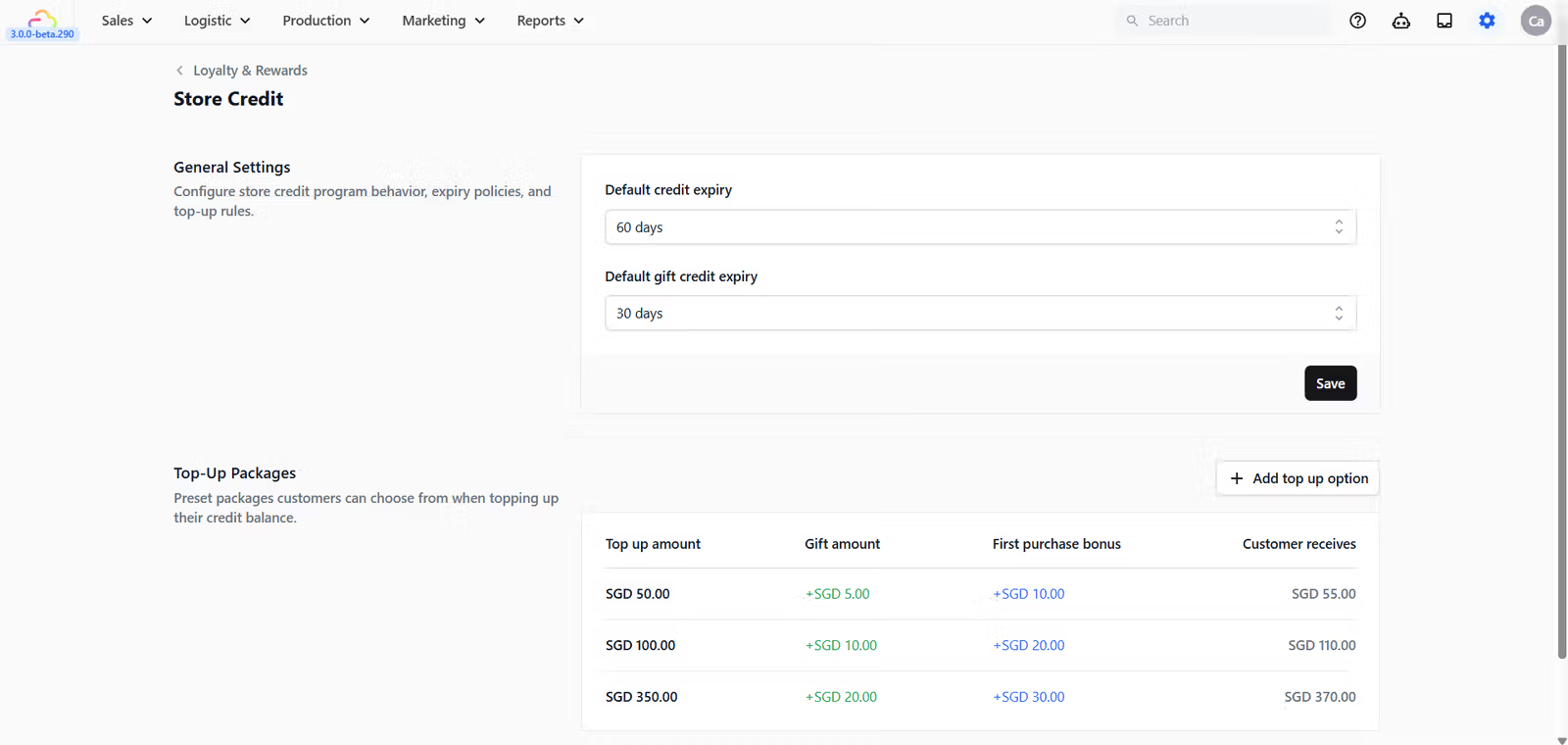
Default credit expiry
| Pick this | Result |
|---|---|
| No expiry | Credit never expires after being added |
| 30 days | Credit expires 30 days after it is added |
| 60 days | Credit expires 60 days after it is added |
| 90 days | Credit expires 90 days after it is added |
| 6 months | Credit expires 6 months after it is added |
| 1 year | Credit expires 1 year after it is added |
| 2 years | Credit expires 2 years after it is added |
| 3 years | Credit expires 3 years after it is added |
| 5 years | Credit expires 5 years after it is added |
This applies to the regular top-up amount the customer pays for.
Default gift credit expiry
Same options as Default credit expiry above. This applies separately to the bonus gift portion added on top of a customer's payment, so you can give bonus credit a shorter shelf life to encourage faster spending.
Top-Up Packages
A top-up package is a preset amount your staff can sell at the counter. The table shows: Top up amount, Gift amount, First purchase bonus, and Customer receives.
Click + Add top-up option to open the new package dialog.
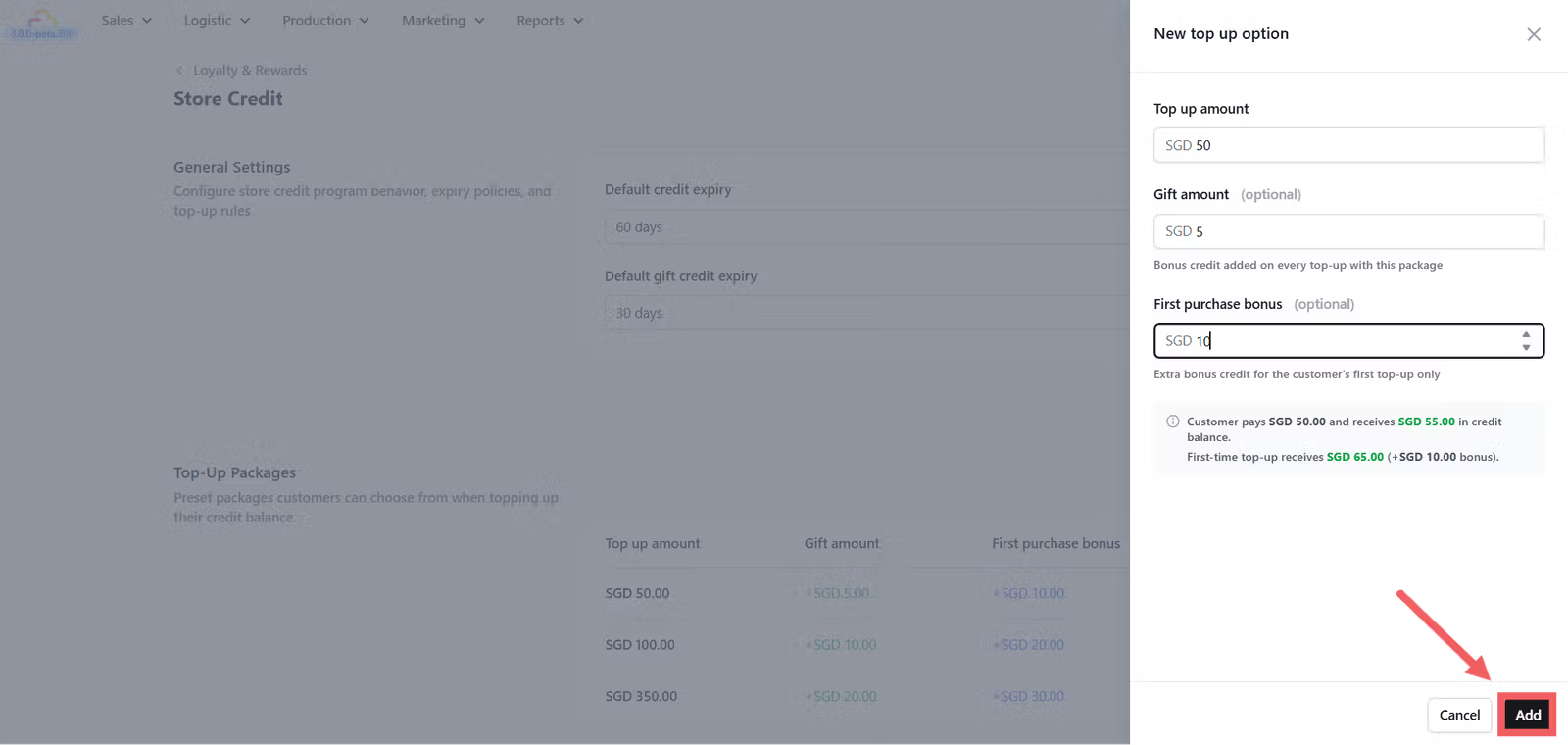
Top up amount
| Pick this | Result |
|---|---|
| Any amount | Required. The amount the customer hands over at the counter. |
Gift amount (optional)
| Pick this | Result |
|---|---|
| Empty | The customer receives only the top-up amount they paid. |
| Any amount | Bonus credit added on every top-up using this package. |
First purchase bonus (optional)
| Pick this | Result |
|---|---|
| Empty | No first-time bonus is given |
| Any amount | An extra one-time bonus added only on the customer's first top-up using this package. |
The Customer receives column in the table shows the top-up amount plus the gift amount. The first purchase bonus is not included in that column because it only applies to a single customer's first top-up.
How the Balance Is Tracked
Think of a customer's Store Credit wallet like a stack of gift cards rather than one big pile of money. Each top-up creates separate lots — one for the paid amount and one for the gift amount — each with its own expiry date. When a customer pays with credit, the system always uses the lot expiring soonest first, so bonus credit gets spent before it expires and paid credit stays safe until later.
How Staff Top Up Credit at the POS
To enable the Credit tab on your POS, see [Set Up Store Credit on Your POS].
FAQs
Do I need to set up top-up packages before I can take credit at the counter?
No. Even with no packages defined, staff can use + Custom Amount to top up any value. Packages are useful when you want to reward bigger payments with bonus credit.
Can I shorten the expiry of credit that has already been added?
No. The expiry is set when the credit lot is created. Changing the default expiry later only applies to credit added after that change.
Does the first purchase bonus apply once per customer or once per package?
Once per customer per package. If you have two packages with first purchase bonuses, a customer can receive a first-time bonus the first time they buy each package.
Which lot is spent first when a customer pays with credit?
The lot that expires soonest. Lots with no expiry are spent last, so customers never lose dated bonus credit while their no-expiry paid credit sits unused.
What happens if a customer tries to pay with credit that has expired?
Expired lots cannot be used. The expired credit disappears from their balance. Staff need to accept another payment method or add new credit before the order can be completed.
What's Next?
Now that your packages and expiry rules are set, continue to [Set Up Store Credit on Your POS] to make the Credit tab visible to your counter staff.
Give feedback
Up next
Setting Up Your Loyalty Points ProgramSet up your earning rule, business unit overrides, and rewards catalog so customers earn on every order and redeem the rewards you choose.
Read more