
Setting Up Time Slots
In this article
This guide walks through every field on the New Time Slot form, how the limits combine, and how to edit, delete, or preview a slot. If you have not reviewed the prerequisites yet, see Introduction to Time Slots first.
Contents
Contents
Opening Time Slots Page
- Click the ⚙️ Settings icon in the top-right corner.
- Under the Scheduling & Dispatch section, click Time Slots.
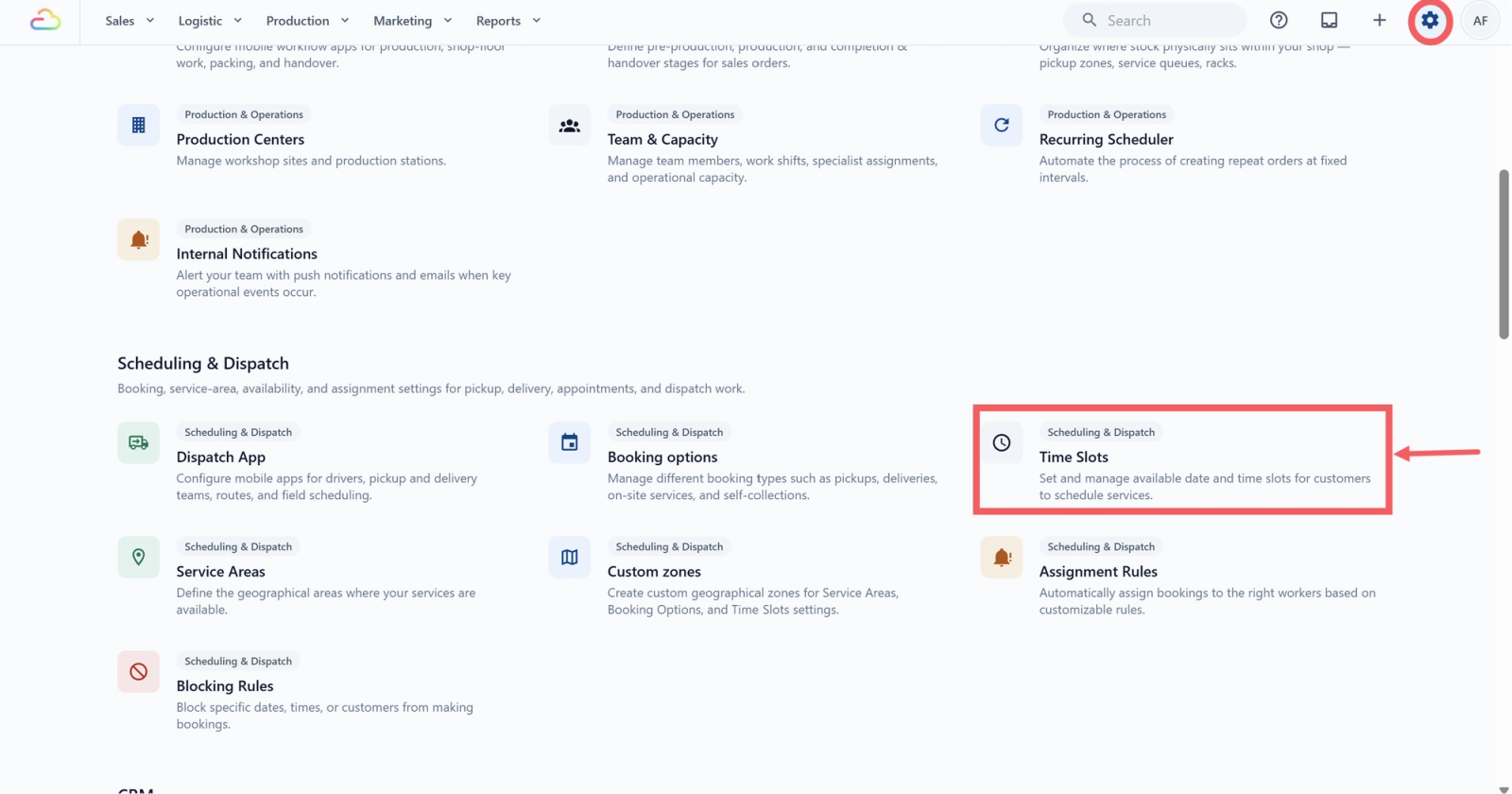
- Click + New Time Slot in the top-right.
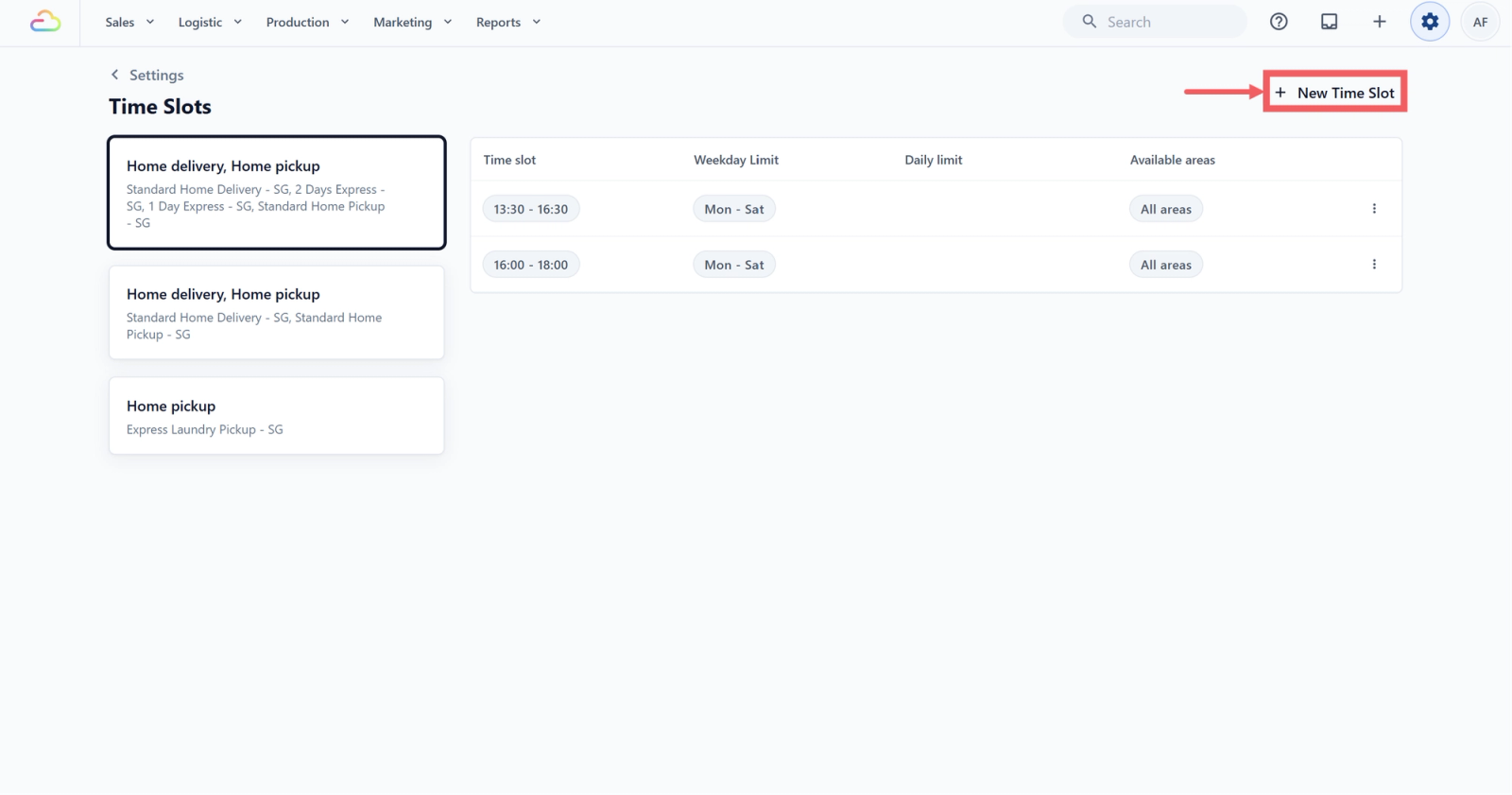
Time Slots Field Explained
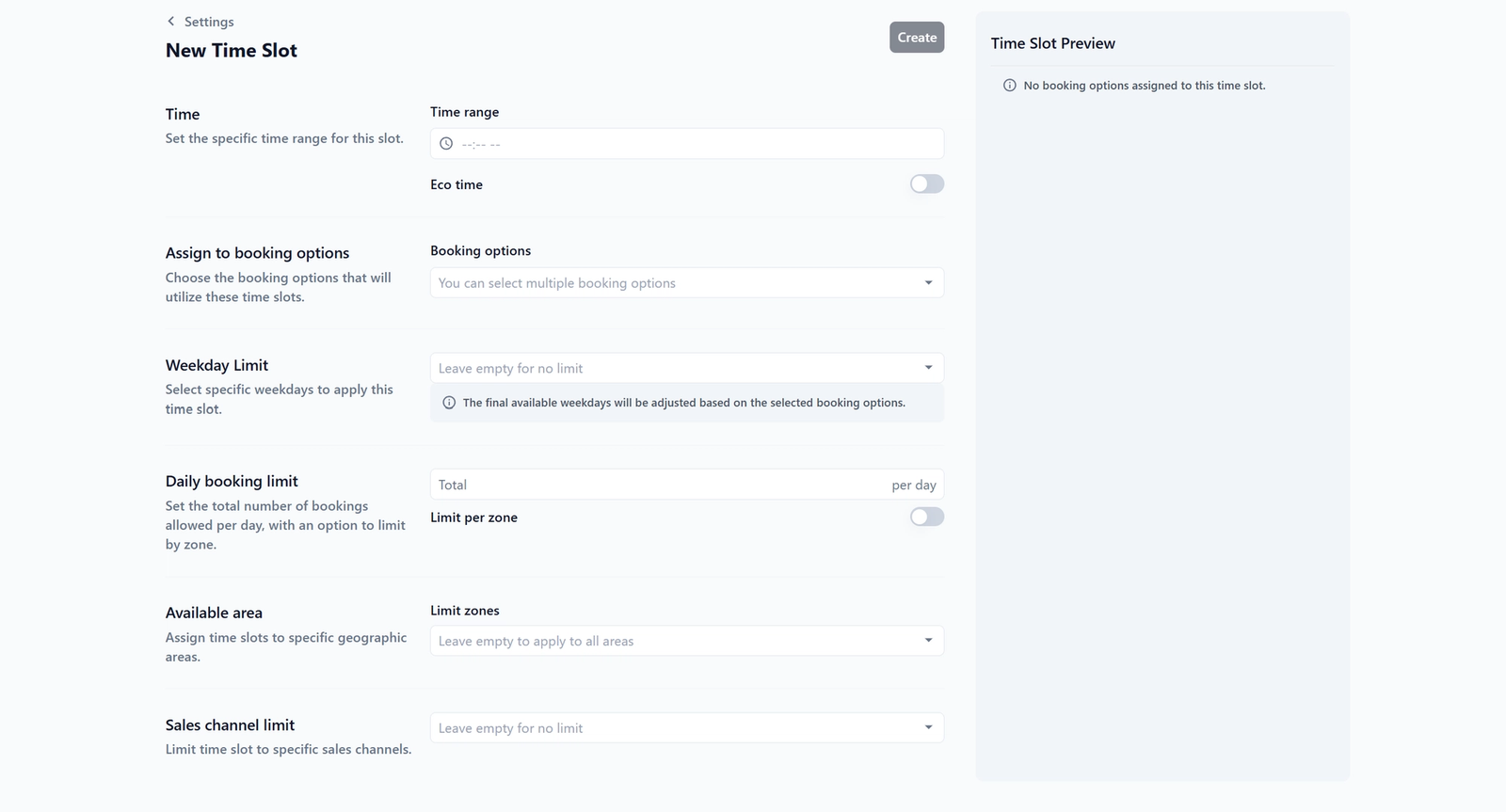
Time range
The start and end times your customer will see at checkout. Set with a 12-hour AM/PM picker (hours 01 to 12, minutes 00 / 15 / 30 / 45). Required.
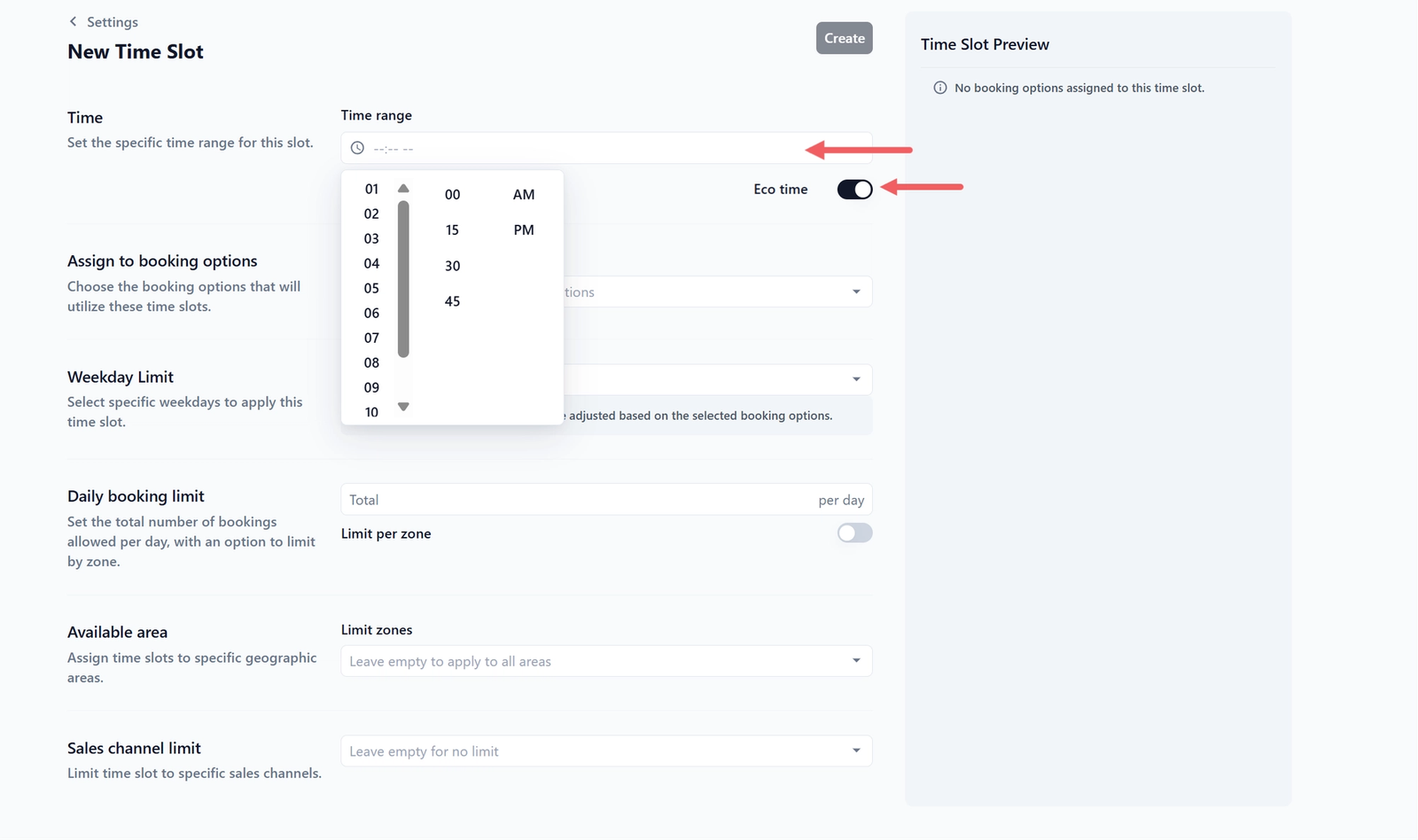
Eco time
| OFF | Slot appears as a normal option |
| ON | Slot shows a leaf icon and becomes the default pick when the customer opens the date picker. Price is not changed. |
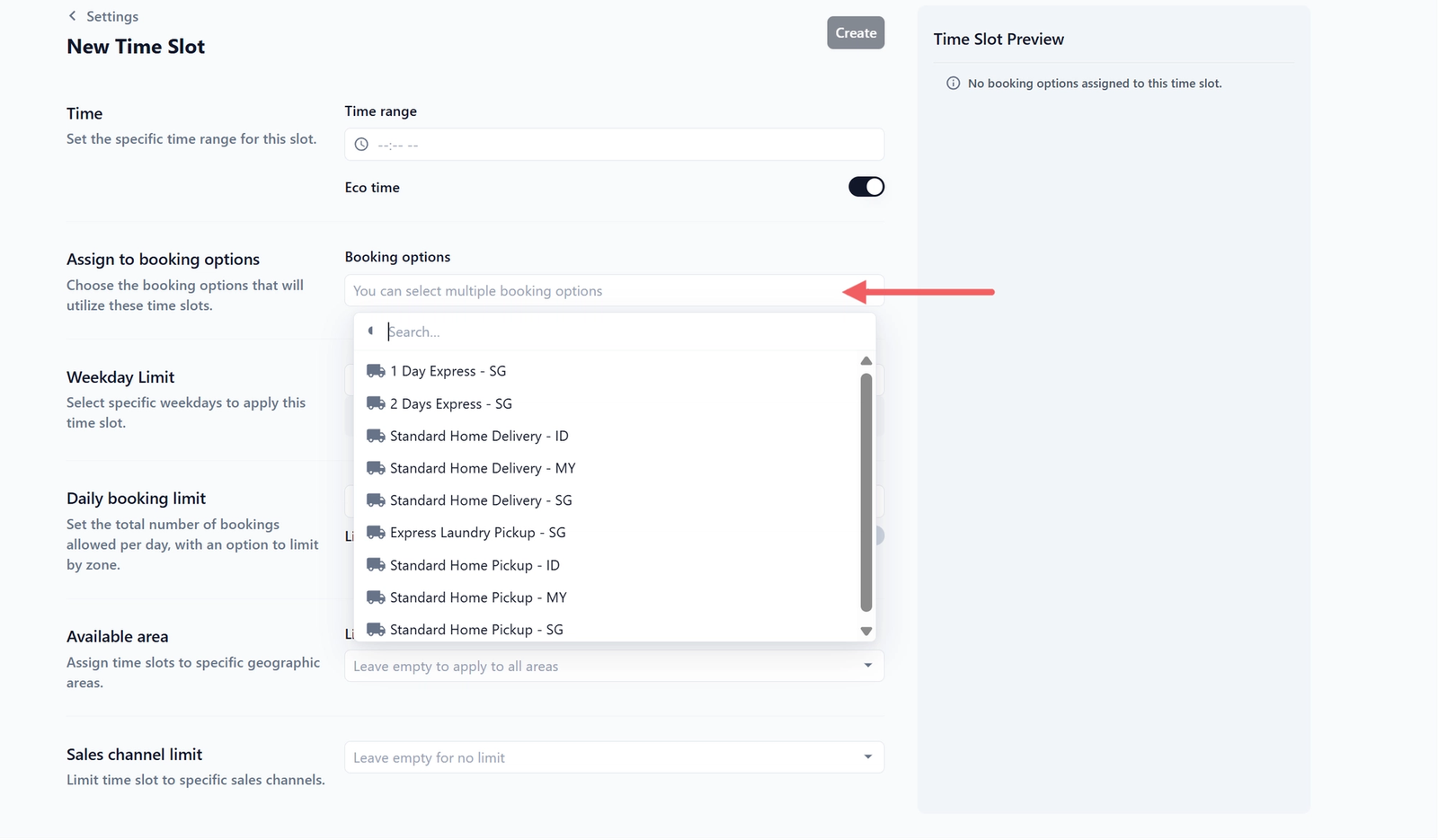
Assign to booking options
This is a multi-select dropdown with a search box, and it is required. The booking options you pick here are the ones that will use this slot, so a customer choosing that booking option will see this slot. Store Pickup options are filtered out because Store Pickup does not use time windows.
Weekday Limit
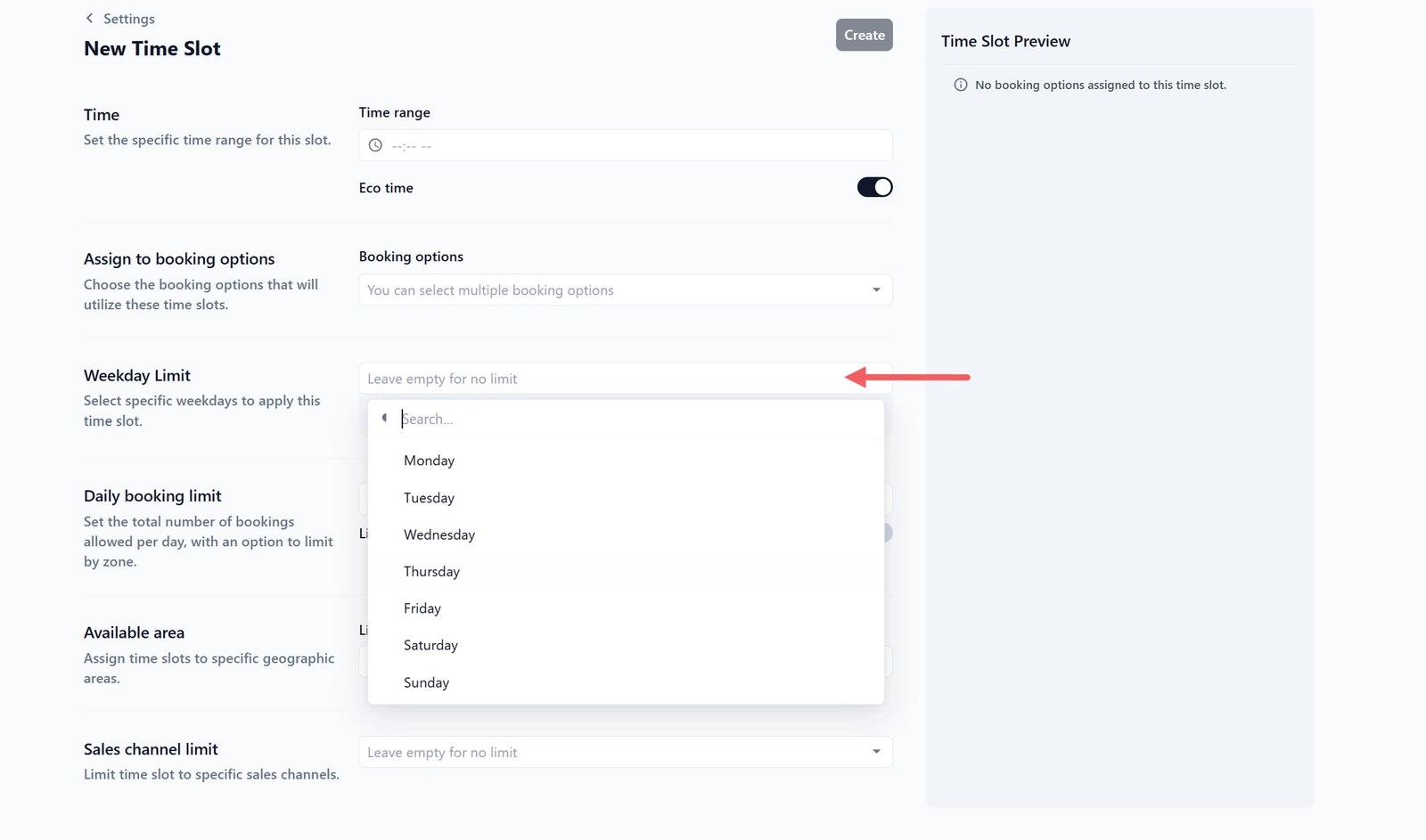
| Pick this | Result |
|---|---|
| Empty | Slot runs every day the Booking Option is open |
| Some days (e.g. Mon, Tue, Wed, Thu, Fri) | Slot only runs on the ticked days; hidden on the rest |
Daily booking limit
| Pick this | Result |
|---|---|
| Empty | No cap. Unlimited bookings for this slot |
| 20 | Slot disappears once 20 bookings are taken that day |
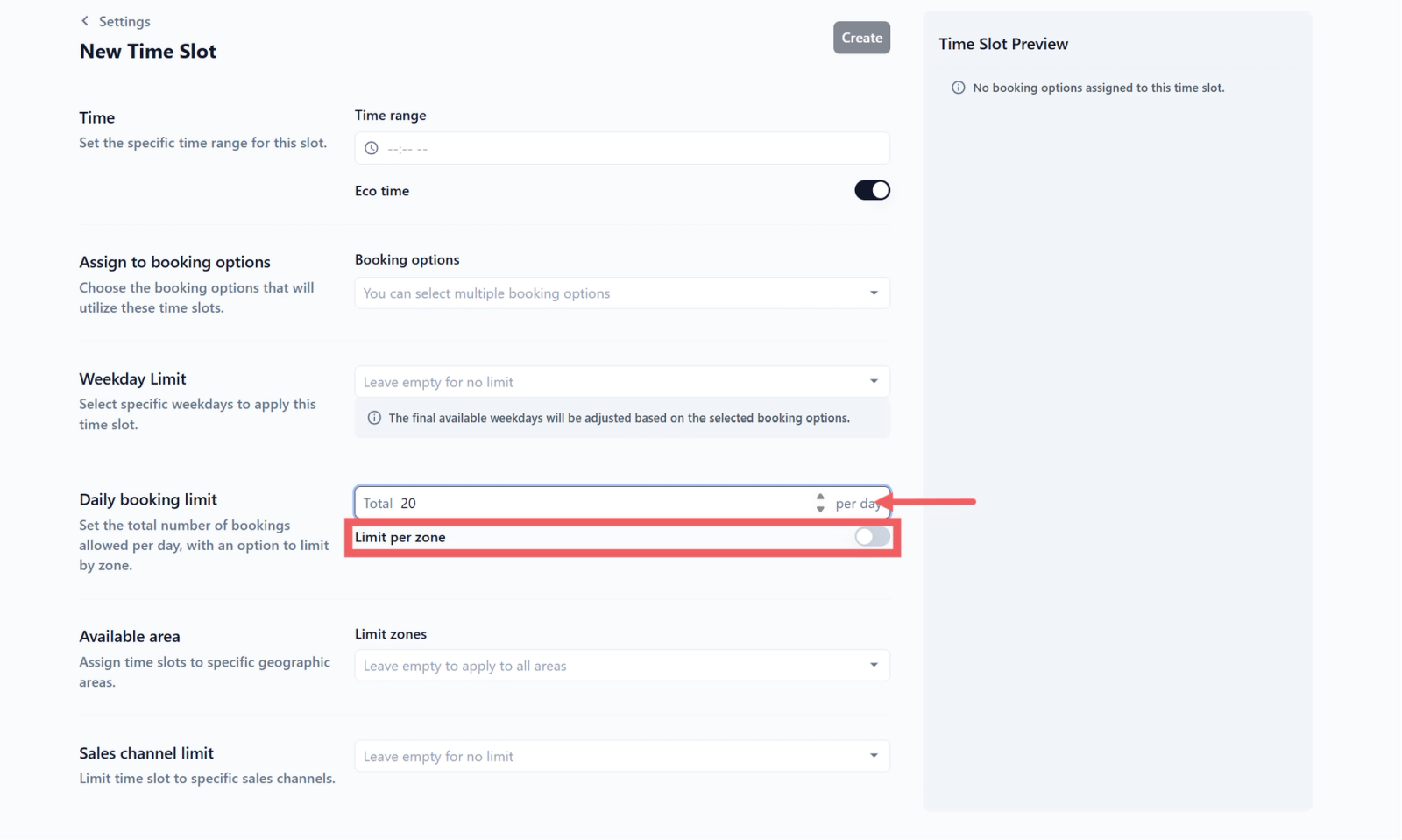
Limit per zone
| OFF | The daily limit counts all zones combined |
| ON | The daily limit counts each zone independently, for example 20 in Singapore Zone and 20 in KL Zone |
Use Limit per zone when each zone has its own driver or capacity. Leave it off for a single shared cap.
Available area
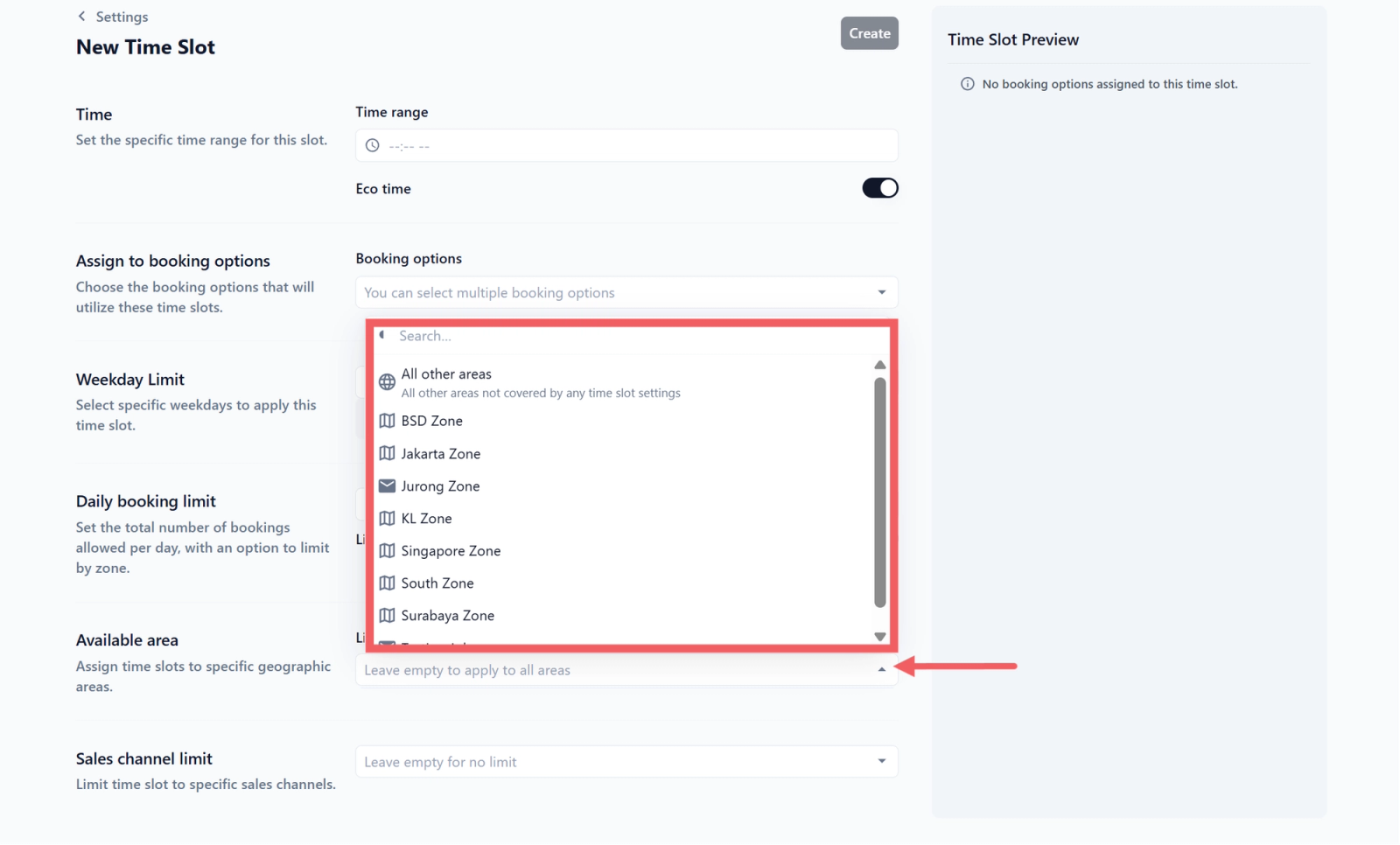
| Pick this | Result |
|---|---|
| Empty | Slot appears for every address |
| One or more zones | Slot appears only for customers inside those zones |
| Include All other areas | Slot also covers addresses that fall outside every listed zone |
The All other areas option is the catch-all for addresses you have not drawn a zone for.
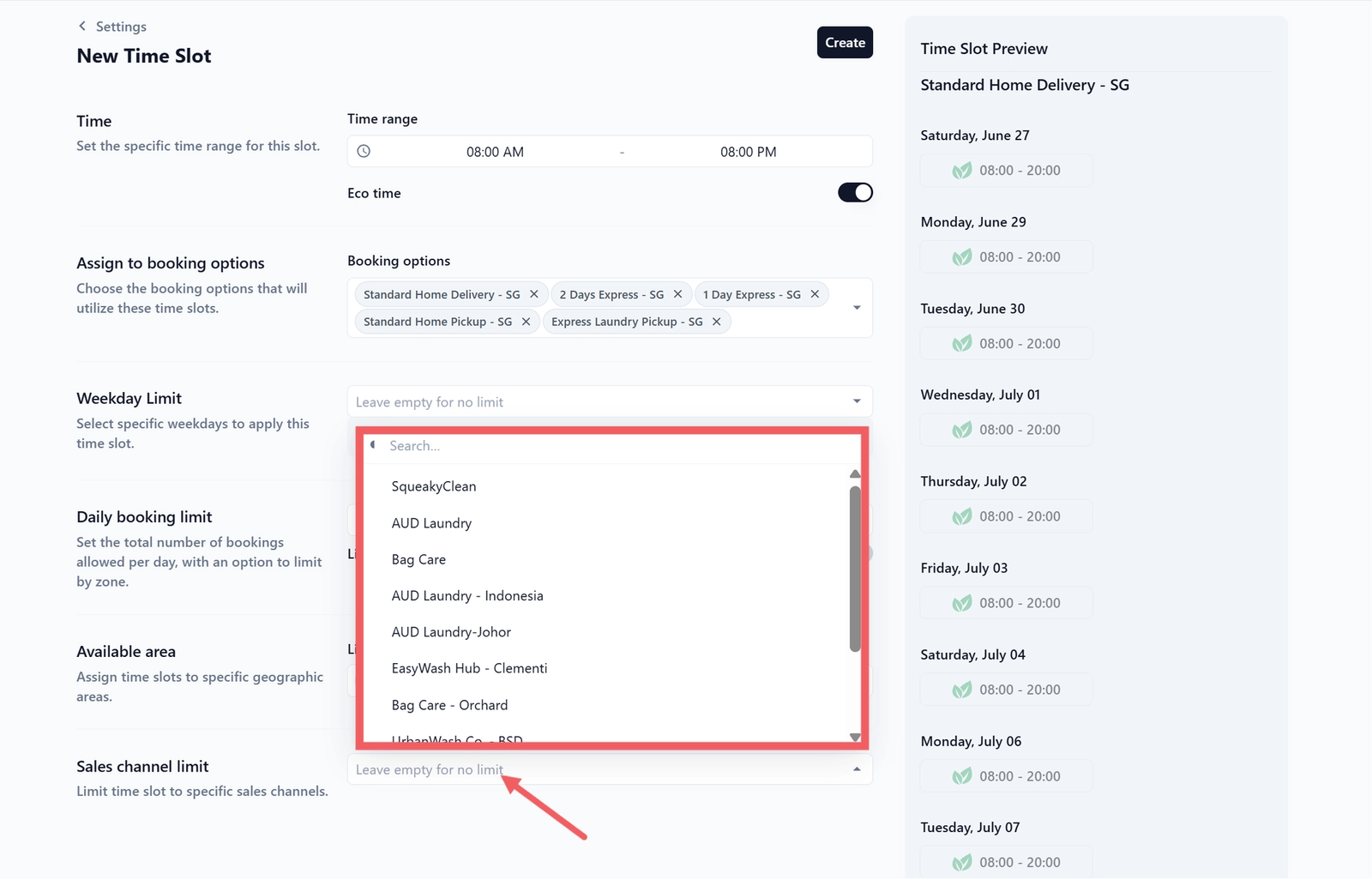
Sales channel limit
| Pick this | Result |
|---|---|
| Empty | Slot appears on every sales channel |
| One sales channel | Slot only appears when a customer is booking through that channel |
| Multiple sales channels | Slot appears on each of the selected channels and is hidden everywhere else |
Understanding the Limits
The slot is available to a customer only when all of these pass:
- The date is open on the slot's Booking Option.
- The weekday is allowed by Weekday Limit and the Booking Option.
- The customer's address is covered by Available area.
- The Daily booking limit, combined or per-zone, is not full for that date.
- The current channel is allowed by Sales channel limit.
- No Blocking Rule is closing the date.
If any one of these fails, the slot is hidden.
Reading the Time Slot Preview
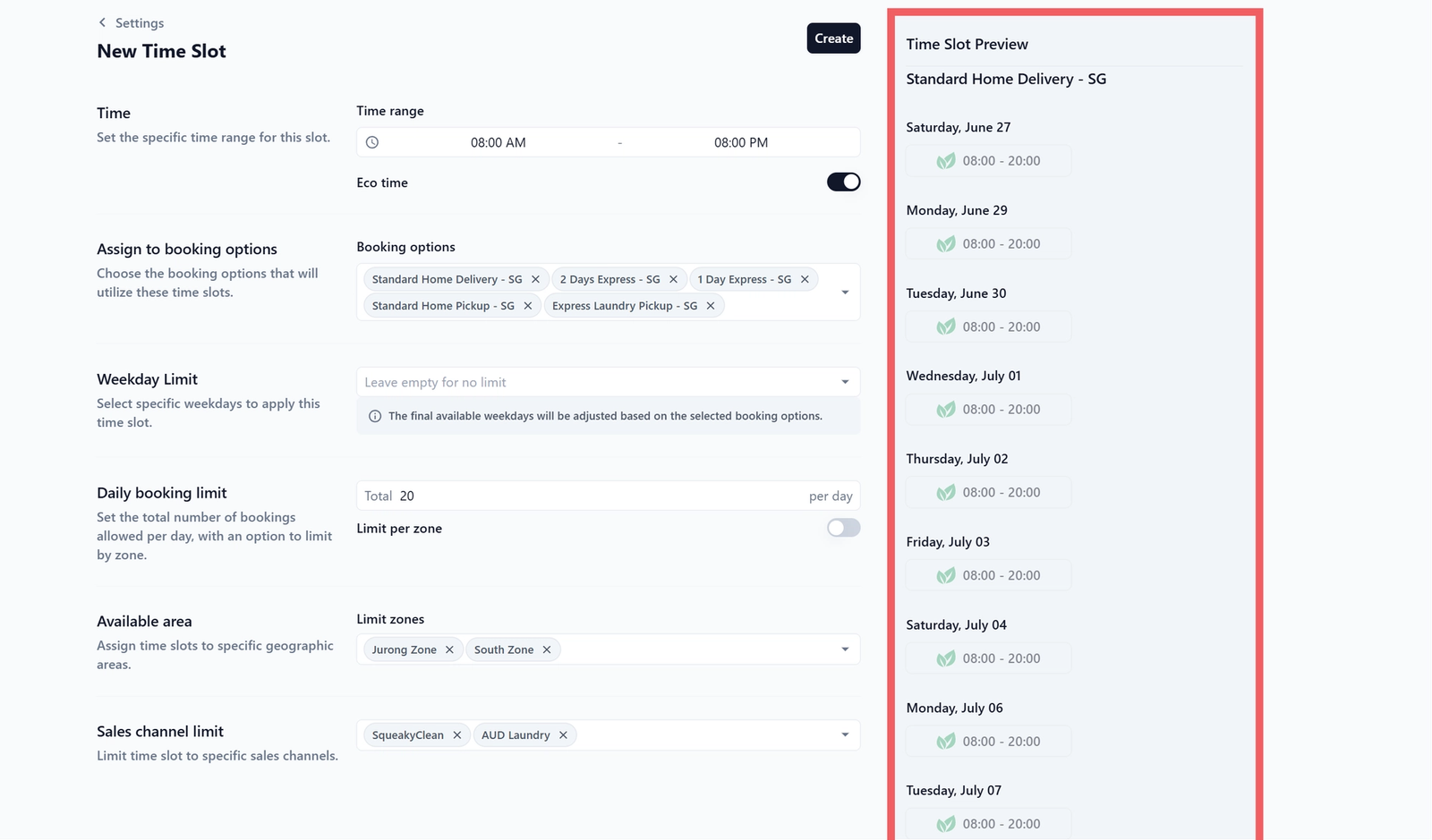
When you open a slot, new or existing, the right side shows a Time Slot Preview panel. It lists upcoming dates with the slot's time chip.
Two things to note:
- The preview is grouped by Booking Option. If the slot is assigned to multiple booking options, you will see one section per option.
- The preview displays times in 24-hour format (13:30 to 16:30), even though the input picker uses 12-hour AM/PM. The customer-facing format depends on your storefront settings, not the preview.
If the slot has no booking options yet, the panel shows "No booking options assigned to this time slot."
Save the Slot
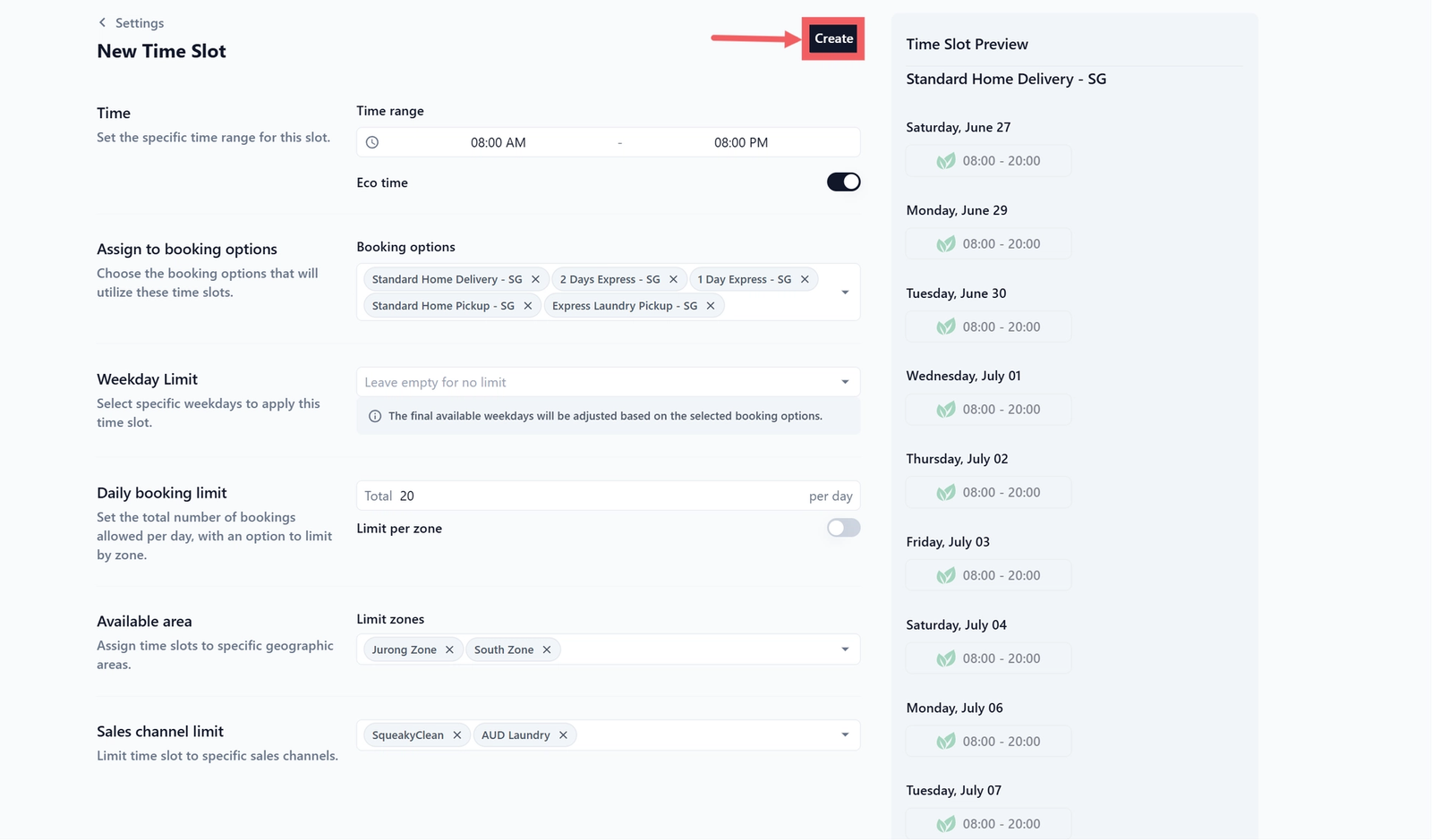
Once every field is set, click Create time slot in the top-right to save. The page returns to the Time Slots list and the new slot appears in the table under whichever booking-option group it belongs to.
Editing and Deleting
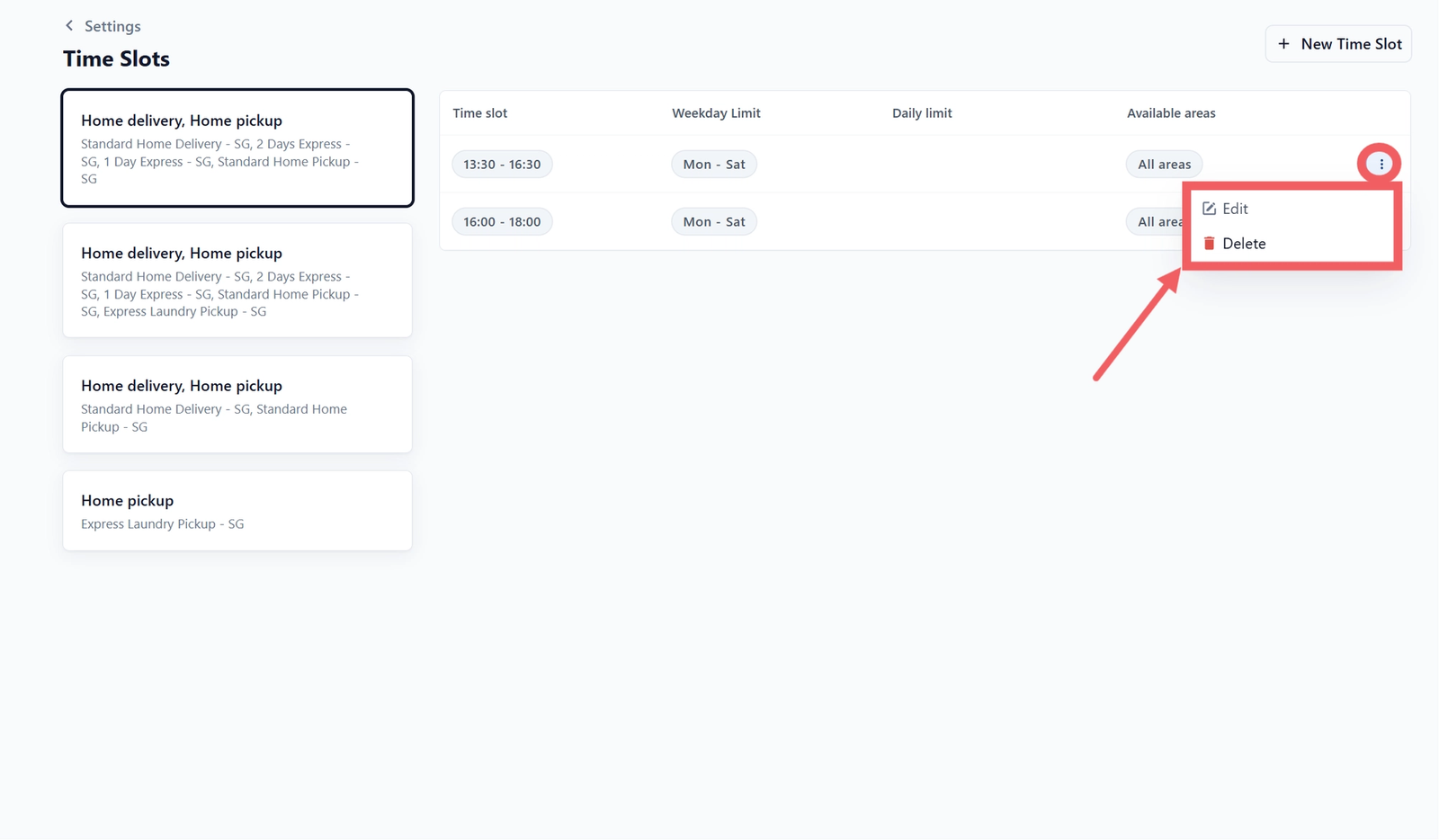
To open an existing slot, click three-dot button at the end of the row, then choose:
- Edit: opens an Update Time Slot screen with every field pre-filled. Each selected booking option, weekday, and zone shows as a chip with its own Remove button, so you can drop one without re-selecting everything. Click Update in the top-right to save.
- Delete: opens a "Delete time slot?" confirmation. Click Delete to confirm, or Cancel to back out.
FAQs
Why are some booking options missing from the dropdown?
Store Pickup options are filtered out because they do not use time windows. If a Booking Option is missing for any other reason, check that it exists and is active under Settings, Booking Options.
What if I set the daily limit too low?
The slot disappears for new customers once the cap is hit. They will need to pick a different slot or a different date. You can raise the limit at any time, and the new value applies immediately.
Is Eco time a discount?
No. Eco time only adds a leaf icon and makes the slot the default pick. It does not change pricing. Use a surcharge on the Booking Option if you want a price difference.
What is the difference between Available area and Limit per zone?
Available area decides whether the slot appears in a zone at all. Limit per zone decides how the daily cap is counted across zones once the slot is visible. You can use one, both, or neither.
Can two slots overlap in time?
Yes. A common setup is a 10:00 to 12:00 slot for all areas and a separate 10:00 to 12:00 slot with a smaller cap restricted to a remote zone.
Does editing a slot affect bookings that already exist?
No. Slot changes only affect new bookings going forward. Existing bookings keep the schedule they were placed with.
What's Next
If you need to close holidays, pause certain dates, or stop a customer from booking online, continue to [Introduction to Blocking Rules]. If not, go straight to [Introduction to Assignment Rules] when you want jobs assigned to a specific driver automatically.
Give feedback
Up next
WhatsApp IntegrationEverything you need to connect WhatsApp to your EasyBiz console, set up your business profile, and start communicating with customers professionally.
Read more