
Introduction to Event Notifications
In this article
Event Notifications send an email or WhatsApp message automatically when something happens in your shop, like a new order, a payment, or an order being ready for collection. Instead of your staff remembering to message every customer, the system sends the message the moment the event happens. Each notification connects one event to an email message, a WhatsApp message, or both. You find the page under Settings, in the Operations section.
Contents
Contents
Two Audiences
Event Notifications is split into two tabs so customer-facing and internal messages stay separate.
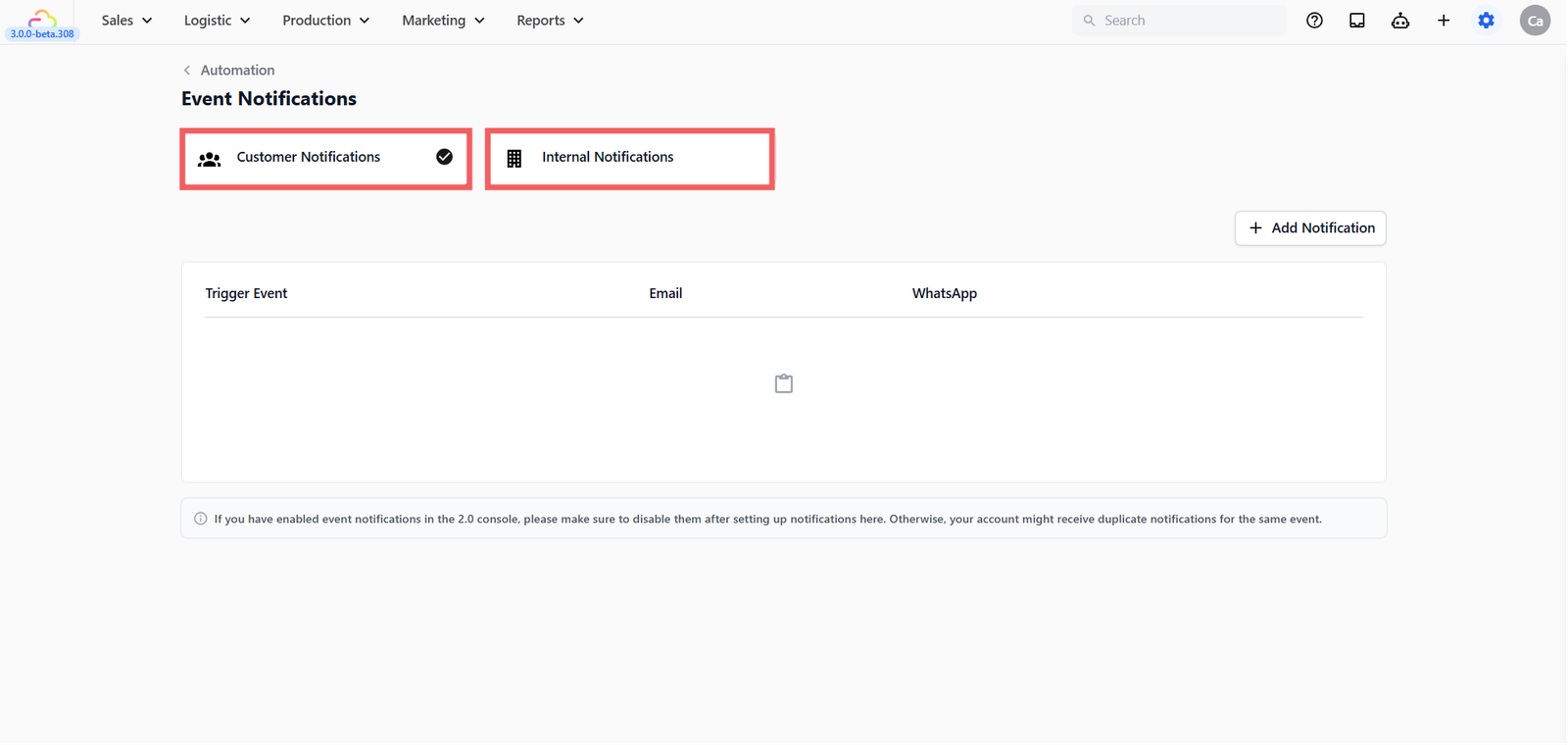
| Audience | Who receives it |
|---|---|
| Customer | The customer attached to the order, job, or conversation |
| Internal | Your staff, by role, by teammate, or the assignee |
What Events Can I Use?
Events are the specific moments in your shop that can trigger a notification. The Trigger Event field is a flat searchable list of around 50 events. These are the ones most shops use first:
| Pick this | Fires when |
|---|---|
| Sales order created | A new order is saved |
| Sales order confirmed | An order is confirmed by staff |
| Sales order completed | An order is fully closed and paid |
| Order ready for collection | An order is marked ready for the customer to pick up |
| Payment succeeded | A payment is captured successfully |
| Logistic pickup completed | A pickup job is marked done |
| Logistic delivery completed | A delivery job is marked done |
| All other events | Type a keyword or scroll the search field to find any event |
Channels
Channels are the two ways EasyBiz can send a notification — by email or by WhatsApp message.
| Setup | Result |
|---|---|
| A published email template selected | Email is sent to the customer's email on file |
| Empty | No email is sent for this event |
| Setup | Result |
|---|---|
| An approved WhatsApp template selected | Message is sent to the customer's phone number on file |
| Empty | No WhatsApp Template message is sent for this event |
When to Use This
- A customer should be told the moment their order is ready for collection
- A supervisor should hear about every failed pickup right away
- Finance should see every refund
- A driver should know the moment a new delivery job lands
For internal staff alerts, see [Setting Up Internal Event Notifications] (Coming Soon).
FAQs
Do I need to set up every event?
No. Most shops start with three to five events. Sales order confirmed, Order ready for collection, and Payment succeeded cover the moments customers most want to hear about. Add more later.
What if I do not have an email or WhatsApp template ready?
The notification can be saved without one, but it will not send anything until a template is added. Set up a published email template or an approved WhatsApp template first.
Why is the Internal tab not sending anything?
Internal Notifications is visible on the page today but is not yet active. See [Setting Up Internal Event Notifications] (Coming Soon) for updates.
Can one event fire two messages on the same channel?
No. One notification per event per audience. Use the email template body to include all the information you want in one message.
Does pausing exist for notifications?
Not yet. To stop a notification, delete it. You can re-create it quickly using the same event and templates later.
What's Next
Now that you know what Event Notifications can cover, continue to [Setting Up Customer Event Notifications] to build your first one.
Give feedback
Up next
Setting Up Customer Event NotificationsBuild your first customer-facing event notification, with five examples you can copy as a starting point.
Read more