
Introduction to Process Flows
In this article
A Process Flow is a short form EasyBiz shows your staff at a specific moment during an order. Each flow is a list of steps, and each step asks for one piece of information, a weight, a number of pieces, a photo, a signature, a note. Flows keep the staff screen clean by only asking for what is needed at that moment. You build a flow once and reuse it across as many Business Units as you need.
Contents
Contents
Key Terms
| Term | What it means |
|---|---|
| Line Item | A single item line inside a customer order. |
| Business Unit | A line of service in your shop, for example Laundry & Dry Cleaning. |
| Sales Channel | Where the order comes from, for example a POS counter or your online store. |
| Specific Units | The "Apply To" option that limits a flow to items in a chosen unit, like kg or hook. |
Where Process Flows Live
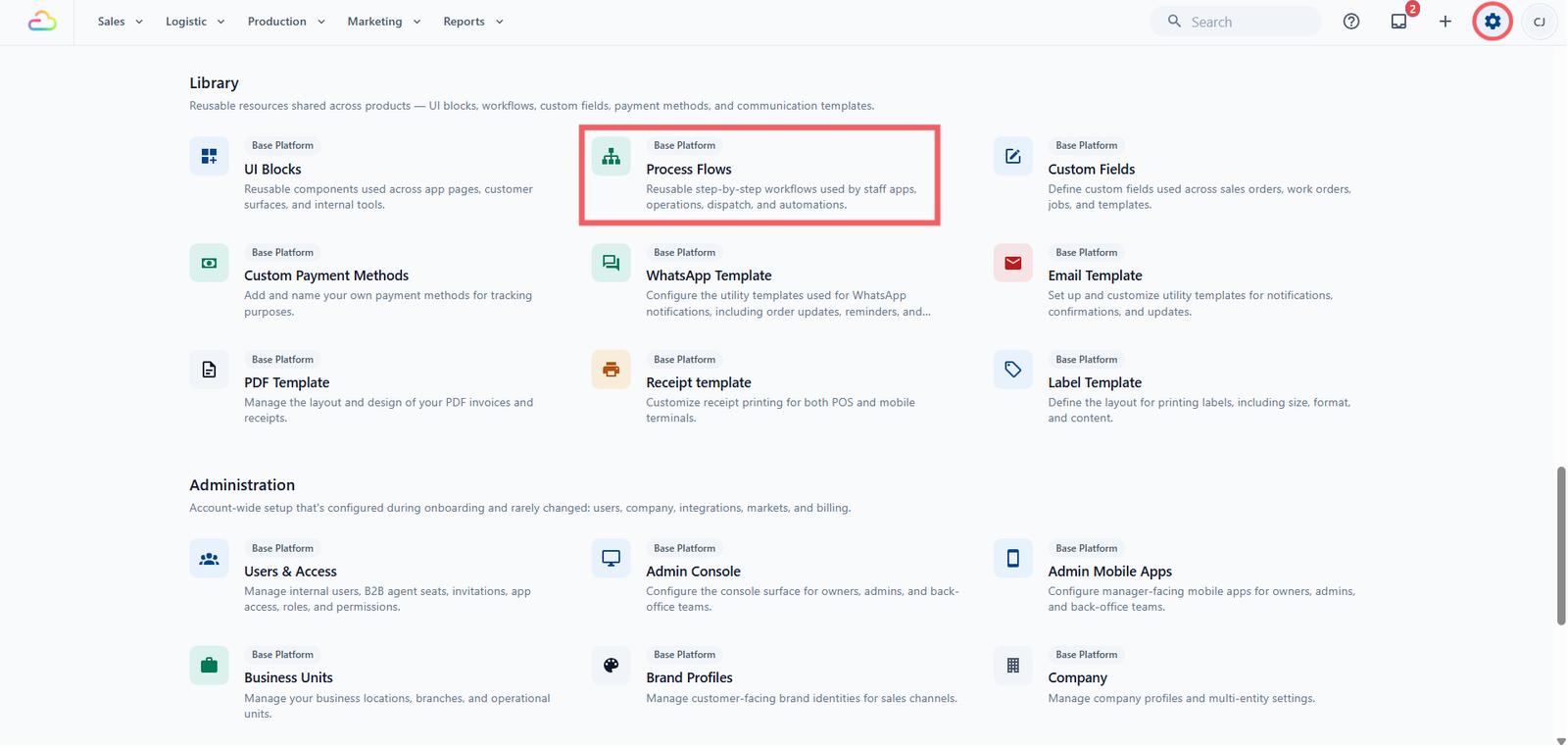
- Click the ⚙️ Settings icon in the top-right corner.
- Under the Library section, click Process Flows.
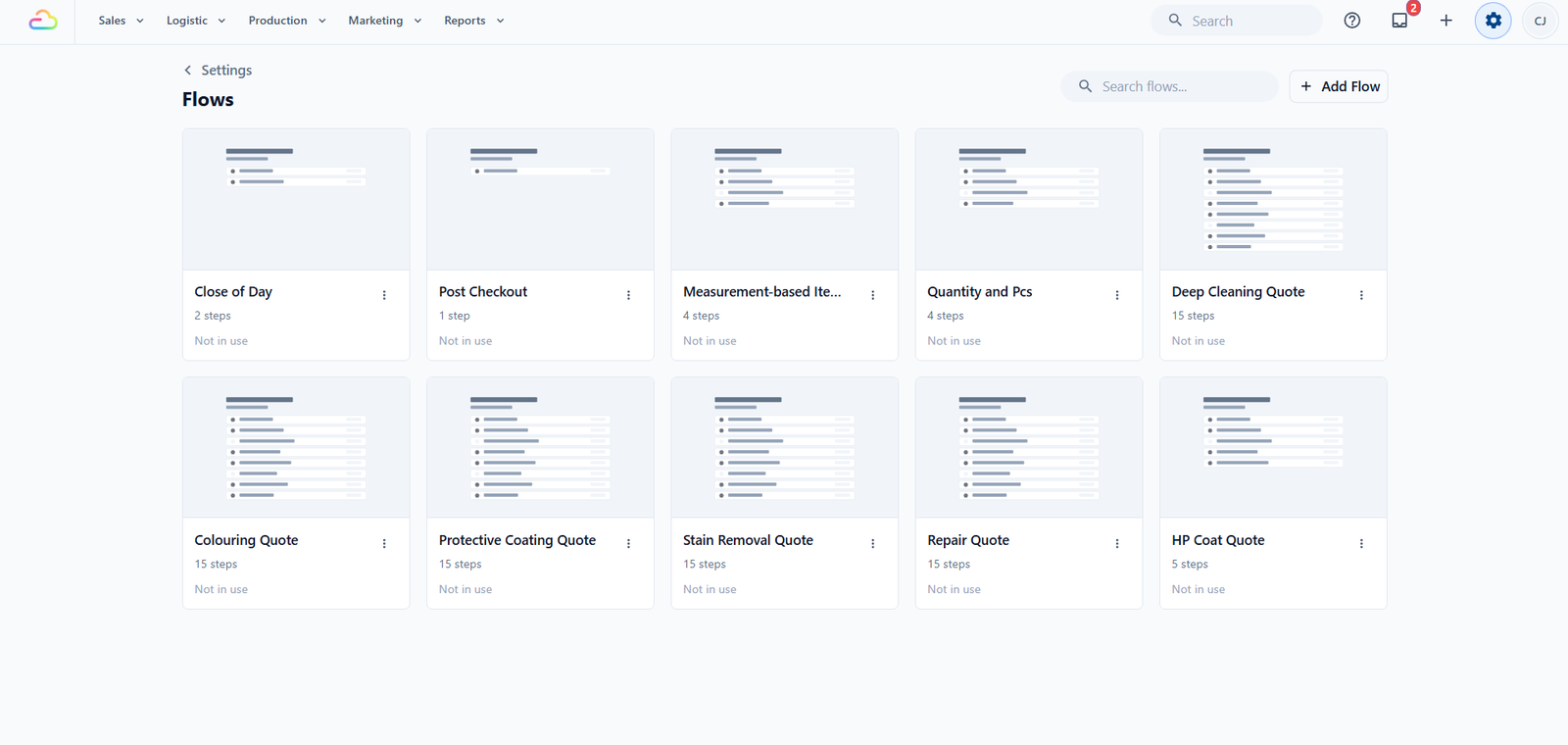
This page lists every flow in your account. Each card shows the flow name, the number of steps, and whether the flow is in use. Use the search bar at the top to filter the list, and use Add Flow to create a new one.
The Flow Types in Console 3.0
Flows are reusable. The same flow can be attached to different moments. The moments are configured on the Business Unit. See [Introduction to Business Units].
| Flow attachment | When it runs |
|---|---|
| Line Item Flows | When staff add or edit an item in the cart |
| Checkout Flows | Before staff create a new order |
| Packing Flows | While staff pack items during production |
| Completion & Handover Flows | When staff hand the order back to the customer at the shop, on delivery, or on-site |
Every type uses the same flow editor and the same step library. The difference is only where you attach it on the Business Unit page.
A Line Item Flow can take different shapes depending on the item. The Quantity and Pcs flow is for items priced by weight or count. A bag repair intake, for example, captures a colour, a serial number, and a damage photo instead.
Why a Shop Owner Would Use One
Use a Process Flow when the staff app needs to ask for something extra at a specific moment. A few examples:
- A laundry curtain needs its weight and piece count entered before the price is calculated and the labels are printed.
- A bag repair intake needs a colour, a serial number, and a damage photo recorded before the work starts.
- A delivery driver needs the customer's signature and a photo of the parcel before the order can be marked complete.
If every item has a fixed price and needs no extra details, you do not need a flow.
FAQs
Do I need to build a Flow before I go live?
No. A fresh EasyBiz account already has a few sample flows installed. Most shops with fixed price items can go live without touching this page.
Can one flow be used in more than one Business Unit?
Yes. A flow is reusable. Attach the same flow to as many Business Units as you need, and a change to the flow appears everywhere it is used.
Can I change a flow that is already in use?
Yes. Edits save to the same flow, so the next time the flow runs they see the new version. There is no separate publish step.
What is the difference between a Line Item Flow and a Checkout Flow?
A Line Item Flow runs once per item, while a staff member is adding that item. A Checkout Flow runs once for the whole order, just before staff confirm it.
Can I delete a flow if I built it wrong?
Yes, but carefully. Delete is not blocked even if the flow is still attached to a Business Unit. After deleting, that item runs no flow next time. Past orders keep their data.
What's Next
Now that you know what a Process Flow is, pick the guide that matches what you want to set up:
- If you charge by weight or count (like laundry by kg or curtains by hook), continue to [Setting Up the Quantity and Pcs Flow] to build the most common Line Item Flow.
- If you run a repair service and need a colour, serial number, or damage photo at intake, see [Setting Up a Bag Repair Intake Flow] (Coming Soon).
- If you need a check before confirming an order, see [Setting Up Your Checkout Flow] (Coming Soon).
- If you track items during production, see [Setting Up Your Packing Flow] (Coming Soon).
- If you collect a signature or photo at handover, see [Setting Up Your Completion & Handover Flow] (Coming Soon).
Give feedback
Up next
Setting Up the Quantity and Pcs FlowIf your laundry shop charges by weight and prints one label per piece, this flow lets staff enter both at the counter so the price and the labels are correct without any manual maths.
Read more