
Setting Up the Quantity and Pcs Flow
In this article
Some items in your price list are charged by one measure but need to be tagged and produced as separate pieces — like curtains priced per hook, or laundry priced by weight. This guide walks you through setting up the Quantity and Pcs line item flow so pricing and label counts are captured in one step at the cart, with no manual adjustments needed.
Contents
Contents
What Is the Quantity and Pcs Flow?
The Quantity and Pcs flow is a Line Item Flow that prompts staff for two values whenever a qualifying item is added to the cart, the quantity (the measured amount used for pricing, for example weight in kg) and the pieces (how many physical items there are for labelling). It runs as a quick inline dialog on the order screen, so both values are captured in one step before the item lands in the cart.
Why You Need It
Some items are priced by one measure but tracked, tagged, and produced by another. Without this flow, staff have to do the maths in their head, manually adjust prices, or print the wrong number of labels, which leads to mispriced orders, missing tags in production, and items getting lost on the shop floor.
Example Use Case: Curtains Priced by Hook
A customer brings in 1 long curtain with 12 hooks. Your price list charges curtain cleaning per hook, but each physical curtain panel still needs its own tag so it doesn't get mixed up in production.
Same idea works for laundry by weight: a 5 kg bag with 8 garments, quantity 5 (price by kg), pieces 8 (8 labels).
Before You Start
You need at least one product in your catalogue that uses a unit the flow should apply to, for example kg or hook. The flow attaches to items by their unit, so the units must exist on your products first. See [Setting Up Service Items].
Create the Flow
Step 1: Open the Process Flows page
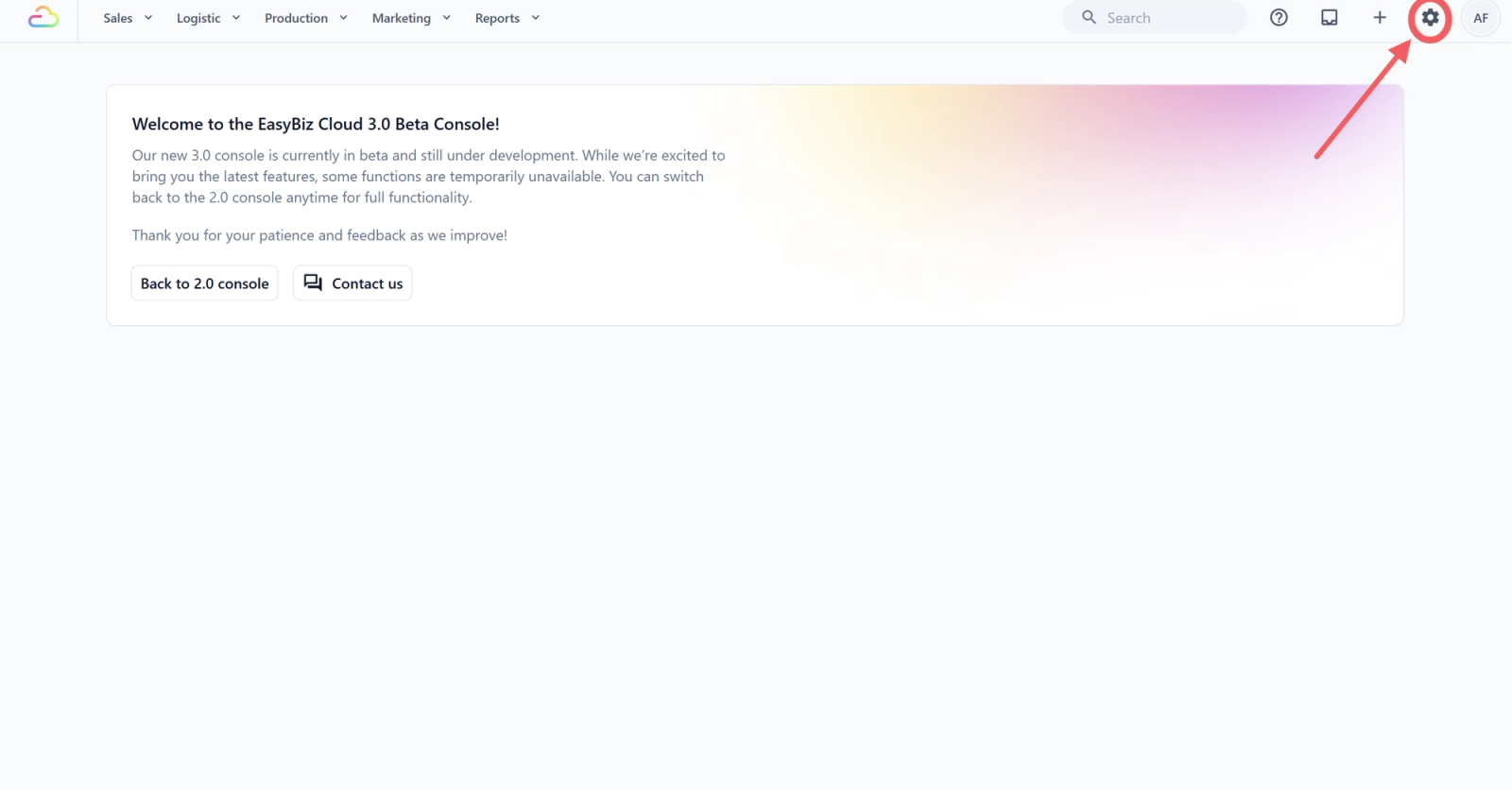
- Click the ⚙️ Settings icon in the top-right corner.
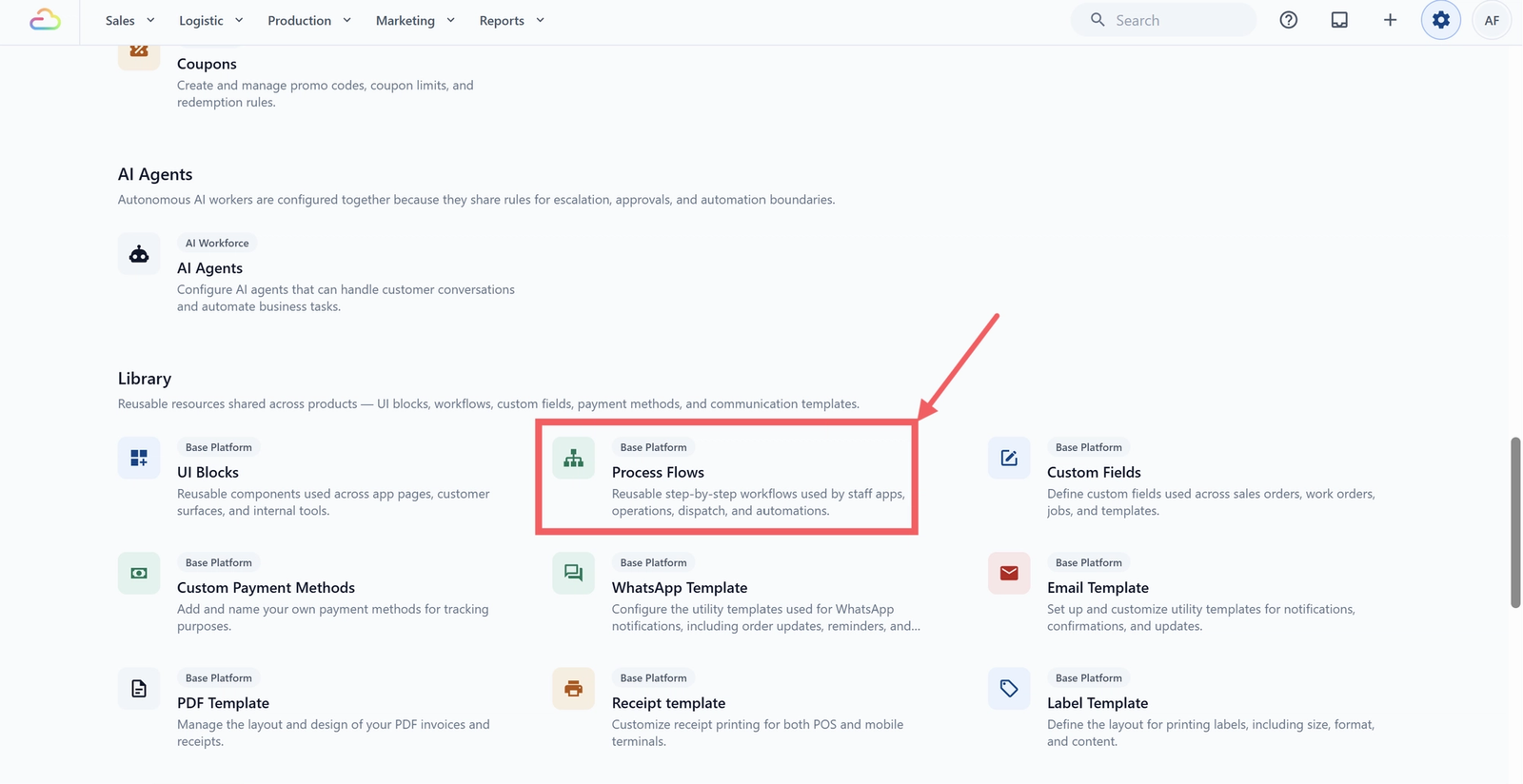
- Under the Library section, click Process Flows.
Step 2: Open the Add Flow panel
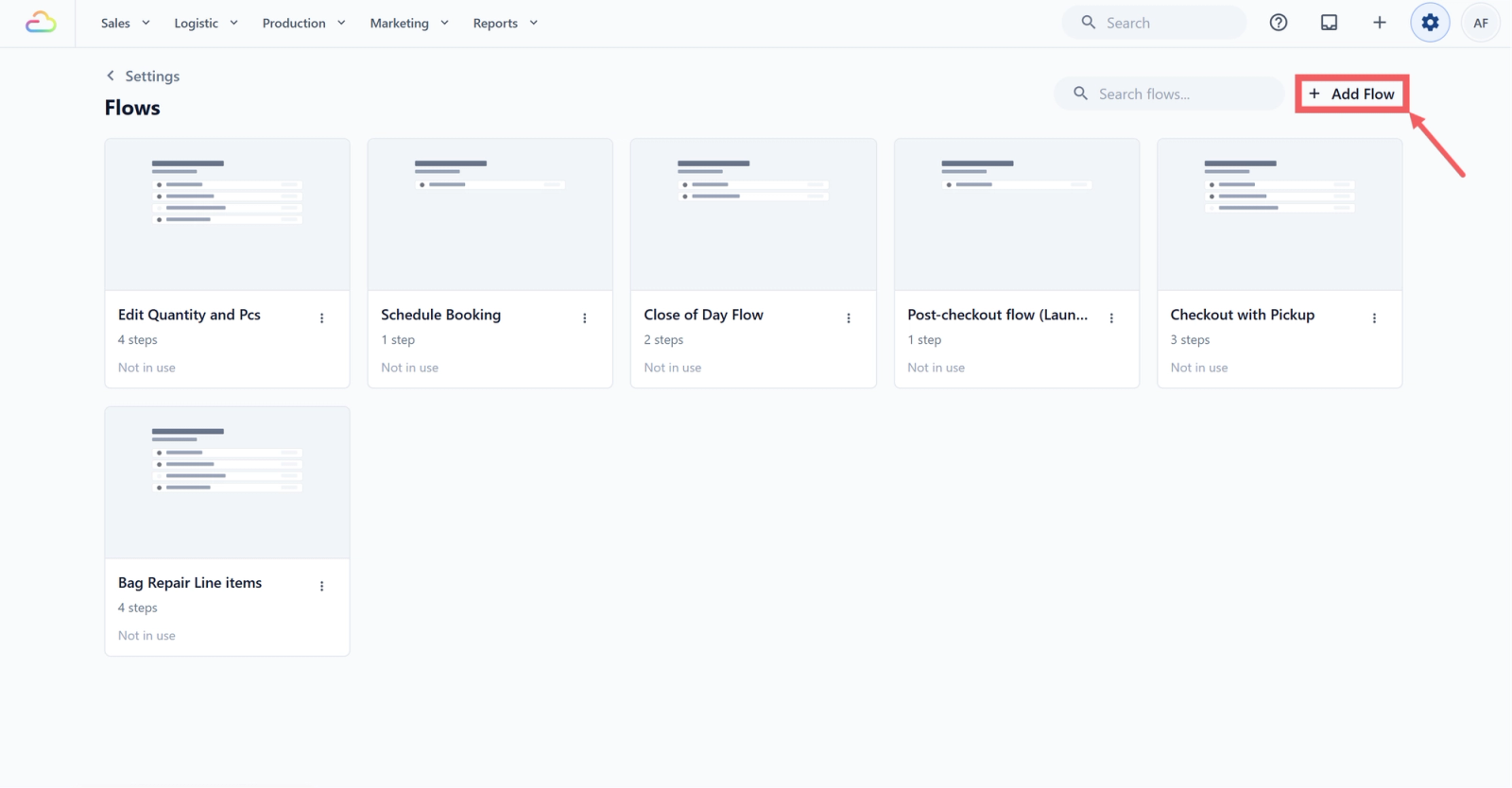
- Click Add Flow at the top-right of the page.
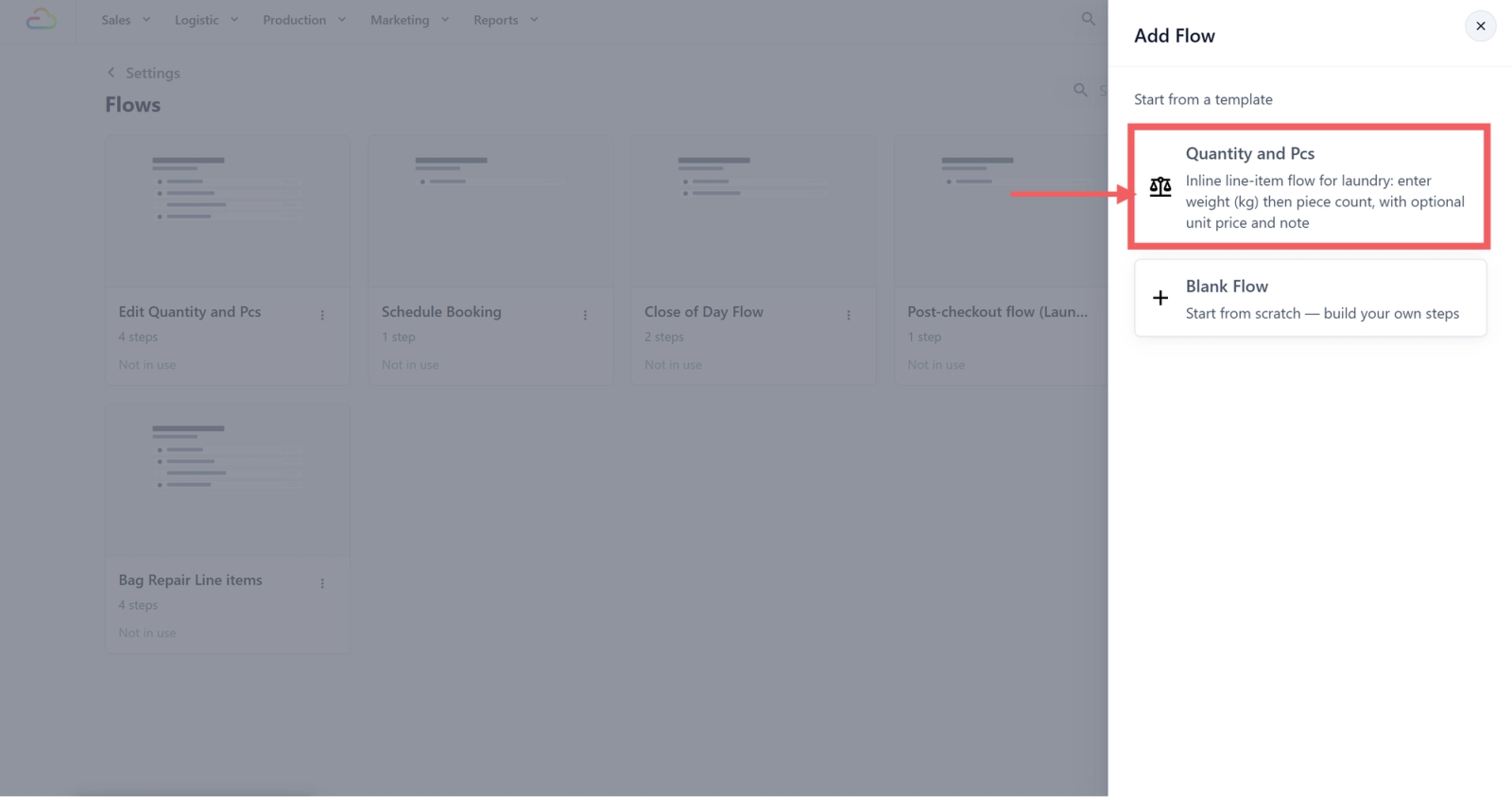
A side panel titled Add Flow slides in. It has the heading "Start from a template" and lists template cards.
Step 3: Pick the template and name the flow
- Click the Quantity and Pcs template card.
- In the dialog that appears, leave the Flow Name as Quantity and Pcs or type your own name.
- Click Create
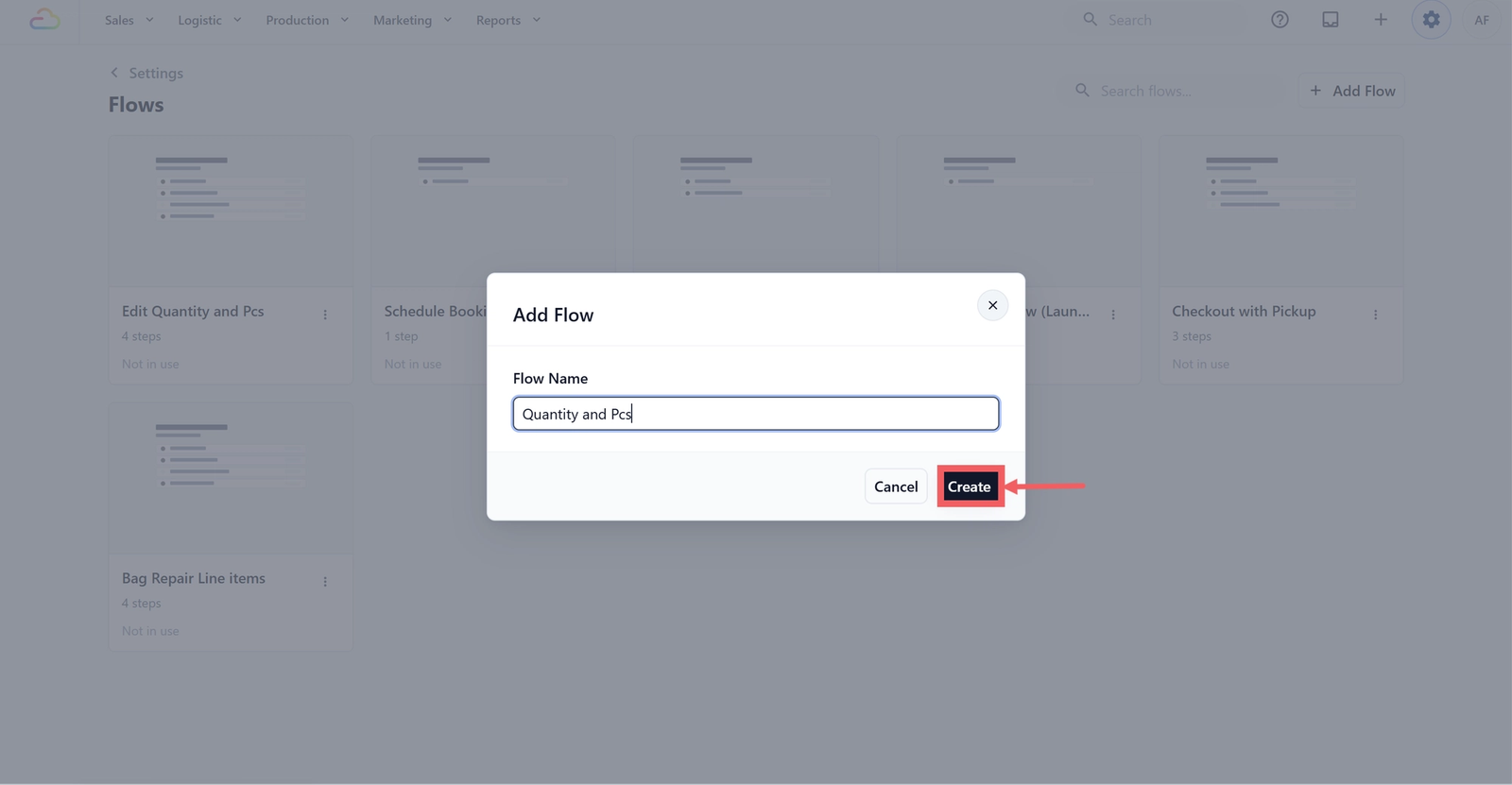
The system creates the flow and opens it in the editor.
Step 4: Review what the template created
Display Mode
| Option | What happens |
|---|---|
| Full page | The flow takes over the whole staff screen |
| Inline dialog | The flow appears as a panel on the order screen so staff keep the cart in view |
The Quantity and Pcs template sets default Display Mode to Inline dialog.
Steps
The template creates four Data Entry steps, in this order:
| Step | Data Field | Process Method | What it captures |
|---|---|---|---|
| Quantity | Quantity | Required | The measured amount, for example weight in kg |
| Pieces | Pieces | Required | The number of pieces, for example 5 panels |
| Unit Price | Unit Price | On Demand | Override the price list rate when staff need to |
| Note | Note | On Demand | A free-text note attached to this line item |
Process Method controls when a step shows.
| Process Method | What it does |
|---|---|
| Required | Must be filled in before the item is added. |
| Optional | Can be skipped. |
| On Demand | Hidden until staff open it. Good for rare fields like a price override. |
Adding More Steps
The template gives you four steps, but you can add more when staff need to capture something extra per item. To add one, open the flow, click + Add Stepbelow the steps, choose Data Entry, pick a field from the dropdown, set its Process Method, and Save. Drag a step by its handle to reorder it.
Two common extras for a garment shop:
- Photos -> capture intake stains or existing damage on a delicate item, so there is no dispute later.
- Signature -> have the customer sign to accept the risk on items you cannot guarantee, like silk or beaded gowns.
For fields specific to your shop, like fabric type or stain type, see [What Is Data Fields].
Step 5: Save
- Click Save.
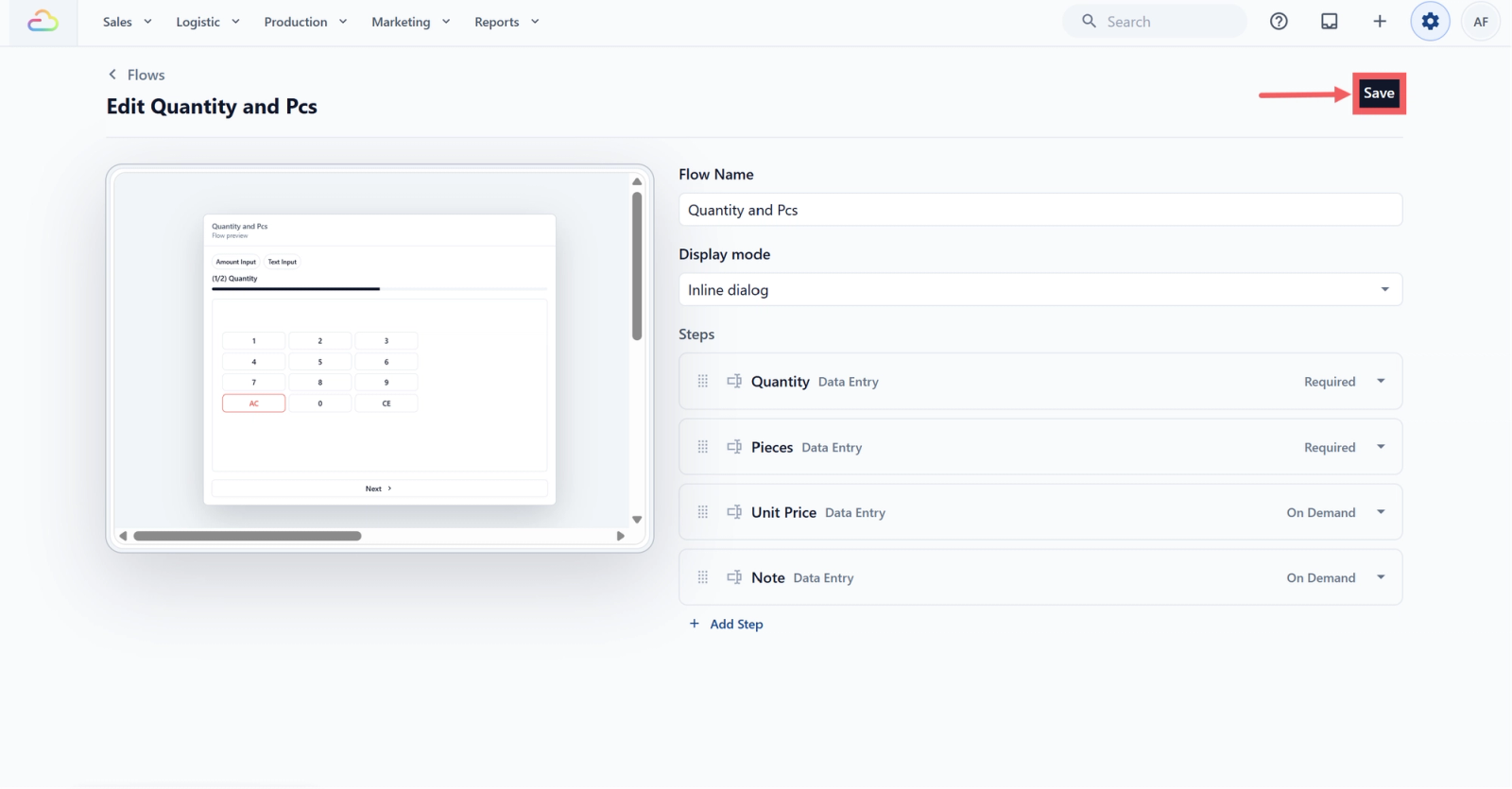
The flow is now in your library. You still need to tell EasyBiz which items it should run for.
Attach the Flow to a Business Unit
Step 1: Open the Business Unit you want to attach to
- Click the ⚙️ Settings icon in the top-right corner.
- Under the Administration section, click Business Units.
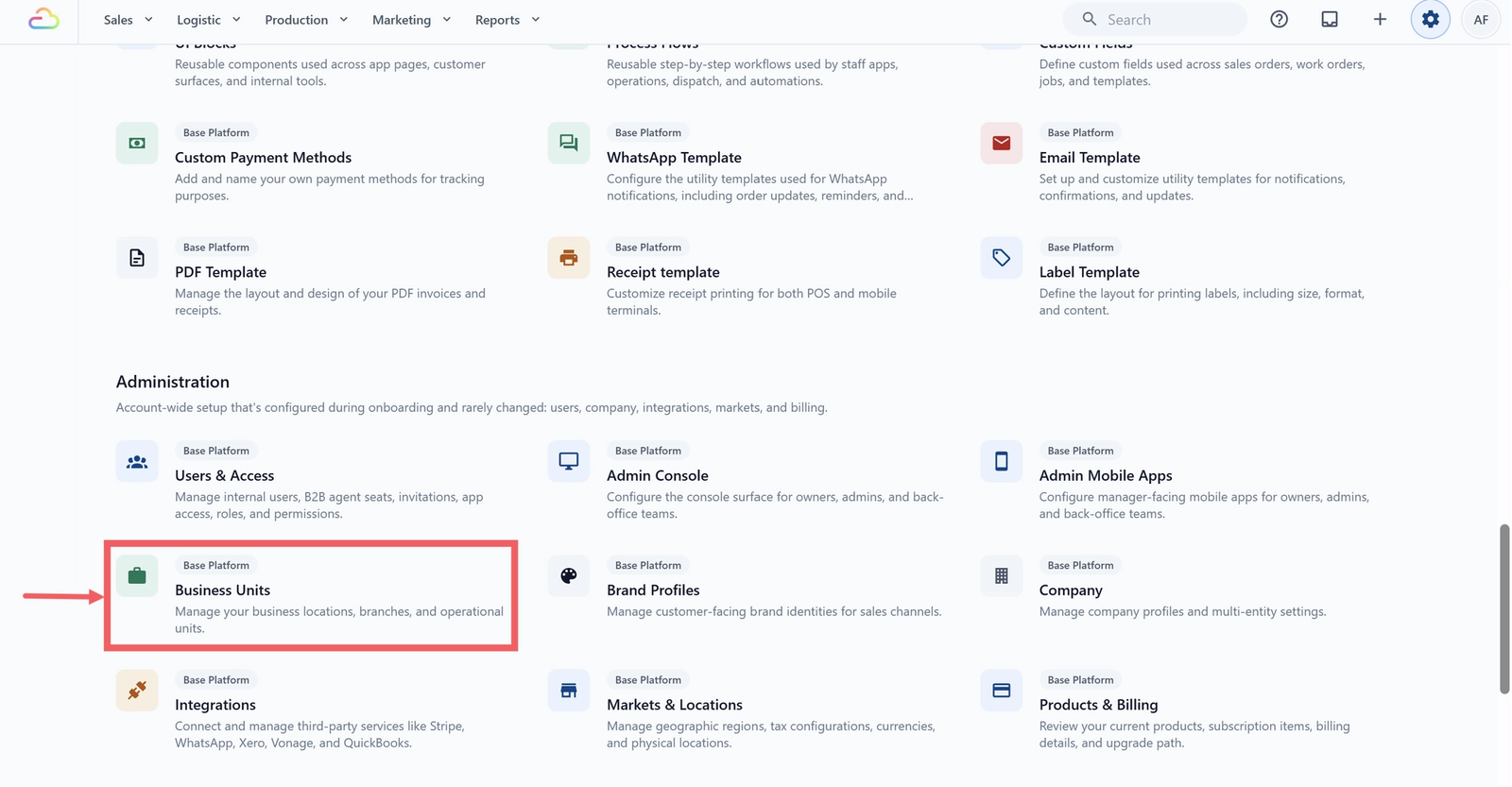
- Click the tab for your laundry unit, for example Laundry & Dry Cleaning
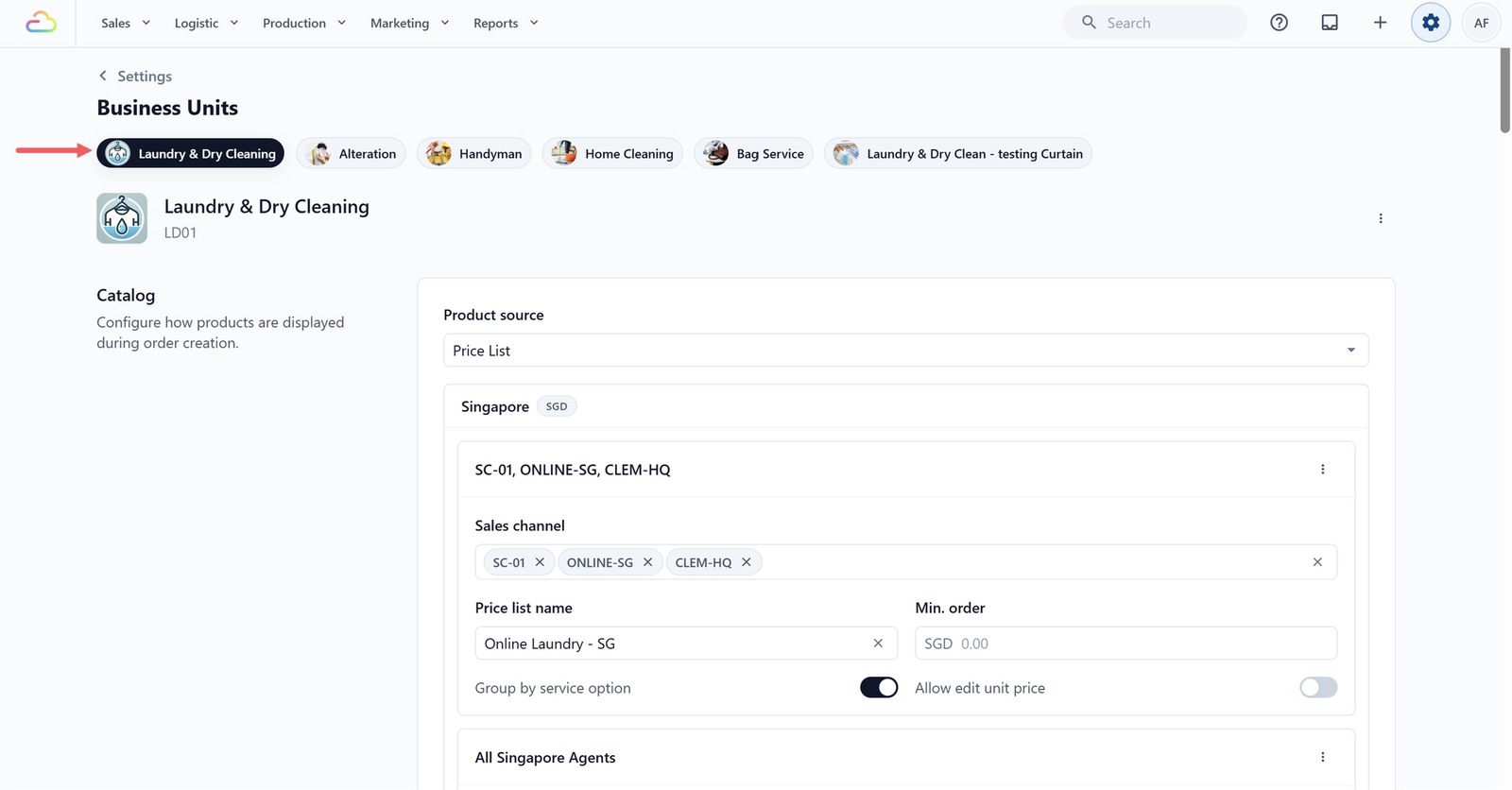
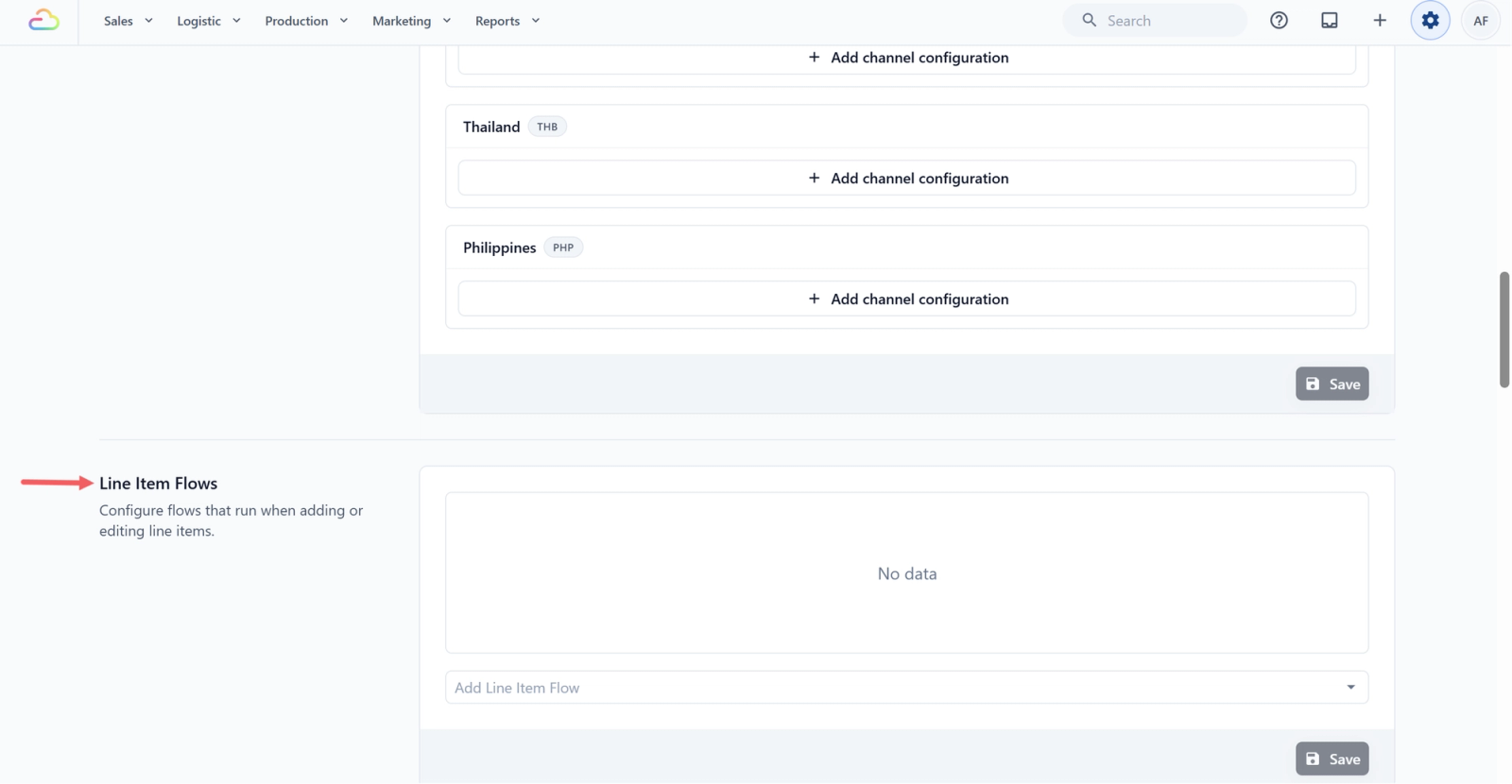
Step 2: Scroll to Line Item Flows
The Line Item Flows contains a table with two columns Line Item Flows and Apply To.
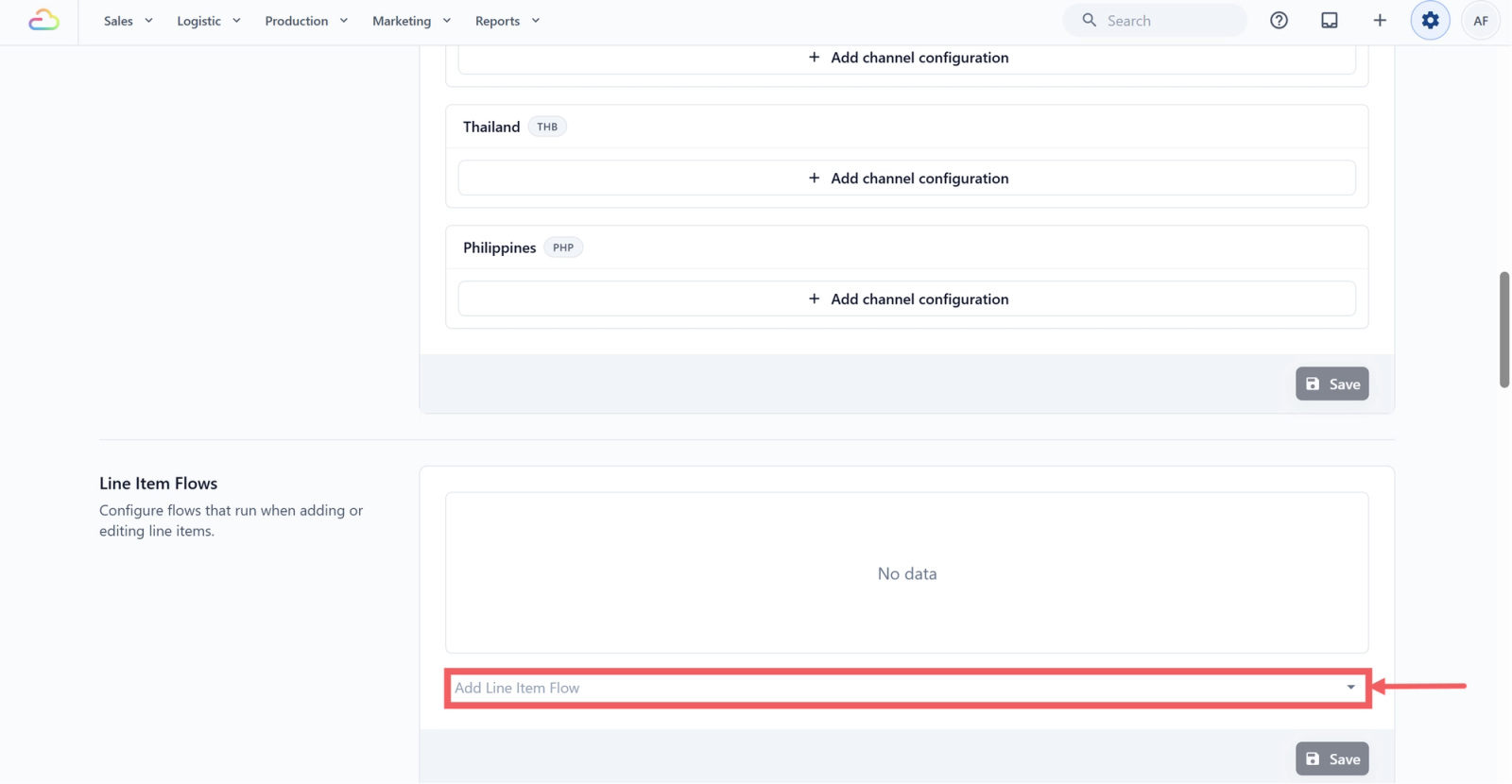
Step 3: Add the flow
- Below the table, click Add Line Item Flow.
- In the searchable list, select your Quantity and Pcs flow.
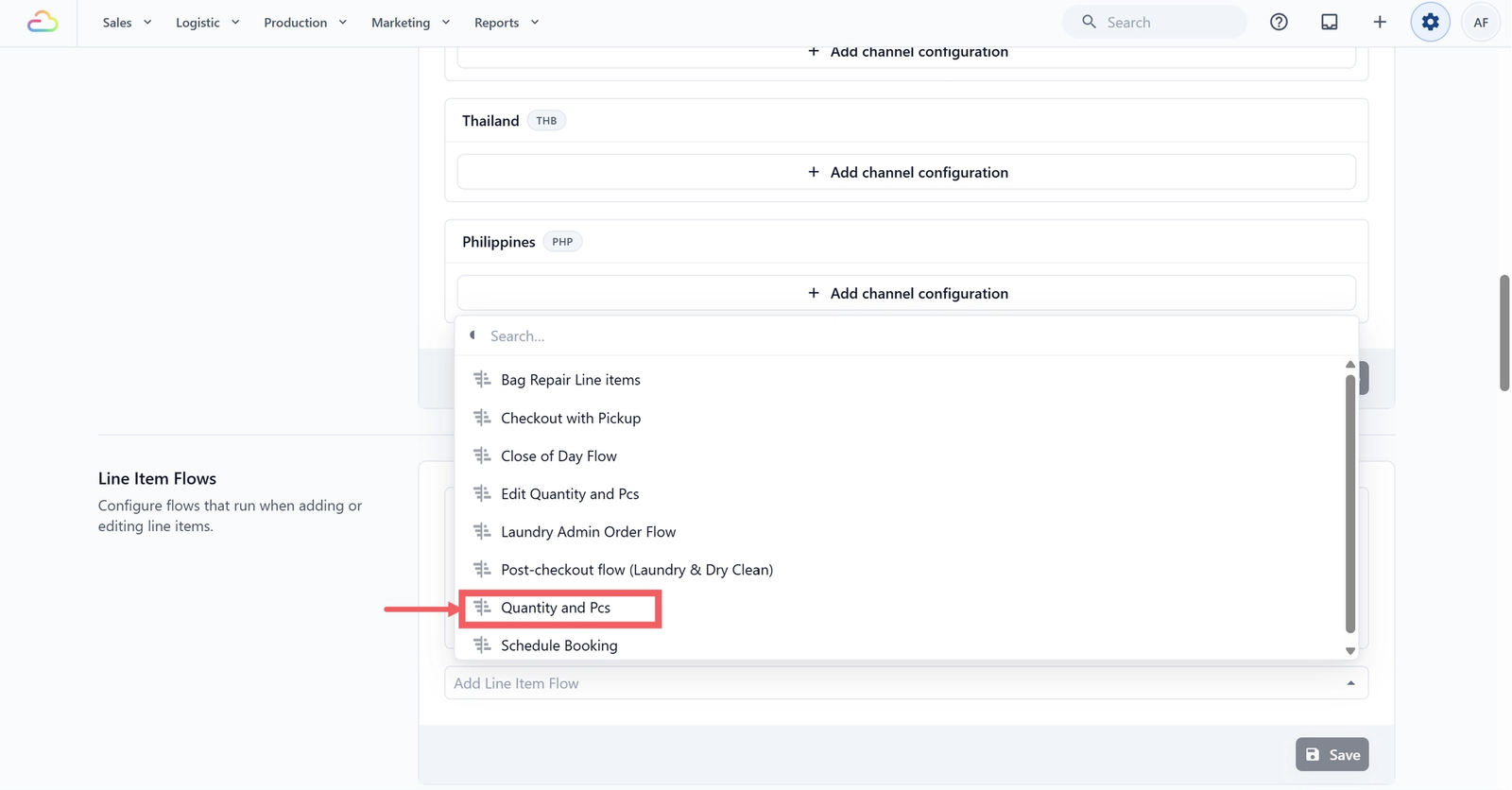
A new row appears with your flow on the left and an empty Apply To dropdown on the right.
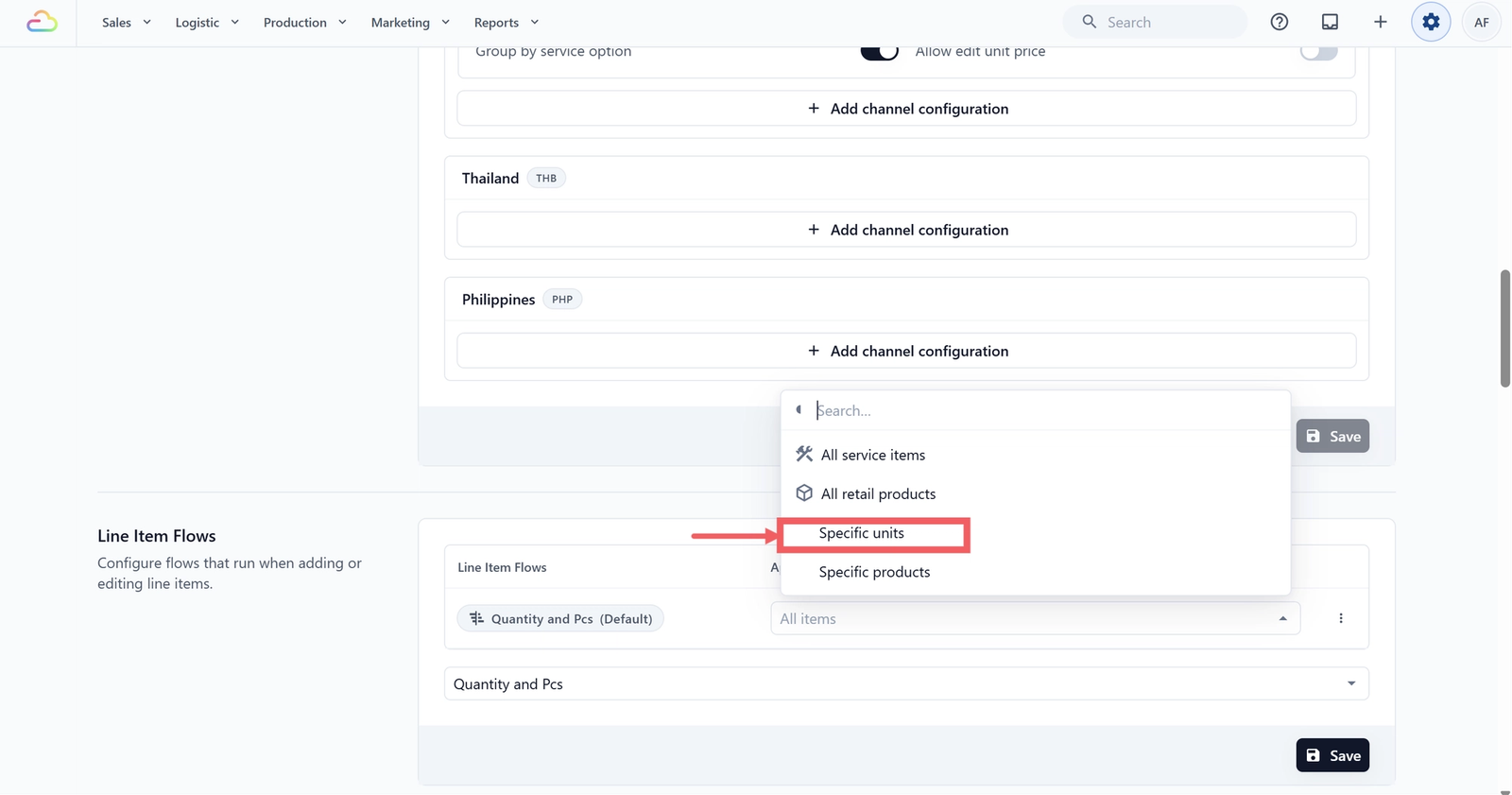
Step 4: Choose what the flow applies to
In the new row, click the Apply To dropdown
| Pick this | Result |
|---|---|
| All service items | The flow runs for every service item in this Business Unit |
| All retail products | The flow runs for every retail product in this Business Unit |
| Specific units | The flow runs only for items measured in the units you select |
| Specific products | The flow runs only for the products you select |
| Mix and match | Add the flow more than once with different Apply To values |
For laundry priced by weight, pick Specific units.
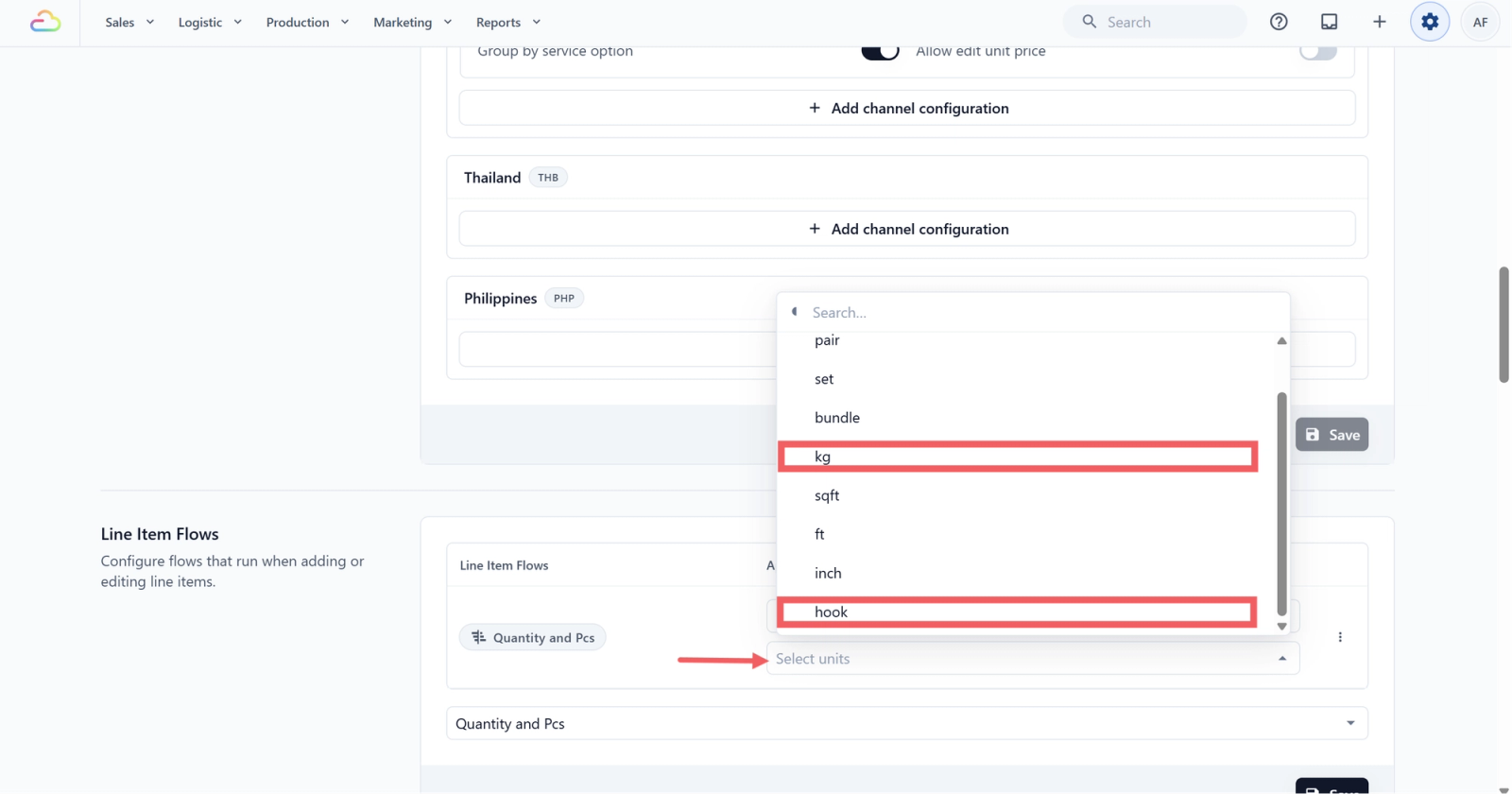
Step 5: Choose the units
- A unit picker appears on the Select Unit dropdown.
- Select the units the flow should run for, for example kg and hook.
Step 6: Save
- Click Save at the bottom-right of the Line Item Flows section.
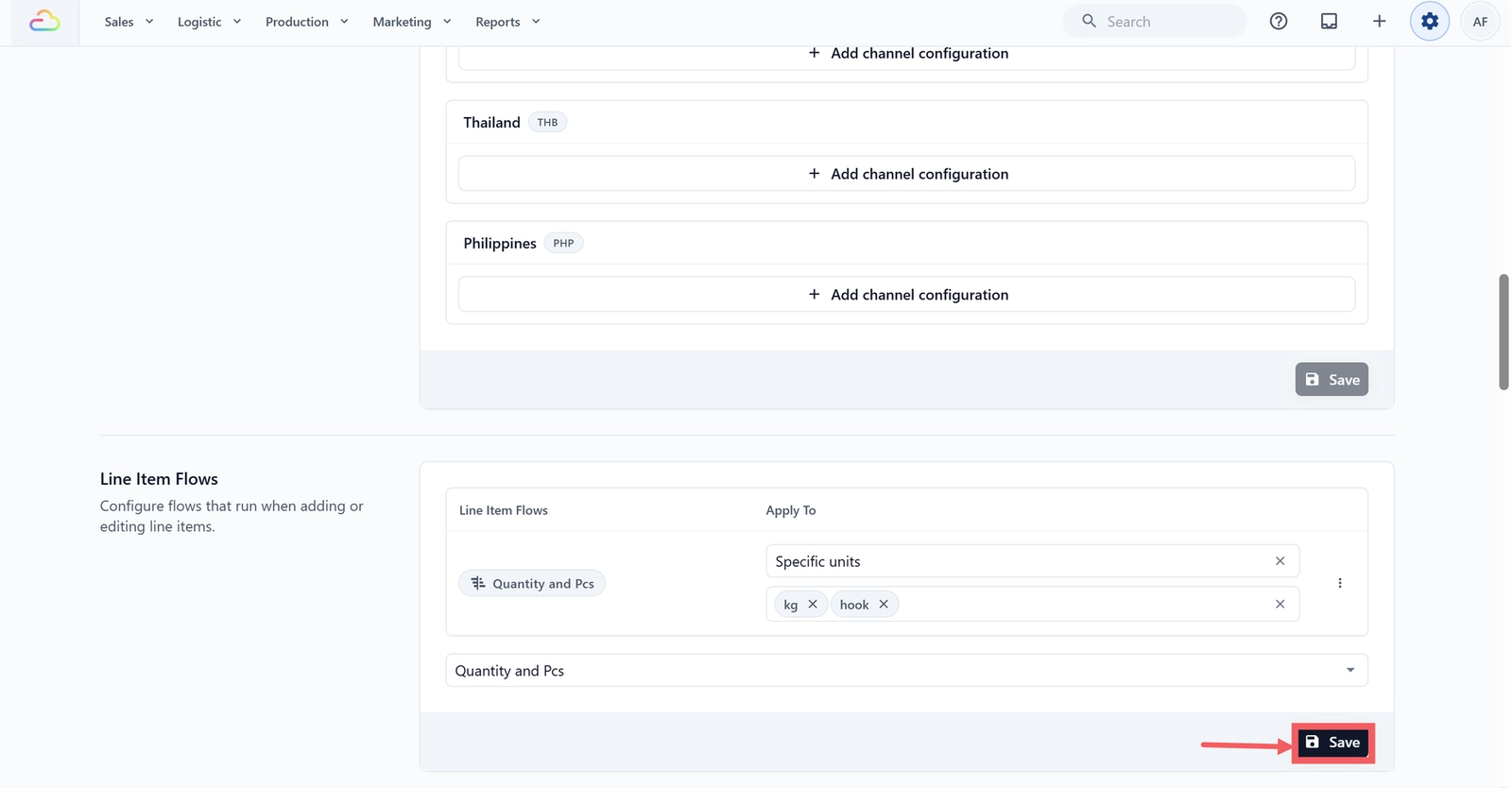
The flow is live. Staff adding a kg or hook item now see the Quantity and Pcs prompt before the item lands in the cart.
Cross-Feature Connections
- Pricing uses the Quantity value against your existing price list rule. The matching price per unit comes from the price list, not the flow.
- Label printing uses the Pieces value to decide how many labels to print for that line item. One piece, one label.
- Unit Price is filled in from the price list by default. The On Demand step lets staff override it on the rare item that needs a different rate.
- Note is saved on the line item and shows up on the order detail and on the work order during production
See It in Action
Watch how the Quantity and Pcs flow runs at the counter when staff add a curtain priced by hook. The clip shows the inline dialog opening, the quantity and piece count being entered, and the resulting line item landing in the cart with the correct price and label count.
FAQs
The template gave me Unit Price and Note as On Demand, but I want them filled in every time. Can I change that?
Yes. Open the flow, expand the step, and change Process Method to Required. Save the flow. The change applies to every Business Unit that uses this flow.
Can I add the same flow twice with different Apply To values?
Yes. Add the row once for Specific units, kg, and again for Specific units, hook. Each row is independent, and the menu on the right of each row removes that one row without touching the others.
What if staff cancel the popup midway?
Adding a new item: nothing is saved, the item is not added. Editing an item already in the cart: its values stay unchanged.
Does this flow affect the price?
No. The price comes from your price list rule for the matching service item. The flow captures the inputs (quantity, pieces, unit price override) that the price calculation reads.
Will staff see this flow on the mobile app too?
Yes. Line Item Flows are tied to the Business Unit and run wherever staff add line items, including the mobile staff app and the POS counter.
Does this work for online orders or only POS?
Staff screens only: the POS counter, the mobile staff app, and Edit Items. Customers ordering online never see the dialog.
Can staff change the values after the order is confirmed?
Yes. On the order detail page, use Edit Items to re-open the line. This works on confirmed and in-production orders, only blocked once an order is voided or cancelled.
Do I need to publish or activate the flow after saving?
No. There is no publish step. Saving in the editor and saving the Business Unit row makes the flow live the next time a staff member opens the cart
Give feedback
Up next
Product CatalogWhat do we sell or service? Set up every service, retail product, accessory, add-on, collection, and reusable variant set your shop offers, once, so it works the same in every channel.
Read more