
Xero Integration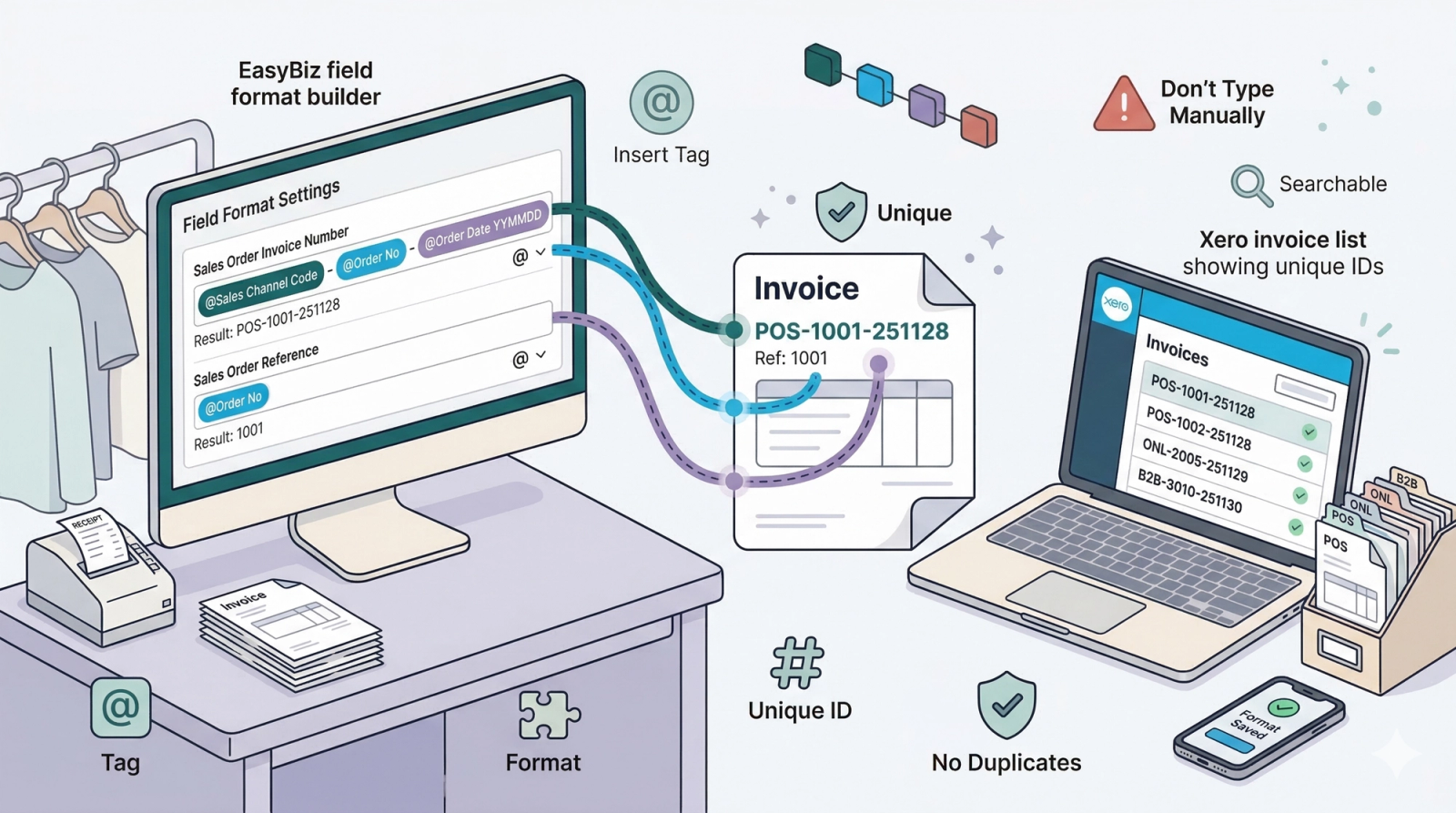
Customizing Invoice Numbers
In this article
Customize invoice numbers to meet Xero’s uniqueness rules and avoid sync errors by generating clear, collision-proof IDs for every order.
Contents
Contents
Why change Invoice Numbers?
Xero enforces a strict rule: Every Invoice Number must be unique.
📍 Where to find this setting?
Go to Settings > Business Portfolios. Click your business > Click the three dots for Xero > Settings. Scroll down to the Field Format Settingssection.
Go to Field Format Settings
Please note that this video is for demonstration purposes only. You can adjust the Field Format Settings to match your preferred format.
To customize these fields, click inside the box and type the @ symbol. This will open a dropdown menu where you can select the available Tags.
Here is a recommended setup to ensure unique invoice numbers:
- Sales Order Invoice Number:
- Configuration: Type
@and select [Sales Channel Code], type a hyphen-, type@and select [Order No], type another hyphen-, then type@and select [Order Date YYMMDD]. - Result: Creates a unique ID like "POS-1001-251128". This includes the store name, order number, and date to prevent duplicates.
- Configuration: Type
- Sales Order Reference:
- Configuration: Type
@and select the [Order No] tag. - Result: This puts the simple order ID (e.g., "1001") in the "Reference" column, making it easy to search for in Xero.
- Configuration: Type
Warning: Do not manually type the text inside the brackets (e.g., do not type [Order No]). You must use the @ menu to select the official tag from the list. If you type the text manually, the system will not recognize it as a variable and will just print the plain text on your invoice.
Tip: Don't forget to type a separator (like a hyphen - or a slash /) between your tags. This makes the final invoice number much easier to read (e.g., POS-1001 is better than POS1001).