
Introduction to Access Control
In this article
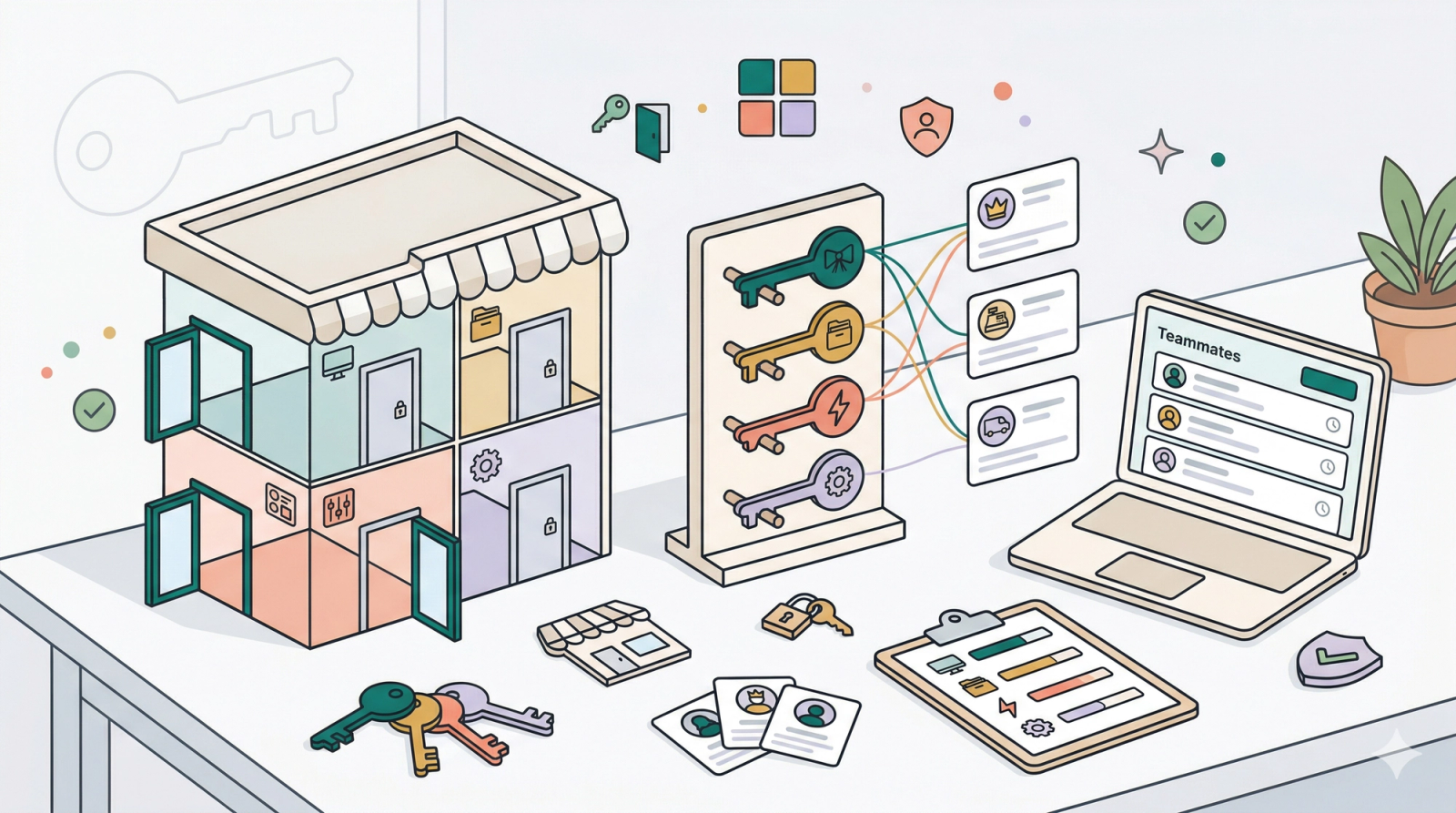
Every person who signs in to your business uses a teammate account. Each account starts with no access, and you decide what they can do across four separate areas. The four areas cover which apps they can sign in to, which data they can view, which actions they can take, and whether they can change admin settings. Setting these up correctly means each staff member only sees and does what their role needs. This article explains what each area is for and the rules that apply to all of them.
Contents
Contents
What Access Control Is
Access Control is the set of rules that decide what each staff member can do inside your business. As your shop grows you will hire counter staff, drivers, production staff, and managers, and each role needs different access. Access Control gives you one place to manage all of that, per teammate.
The Four Areas of Access
EasyBiz splits a teammate's permissions into four separate areas. The first three apply once a teammate is signed in to one of your apps. The fourth covers admin work behind the scenes.
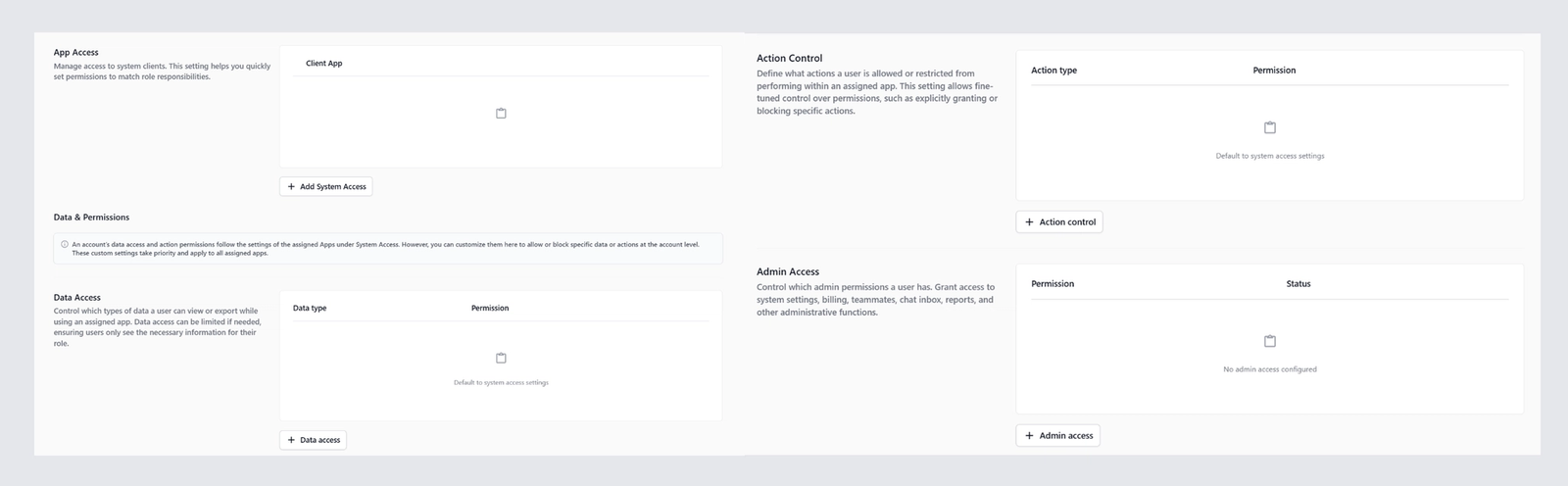
- App Access Which of your apps the teammate can sign in to. A teammate with no app assigned cannot sign in anywhere.
- Data Access Which types of data the teammate can view inside an assigned app — for example orders, customers, sales figures, or marketing lists.
- Action Control Which operations the teammate can perform inside an assigned app — for example cancelling an order, applying a discount, or issuing a return.
- Admin Access Which admin functions the teammate can use — for example changing settings, managing billing, managing other teammates, handling chat conversations, or running agent tasks.
At a Glance
| Area | Controls | Set per teammate? |
|---|---|---|
| App Access | Which apps they can sign in to | Yes |
| Data Access | Which data they can view or export | Yes |
| Action Control | Which write actions they can perform | Yes |
| Admin Access | Which admin functions they can use | Yes |
Permission Levels
Data Access and Action Control are not just on or off. For each row you choose a level that says how much access the teammate gets. Levels include Unrestricted, No access, Time based access, Amount based access, Limited to specific sales channels, Paid Only, and Requires Approval. The level options shown depend on the row — time limits appear for orders, payments, and sales data, and Requires Approval appears only for sales returns.
Key Facts Before You Start
- Your main account — the one that first signed up for EasyBiz — has full access to everything by default and cannot be restricted.
- Only a teammate with the Manage Billing admin permission can add new teammates. The Add Teammate button is hidden for accounts without it.
- Each teammate consumes a Workflow Account seat on your subscription. Adding a teammate adds the seat to your plan automatically.
- A teammate with no App Access cannot sign in anywhere, even if you grant them Data Access or Action Control.
- If a Data Access or Action Control row is left empty for a teammate, they fall back to the default the assigned app defines for that permission.
FAQs
Why is my Add Teammate button missing?
You need the Manage Billing admin permission to add a teammate. Ask your main account holder to grant it, or sign in with the main account.
Does a teammate get an invite email automatically?
No. After creating the account you click Send Sign In Email on the teammate's profile. They use that email plus the temporary password you set to sign in for the first time.
A teammate has full Data Access but cannot open the app. Why?
They have no App Access. Open their profile, scroll to App Access, and add the app you want them to sign in to.
Do permissions apply to one app or all apps?
Anything you set under Data Access, Action Control, or Admin Access applies to that teammate across every app they have access to. App-level defaults still apply for permissions you have not customised.
What happens if I leave a permission row empty?
The teammate falls back to the default the assigned app defines for that permission.
What's Next
Now that you understand the four areas of access, continue to [Adding a Teammate Account] to create your first teammate before assigning permissions.
Give feedback

Up next
Adding a Teammate AccountCreate a new teammate account, send them a sign in link, edit their profile later, or remove them.
Read more