
Setting Up Admin Access
In this article
Admin Access covers everything outside day-to-day shop operations. It is what lets a teammate touch your settings, your subscription, your other teammates, your chat inbox, or your agent tasks. By default a teammate has none of these. You add admin permissions one at a time and choose how much of each you want them to have. Most counter staff need none. Reserve admin access for managers and trusted leads.
Contents
Contents
Add an Admin Access Rule
- Click the 👤 Profile icon in the top-right corner.
- Click Teammates.
- On the Teammates page, find the teammate you want to edit.
- Click the ⋯ (three dots) button on the right side of their row.
- Click Edit.
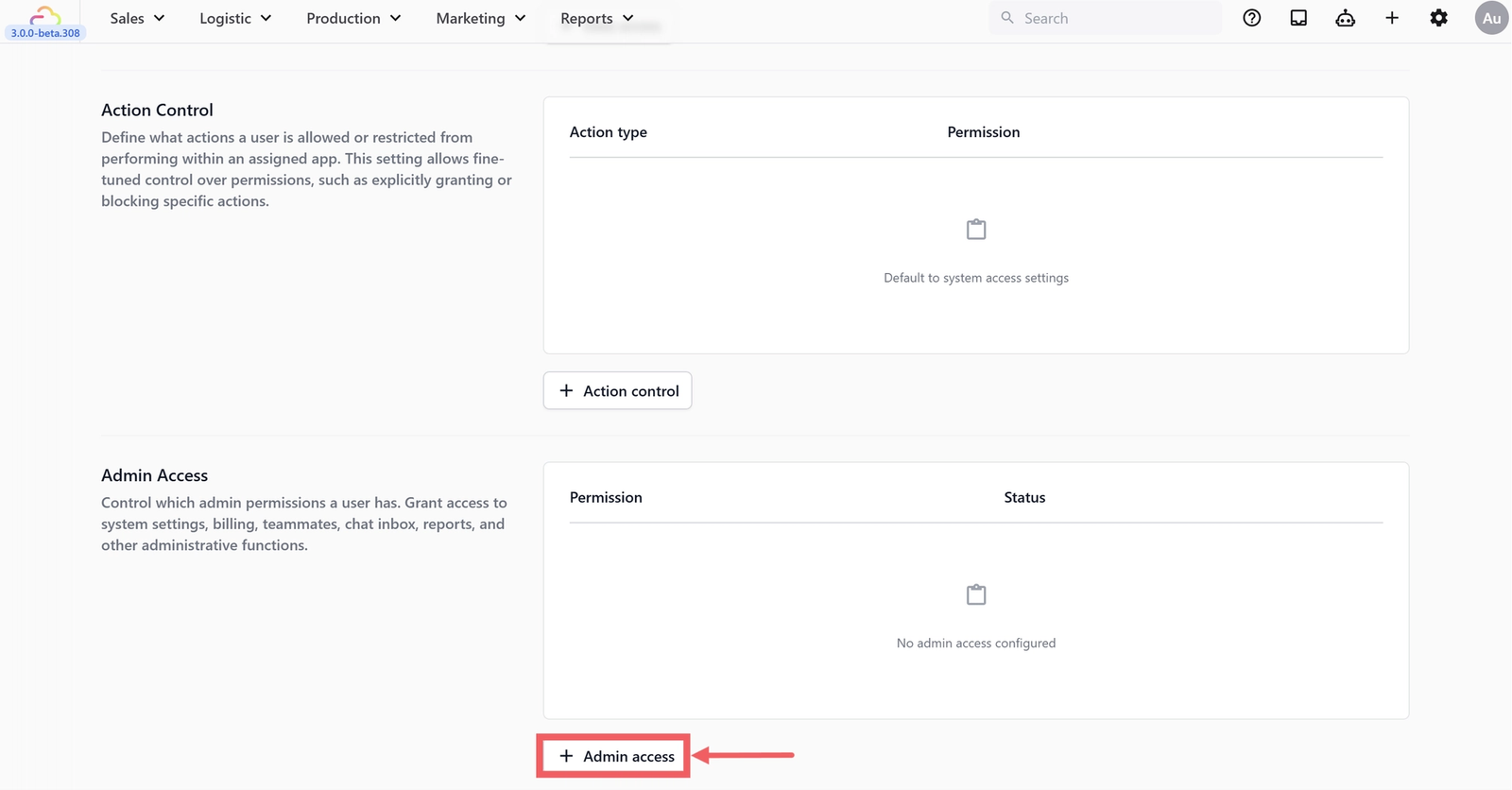
- In the Admin Access row, click + Admin access.
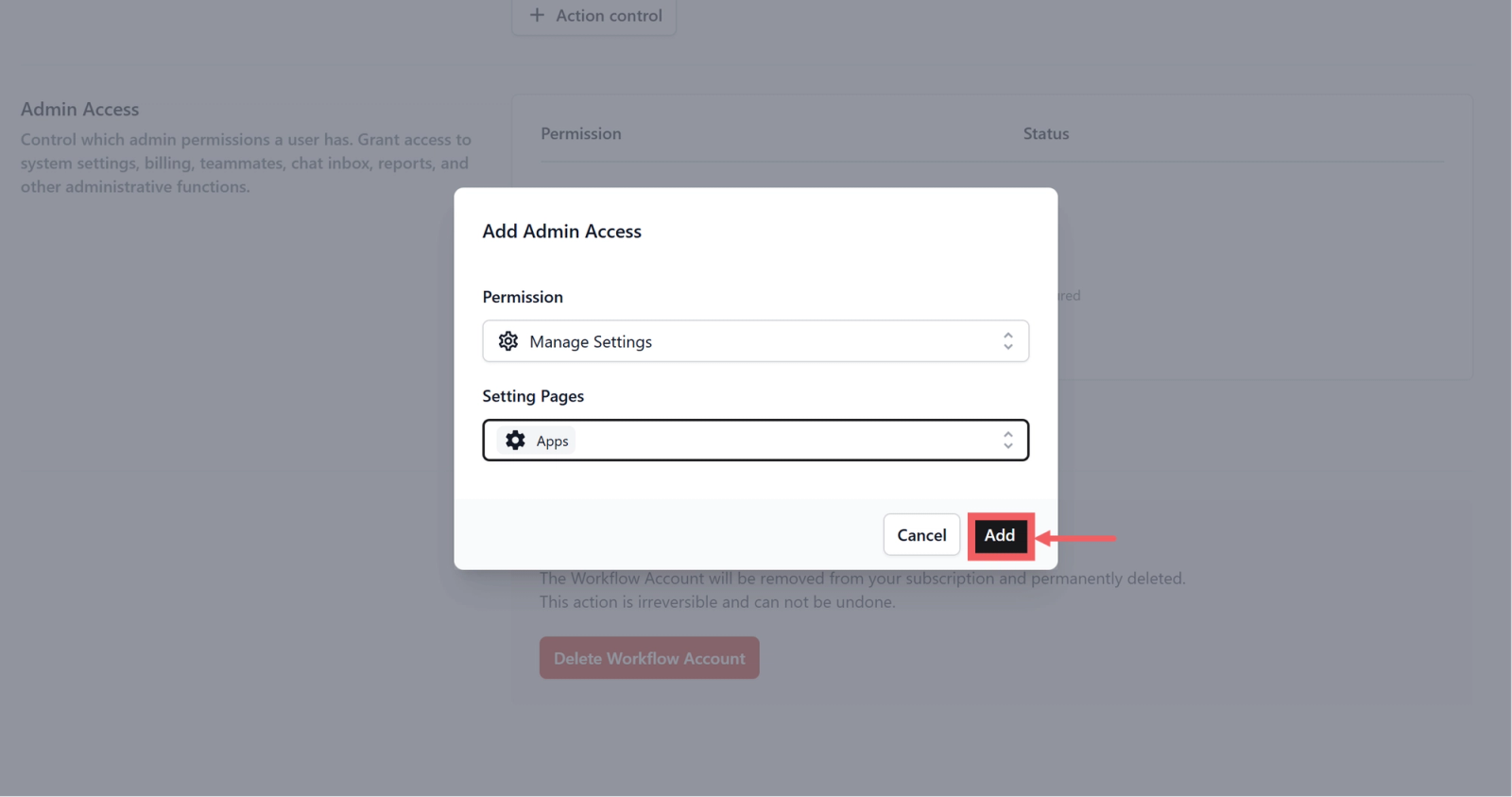
- Pick the permission and any sub-scopes, then click Add.
The Five Admin Permissions
Manage Settings
| Pick this | Result |
|---|---|
| Leave Setting Pages empty | Teammate can edit every settings page |
| Tick specific Setting Pages | Teammate can only edit the pages you tick |
| Mix and match | Tick any combination of pages for a scoped admin |
Manage Billing
| Pick this | Result |
|---|---|
| Granted | Teammate can change subscription, add or remove seats, and add new teammates |
| Not granted | Teammate cannot view or change billing |
Manage Teammates
| Pick this | Result |
|---|---|
| Granted | Teammate can edit other teammate profiles, set permissions, and reset passwords |
| Not granted | Teammate cannot view or change other accounts |
Manage Inbox
| Pick this | Result |
|---|---|
| Leave Conversation Access empty | Teammate can see and reply in every conversation |
| Tick specific scopes | Teammate can only see the conversations you tick |
| Mix and match | Tick any combination of the four scopes below |
Manage Agent Tasks
| Pick this | Result |
|---|---|
| Granted | Teammate can view, claim, and complete tasks queued by your AI agents |
| Not granted | Teammate cannot view the agent task queue |
Manage Inbox: Conversation Access Scopes
When you grant Manage Inbox you can leave Conversation Access empty for full inbox access, or tick any of the four scopes below. Scopes are additive, so ticking two adds them together.
Access to Assigned Conversations
| Pick this | Result |
|---|---|
| Ticked | Teammate sees conversations where they are the assignee |
| Unticked | Teammate cannot open their assigned chats from this scope alone |
Access to Unassigned Conversations
| Pick this | Result |
|---|---|
| Ticked | Teammate sees the queue of new conversations with no assignee yet, so they can pick chats up |
| Unticked | The new chat queue is hidden from them |
Access to All Open Messages
| Pick this | Result |
|---|---|
| Ticked | Teammate sees every active conversation in the shop, including chats assigned to other staff |
| Unticked | Other staff's open chats stay private |
Access to All Closed Messages
| Pick this | Result |
|---|---|
| Ticked | Teammate can browse the archive of resolved conversations |
| Unticked | The closed chat archive is hidden |
Dependencies and Notes
- Manage Settings is the broadest permission. The empty-tick version grants every page including Price Lists, Templates, and Integrations. Use scoped pages to limit it.
- Manage Billing implicitly lets the holder add new teammates. Treat it as a senior permission.
- Manage Inbox sub-scopes are additive. Assigned plus All Open means the teammate sees their assigned chats plus every other open chat.
- Manage Agent Tasks has no sub-scopes today.
Recommended Starting Configuration: Senior Counter Staff
Most counter staff should not have any admin access. Leave the Admin Access table empty. For a senior counter staff who handles chat replies, grant only:
- Manage Inbox: Conversation Access set to Access to Assigned Conversations and Access to Unassigned Conversations.
FAQs
Why can my Inbox-only teammate not see closed chats?
Their Conversation Access does not include Access to All Closed Messages. Add that sub-scope or leave Conversation Access empty for full access.
Does Manage Teammates let them grant themselves more permissions?
Yes. They can edit any teammate including their own profile. Grant Manage Teammates only to fully trusted leads.
Can I limit Manage Billing to just adding teammates?
Not today. Manage Billing is granted as a whole. There is no sub-scope for billing actions.
My teammate is approved for agent tasks but the queue is empty. Is the permission broken?
No. The queue is empty because no agent has produced a task. Manage Agent Tasks gives access to the queue. It does not generate tasks.
Does Manage Inbox with empty scopes mean No Access?
No. Empty Conversation Access means the teammate sees every conversation. Use the four scopes to narrow access.
Give feedback
Up next
Adjustment OptionsAdd quick surcharge or discount buttons your staff can tap on any order, without rewriting your price list.
Read more