
Creating and Configuring a Company
In this article
When you sign up for EasyBiz, your first Company is created automatically. You will need to edit it, adding your logo, filling in your registered details, setting your tax rate, and choosing how amounts are rounded. This guide walks through adding a brand-new Company (only needed if you run multiple legal entities), and then steps through each section on the Edit Company page in plain English. By the end, your Company will be ready to print proper receipts and apply the right tax to every order.
Contents
Contents
Before You Start
Before you can create a Company for a country, that country must already exist as a Market in your account. A Company is always tied to one Market, and you pick that Market when you create the Company.
If the Market dropdown is empty, or the country you need is missing, set up the Market first under Settings → Markets and Locations. See Setting Up a Market, then come back here to create your Company.
Add a New Company
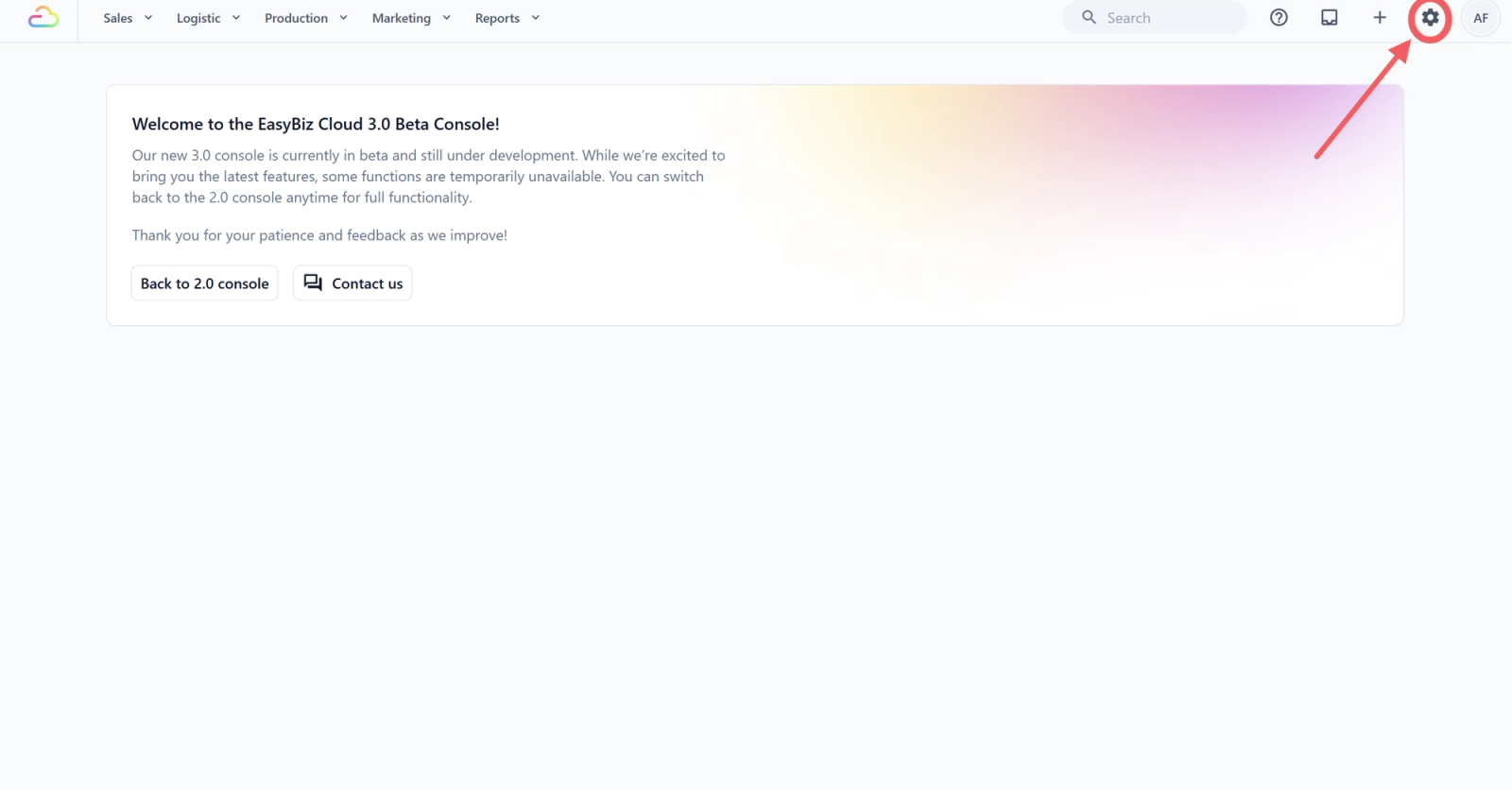
- Click the ⚙️ Settings icon in the top-right corner.
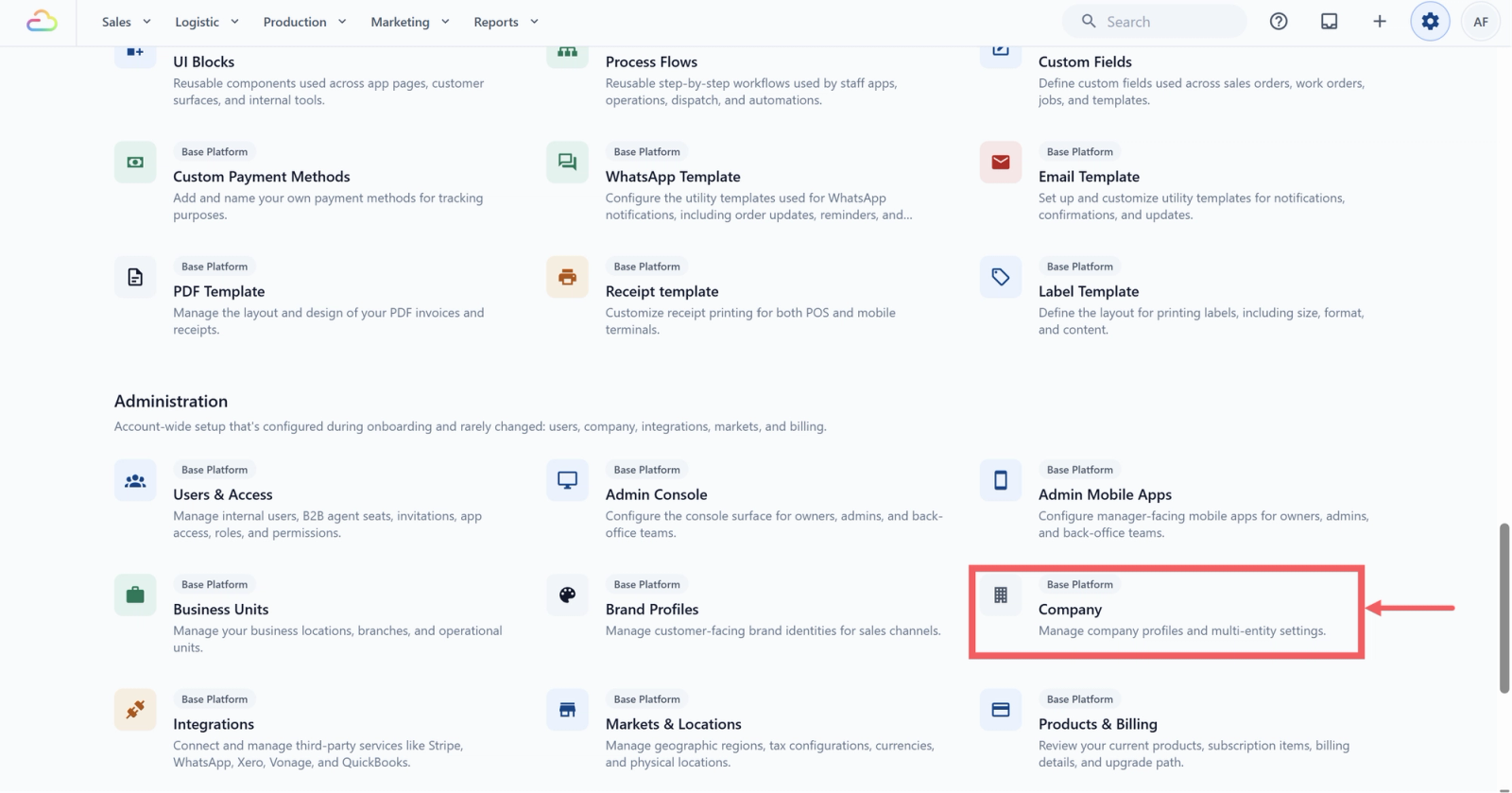
- Under the Administration section, click Company.
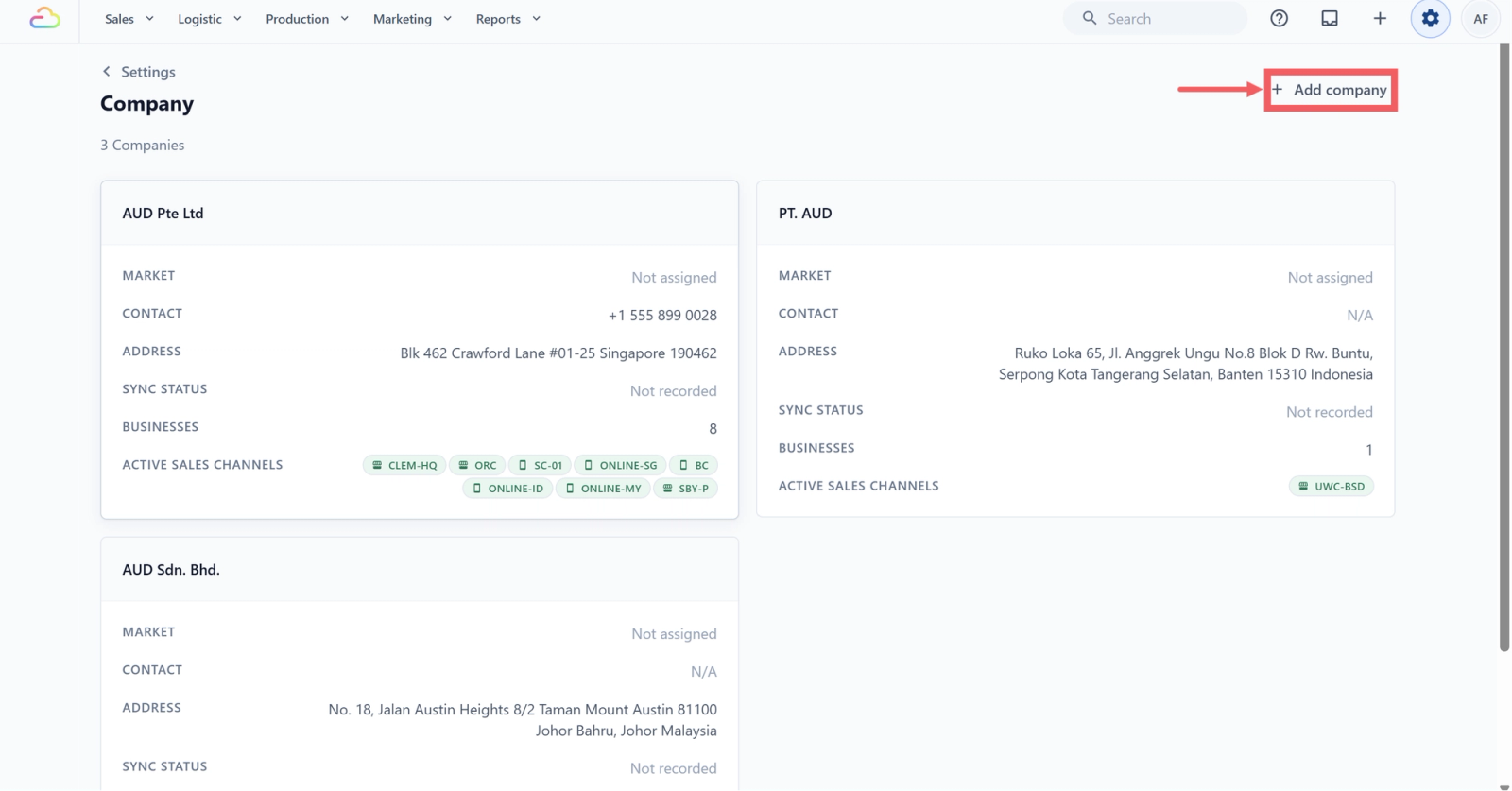
- Click Add company in the top-right of the page.
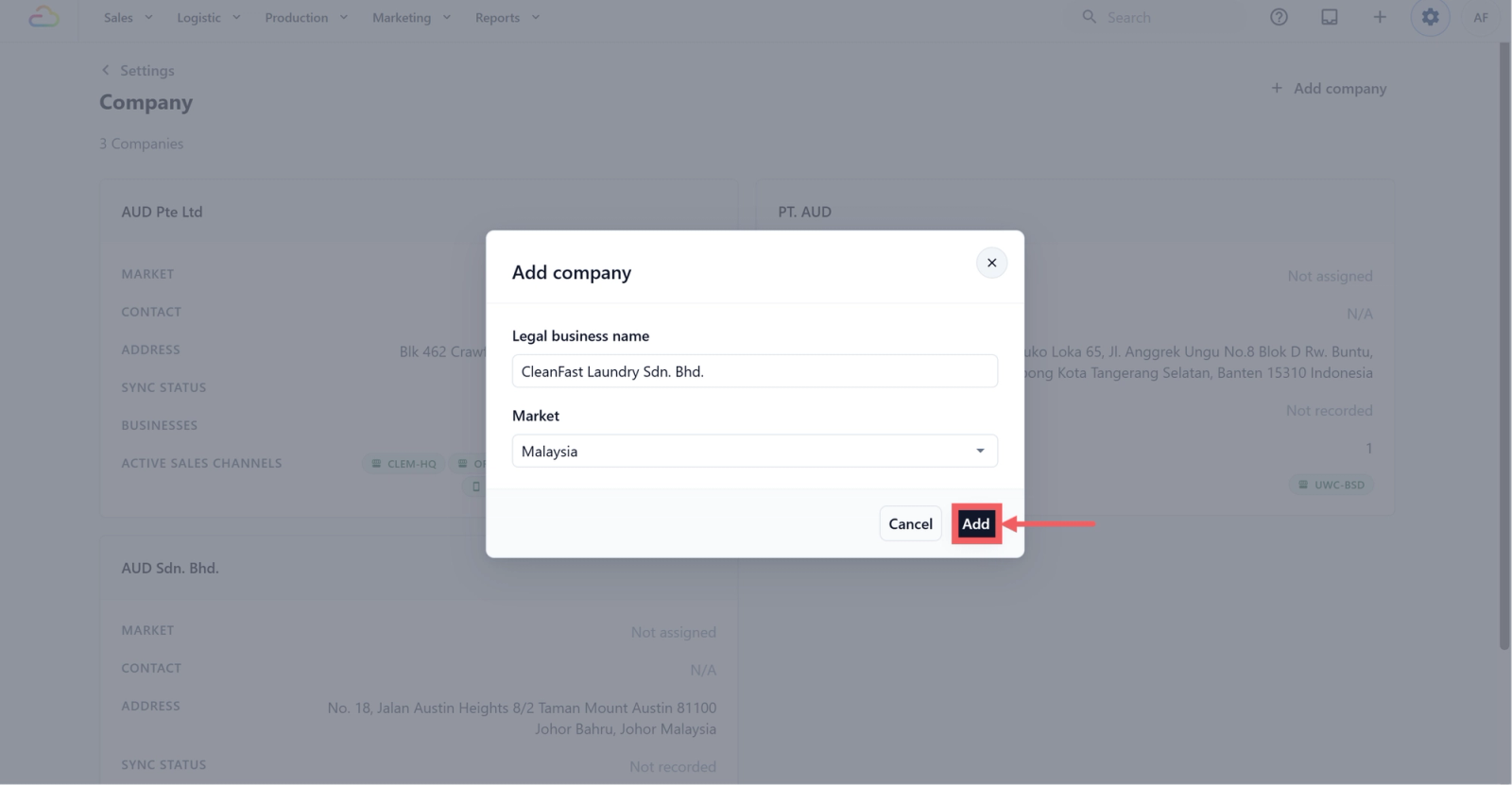
- Fill in Legal business name, the exact registered name, for example "CleanFast Laundry Sdn. Bhd."
- Pick a Market from the dropdown.
- Click Add.
- The modal closes and you land on the new Company's edit page.
Company Profile Section
This section captures every legal and contact detail printed on customer-facing documents and used for tax exports.
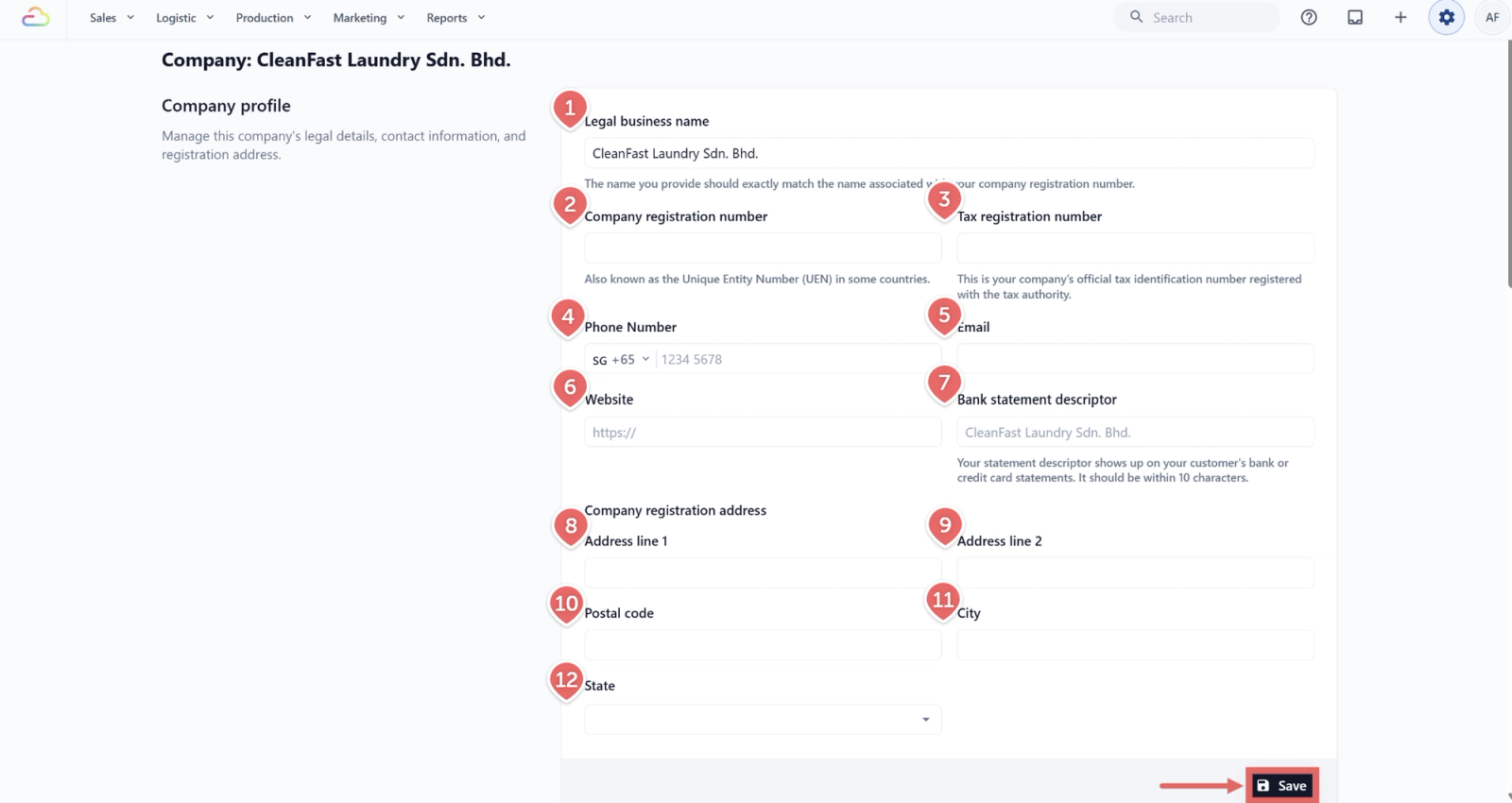
- Legal business name
Enter the registered name exactly as it appears on your company registration paperwork. This name prints on every receipt and PDF invoice.
- Company registration number
The number from your local registry, so it matches your business on official documents. Also called the Unique Entity Number (UEN) in some countries.
- Tax registration number
Enter the official tax identification number registered with the tax authority. In Singapore this is the GST registration number; in Malaysia this is the SST or income tax number.
- Phone number
Pick a country code from the leading dropdown, then enter the local number.
Enter the business email address you want printed on receipts.
- Website
Enter the full URL including https:// .
- Bank statement descriptor
Up to 10 characters, capped automatically. This is a label for your own reference, not shown on customer card statements today.
- Address line 1
The first line of the registered street address.
- Address line 2
Optional second line (unit number, floor, etc.).
- Postal code
The postal code of the registered address.
- City
The city or town.
- State
| Option | What it does |
|---|---|
| Pick a Malaysian state | Stores the LHDN state code (Johor, Kedah, Kelantan, Melaka, Negeri Sembilan, Pahang, Pulau Pinang, Perak, Perlis, Selangor, Terengganu, Sabah, Sarawak, Wilayah Persekutuan Kuala Lumpur, Wilayah Persekutuan Labuan, Wilayah Persekutuan Putrajaya). |
| Not Applicable | Use this for non-Malaysia companies, or when no state applies. |
Click Save at the bottom of the section.
FAQs
Do I need to fill in every field before I go live?
Legal business name and Market are required to create the Company. The rest can wait, but fill in the registration number, tax number, address, and contact details before sending real receipts, since those print on customer documents.
Can I change the Market after I create a Company?
No. It is set at creation. If you picked wrong, delete the Company and create a new one. You must remove all Sales Channels first. Past orders remain after deletion, and their old receipts may not find the Company anymore.
What if I typed the wrong tax or registration number?
Fix it as soon as you spot it. Past PDF invoices keep the wrong number, so reissue those by hand. New invoices and Malaysia MyInvois submissions use the corrected one.
Can I upload my company logo, chop, or signature for invoices?
You can upload a company logo. A chop, stamp, or signature image is not available yet.
How do I preview my details before sending real receipts?
There is no preview in Company settings. Open any order, click Print, and use the preview there.
Why is Malaysia not in my Market dropdown?
Either you have not created a Malaysia Market yet under Settings, Markets and Locations, or another Company is already using it. Each Market can only be assigned to one Company.
What's Next
You have set the legal identity for your Company. Continue to [Setting Up Tax and Rounding Rules] to turn on Sales Tax and decide how amounts are rounded.
Give feedback
Up next
Setting Up Tax and Rounding RulesTurn Tax on or off, set the rate, and decide how line totals are rounded after tax.
Read more