
Setting Up Tax and Rounding Rules
In this article
The Tax Settings and Rounding Rules sections on the Company edit page control how the system calculates tax and rounds final amounts. Tax is off by default. Rounding Rules apply across every Sales Channel under this Company. They decide how many decimal places amounts are stored at, how halfcent values are handled, and whether final totals snap to the nearest 5 or 10 cents.
Contents
Contents
Tax Settings
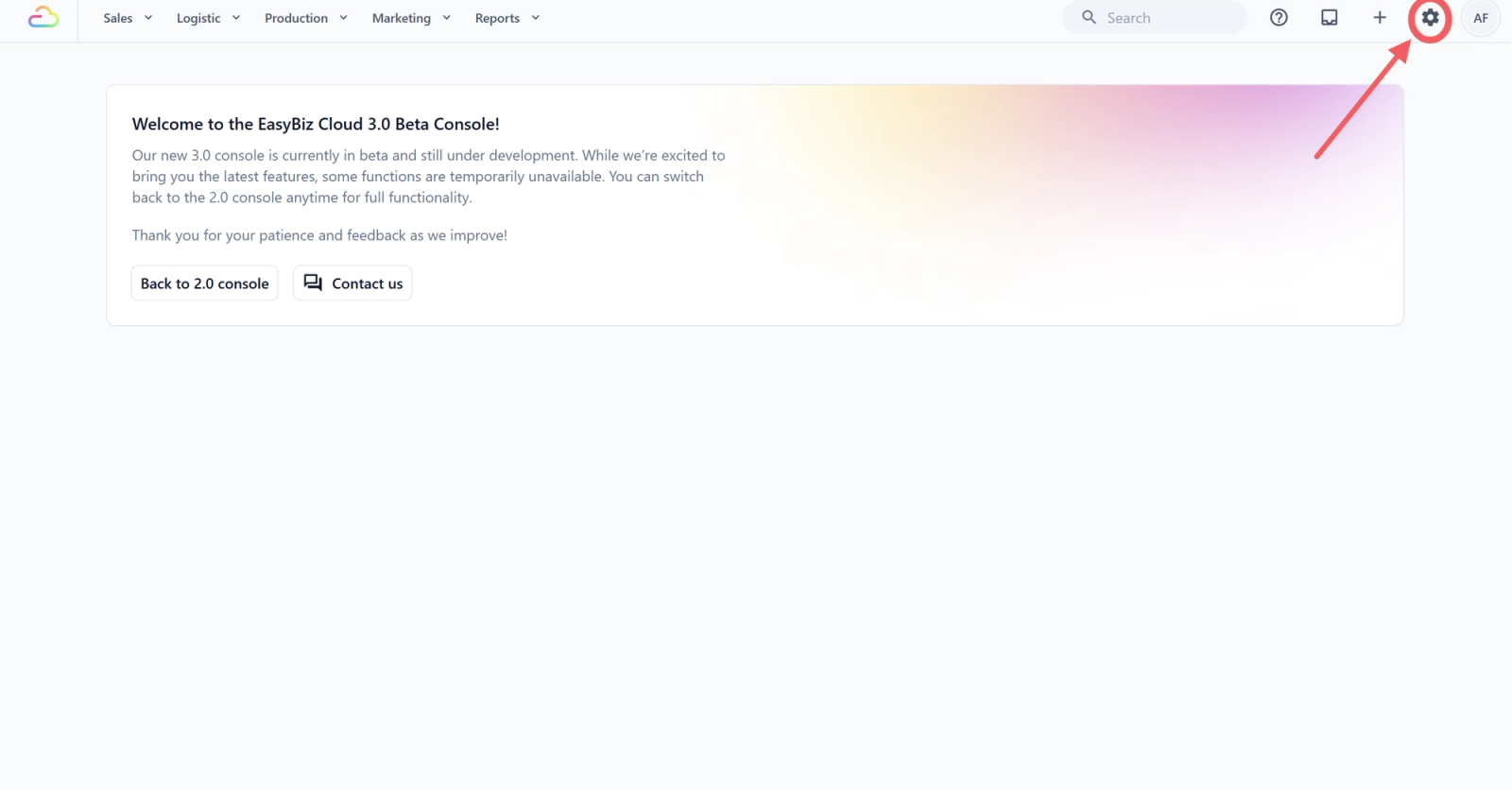
- Click the ⚙️ Settings icon in the top-right corner.
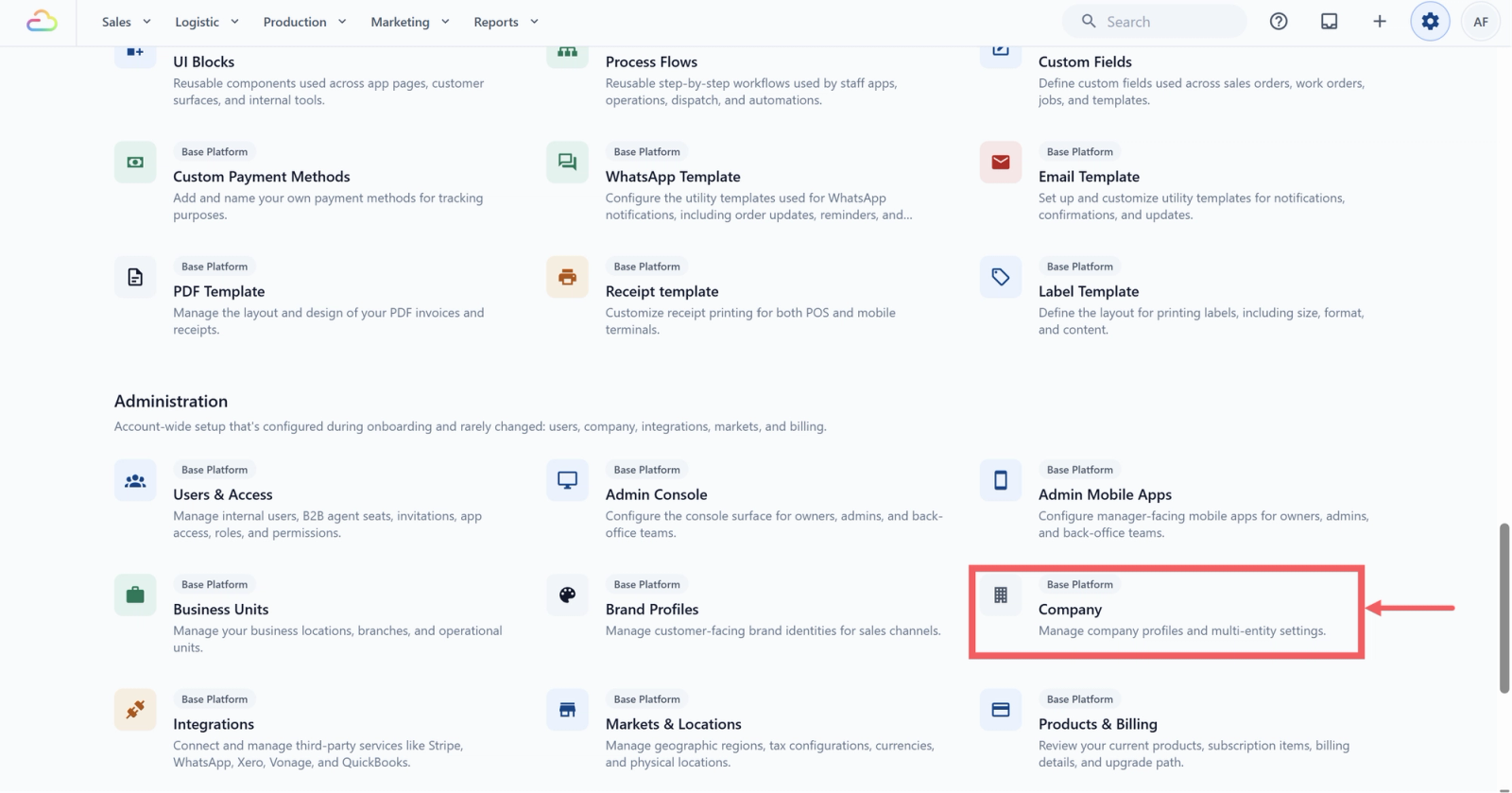
- Under the Administration section, click Company.
- Open the Company you want to edit.
- Scroll to Tax Settings.
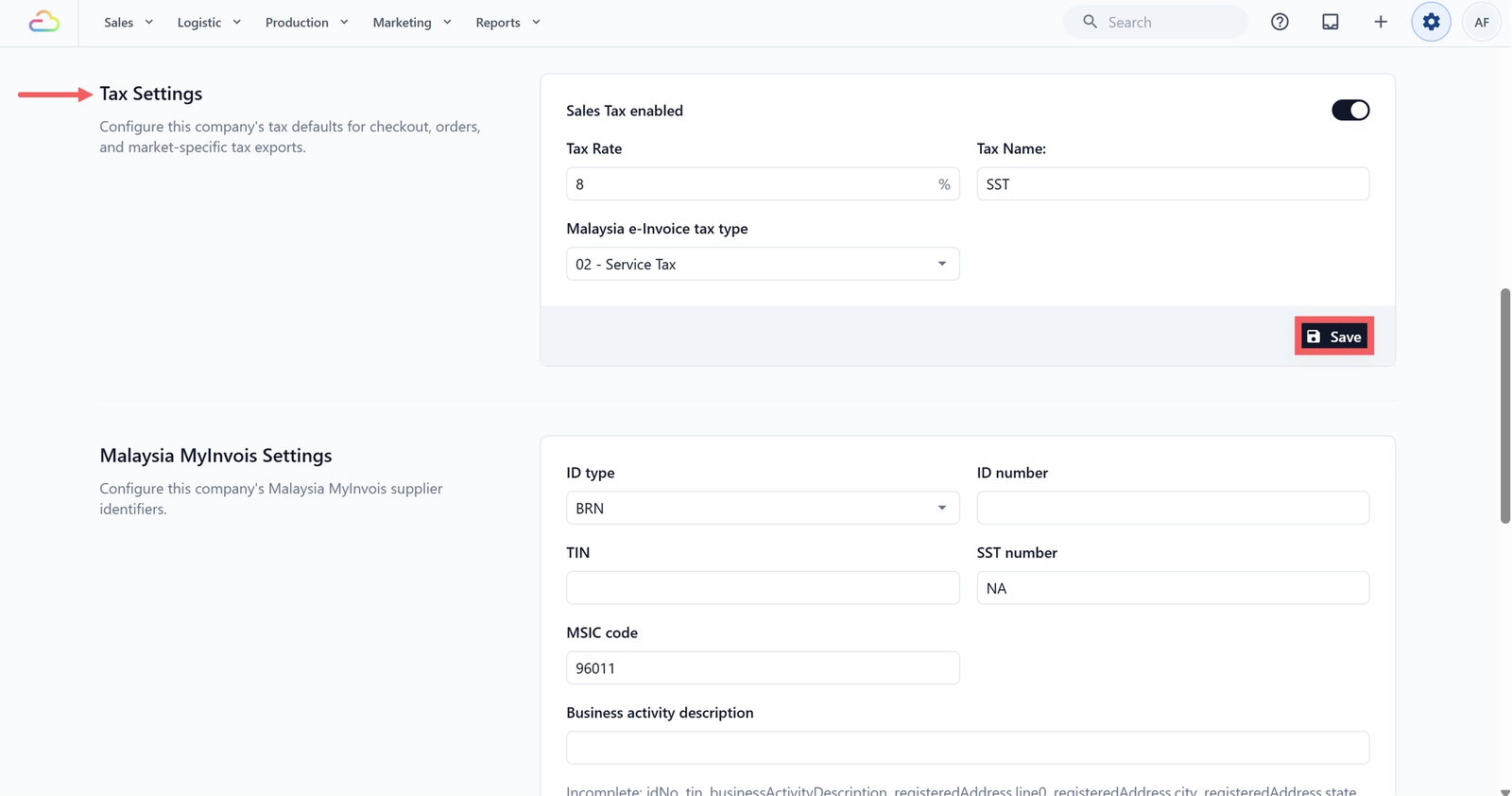
Tax toggle
Flip the switch on to turn Tax on for this Company. The label reads "Tax enabled" when on and "Tax disabled" when off. With the switch off, the Tax Rate and Tax Name fields are greyed out.
Tax Rate
Enter the percentage as a number, for example 9 for 9%. The field is suffixed with % so type the number only.
Tax Name
Enter the name that prints on receipts in place of the word "Tax", for example GST, SST, or VAT. Defaults to "Tax" if left blank.
- Click Save at the bottom of the section.
How Tax Works Across Your Shop
Tax in EasyBiz comes from one of two places, and it helps to know which one you are using.
- Company Tax (this page) adds tax on top of every taxable charge: items, add-ons, express surcharge, and delivery fee. The customer pays the price plus the tax.
- Price List Tax (set on each price list) means the tax is already inside the price you show. Nothing is added on top. You set this under the [Pricelist's Tax Settings](coming soon).
Rounding Rules
This section controls two separate rounding behaviours: Decimal Rounding (how many decimals an amount is stored at and how half values are resolved) and Coin Rounding (whether final totals snap to a coin increment so cashiers don't have to make tiny change).
- Scroll to Rounding Rules.
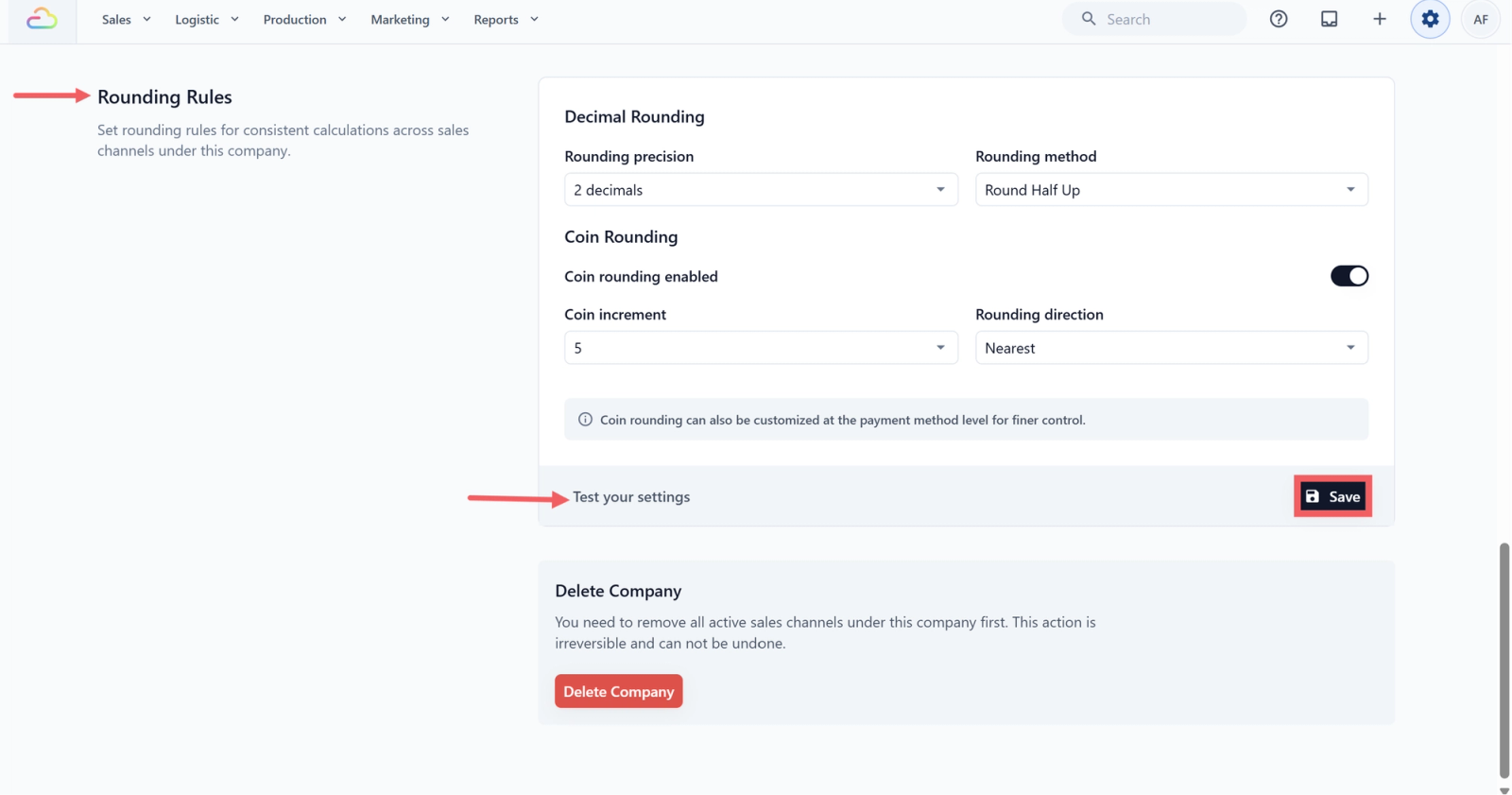
Decimal Rounding
Rounding precision
| Option | What it does |
|---|---|
| 0 decimals | Rounds to the nearest whole number. Use in markets where the currency has no fractional unit (for example IDR or VND). |
| 1 decimal | Rounds to the nearest tenth. |
| 2 decimals | Rounds to the nearest hundredth, the most common setting for SGD, MYR, USD. |
| 3 decimals | Rounds to the nearest thousandth. Use only when your prices need sub-cent precision. |
Rounding method
| Option | What it does |
|---|---|
| Round Half Up | Standard rounding. A .5 always goes up. Most shops want this. |
| Round Half Down | A .5 always goes down. Rare. |
| Round Half To Even | Banker's rounding. A .5 rounds to the nearest even number. Reduces bias on large totals. |
Coin Rounding
Coin rounding toggle
Flip the switch on to make final totals snap to a coin increment. When off, totals keep their full decimal precision.
Coin increment
Pick 5 or 10. The number represents the smallest unit you want totals to land on. 5 means the total snaps to the nearest 5 cents (or 5 sen, 50 rupiah, etc.), 10 means the nearest 10. The display shows the actual currency increment (for example 0.05 for SGD with 2 decimal places).
Rounding direction
| Option | What it does |
|---|---|
| Nearest | Snaps to the closest increment. Standard choice. |
| Up | Always snaps up to the next increment. Use if you want to bias slightly in your favour |
| Down | Always snaps down to the previous increment. Use if you want to bias slightly toward the customer. |
Test your settings
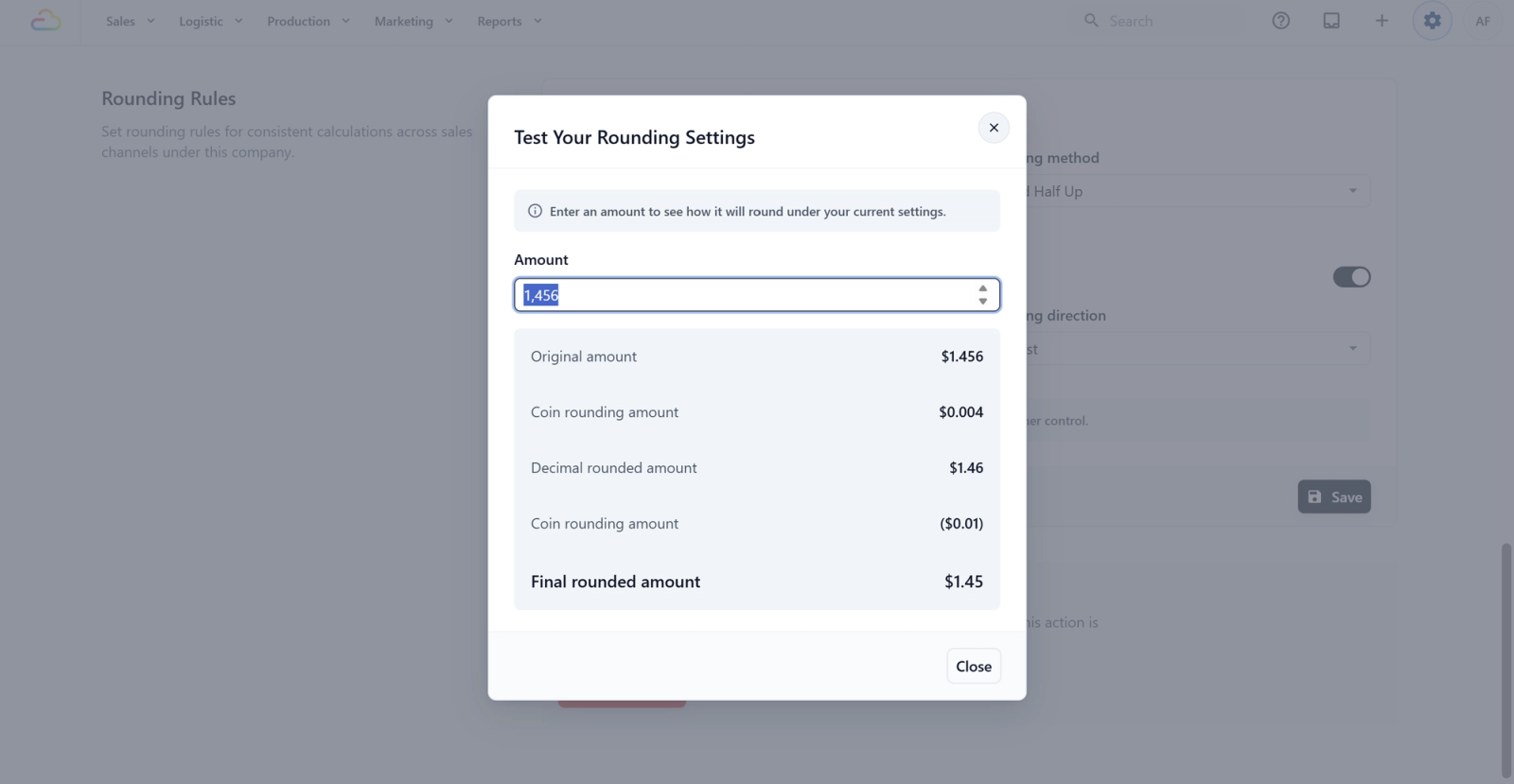
Click the Test your settings button at the bottom of the section to preview how a sample total is rounded with your current settings before you save. This opens a small dialog where you can type any amount and see the rounded result. Closing the dialog does not save anything.
- Click Save at the bottom of the section.
FAQs
Do I need to turn on Tax before I go live?
Only if your business is tax-registered. If you are not GST/SST/VAT registered, leave Tax disabled. It is off by default. You can turn it on later when you register.
What happens to my old orders if I change the Tax Rate?
Existing orders keep the rate that was active when they were created. Only new orders use the new rate. The same applies to Rounding Rules.
If I disable Coin rounding and re-enable it later, what increment will I get?
If you have never set an increment, EasyBiz plants the defaults Increment: 5 and Direction: Nearest when you flip the toggle back on. If you had previously chosen 10 and Up, those choices come back when you re-enable.
Why do my receipts still show 3-decimal prices when I set Decimal precision to 2?
Decimal precision controls the rounded display on receipts. Internal storage may still hold more decimals for unit prices that compound (for example weight times rate per kg). Receipt line totals are always rounded to your chosen precision.
Does Coin rounding apply before or after Tax?
Coin rounding applies to the final total, after tax. The Test your settings dialog shows exactly what happens to a sample amount end to end.
Can different Sales Channels under the same Company use different rounding rules?
No. Rounding Rules are Company-wide. If you need different rounding for different channels, those channels need to sit under different Companies. Coin Rounding can be overridden per payment method though, for example "cash uses 5-cent rounding, card does not".
Do add-ons, express surcharge, and delivery fee get tax added?
It depends on your mode. A tax-inclusive Price List treats every charge as already inclusive. Company tax only adds tax on top of every taxable charge.