
Introduction to WhatsApp Message Templates
In this article
WhatsApp Message Templates let your business send pre-approved messages to customers, even when the 24-hour customer reply window has closed. Use them for order updates, booking reminders, promotions, and other repeat messages that need to be sent reliably and personalized with customer or order details.
Contents
Contents
What Is a Message Template
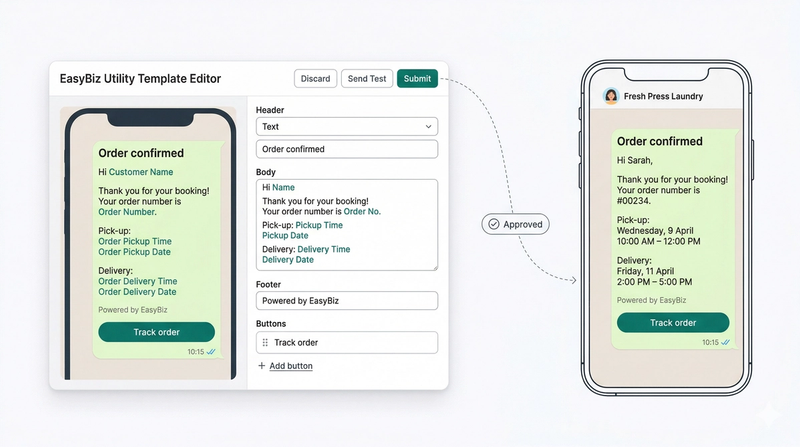
A Message Template is a pre-written WhatsApp message that you prepare in advance, submit to WhatsApp for review, and reuse as many times as you need. Once approved, your staff sends it to a customer in one click, with all the details filled in automatically.
Here is why every service business needs them:
- WhatsApp locks the text box after 24 hours. Once a customer has not replied in over a day, you cannot reach them with a normal message. A template bypasses this.
- Your staff never types the same message twice. One approved template sends the right message to every customer in seconds, automatically filled in with their name, order, and timing.
- Every message feels personal. Placeholders fill in the customer's name, order number, and pickup time for every individual send.
- They work while you sleep. Pair templates with Auto Reply Rules and your customers get instant responses even at midnight, even when your shop is closed.
- They let you attach booking forms. Add a Mini App button to any template so customers can book, reschedule, or confirm with one tap.
Before You Start
Before you can create and send WhatsApp Message Templates, make sure your WhatsApp Business account is connected to EasyBiz. This is what allows your templates to be sent through your business WhatsApp number.
How to Access Message Templates
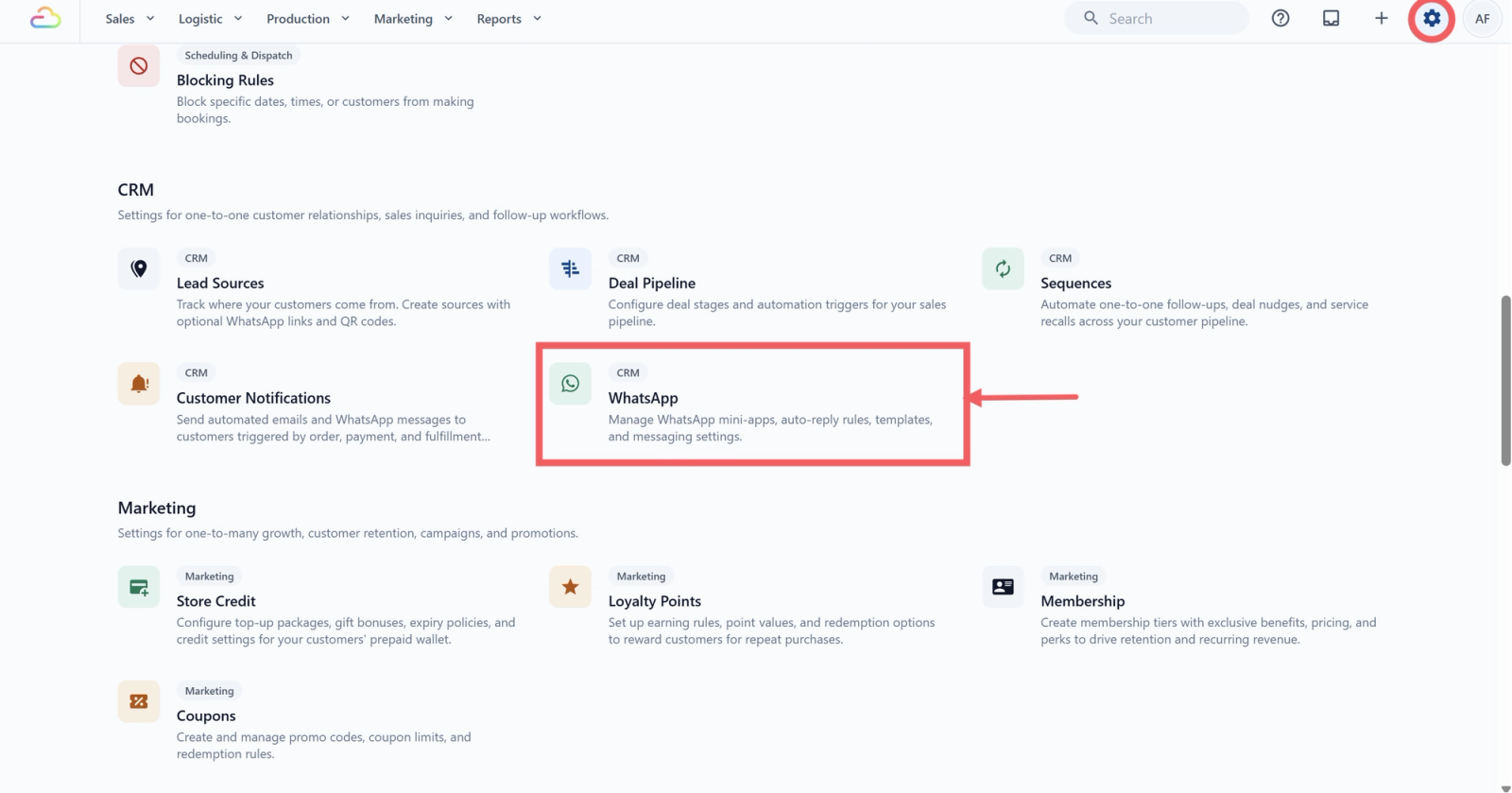
- Click the ⚙️ Settings icon in the top-right corner of your screen
- Scroll down to the CRM section and click WhatsApp, then click the Message Templates tab
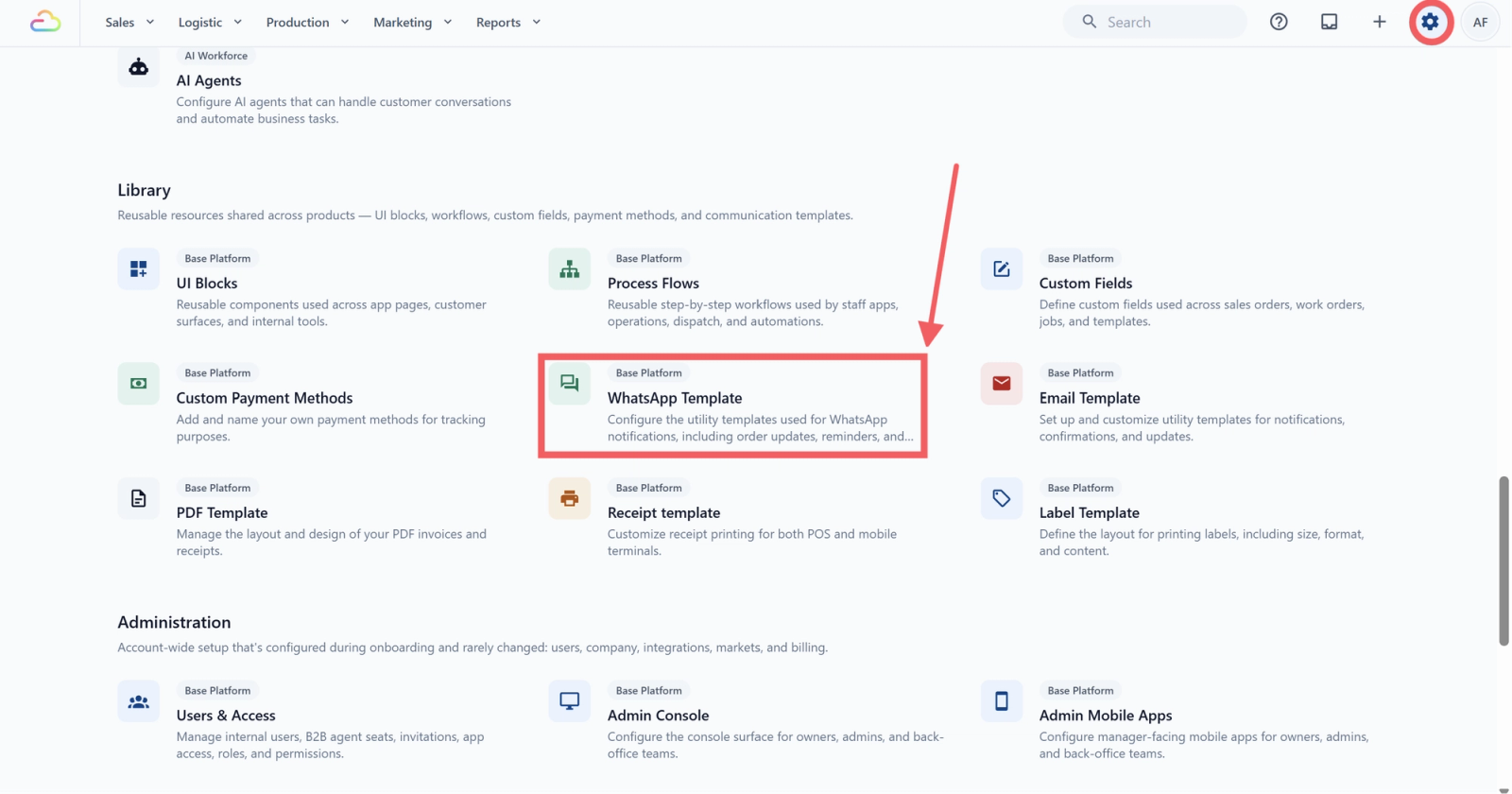
Alternatively, go to Settings → scroll to the Library section → click WhatsApp Templates to go directly to the same page.
Types of Templates
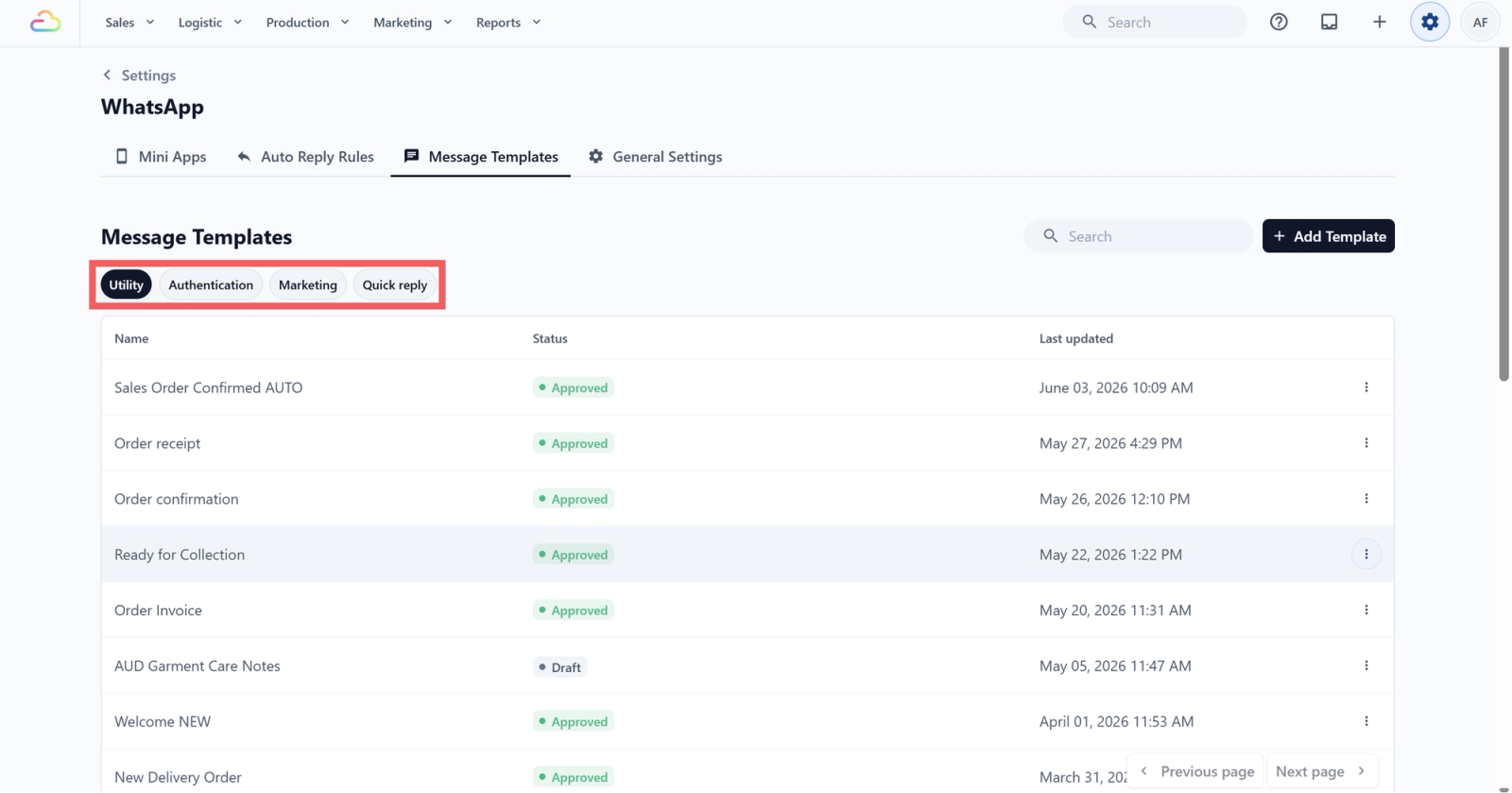
When you create a new template, you choose a category. Each category works differently and is designed for a different situation.
| Category | Use it for | Needs Meta approval? |
|---|---|---|
| Utility | Order and service updates tied to a customer action: order confirmations, collection notices, payment reminders, delivery updates. These are the templates you will use the most. | Yes |
| Marketing | Promotions, seasonal offers, and announcements. These reach customers who have not messaged you recently. | Yes |
| Authentication | One-time passwords for customers logging in to your online store. There is one pre-built template and no design work. | Yes |
| Quick Reply | Short, pre-written messages your staff sends with a single keystroke (/) while chatting with an active customer. Ready the moment you publish them. | No |
Managing Your Templates
- Navigating pages
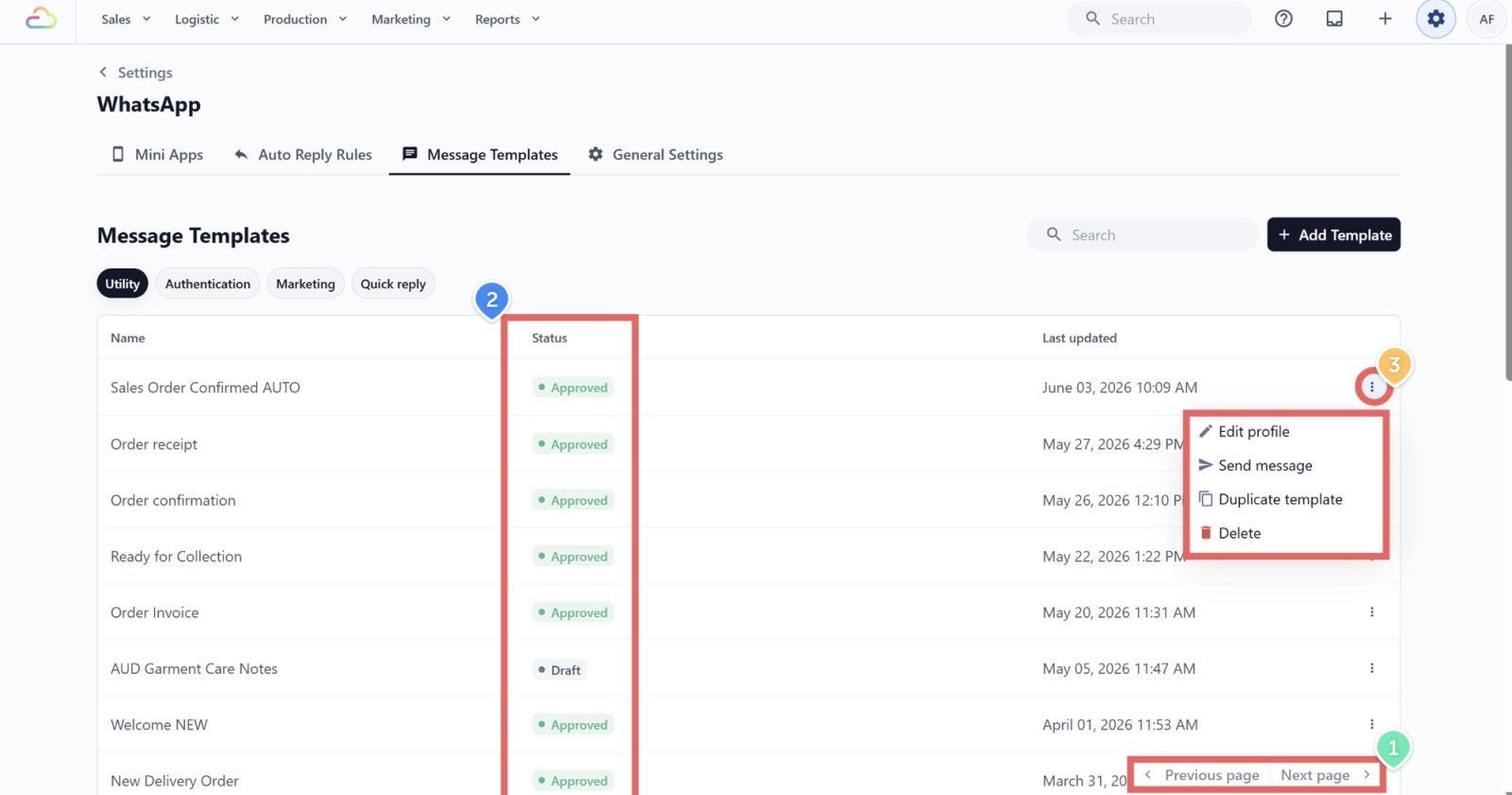
If you have many templates, use the Previous page and Next page buttons at the bottom right. Your templates are not deleted. They are spread across multiple pages.
- Template status
Each template shows where it currently stands:
- Draft — Created but not yet submitted
- Pending — Submitted and waiting for Meta review
- Approved — Reviewed and approved by Meta, ready to send (Utility, Marketing, and Authentication templates)
- Active — Ready to use immediately (Quick Reply templates show this status after you publish, since they do not go through Meta review)
- Rejected — Meta did not approve it — edit and resubmit
- Three-dot menu
Click the ⋮ icon on any template row to:
- Edit profile: Update the template's internal settings — its name, which pipeline stage it moves a deal to, and the default reply status — without reopening the full editor or going through Meta review.
- Send message: Send the template directly to a customer from this page without opening the inbox
- Duplicate template: Creates an exact copy of the template. Useful when you want to create a similar template without starting from scratch.
- Delete: Permanently removes the template from EasyBiz and Meta. This cannot be undone, you will need to create and resubmit from scratch if you want it back.
Set Up Your Templates
Now that you know the basics, you are ready to create your first template. Choose the type that fits what you need:
- [Learn how to set up Utility Templates] -> Order confirmations, delivery updates, receipts, and more. Start here if you are new to templates.
- [Learn how to set up Marketing Templates] -> Promotions, seasonal offers, and service announcements.
- [Learn how to set up Quick Reply Templates] -> Fast, instant replies your staff can send with a single keystroke while chatting with customers.
- [Learn how to set up Authentication Templates] → A pre-built one-time-password template for customers logging in to your online store.
FAQs
How long does Meta take to approve a template?
Most templates are reviewed within a few minutes. In some cases it can take up to 24 hours. Quick Reply templates do not need approval — they are ready the moment you publish.
My template disappeared after approval. Where did it go?
Check the Marketing tab. Meta may have reclassified your Utility template as Marketing. It is not deleted, just in a different tab.
Can I edit a template after it has been approved?
Yes, but only once every 24 hours. If your edit is rejected, you can revert to the previously approved version.
Why is my template stuck on Pending?
Review usually takes minutes to a few hours. If it has been more than 24 hours, try submitting a new template with the same content.
What is Default reply status?
This controls what happens in your inbox after the template is sent. It is not the Meta approval status. Pick Replied to move the conversation out of your Pending list when the template goes out. Pick Pending to keep it in Pending so your team remembers to follow up.
Can I use the same template for multiple customers?
Yes. Once approved, a template can be sent to any customer at any time. Placeholders fill in automatically for each individual send.
What's Next?
Now that you know the template categories, continue to [Setting Up Utility Templates] to create the transactional messages, confirmations, reminders, and updates that keep customers in the loop.
Once your templates are sending, learn how your team handles the replies that come back in [Managing Conversations Inbox].
Give feedback
Up next
Setting Up Utility TemplatesConfirm orders, notify customers about pickups and deliveries, send receipts — automatically, at the right moment.
Read more