
Setting Up Authentication Templates
In this article
Authentication templates send a one-time password to customers logging in to your online store. The message content is fixed by Meta and you cannot edit the body. You only name the template, submit it for Meta review, and once approved your store can use it to verify customer logins.
Contents
Contents
What Is an Authentication Template
An Authentication Template is a WhatsApp message that sends your customer a 6-digit one-time password (OTP) when they try to log in to your online store. Instead of getting a code by email or SMS, your customer receives it on WhatsApp, types it into the login screen, and gets in.
Why use WhatsApp for this instead of email or SMS?
- Your customer already has WhatsApp open. They see the code in seconds, not minutes.
- No spam folder. Email OTPs often land in junk. WhatsApp messages do not.
- Cheaper than SMS. WhatsApp OTPs cost less than SMS in most countries.
- Customers trust it. They are used to receiving codes on WhatsApp from banks, food delivery apps, and ride-hailing services.
When You Need This
You only need an Authentication template if your customers log in to your EasyBiz online store. If you don't have a customer-facing website yet, you can skip this for now. Your Utility, Marketing, and Quick Reply templates do not depend on Authentication.
The message content is locked. It is the same one-time-password message for every shop on WhatsApp. You cannot change the wording, add buttons, or insert your business name.
How to Access Authentication Templates
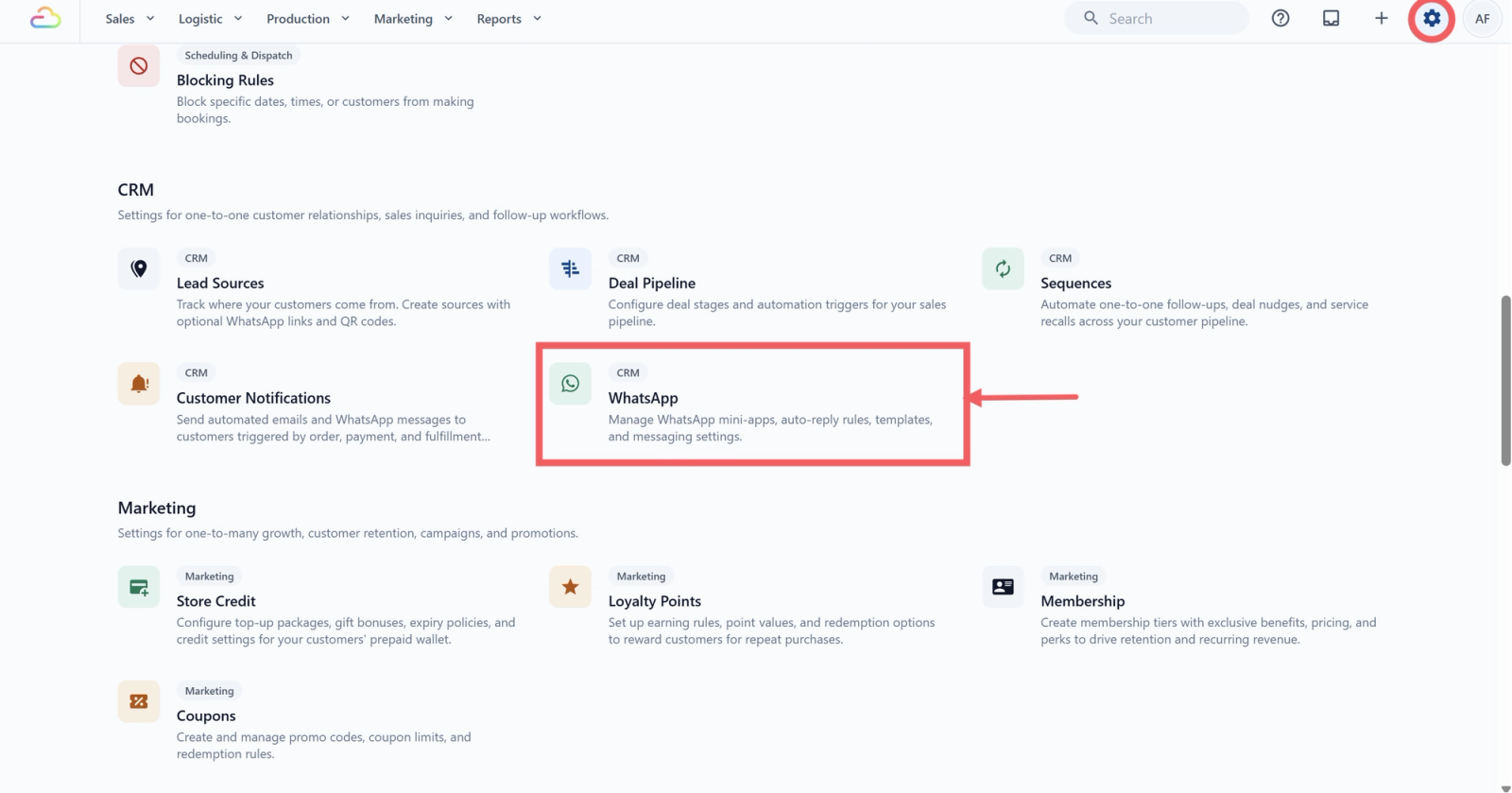
- Click the ⚙️ Settings icon in the top-right corner.
- Under the CRM section, click WhatsApp.
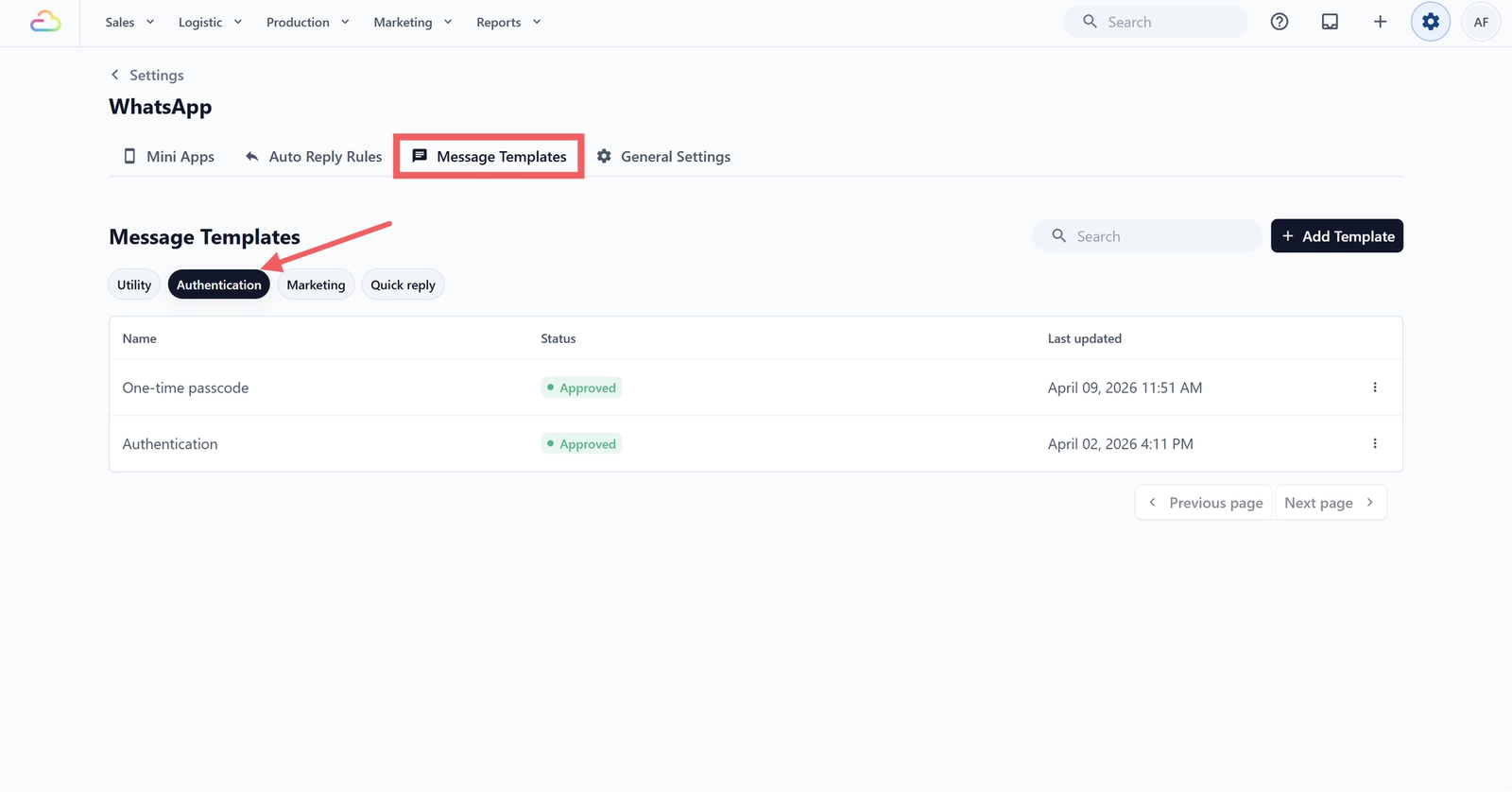
- Click the Message Templates tab.
- Above the table, click the Authentication filter.
Creating an Authentication Template
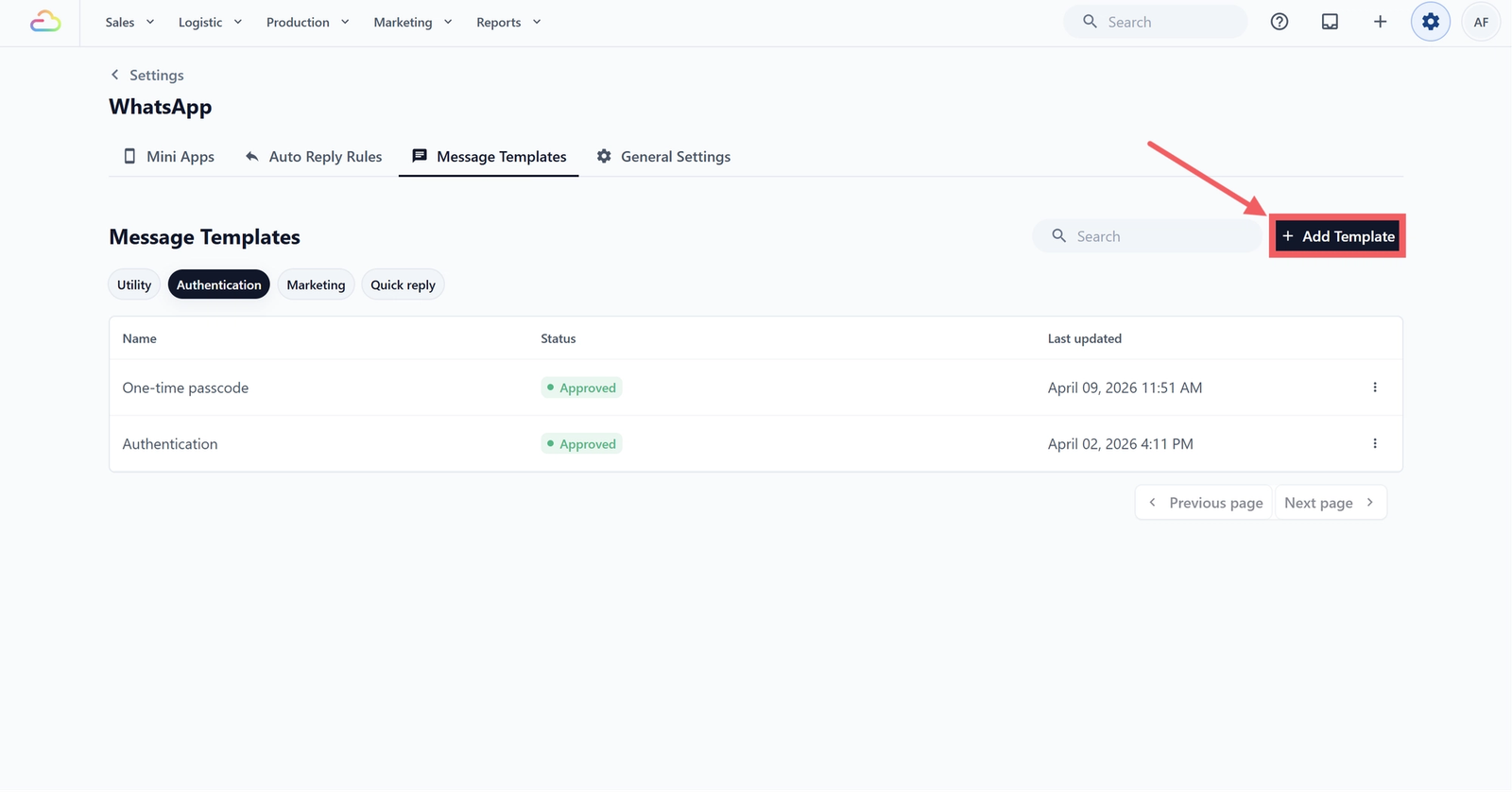
- Click Add Template in the top-right.
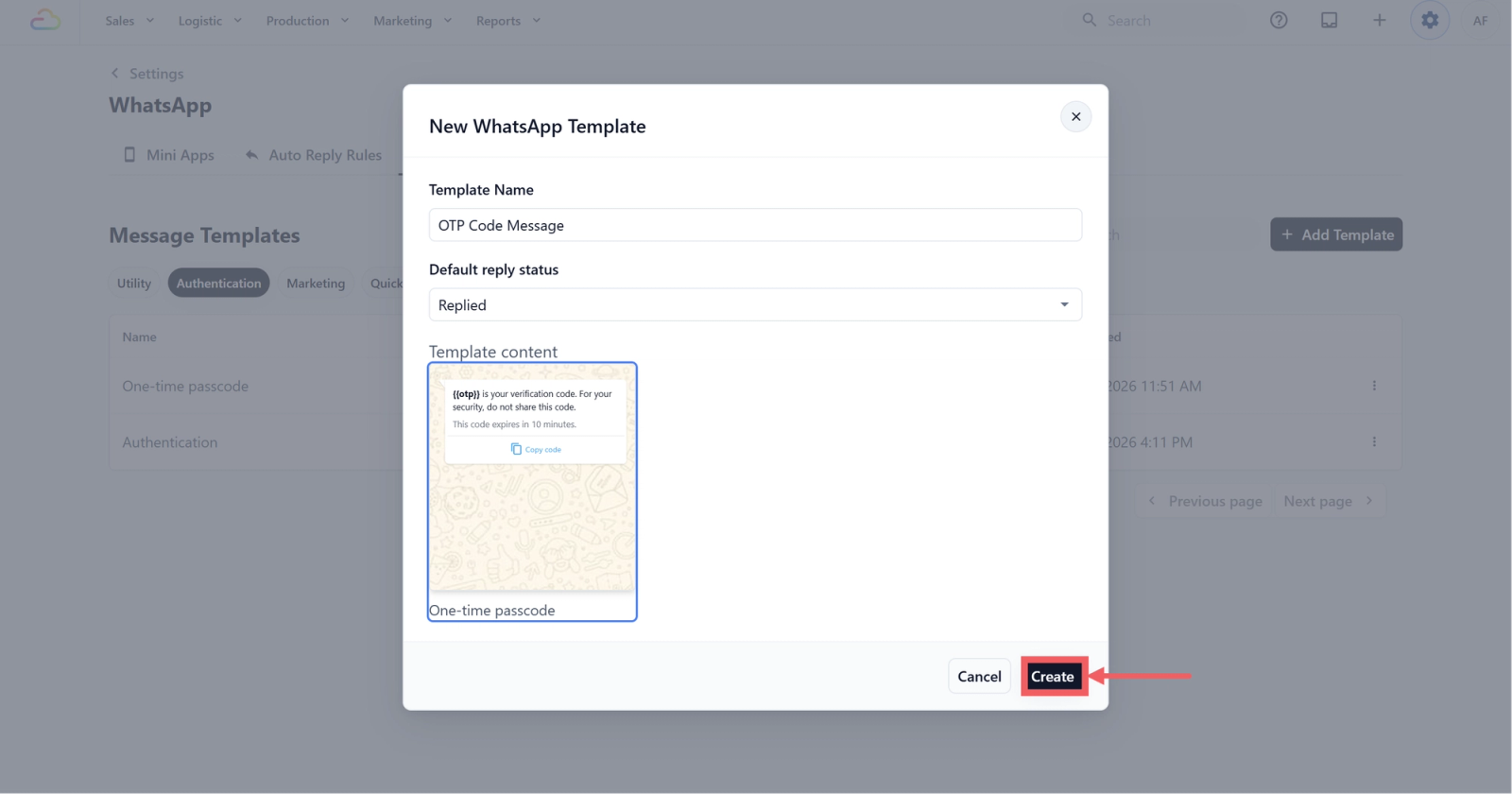
- The New WhatsApp Template dialog opens. Fill in the fields below:
- Template Name
Enter a short name your team will recognize on the templates list, for example "Online store login" or "Store OTP". The Create button stays disabled until you fill it in.
- Default reply status
| Replied | The conversation is marked as Replied in your inbox after the OTP is sent. |
| Pending | The conversation stays in your Pending list so your team can follow up. |
- Template content
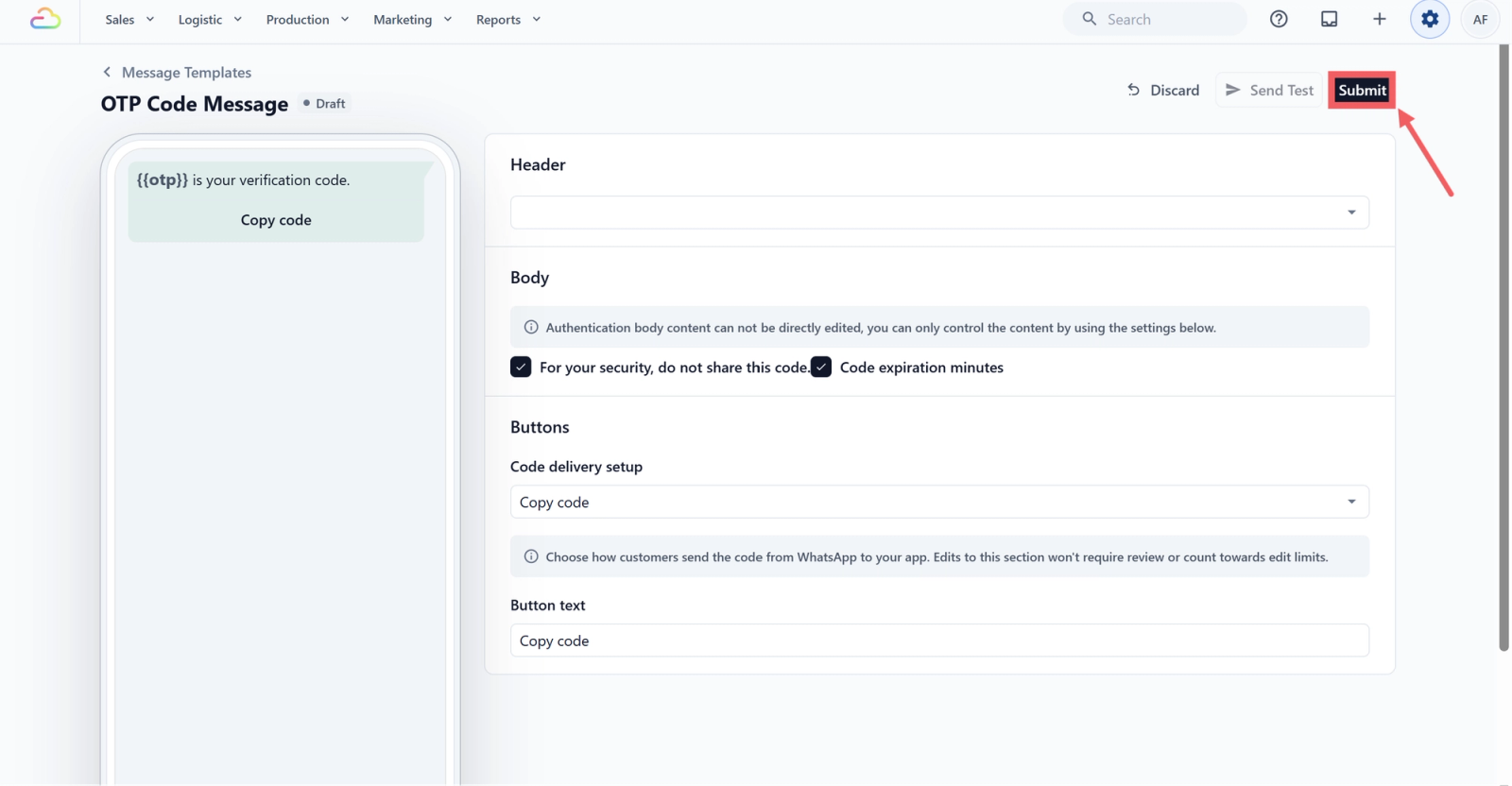
The message body is fixed. The Copy code button is added automatically. The One-time passcode label below the preview is part of Meta's template type and is not editable.
- Click Create.
- Once created, you'll enter the editor page. Since the Authentication template does not allow you to modify the body, you can only edit the header and buttons. Once you're done, Click Submit.
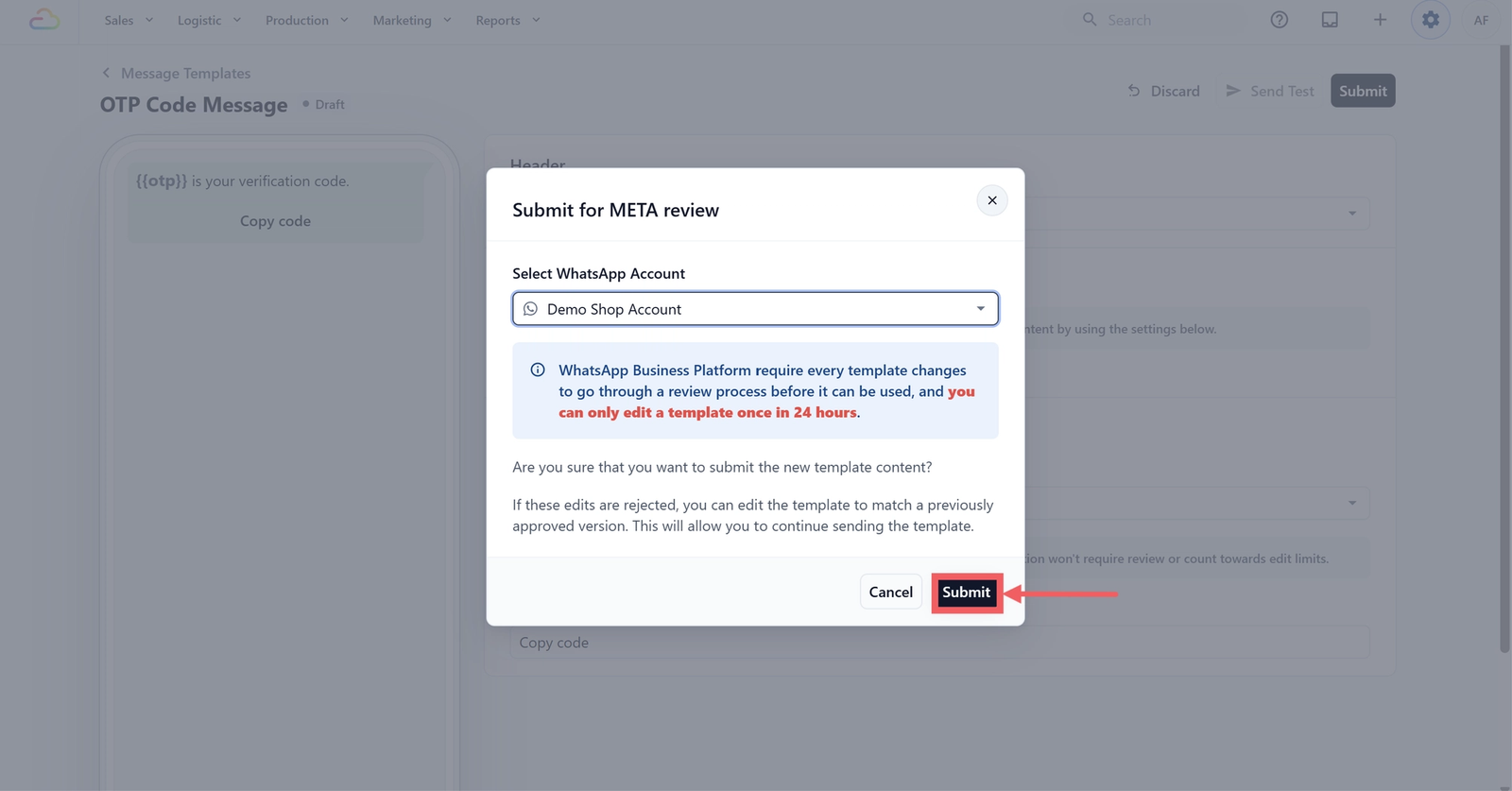
- In the confirmation pop-up, click Submit for META review.
What Happens After You Submit
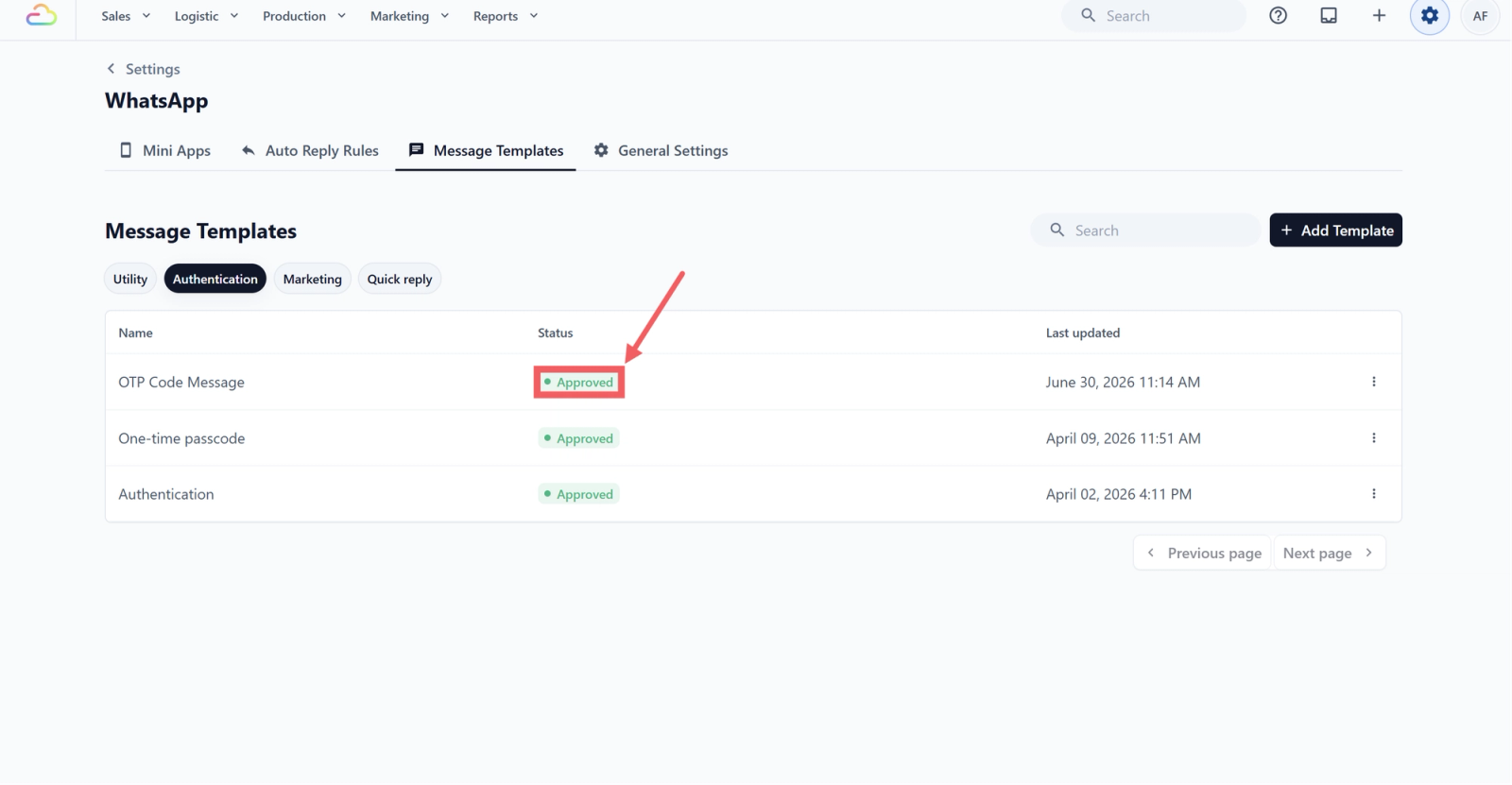
Once created, the template appears in the Authentication list with one of these statuses:
| Status | What it means |
|---|---|
| Pending | Meta is reviewing the template. Usually a few minutes. |
| Approved | Meta approved the template. Your online store can now use it to send OTPs. |
| Rejected | Meta rejected the template. Delete it and create a new one with a different name. |
Managing Authentication Templates
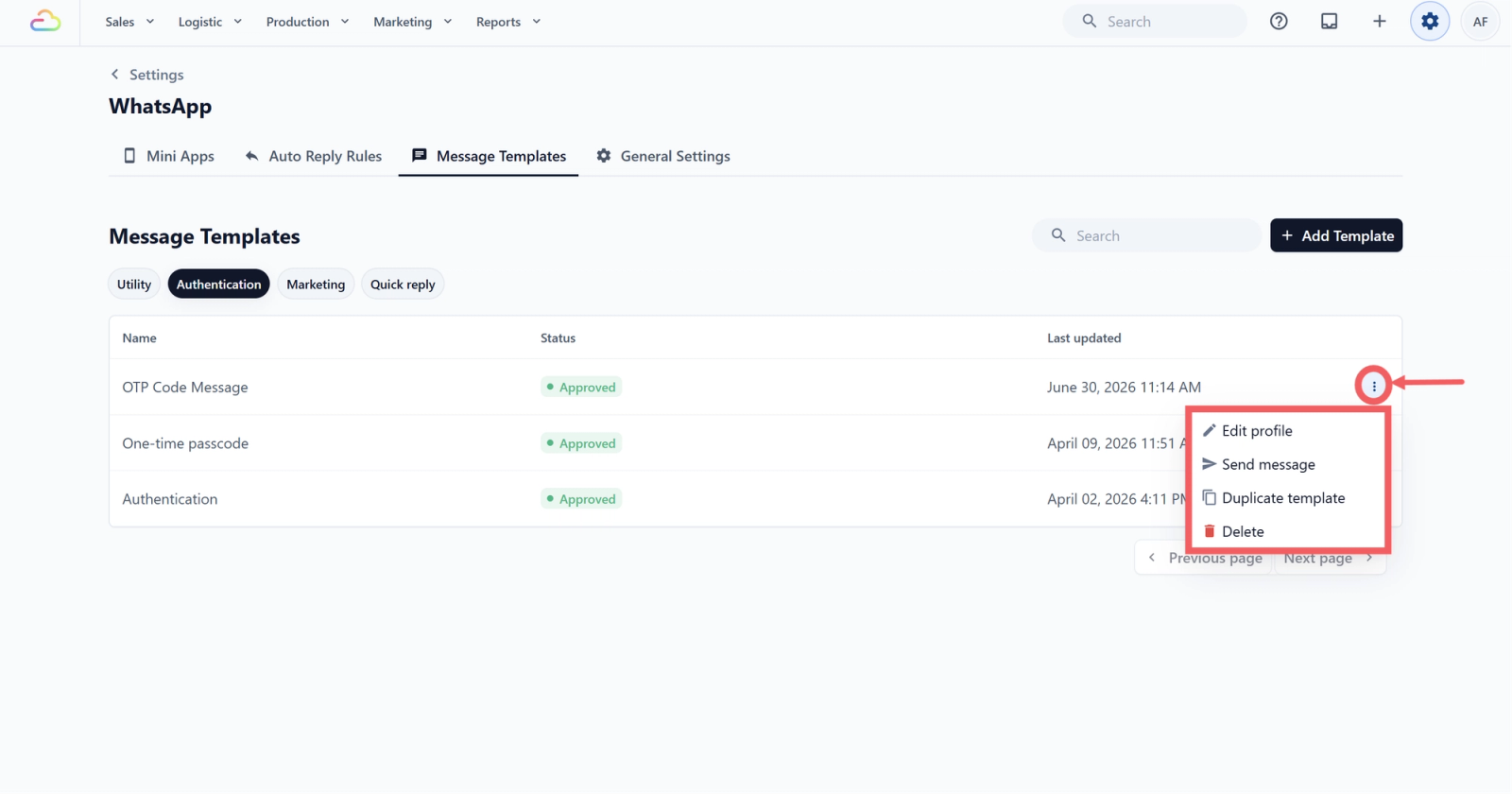
Click the ⋮ three-dot menu on any row for these actions:
| Action | What it does |
|---|---|
| Edit profile | Opens Template Settings. You can rename the template inside EasyBiz and change Default reply status. The message body cannot be edited. |
| Send message | Sends the OTP template to a specific customer from this page, without opening the inbox. |
| Duplicate template | Opens Duplicate template. Pre-fills the name as "Copy of [original name]" and carries the same fixed content. Useful if you want a second OTP template for a different reply status. |
| Delete | Opens Delete Template [name]. If the template is not in use, a green message confirms it is safe to delete. Deletion removes it from both EasyBiz and Meta. |
How the OTP Gets Sent
You do not send Authentication templates manually. The OTP is delivered automatically the moment a customer clicks Verify with WhatsApp on a sign-in or phone-verification screen.
Here is what happens behind the scenes:
1. The customer enters their phone number and clicks the verify button.
2. EasyBiz generates a random 6-digit code.
3. The code is filled into your approved Authentication template and sent to the customer's WhatsApp.
4. The customer types the code back into the verification screen to confirm.
Your only job is to make sure the template is Approved in the status. Once it is, every verification request handles itself.
👉[Learn how to set up phone verification on your store] (Coming Soon)
FAQs
Do I need to write the OTP message?
No. Meta provides a fixed OTP body for every business on WhatsApp. The text and the Copy code button are added automatically when you create the template.
Why is the Create button still disabled after I typed a name?
Your WhatsApp Business API is not connected. The Authentication template cannot be created until the WhatsApp Business Account is linked to EasyBiz. See Set up WhatsApp Integration.
Can I change the OTP message text or the expiry time?
The message body and the Copy code button are part of Meta's locked Authentication template, so they can't be edited. The "This code expires in 10 minutes" line can be turned on or off in the template's body settings, but the 10-minute duration itself is fixed in EasyBiz for now.
Can I have more than one Authentication template?
Yes. Most shops only need one. A second template is useful only when you want a different Default reply status.
What happens if I delete my only Authentication template?
Customers cannot log in to your online store with a WhatsApp OTP until you create a new Authentication template and Meta approves it. Create the replacement first, wait for Approved, then delete the old one.
What's Next
Now that your OTP template is live, continue to [Setting Up Marketing Templates] to design the promotions, seasonal offers, and service announcements that bring your customers back.
Give feedback
Up next
Setting Up Marketing TemplatesReach customers who have gone quiet with promotions, seasonal offers, and service announcements — directly on WhatsApp.
Read more