Setting Up Quick Reply Templates
In this article
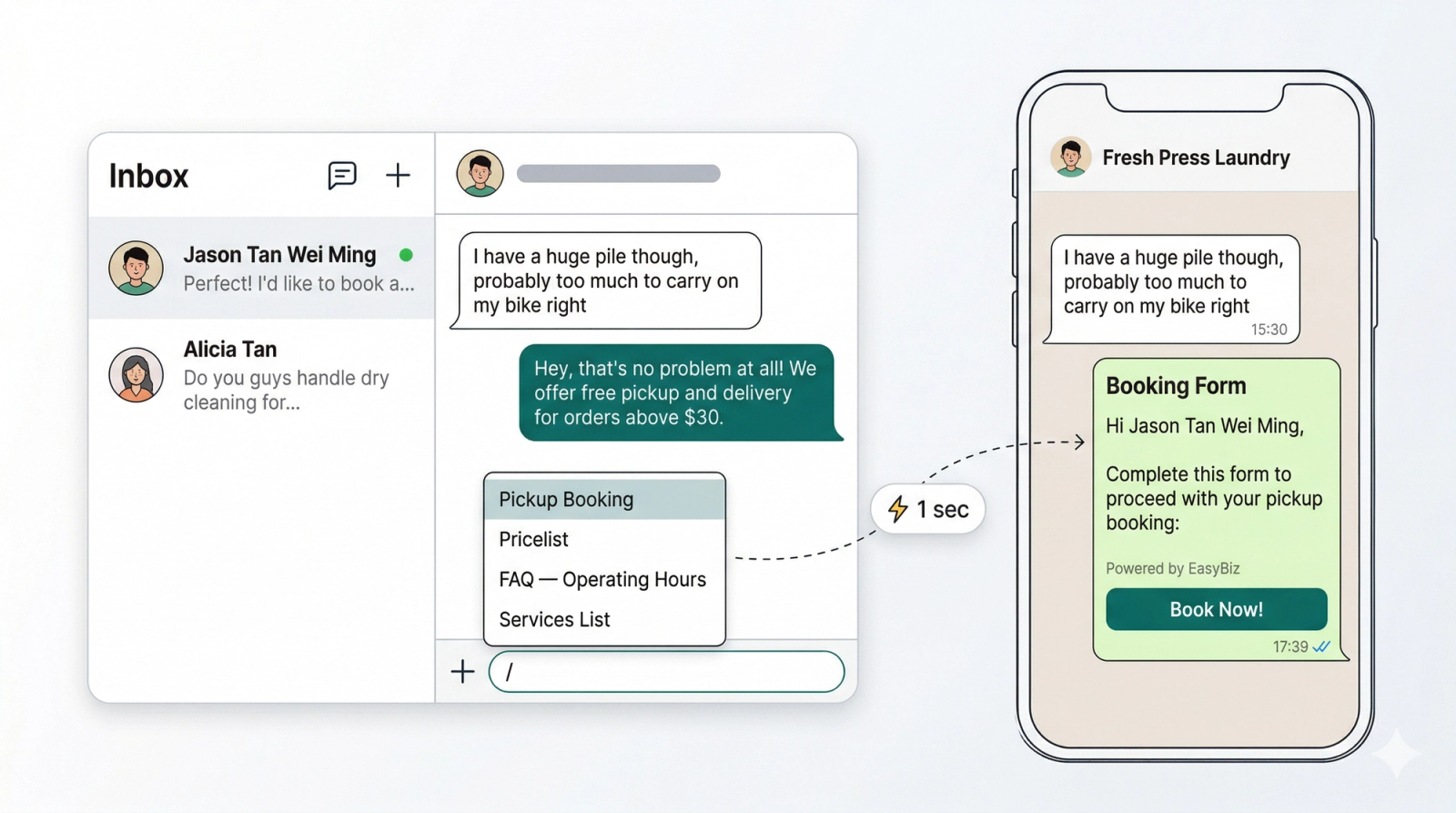
Quick Reply templates are your fastest communication tool. While your staff is chatting with a customer, they can type / in the message box and instantly pull up any Quick Reply template — sending a booking form, a pricing link, or a standard answer in under five seconds. Unlike Utility and Marketing templates, Quick Reply templates do not need Meta approval. You publish them and they are ready immediately.
Contents
Contents
When to Use Quick Reply Templates
Quick Reply templates work within the 24-hour window — when the customer has recently messaged you and the conversation is active. They are ideal for:
- Sending a Mini App booking form while a customer is asking about a pickup
- Sharing your pricing page when a customer asks about rates
- Sending a standard FAQ answer without typing it out every time
- Providing a list of services for the customer to choose from
Template Categories (Optional)
Quick Reply templates support an optional category system — folders to keep your templates organised when you have many of them.
To set up categories:
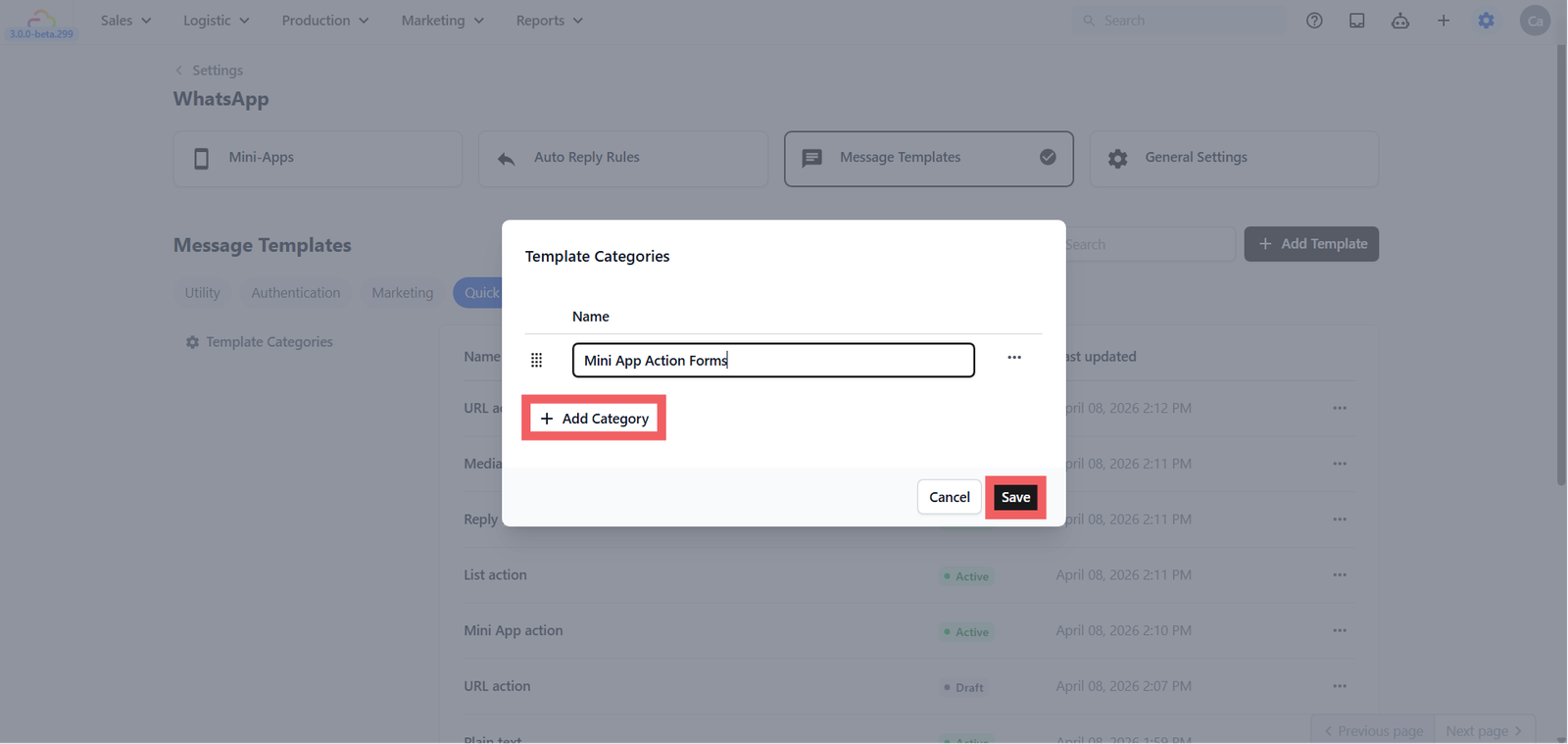
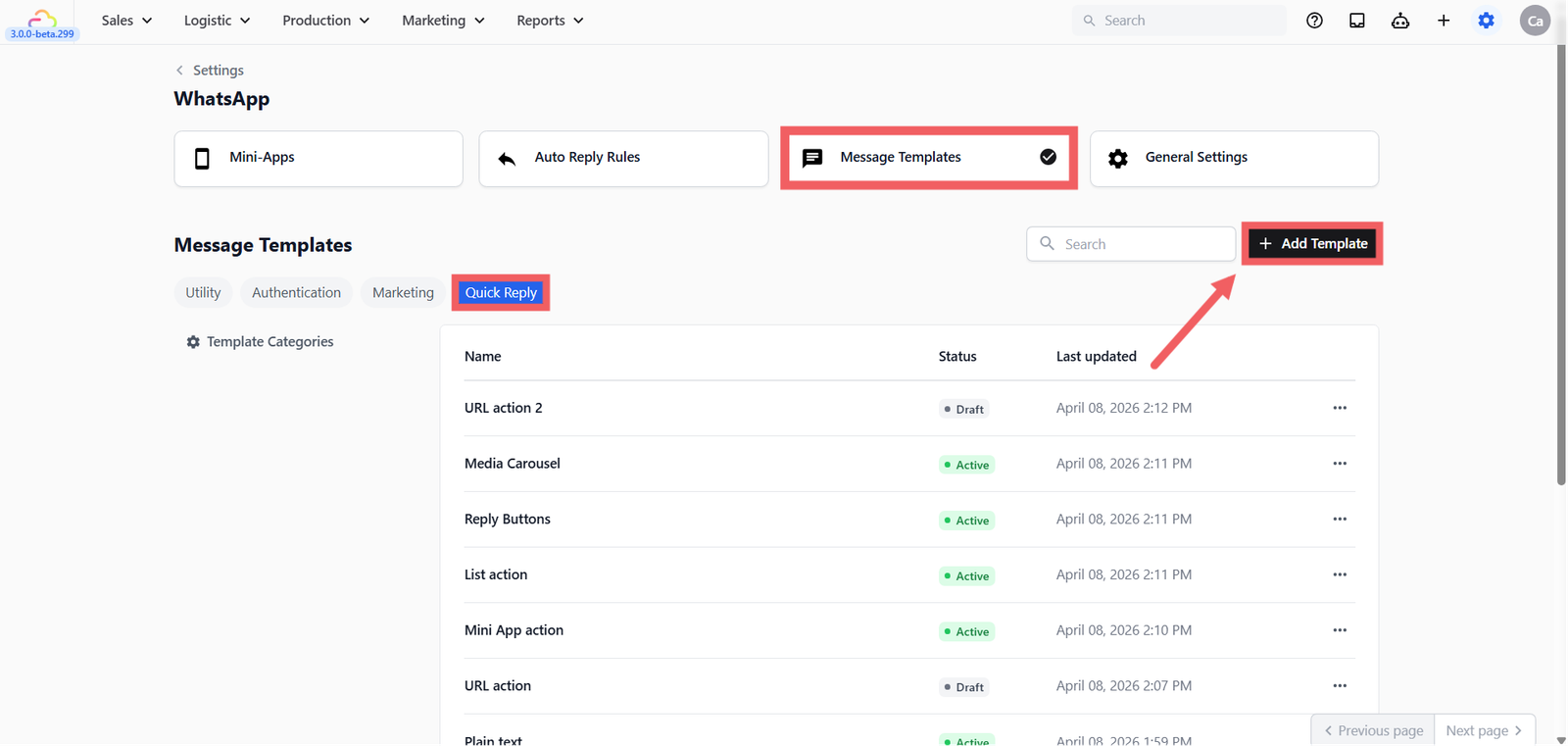
- Click the Quick Reply tab then click the Template Categories (⚙️) button on the left sidebar
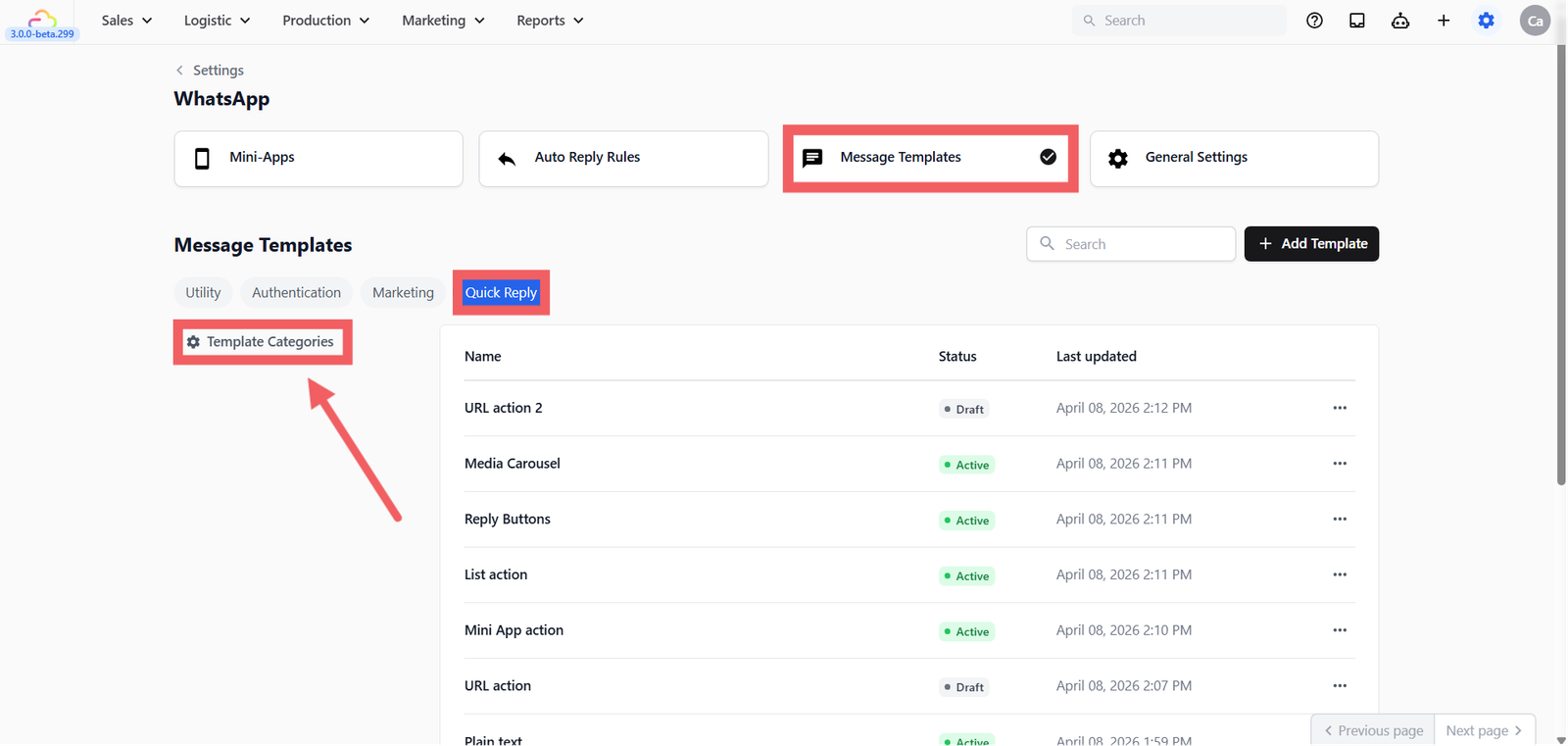
- Click + Add Category, enter a name (e.g. Booking Forms, FAQs, Reschedule), and click Save
- Assign a category when creating each new template
Pre-Built Template Types
When you click + Add Template under Quick Reply, you choose a template content type. Each type is locked to a specific button behavior — you cannot change the button type after creation.
- Plain text -> A message with no button. Good for standard replies and informational messages where no action is needed.
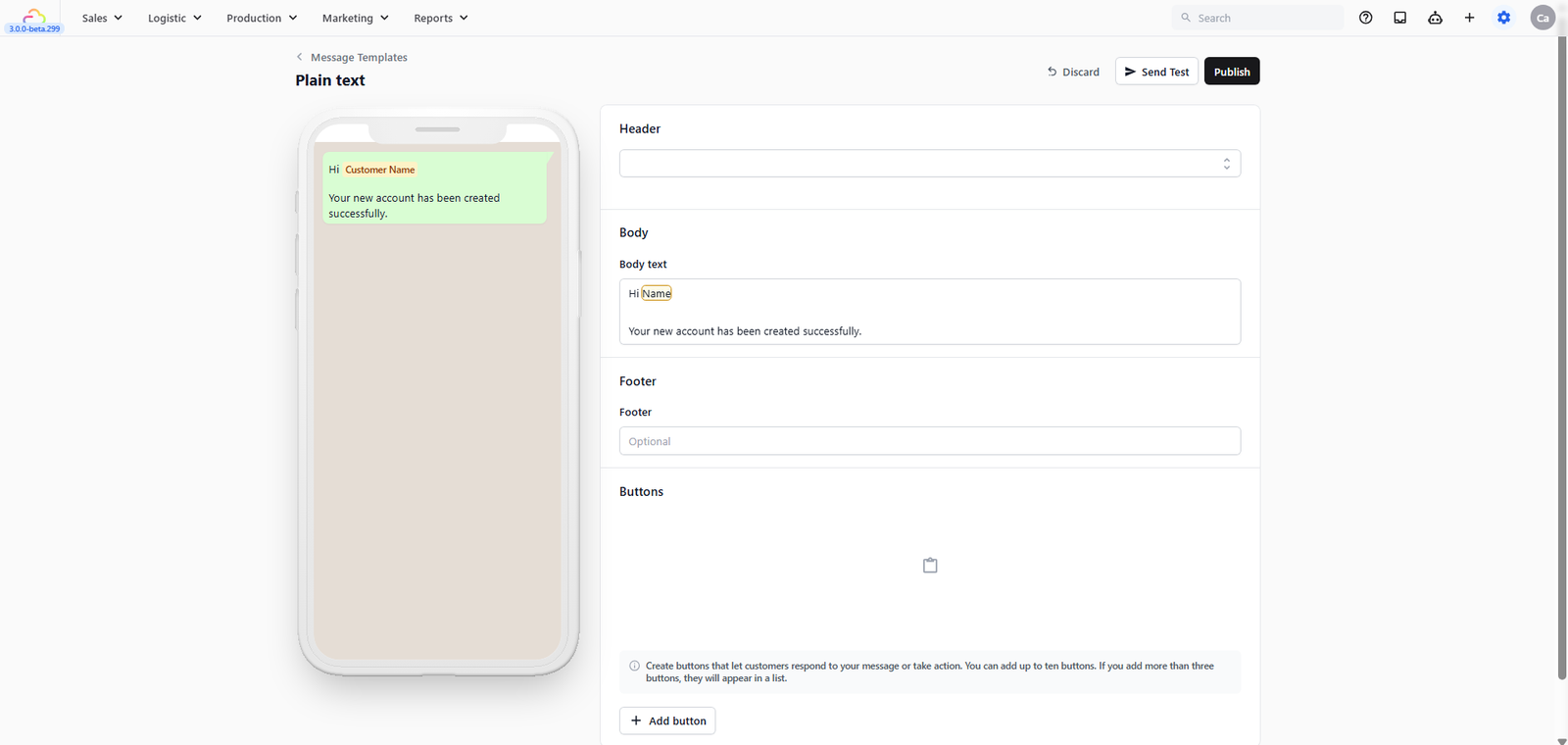
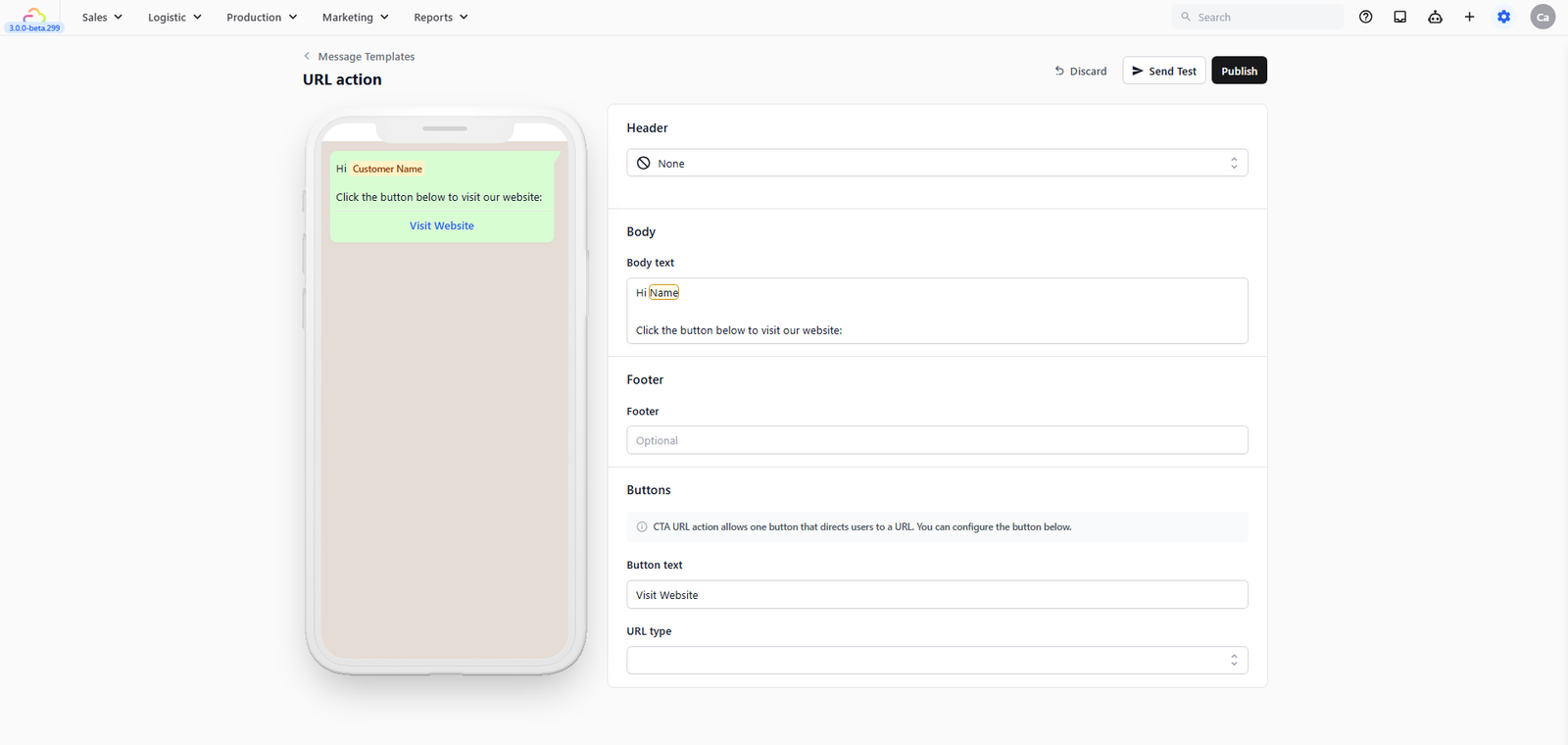
- URL action -> A message with a Visit Website button. The customer taps to open a webpage you specify.
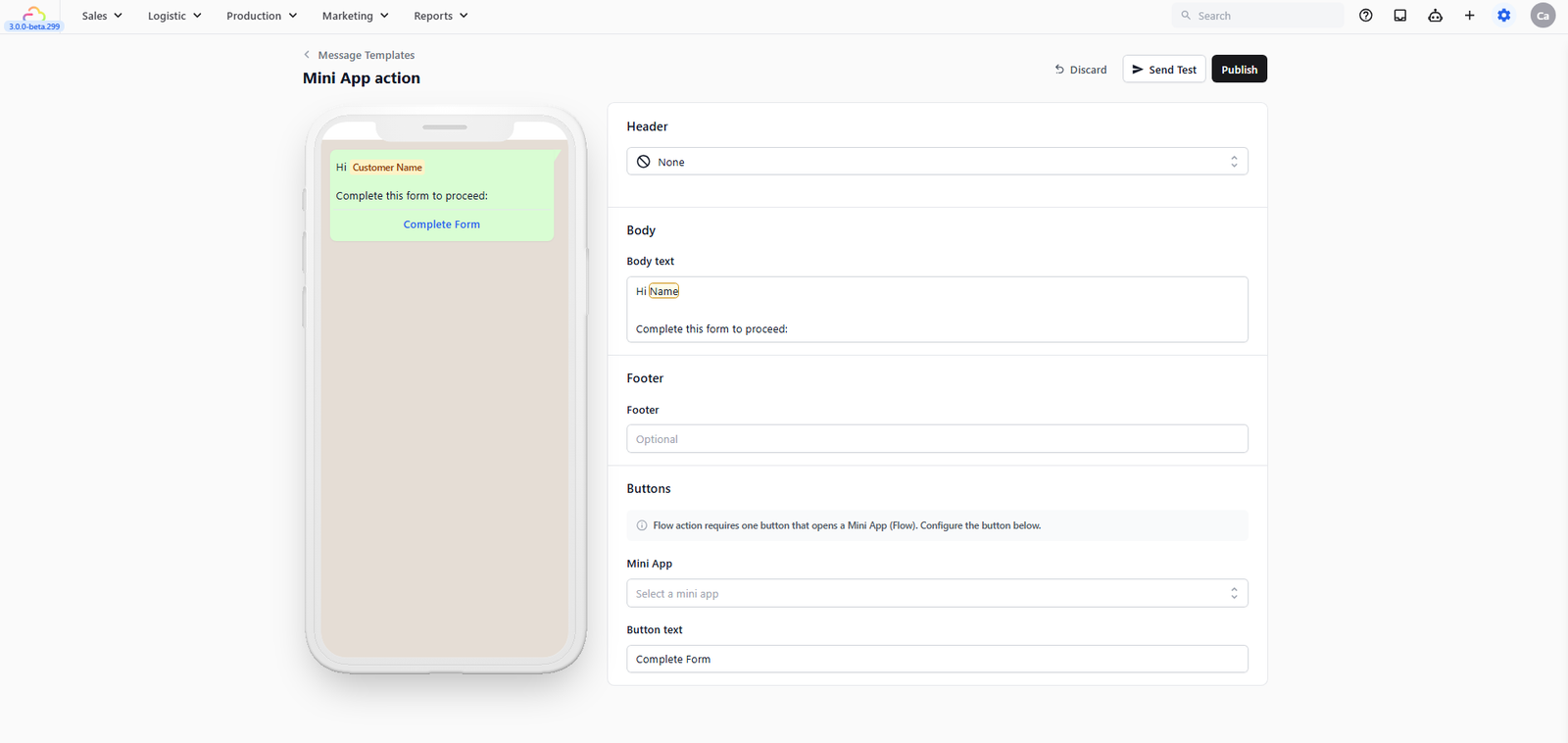
- Mini App action -> A message with an Open Mini App button. The customer taps to open a booking or order form inside WhatsApp. The most powerful Quick Reply type for service businesses. Learn more about Mini Apps
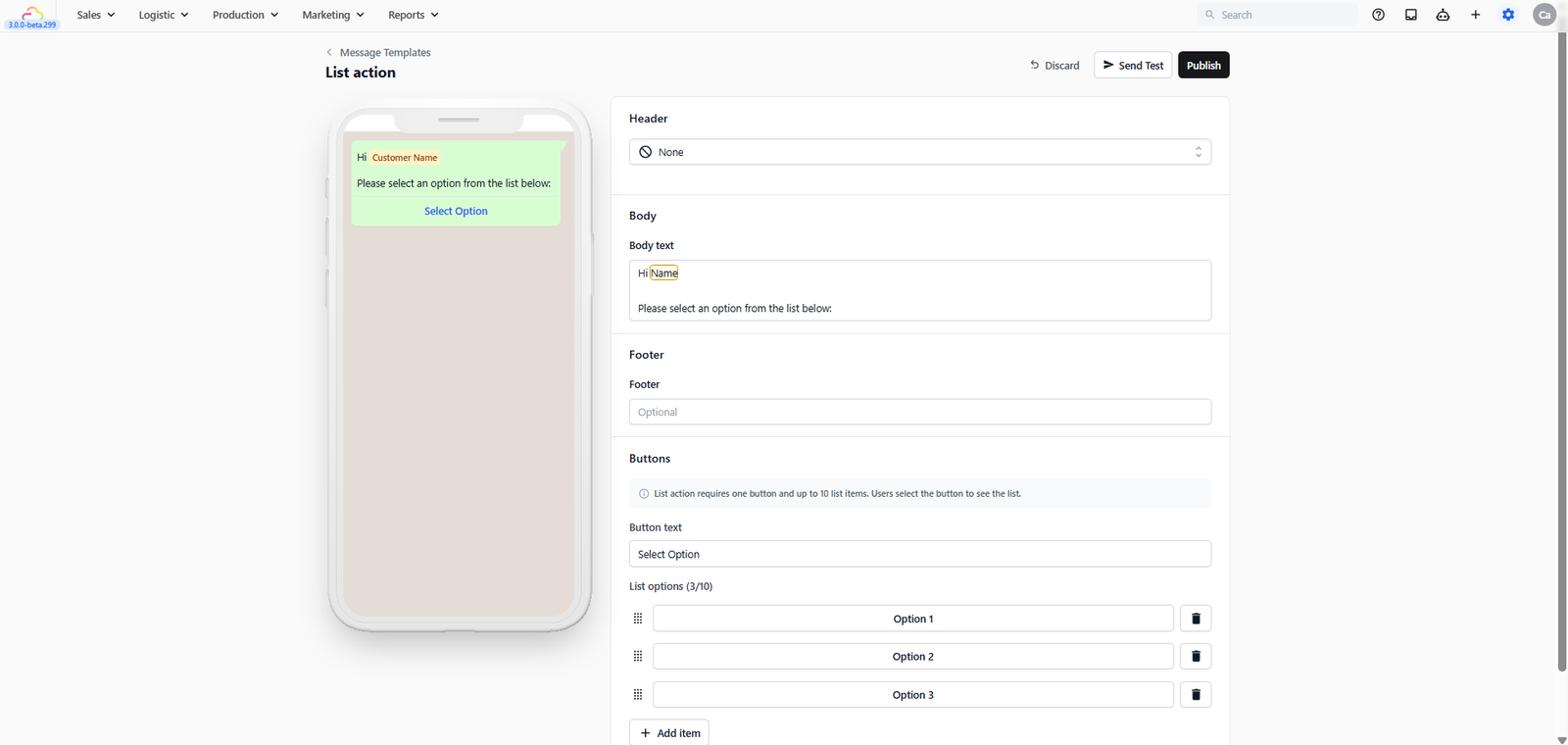
- List action -> A message with a Select Option button that opens a scrollable list of up to 10 choices. Good for service menus or FAQ options.
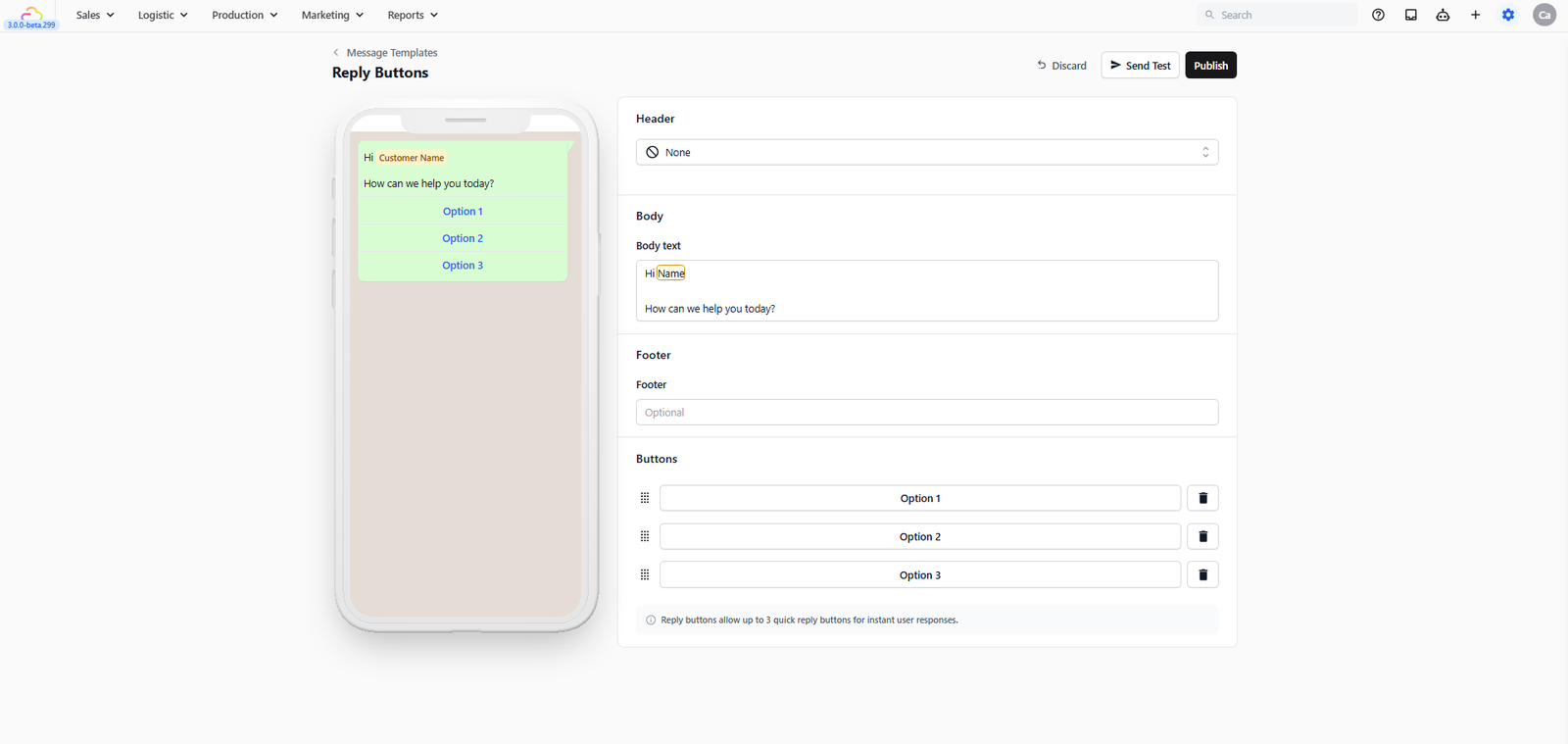
- Reply Buttons -> A message with up to 3 tappable reply buttons. When the customer taps one, that label is sent back to you as their reply.
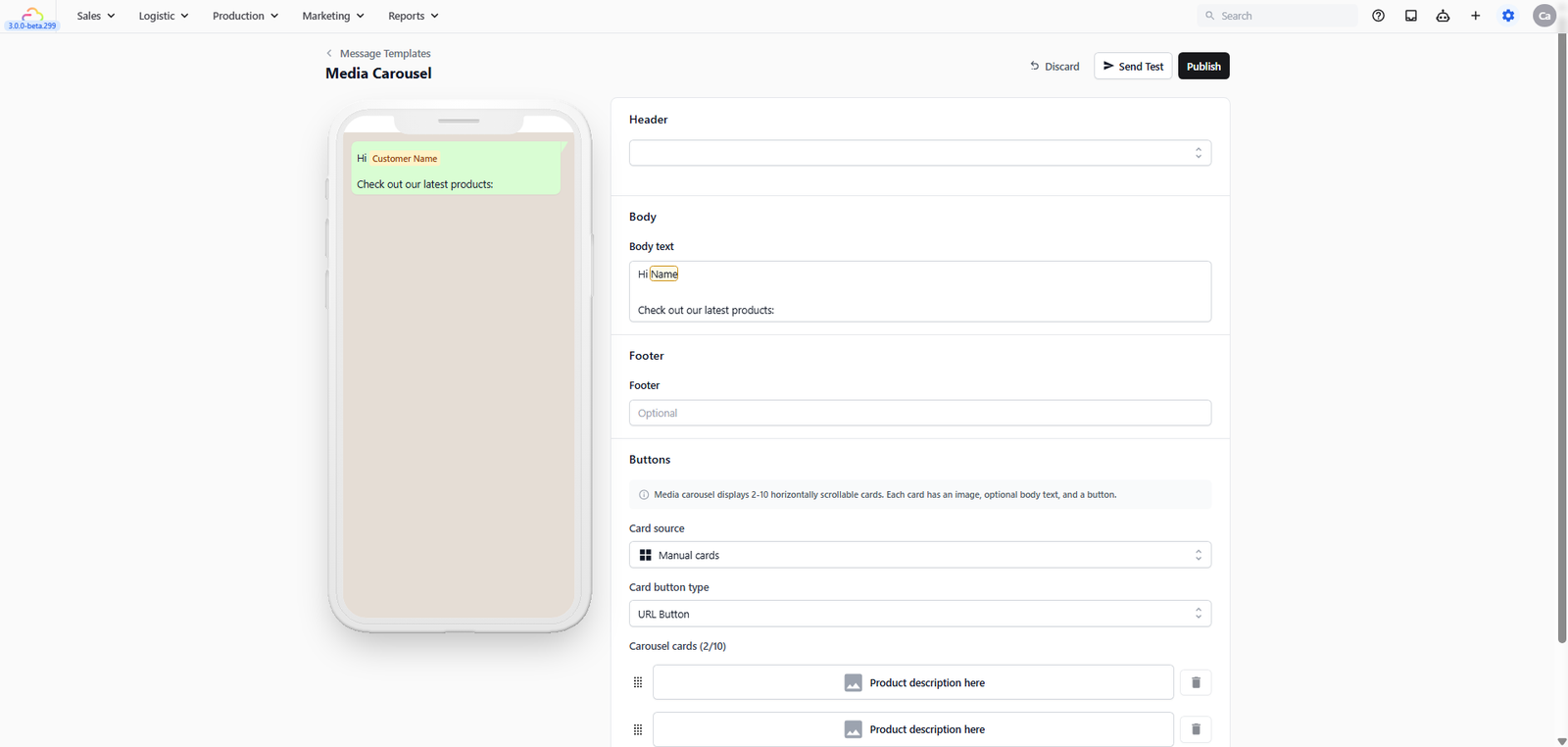
- Media Carousel -> A scrollable set of image cards customers can swipe through. Each card has its own image, body text, and button.
Creating a Quick Reply Template
- Click the Quick Reply tab then click + Add Template
- Fill in the template details:
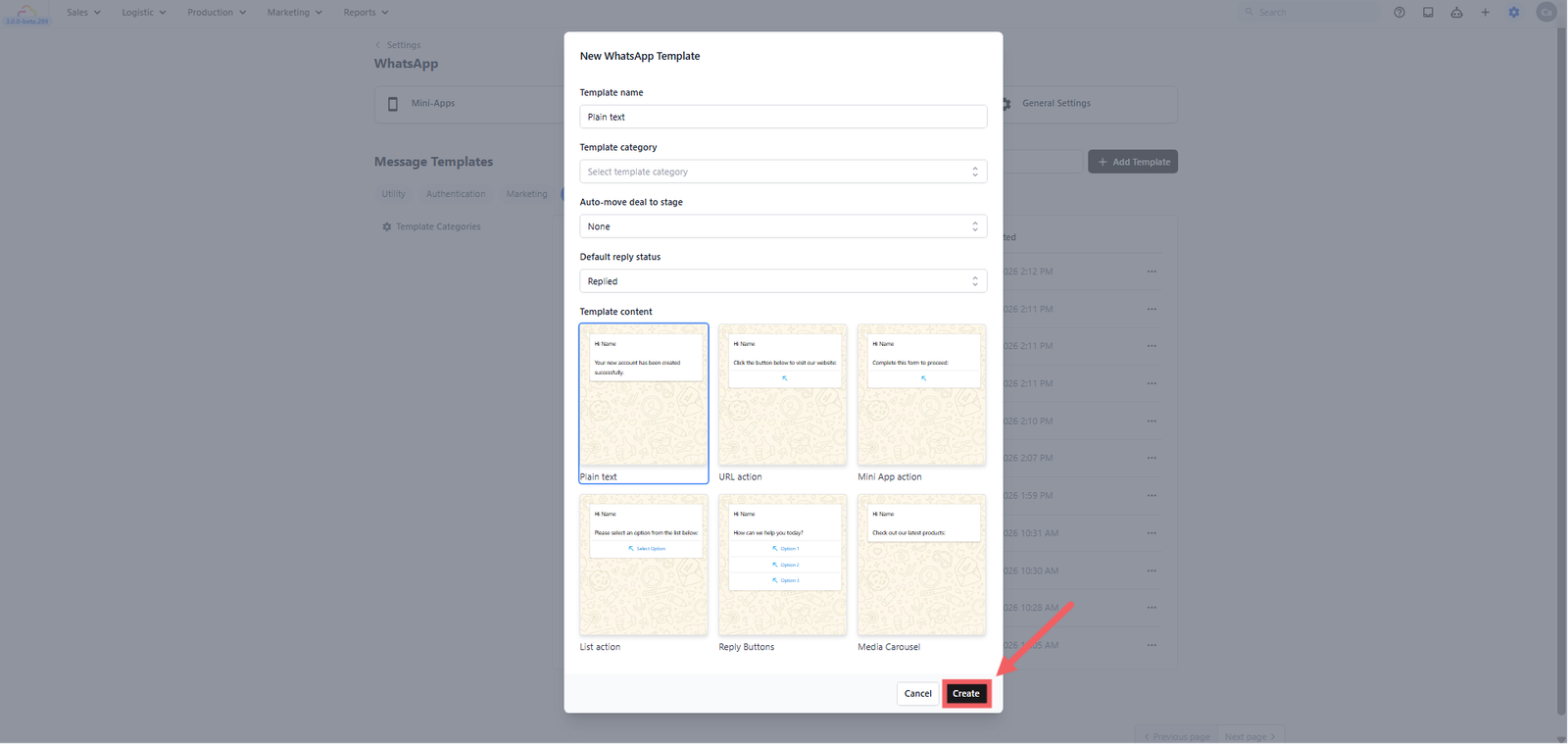
- Template name — An internal label for your team. Not shown to customers.
- Template category — Optional. Assign a category to keep your templates organised. Leave empty if you are not using categories.
- Auto-move deal to stage — Optional. Automatically moves the customer to a stage in your sales pipeline when this template is sent. Leave as None if you are not using Deals. [Learn more about Deals — Coming Soon]
- Default reply status:
- Replied — Marks the conversation as done and removes it from your Pending list.
- Pending — Keeps it in your Pending list so your team remembers to follow up.
- Click Create to open the editor
Configuring the Template in the Editor
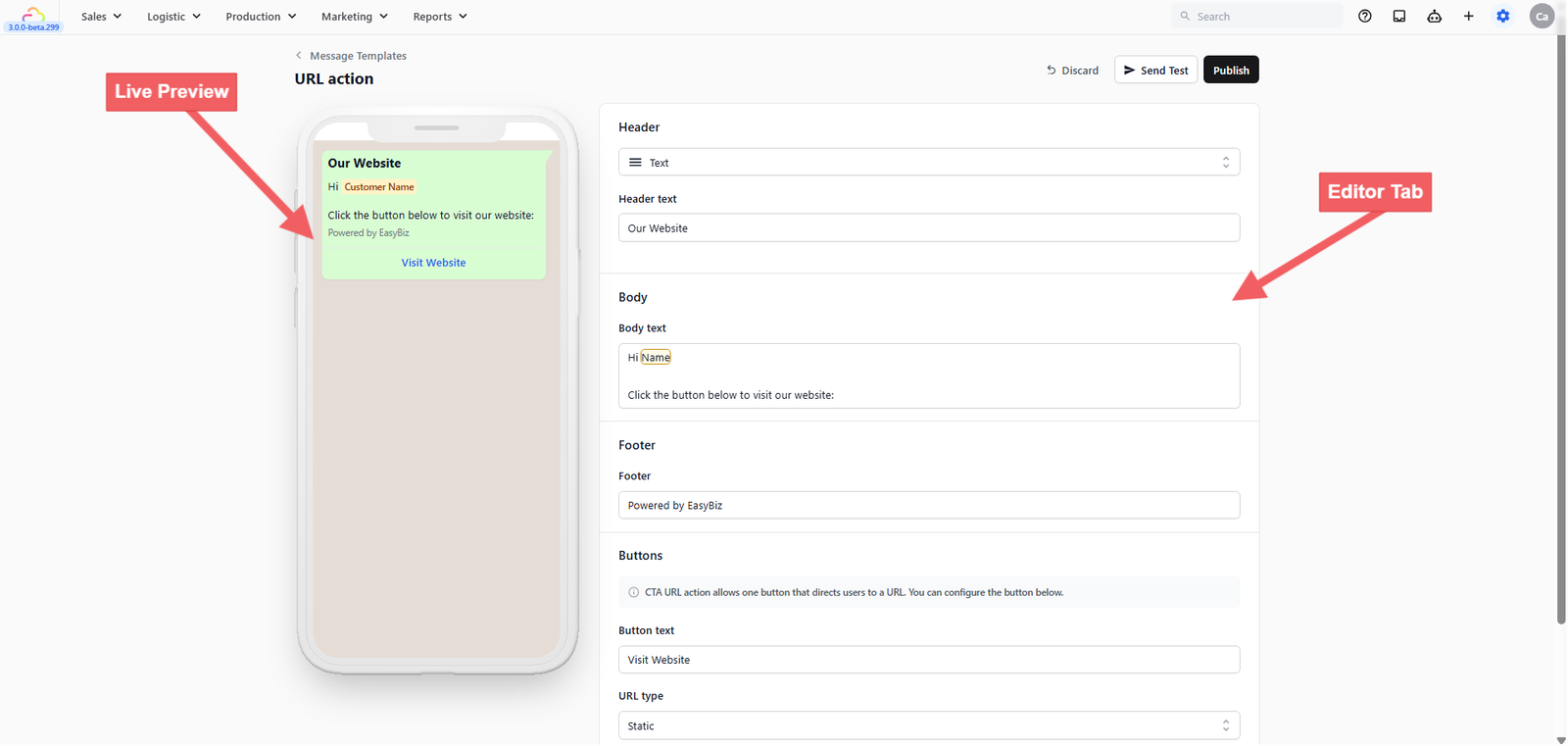
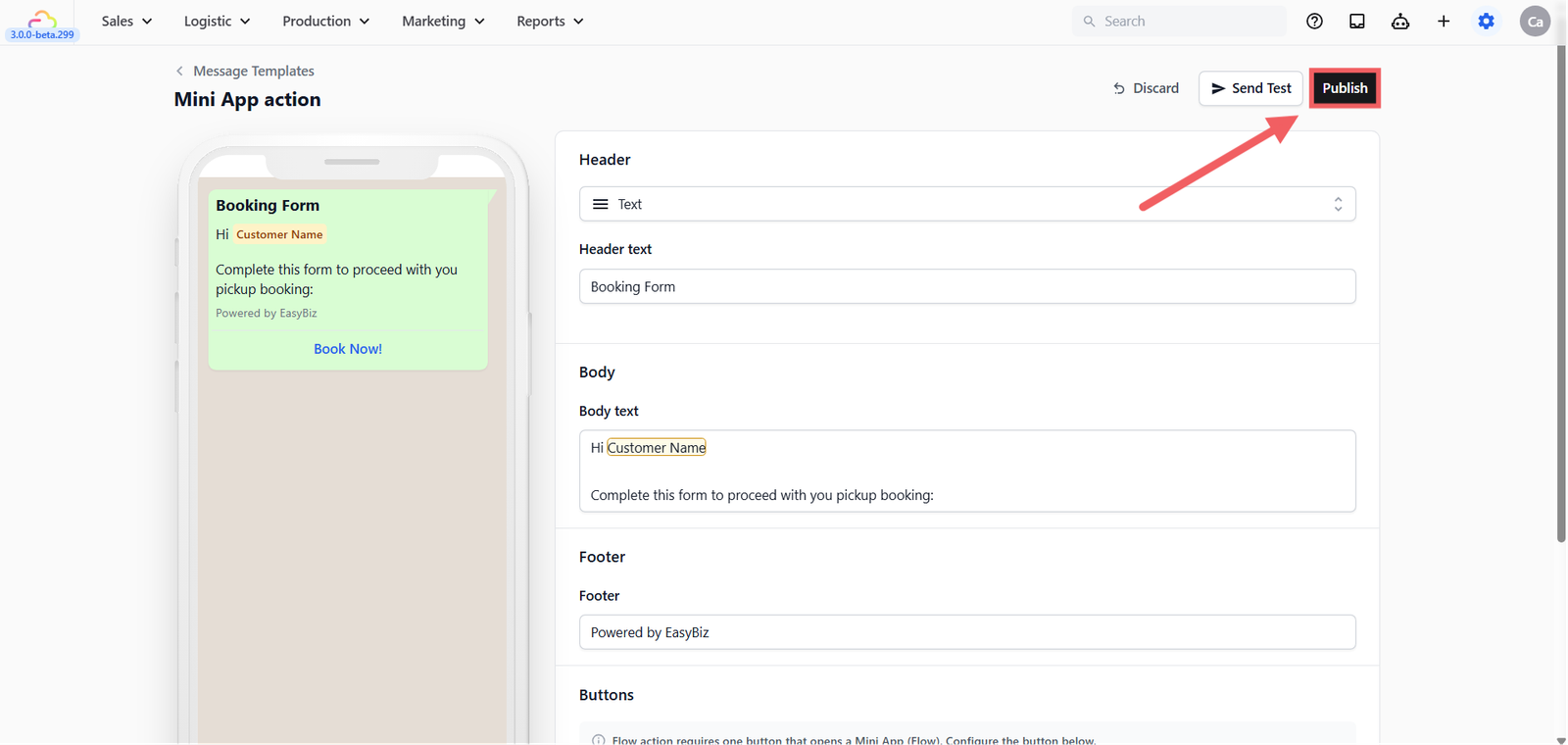
At the top right of the editor you will see three buttons
- Discard -> reverts your draft back to the last published version of this template.
- Send Test -> lets you preview how the message looks on a real device. Since Quick Reply templates do not need Meta approval, you can use Send Test at any time.
- Publish -> publish your template directly without waiting for Meta's Approval
Header
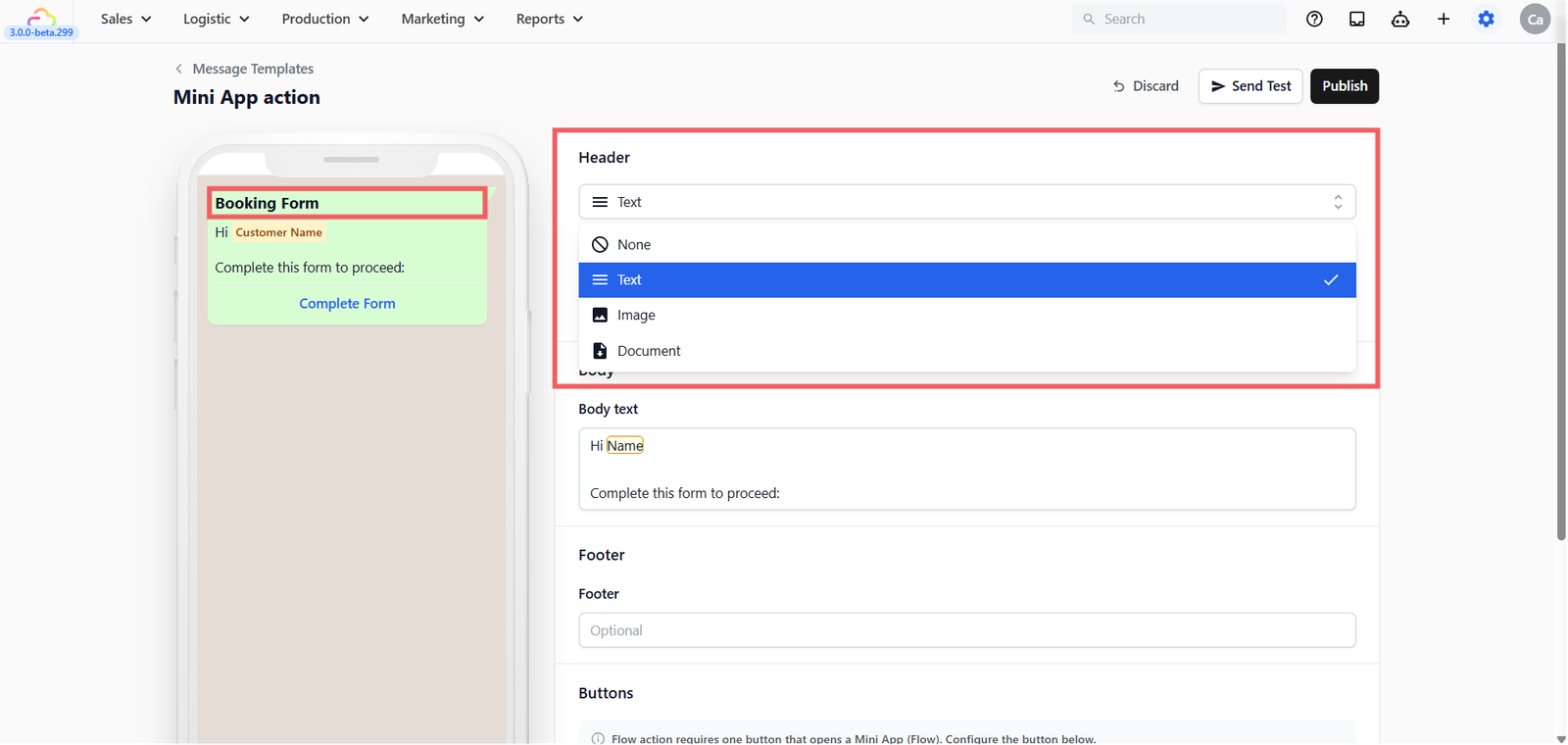
Appears at the very top of the message. Options:
- None — No header
- Text — A short bold title
- Image — A photo or banner
- Document — A PDF attachment
Body
The main message your customer reads. Keep it short and factual.
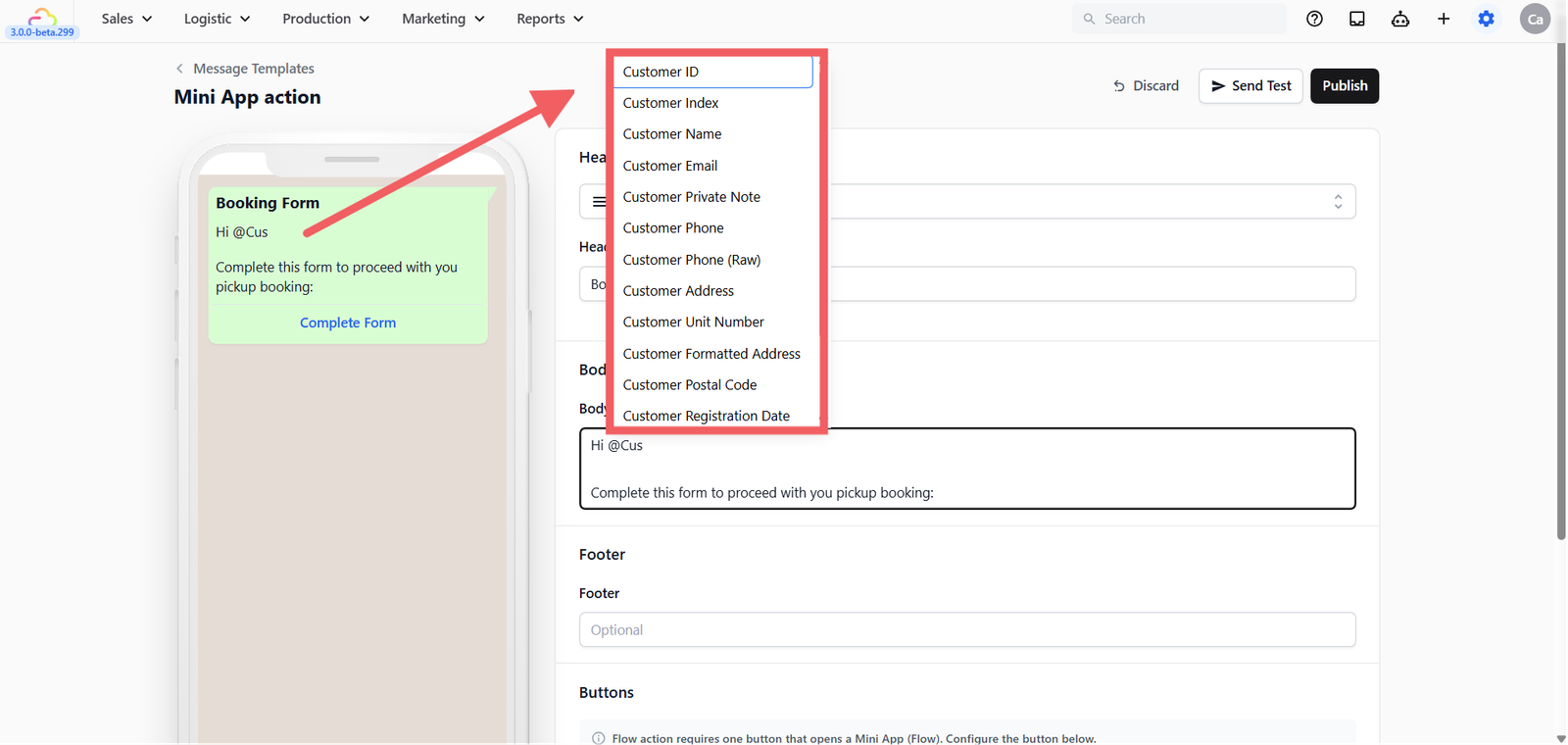
To personalise the message, type @ in the Body field and a dropdown list of available placeholders will appear, Click any one to insert it into your message. EasyBiz fills these in automatically with real information when the message is sent. Some commonly used placeholders:
@Customer Name— e.g. Sarah@Order Number— e.g. #00234@Order Pickup Date— e.g. Wednesday, 9 April@Order Pickup Time— e.g. 10:00 AM – 12:00 PM@Order Delivery Date— e.g. Friday, 11 April@Order Delivery Time— e.g. 2:00 PM – 5:00 PM@Order Amount Due— e.g. SGD 45.00
These are just the most commonly used ones. The system has many more available — customer email, customer phone, store name, order date, order subtotal, and more. Type @ in the Body field to see the full list and pick exactly what you need.
Footer
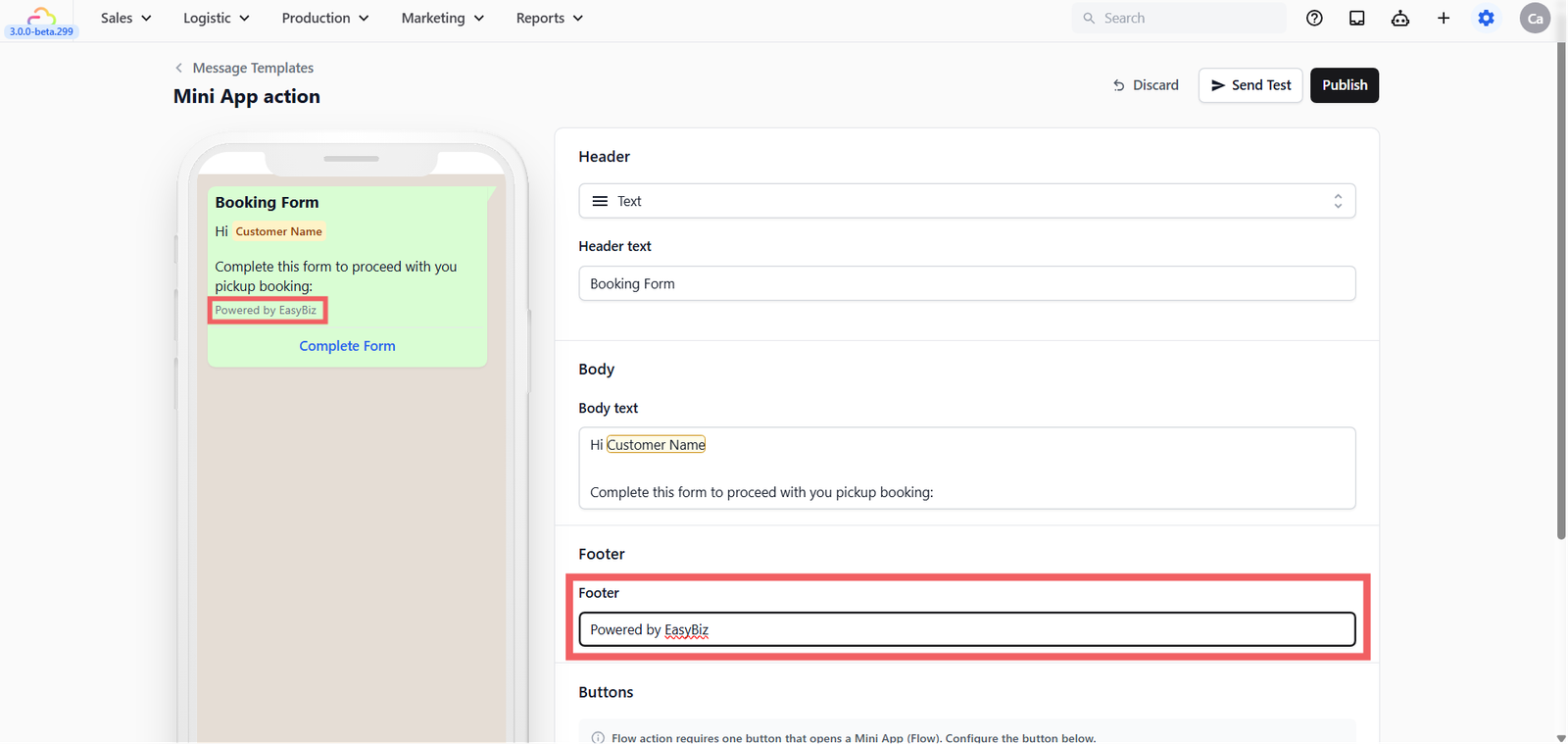
A short closing line below the body. Use it for your business name or a brief disclaimer. Cannot contain placeholders.
Buttons / Action Type
For Quick Reply templates, the Buttons section shows a fixed Action type based on the template content you selected. You cannot change the button type after creation. Here is how to configure each type:
- Plain text
Plain text templates have no buttons at all. The Buttons section does not appear in the editor — this is intentional.
- URL action
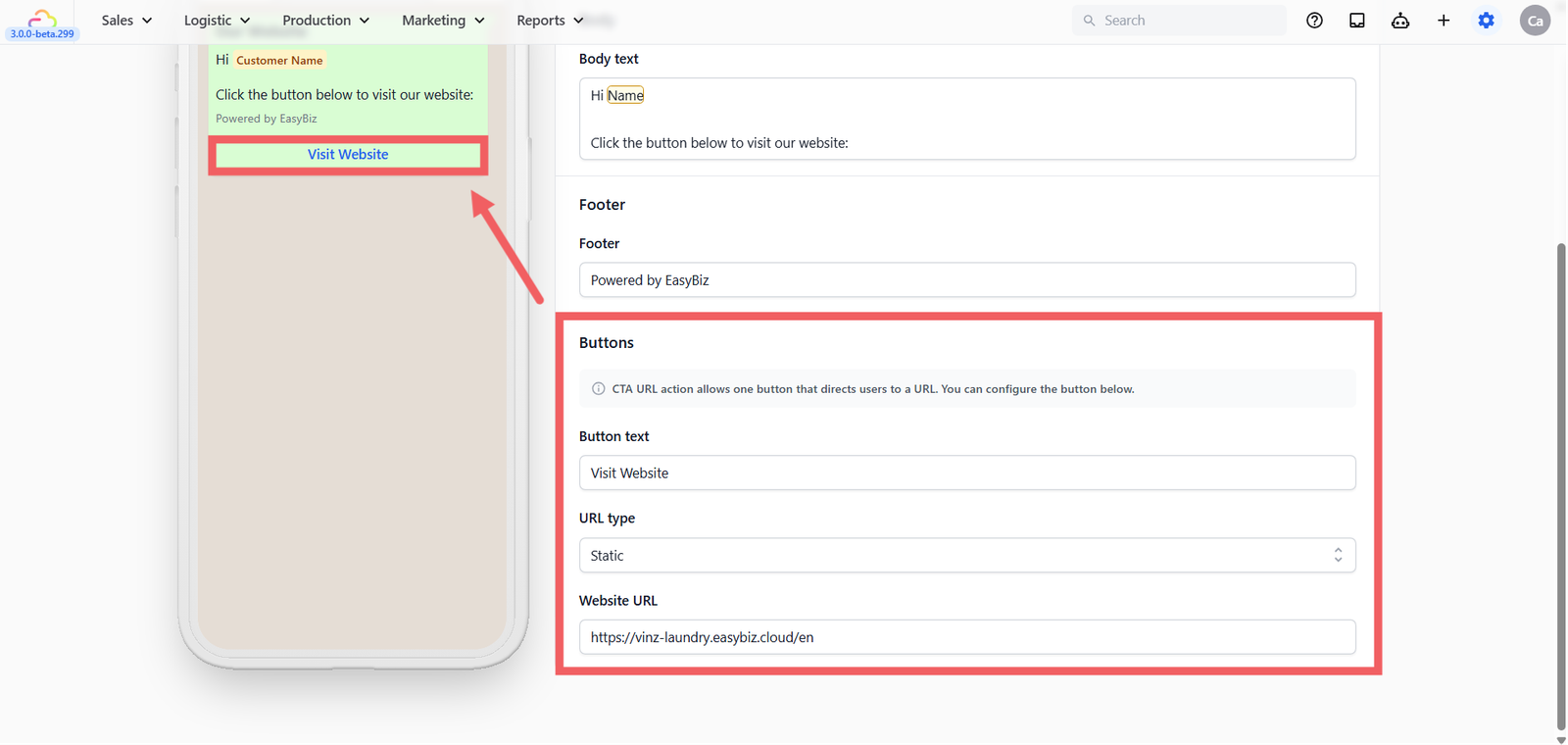
- URL type — Static sends everyone to the same URL (e.g. your pricing page or online store). Dynamic changes the URL per customer or order. For most businesses, Static is the right choice.
- Button text — The label on the button (e.g. "View Pricing", "Book Now", "Visit Our Store").
- URL — The full web address the button opens.
- Mini App action
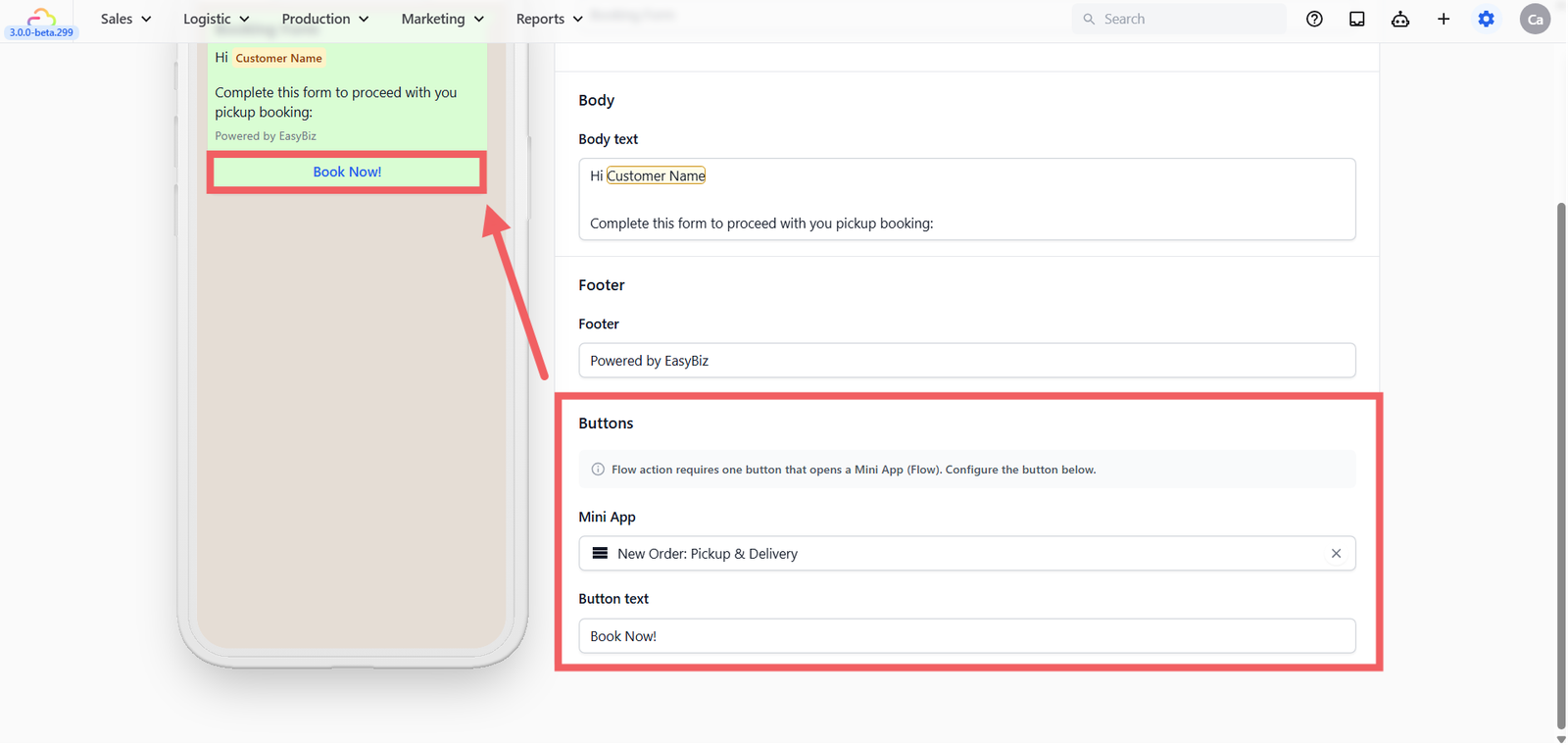
- Mini App — Select which published Mini App to attach. The dropdown shows all your published forms.
- Button text — If left blank, EasyBiz uses the Mini App's default label automatically.
- List action
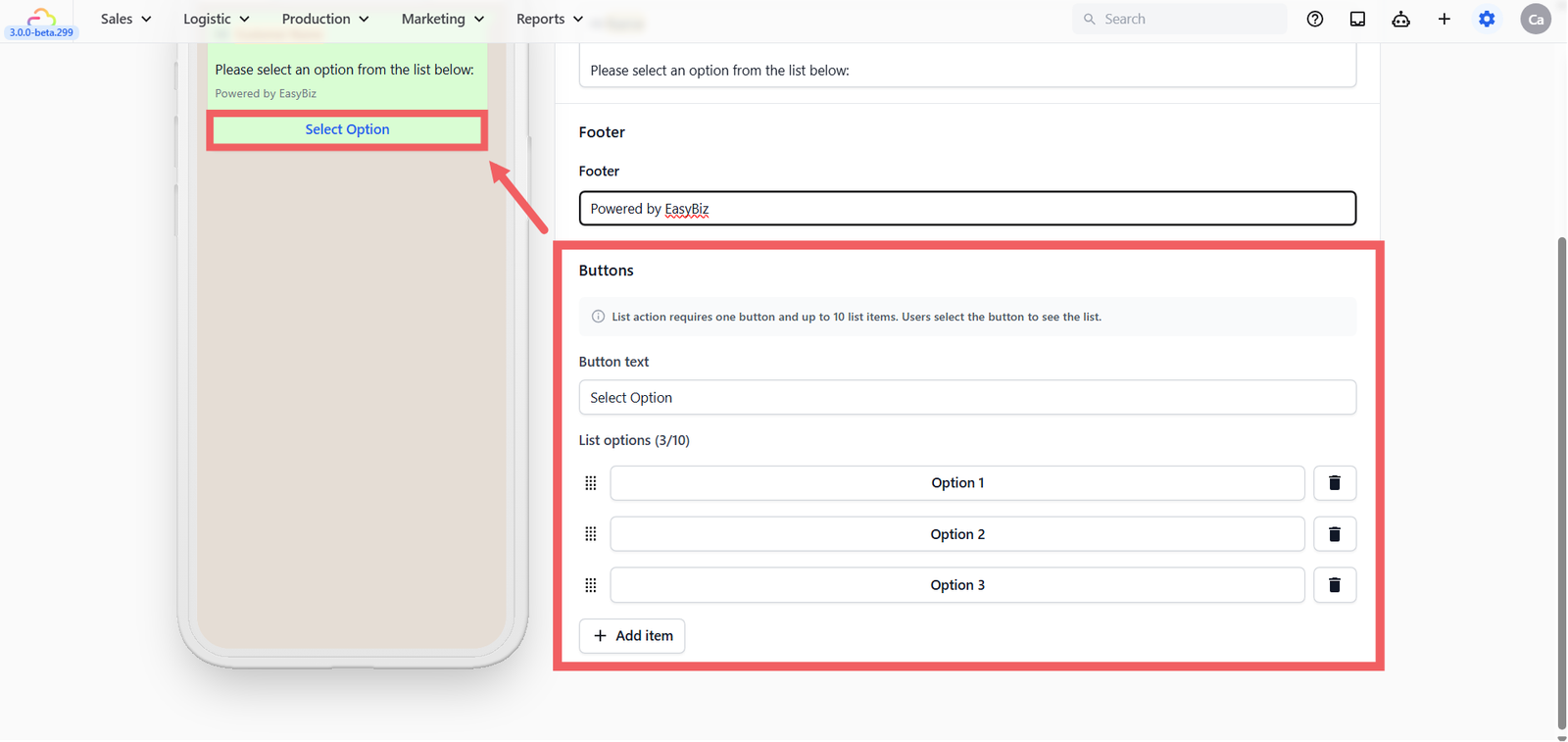
- Button text — The label on the button the customer taps to open the list (e.g. "Select Option", "Choose a Service").
- List options — Add up to 10 items. Each item has a title and an optional description. Drag to reorder.
- Reply Buttons
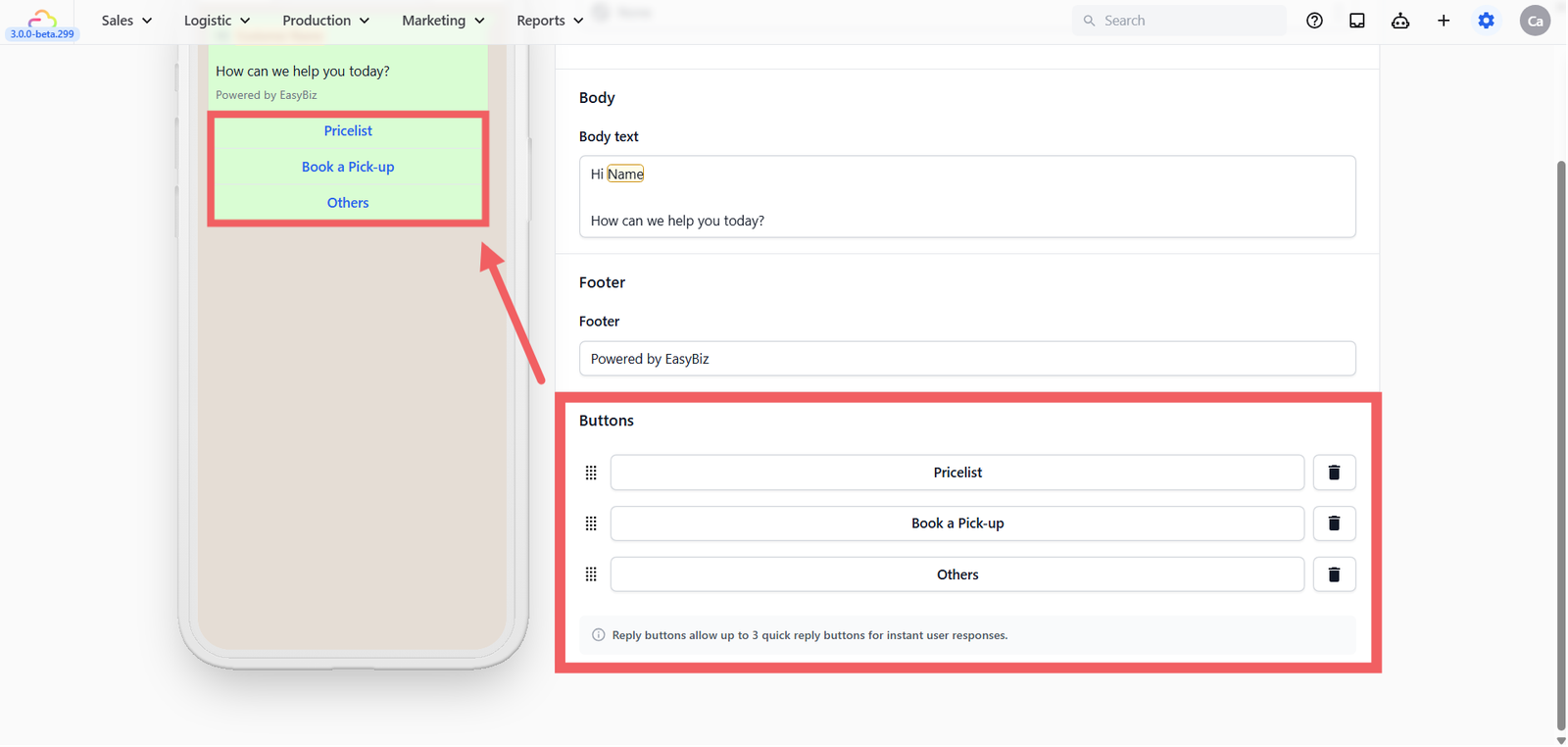
Add up to 3 buttons. Each button has a short label (e.g. "Yes", "No", "Book Now"). When a customer taps one, that label is sent back to you as their reply in the chat.
- Media Carousel
A Media Carousel shows your customer a horizontally scrollable set of image cards — each card has a photo, a short description, and a button. It is ideal for showcasing multiple services, products, or promotions in a single message.
The Buttons section of the Media Carousel editor contains three configuration areas:
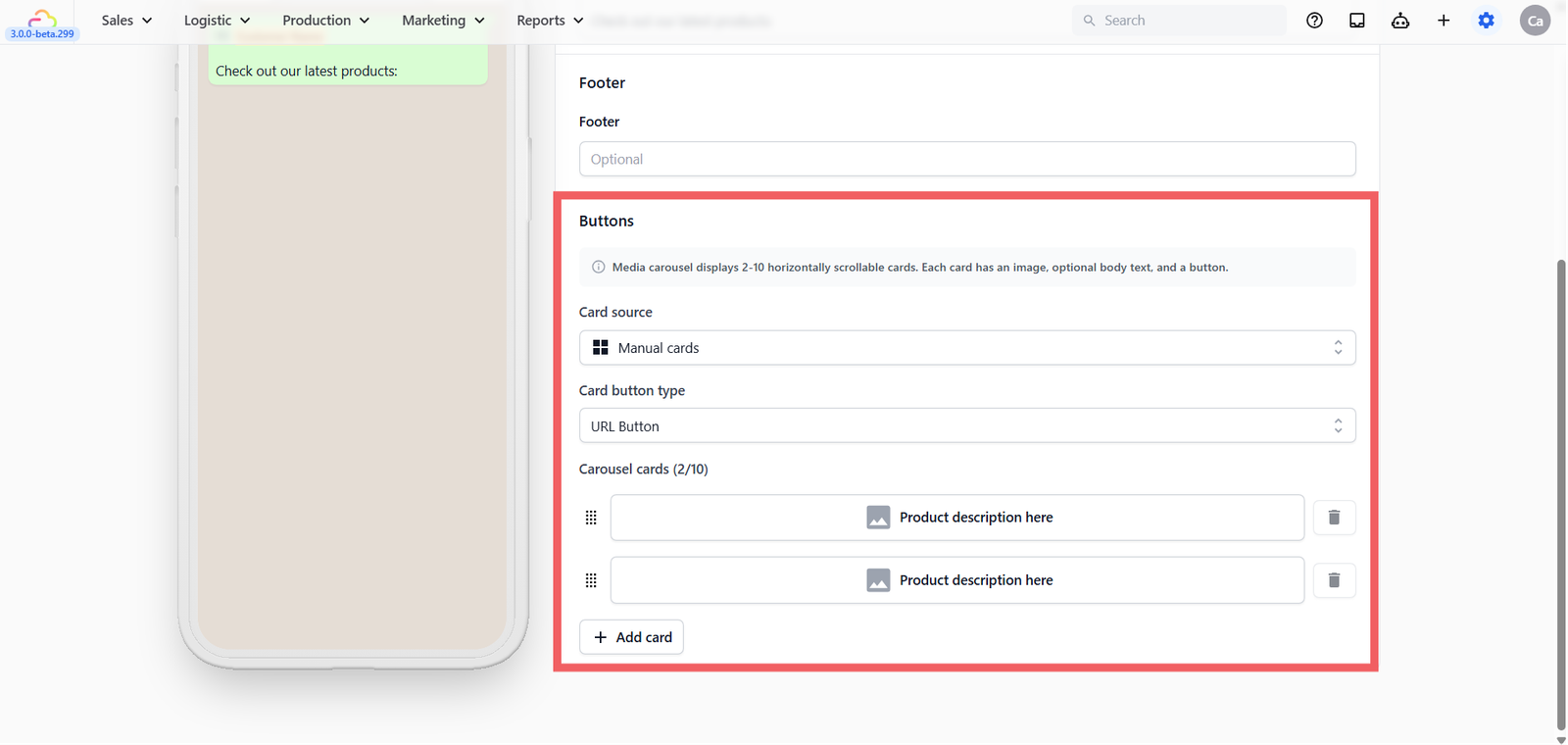
- Card source
Set to Manual cards. This means you build each card yourself inside EasyBiz. - Card button type
Choose the button type that will appear on every card. All cards in one carousel share the same button type. Currently available is the URL Button where each card's button opens a webpage. - Carousel cards
The counter shows how many cards you have set up (e.g. 2/10) — minimum 2 cards, maximum 10 cards.
Each card row in the editor contains:
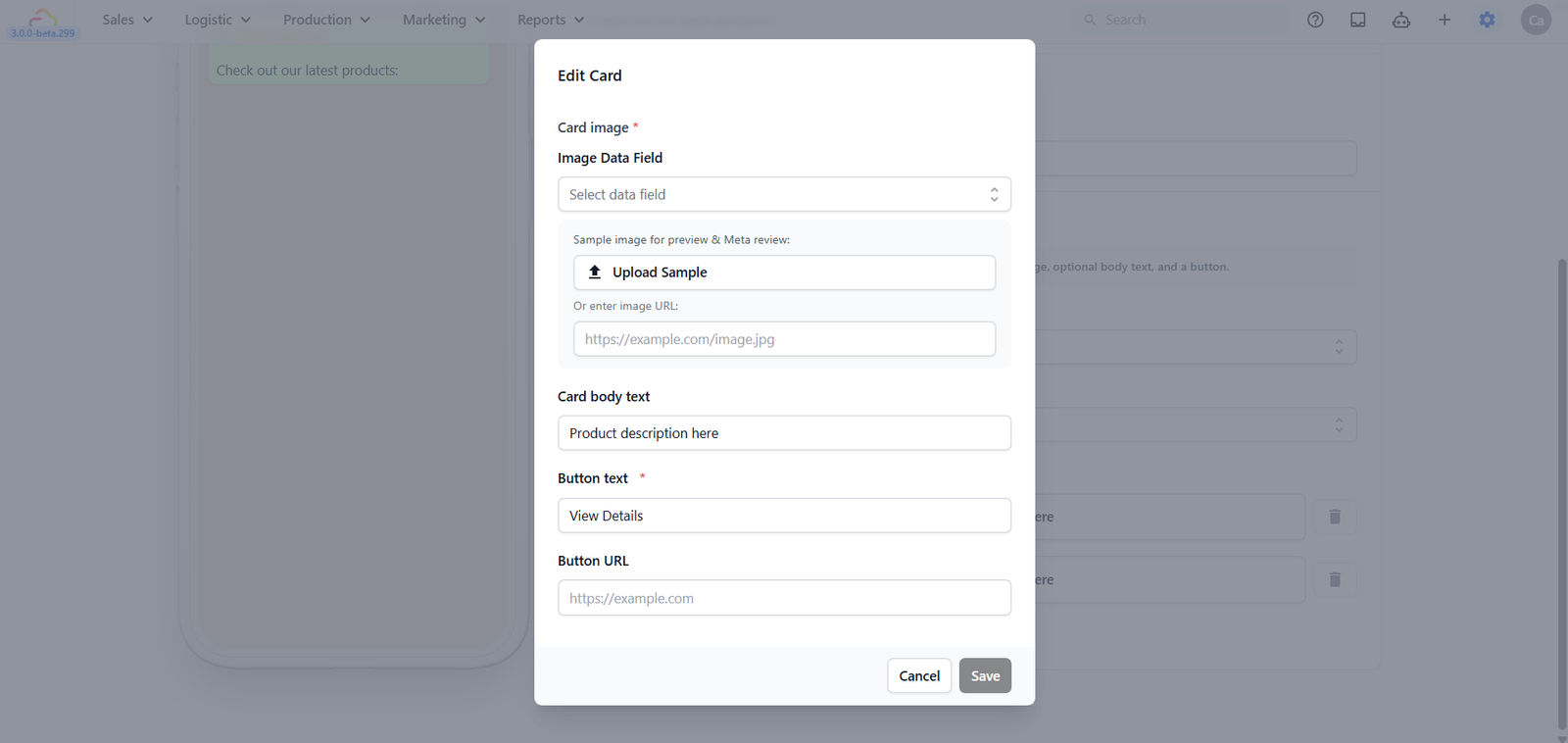
- Drag handle (⠿ grid icon on the left) -> drag to reorder the cards
- Image upload area -> click to upload the image for that card (required — every card must have an image)
- Description field -> enter a short caption for this card (e.g. "Express same-day laundry, ready by 6pm")
- Delete button (🗑️ trash icon on the right) -> removes that card
Click + Add card to add another card to the carousel.
Publishing Your Quick Reply Template
When you are happy with your template, click Publish at the top right. The template is immediately active meaning no WhatsApp review needed. Your staff can start sending it right away by typing / in any active customer chat.
How to Send a Quick Reply Template
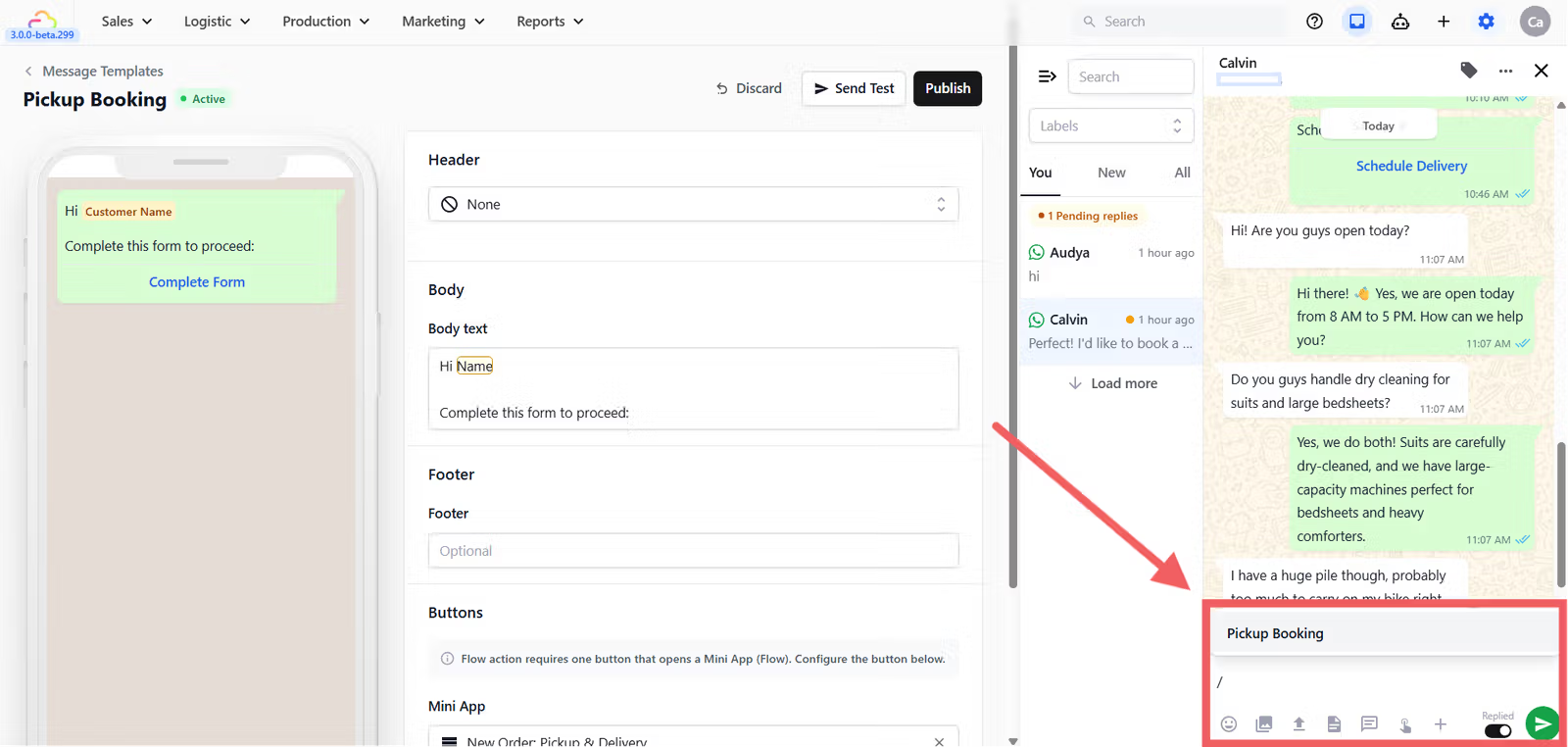
- Open a customer's chat in your WhatsApp Inbox and click in the message text box
- Type
/(forward slash), the text box must be empty for the template list to appear — a list of your Quick Reply templates will pop up - Click the template you want to send
- If your template contains placeholders like
@Customer Nameor@Order Number, EasyBiz will ask you to confirm the details before sending. Templates with no placeholders will send immediately, then click Send
FAQs
Can I send a Quick Reply template to a customer who has not messaged recently?
No. Quick Reply templates only work within the 24-hour window. Use a Utility or Marketing template if the window is closed.
Can I change the button type after creating a Quick Reply template?
No. The button type is fixed at creation. If you need a different button type, create a new template.
Do Quick Reply templates need Meta approval?
No. Click Publish and they are immediately ready to use.
What happens if I leave the button text blank?
EasyBiz uses the default label automatically (e.g. "Book Now", "Complete Form", "Visit Website").
Why did some of my Quick Reply templates disappear from the list?
If you are using Template Categories, every template must have a category assigned. Templates without a category will not show when others have categories. Either assign a category to all templates or remove categories entirely.
What is the difference between Reply Buttons and List action?
Reply Buttons show up to 3 buttons directly below your message — the customer just taps one. List action shows a single button that opens a scrollable list of up to 10 options with descriptions. Use Reply Buttons for simple yes/no choices and List action for longer service menus.
Give feedback