
Manage Price List Versions
In this article
Every price list keeps a record of its past published versions. You always edit a draft, never the live prices directly. When you are ready, you preview the draft, then publish it so customers and staff see the new prices. If something goes wrong, you can republish an older version. This article covers the full version flow.
Contents
Contents
What is a Draft and What is an Active Version
The active version is the price list your shop is using right now. POS, Online Store, and agents all read from this version. A draft version is a working copy you can edit freely without affecting live orders. A price list can have one active version and one draft at the same time.
Open a Draft to Edit
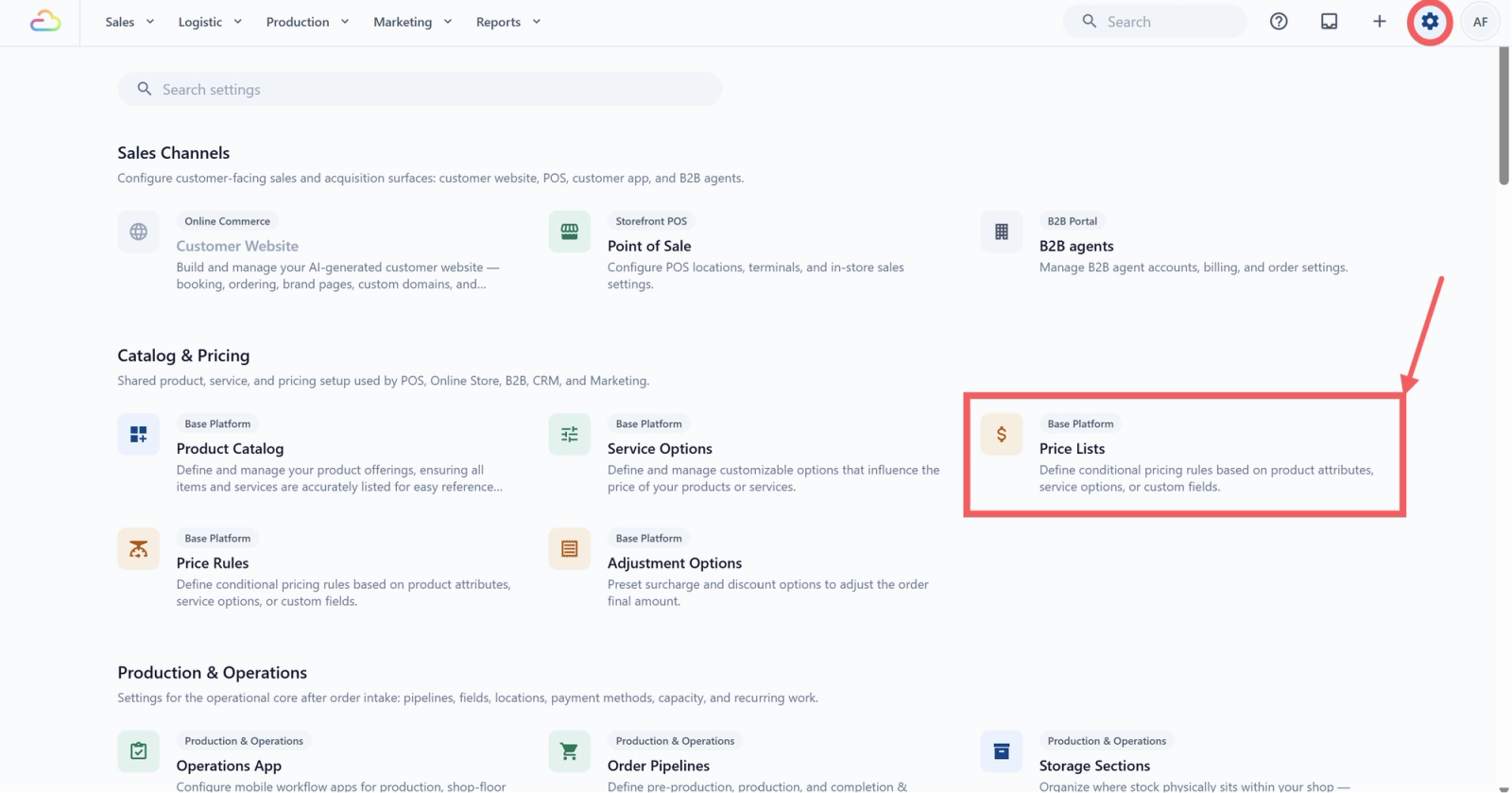
- Click the ⚙️ Settings icon in the top-right corner.
- Under the Catalog & Pricing section, click Price Lists.
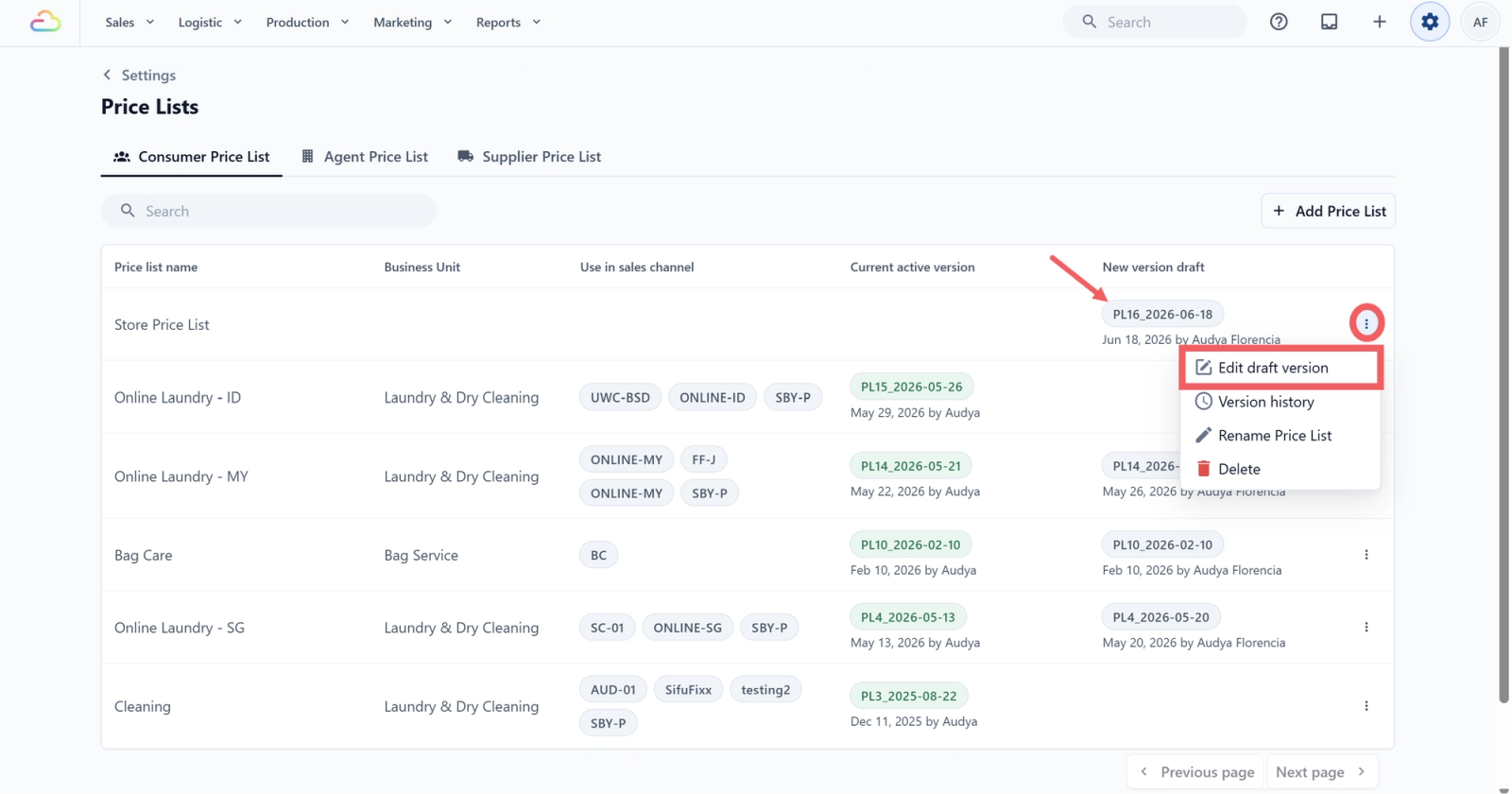
- Find the price list in the table. In the New version draft column, click the draft link, or open the three-dot menu and click Draft new version (or Edit draft version if one already exists).
Preview a Draft Before Publishing
Inside the draft editor, click Preview at the top right.
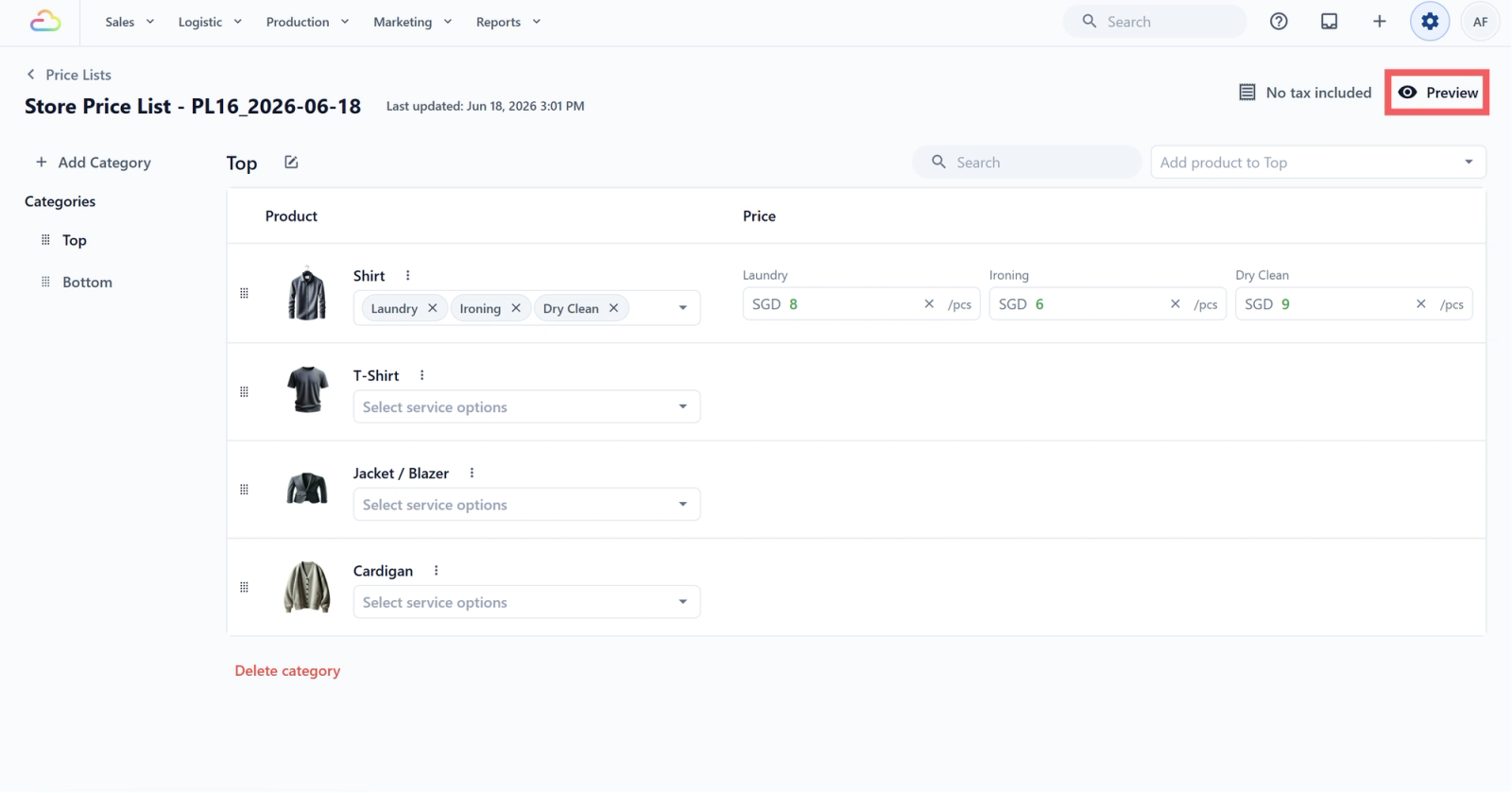
The page switches to a read-only customer-style view, with categories on the left and prices on the right.
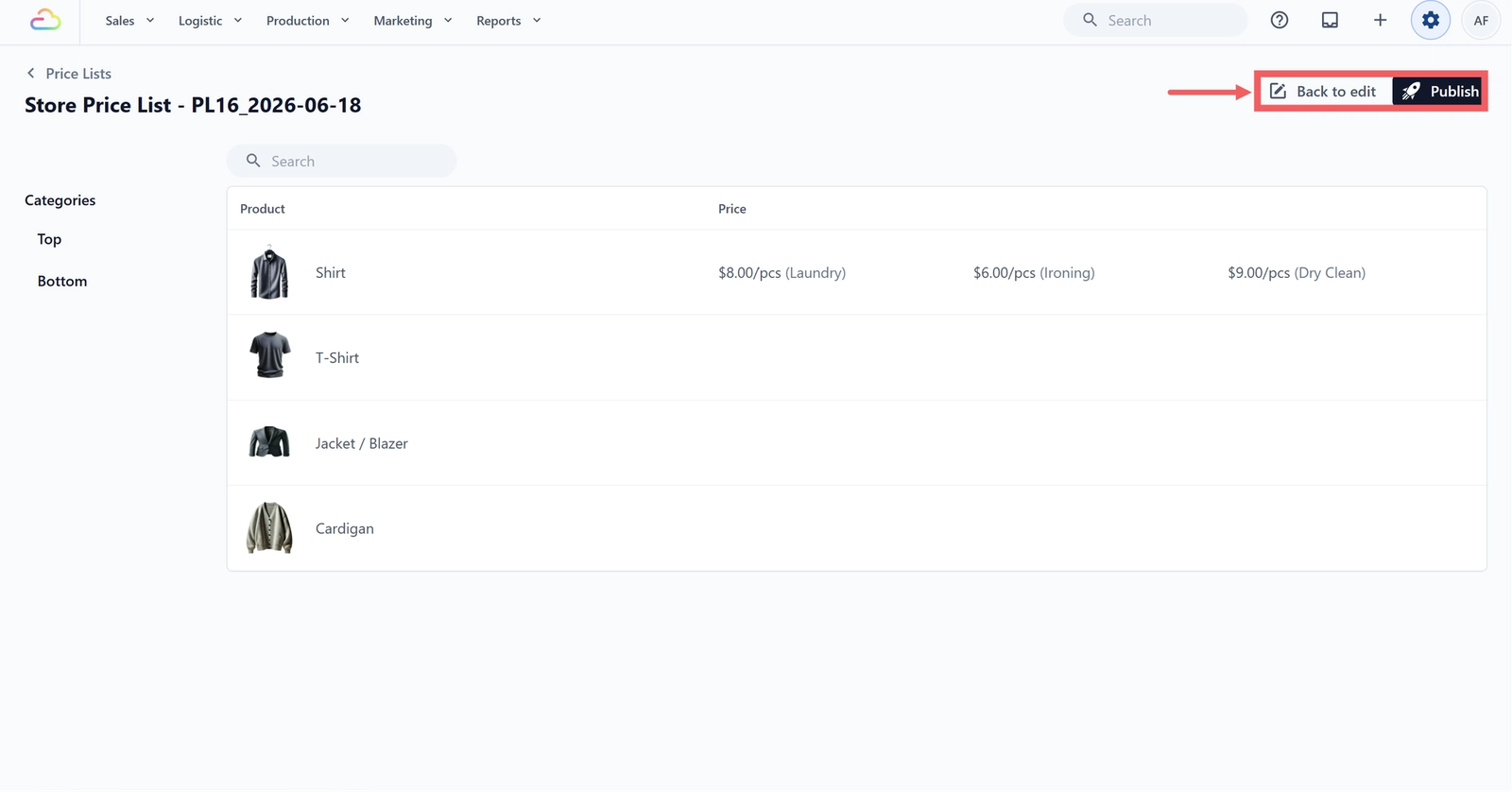
Use the search box to spot-check specific products. When you are done, click Back to edit to keep editing, or Publish to go live.
Publish a Draft and Assign It
Clicking Publish opens the Publish Price List dialog. This is where you decide which part of your business uses this price list.
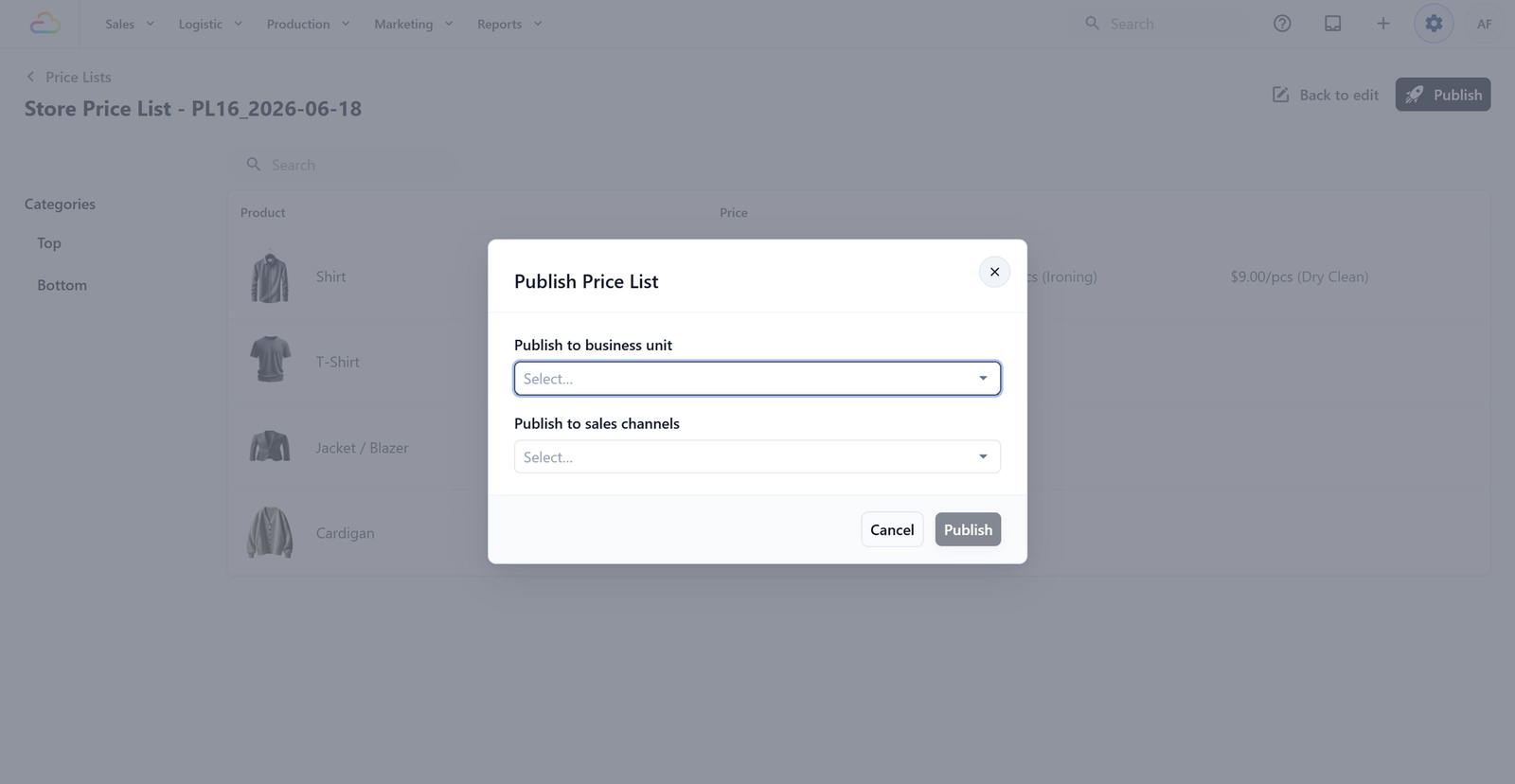
Publish to business unit
Pick the business unit that will use this list, for example Laundry and Dry Cleaning, or Bag Repair. The price list is tied to this business unit going forward.
Publish to sales channels (Consumer Price List only)
Pick which POS counters and Online Stores under that business unit will show these prices. You can pick more than one.
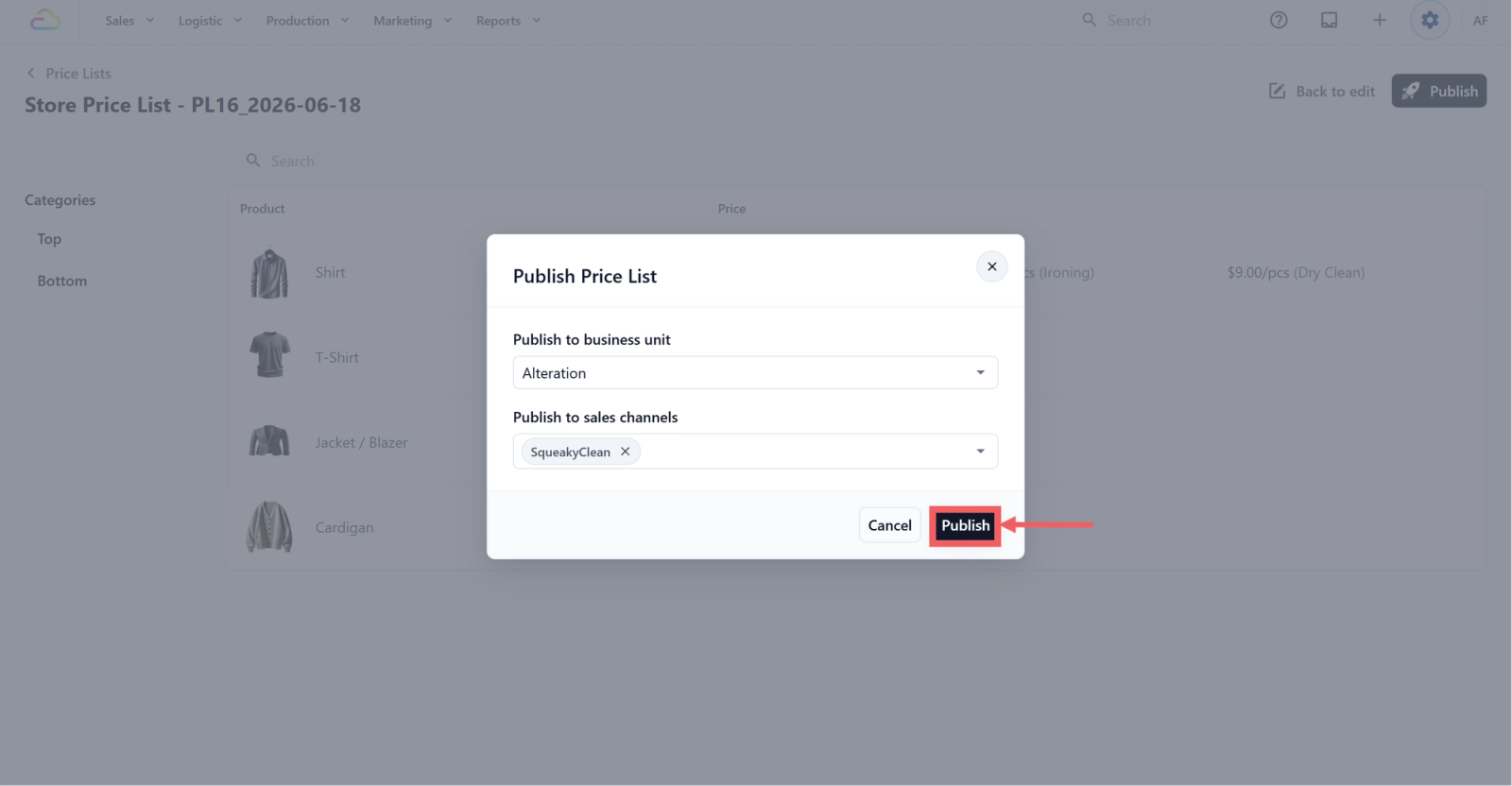
Click Publish. The draft becomes the active version. Anyone using POS, Online Store, or the agent app sees the new prices straight away.
When the New Prices Start Applying
This depends on the version control setting you picked when you created the list.
| Setting at creation | When publishing |
|---|---|
| Yes, updates apply only to new orders | New orders use the new prices. Orders already placed keep the price that was active when they were placed. |
| No, updates apply to all orders | All orders, including ones already placed, use the new prices. |
Open the Version History
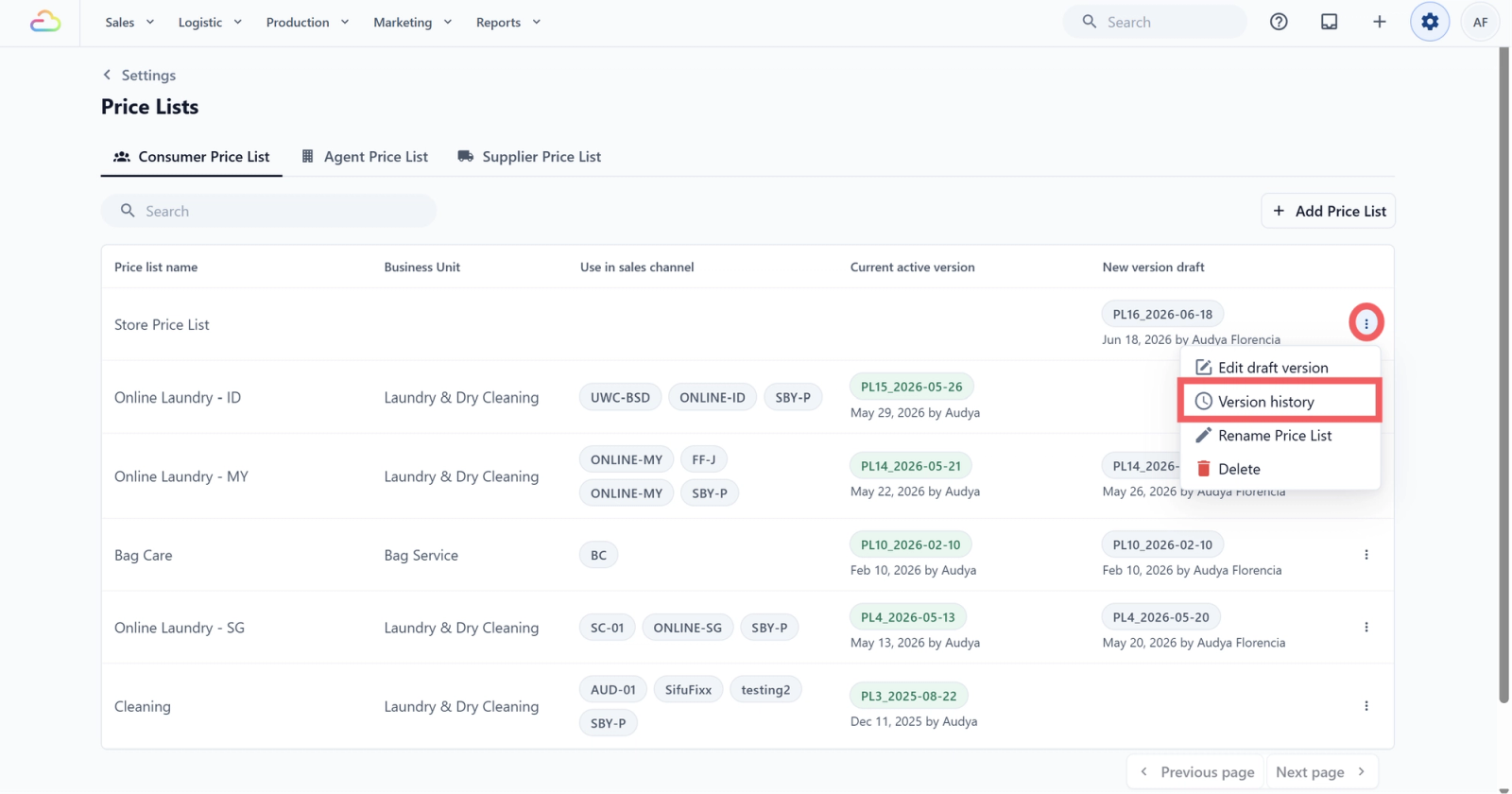
- In the price list row, click the ••• three-dot menu and pick Version history.
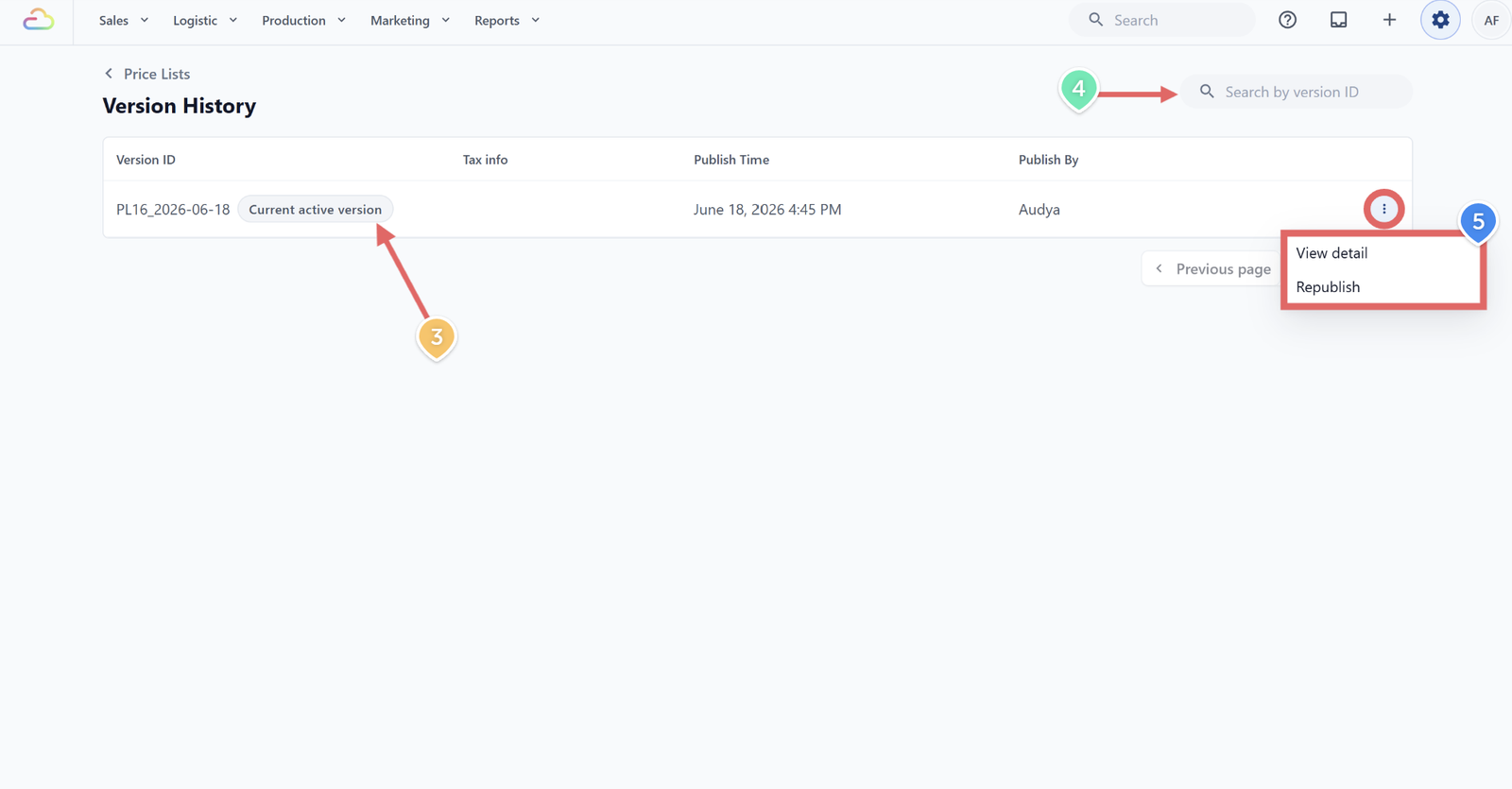
- The history page shows every published version with these columns: Version ID, Tax info, Publish Time, and Publish By.
- The current live version is tagged Current active version.
- Use the search box to find a specific version by its ID.
- Click the ••• three-dot menu to view details / republish the version.
Restore an Older Version (Republish)
- Open the Version History.
- Click the ••• three-dot menu on the version you want to restore.
- Click Republish.
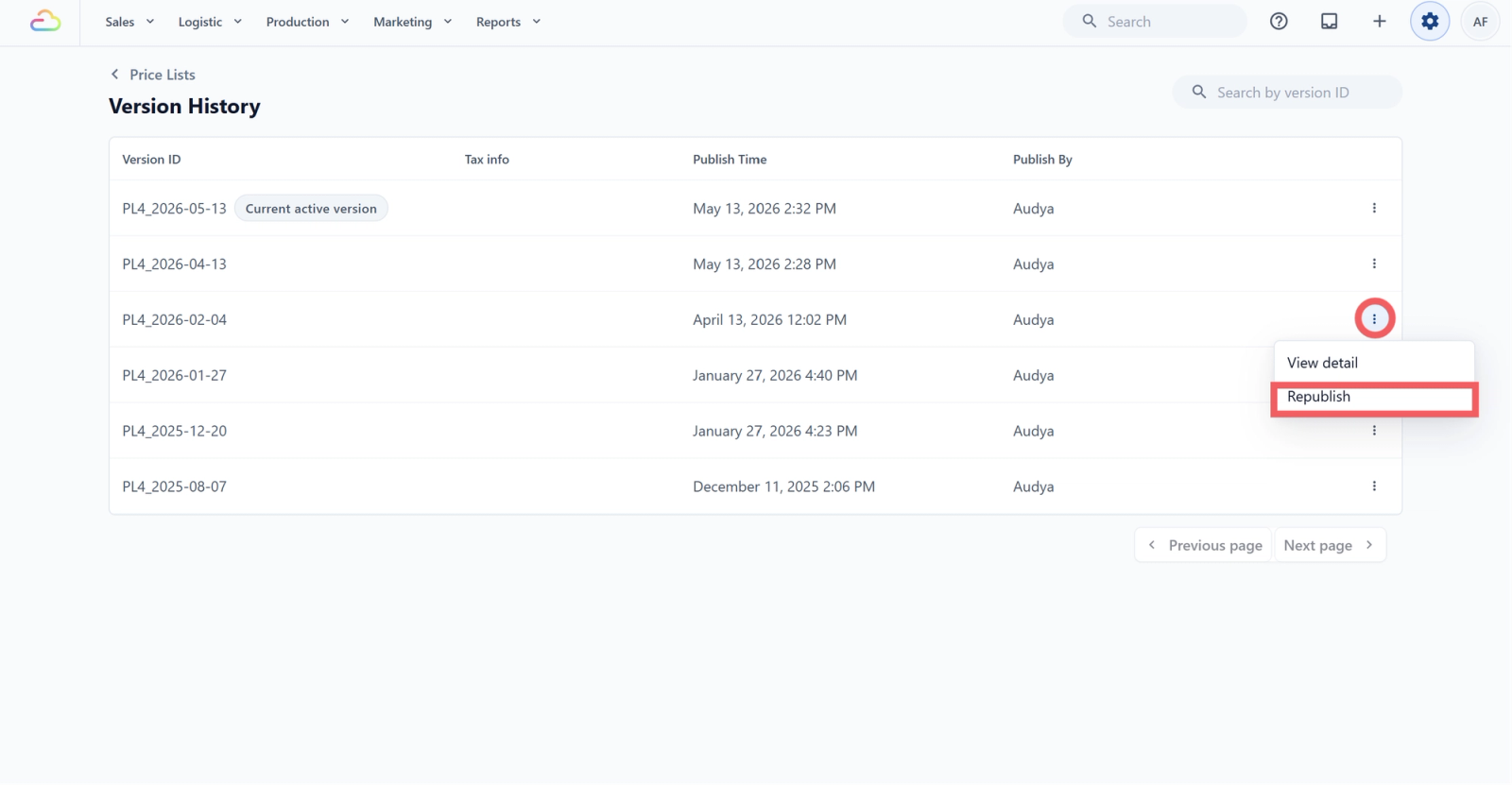
The older version becomes the new active version. The previous live version is kept in history and can be republished again later.
Rename, Export, or Delete a Price List
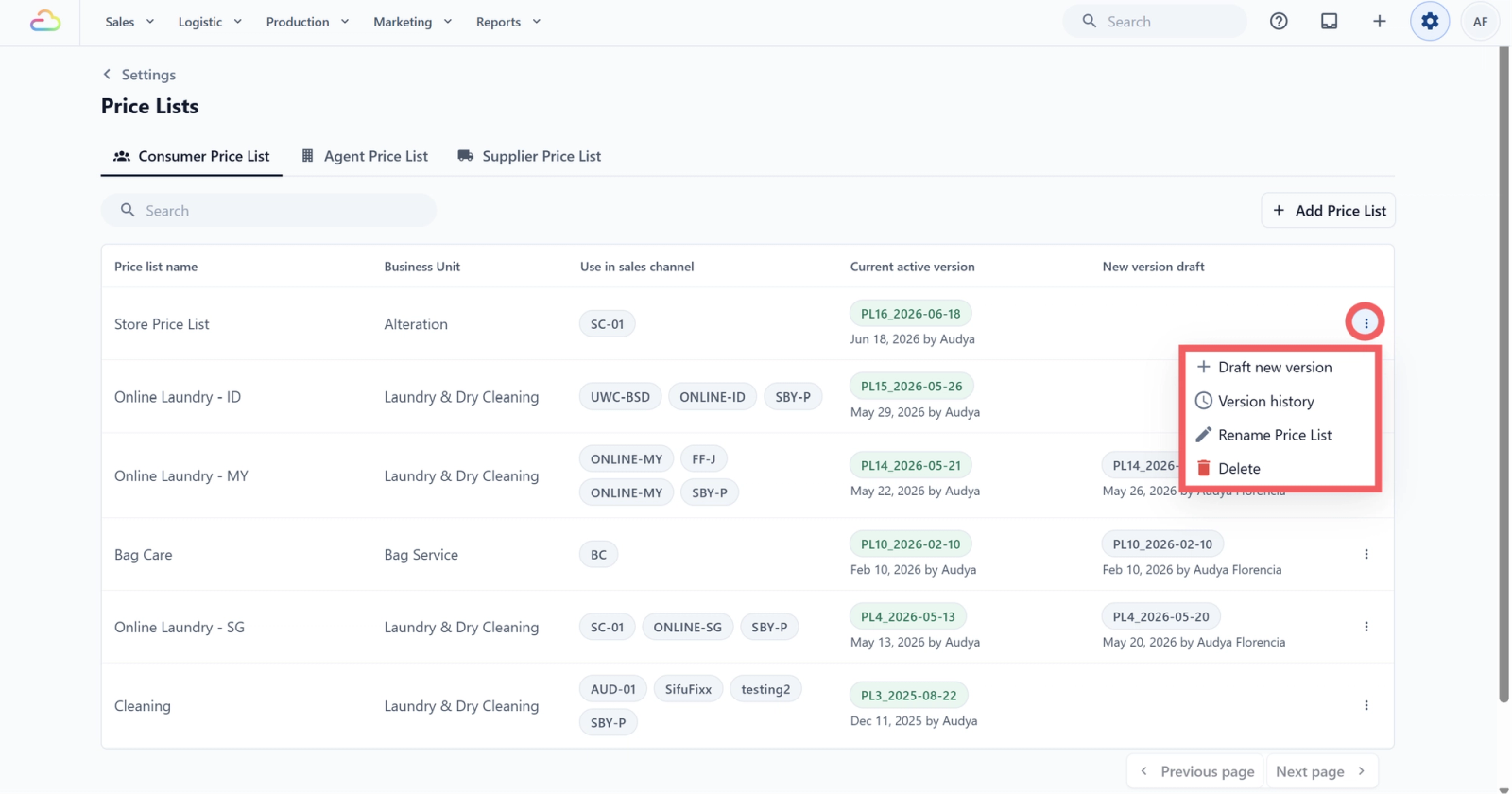
- From the row's ••• three-dot menu on the main Price Lists page, you can also:
- Rename Price List -> change the display name without touching the prices
- Delete -> remove the price list and all its versions
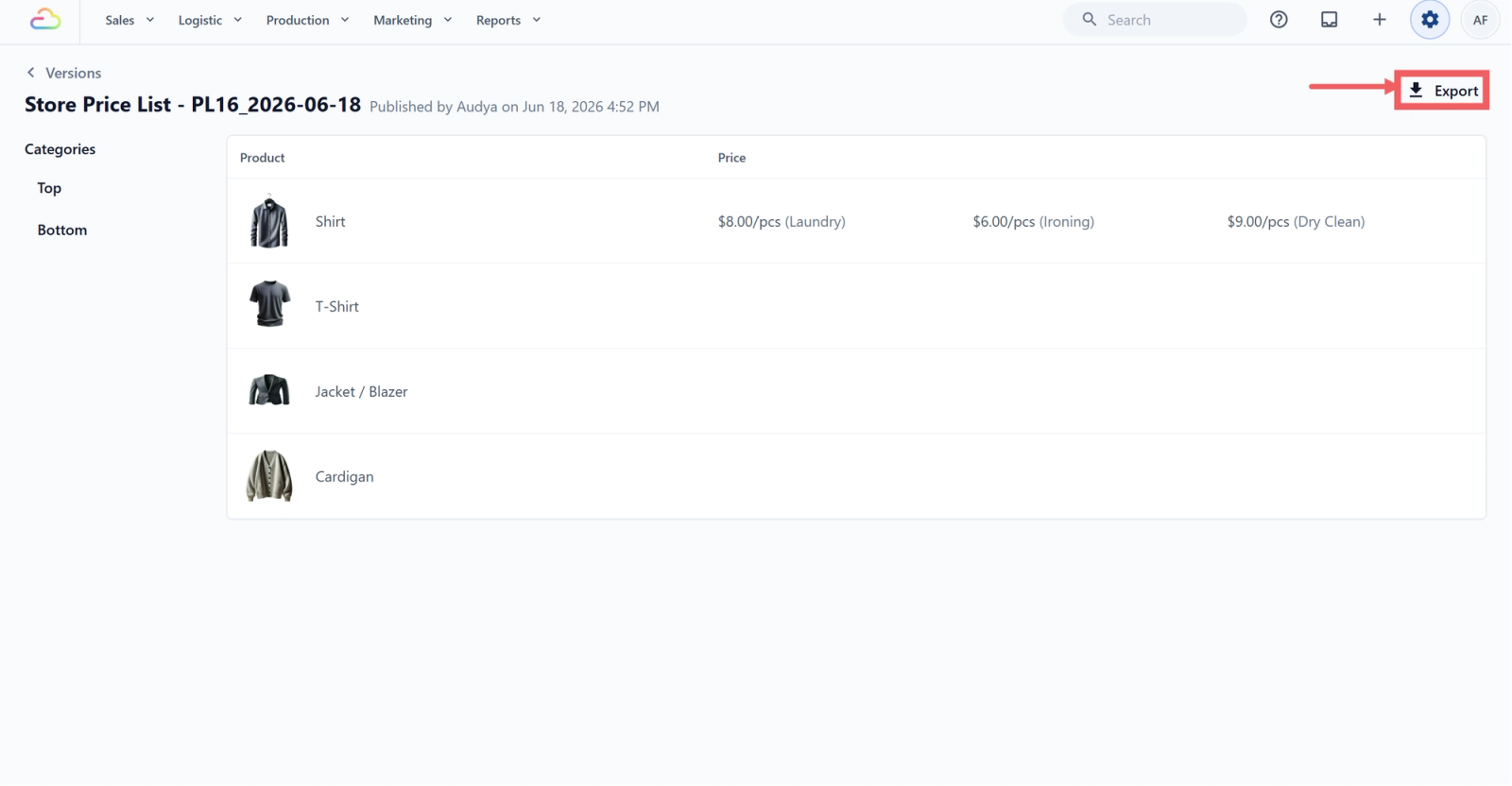
- From inside an active version page, click Export at the top right to download the published prices.
FAQs
Do I have to publish every change immediately?
No. You can leave a draft open for as long as you need. Customers keep seeing the active version until you publish.
What happens to receipts and quotes already sent?
They keep showing the price that was active when they were created. Republishing does not rewrite past documents.
Can I undo a publish?
Yes. Open Version History and republish the previous version. The current live version stays in history.
When I publish a new version, where do the updated prices appear?
POS, Online Store, and B2B orders use the newly published active version right away. Existing completed orders are not changed.
Marketing emails or campaigns that were already sent will not update automatically. Create or update the campaign again if it needs to show the latest prices.
Why is Version History missing from my list?
Version history only shows on lists with version control turned on. Lists set to "updates apply to all orders" do not keep history because every change is immediate.
What's next
Now that you know how to preview, publish, and roll back your price list versions, the next step is setting up special pricing for B2B partners. See Set Up Agent Pricing for B2B Orders.
Give feedback
Up next
Set Up Agent Pricing for B2B OrdersCreate a special price list for an agent, publish it under your B2B business unit, and link it to the agent so their orders use the right rates.
Read more