
Set Up Agent Pricing for B2B Orders
In this article
B2B agents and wholesale partners usually pay different rates from your walk-in customers. EasyBiz handles this with the Agent Price List type. You create one list per agreed pricing scheme, publish it, then attach it to the agent's profile. Once attached, every order that agent places picks up the right prices automatically.
Contents
Contents
Before You Start
- Your Product Catalog already has the products and services the agent will order
- The agent record already exists in your CRM see [Setting Up Agents] (Coming Soon)
- You know the agreed prices for that agent
- The business unit you will publish the Agent list under already exists.
What is an Agent Price List
An Agent Price List is a separate price list used only for B2B orders. It does not affect retail prices on POS or your Online Store. Each agent can be assigned one Agent Price List. When the agent places an order through the B2B portal, or you place one on their behalf, the system pulls prices from their assigned list.
Create the Agent Price List
The setup steps for an Agent list are the same as a Consumer list, with one difference: you start under the Agent tab.
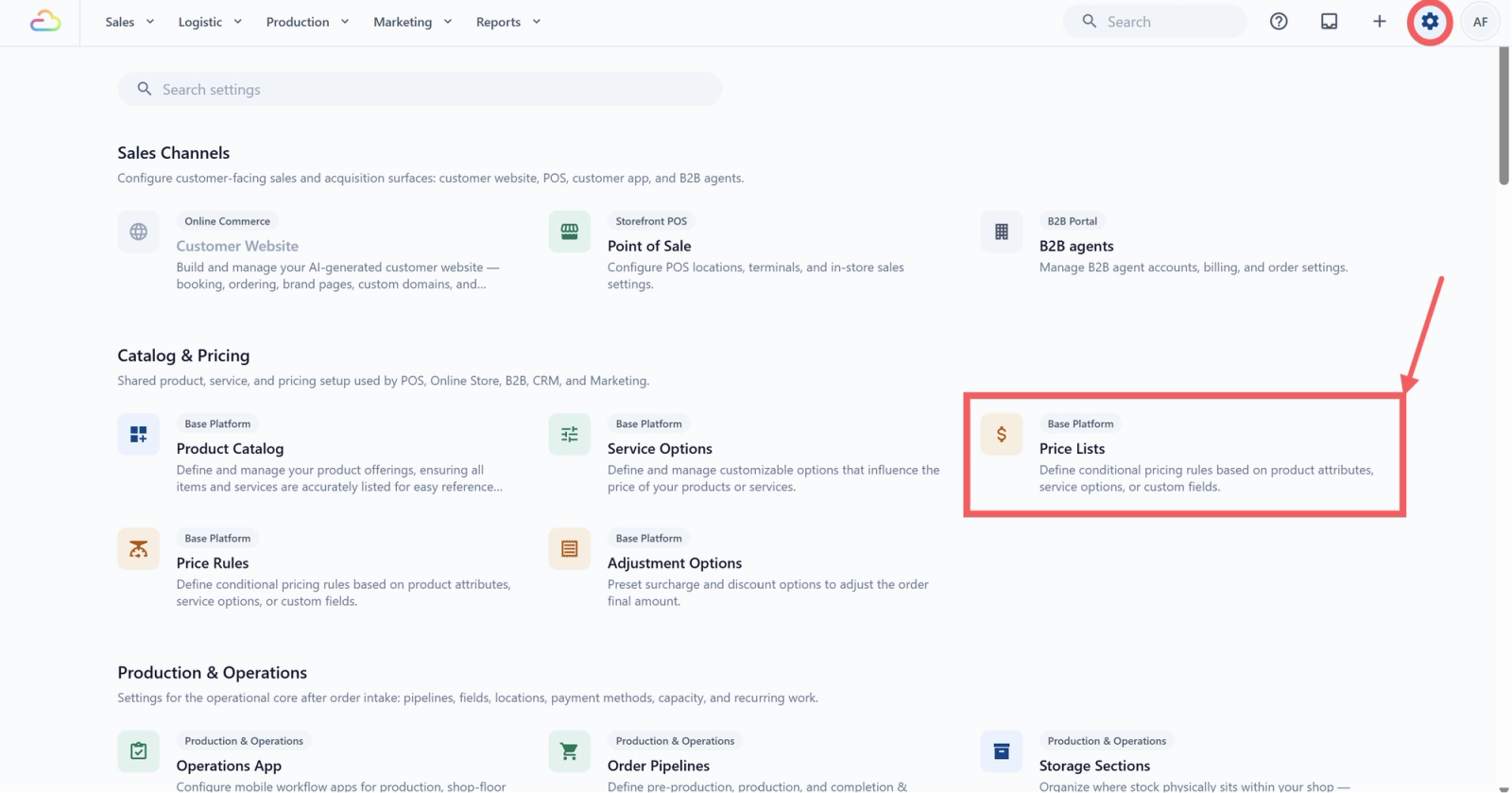
- Click the ⚙️ Settings icon in the top-right corner.
- Under the Catalog & Pricing section, click Price Lists.
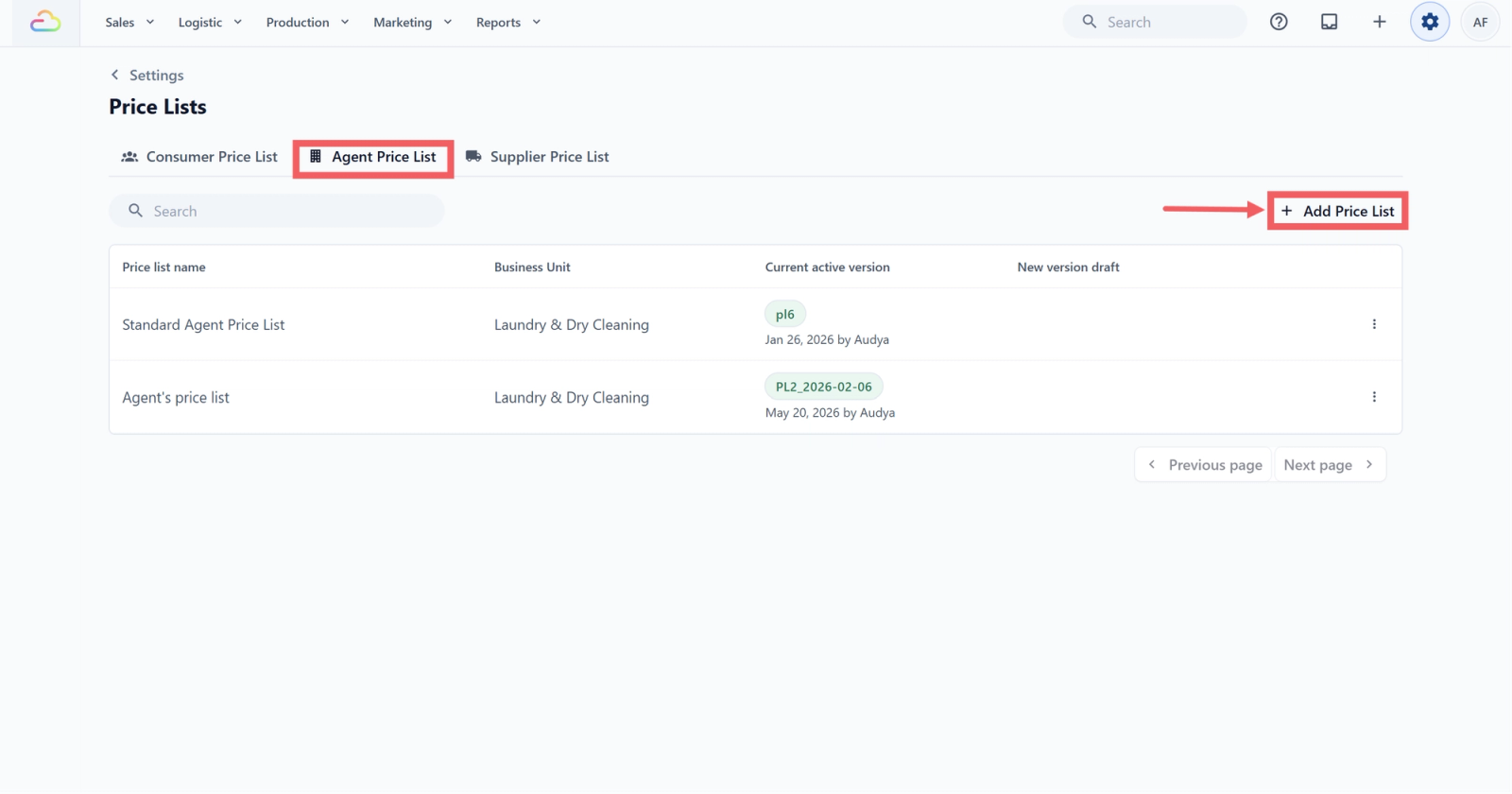
- Click the Agent Price List tab.
- Click Add Price List.
- Fill in the name, market, tax setting, and version control choice. For B2B, No, price list updates apply to all orders is common because agent rates are negotiated, not public.
- Use Price list content → Copy from to start from your Consumer list, then adjust the prices to the agent's agreed rates.
- Click Create price list.
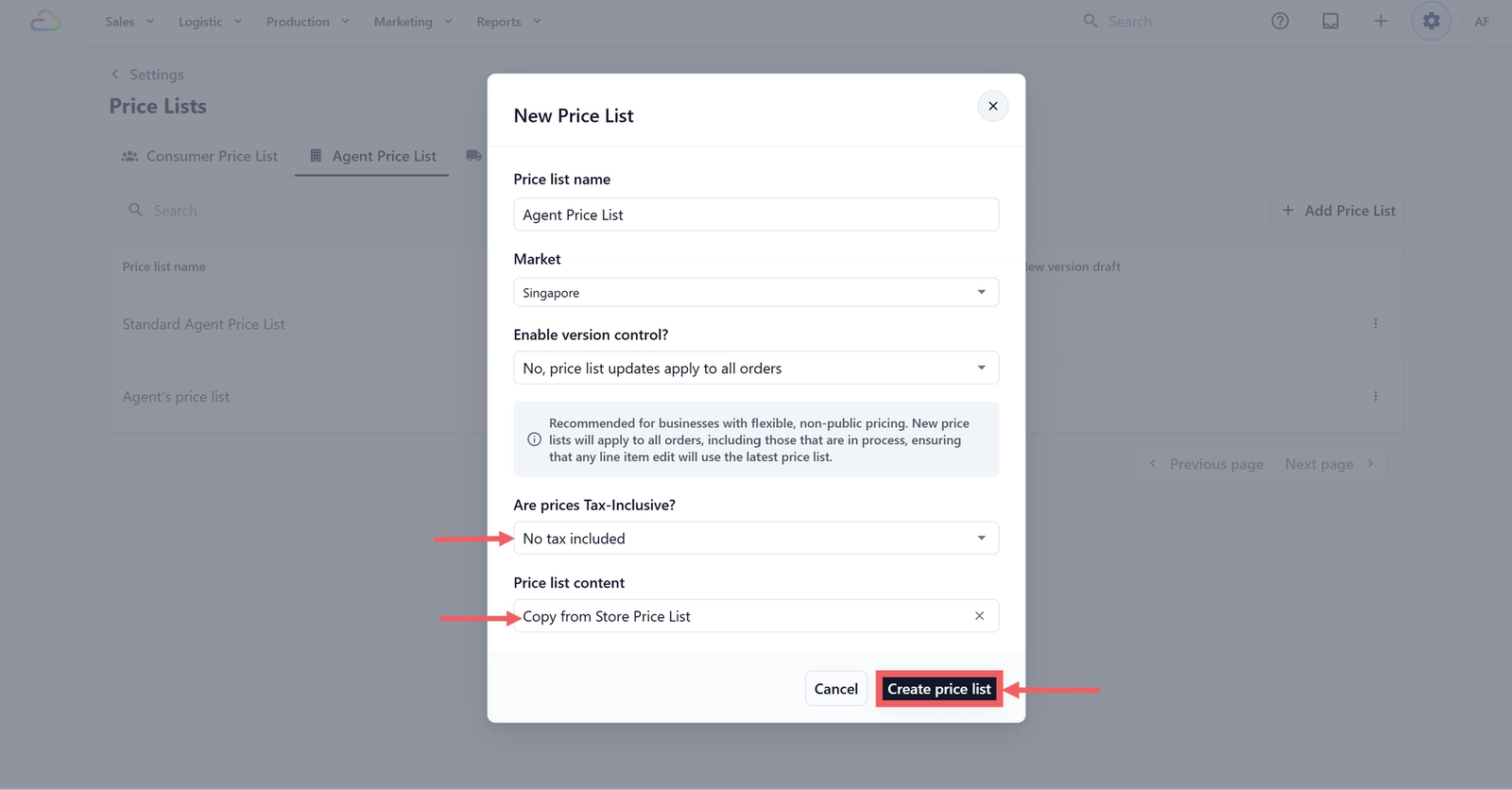
For full field-by-field details, see Create a Price List.
Publish the Agent Price List
- Open the new draft from the New version draft column.
- Add or edit the prices for the products this agent buys.
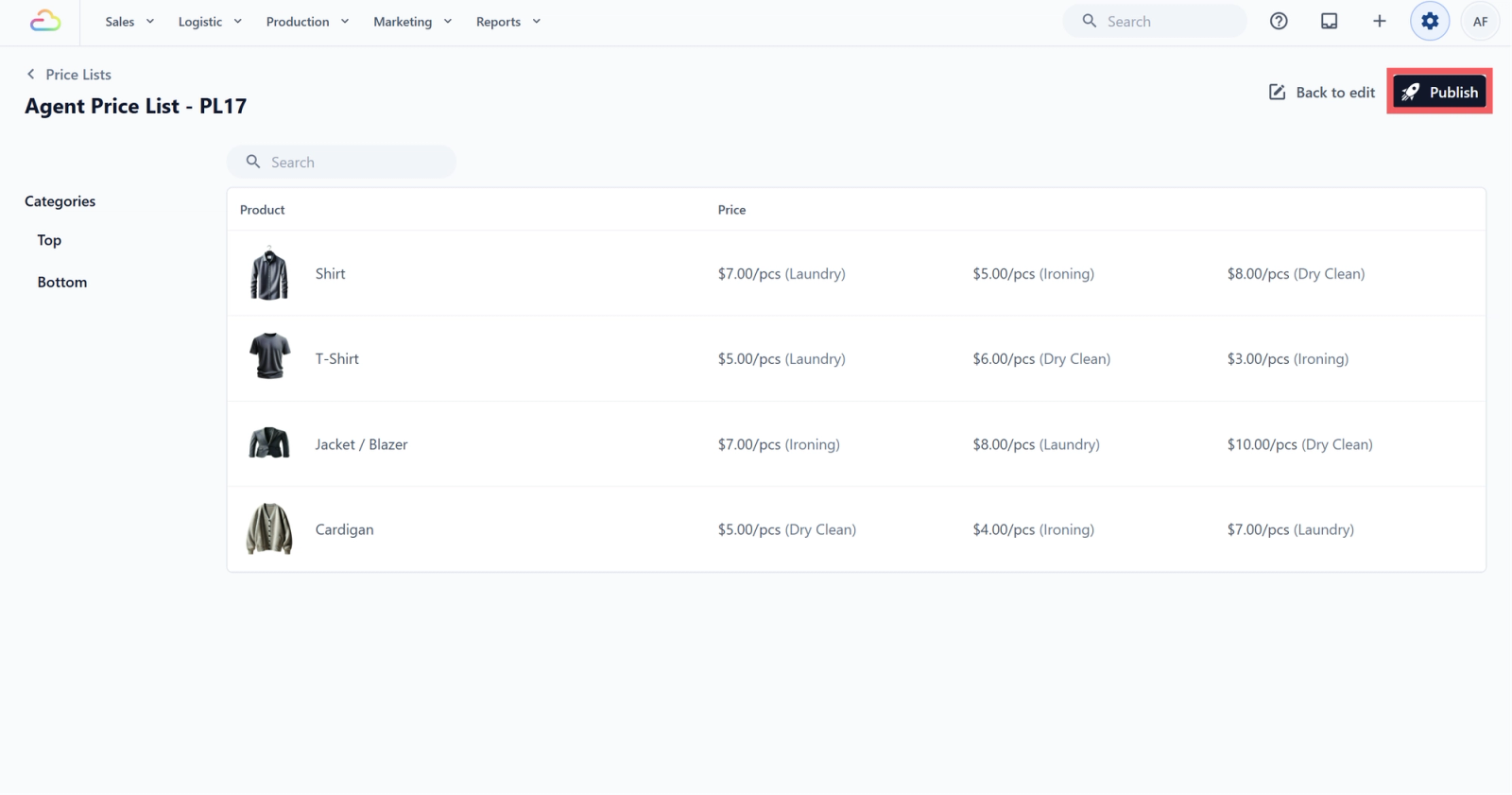
- Click Preview to check the prices.
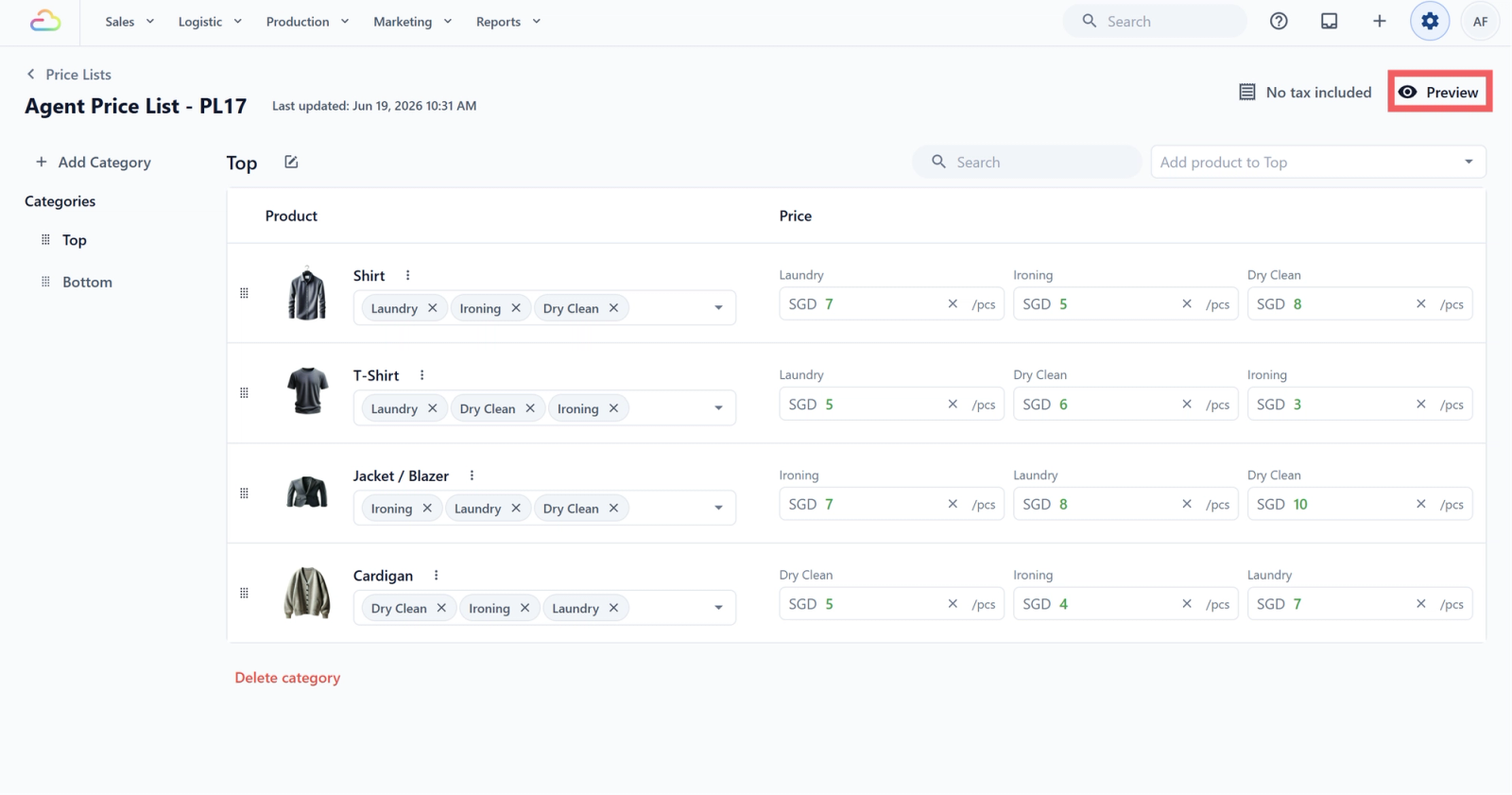
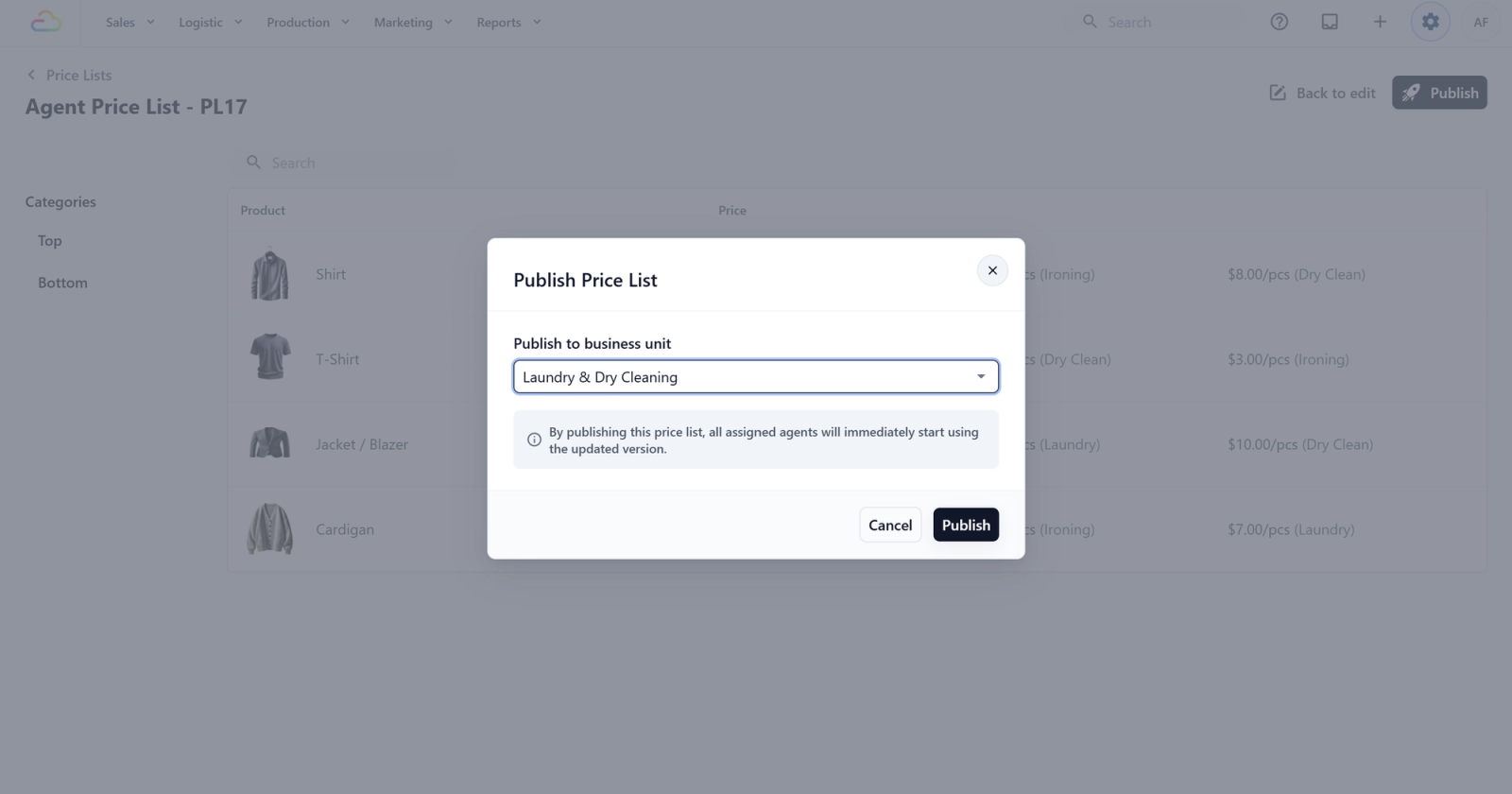
- Click Publish. The publish dialog opens.
- In Publish to business unit, pick the B2B business unit this agent buys from. The Agent list will be tied to this business unit. See Business Units if you need to set one up first.
- Click Publish.
Assign the Price List to an Agent
The price list is now live but not yet attached to anyone. To link it to a specific agent:
- Click the ⚙️ Settings icon in the top-right corner.
- Under the Sales Channel section, click B2B Agents.
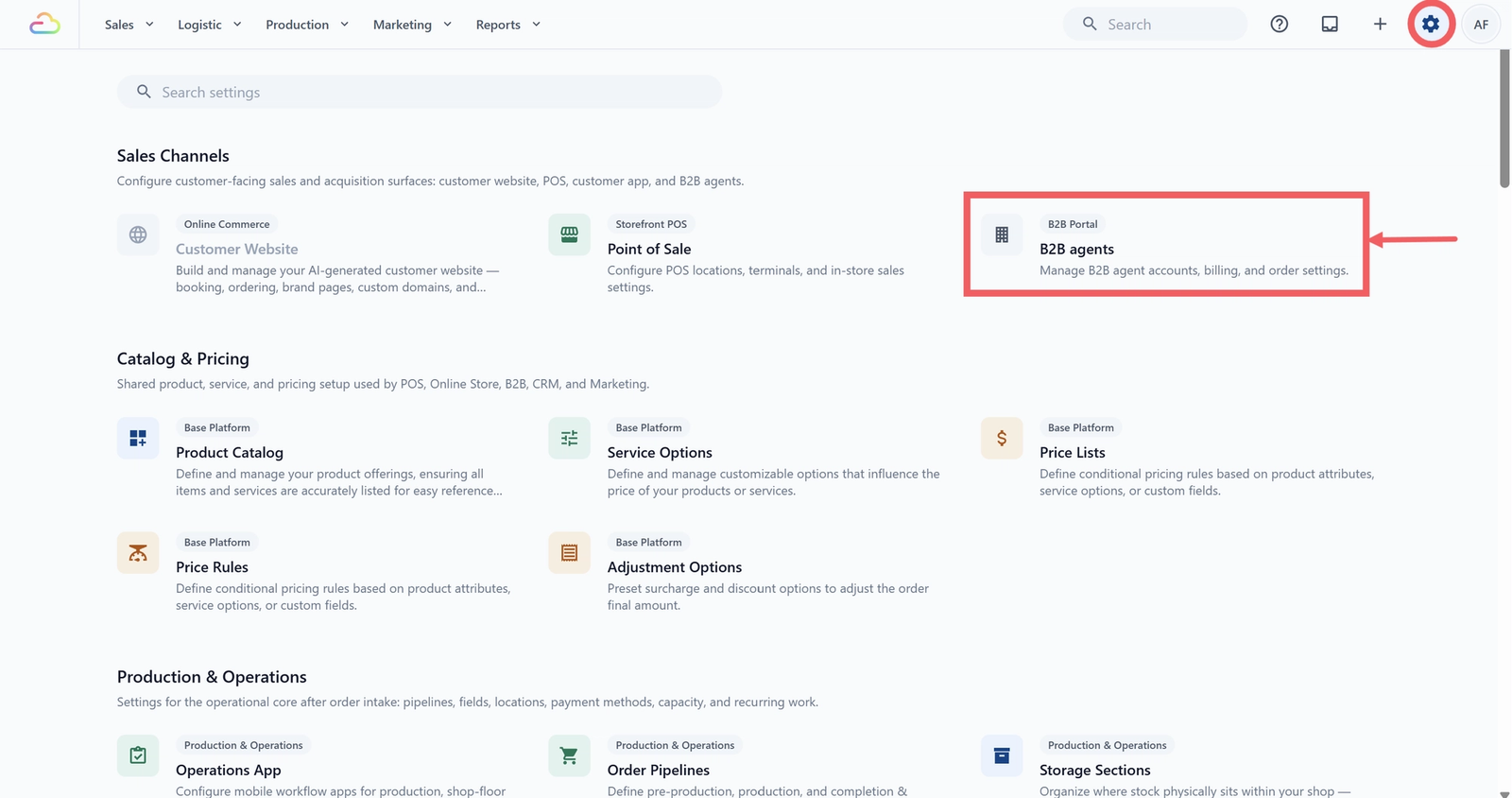
- Choose your assigned Agent account.
- Scroll down to the Agent Sales Order Settings section. In the Agent Price List field, open the dropdown and select the agent price list you created.
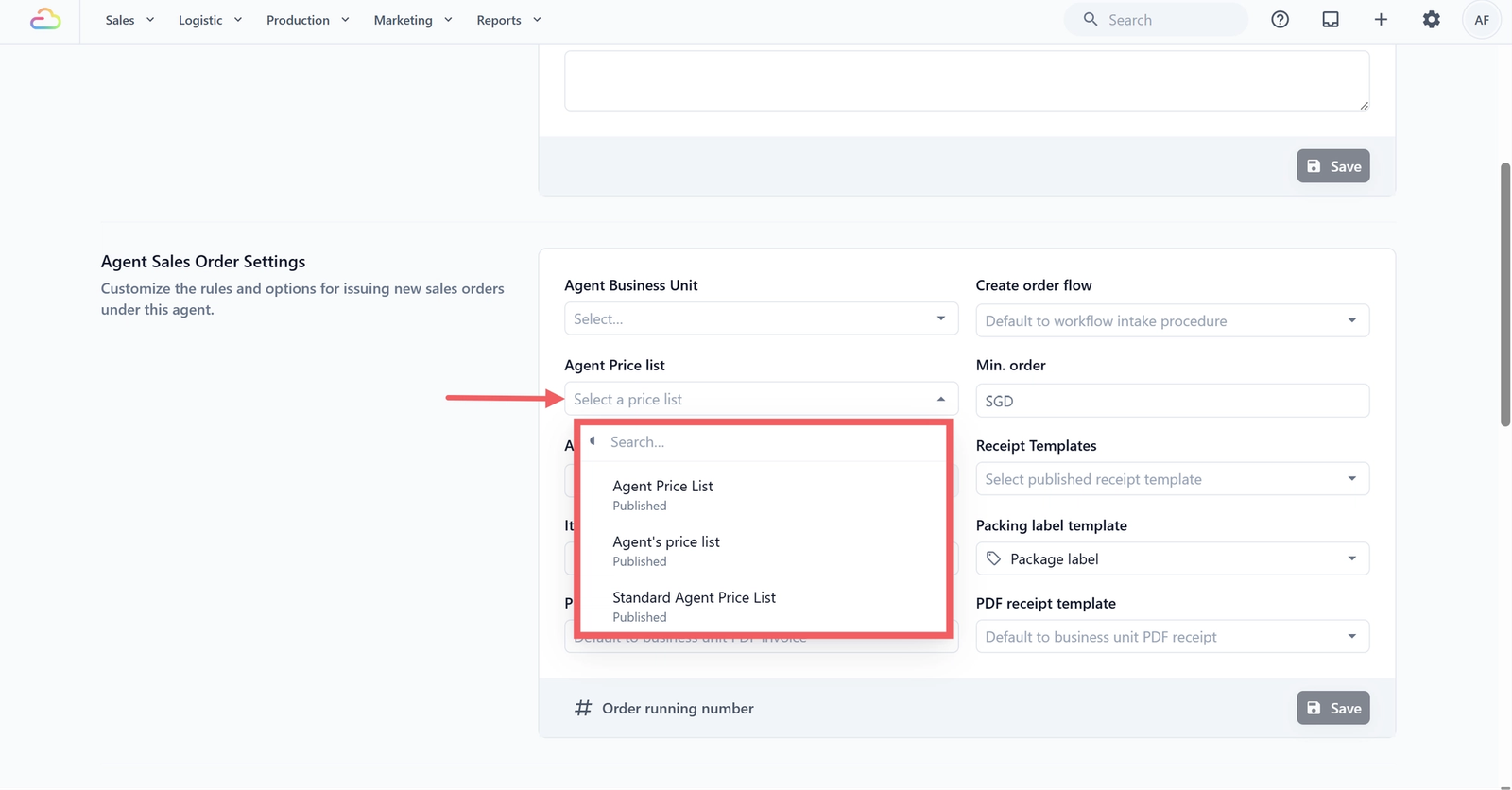
- Click Save.
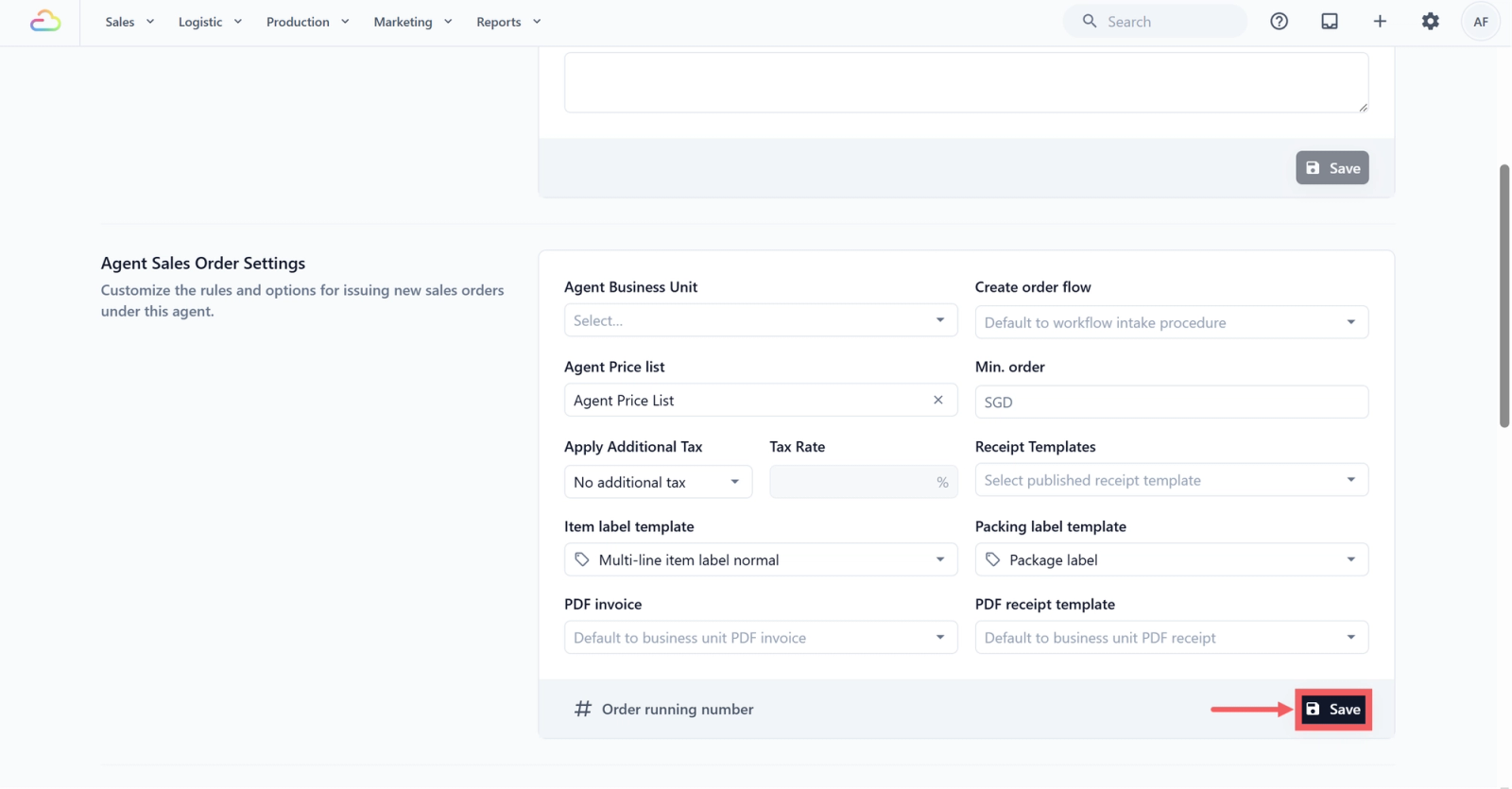
The agent's future orders will use the rates from that list.
What Happens When the Agent Orders
When you or the agent places a B2B order, the order automatically picks up prices from the linked Agent Price List. If the agent has no list assigned, the order falls back to your default B2B pricing. You can change which list an agent uses at any time by updating their Sales order settings.
FAQs
Can one Agent Price List be used by more than one agent?
Yes. Pick the same list under Sales order settings for each agent who shares those rates.
What if an agent buys a product that is not on their price list?
The order cannot price that item. Add the missing product to the agent's list and republish, or have the agent buy it under a list that includes it.
Will updating the Agent list change open B2B orders?
If you picked "updates apply to all orders" at creation, yes. If you picked "updates apply only to new orders", existing orders keep the prices they had when placed.
Do agents see the price list name?
No. They only see the prices, not the list name.
Can I switch an agent from one price list to another?
Yes. Open the agent's Sales order settings and pick a different list. The change takes effect on their next order.
Give feedback
Up next
Process FlowsSet up the short forms staff fill in at the counter, during production, and on handover, so the right details, prices, and labels happen automatically.
Read more