
Create Price Lists
In this article
This article walks you through creating a new price list from start to finish. You will pick the type, set the market and tax, choose whether to start blank or copy from an existing list, and then add categories and products with prices. Once you finish here, you can move on to publishing it. The full creation can be done in one sitting if your Product Catalog is already set up.
Contents
Contents
Before You Start
You will need the following ready before creating a price list:
- A Product Catalog with the products and services you sell. See [Product Catalog].
- Decide how tax will work on this list. If your prices are tax-inclusive, you set the rate directly on the price list in the steps below. If your prices are tax-exclusive, the system uses your company's registered rate, so make sure that is set up first. See [Set Up Company Tax Settings].
- The business unit you want this list to apply to, for example Laundry and Dry Cleaning or Bag Repair. See [Setting Up Your Business Unit for Laundry].
Which Price List Should I Choose?
Pick the type before you start. The tabs at the top of Price Lists each create a different kind of list.
| Type | Use it when |
|---|---|
| Consumer Price List | You want to set the prices for walk-in customers, your Online Store, or delivery orders |
| Agent Price List | You have a B2B agent or wholesale partner who pays special agreed rates |
| Supplier Price List | Not available yet |
Open the New Price List Form
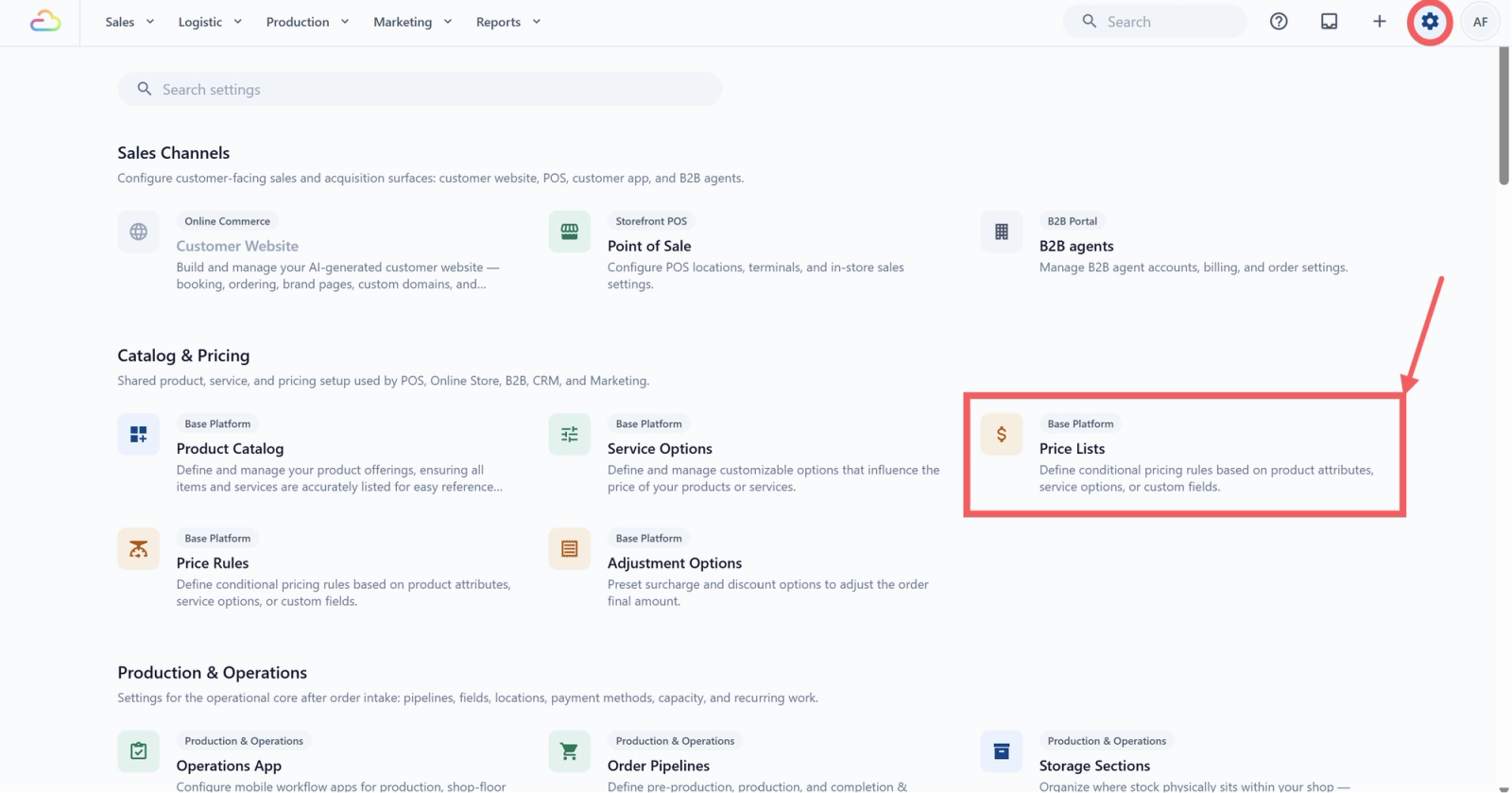
- Click the ⚙️ Settings icon in the top-right corner.
- Under the Catalog & Pricing section, click Price Lists.
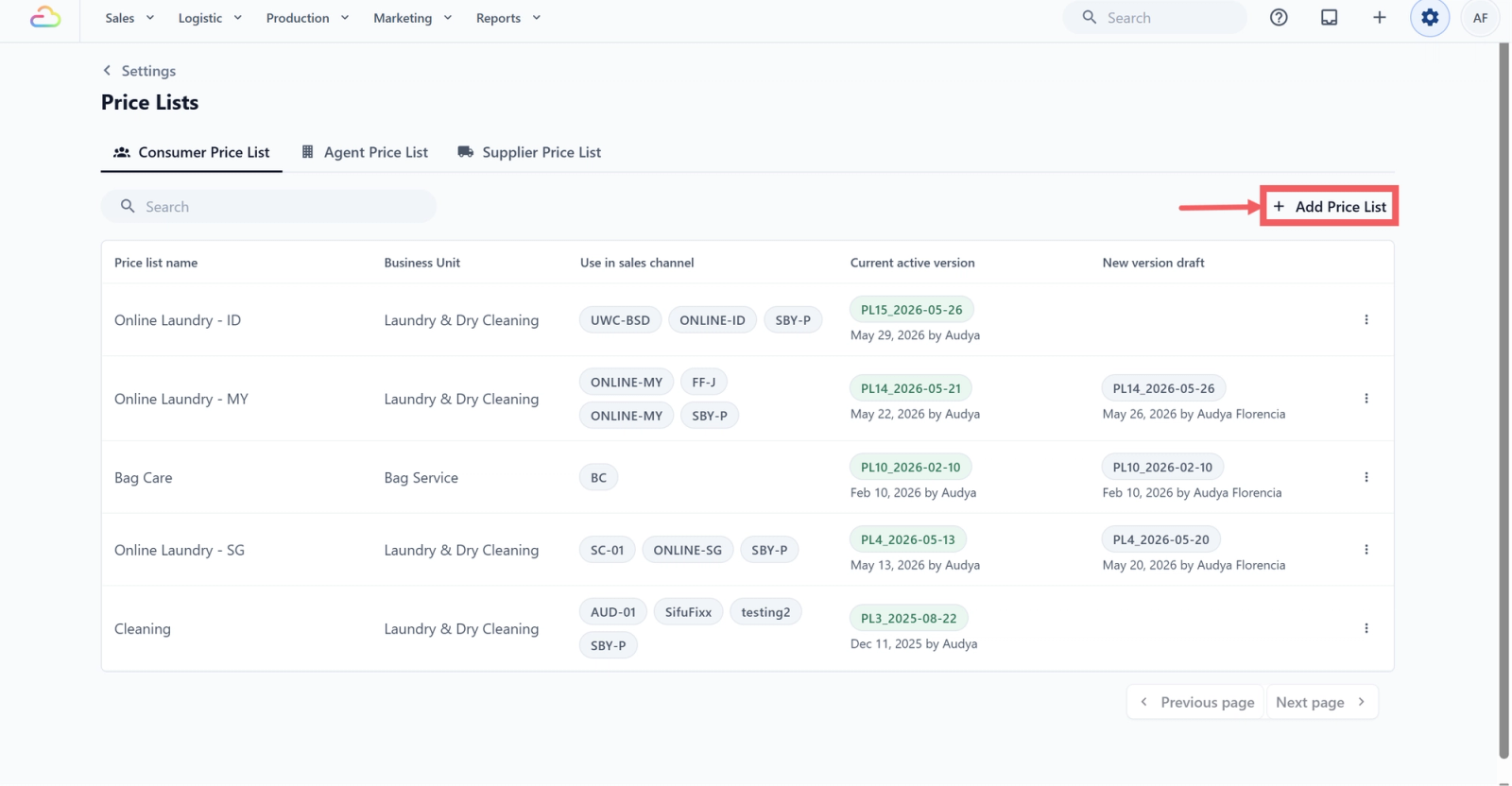
- Click the tab for the type you want, Consumer Price List or Agent Price List.
- Click Add Price List in the top right.
Fill in the Price List Details
A modal titled New Price List opens. Fill in each field.
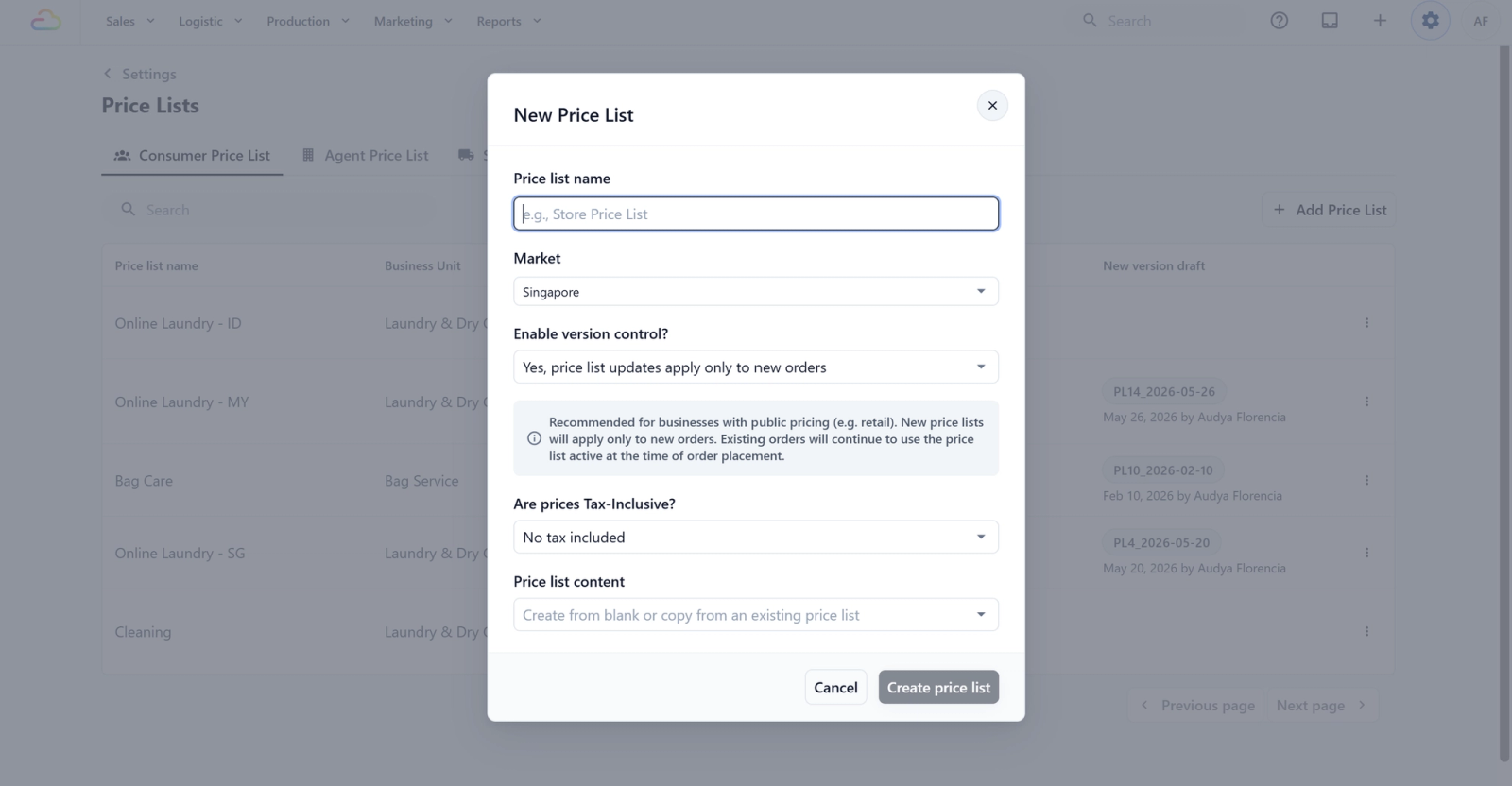
Price list name
Enter a short name you can recognize later, for example "CleanFast Store Prices" or "BagCare Wholesale 2026". This is the only required field.
Market
The country, currency, and language for this list. Defaults to Singapore (SGD / en-SG).
Enable version control?
| Pick this | What it means | Example | When to use |
|---|---|---|---|
| Yes, price list updates apply only to new orders | Existing orders keep the price list version from when the order was created. New prices apply only to new orders. | Monday: Shirt cleaning is $10 and Order #100 is created. Friday: the price changes to $12. New Order #101 uses $12, but Order #100 stays on the $10 version. | Use when you want to protect customer quotes, paid orders, confirmed bookings, or prices already agreed with the customer. |
| No, price list updates apply to all orders | There is only one current active price list. Updated prices apply to future pricing actions, including later edits to existing orders. | Monday: Shirt cleaning is $10 and Order #100 is created. Friday: the price changes to $12. Order #100 does not change right away, but if staff edit the line items later, the new $12 price may be used. | Use when staff should always follow the latest price, such as flexible B2B pricing, internal pricing, or in-progress operational orders. |
Are prices Tax-Inclusive?
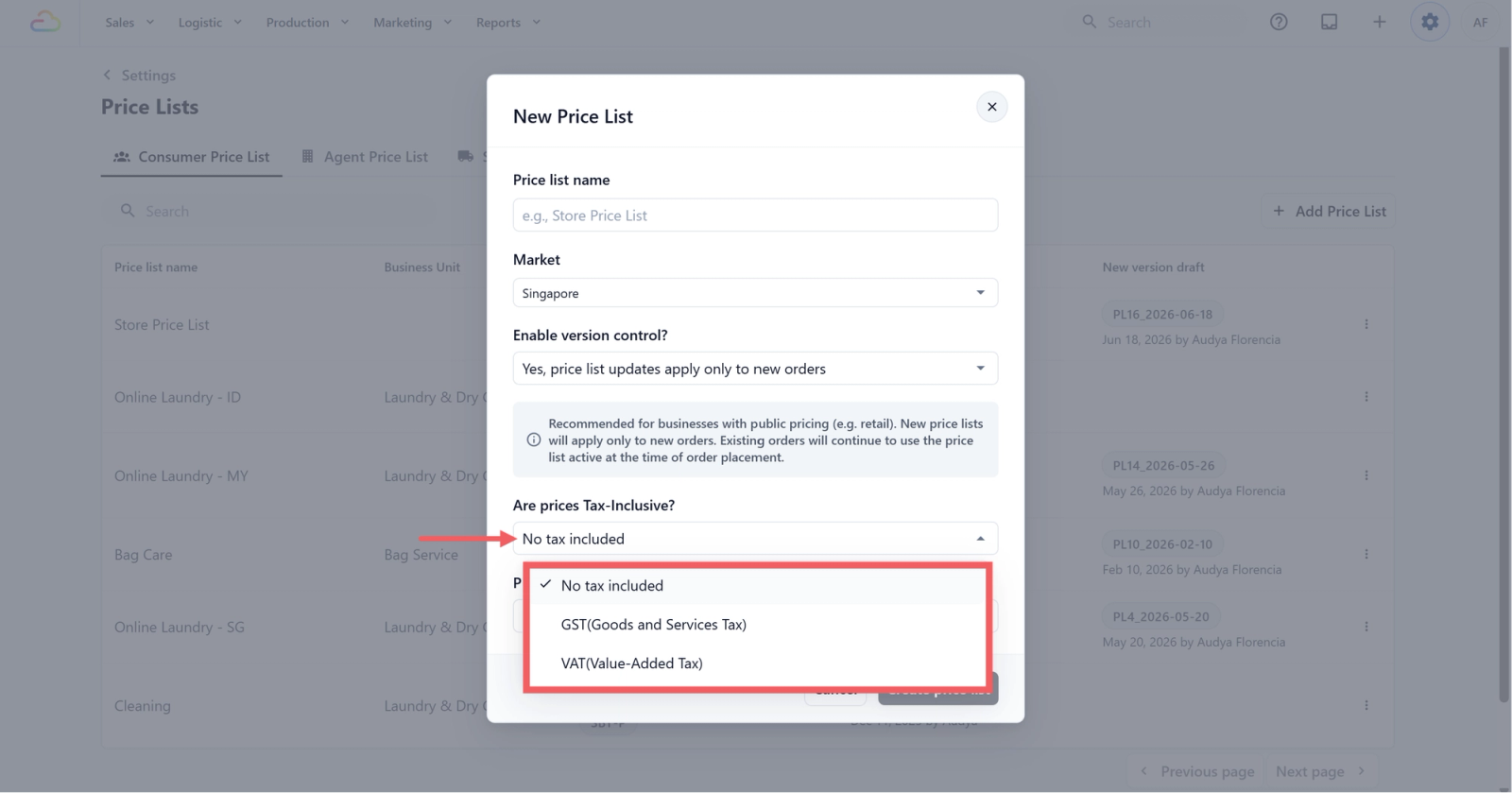
Choose whether the prices in this price list already include tax.
| Pick this | Result |
|---|---|
| No tax included | Prices are entered without tax. Tax is added at checkout based on your company tax settings. |
| Yes, GST (Goods and Services Tax) included | Prices already include GST. Enter the GST rate in the field that appears. Should match your company's GST rate. |
| Yes, VAT (Value-Added Tax) included | Prices already include VAT. Enter the VAT rate. Should match your company's VAT rate. |
Tax-inclusive pricing means the price shown in the price list is already the final amount the customer pays. Tax-exclusive pricing means tax is added separately during checkout. To keep totals clear, choose one method: either include tax in the price list, or apply tax through company settings — not both.
Tax setup by market
Tax rules differ by country and by business type. Use this as a starting guide, then confirm your own setup before going live.
| Market | Common tax setup | What to do |
|---|---|---|
| Singapore (SG) | (SG)GST, commonly 9% for GST-registered businesses | Businesses usually show GST-inclusive prices. If the list already includes GST, select Tax Included, enter the GST rate, and keep company-level tax off. |
| Malaysia (MY) | SST varies by business type and item category | Do not assume one fixed rate. Confirm whether your prices are inclusive or exclusive based on your SST setup. If tax is already in the list, keep company-level tax off. |
| Indonesia (ID) | PPN/VAT can vary by item or category | Confirm the PPN/VAT treatment before setup. Use Tax Included only when the listed price already includes tax. Otherwise keep the list Tax Excluded and apply tax through company settings. |
Price list content
Choose whether to start fresh or copy prices from a list you already use.
| Pick this | Result |
|---|---|
| Leave blank | Starts an empty list, no products yet |
| Copy from (existing list) | Copies all categories, products, and prices from that list as a starting point. You can then edit them. |
Click Create price list to save. The new list appears in the table.
Add Categories and Products to the Draft
After creating the list, click the New version draft link in its row to open the draft editor. Edits autosave, there is no Save button. The "Last updated" timestamp at the top confirms each save.
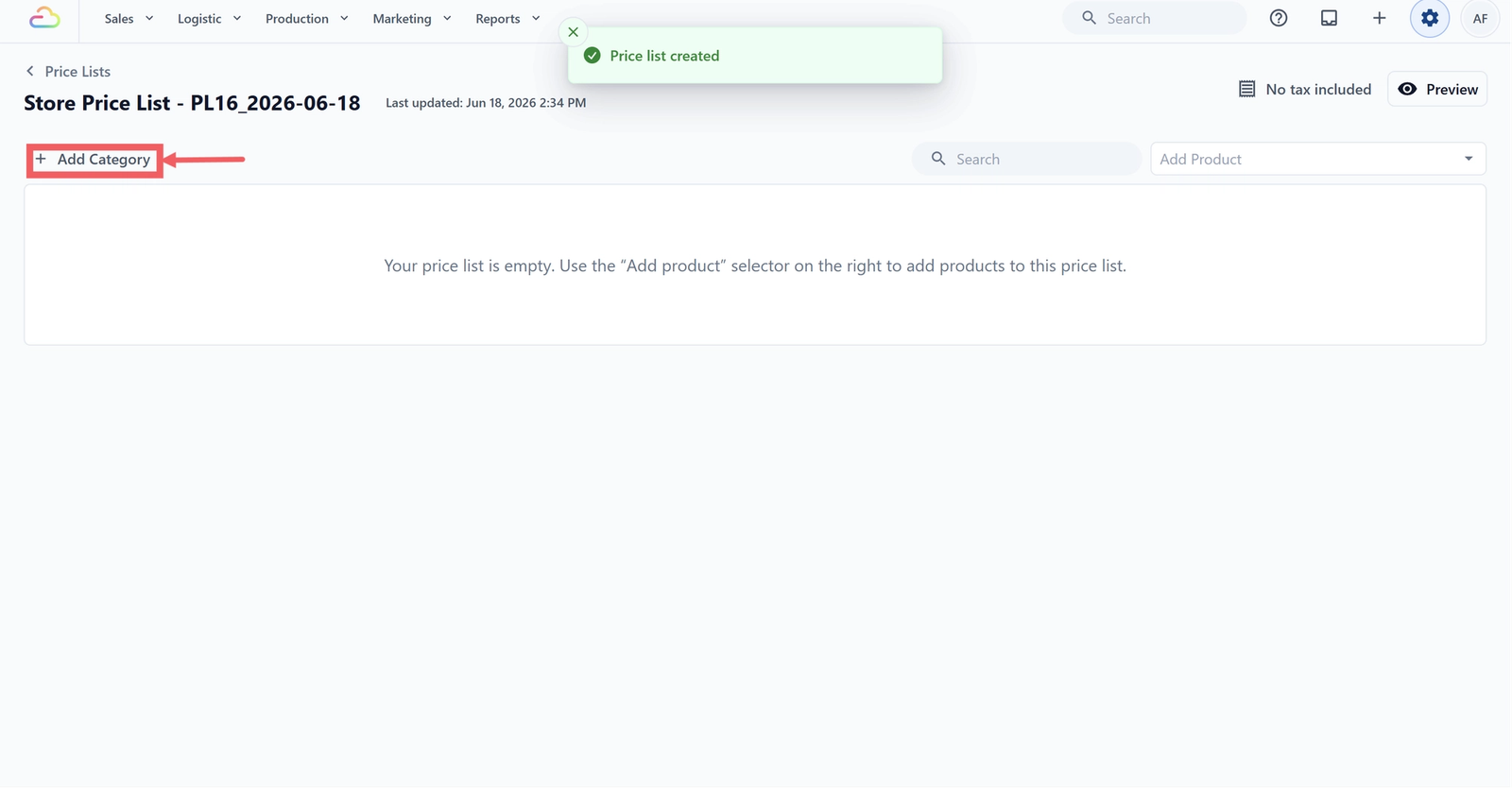
- On the left, click + Add category. Enter a category name (for example "Tops" or "Curtains") and click Add Category.
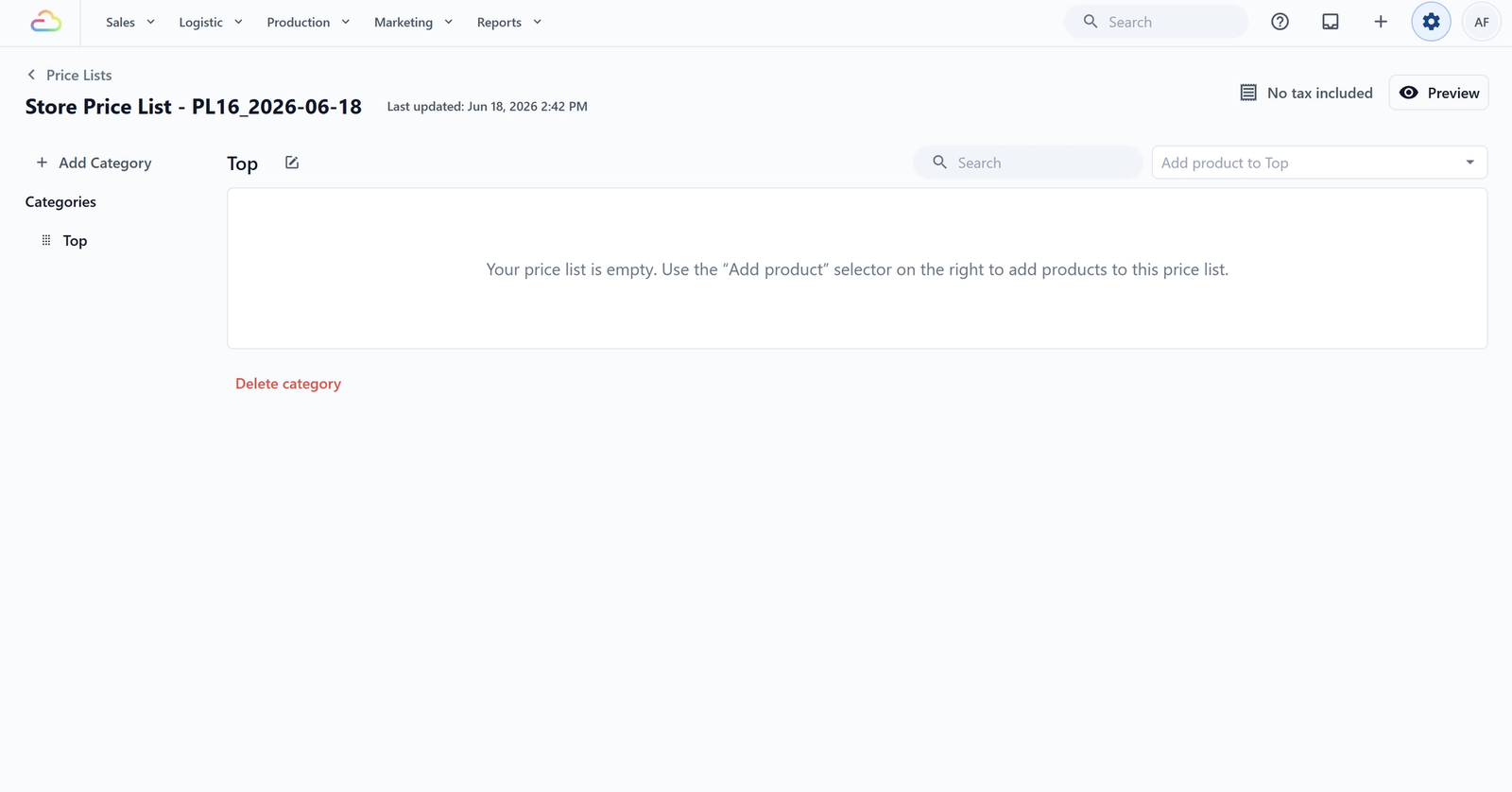
- Click a category to open it.
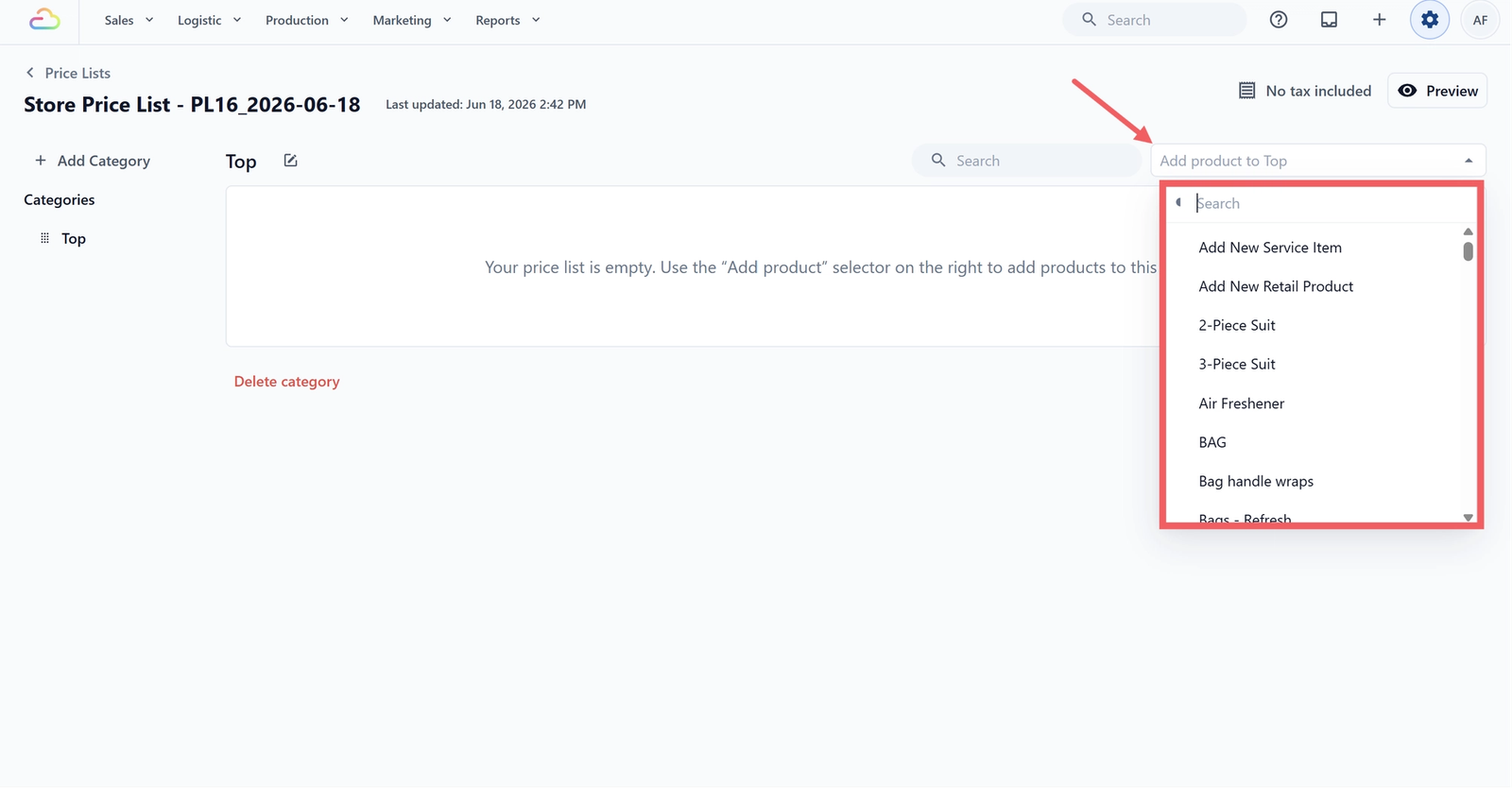
- Use the Add product to {category} dropdown at the top right of the table. Search and pick an existing product, or click Add New Service Item or Add New Retail Product to create one on the spot.
- For each product row, pick the service options the price applies to, for example Laundry, Dry Clean, or Ironing. Each option you pick adds a price line.
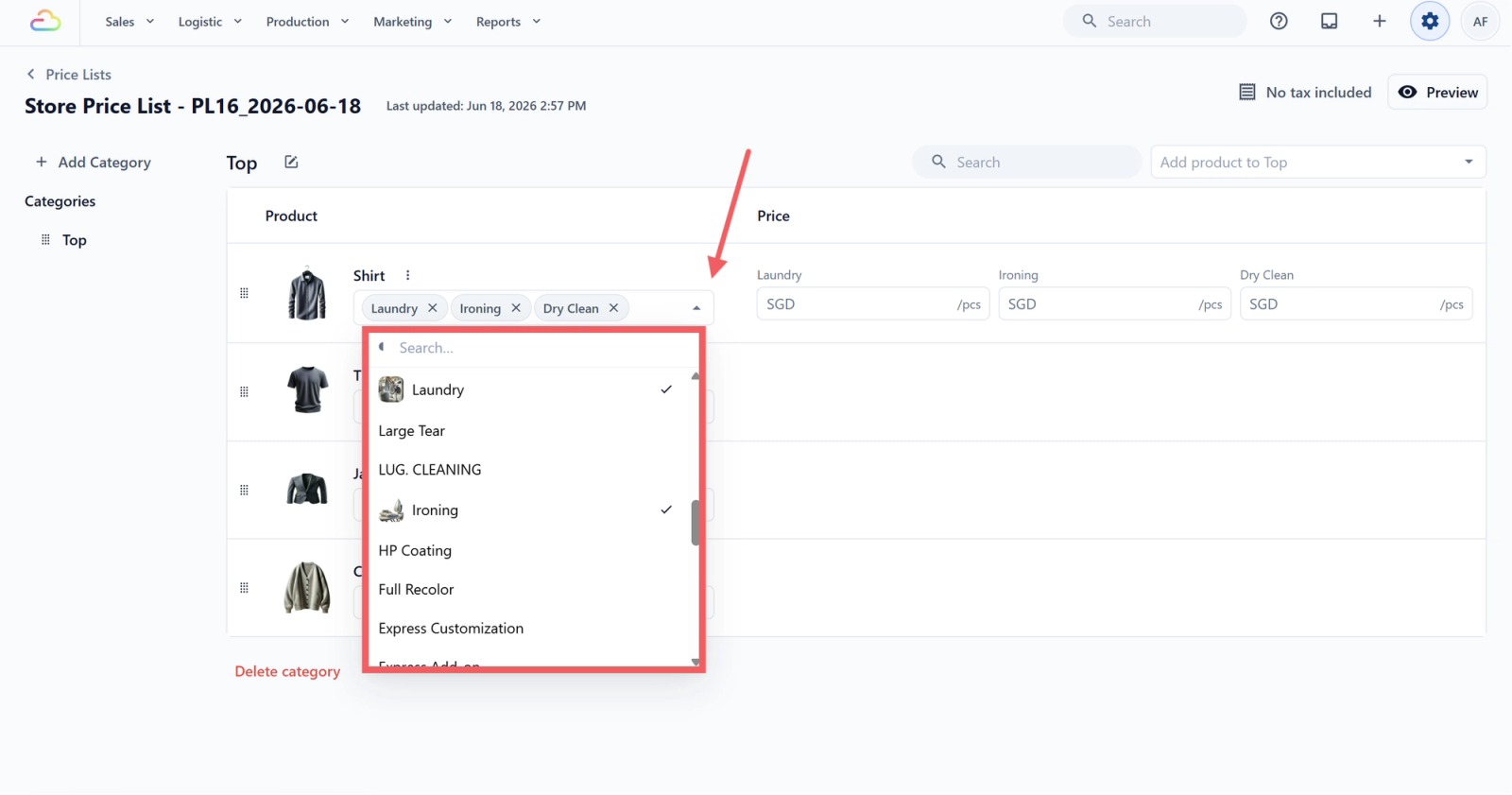
- Type the price into each price field. The currency prefix and unit suffix (like SGD 7.00 /pcs) are added for you.
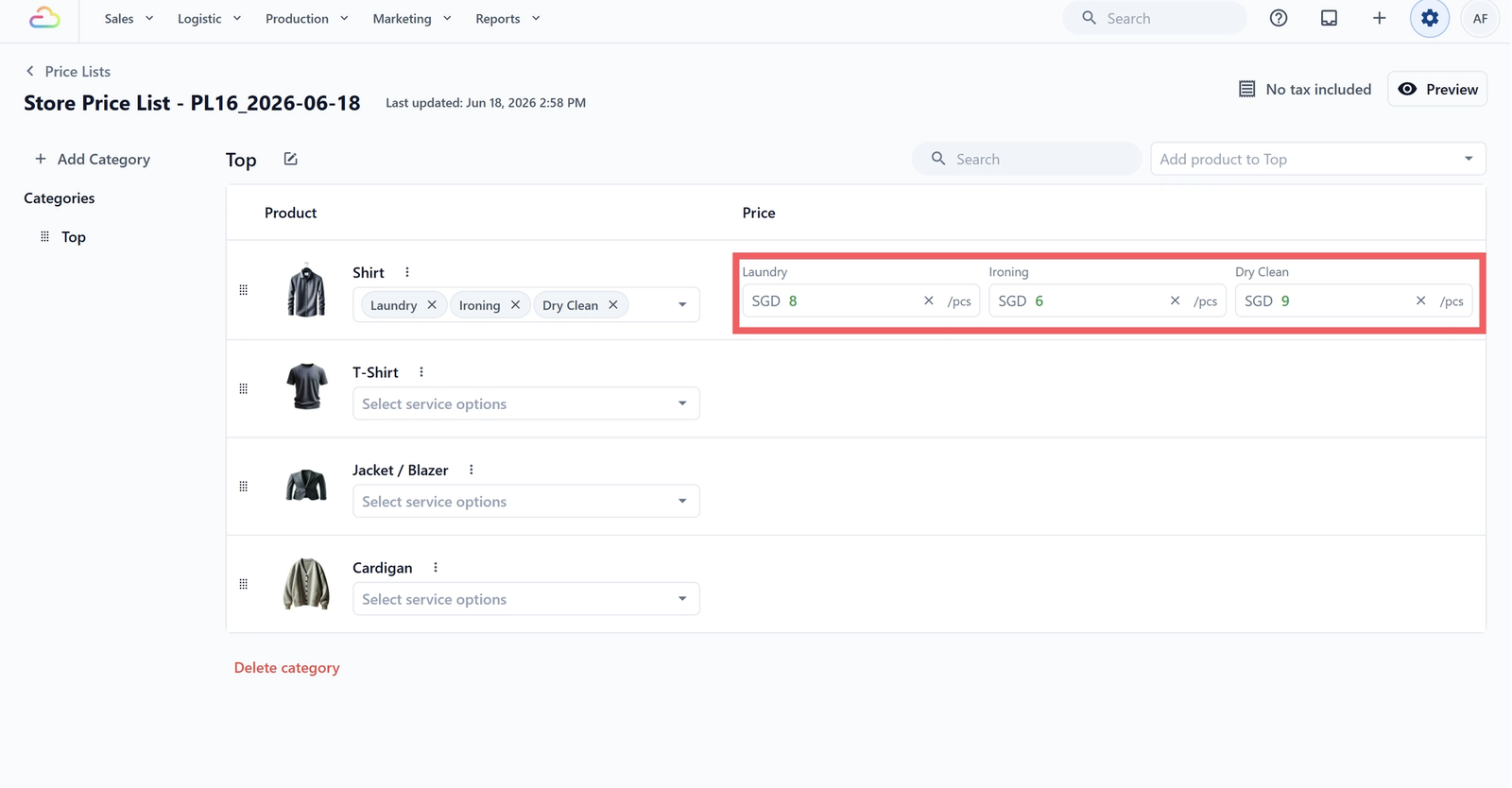
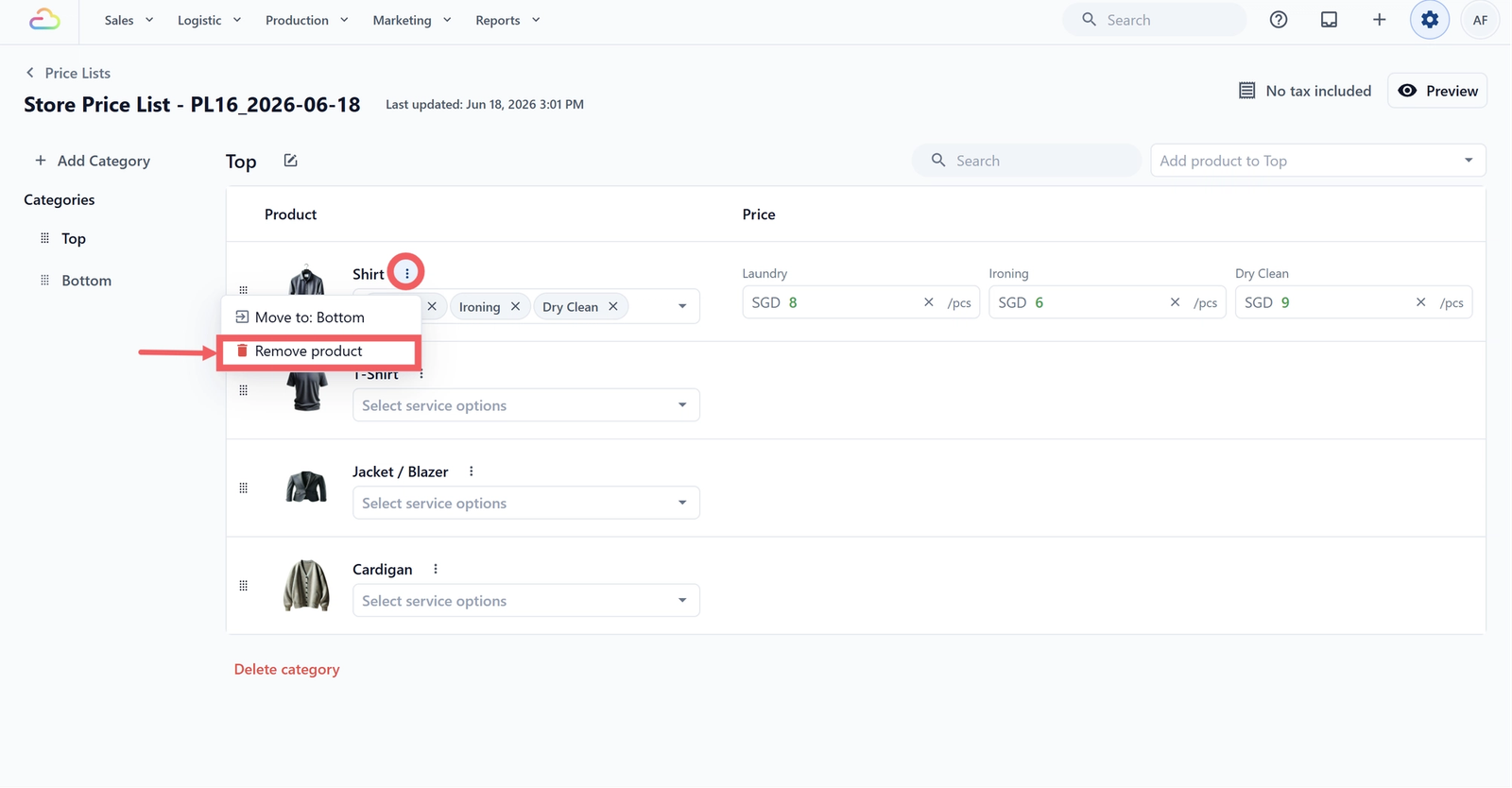
- To delete a product, click the three-dot menu next to its name and choose Remove Product.
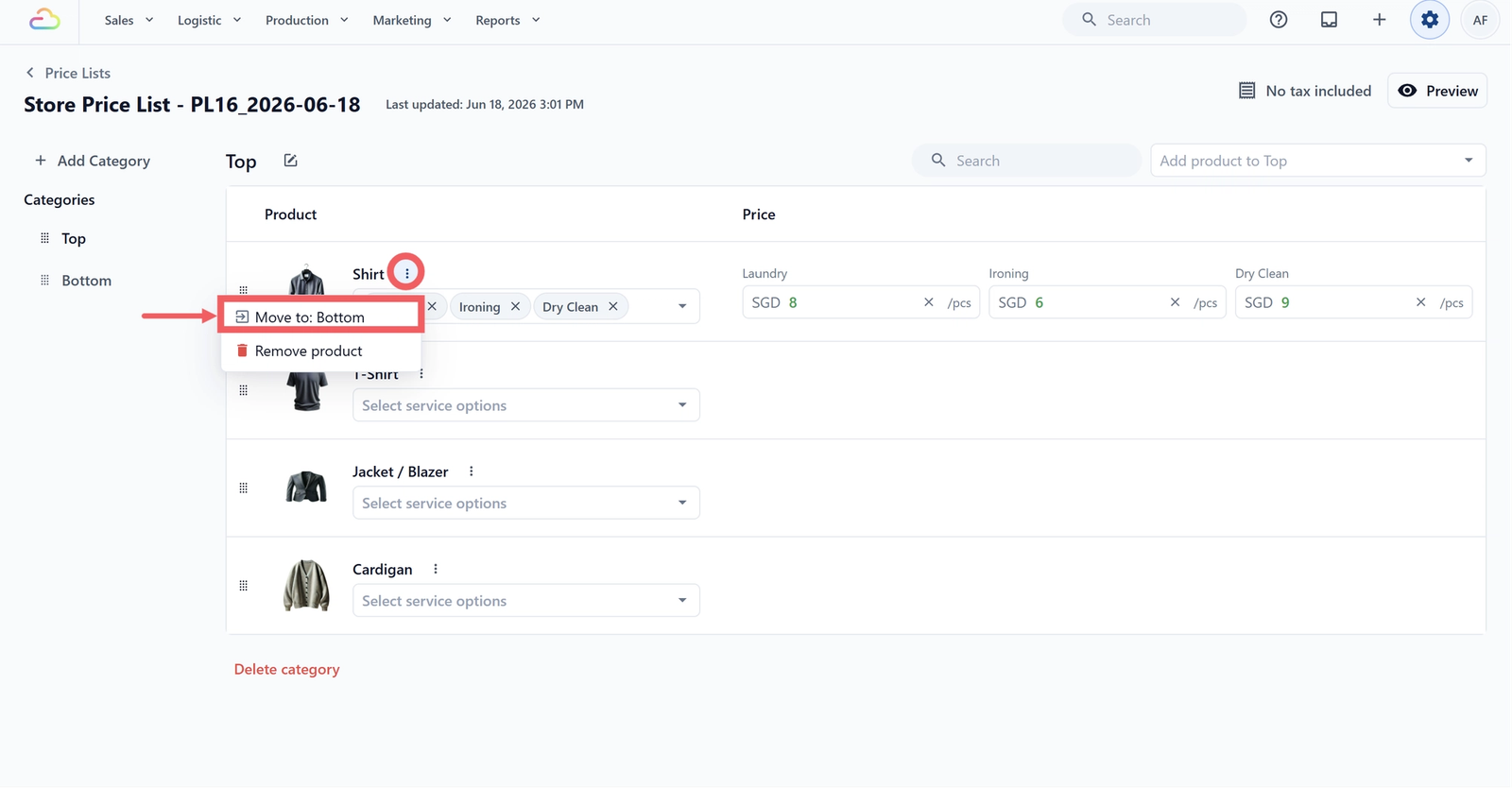
- To move a product, click the three-dot menu next to its name and choose Move to a different category.
How Product Variants Appear in the Price List
If the product you add has variants, those variants will appear under the parent product in the price list.
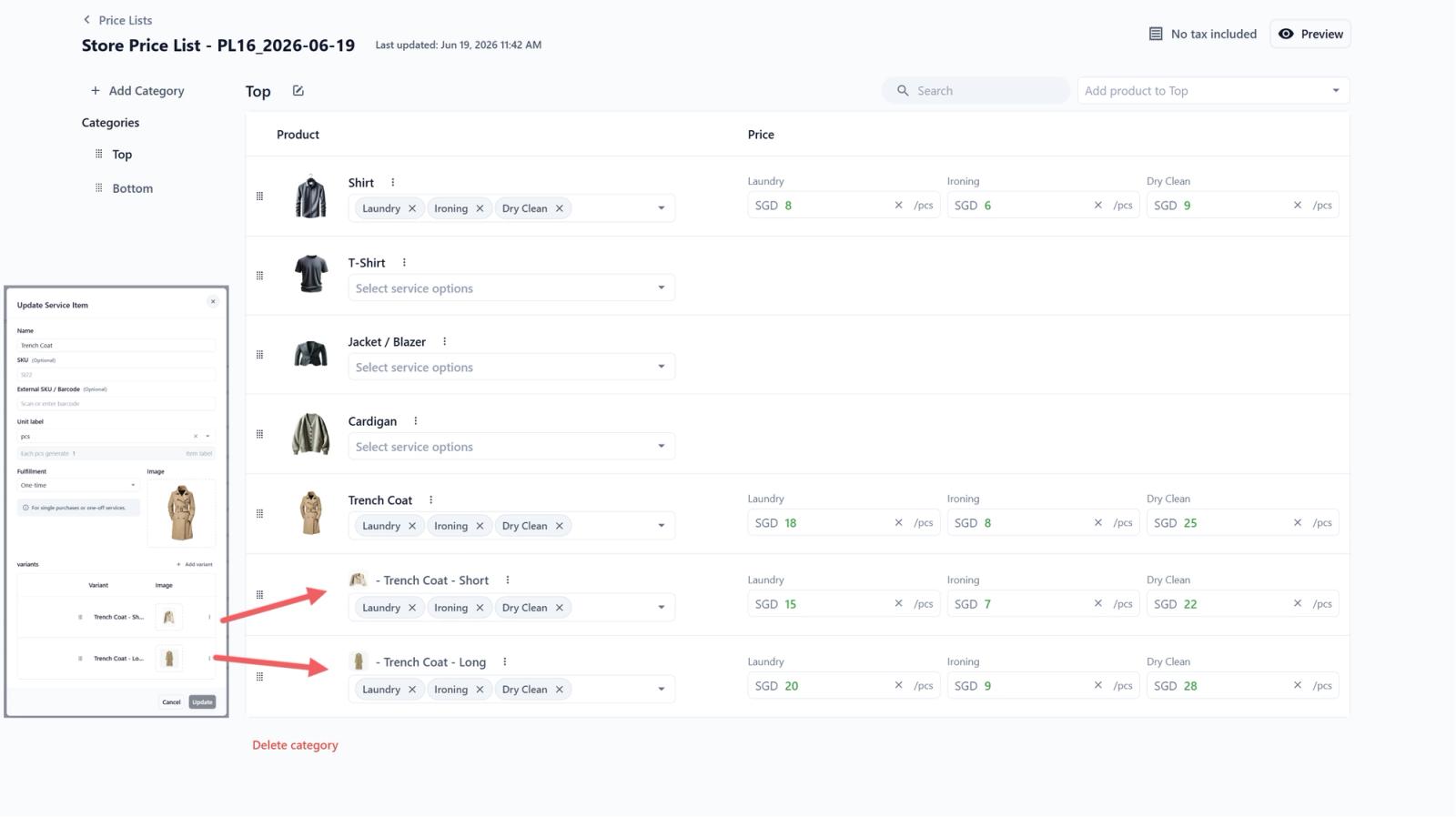
This helps you keep one main product in the Product Catalog while still managing different prices for each size, type, colour, or option in the price list.
Where Your Saved Price List Will Be Shown
Saving the draft does not make it live. Customers still see the old prices until you publish. To make the new prices visible and pick which business unit and sales channels use them, see Manage Price List Versions.
FAQs
Can I change the price list type after creating it?
No. The type (Consumer or Agent) is locked to the tab you used. If you picked the wrong type, delete the list and create a new one under the correct tab.
Do I need to pick a Business Unit or Sales Channel here?
No. Those are picked later when you publish the draft, not when you create the list.
What if my Product Catalog is empty?
You can still create the list, but you will not be able to add products until your catalog has items. Set up your catalog first, then come back.
Can I copy from an Agent list into a Consumer list?
Yes. The Copy from option lets you start with any existing list. After copying, edit the prices to match the new audience.
Will my staff see this list immediately?
No. The draft is private to whoever is editing it. Staff and customers only see prices once you publish the draft.
What's Next
Now that your draft is filled in, continue to Manage Price List Versions to preview the prices, publish the draft, and assign it to your business unit and sales channels.
Give feedback
Up next
Manage Price List VersionsEdit prices safely in a draft, preview them, publish to make them live, and restore an older version if you need to roll back.
Read more