
Setting Up a New Order: Pickup & Delivery Mini App
In this article
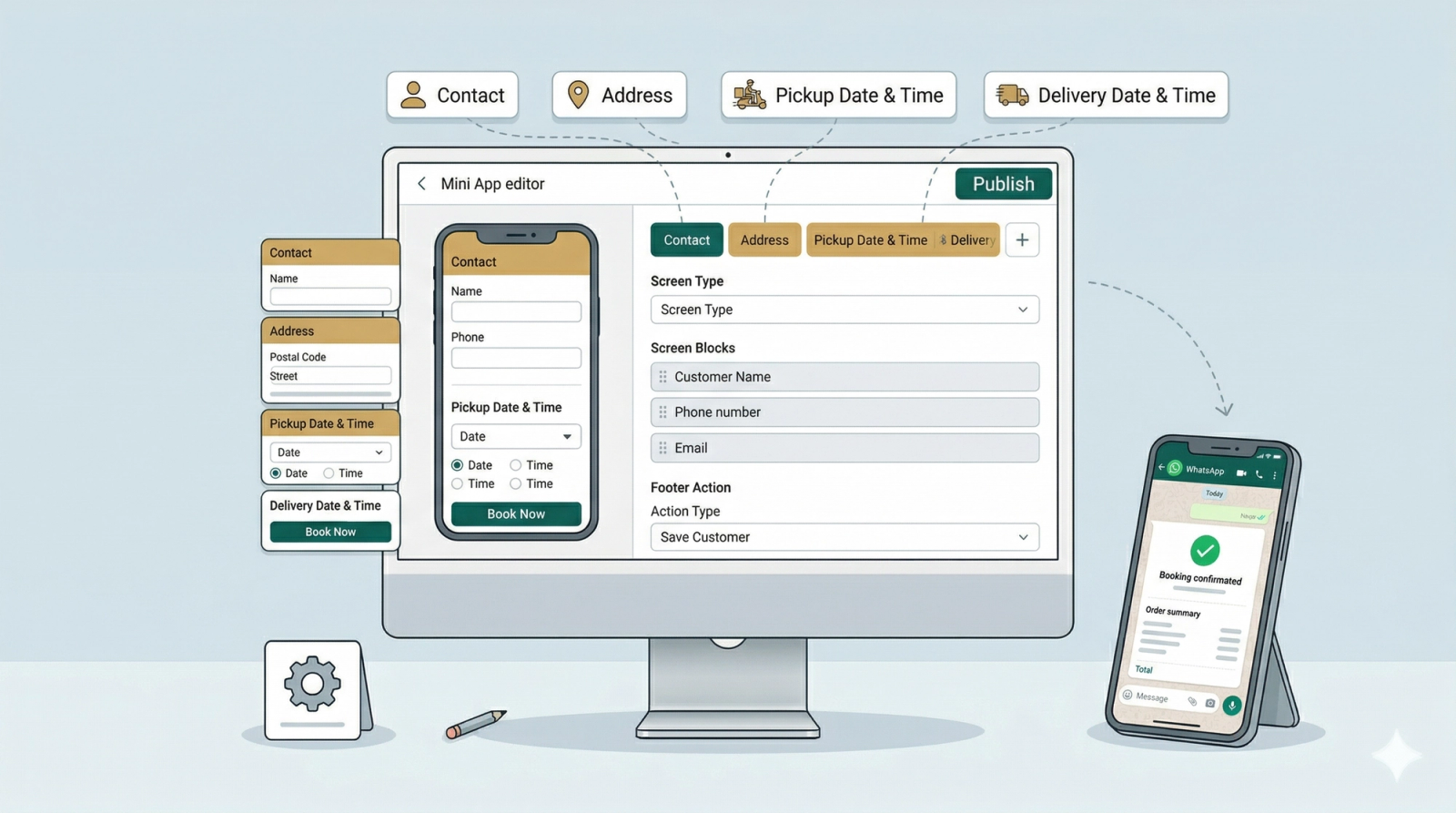
The Home Pickup & Delivery Booking Mini App is the ultimate time-saver for your laundry or dry cleaning business. Instead of typing out multiple questions to collect a customer's name, address, and preferred times,you simply send them a single button directly inside WhatsApp. They tap it, fill out a clean, simple form on their phone, and a complete order automatically appears in your EasyBiz system with both the pickup and delivery jobs attached. It comes fully set up out of the box, making it incredibly easy to start capturing bookings in seconds without any manual data entry.
Contents
Contents
Who Is This For
This Mini App is built for any service business that picks up and delivers items on scheduled dates. Laundry, dry cleaning, bag repair, shoe repair, alteration services — if your workflow involves collecting an item and returning it later, this template fits. Because the form includes both a pickup date and a delivery date, your customers can lock in both appointments in one sitting. This makes the entire process seamless for both them and your team.
Why Use It
- No more back-and-forth The form collects the customer's name, address, preferred pickup time, and preferred delivery time all at once.
- Capture bookings faster The moment a customer shows interest, you send the form. The faster they can confirm, the less likely they are to go elsewhere.
- Your system updates automatically Every completed booking creates a new order in EasyBiz with both jobs attached. No manual typing for your staff.
- Returning customers don't repeat themselves EasyBiz recognizes existing customers and pre-fills their saved details automatically.
Create Your Mini App
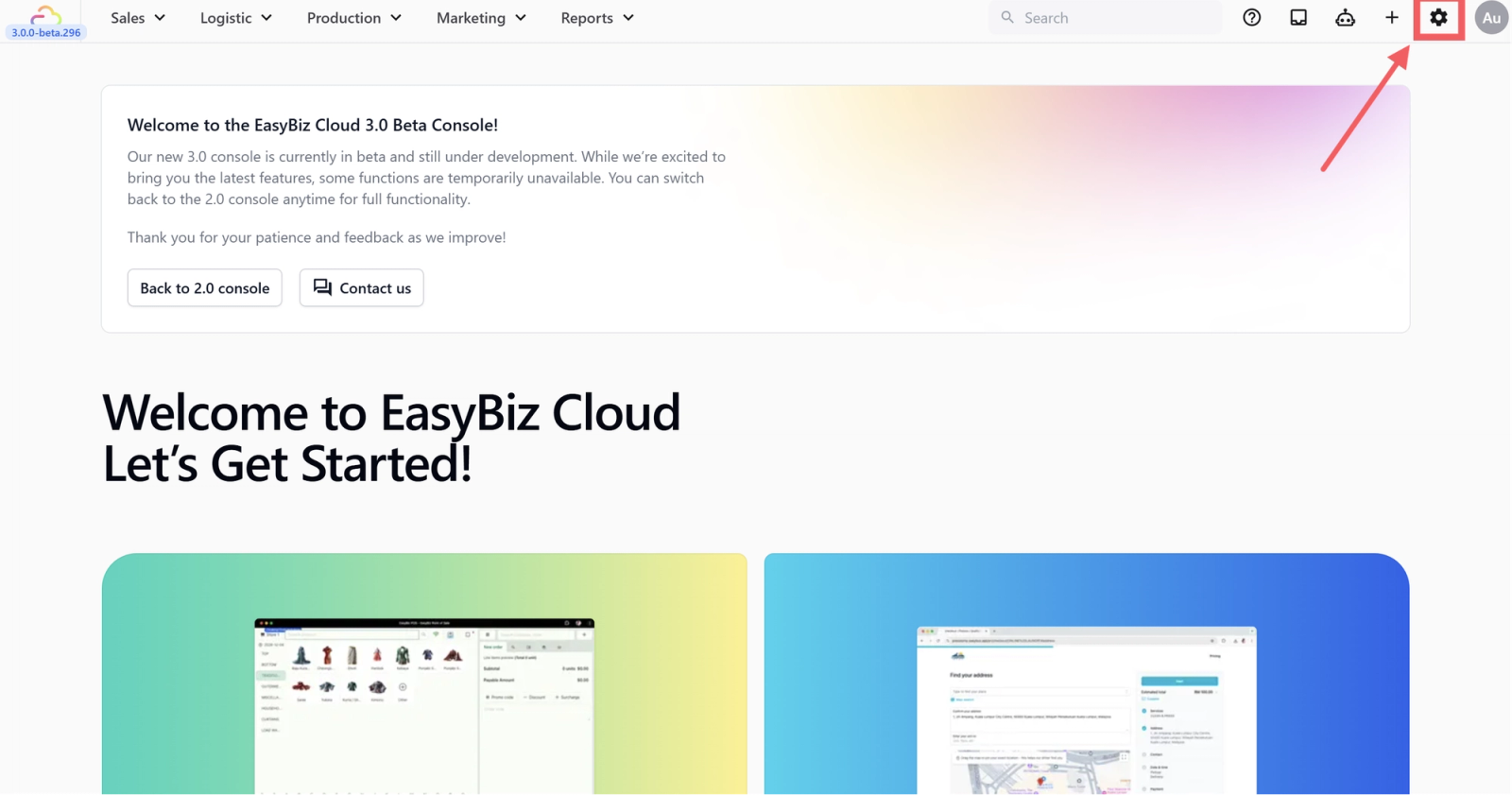
- Go to Settings from the top navigation bar.
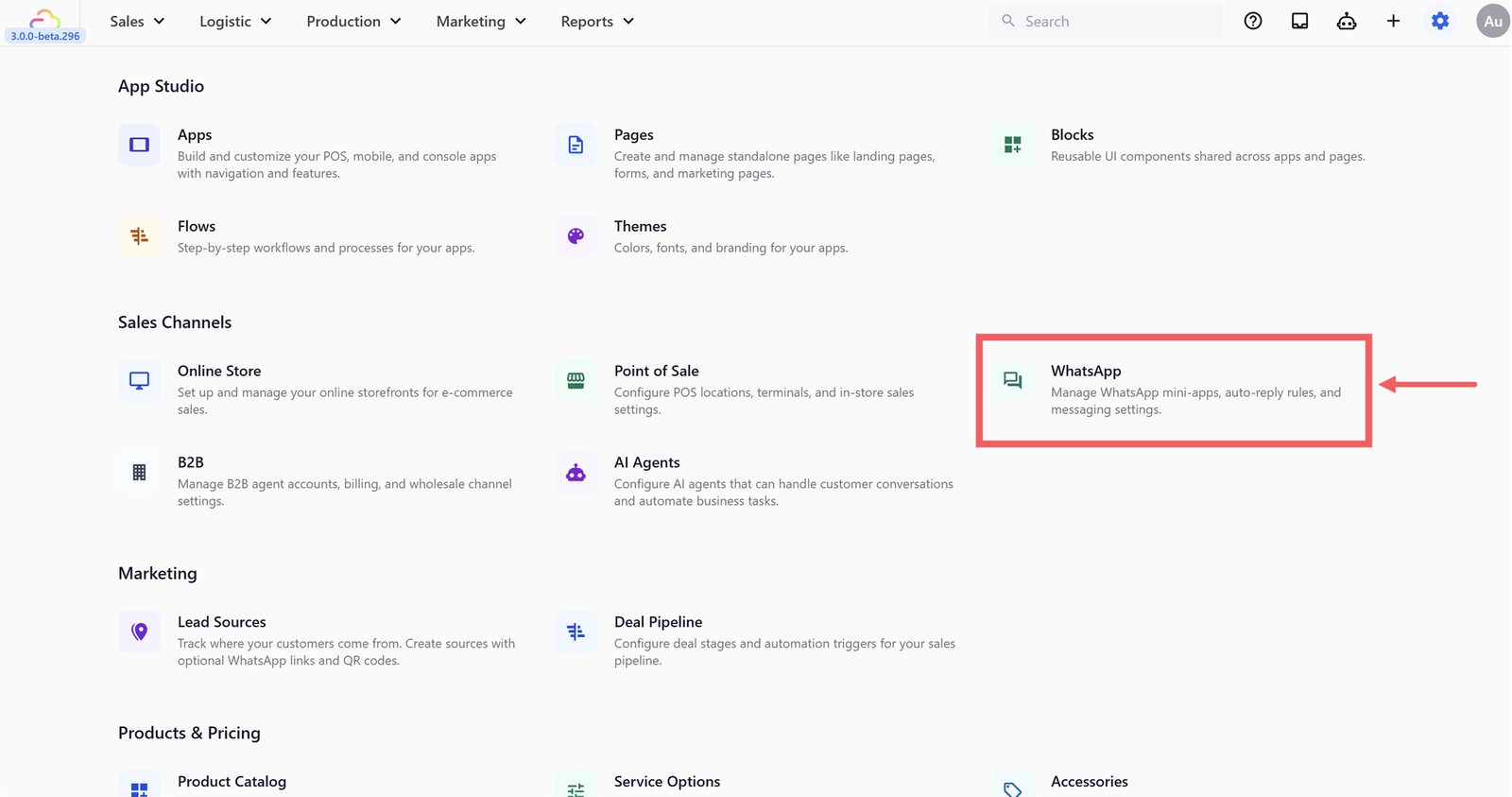
- Under Sales Channels, click WhatsApp.
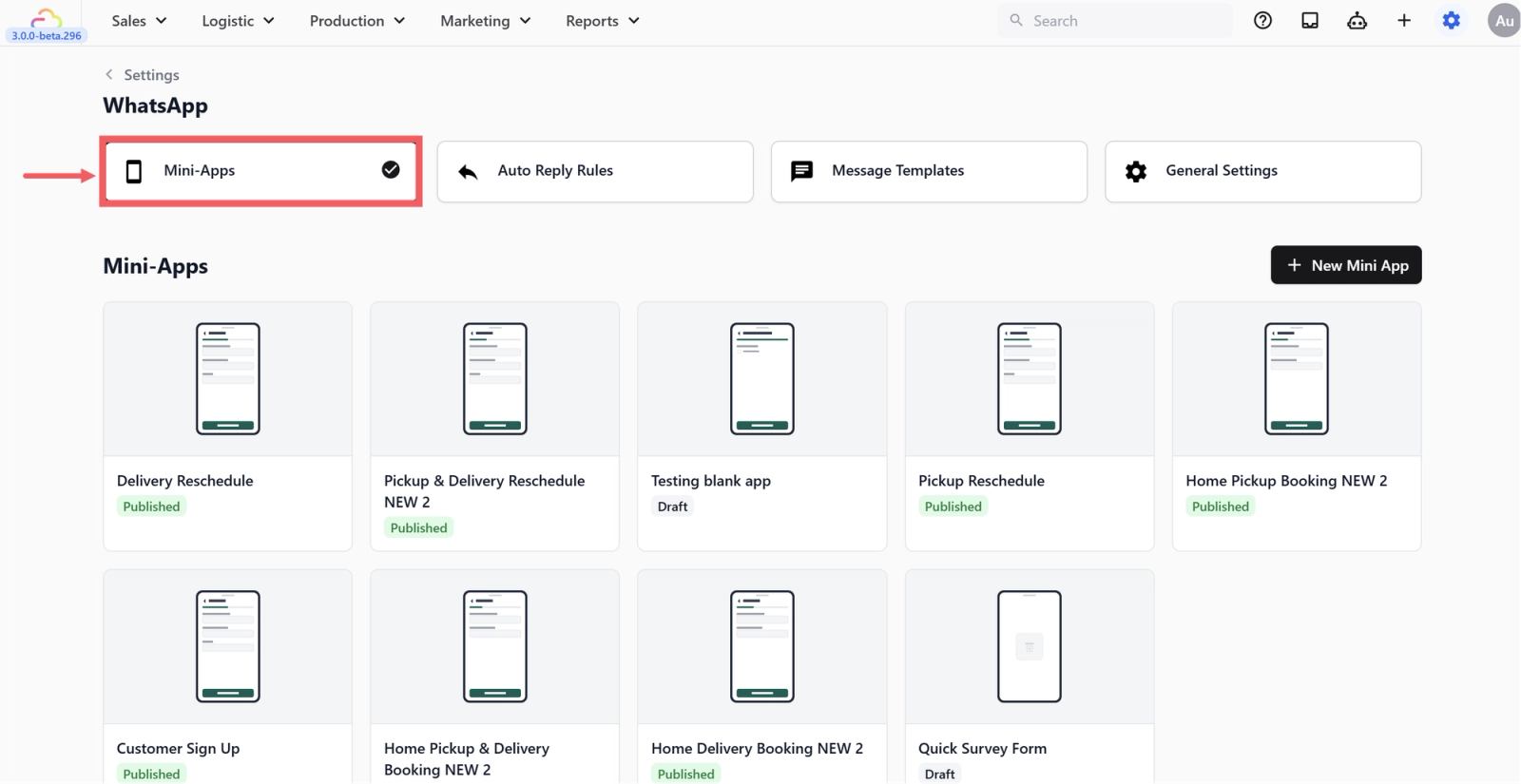
- Open the Mini-Apps Tab.
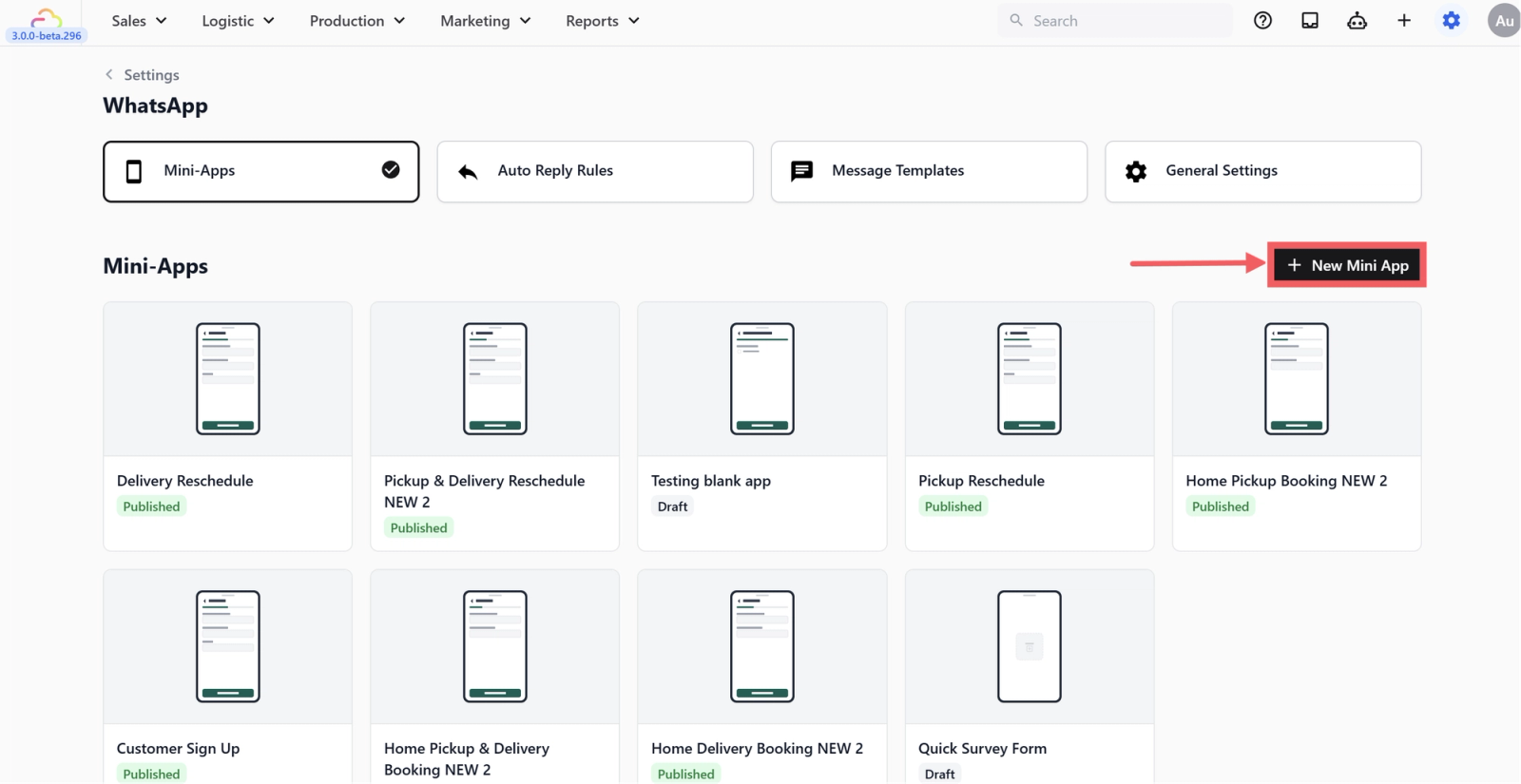
- Click the + New Mini App button.
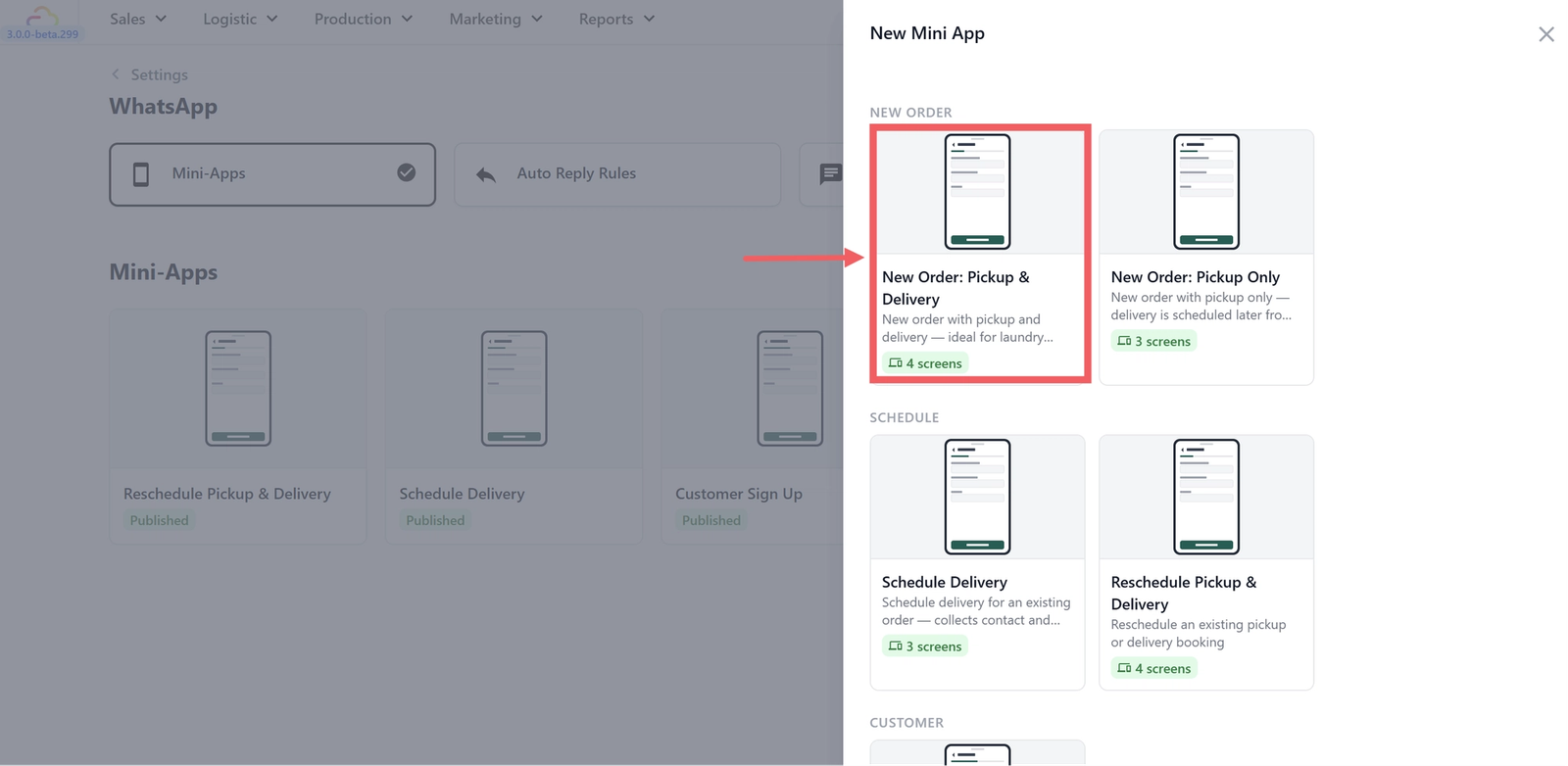
- Select the New Order: Pickup & Delivery Booking template.
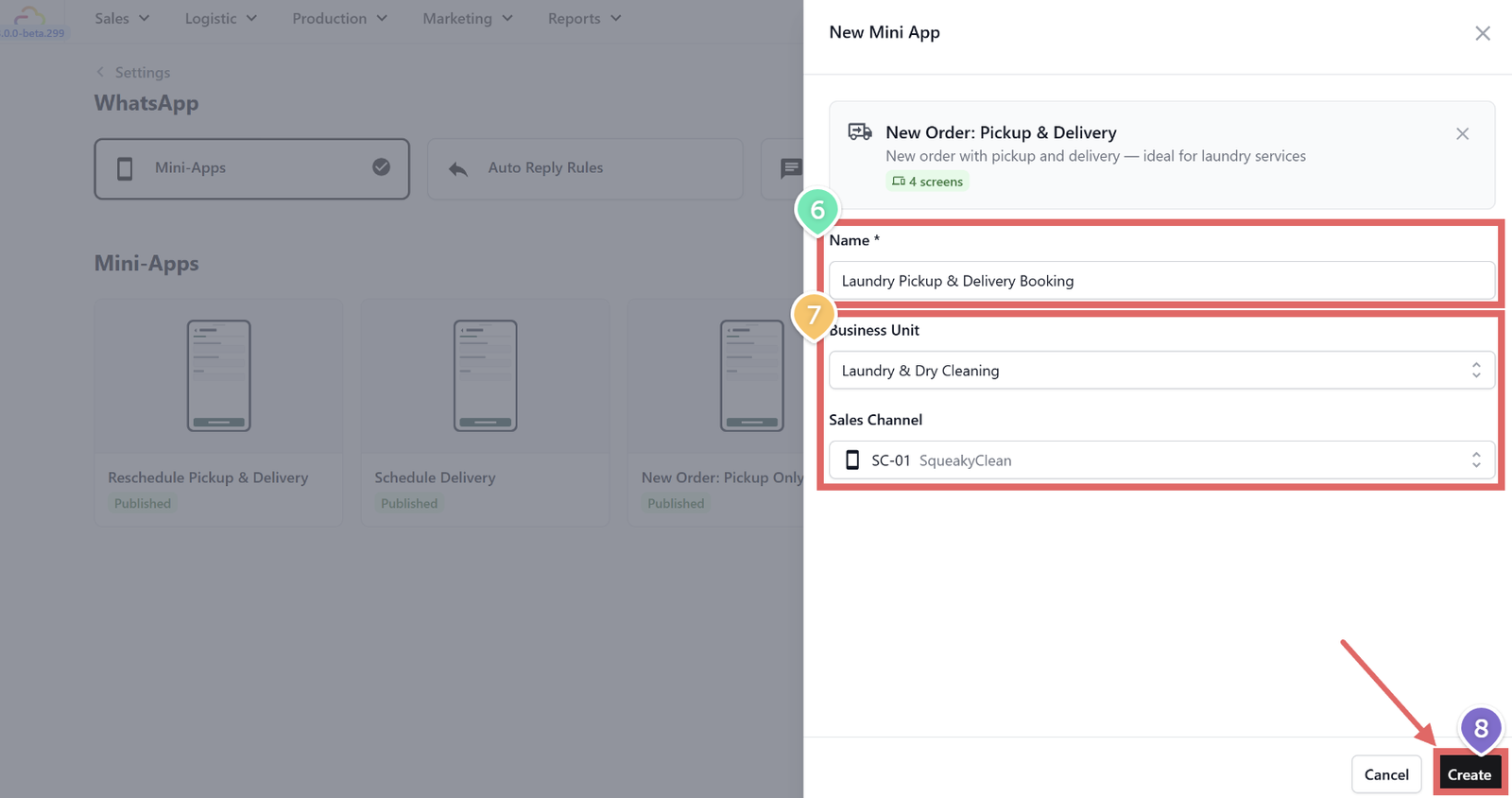
- Enter a name for your Mini App (for example, Laundry Pickup & Delivery Booking).
- Select the Business Unit and Sales Channel this Mini App should be linked to.
- Click Create to open the editor.
Understanding the Editor
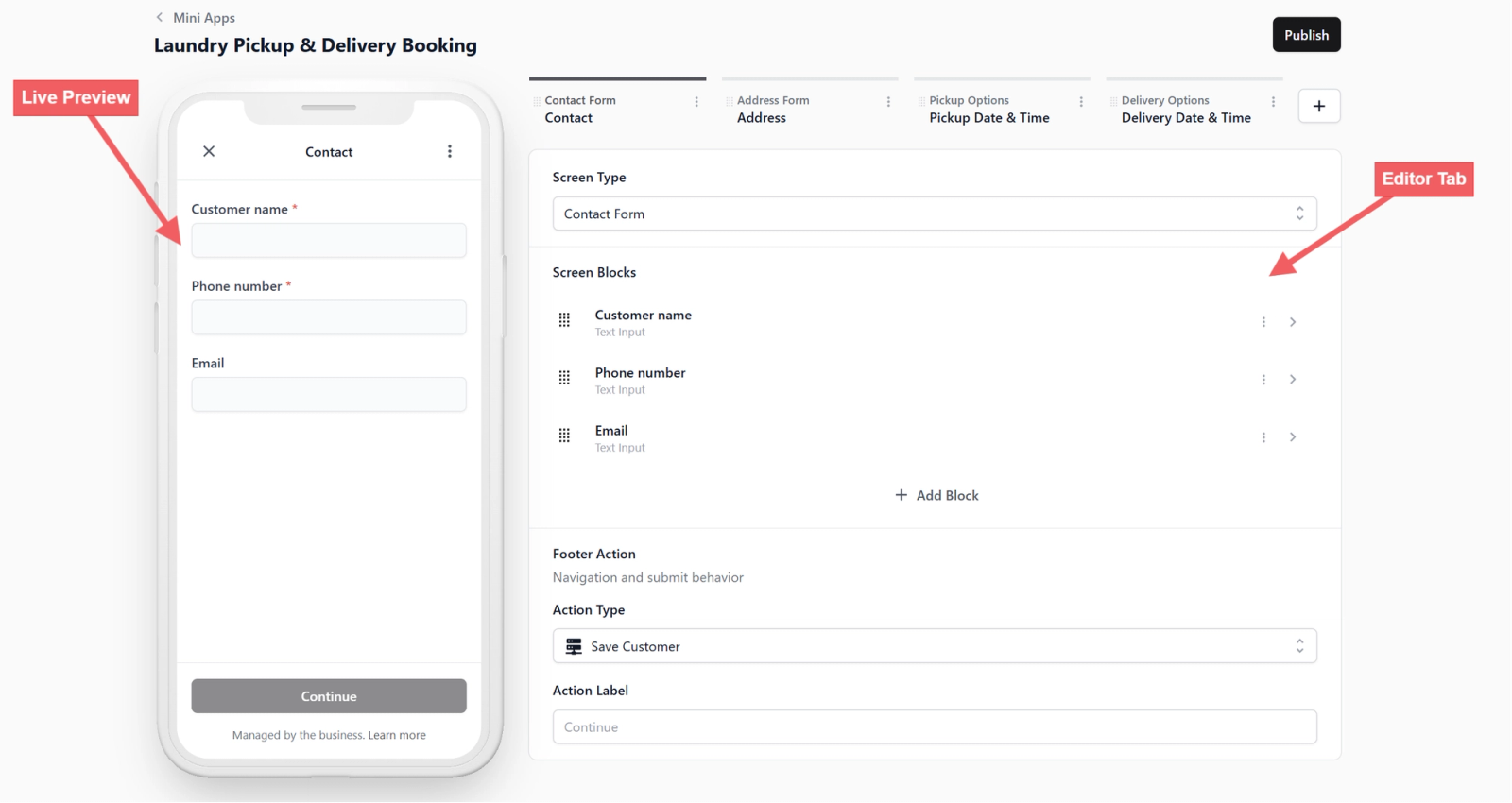
When you open your Mini App, you will see the screen is divided into two parts to make editing easy. The Left Side (Live Preview) is a preview of a mobile phone showing exactly what your customers will see. The Right Side (Editor Tabs) is where you control your form. At the top, you will see tabs for your screens (like pages in a book). You can drag and drop these tabs to reorder your pages.
What are Screen Blocks
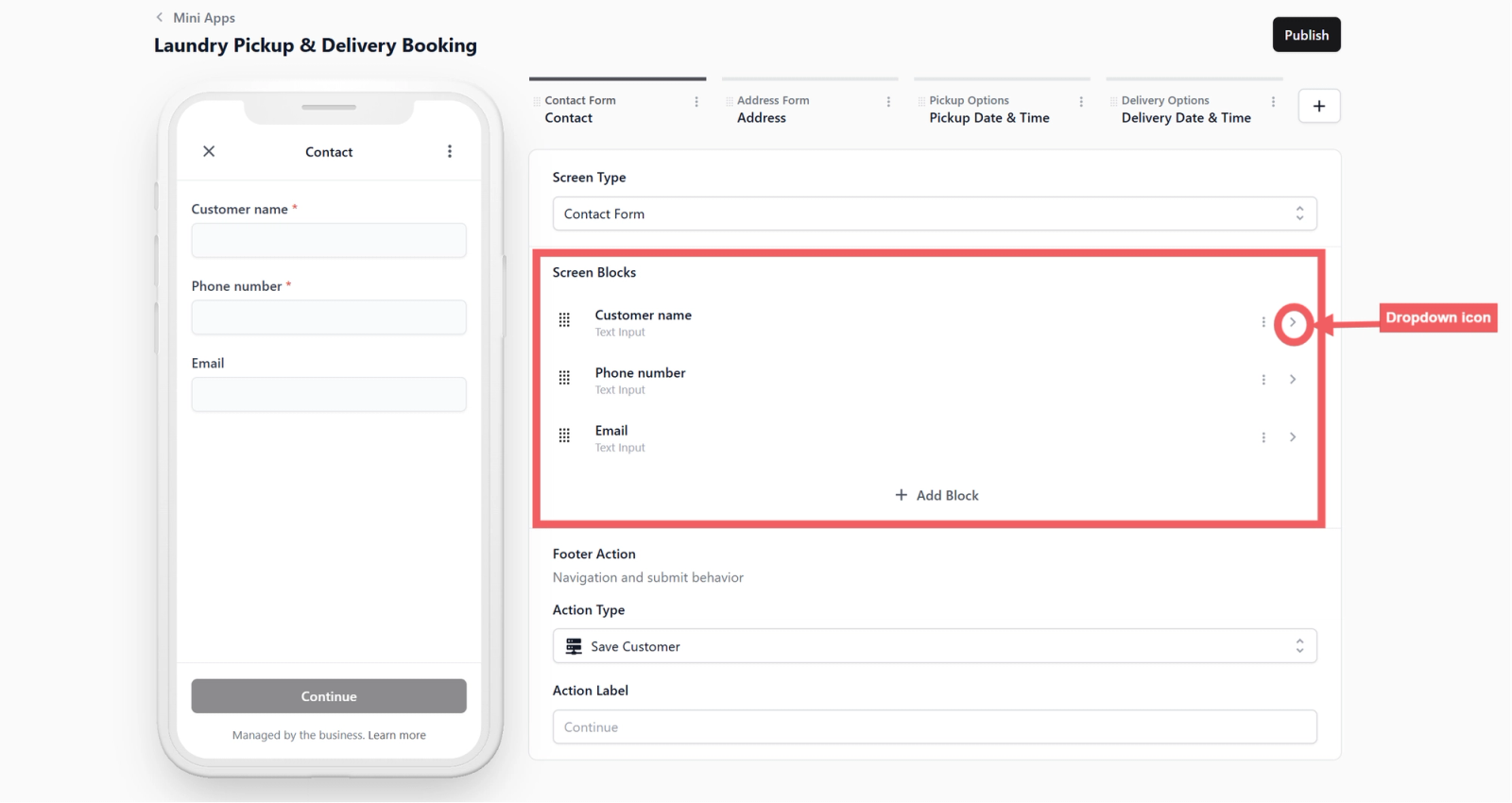
Inside every screen, you will see a list of Screen Blocks. Think of a block as a specific field or question you want the customer to fill out (like their name or their phone number). If you click the dropdown arrow icon ( ⌄ ) next to any block, it will expand to show its settings:
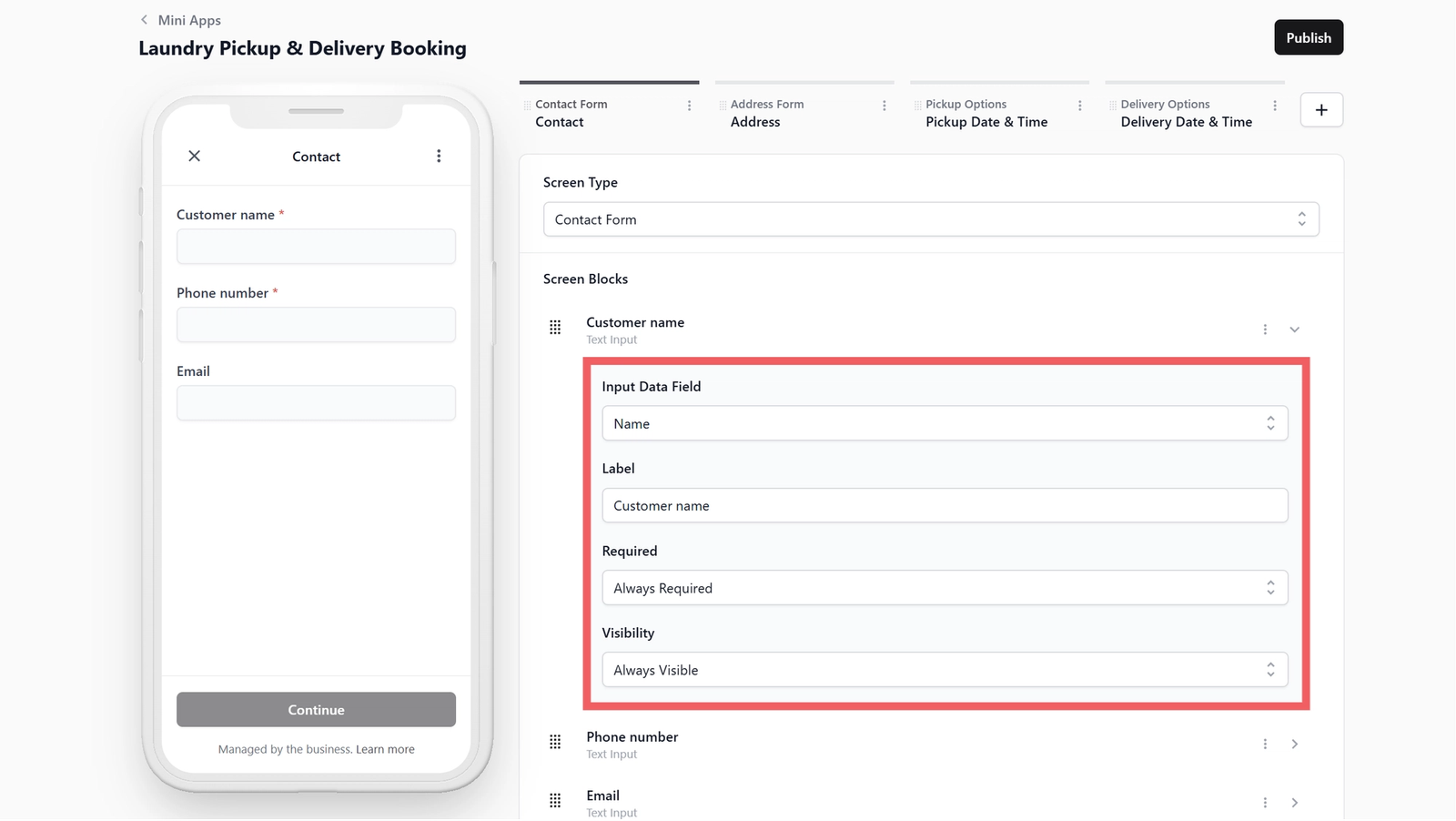
- Input Data Field This links the block to a field in your EasyBiz system — it tells EasyBiz exactly where to save the customer's answer. For example, the "Customer name" block saves to the Name field in your customer profile. You configure these fields in Settings > Operations section > Custom Fields. Read more about Data Fields.
- Label This is the text the customer actually reads on their screen (e.g., "Customer name"). You can change it to anything you like without affecting where the data is saved.
- Required You can choose if the customer must answer this (Always Required), if they can skip it (Not Required), or if it only shows up under certain conditions (Conditional).
- Visibility This controls whether the customer sees this block at all. Set it to Always Visible so it appears on every submission, or set it to Conditional so it only appears when a specific condition is met (for example, showing a unit number field only when the customer selects "HDB" or "Condo" as their property type).
What is a Footer Action
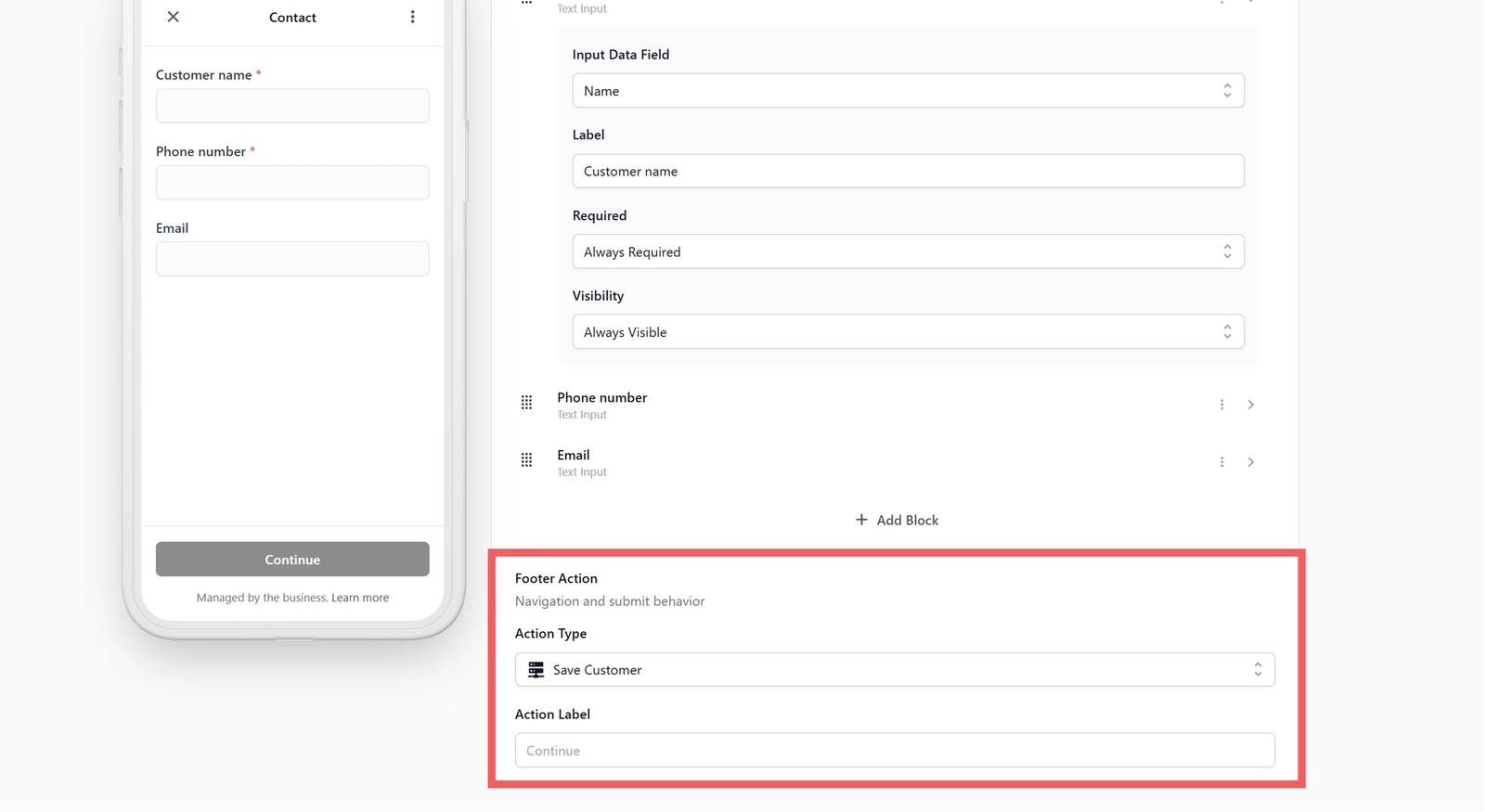
At the very bottom of the editor for each screen, you will see a Footer Action. Think of it as the "what happens next" button — it is the button your customer taps at the bottom of their phone screen to move forward. Depending on the screen, the Footer Action might save the customer's contact details, move them to the next page, or submit the final order. Each screen has its own Footer Action, and the template pre-configures them for you.
What is Already Set Up
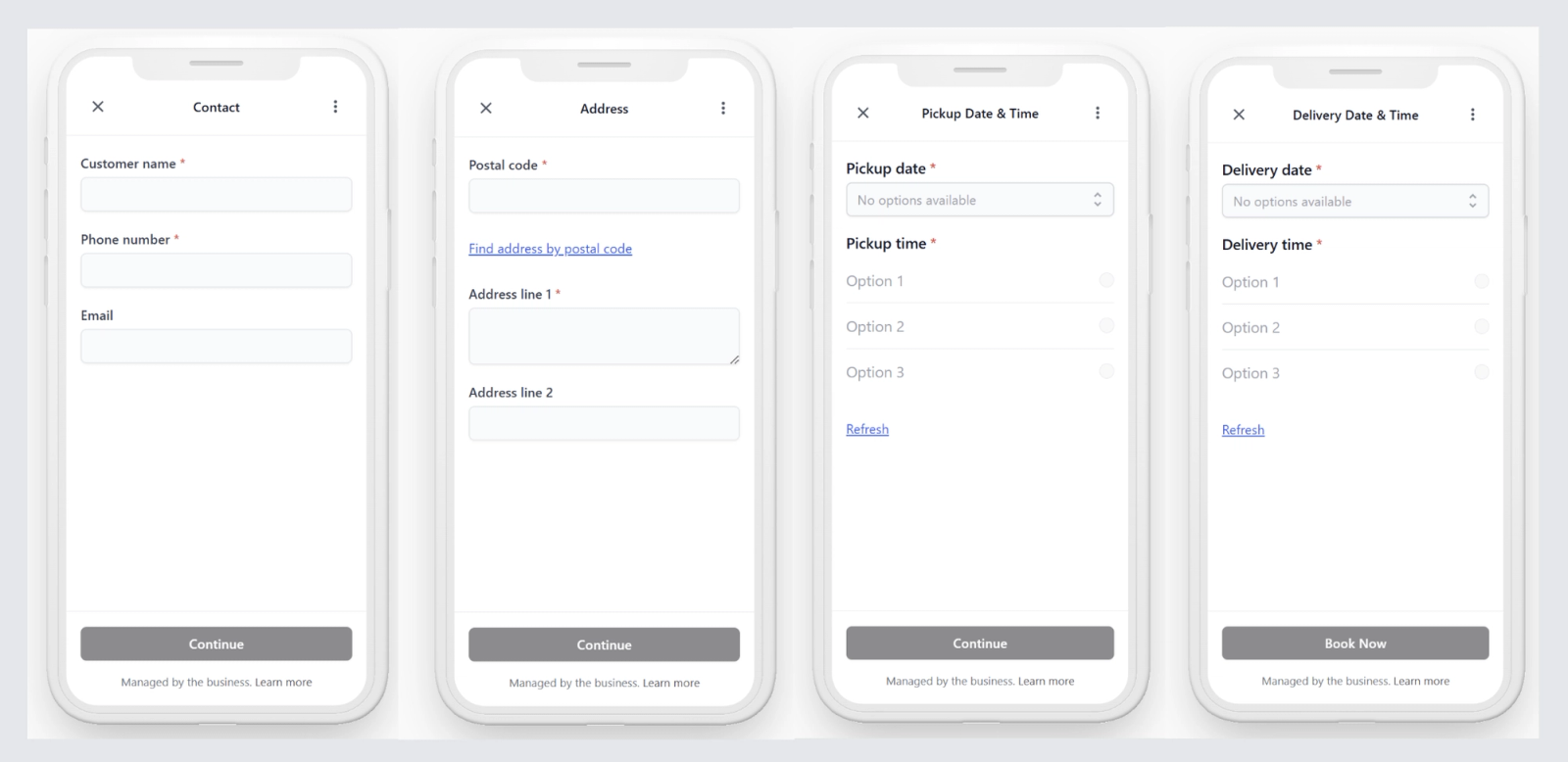
This template is ready to use immediately! It comes pre-built with four default screens that your customer will go through in order. Here is exactly what is inside your default setup:
Contact Screen
This screen asks for the customer's basic details.

- Blocks Included Customer name, Phone number, and Email.
- Footer Action Set to Save Customer. When the customer taps "Continue", EasyBiz securely saves their details or updates their existing profile.
Address Screen
This screen makes address entry quick and prevents typos.
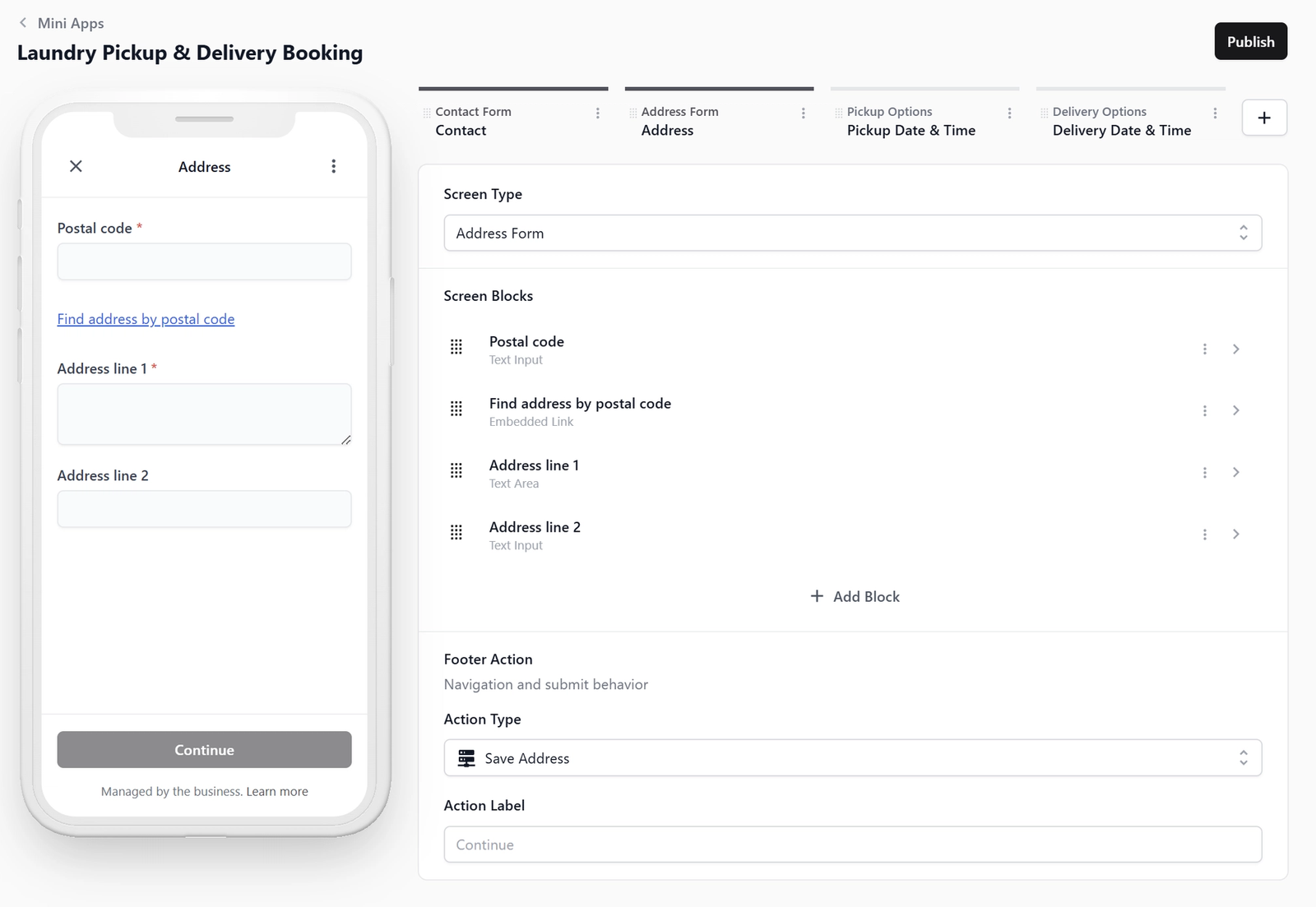
- Blocks Included: Postal code, a clickable "Find address by postal code" link, Address line 1, and Address line 2 (left optional for unit/floor numbers).
- Footer Action: Set to Save Address.
Pickup Date & Time Screen
This screen lets your customer choose when they want their items collected.
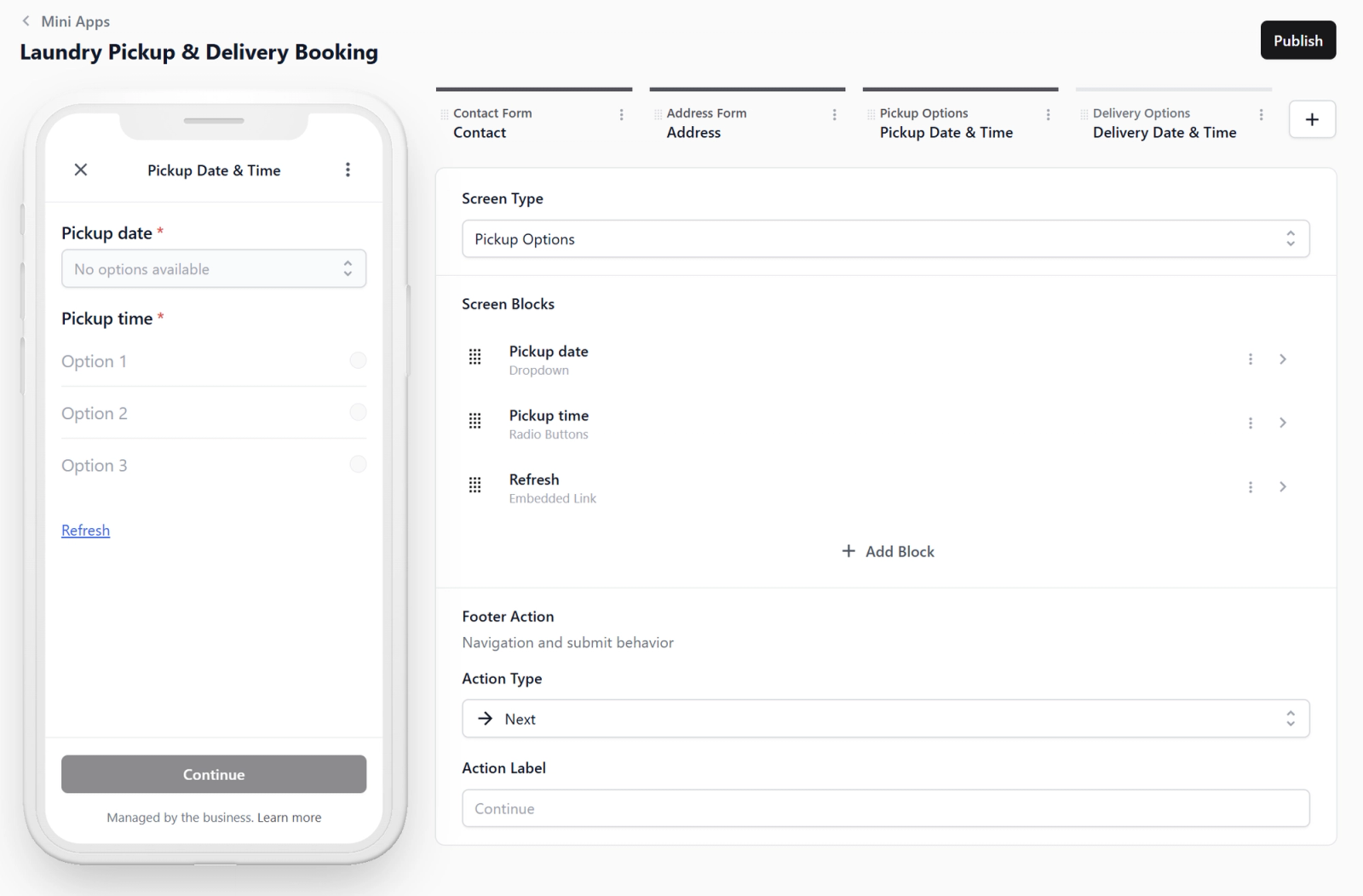
- Blocks Included: Pickup date dropdown, Pickup time options, and a "Refresh" link (in case they need to see the latest available time slots).
- Footer Action: Set to Next to simply move them to the final step.
Delivery Date & Time Screen
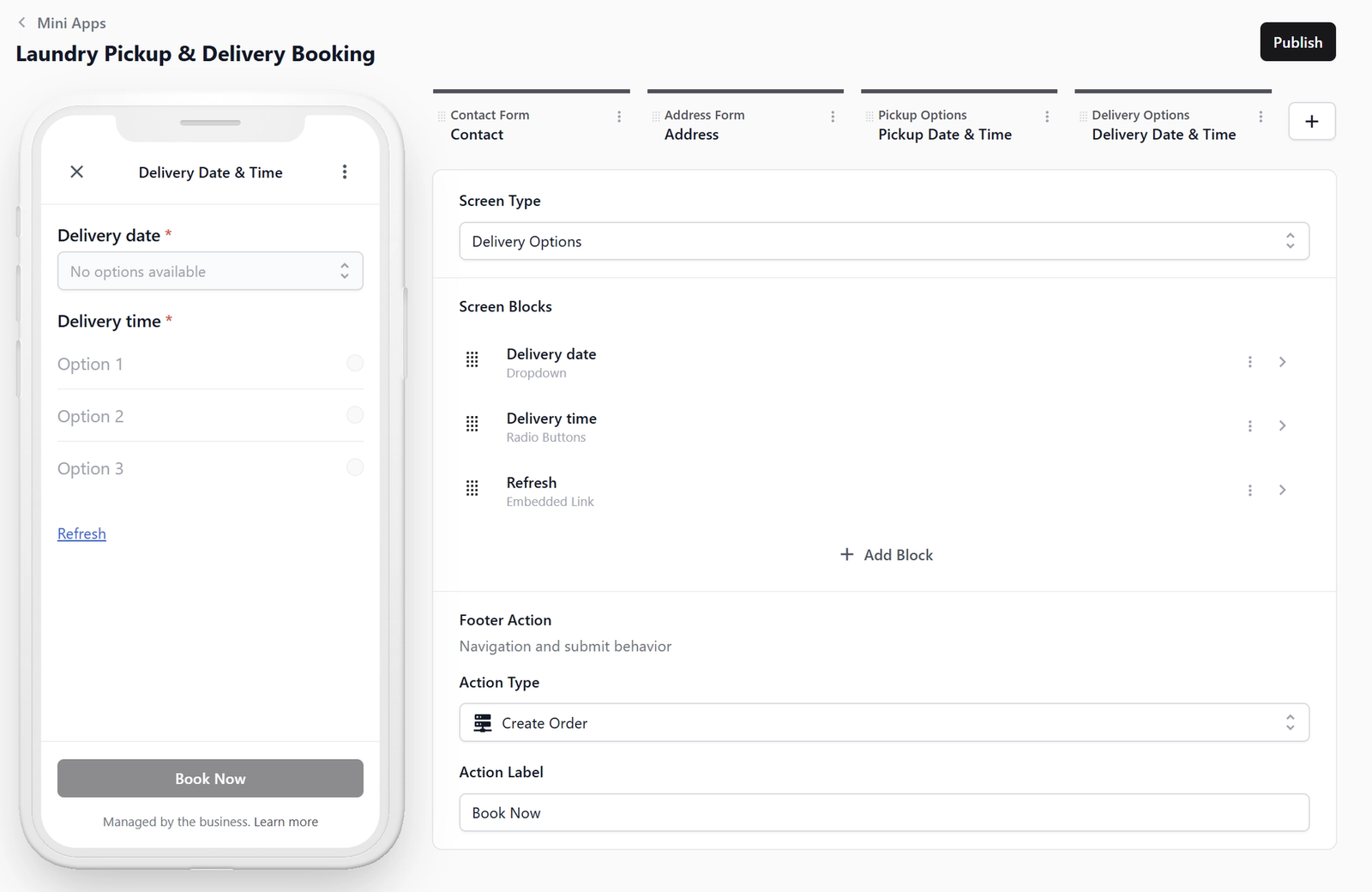
Working exactly like the pickup screen, this lets the customer choose when they want their clean laundry returned.
- Blocks Included: Delivery date dropdown, Delivery time options, and a "Refresh" link.
- Footer Action: Set to Create Order. Once the customer taps this final button, the booking is instantly created in your EasyBiz system!
Customizing Your Mini App
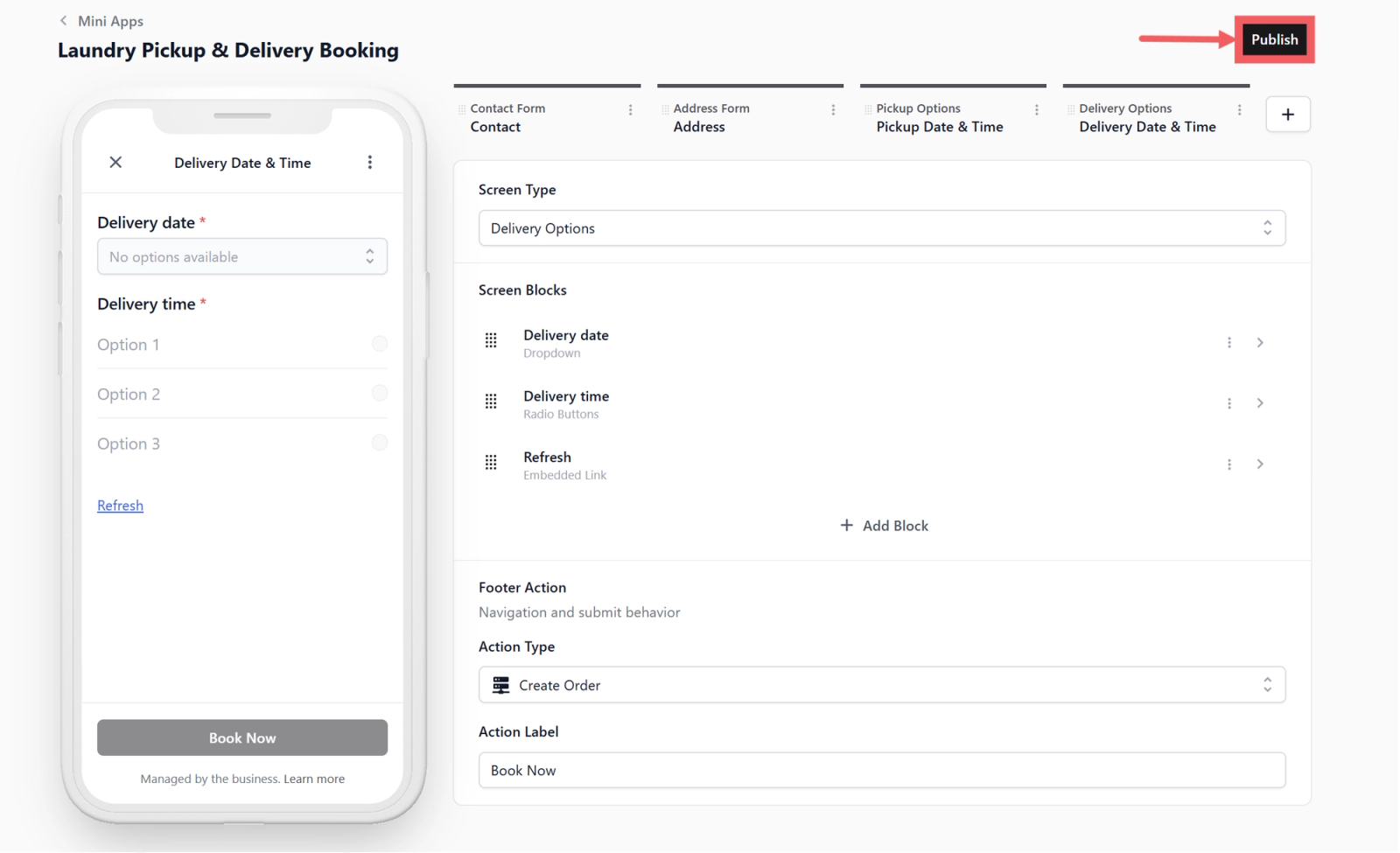
The default setup above is all you need to run your business smoothly. You can click Publish right now and start taking bookings!
However, if you want to gather more specific details, EasyBiz makes it simple to customize.
Making Address Line 2 Mandatory
By default, Address Line 2 (unit number) is optional because customers in landed houses do not have one. Here is how to make it mandatory only for HDB, Condo or Offices.
Step 1 Create an Address Type Data Field
Before we can ask the customer for their property type, we need to create a blank space in the system to save their answer. Read more about [Data Fields].
- Go to Settings> Operations section > Custom Fields.
- Click Add Data Field. Name it Address Type and select Dropdown as the Data Type.
- Type in your options: HDB, Condo, Office, Landed. Click Save.
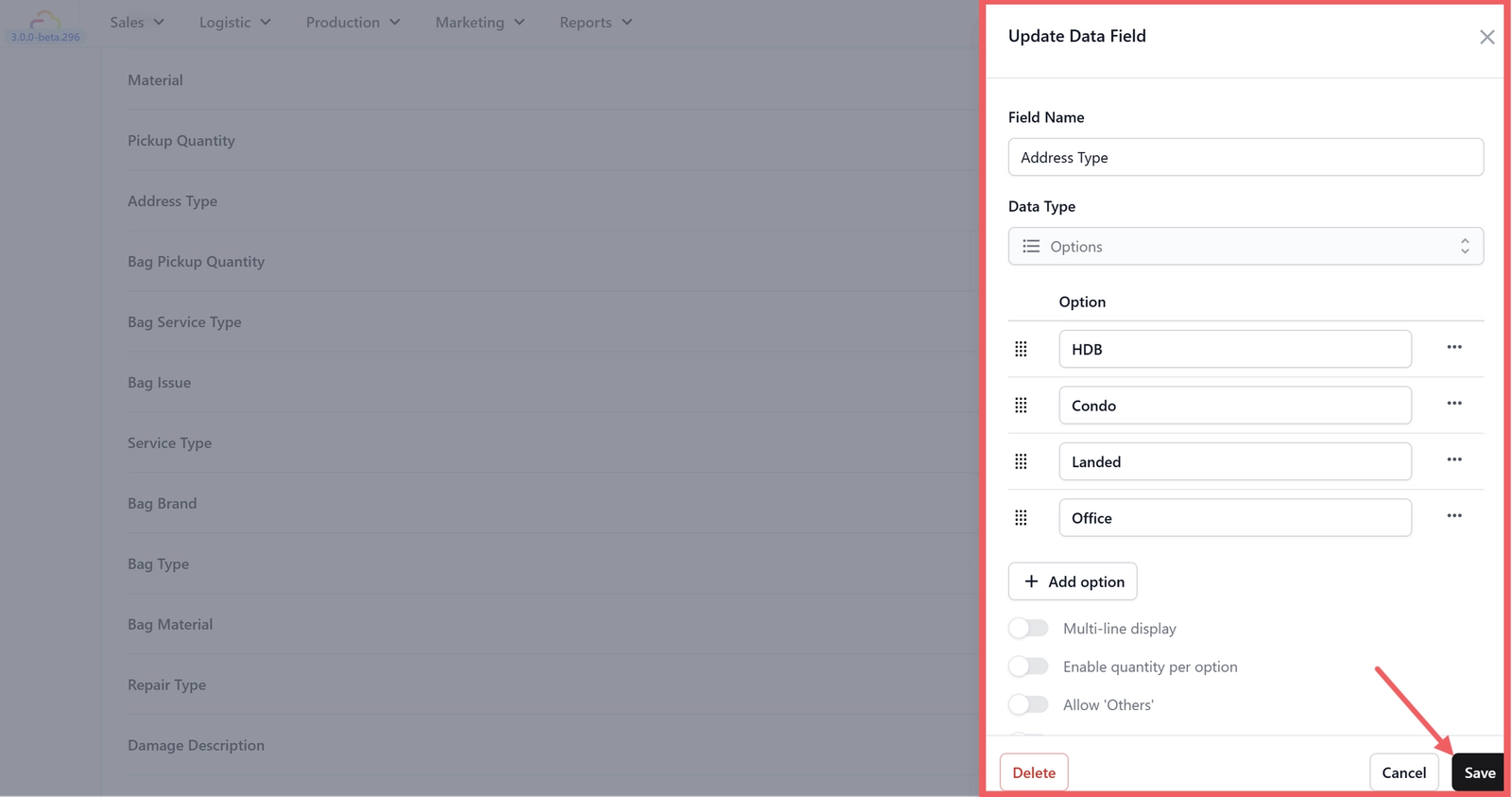
Step 2 Add the Address Type Block
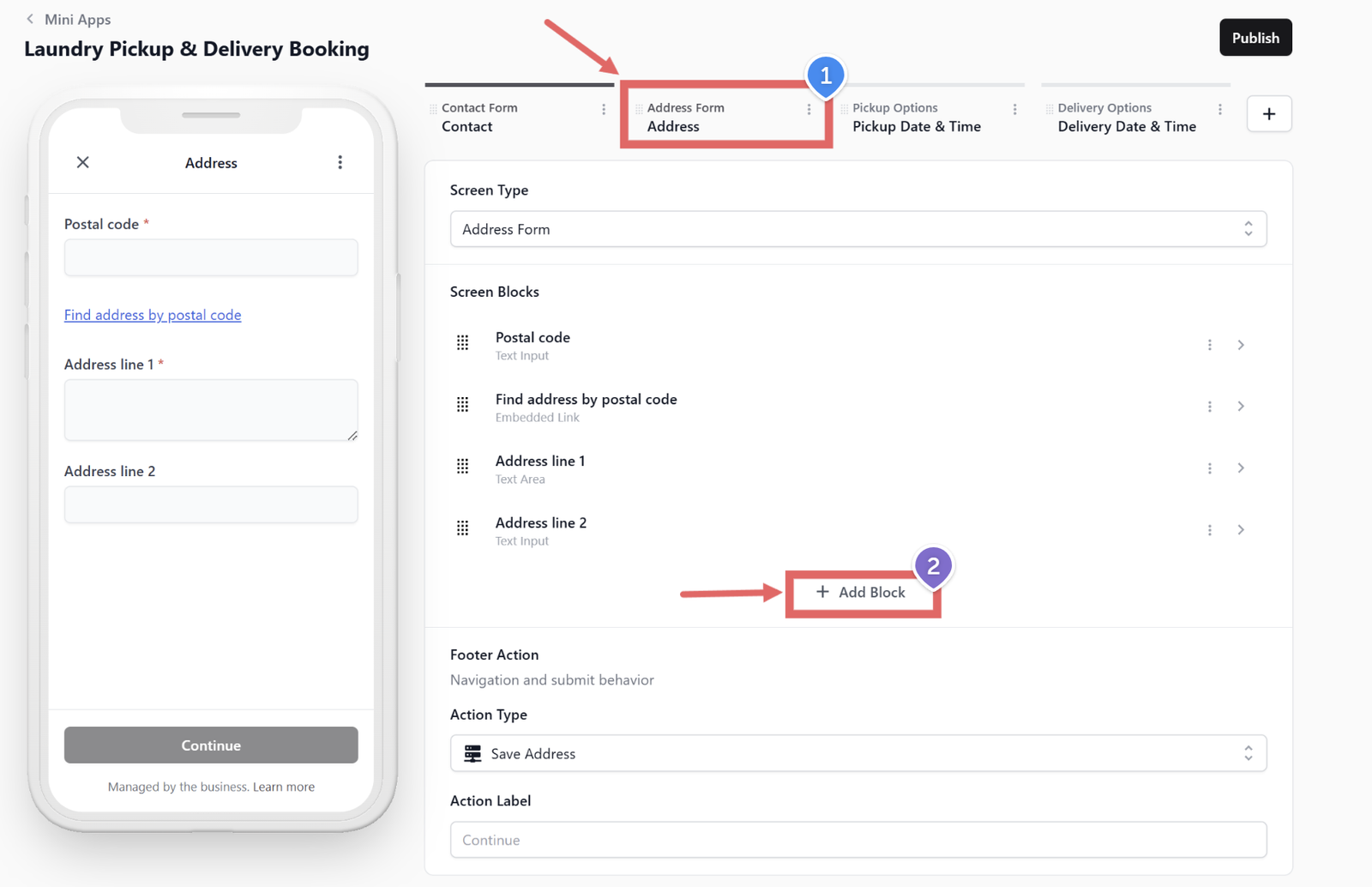
- Back in your Mini App editor, click your Address screen tab.
- Click + Add Block
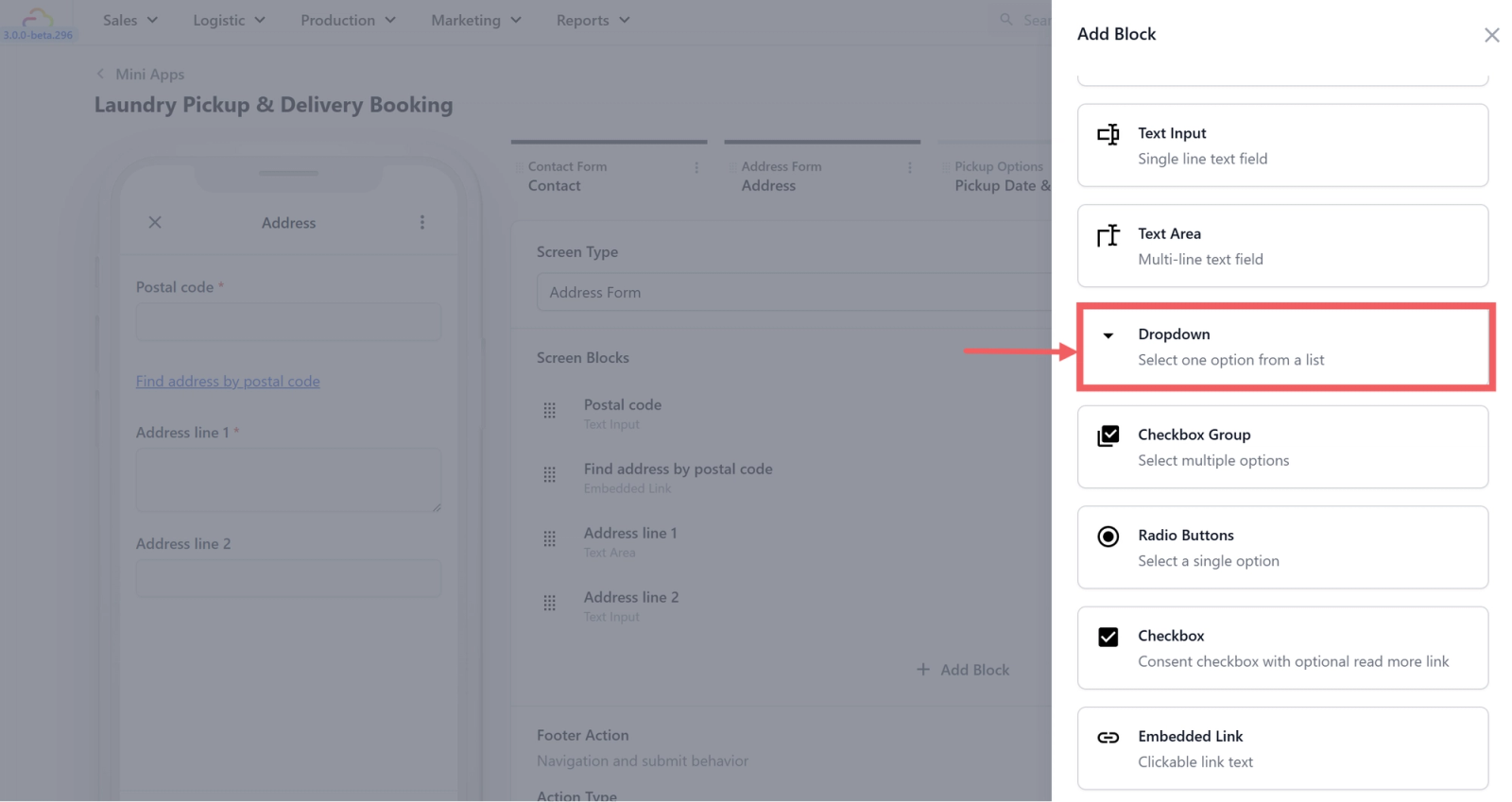
- Choose Dropdown.
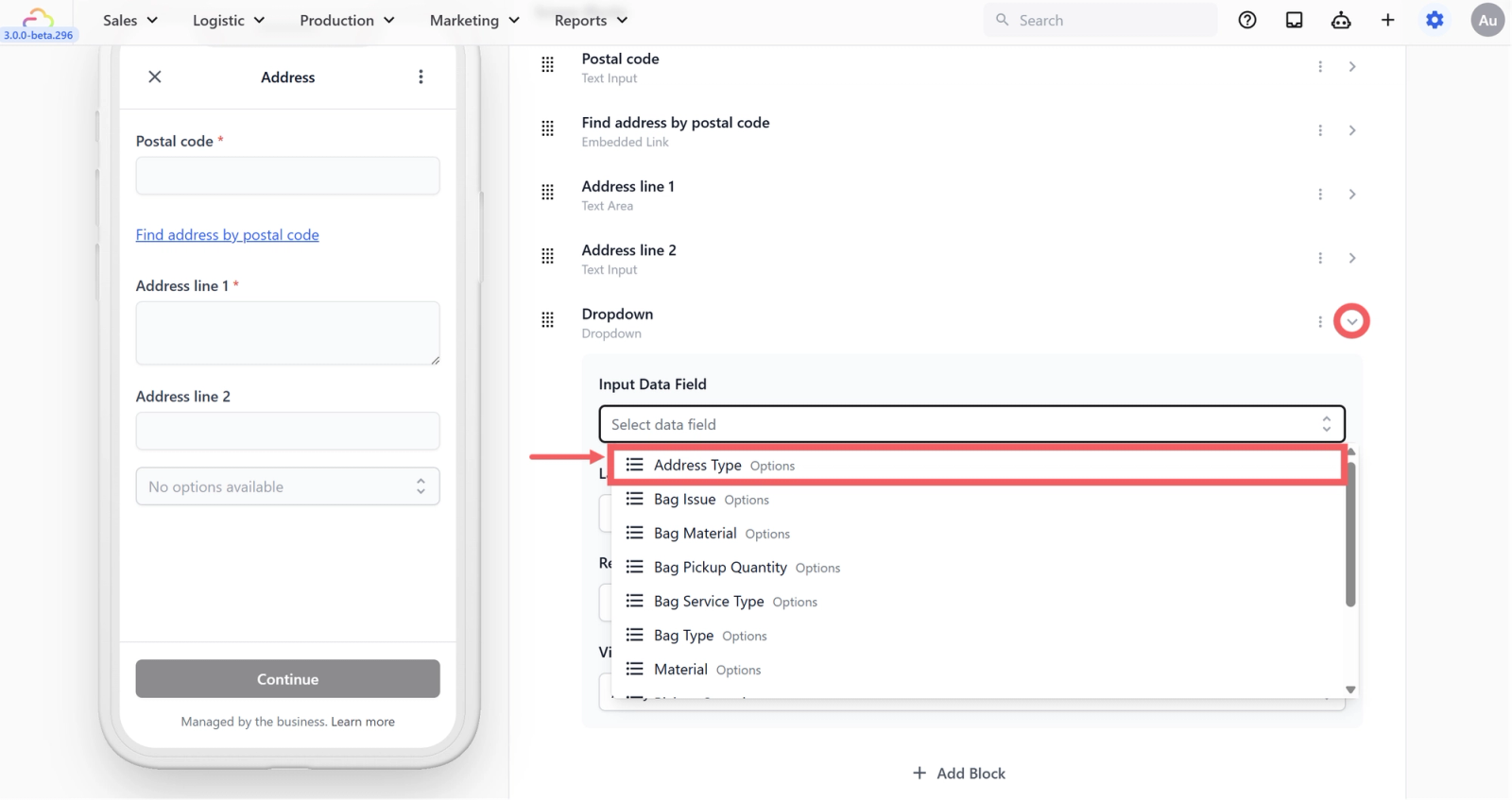
- Open the block settings (click the ⌄ arrow). Set the Input Data Field to your newly created Address Type field.
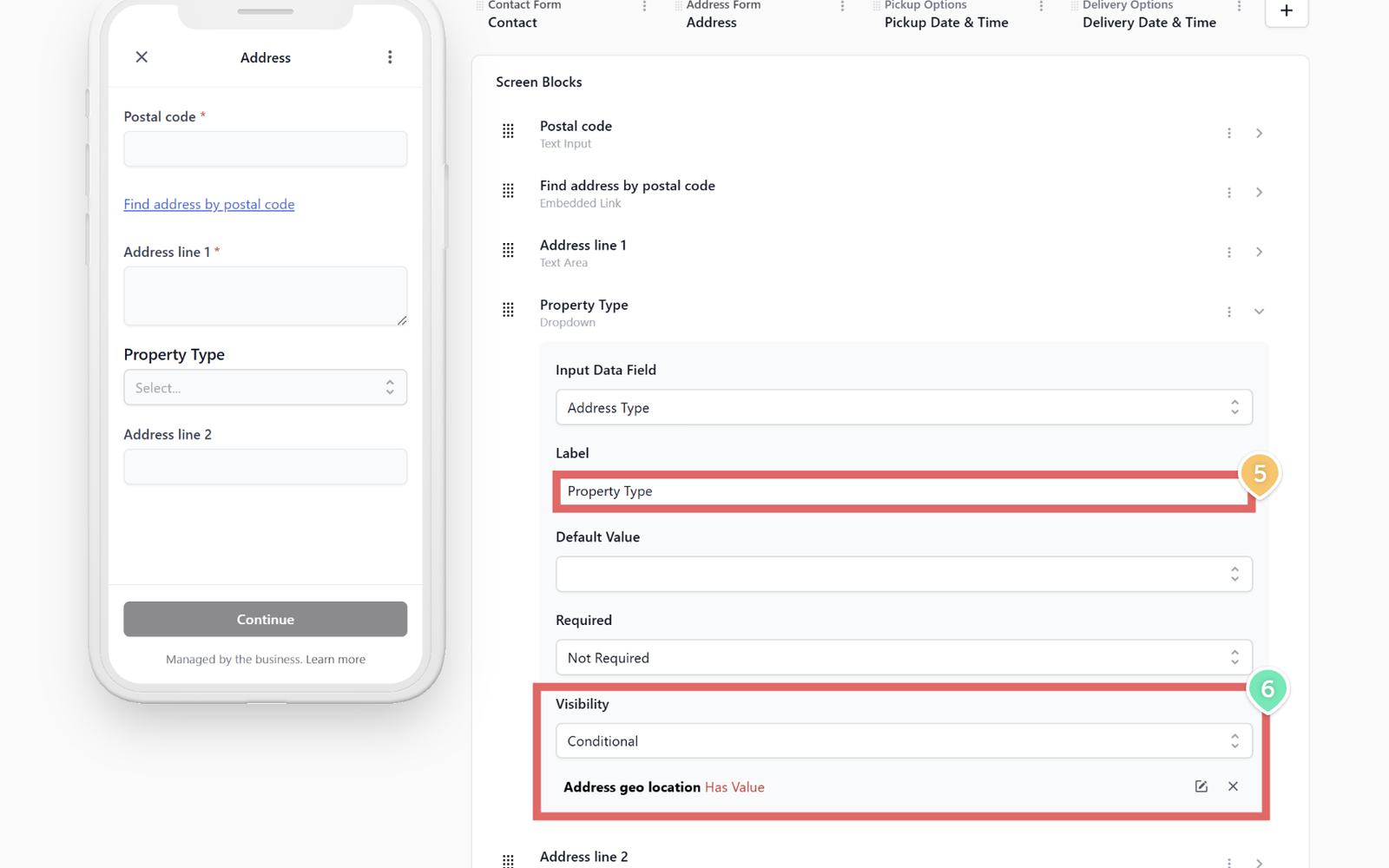
- Set the Label to "Property Type".
- Set Visibility to Conditional. Choose When: Address geo location -> Operator: Has Value. This ensures the dropdown only appears after the customer finds their postal code.
- Drag and drop this new block just above Address Line 1.
Step 3 Make Address Line 2 Conditional
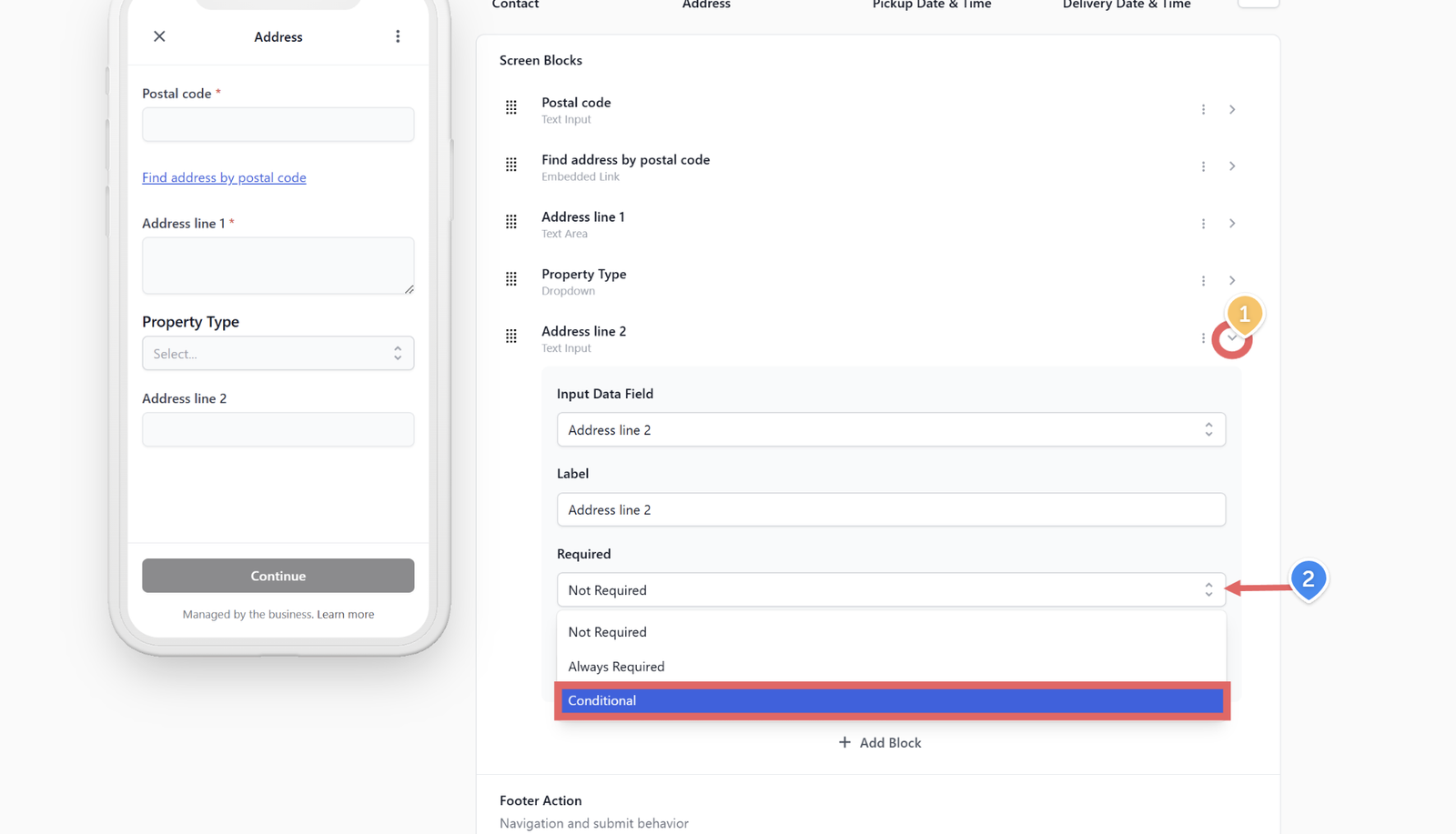
- Open the settings for the Address Line 2 block.
- Change Required to Conditional.
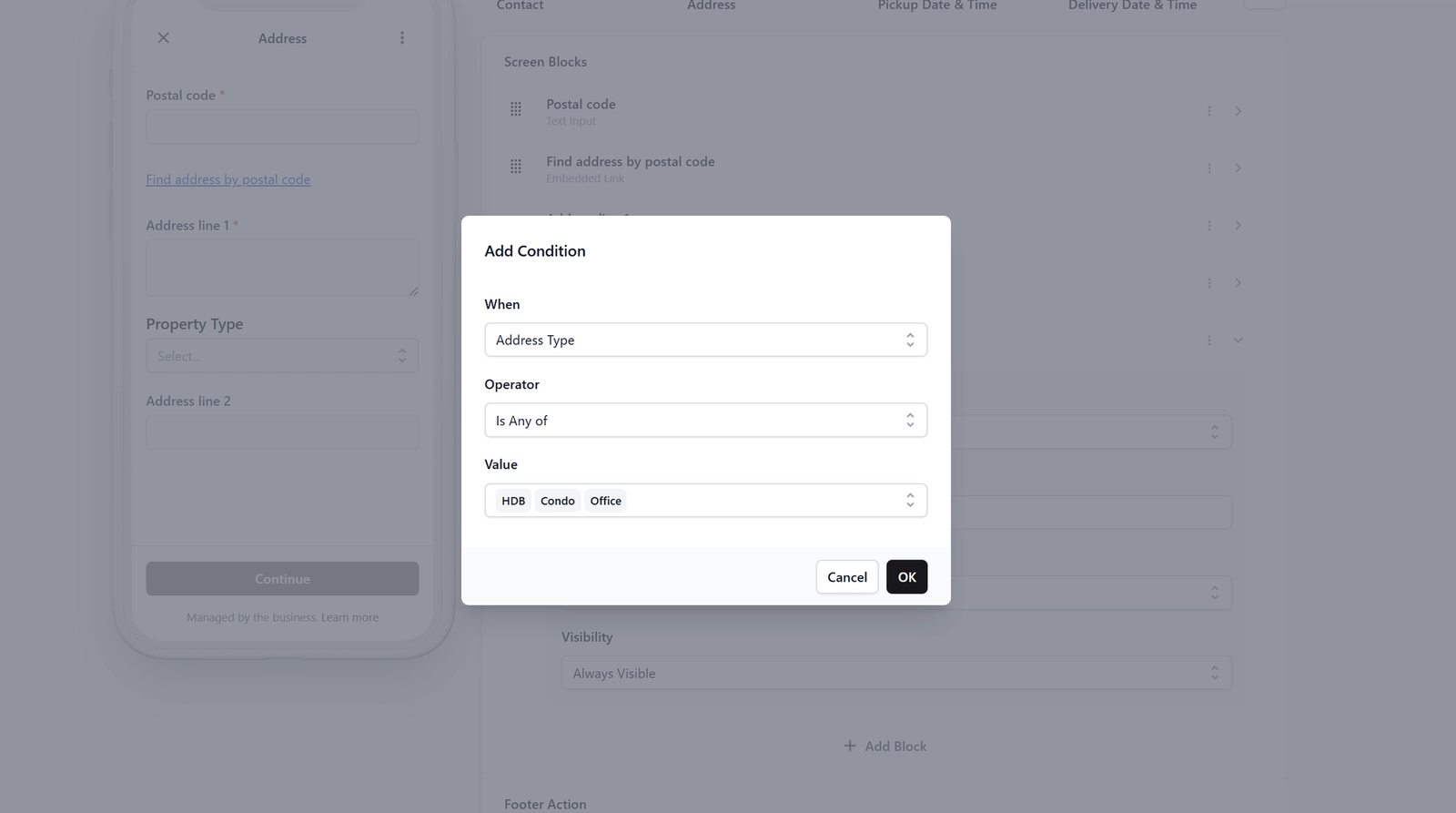
- Set it to When: Address Type -> Operator: Is Any Of -> Value: HDB, Condo, Office.
Now, Address Line 2 will be strictly required for apartments, but completely optional for landed properties!
Adding a Service Type Screen
If you want to know exactly what service the customer needs (e.g., Laundry vs. Dry Cleaning) before you pick up the items, you can add a brand new screen.
Step 1 Create a Service Type Data Field
Read more about Data Fields Here.
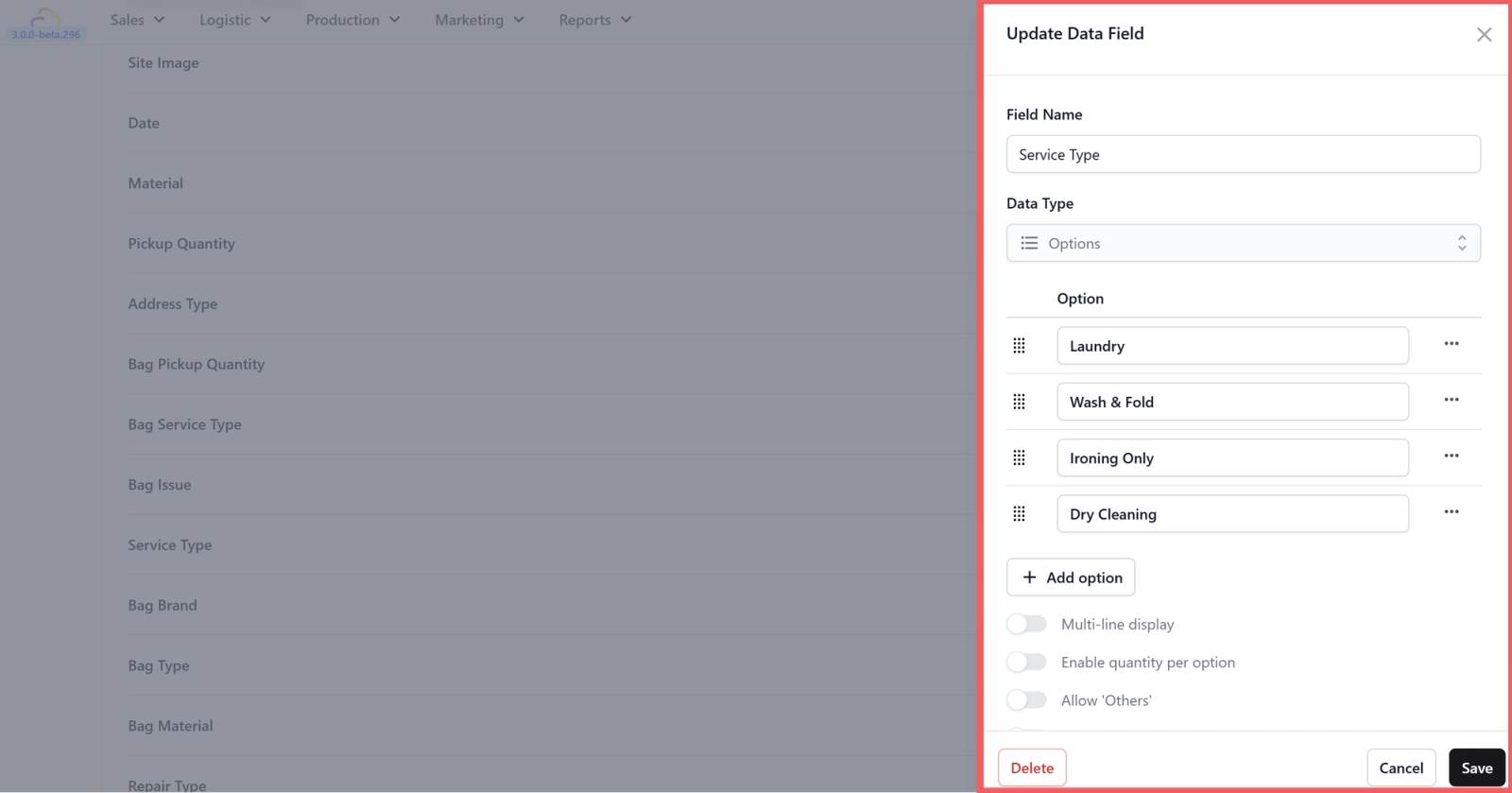
- Just like before, go to Settings > Operations section > Custom Fields and click + Add Data Field.
- Name it Service Type, choose Dropdown as the Data Type, and add your options (e.g., Laundry, Dry Cleaning, Ironing). Click Save.
Step 2 Add the New Screen

- Back in your Mini App editor, click the + button next to your screen tabs at the top right to Add Screen.
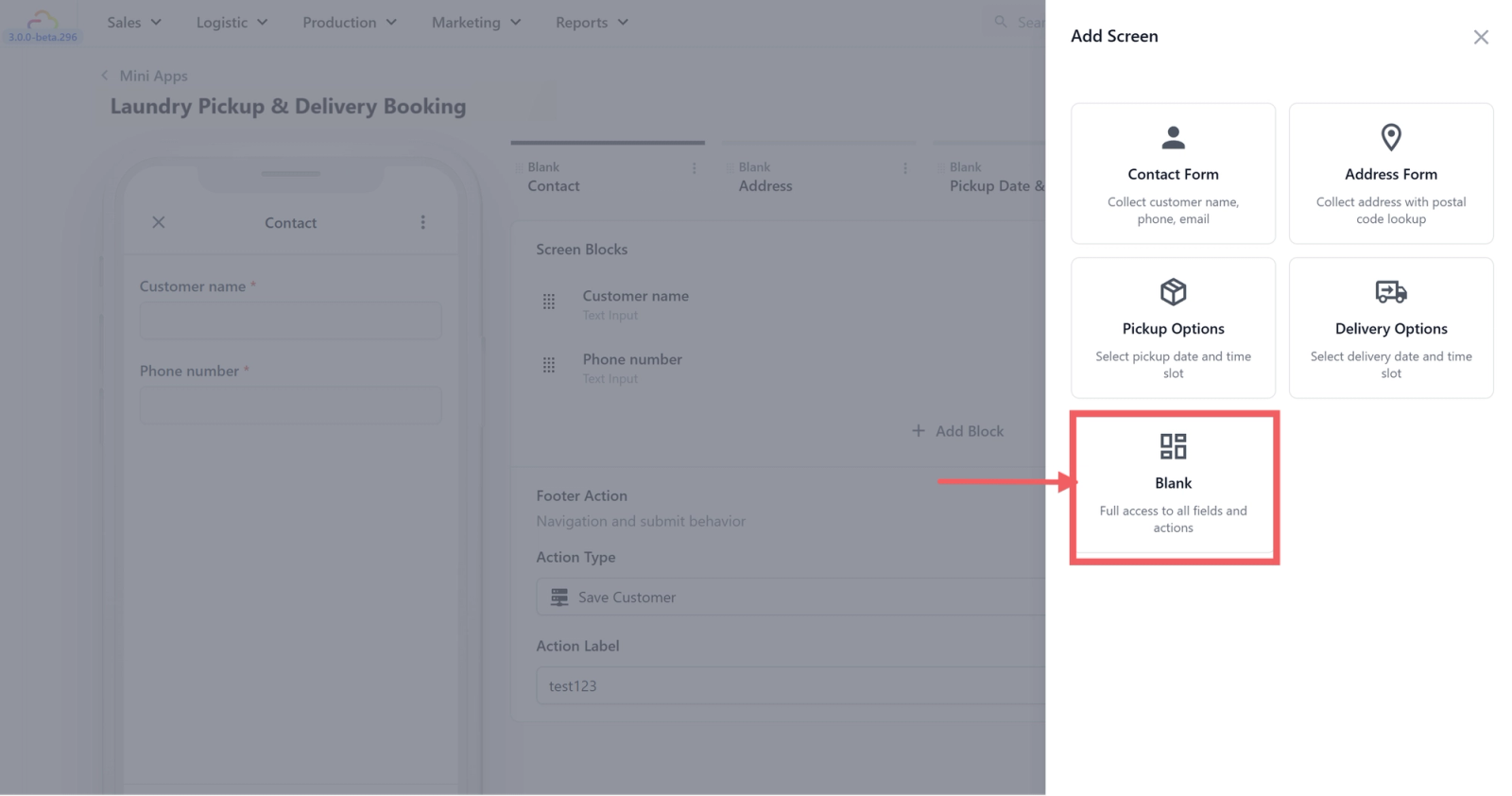
- Choose Blank, name it Service Type, and click Add.
- Drag and drop this new screen tab so it sits right between Address and Pickup Date & Time.
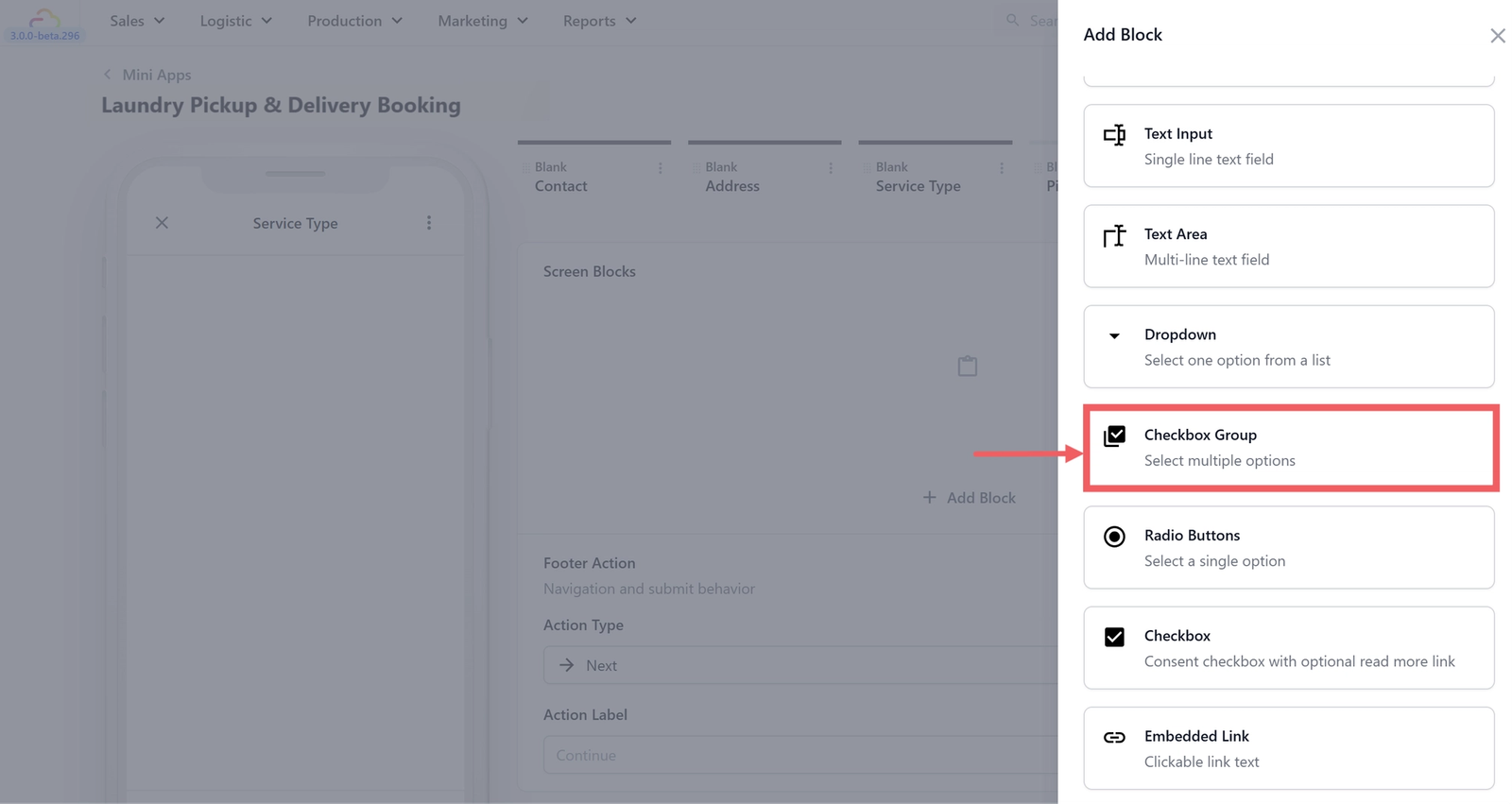
- Inside your new screen, click + Add Block and select Checkbox Group (this lets customers select multiple services).

- Open the block settings. Set the Input Data Field to your Service Type field, and change the Label to "What services do you need?".
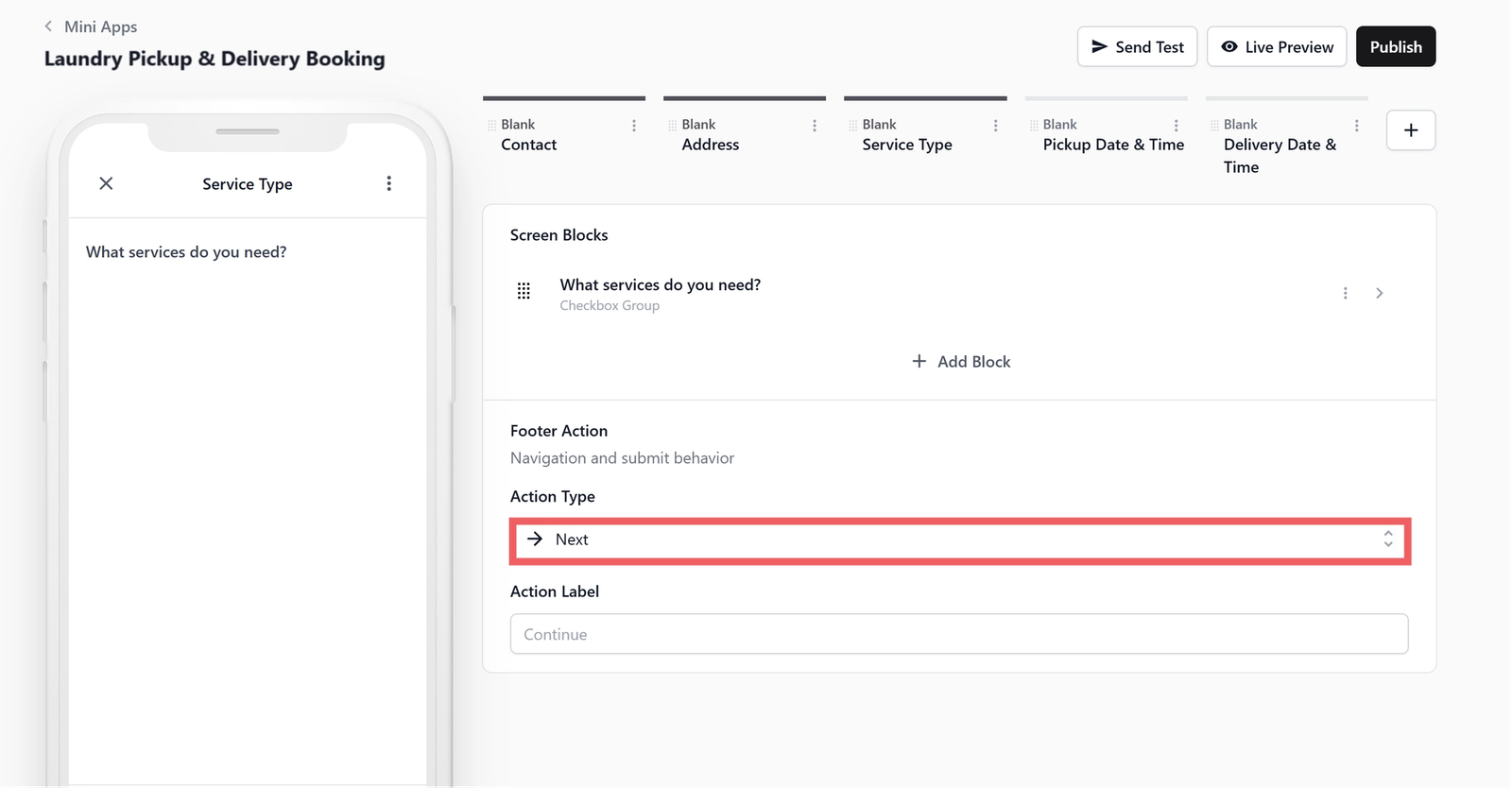
- The Footer Action is already set to Next by default, so you can just leave it as it is.
Publish Your Mini App
Once you are happy with your setup, it is time to make it live!

- Click the black Publish button at the top right corner of the editor.
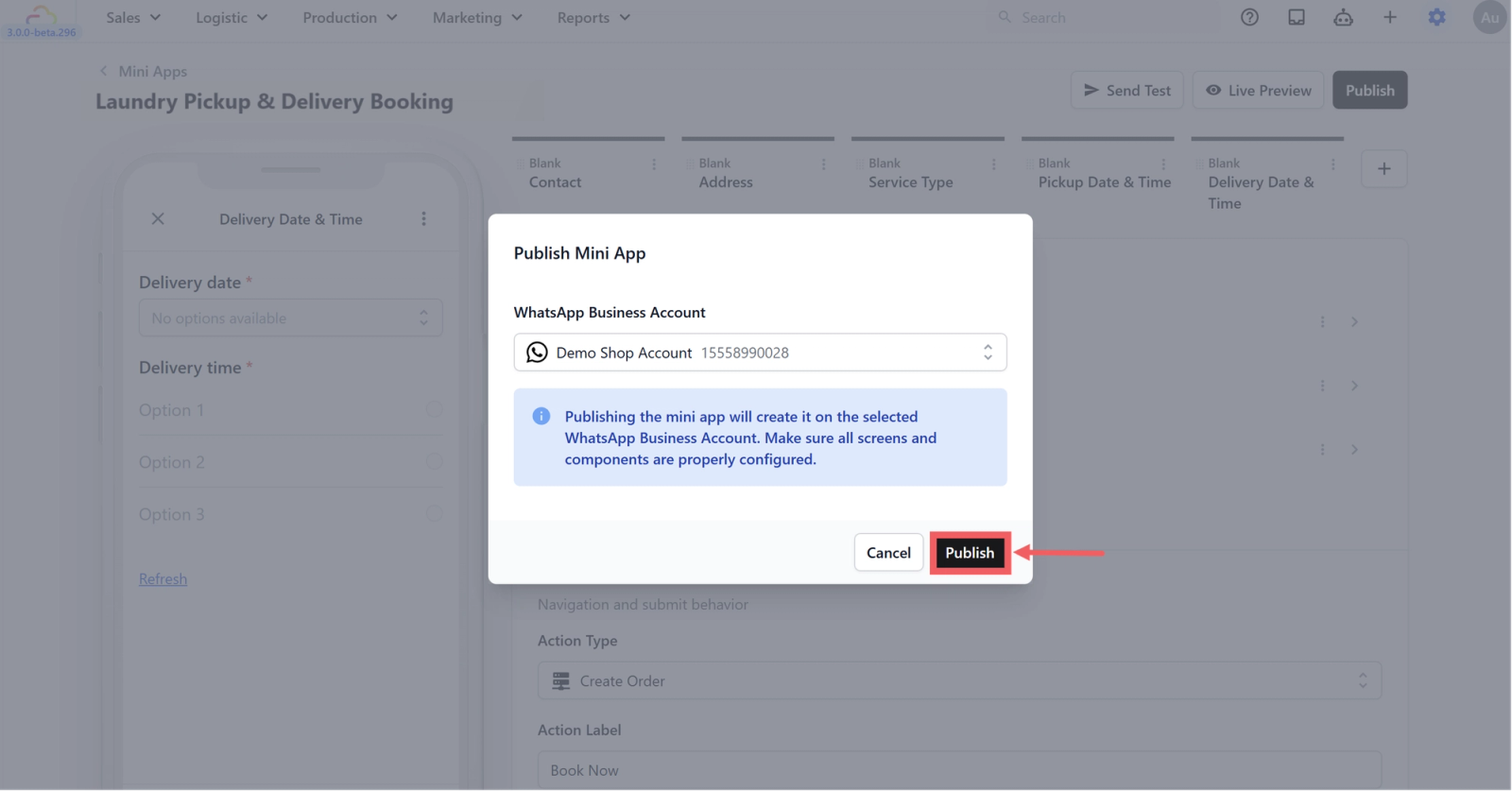
- A confirmation dialog box will pop up. Ensure your WhatsApp Business Account is selected correctly, then click Publish.
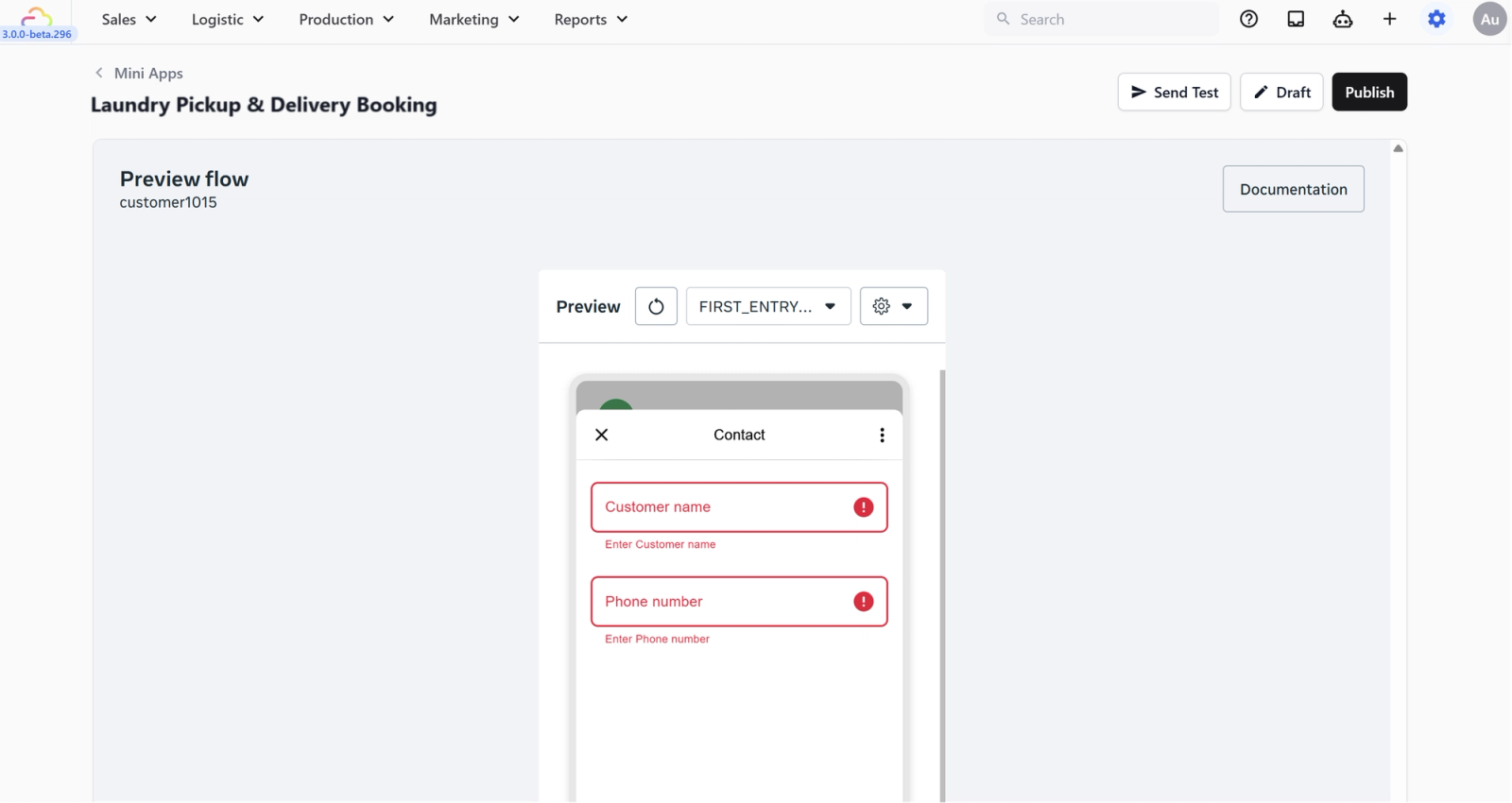
- You will now be taken to the Live Preview screen. This screen shows you exactly what your customer will see and interact with on their phone.
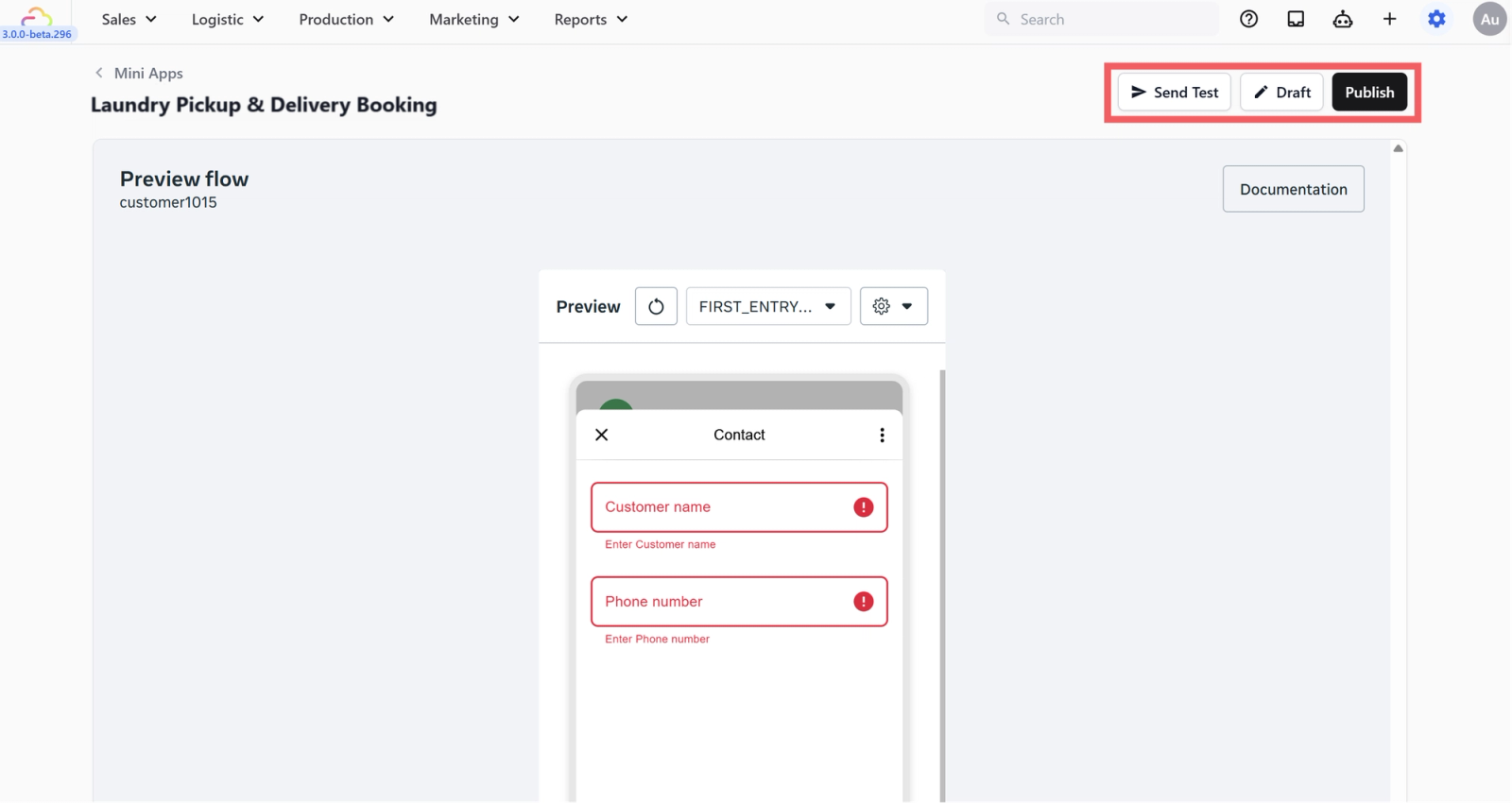
- At the top right of this screen, you have three final options:
- Send Test: Want to try it yourself first? Click this button, enter/select your phone number, and EasyBiz will send the form directly to your personal WhatsApp so you can test it like a real customer!
- Draft: If you notice something you want to change in the preview, click this button to return to the editing mode.
- Publish: If everything looks perfect, click this final Publish button to make your Mini App live and ready to use!
FAQs
Can I use this Mini App if I only know the pickup time, but not the delivery time yet?
If you cannot confirm the delivery time during booking, use the Pickup Only Mini App instead. This Pickup & Delivery version is best when the customer can choose both appointments in one form.
Does this create the order automatically?
Yes. Once the customer submits the form, EasyBiz creates a new order with both the pickup and delivery jobs attached.
Can returning customers skip entering their details again?
EasyBiz recognises existing customers and can pre-fill saved details, so repeat customers do not need to retype everything each time.
What's Next?
Now that your mini app is configured, continue to [Sending Your Mini Apps to Customers] to learn the different ways to share each mini app and get customers using them.
Give feedback

Up next
Setting Up a New Order: Pickup Only Mini AppLet customers schedule a home pickup through WhatsApp — ideal for repair businesses where the return date isn't fixed at the time of pickup.
Read more