
Set Cash Drawer on Your POS
In this article
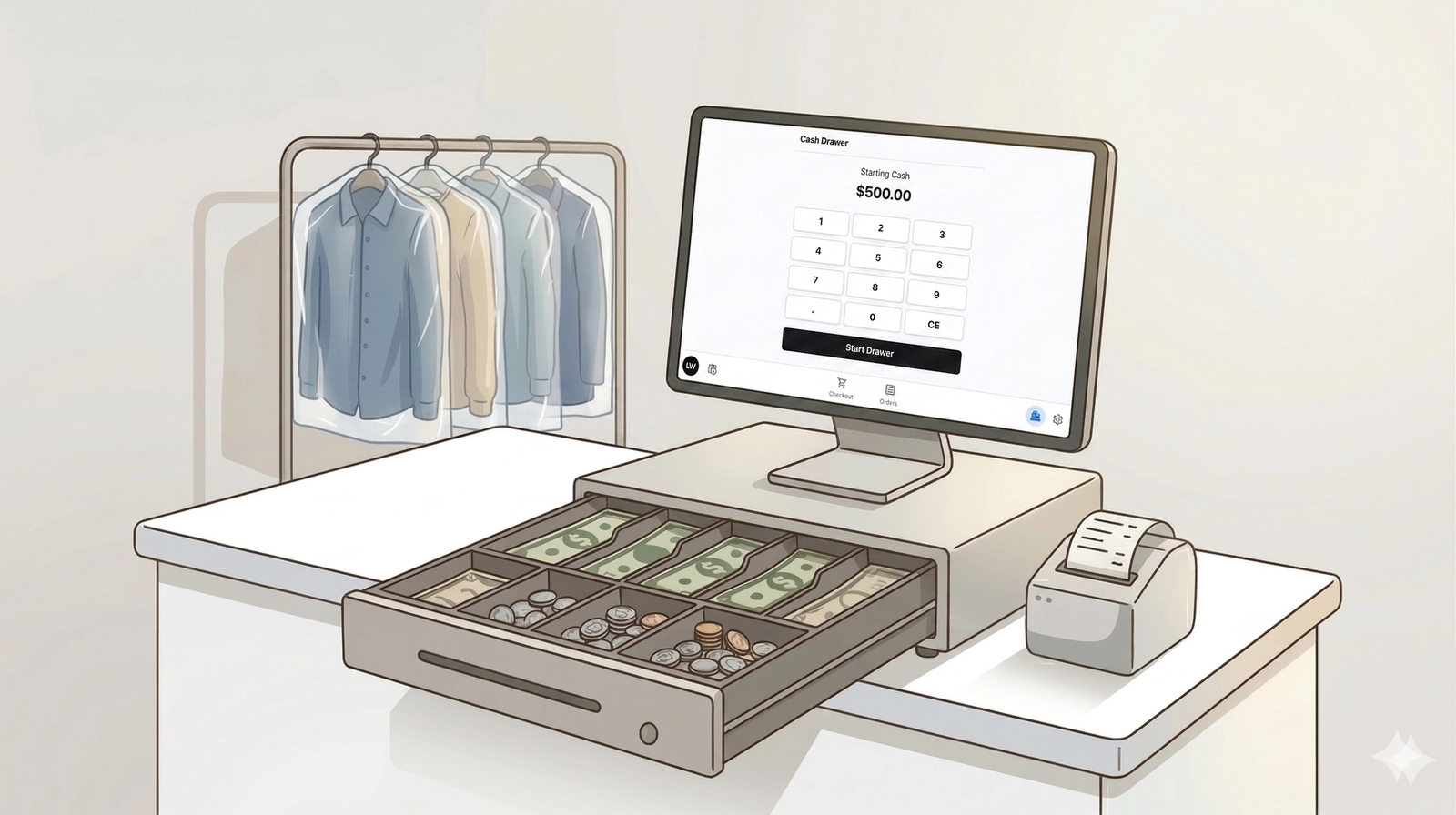
This guide walks you through setting up the Cash Drawer on your POS — which tracks all cash that goes in and out of your register throughout the day. You will set the default starting cash amount so the system knows how much is in the drawer when each shift begins.
Contents
Contents
What Is the Cash Drawer?
The Cash Drawer keeps track of all cash that goes in and out of your register throughout the day. When customers pay with cash, the system adds each payment automatically. At the end of the day, you can see exactly how much cash should be in your drawer.
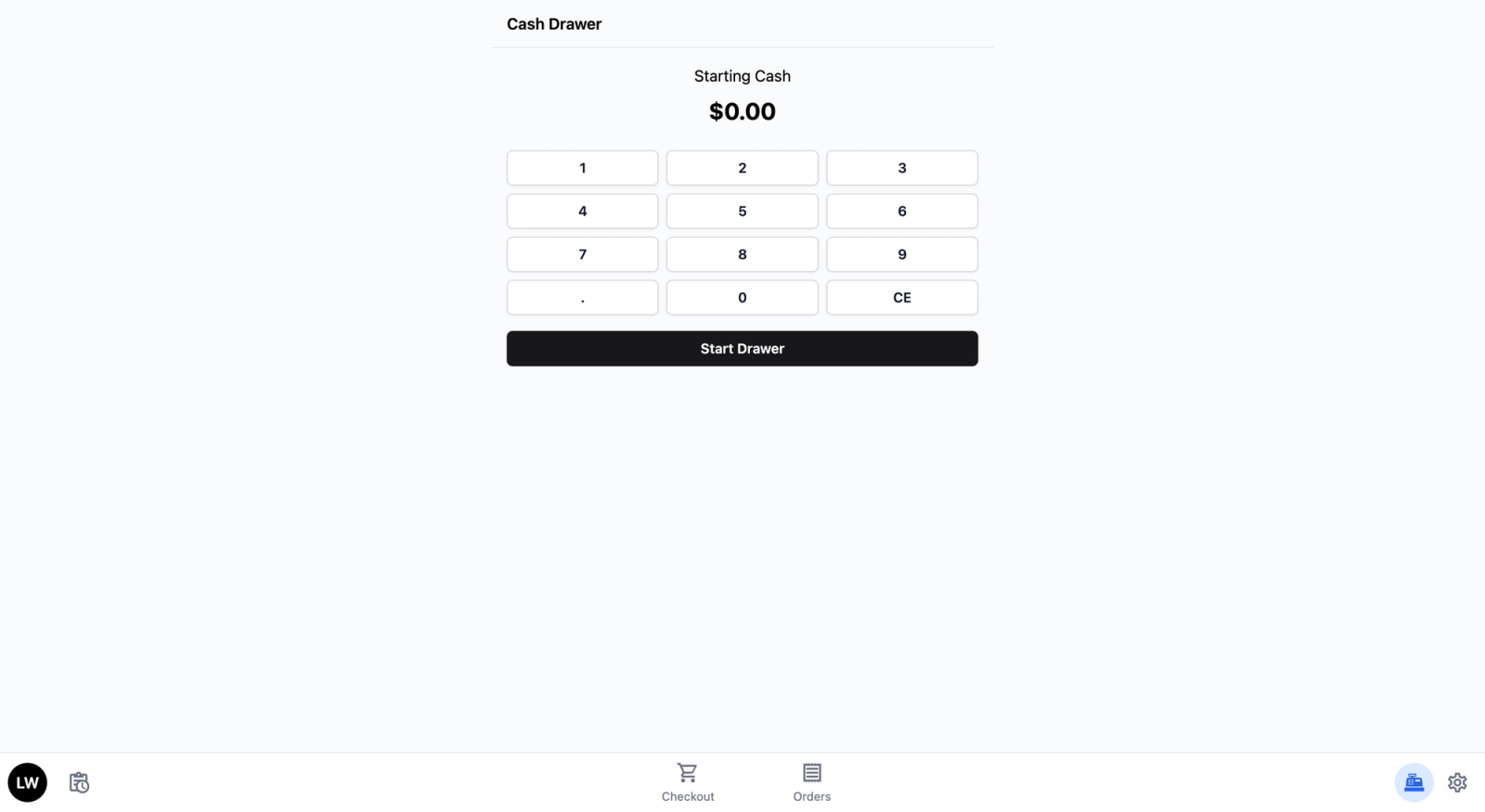
By default, the starting cash is set to $0.
Set Up the Cash Drawer Feature Block
Set the starting cash float for the till so your end-of-day count is accurate.
The Cash Drawer block is enabled by default on every new POS app. Open it once to set the float your shop usually starts the day with.
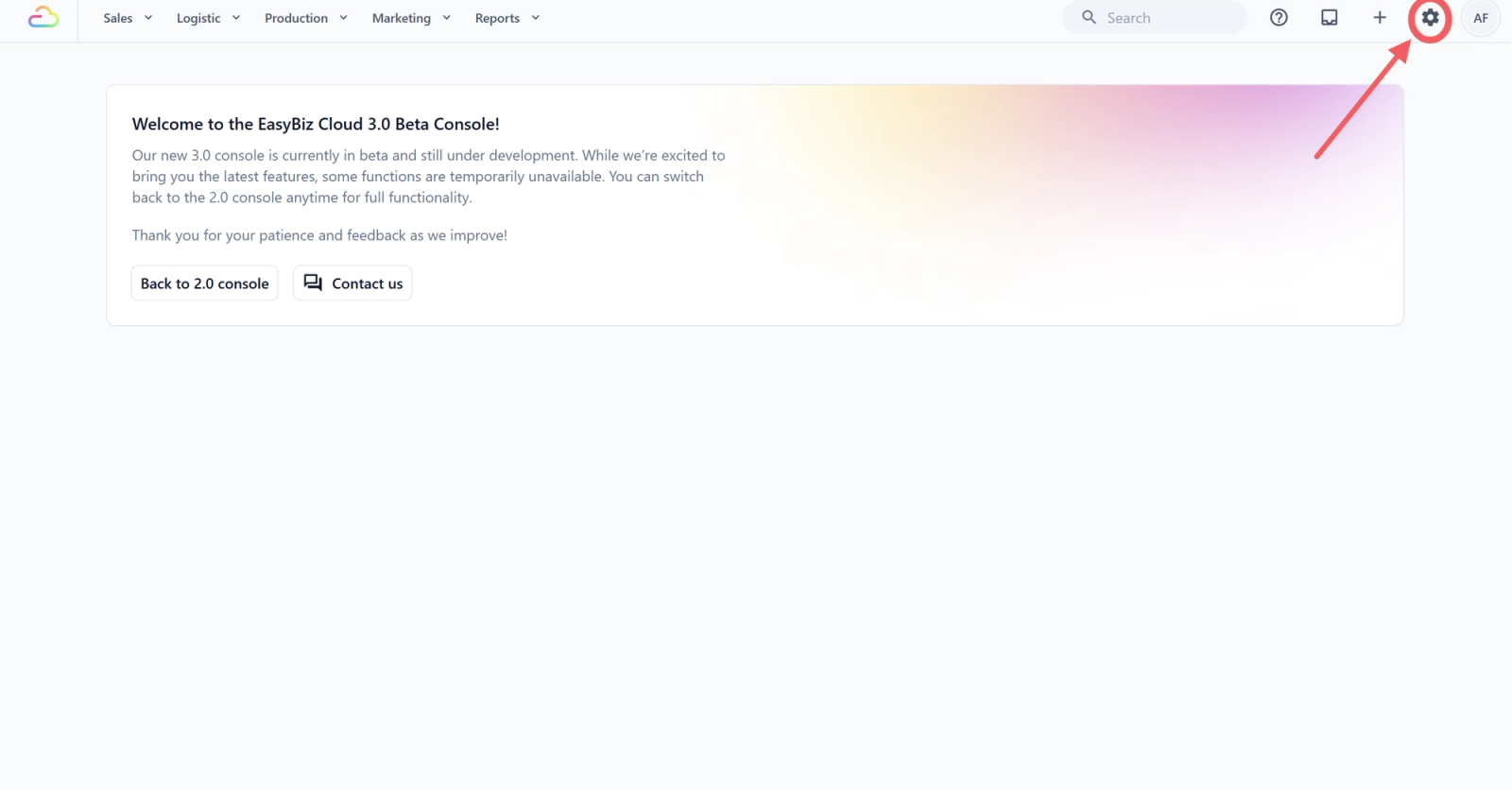
- Click the ⚙️Settings icon in the top-right corner.
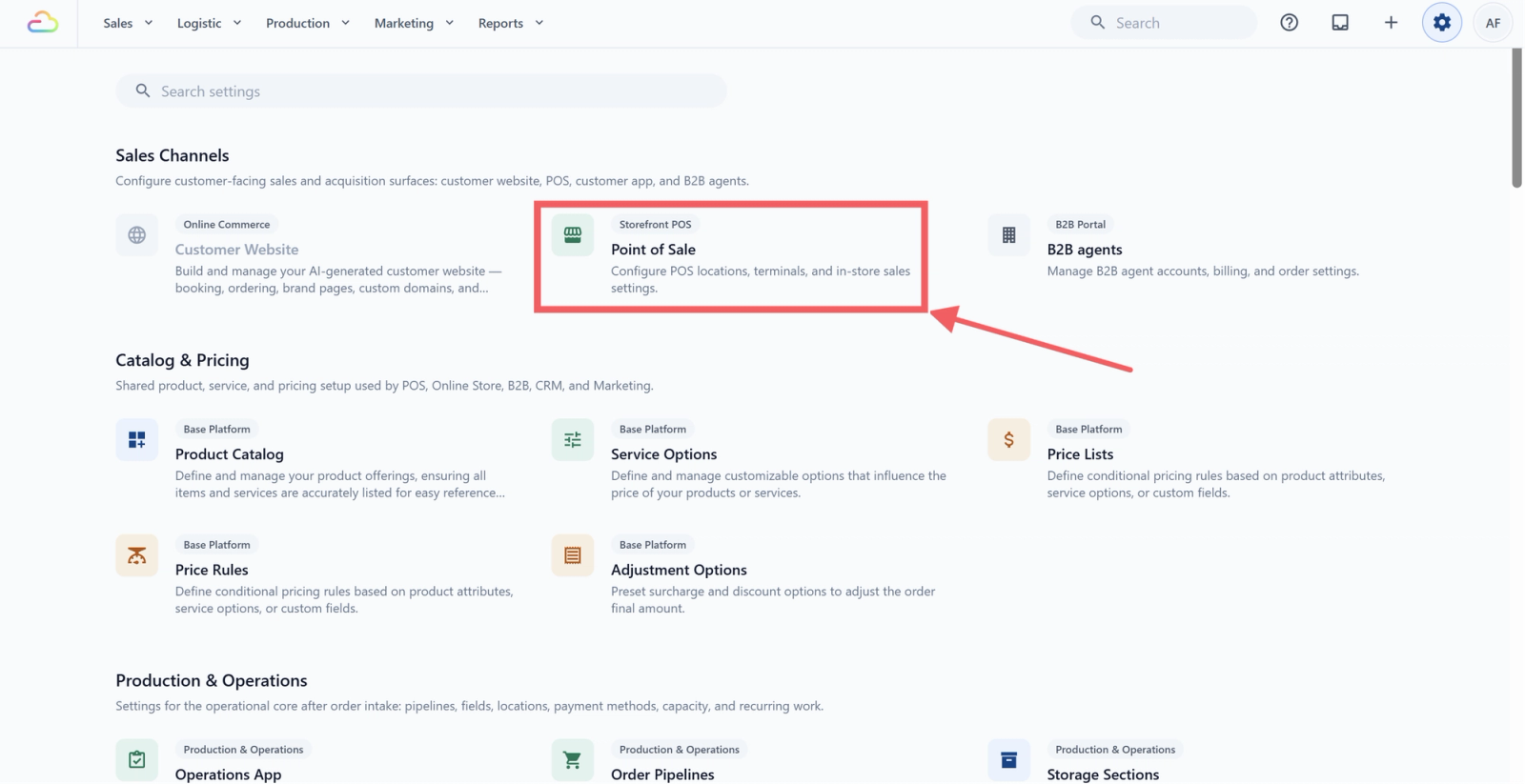
- Under the Sales Channels section, click Point of Sale.
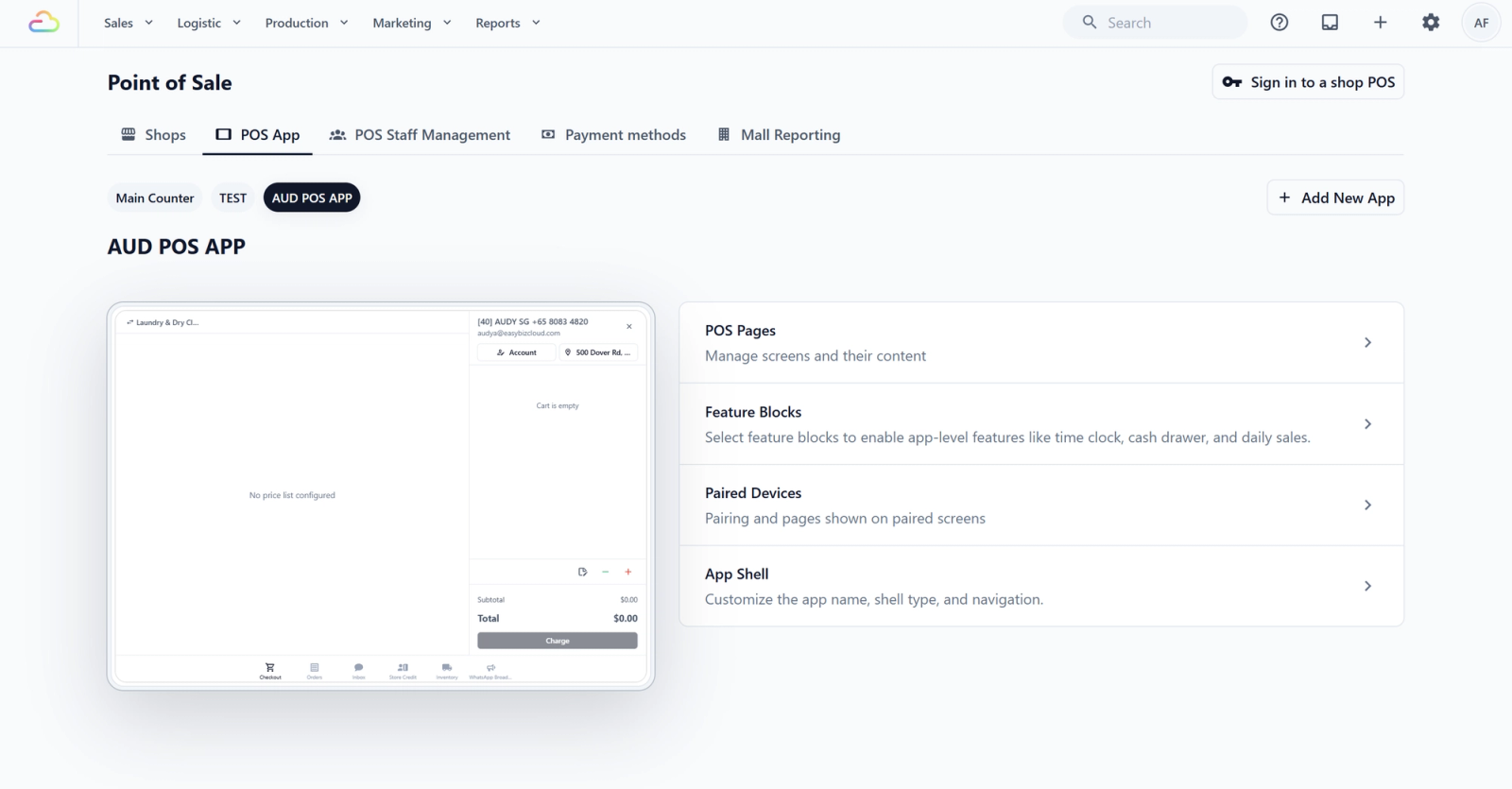
- Click POS App, then open the app you want to set up.
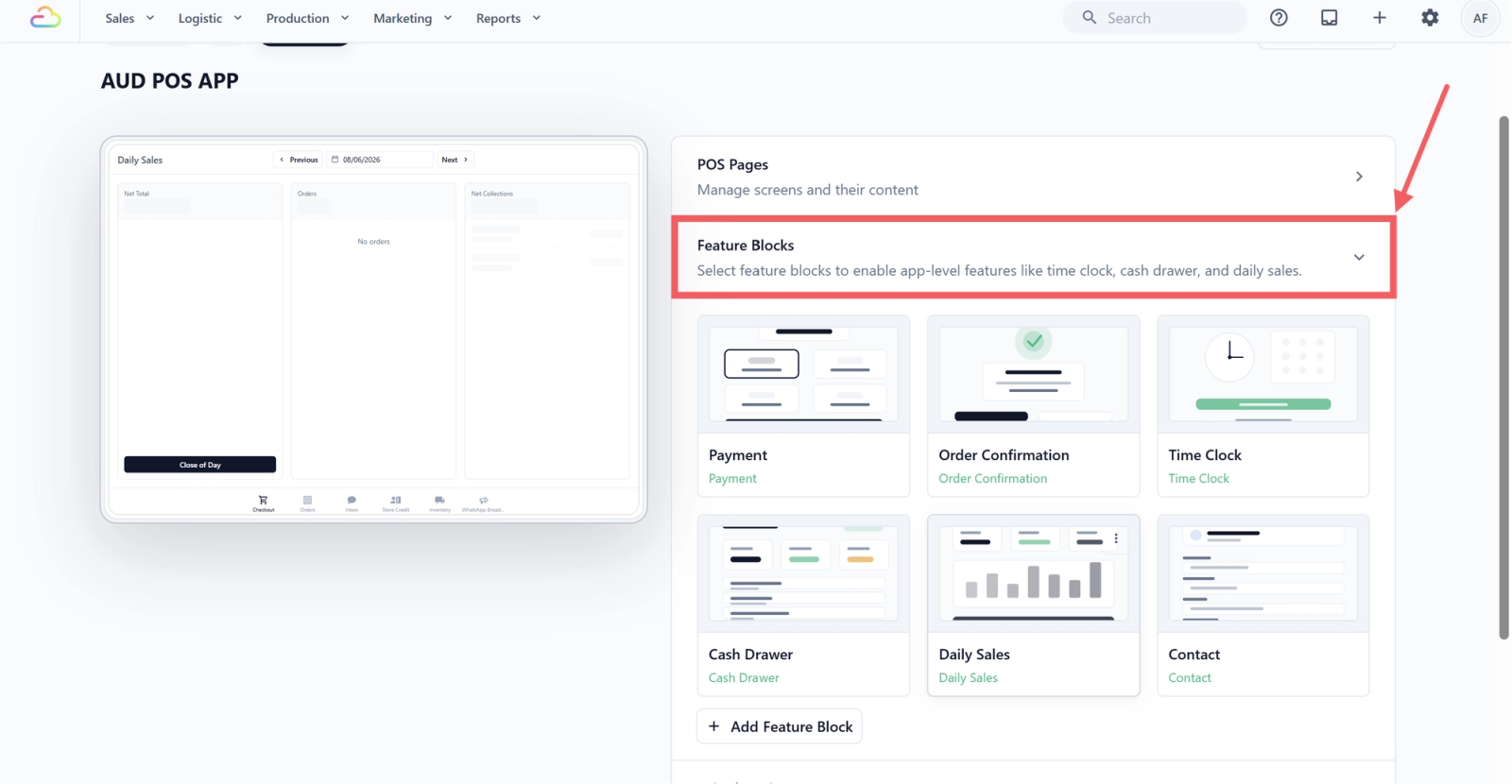
- In the right-hand panel, click Feature Blocks to expand the section.
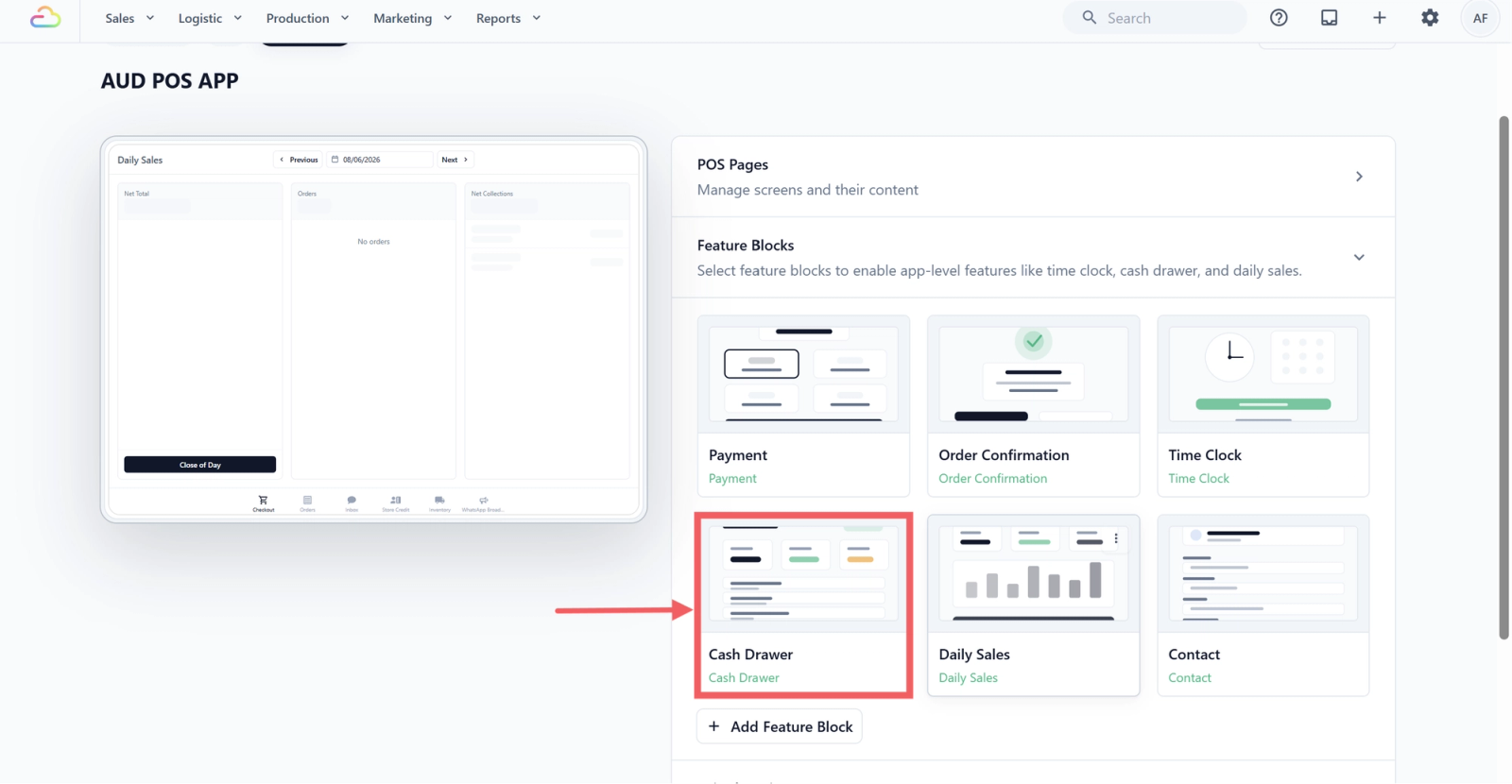
- In the default grid, click the Cash Drawer block.
Cash Drawer Settings
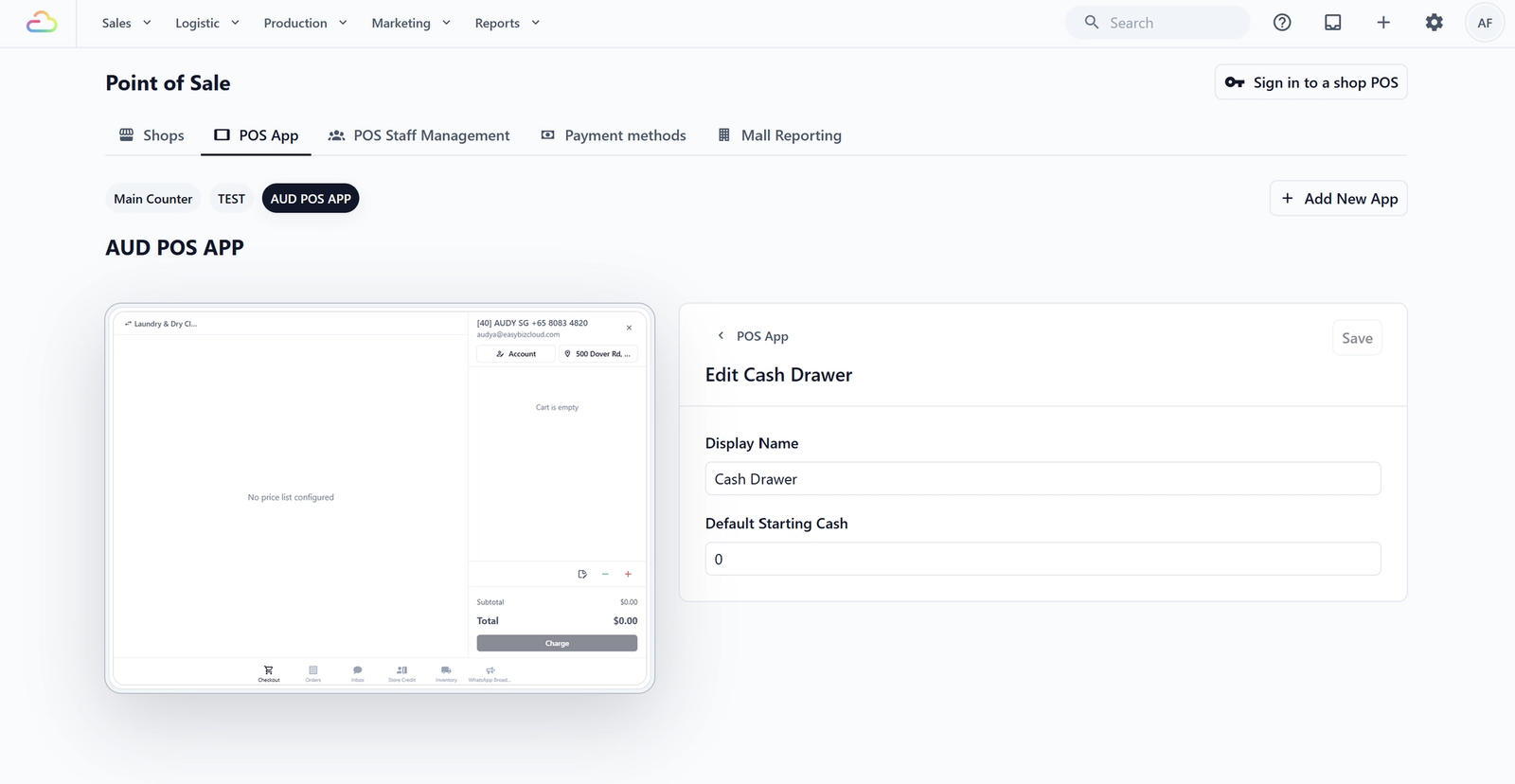
Display Name
A free-text label for the POS button. Leave it as "Cash Drawer" unless your team calls it something else (for example "Till" or "Float").
Default Starting Cash
The cash amount your staff will see pre-filled when they open the till at the start of a shift. Enter the value in your shop's currency. Defaults to 0.
Click Save in the top-right when done.
How It Works on the POS
Here is what your staff will see when using the Cash Drawer on the POS device.
Starting the drawer
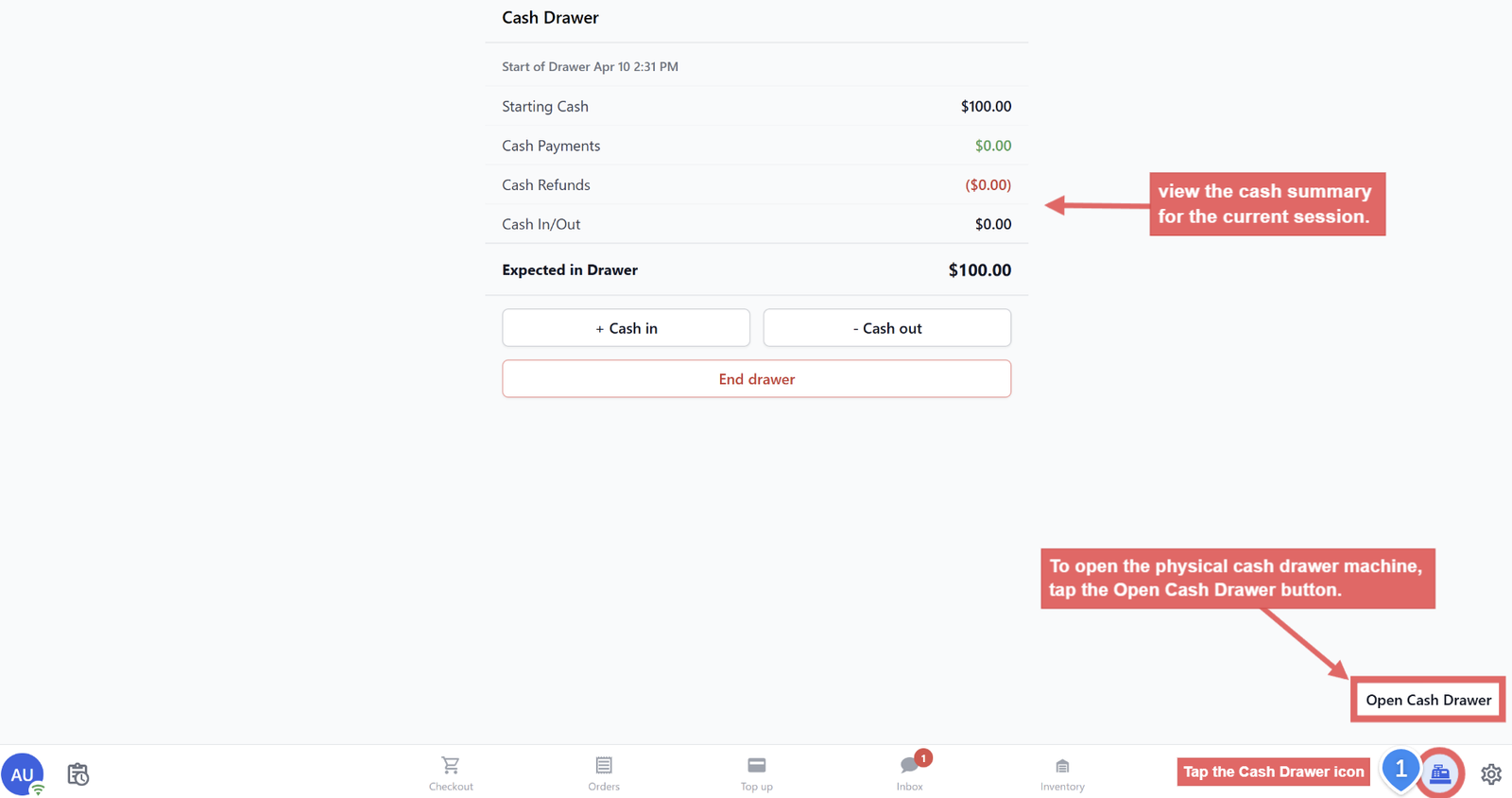
At the beginning of each shift (or each day), your staff will see the Cash Drawer screen. It shows the starting cash amount — either $0 if you did not set up the Default Starting Cash from the previous step, or if you did, that amount you set up from the previous step will appear here. Your staff can adjust the amount if needed using the number pad, then tap Start Drawer to begin.
Once the drawer is opened, the system begins tracking all cash transactions automatically. Every time a customer pays with cash, the amount is added to the drawer's total. Your staff do not need to do anything extra — just process the payment as normal through the Checkout screen.
During the day
Your staff can check the current Cash Drawer status at any time by tapping the Cash Drawer icon on the POS. They will see a summary showing the starting cash, total cash received from orders, and the expected total in the drawer. This can be extremely useful when there is discrepancy in amounts.
Ending the Drawer
At the end of the day (or at the end of a shift), your staff will close out the Cash Drawer. This is done by tapping End Drawer on the Cash Drawer screen.
When ending the drawer, the system will show a summary of all cash activity for the day: the starting amount, the total cash received from orders, and the expected cash in the drawer. Your staff can then count the physical cash in the register and compare it to what the system expects.
After ending the drawer, the cash totals are recorded and will also feed into your Close of Day Report (Daily Sales). To learn how to set up the Close of Day Report, see: POS Setup: Close of Day Report →
FAQs
Do I need to set up the Cash Drawer before using it?
Not required. The default starting cash is $0 — if you're fine with staff typing in the starting amount each shift, you can skip setup and just use it. Setting a Default Starting Cash (e.g. $100) only saves them a step.
Can my staff override the default starting cash?
Yes. Even when Default Starting Cash is set, staff can still adjust the amount on the Start Drawer screen before tapping Start.
How does the Cash Drawer know how much cash was taken in?
The system automatically adds every cash payment made through Checkout to the drawer. Staff don't need to log anything manually — just process payments normally.
Can I run more than one drawer session in a day (e.g. multiple shifts)?
Yes, but each session is sequential. The previous drawer must be ended before a new one can be started — the totals reset with each new drawer.
What if the physical cash count doesn't match the expected total?
The End Drawer screen will show the discrepancy automatically. Small differences from rounding or change-making are normal — the Cash Drawer is a tracking tool, so the discrepancy is logged for you to investigate later.
Give feedback
Up next
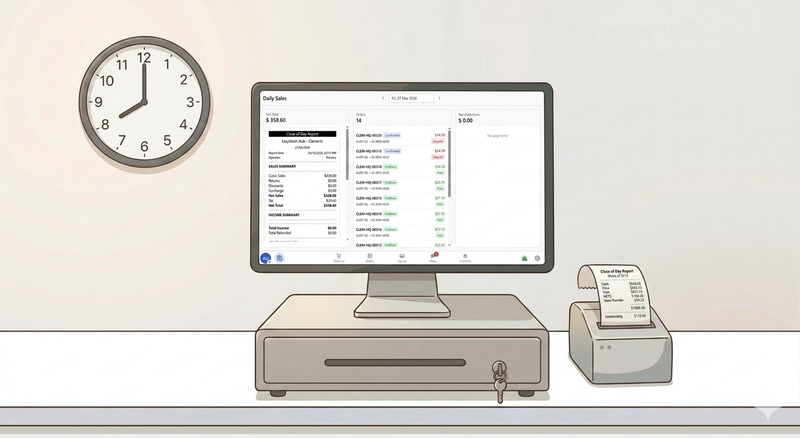
Set Up Close-of-Day Report on Your POSLearn how to set up your Close of Day report so your staff can close out each day with a full sales summary.
Read more