
Set Up POS Staff Management

In this article
POS Staff Management lets you register your counter staff by name, give each person a 4-digit passcode, and control whether they need to clock in before using the POS. This guide walks you through adding your staff and turning on Shift Management.
Contents
Contents
What Is POS Staff Management?
It lets you add your counter staff by name and give each person their own 4-digit passcode. Once set up, staff enter their passcode when they start a shift — this tells the system who is at the counter and links sales and activity to that person.
This is entirely optional. Your POS works fine without it — but if you want to track who handled each transaction, or limit counter access to authorised staff, this is where you set it up.
Navigate to POS Staff Management
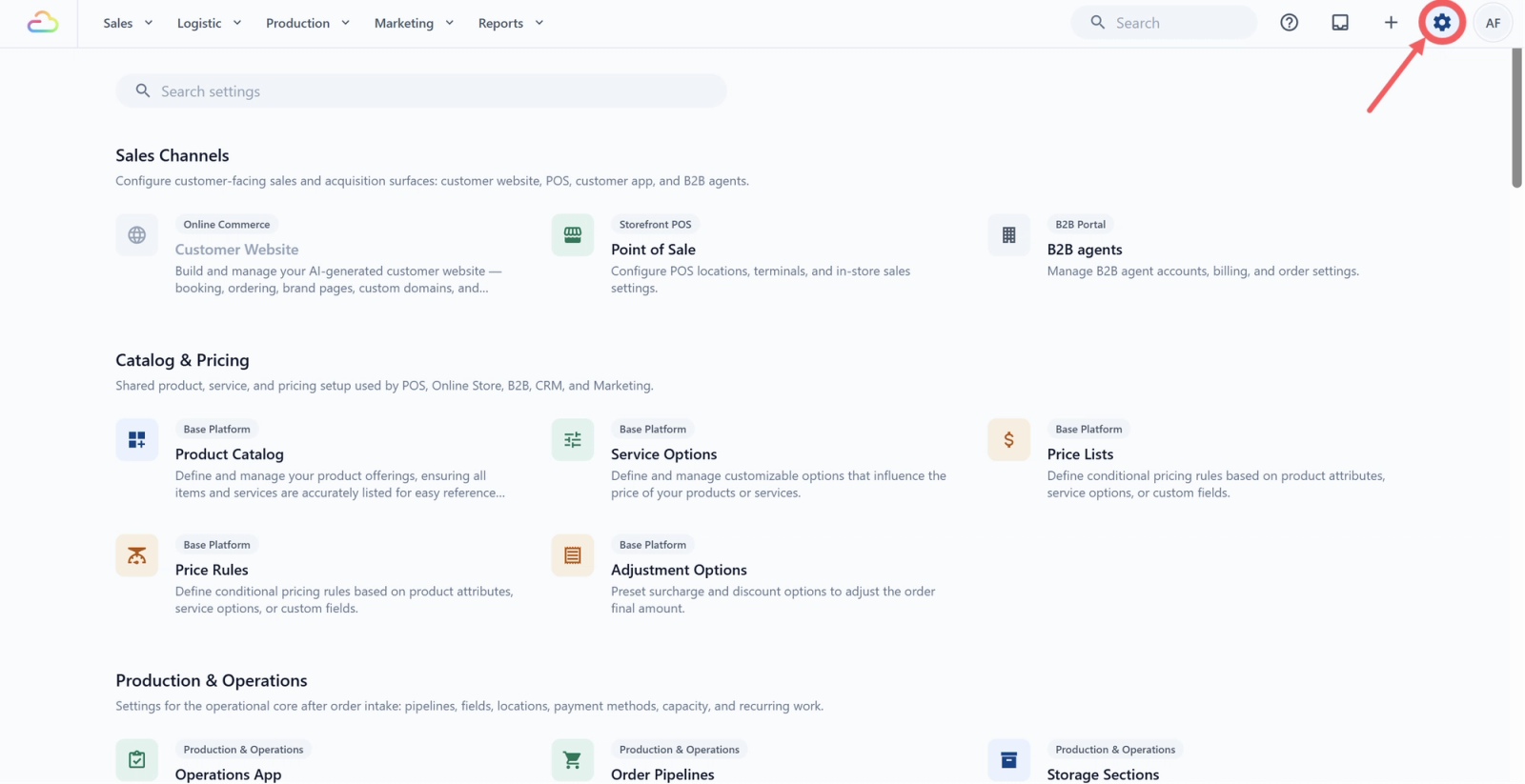
- Click the ⚙️Settings icon.
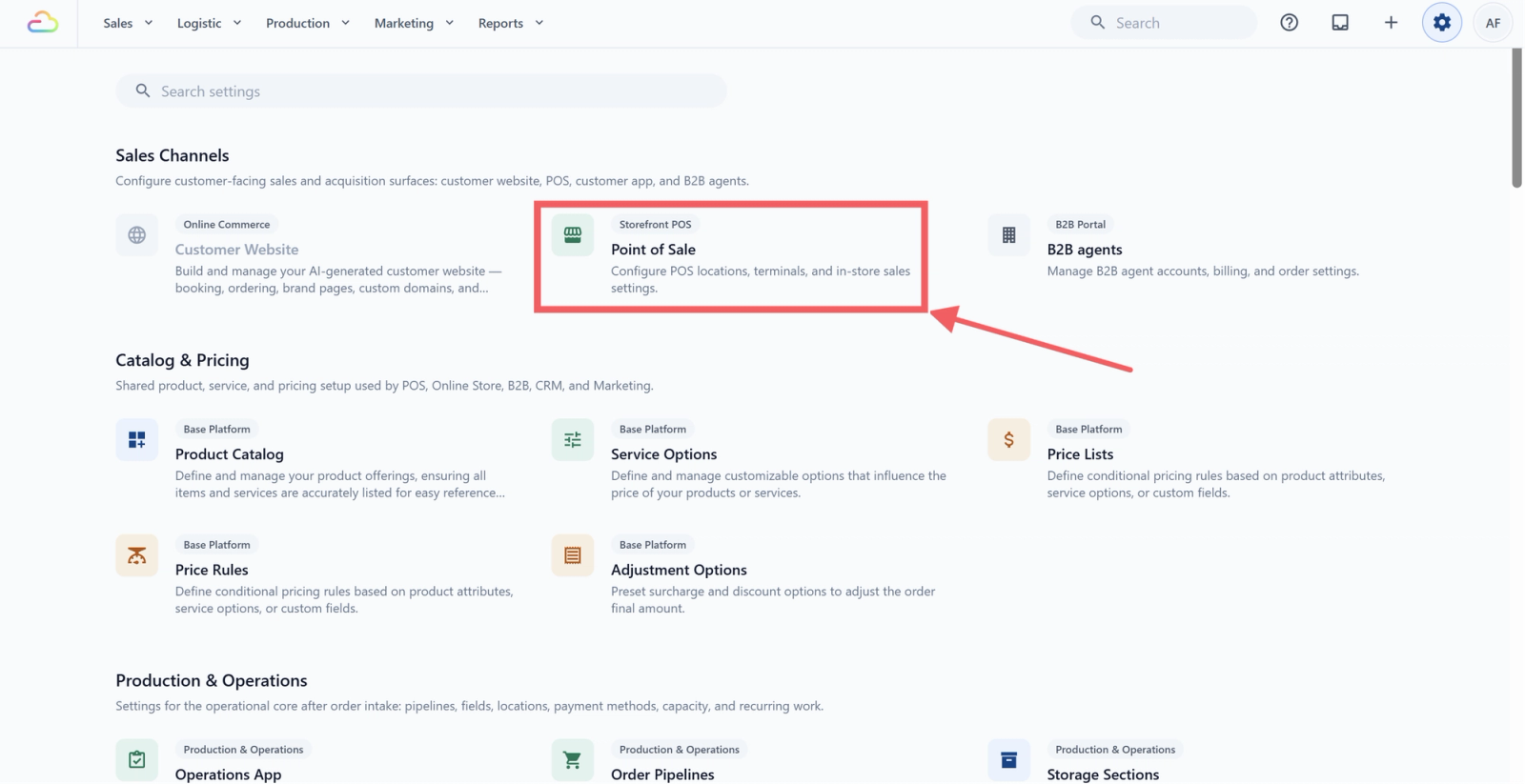
- Under the Sales Channels section, click Point of Sale.
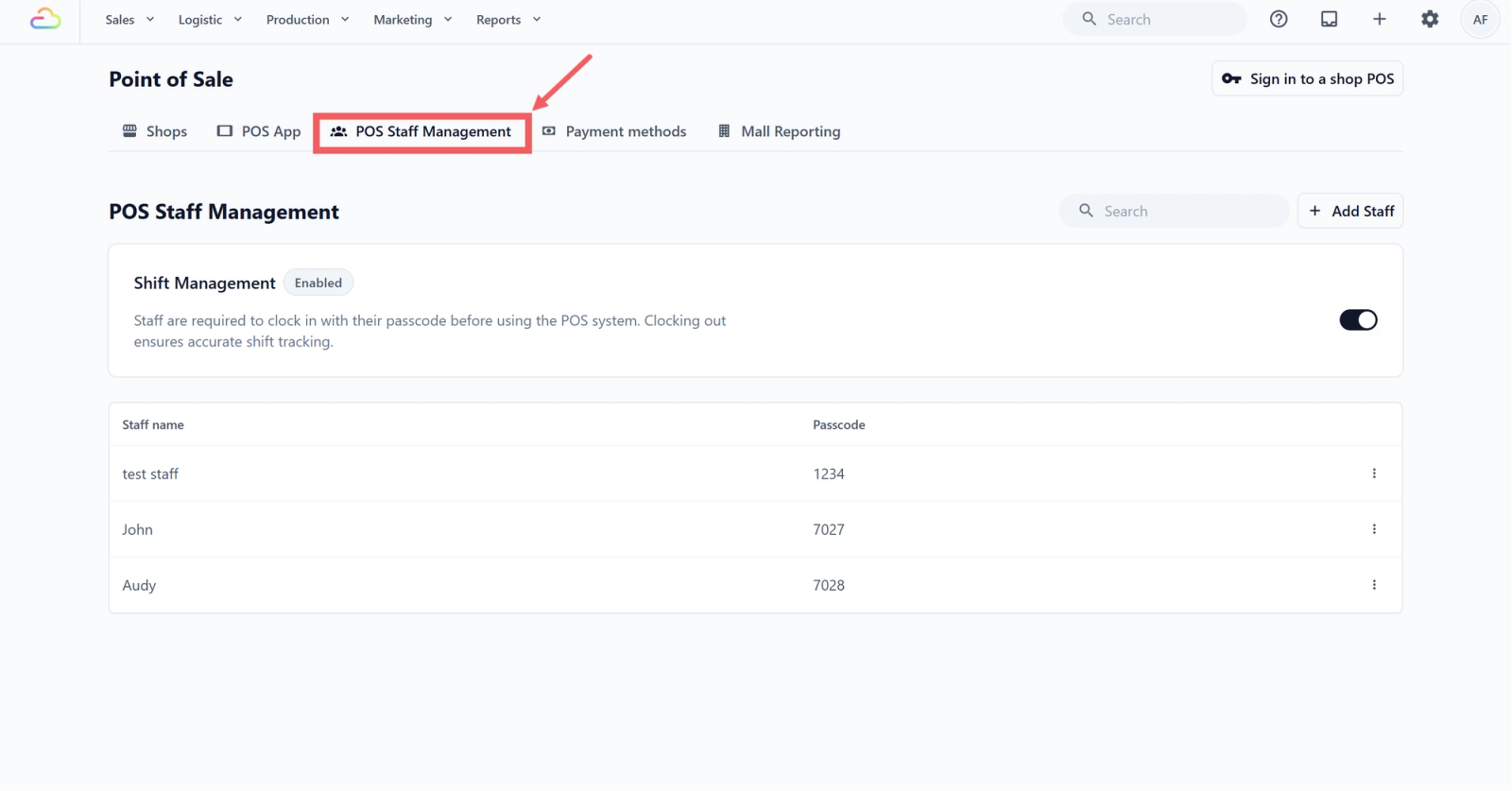
- Click the POS Staff Management tab
The Shift Management toggle
At the top of the POS Staff Management tab, you'll see a Shift Management toggle. By default, it's turned off.
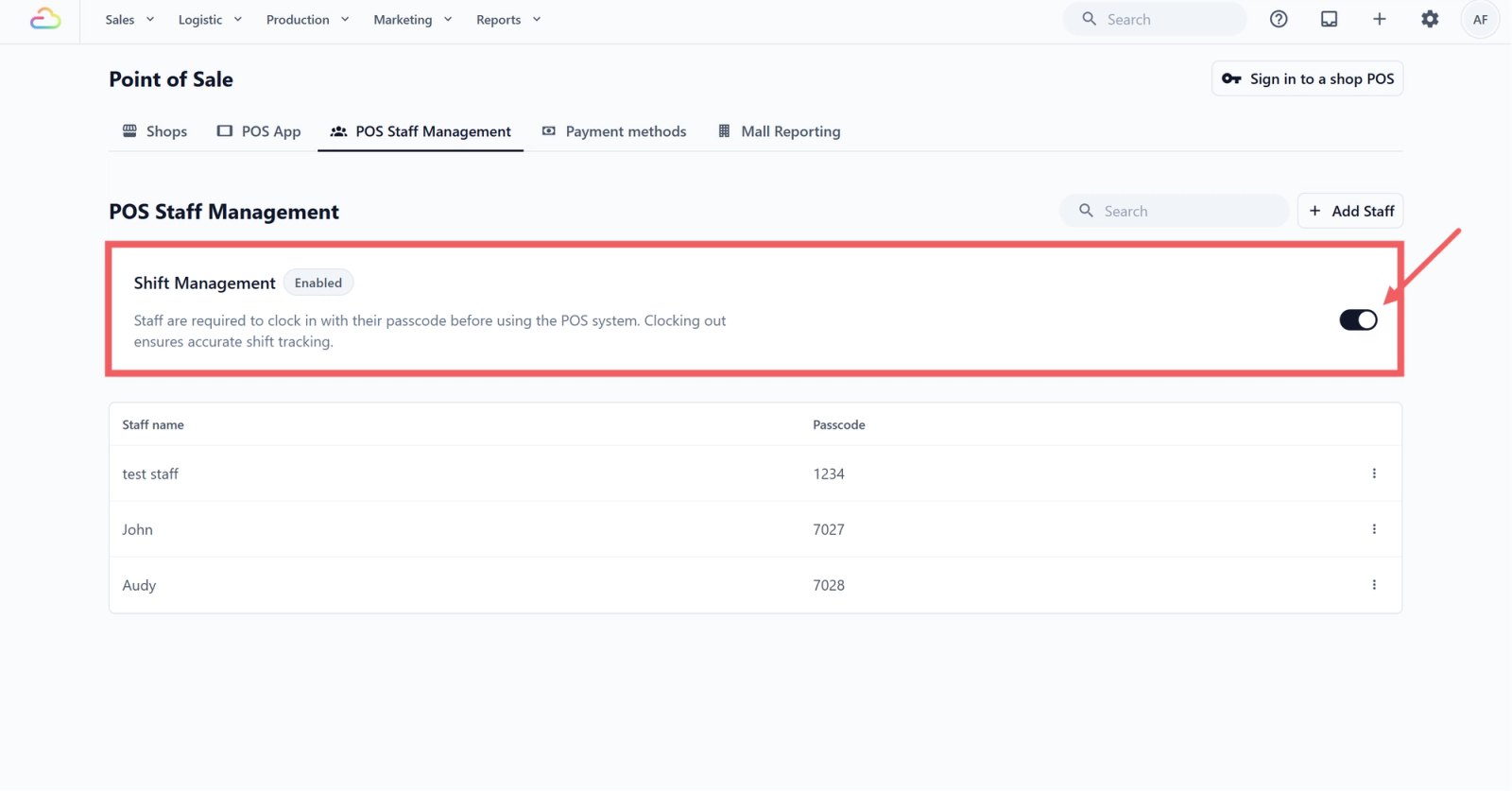
- Off (default): The POS is open to all users. No one needs to clock in. Staff simply sign in to EasyBiz and use the POS as usual.
- On: The POS will ask staff to clock in with their passcode before they can begin. This is helpful if you'd like to track shifts, limit access to authorised staff, or keep a record of activity per person.
How to add a staff member
- Click + Add Staff
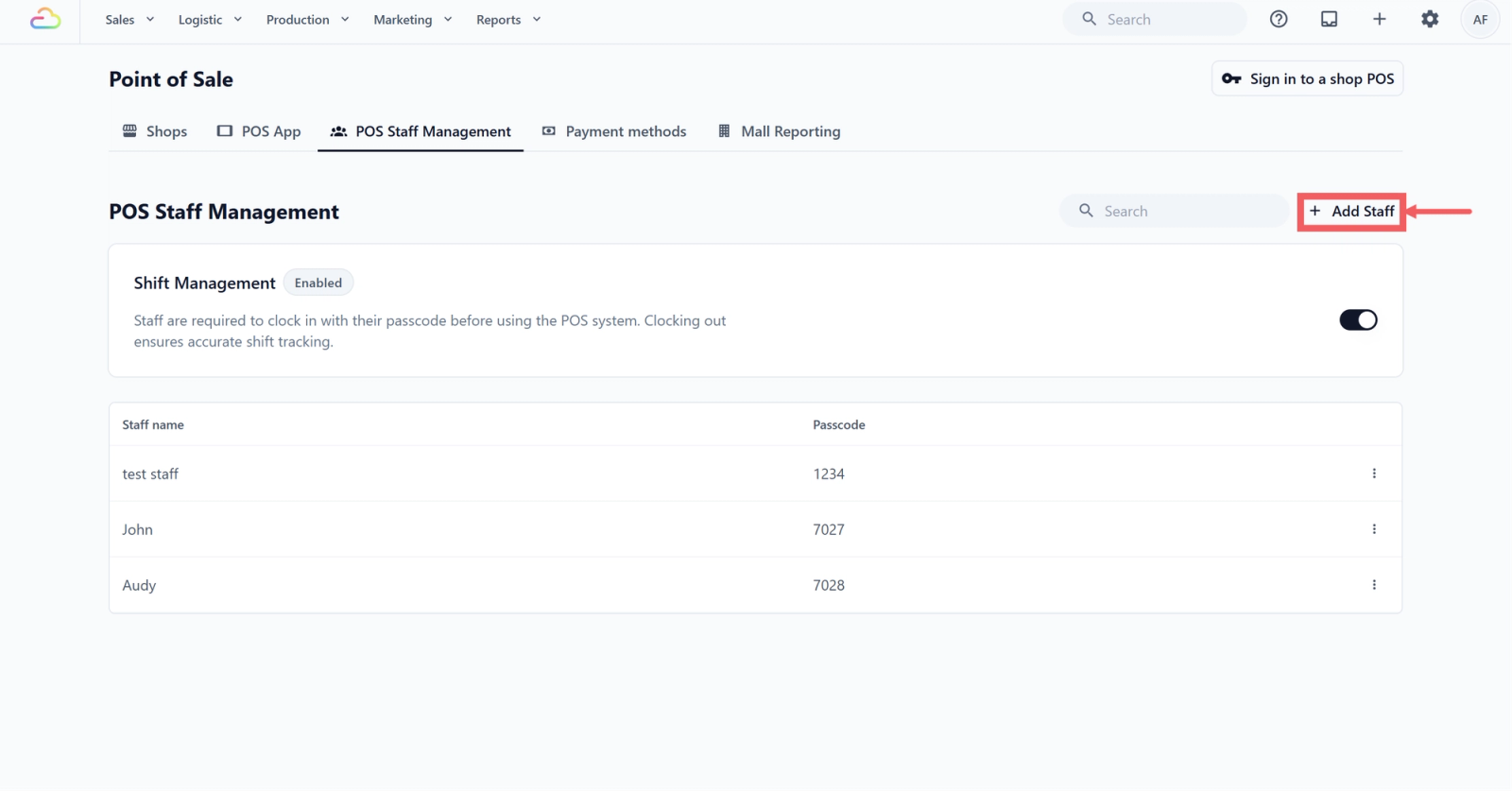
- Enter the staff member's name
- Assign a 4-digit clock-in passcode — you can type one in manually or click Generate to let the system create one for you
- Click Add
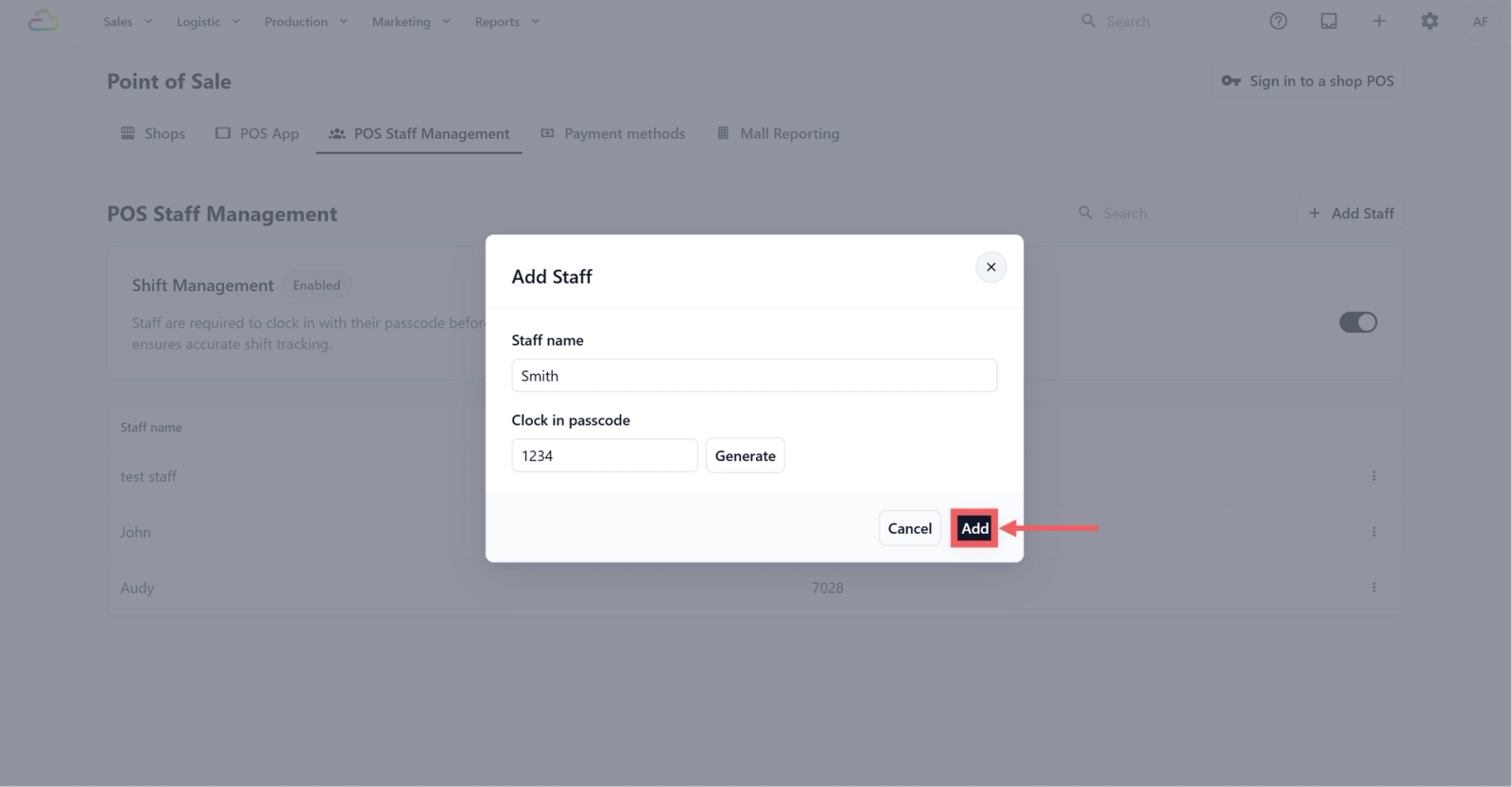
FAQs
Do I need to turn on Shift Management to use the POS?
No. Shift Management is entirely optional. If you leave it off, your POS is open to all signed-in users without a passcode.
Can I add staff now and turn on Shift Management later?
Yes. Your staff list is saved even if the toggle is off. Turn it on whenever you're ready.
What happens when Shift Management is turned on?
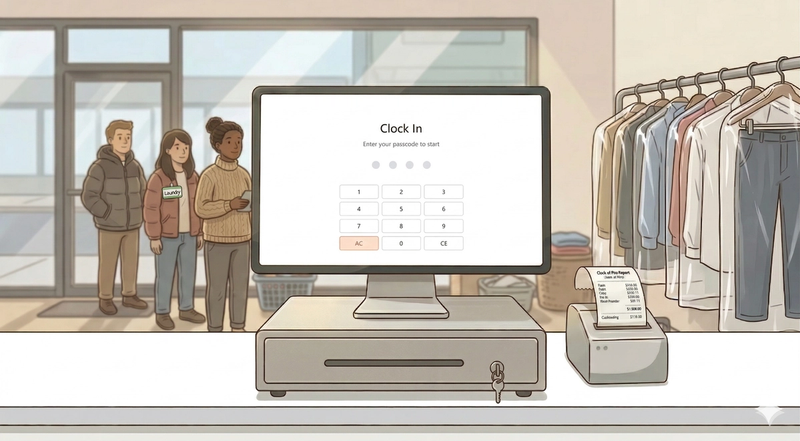
The POS will show a clock-in screen at startup. Staff enter their passcode to begin their session. For the full details on how clocking in and out works, see Set Up Time Clock on Your POS.
Give feedback
Up next
Set Up Time Clock on Your POSLearn how to set up the Time Clock so your staff can clock in and out for their shifts.
Read more