
After Hours Notice
In this article
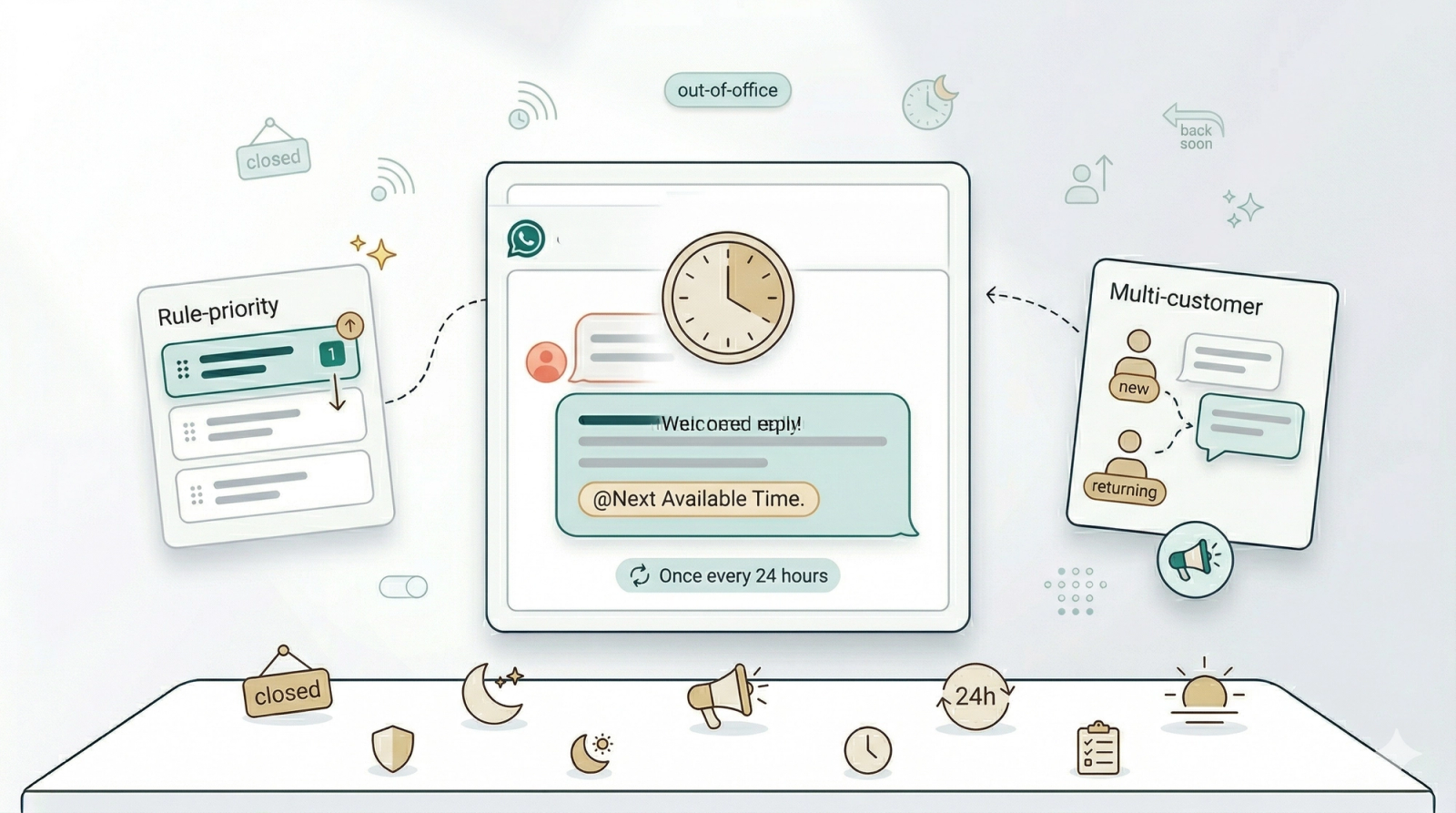
Not every after-hours message comes from a new customer. Returning customers message outside business hours too — and they deserve a quick acknowledgement. This rule sends an automatic reply to any customer who messages while you are closed, letting them know when you will be back. Think of it as your out-of-office auto reply.
Contents
Contents
Before You Start
- Business Hours must be enabled and configured in WhatsApp General Settings. This rule uses the "After business hours" condition.
- Test Group — Add at least one phone number in Whatsapp General Settings.
If you are new to auto reply rules, read Setting Up Auto Reply Rules first.
When This Rule Fires
Pre-configured condition:
- After business hours — Any incoming message that arrives outside your opening hours.
That is the only condition. Unlike the New Customer After Hours rule, this one does not require the customer to be new or the conversation to be new. It matches anyone messaging after hours — new or returning.
How to Set It Up
- Go to WhatsApp Settings > Auto Reply Rules tab
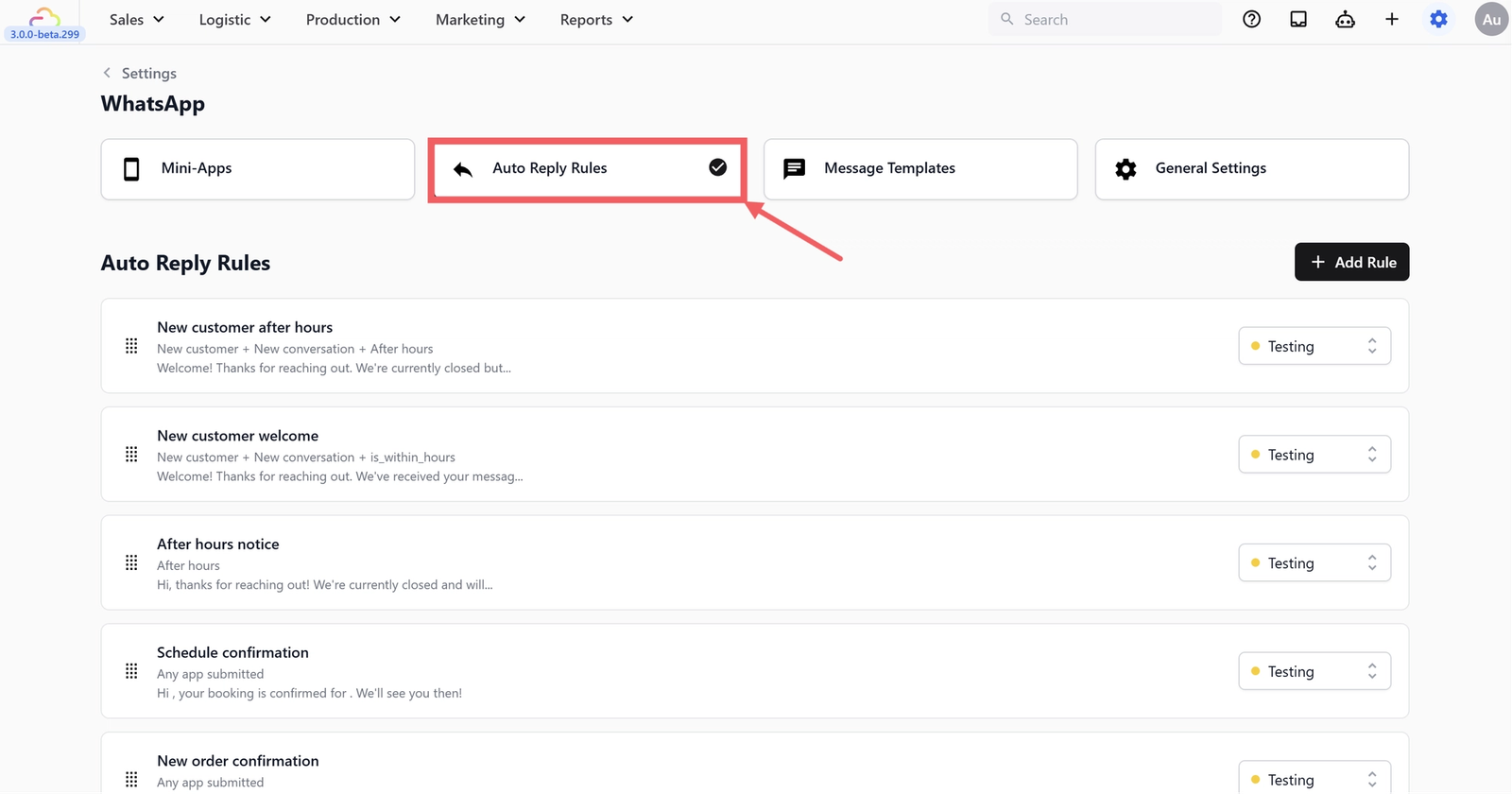
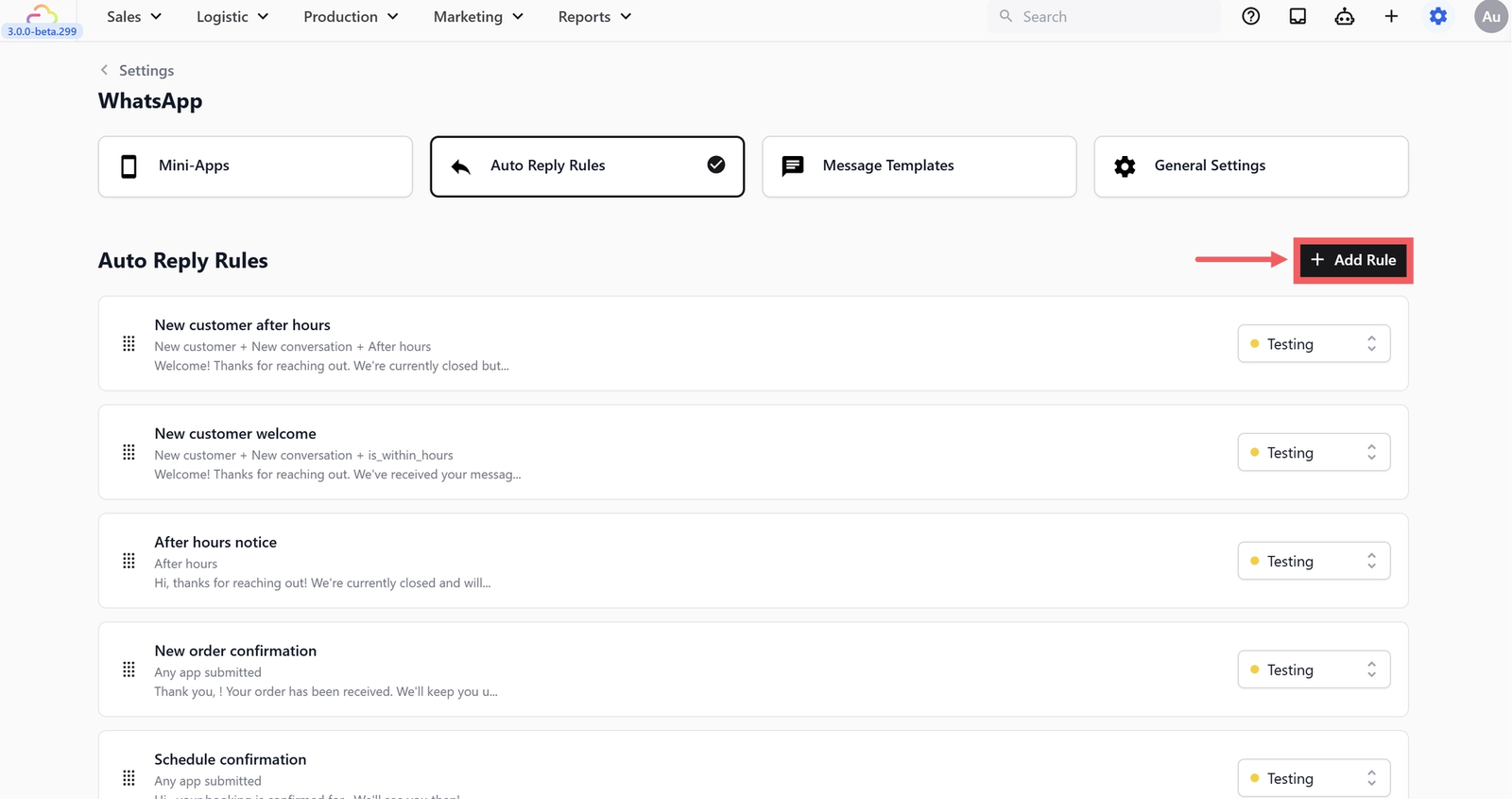
- Click + Add Rule
- Under Operational, select After Working Hours
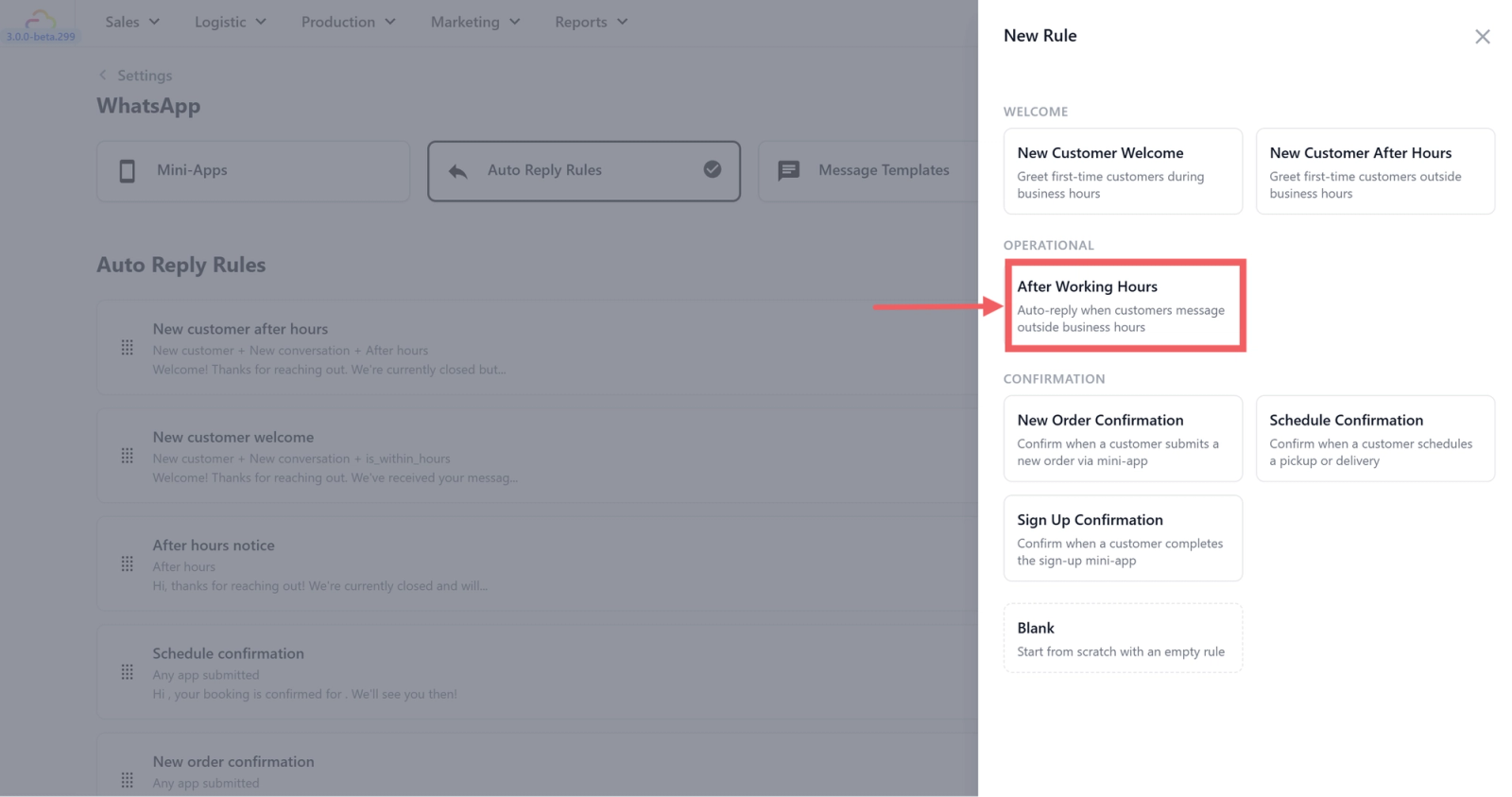
- The "After business hours" condition will be pre-configured.
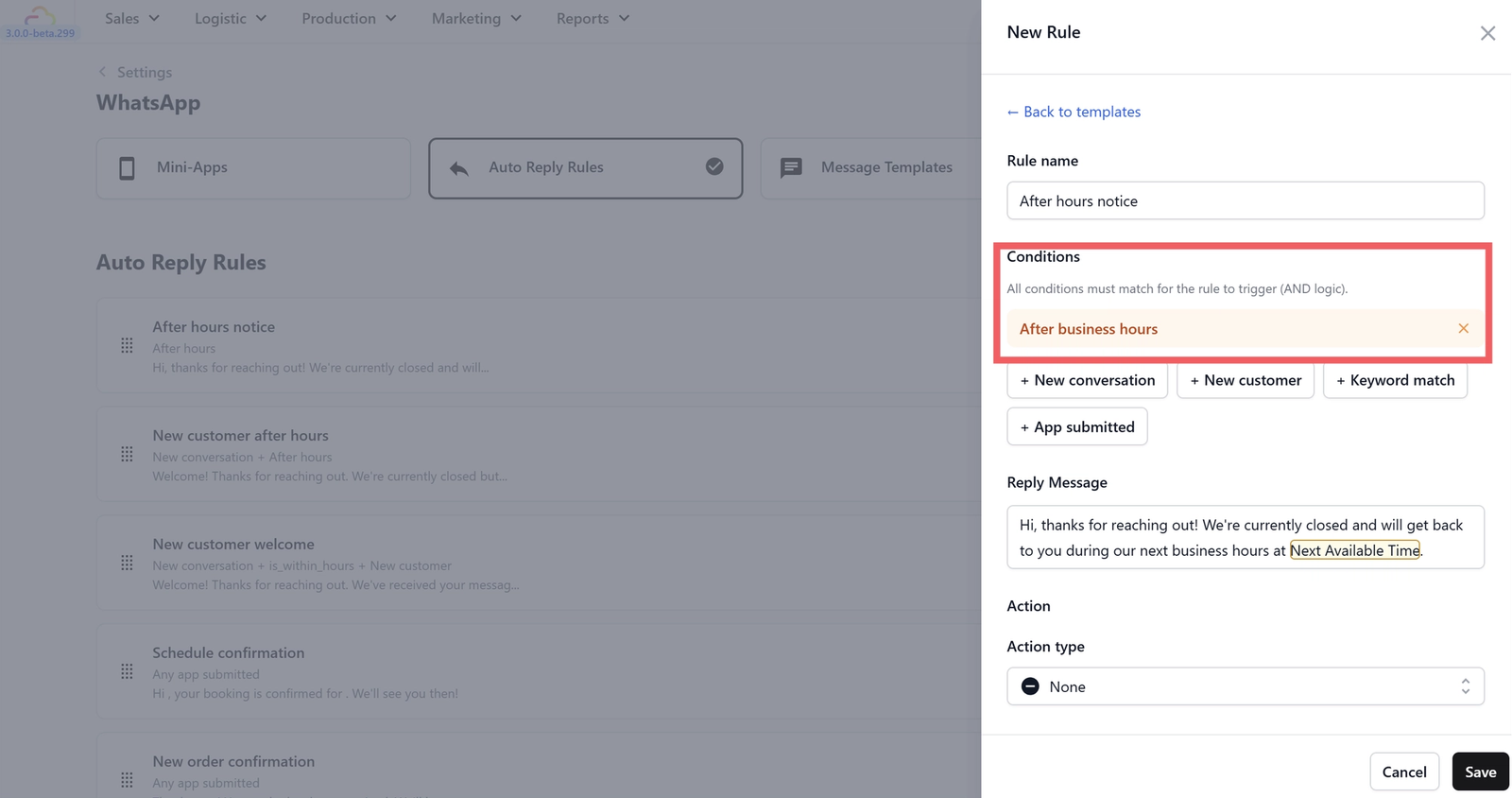
- Edit the reply message(optional).The default is:
"Hi, thanks for reaching out! We're currently closed and will get back to you during our next business hours at @Next Available Time."
- Set Action type — the default is None. See the upgrade tip below for a better option.
- Set Send frequency to Once every 24 hours — this prevents the same customer from receiving the after-hours message multiple times in one evening if they send more than one message.
- Click Save.
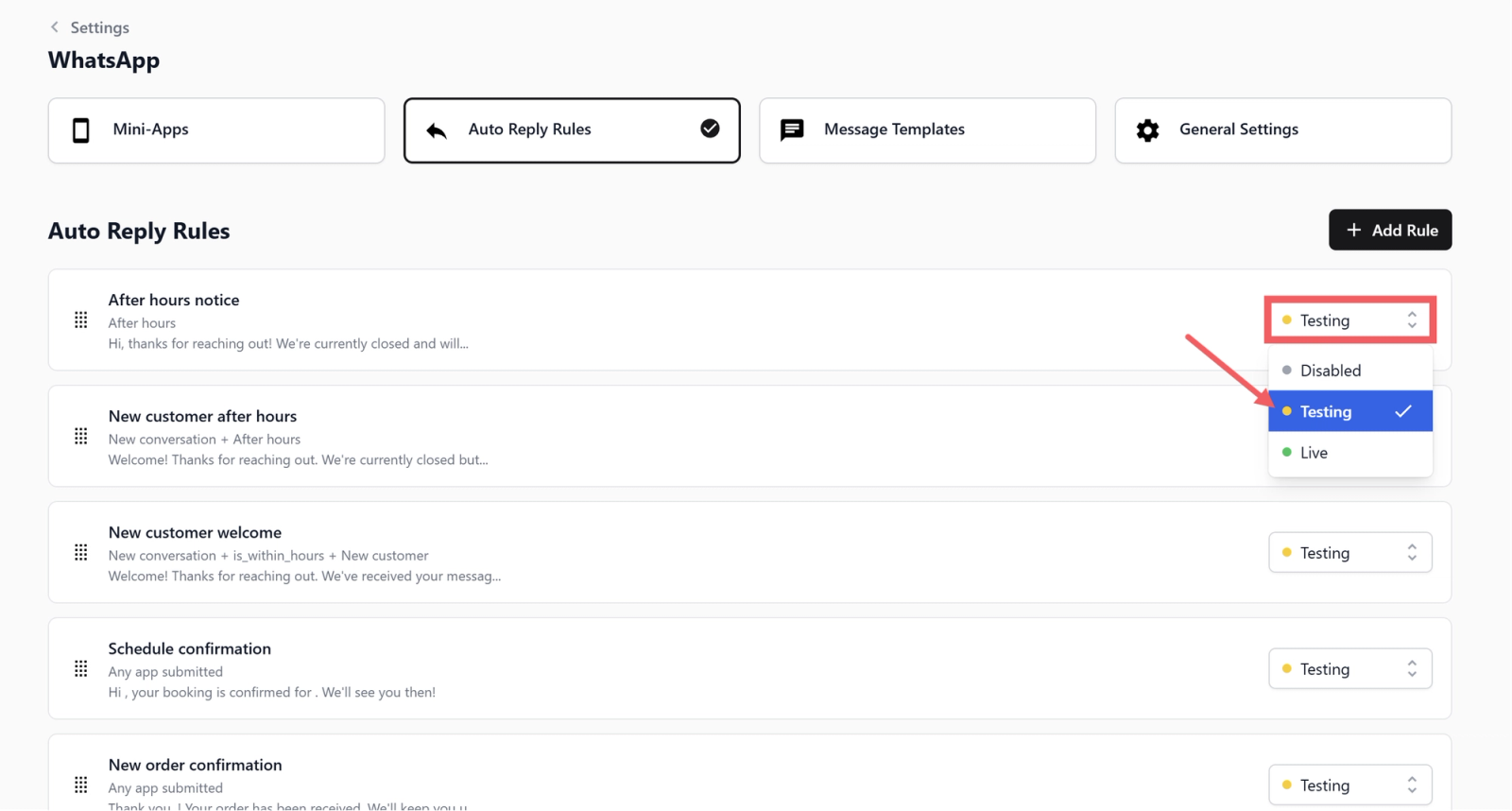
- Set Status to Testing.
Rule Priority
Recommended order:
- After Hours Notice (this rule — top)
- New Customer After Hours
- New Customer Welcome
- (Other auto reply rules below)
Testing the Rule
- Make sure the rule is set to Testing status
- Confirm your test phone number is in the Test Group (General Settings)
- Outside your configured business hours, send a WhatsApp message from your test phone
- You should receive the after-hours notice with the next opening time filled in
- Send a second message a few minutes later — if you set the frequency to "Once every 24 hours" or "Once per conversation" you should not receive the reply again
Once verified, switch the status from Testing to Live.
What's Next
Now that all after-hours messages are covered, continue to [New Order Confirmation] to set up the auto-reply that confirms a customer's order the moment it is placed.
Give feedback
Up next
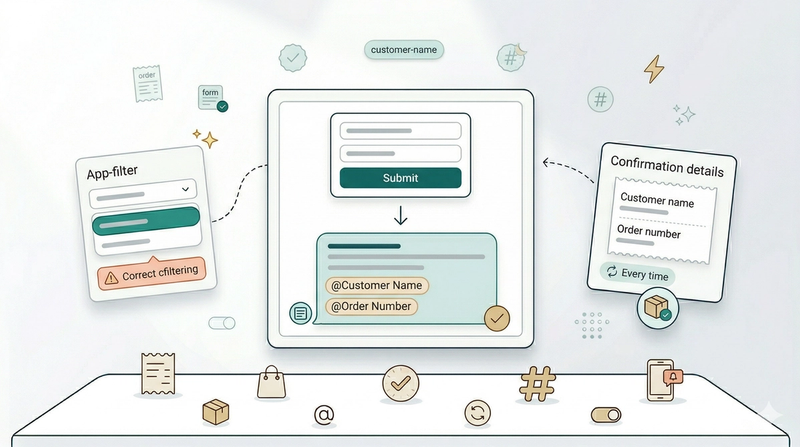
New Order ConfirmationConfirm every order instantly — send an automatic WhatsApp reply with the customer's name and order number the moment they book.
Read more