
Setting Up Auto Reply Rules for Your WhatsApp
In this article
Auto Reply Rules let you set up automatic WhatsApp responses that trigger based on what your customers do — whether they message for the first time, send a keyword like "price", book a pickup through your Mini App, or contact you after hours. Once set up, your WhatsApp replies itself. Your customers always get an instant, professional response, and your team can focus on the work. This guide covers everything you need to understand before creating your first rule.
Contents
Contents
What Are Auto Reply Rules?
An Auto Reply Rule is a simple instruction you set once: "When this happens, send this message."
For example:
- When a new customer messages you for the first time, send them a welcome message
- When someone messages outside your business hours, let them know when you will be back
- When a customer submits a laundry booking form, confirm their order instantly
Once a rule is live, EasyBiz watches every incoming WhatsApp message and fires the right reply automatically — no staff involvement needed.
Why Your Business Needs This
If you run a laundry or repair business, your WhatsApp is probably your busiest customer channel. But your team cannot always reply in seconds — especially during peak hours, early mornings, or public holidays. Here is what Auto Reply Rules solve for you:
- Customers who message at 11pm get a reply immediately instead of silence
- Every new booking gets a confirmation the moment it is submitted — no more customers asking "did you receive my order?"
- Returning customers are greeted by name, making your business feel personal and professional
- Your team does not spend time typing the same "Hi, thanks for reaching out" message dozens of times a day
You set it up once. It runs forever.
How to Access Auto Reply Rules
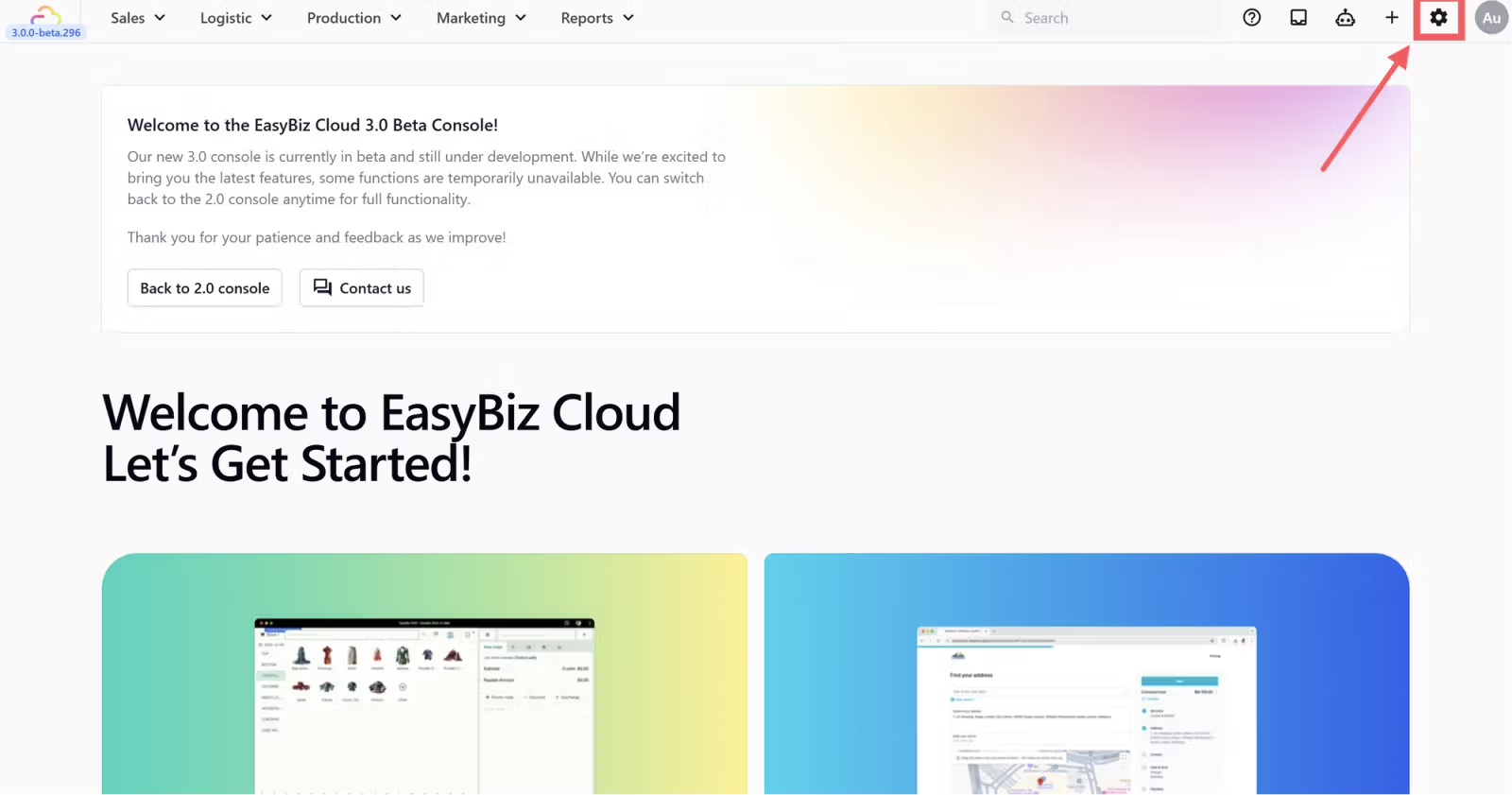
- Click the Settings icon at the top right of your EasyBiz Console.
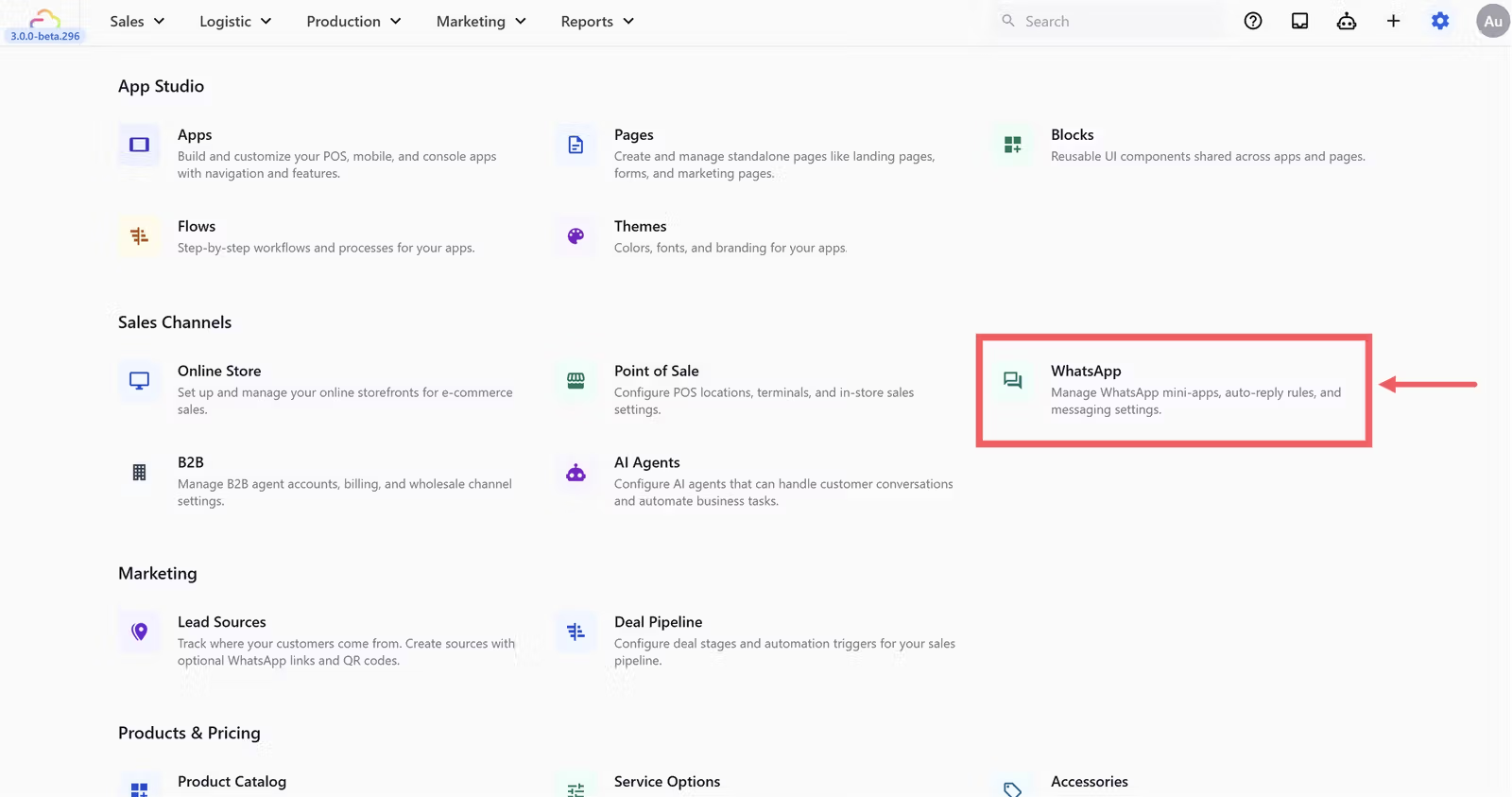
- Scroll down to the Sales Channels section and click WhatsApp.
- Click the Auto Reply Rules tab.
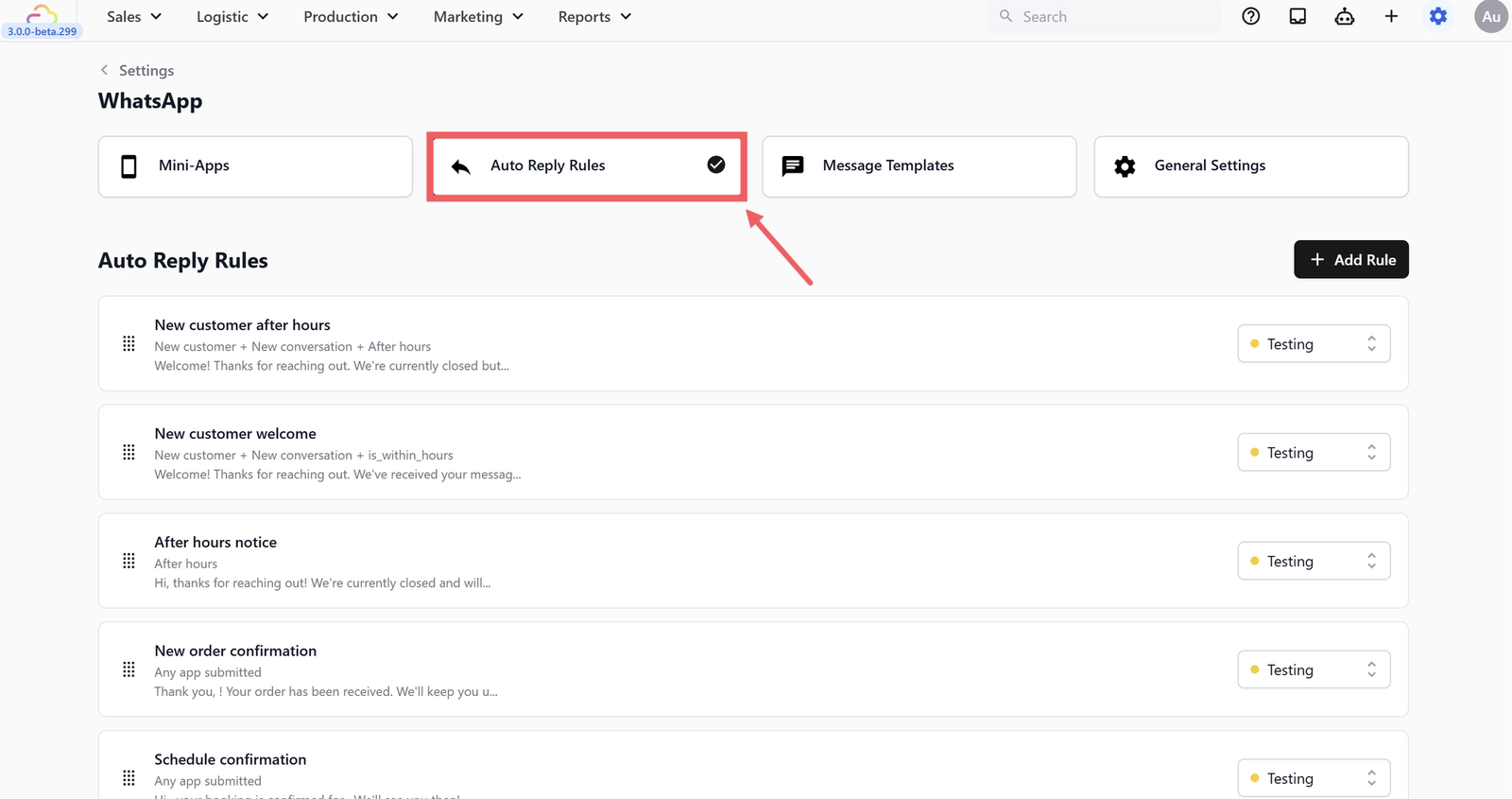
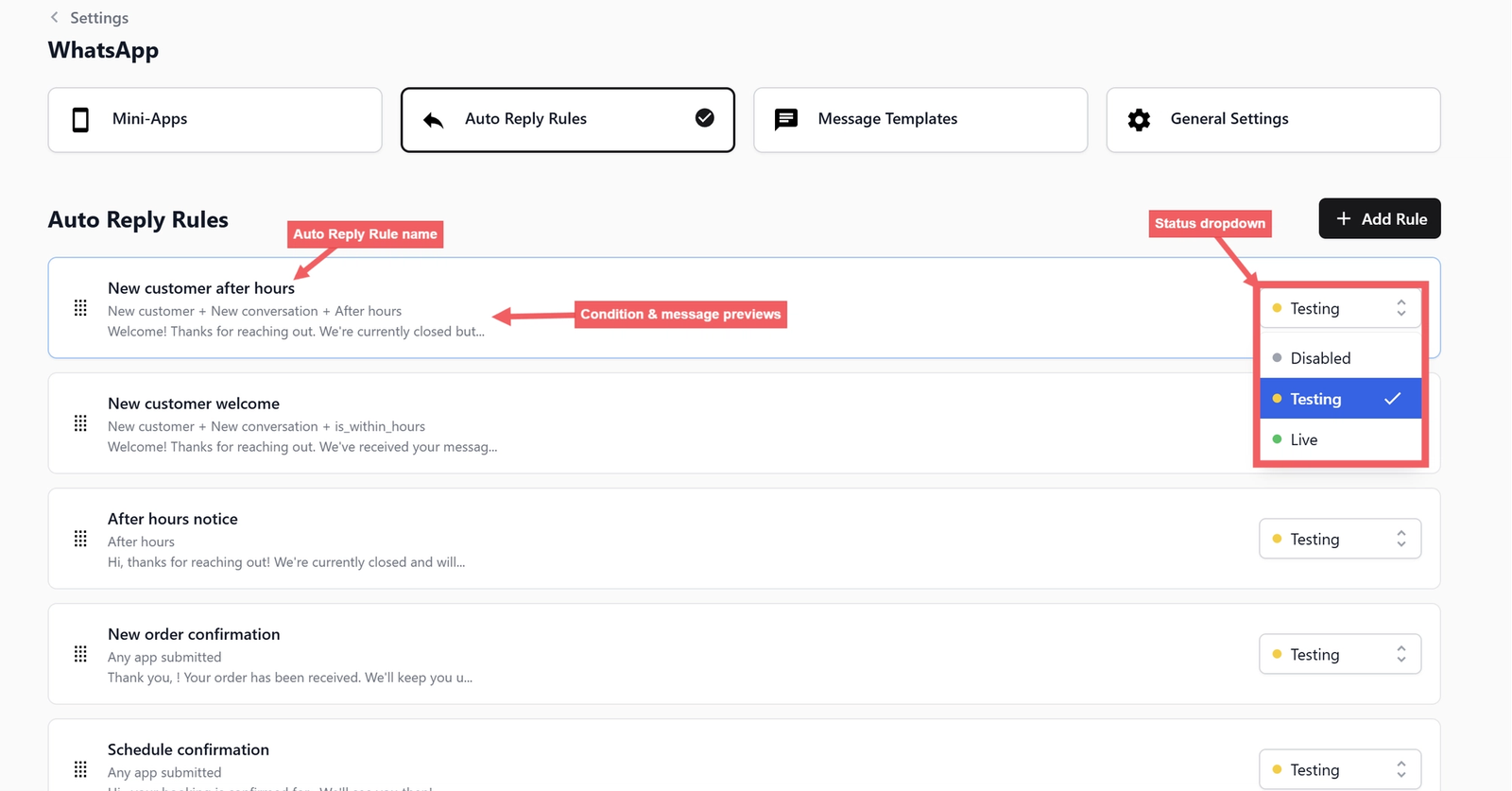
- You will see your list of active rules here. Each row shows the rule name, the conditions that trigger it, a preview of the reply message, and its current status on the right.
Creating a Rule
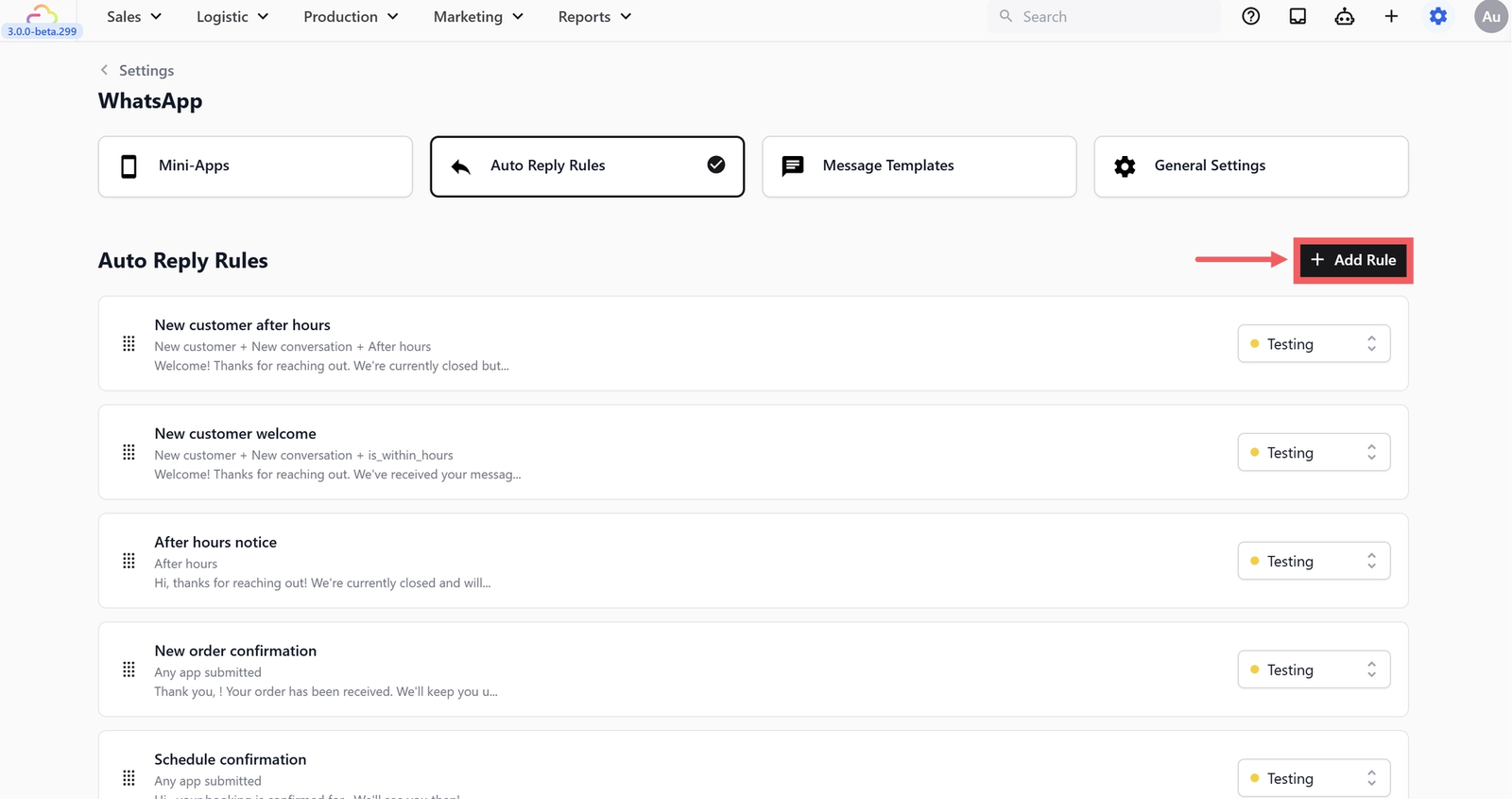
- From the Auto Reply Rules tab, click the + Add Rule button at the top right.
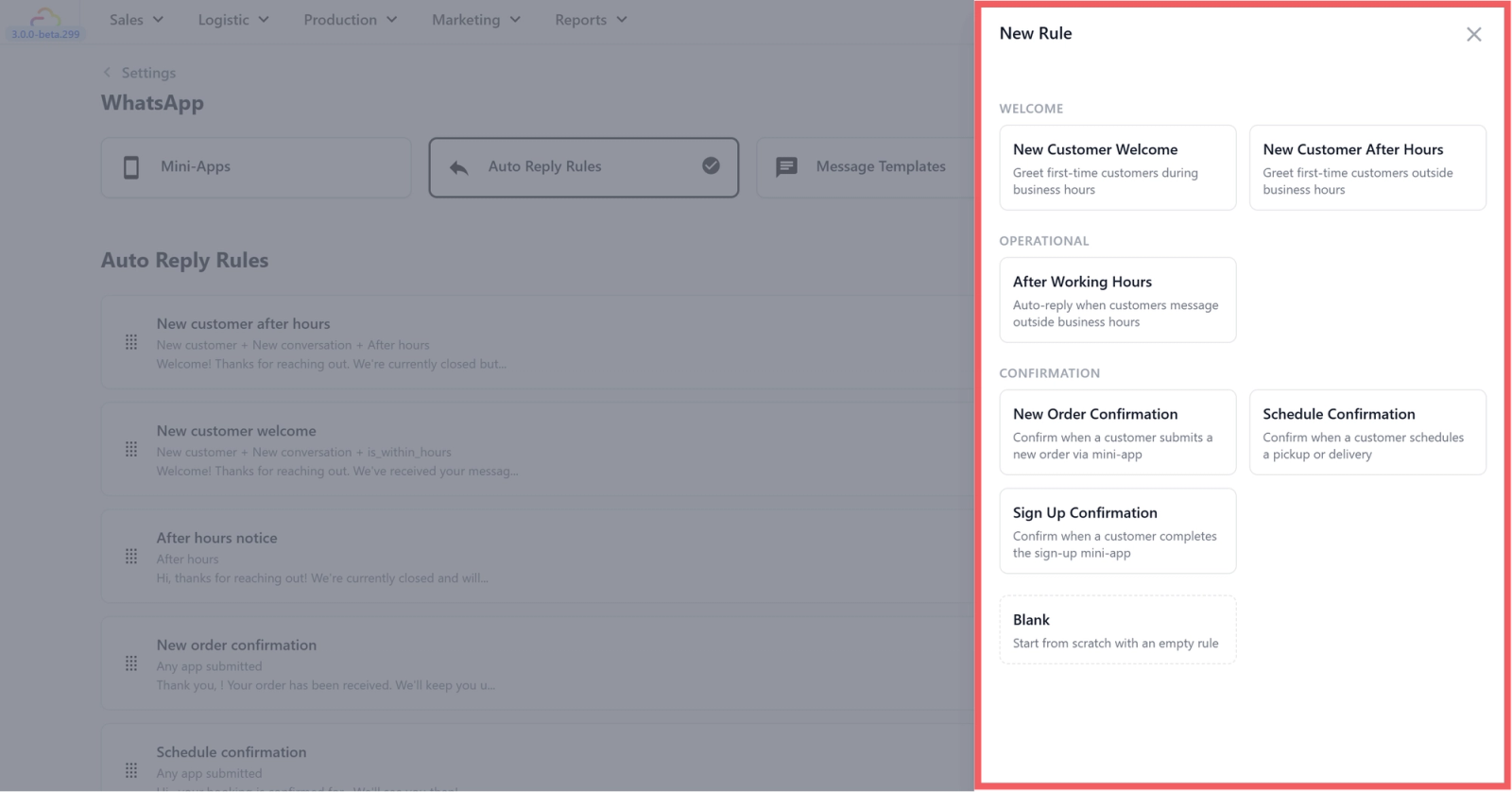
- A side panel will open showing ready-made rule templates organised by category.
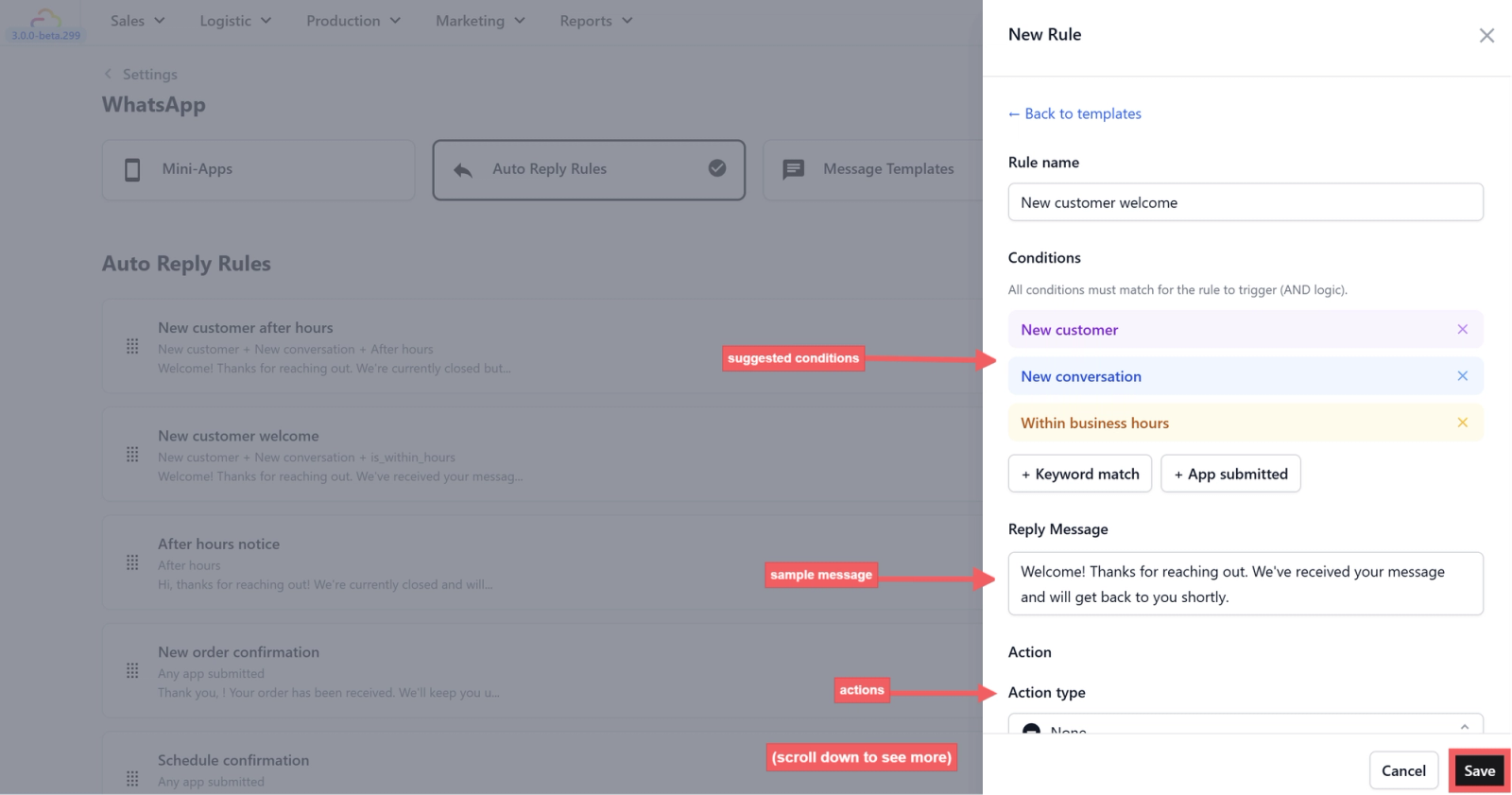
- Click on any template to open it. The rule will be pre-filled with suggested conditions and a sample message. Edit the message to match your business, adjust the settings as needed, and click Save.
For step-by-step instructions on setting up each template, see the individual rule guides:
- New Customer Welcome
- New Customer After Hours
- After Hours Notice
- New Order Confirmation
- Schedule Confirmation
- Sign Up Confirmation
- Or start from scratch with the Blank template to build a custom rule — for example, a keyword-triggered price list reply or a returning customer greeting.
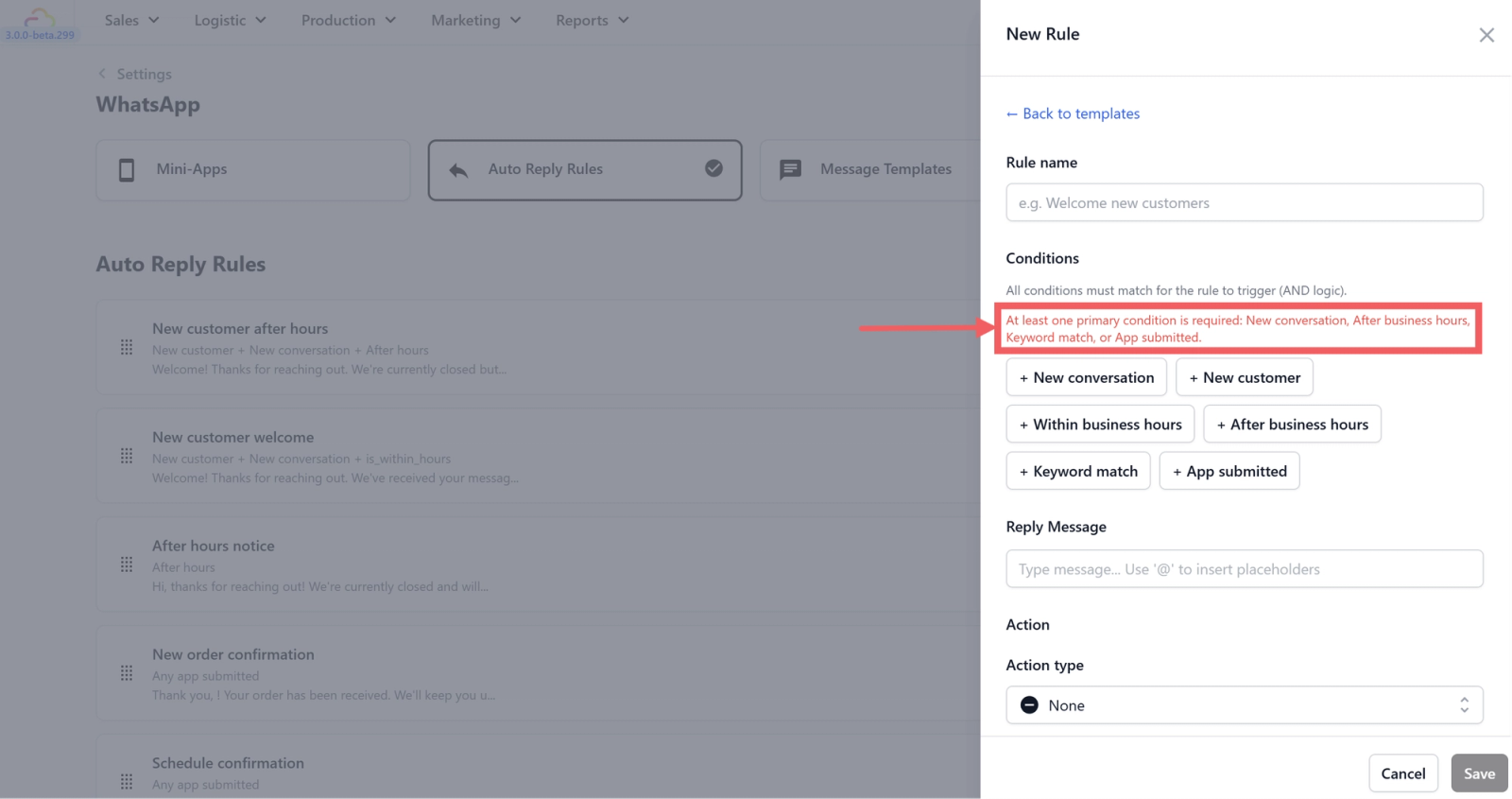
Every rule needs at least one primary condition. Think of a condition as the trigger — what must happen before EasyBiz sends the reply.
New conversation — Fires when a customer opens a new chat, or when a previously closed conversation is reopened. The most common primary condition.
New customer — Fires only when the customer has no existing profile in EasyBiz. Once they are saved, this never fires for them again.
Within business hours — Add this to only fire during your open hours. Relies on your Business Hours in General Settings. Cannot be used alone.
After business hours — Fires when a message arrives outside your opening hours. Cannot be used alone — must be paired with a primary condition.
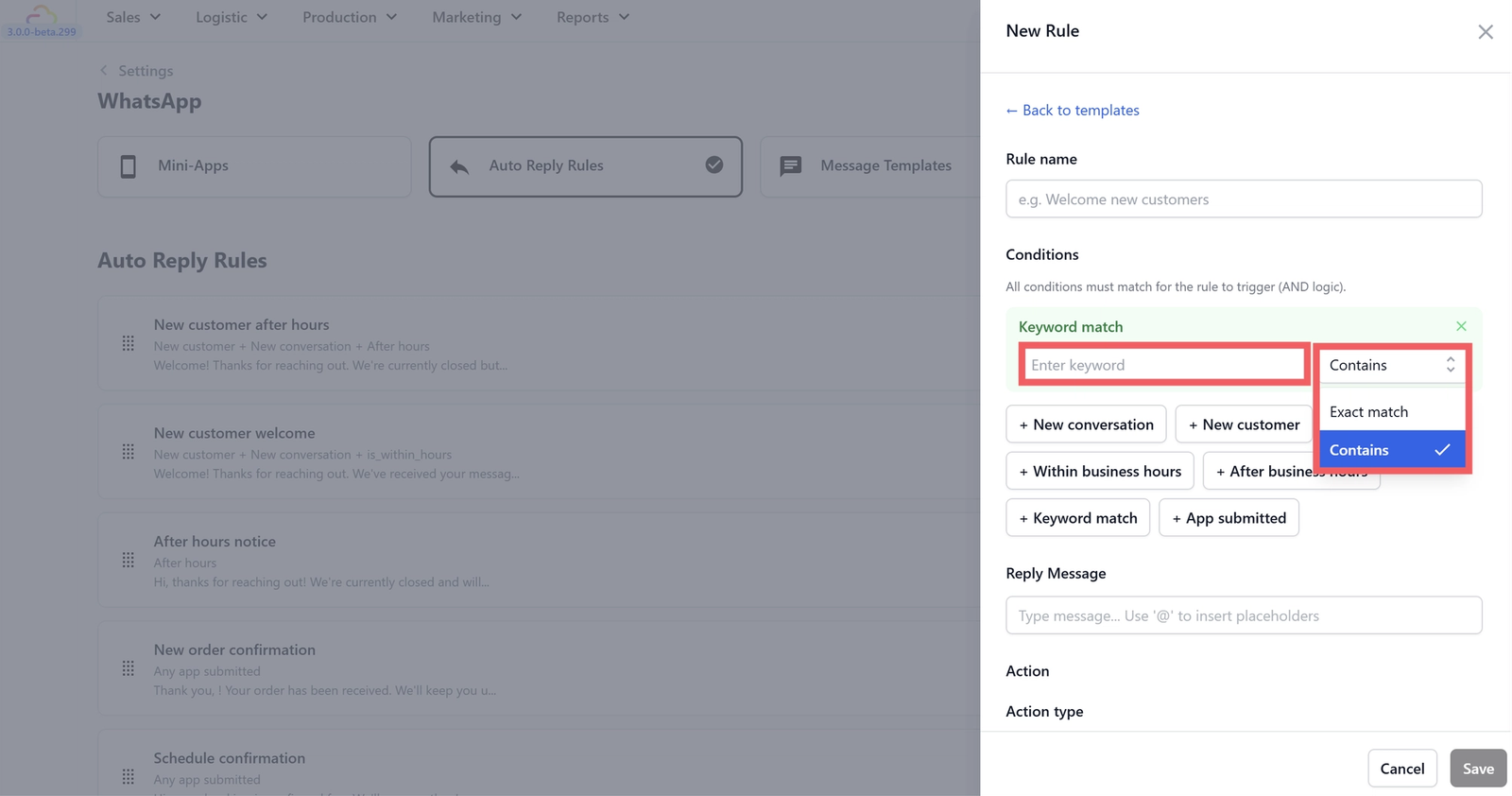
Keyword match — Fires when the customer's message contains a specific word. Type the keyword and choose:
- Contains — fires if the keyword appears anywhere in the message (e.g. "price" matches "what is your price?")
- Exact match — fires only if the message is exactly that word
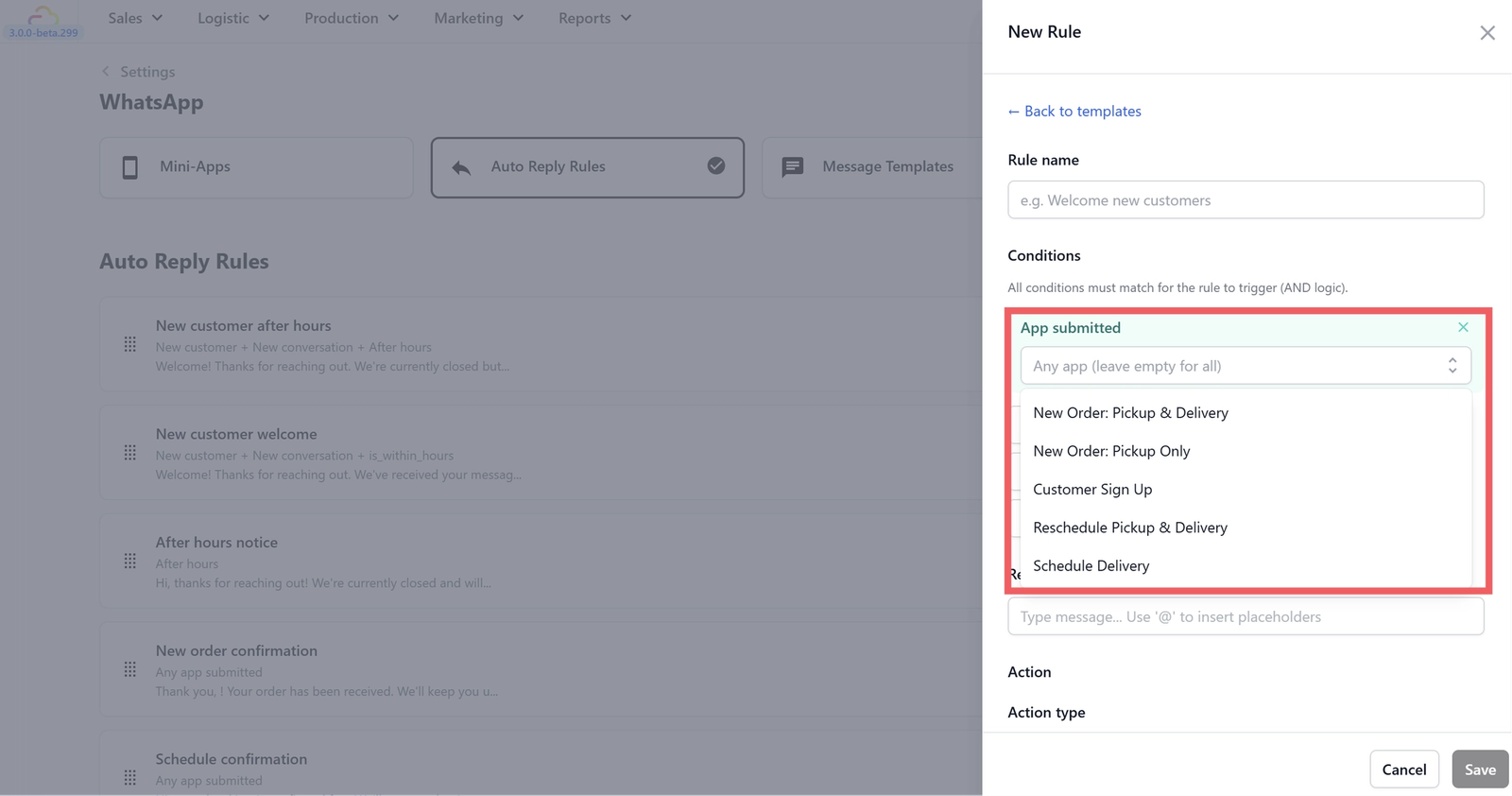
App submitted — Fires when a customer submits a Mini App form. Leave as "any app" or select a specific one.
Writing Your Reply Message
Type your message in the Reply Message field. Type @ to insert placeholders — EasyBiz fills these in automatically with real information when the message sends.
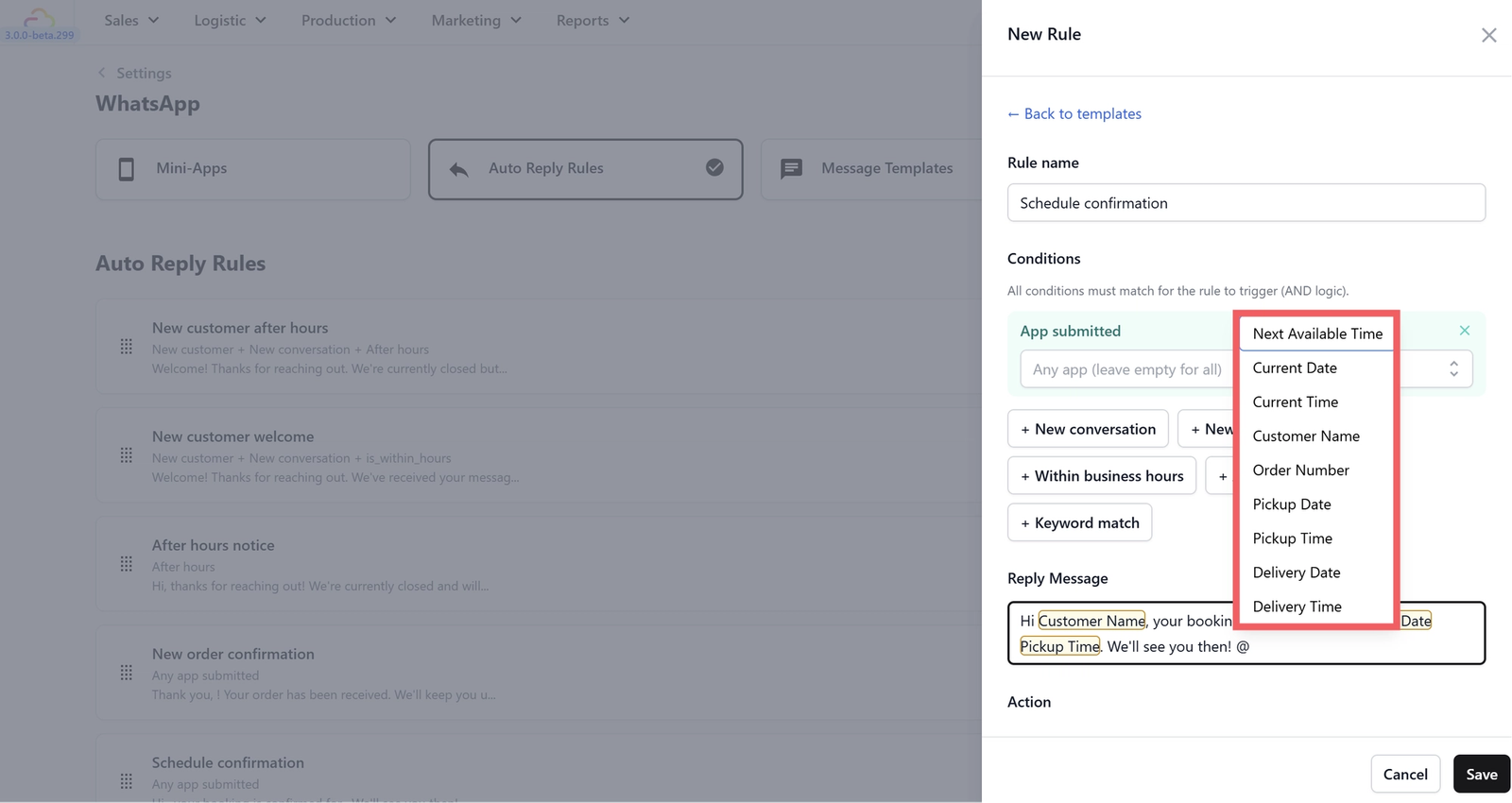
| Placeholder | What It Shows |
|---|---|
| @Customer Name | The customer's first name |
| @Order Number | Their order reference number |
| @Pickup Date | Their scheduled pickup date |
| @Pickup Time | Their scheduled pickup time |
| @Delivery Date | Their scheduled delivery date |
| @Delivery Time | Their scheduled delivery time |
| @Next Available Time | The next time your business opens |
| @Current Date | Today's date |
| @Current Time | The current time |
Adding an Action Button
Every auto reply can include a button below the message. Set this under the Action section in the rule editor.
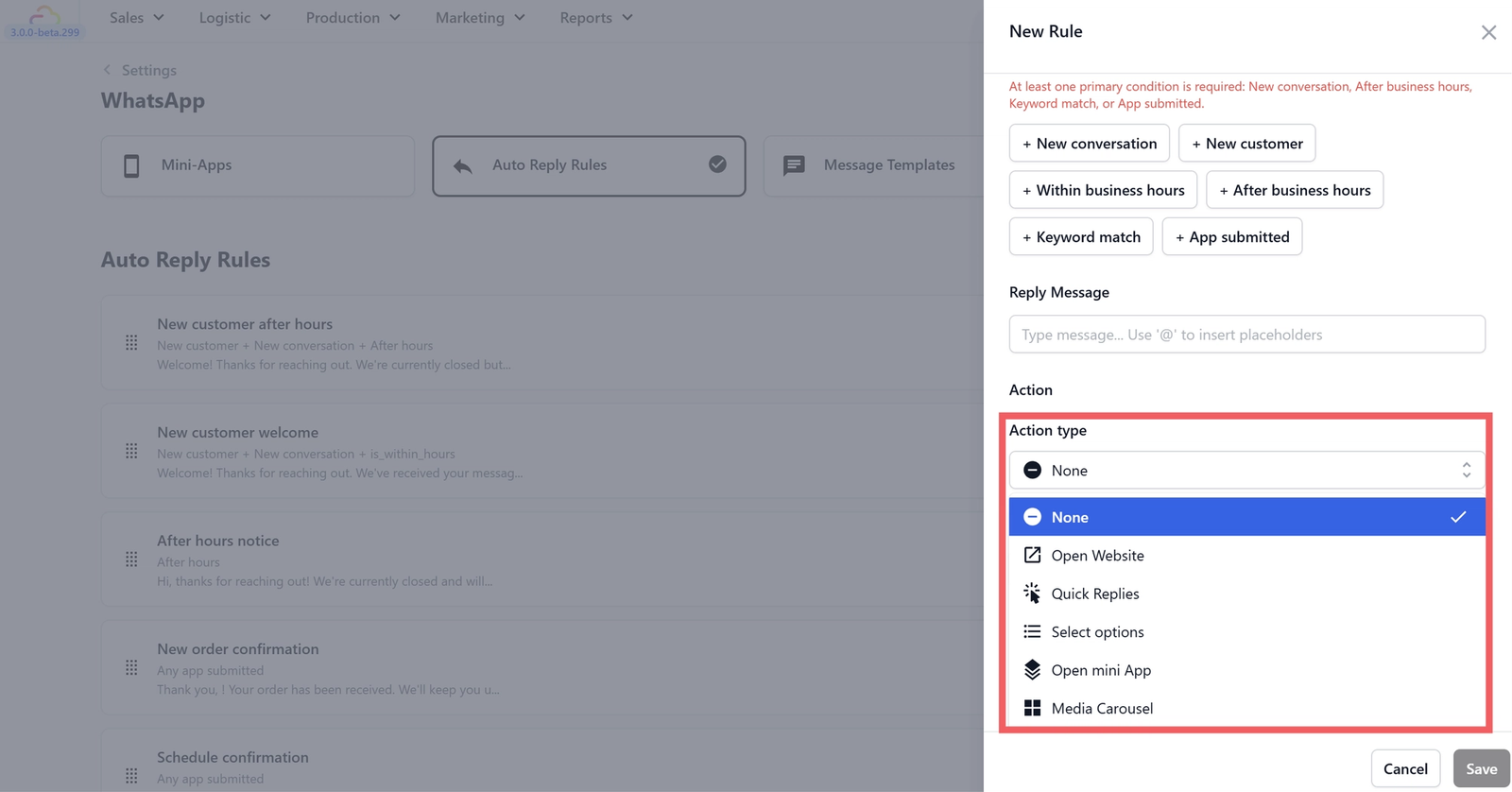
None — Plain text reply, no button.
Open Website — Adds a button that opens a webpage when tapped.
- Static — a fixed URL that is the same for every customer (e.g. your pricing page). Good for most businesses.
- Dynamic — the URL changes based on customer or order context. More advanced.
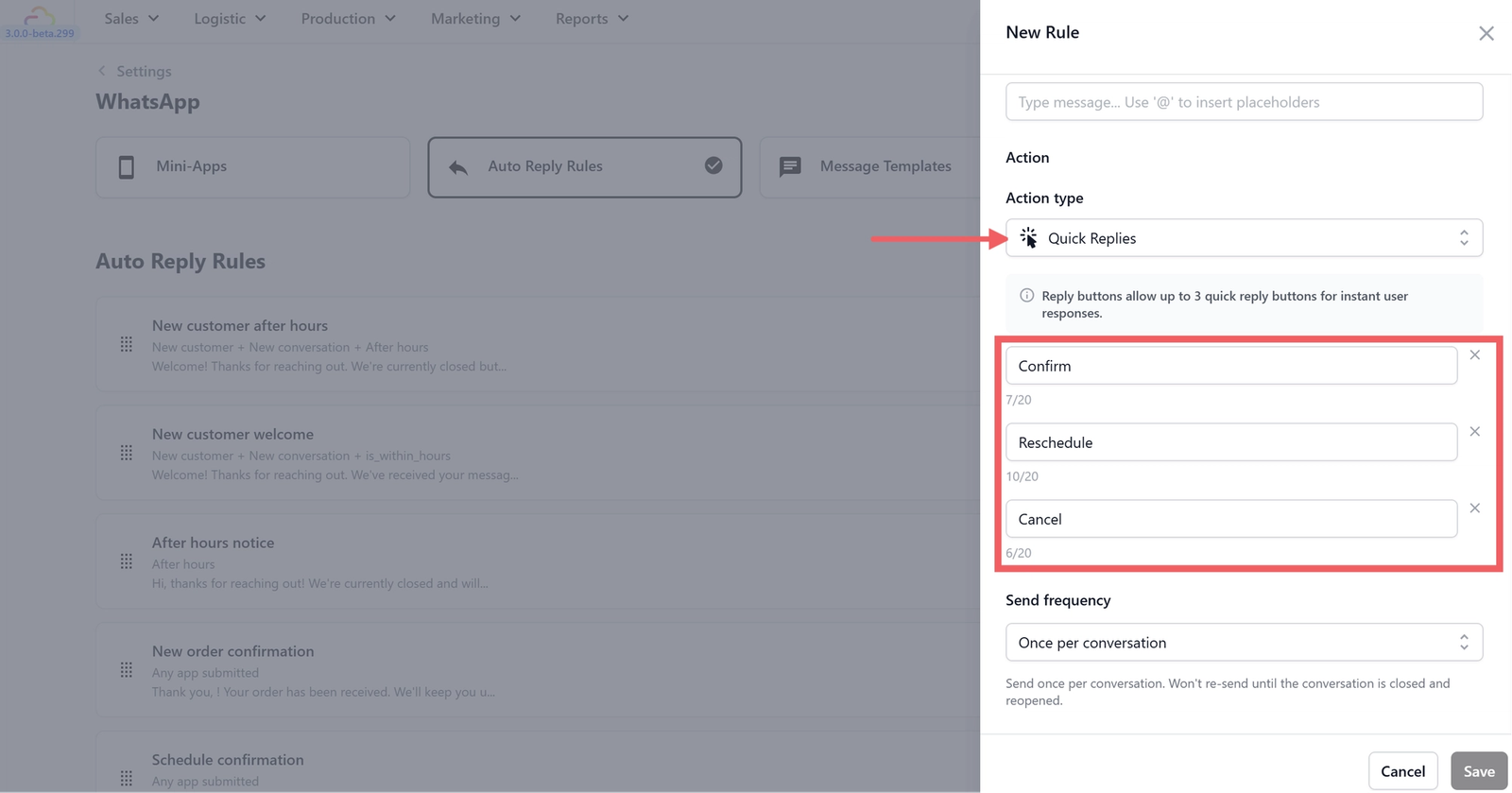
Quick Replies — Shows up to 3 tappable buttons below your message. When the customer taps one, it sends that button's label back to you as their reply. Good for simple yes/no options or short menus.
Select Options — A single button that opens a scrollable list of up to 10 options, each with a title and description. Good for longer service menus where Quick Replies are not enough.
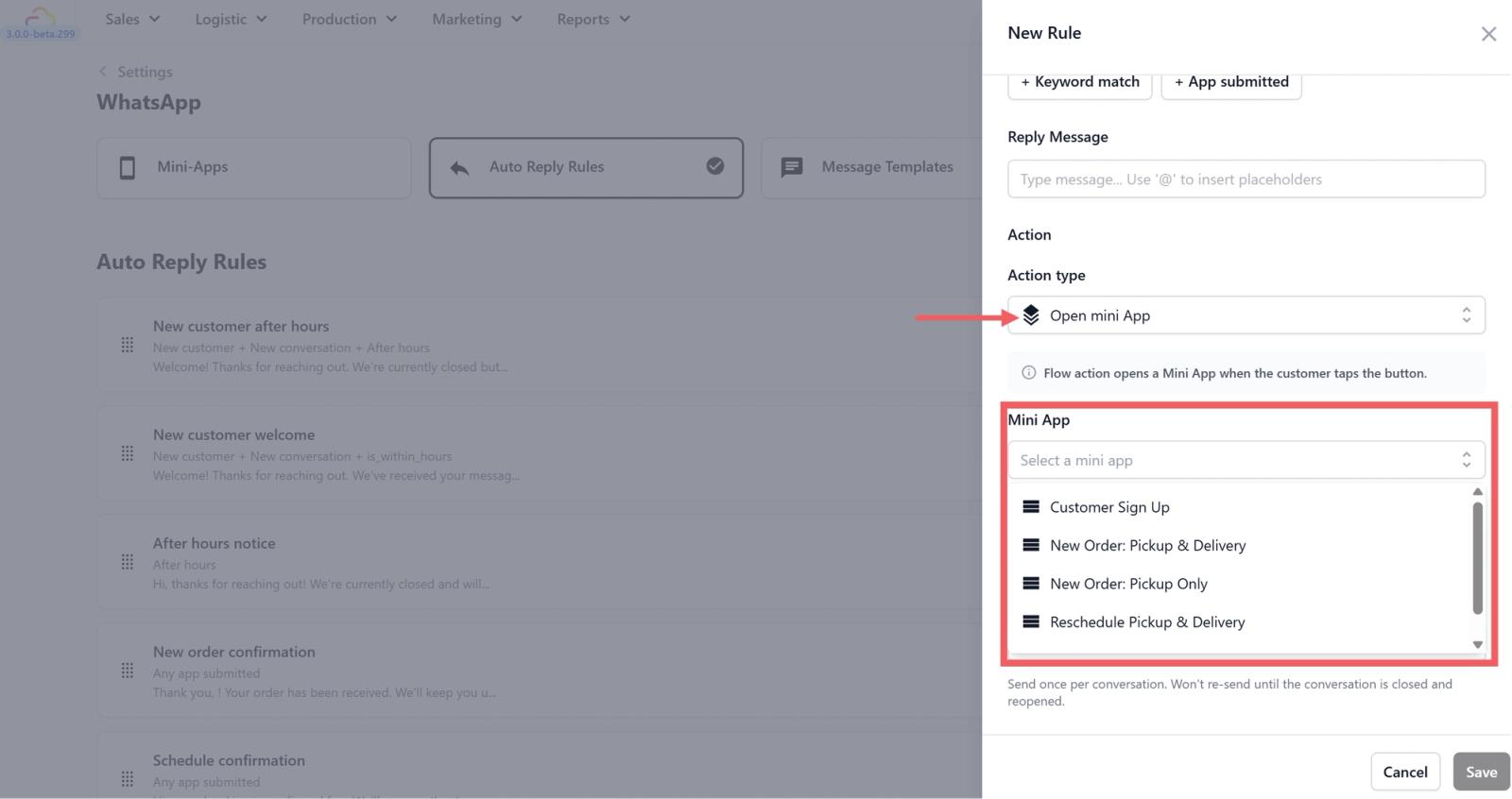
Open Mini App — Adds a button that opens one of your published Mini Apps directly inside WhatsApp. Powerful for chained flows — for example, after confirming a pickup booking, automatically send a button to schedule the delivery.
Media Carousel — Shows a set of image cards the customer can scroll through. Good for showcasing your services or promotions visually.
Send Frequency
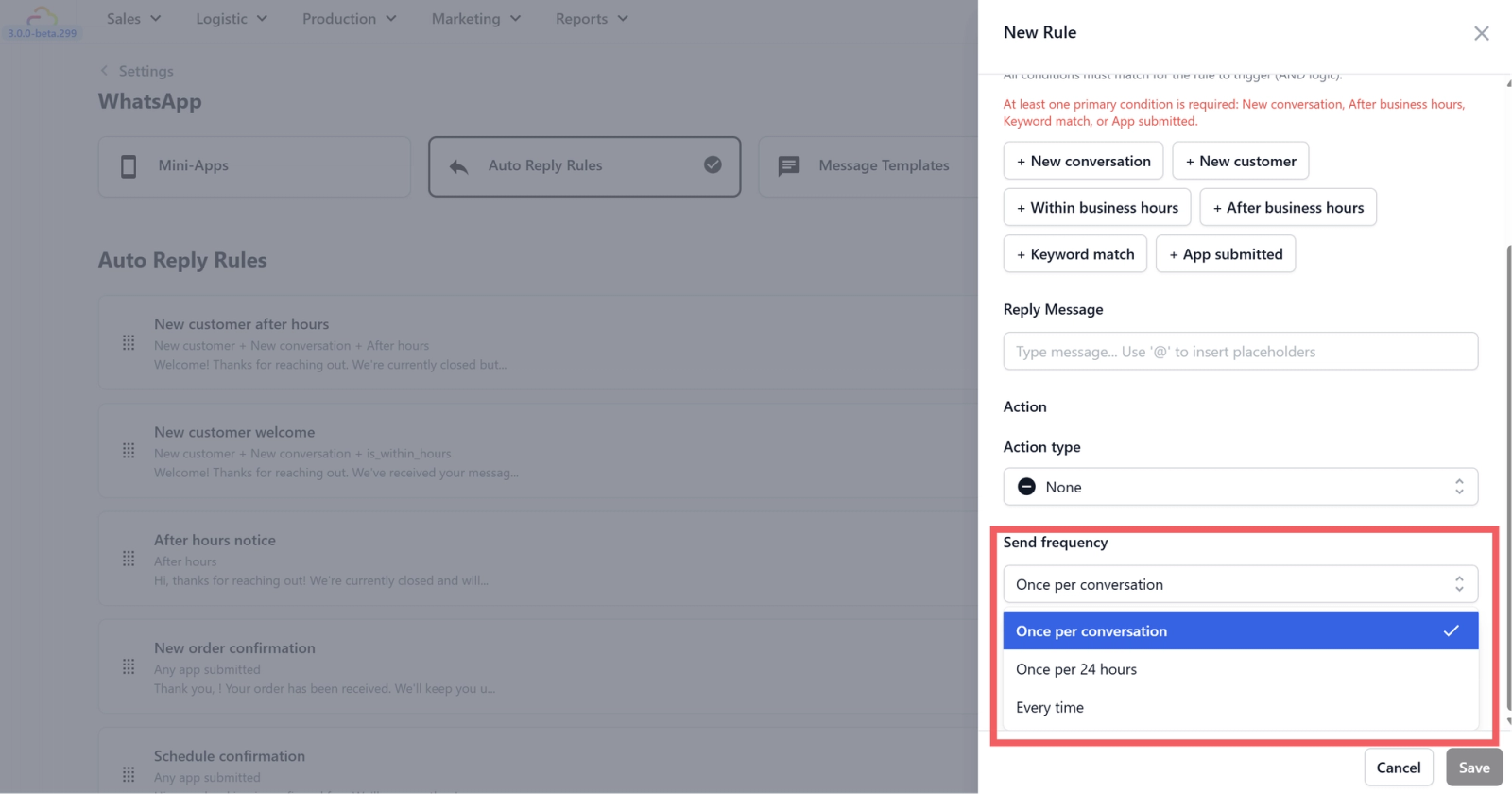
Every time — Fires every time the conditions are met with no limit. Best for order and booking confirmations where every submission needs its own reply.
Once per conversation — Fires once per conversation session. Resets when the conversation is closed and reopened. Best for welcome greetings — you do not want to send a welcome message every time the customer says something.
Once every 24 hours — Fires at most once per customer per day. Best for after-hours notices — you do not want to send the same "we're closed" message to the same customer multiple times in one evening.
Rule Status: Disabled, Testing, and Live
Every rule has a status dropdown on the right side of the rule list.
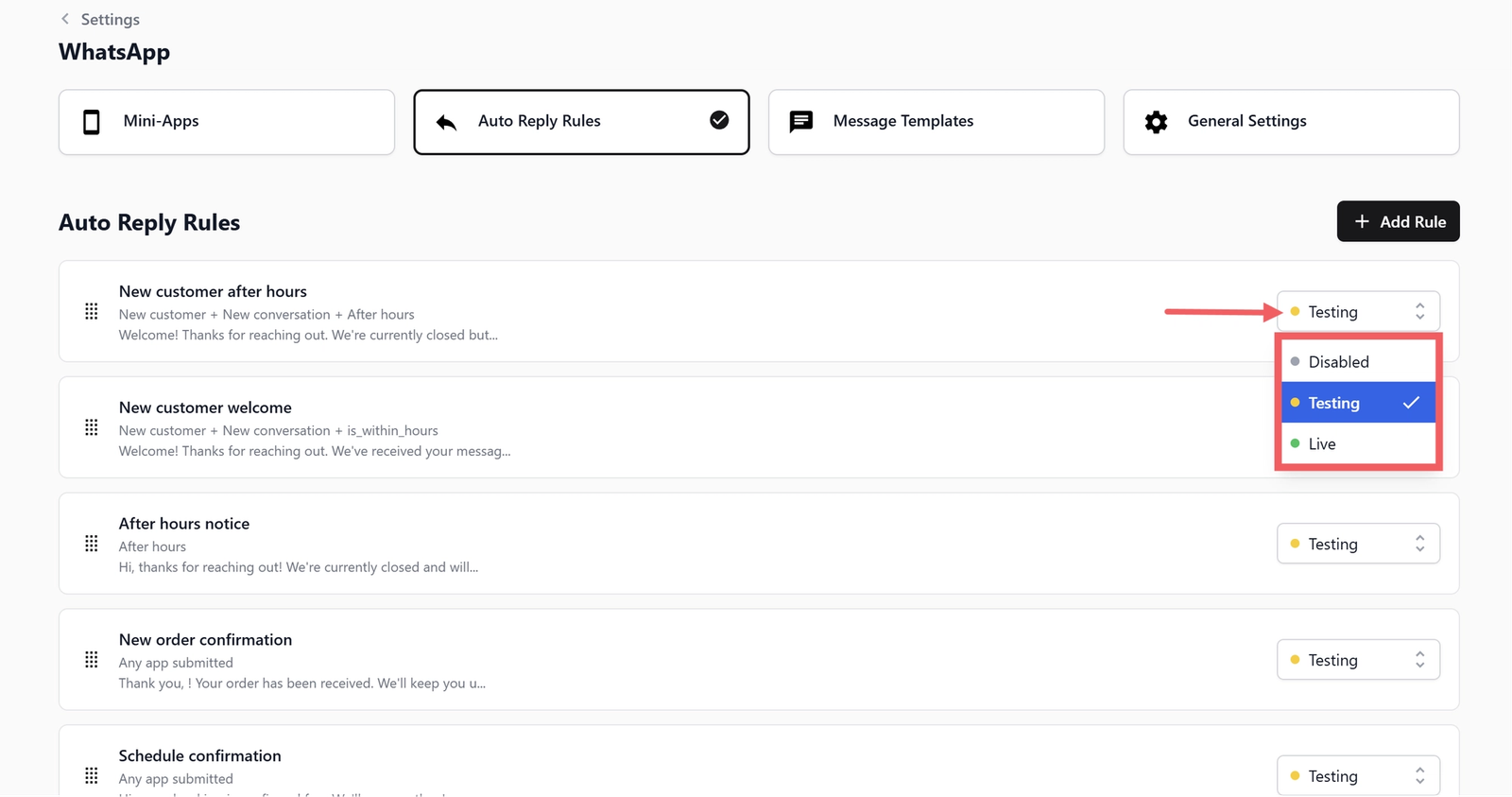
Disabled — The rule is off and fires for nobody. Use this to temporarily pause a rule without deleting it.
Testing — Only fires for phone numbers in your Test Group in General Settings. Use this when you have just created a rule and want to check it before releasing it to customers.
Live — Active and fires for all customers.
Rule Priority: What Happens When Two Rules Match
If a customer's message matches more than one rule at the same time, EasyBiz only sends one reply — the rule highest in your list wins.
Drag rules up and down using the grip icon on the left of each row to set the order.
Frequently Asked Questions
- What happens if a customer's message matches two rules? Only the rule highest in your list fires. Drag and drop your rules to control the order. The topmost matching rule always wins.
- Can I turn off a rule without deleting it? Yes — set its status to Disabled from the dropdown on the right. You can switch it back to Live anytime.
- Why is my After Business Hours rule not firing? Make sure you have enabled Business Hours in the General Settings tab and set the correct timezone and opening times. Without this, the system has no reference for what "after hours" means.
- Can I use placeholders like @Customer Name in every rule? Yes — type @ in the Reply Message field to see all available placeholders. Use only the ones relevant to the rule — for example, @Pickup Date only makes sense in a booking confirmation.
- What is the difference between Quick Replies and Select Options? Quick Replies show up to 3 buttons directly below your message — the customer just taps one. Select Options shows a single button that opens a scrollable list of up to 10 choices with descriptions. Use Quick Replies for simple options and Select Options for longer service menus.
- Can I have more than one rule active at the same time? Yes — you can have as many Live rules as you want. Use the drag-and-drop ordering to make sure the most important rules sit at the top.
- My New Customer Welcome rule is firing for returning customers — why? Check that you have the New customer condition added to the rule. Without it, the rule fires for anyone starting a new conversation — not just first-timers. Add + New customer to restrict it to brand new customers only.
What's Next
Set up your rules using the individual template guides:
- New Customer Welcome — Greet first-time customers during business hours
- New Customer After Hours — Welcome new customers outside business hours
- After Hours Notice — Let anyone messaging after hours know when you will be back
- New Order Confirmation — Confirm orders instantly
- Schedule Confirmation — Confirm bookings and deliveries
- Sign Up Confirmation — Welcome new sign-ups
- WhatsApp General Settings — Configure business hours and test group
Give feedback
Up next
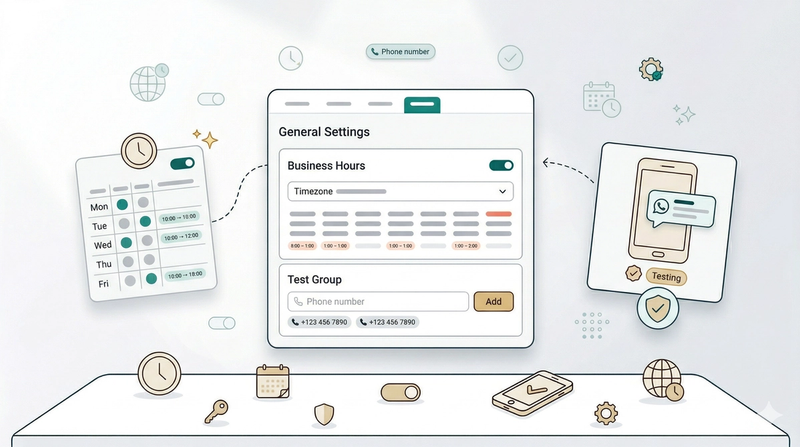
WhatsApp General SettingsSet your business hours and test numbers — two essential settings that control when your auto replies fire and who receives them during testing.
Read more