
Schedule Confirmation
In this article
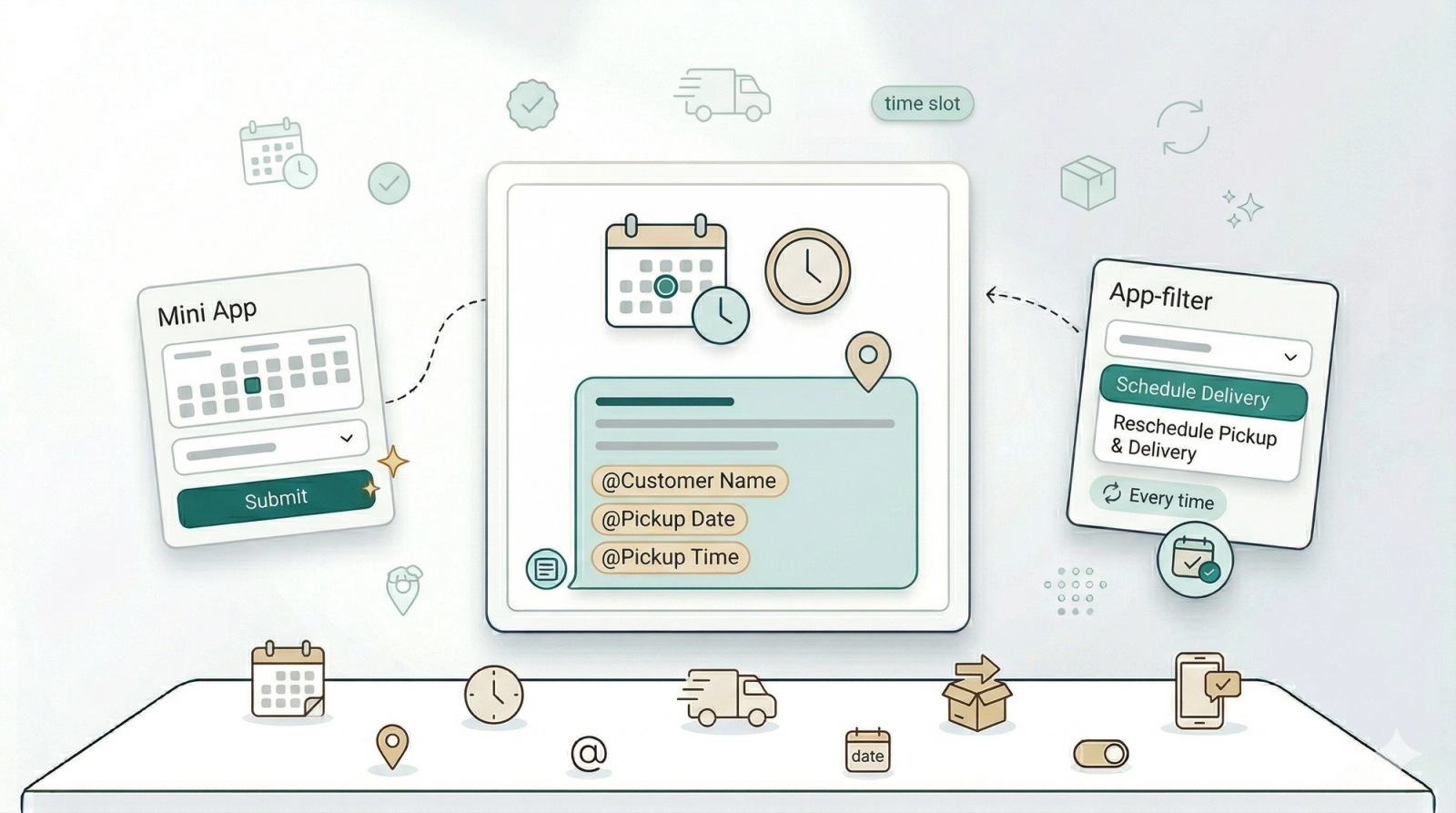
When a customer books a pickup or delivery through your WhatsApp Mini App, they want to know the date and time are locked in. This rule sends an instant confirmation with their scheduled details — so they can plan their day and your team has one less message to send manually.
Contents
Contents
Before You Start
- Mini-Apps published — You need at least one scheduling-related Mini App published (e.g. "Schedule Delivery" or "Reschedule Pickup & Delivery"). Your Mini Apps are configured in the Mini-Apps tab within WhatsApp settings.
- Test Group — Add at least one phone number in General Settings.
If you are new to auto reply rules, read Setting Up Auto Reply Rules first.
When This Rule Fires
Pre-configured condition:
- App submitted — Fires when a customer completes and submits a Mini App. The default message is tailored to include pickup date and time details.
How to Set It Up
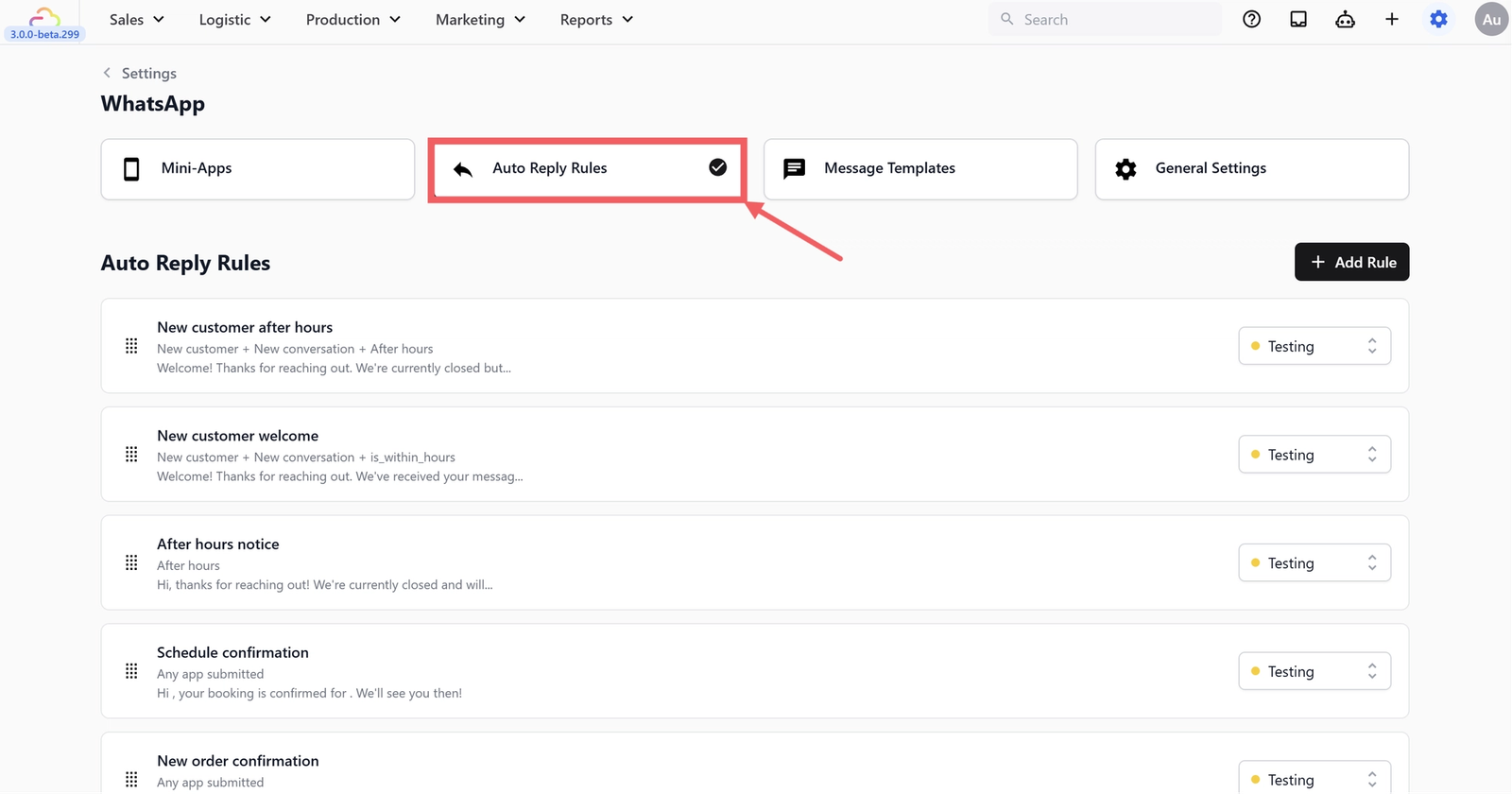
- Go to WhatsApp Settings > Auto Reply Rules tab
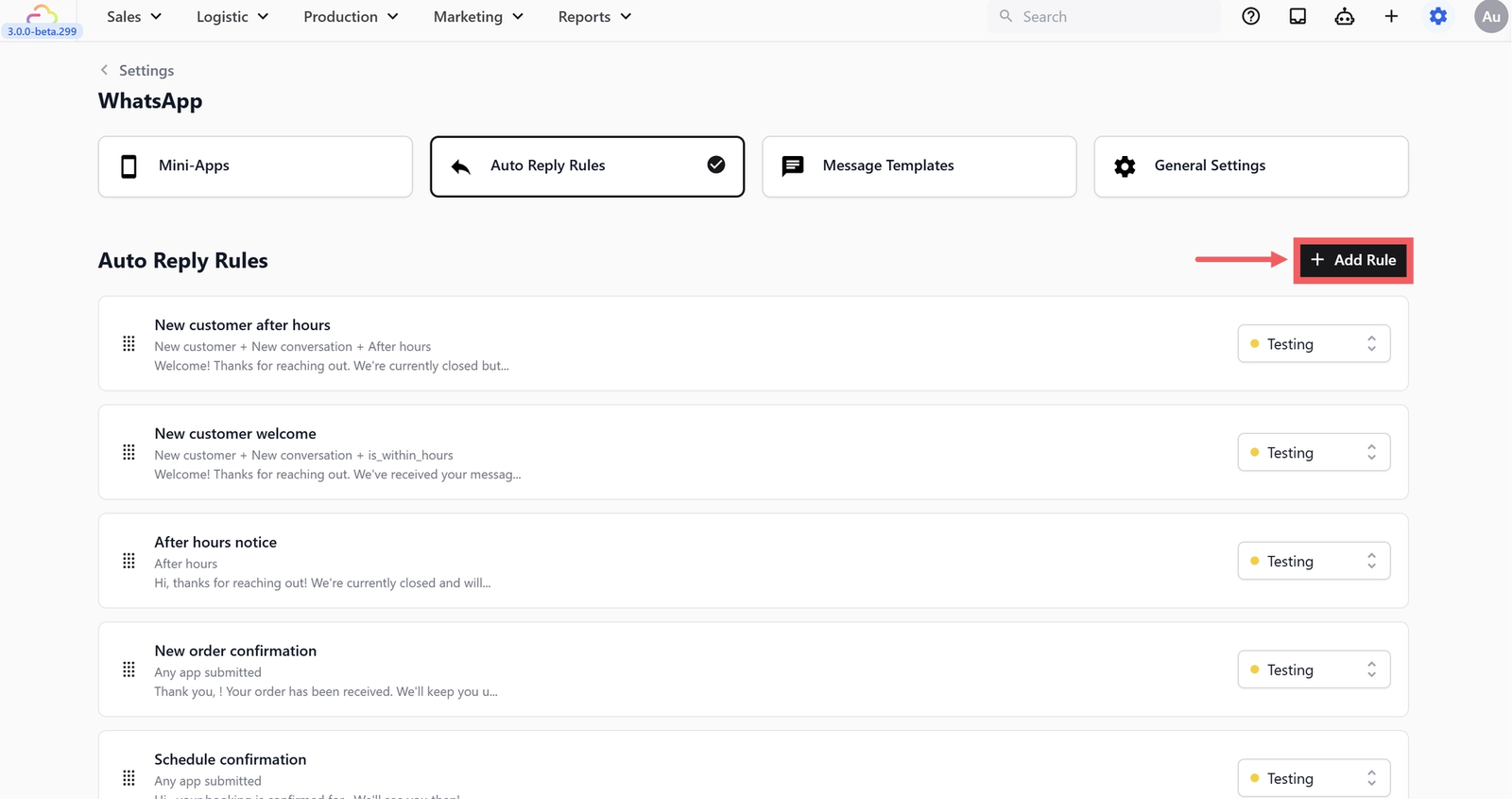
- Click + Add Rule
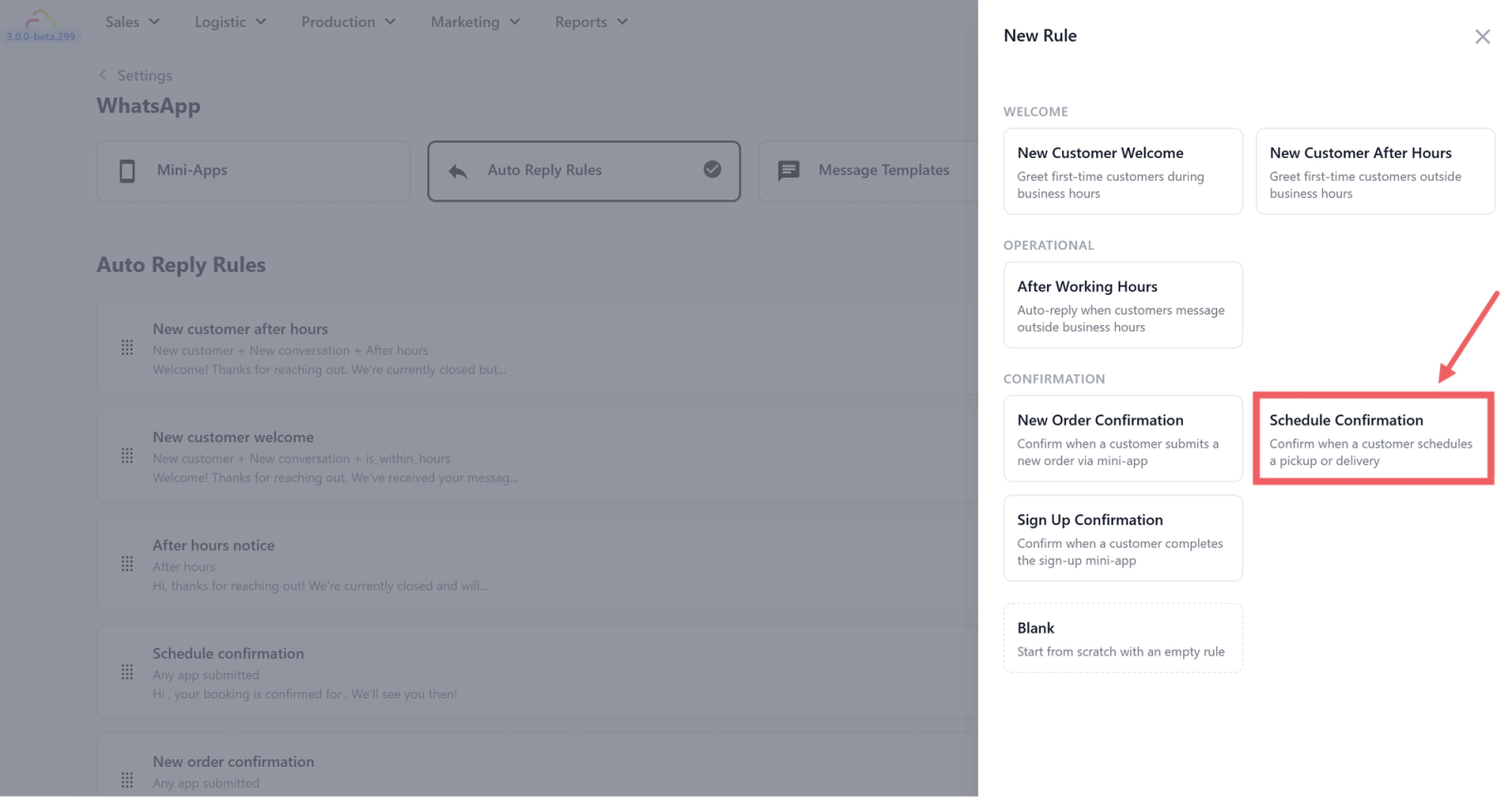
- Under Confirmation, select Schedule Confirmation
- Set the app filter — click the dropdown and select your scheduling Mini App(s):
- Schedule Delivery
- Reschedule Pickup & Delivery
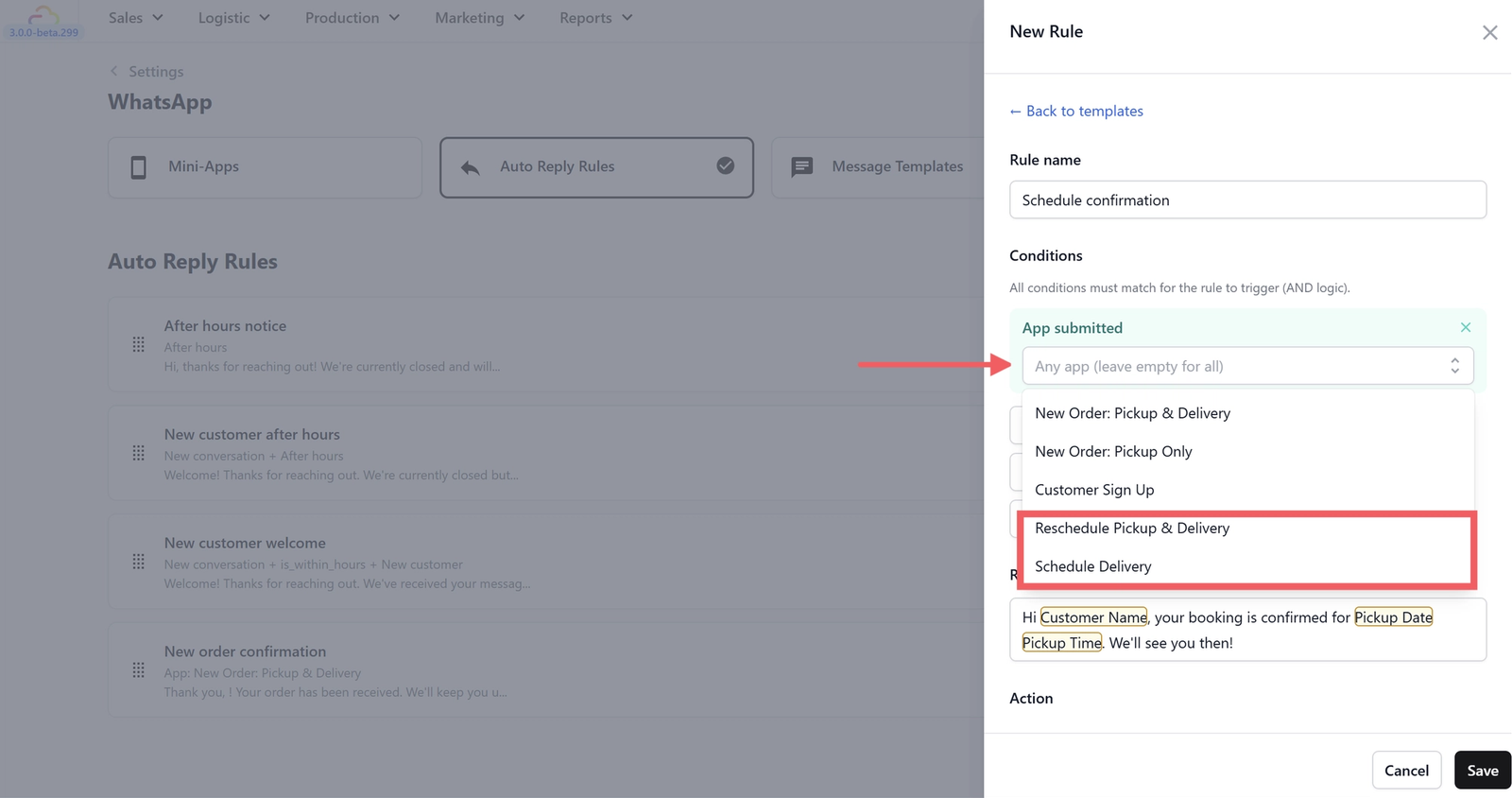
- Edit the reply message (optional). The default is:
"Hi @Customer Name, your booking is confirmed for @Pickup Date @Pickup Time. We'll see you then!"
- Set Action type — the default is None.
- Set Send frequency to Every time — a customer might reschedule or book multiple deliveries in the same conversation.
- Click Save.
- Set Status to Testing.
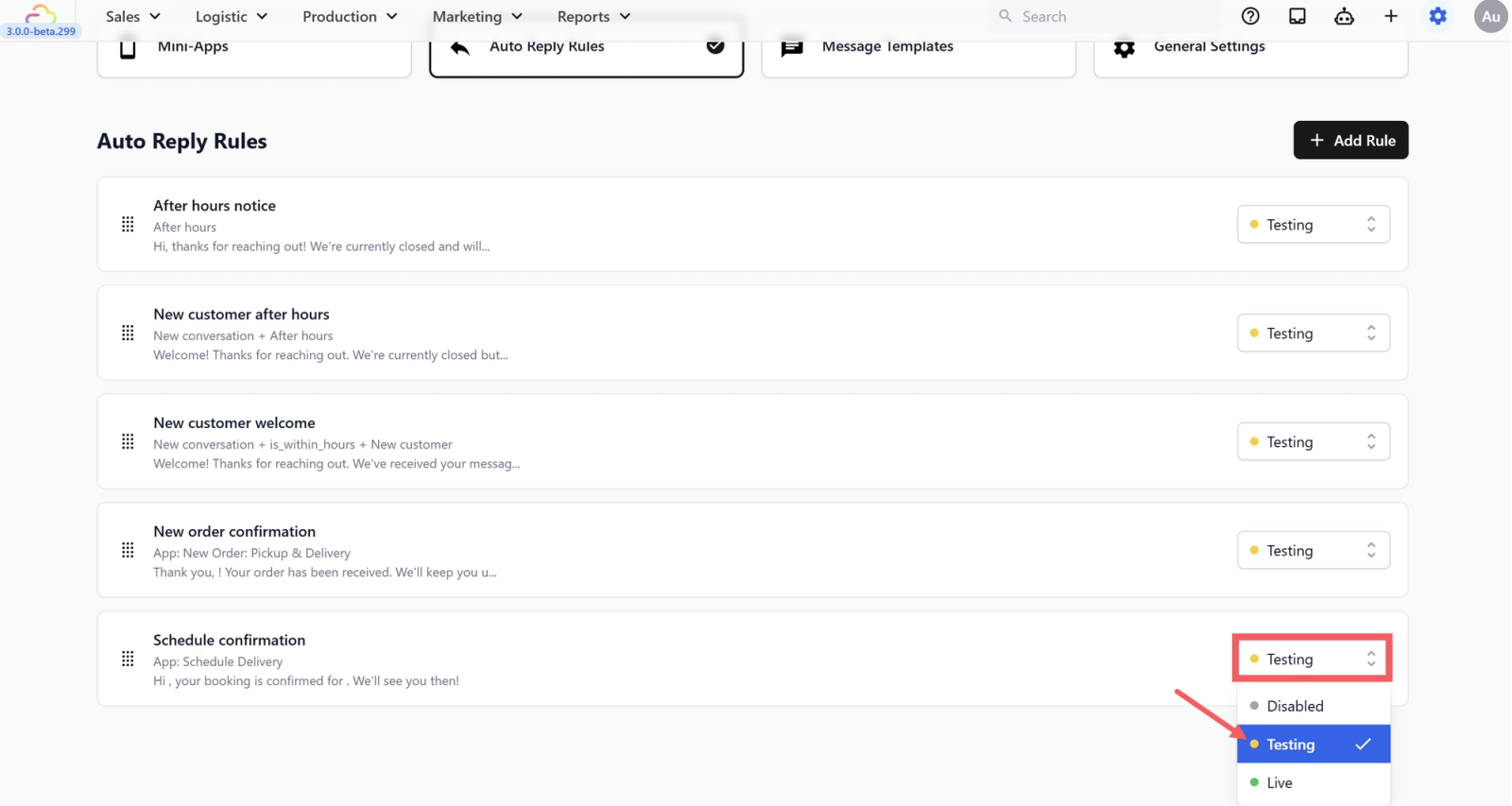
Testing the Rule
- Make sure the rule is set to Testing status
- Confirm your test phone number is in the Test Group (General Settings)
- From your test number, open your scheduling Mini App on WhatsApp and submit a test booking
- You should receive the schedule confirmation with the correct date and time filled in
- Verify you only receive this confirmation — not an order or sign-up confirmation on top of it
Once verified, switch the status from Testing to Live.
What's Next
Now that schedule details are confirmed automatically, continue to [Sign Up Confirmation] to set the welcome reply that goes out when a customer signs up through one of your mini apps.
Give feedback
Up next
Sign Up ConfirmationWelcome every new sign-up instantly — send an automatic WhatsApp reply the moment a customer creates their account through your Mini App.
Read more