
New Order Confirmation
In this article
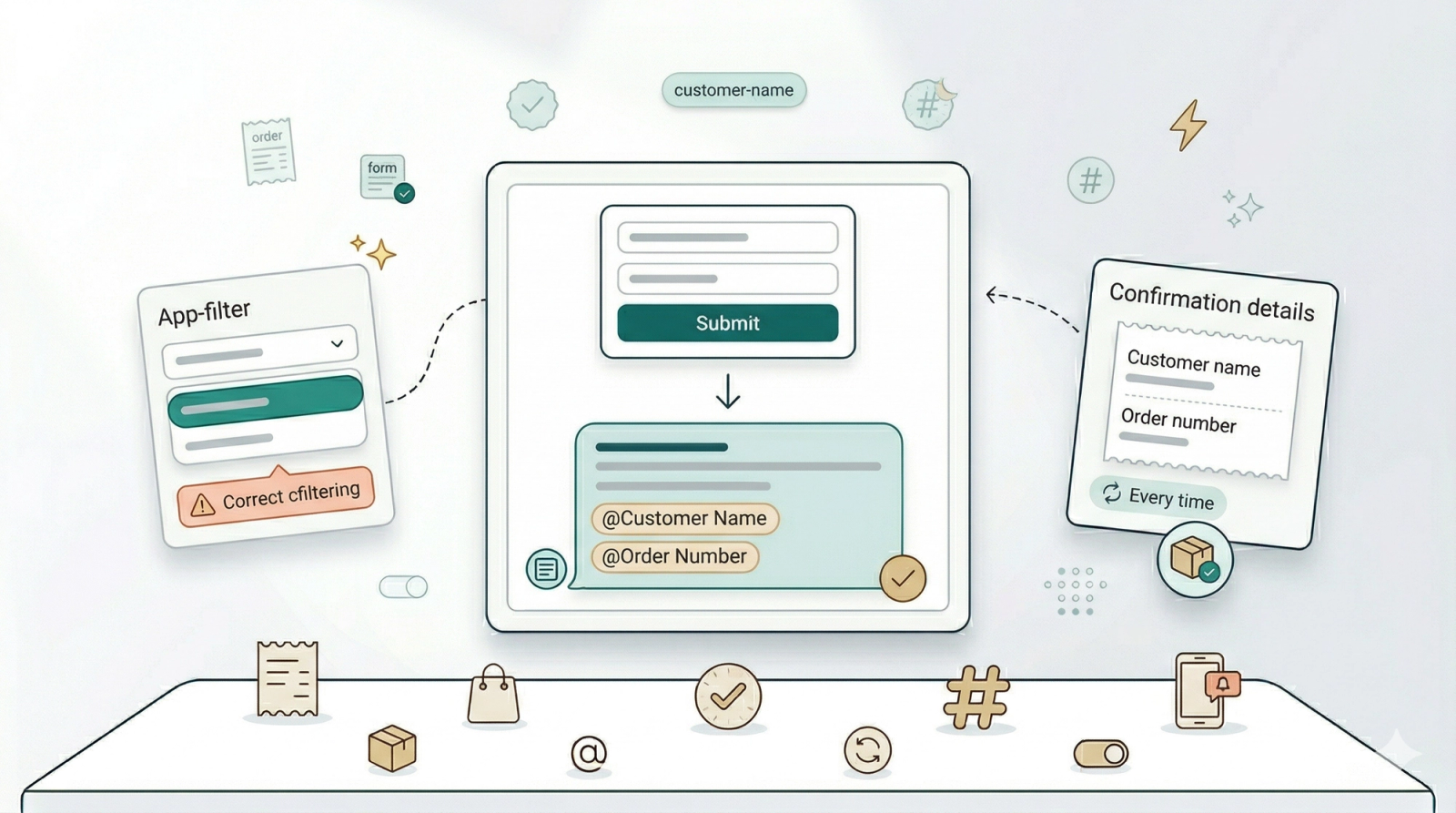
When a customer places an order through one of your WhatsApp Mini Apps, they want to know it went through. This rule sends an instant confirmation the moment a Mini App booking form is submitted — so your customer has peace of mind and your team does not spend time typing "We've received your order" dozens of times a day.
Contents
Contents
Before You Start
- Mini-Apps published — You need at least one order-related Mini App published (e.g. "New Order: Pickup Only" or "New Order: Pickup & Delivery"). Your Mini Apps are configured in the Mini-Apps tab within WhatsApp settings.
- Test Group — Add at least one phone number in General Settings.
If you are new to auto reply rules, read Setting Up Auto Reply Rules first.
When This Rule Fires
Pre-configured conditions:
- App submitted — Fires when a customer completes and submits a Mini App. You can leave it set to "any app" or narrow it to a specific Mini App.
- New conversation — The submission starts or occurs within a new conversation.
How to Set It Up
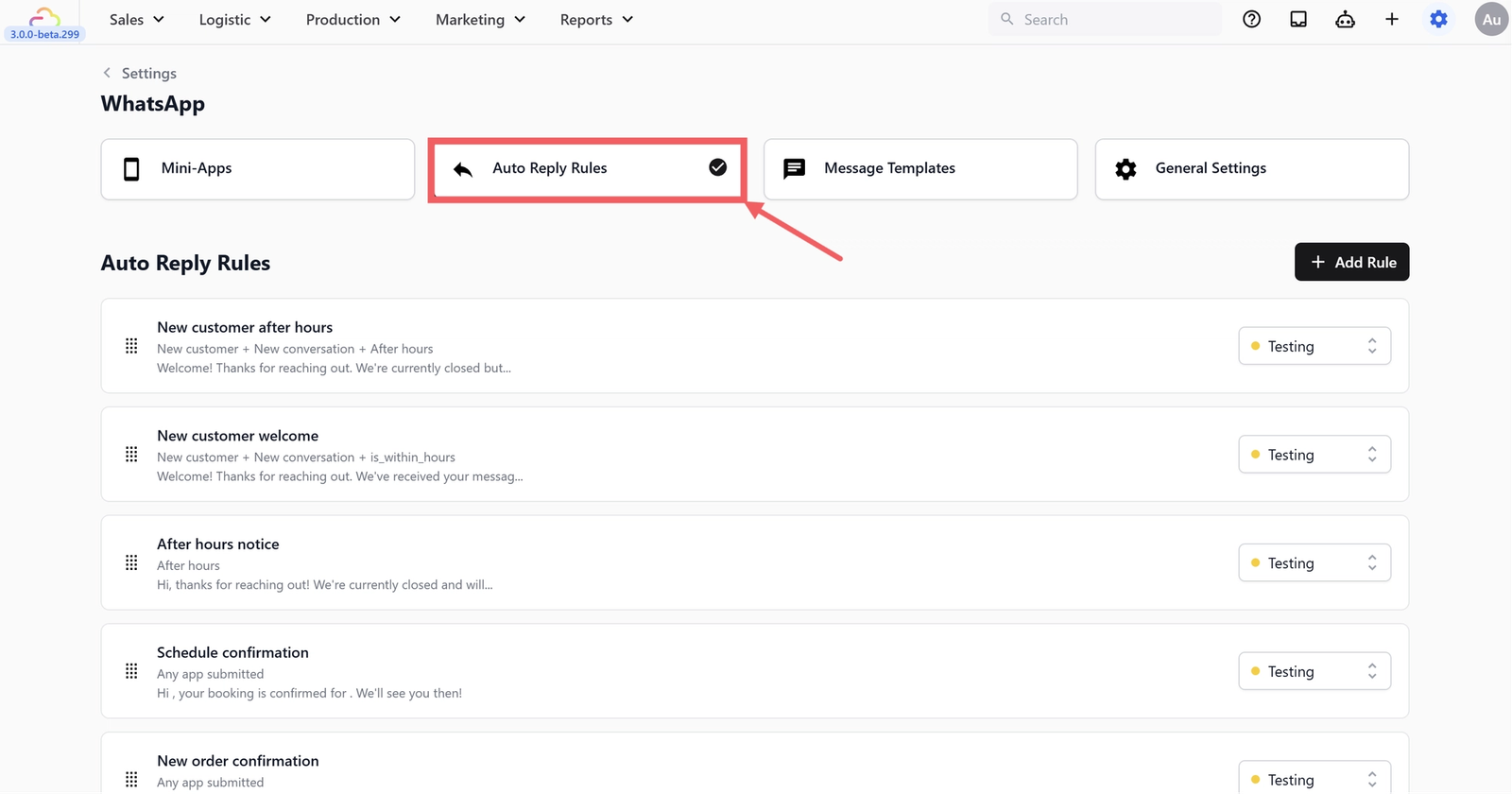
- Go to WhatsApp Settings > Auto Reply Rules tab
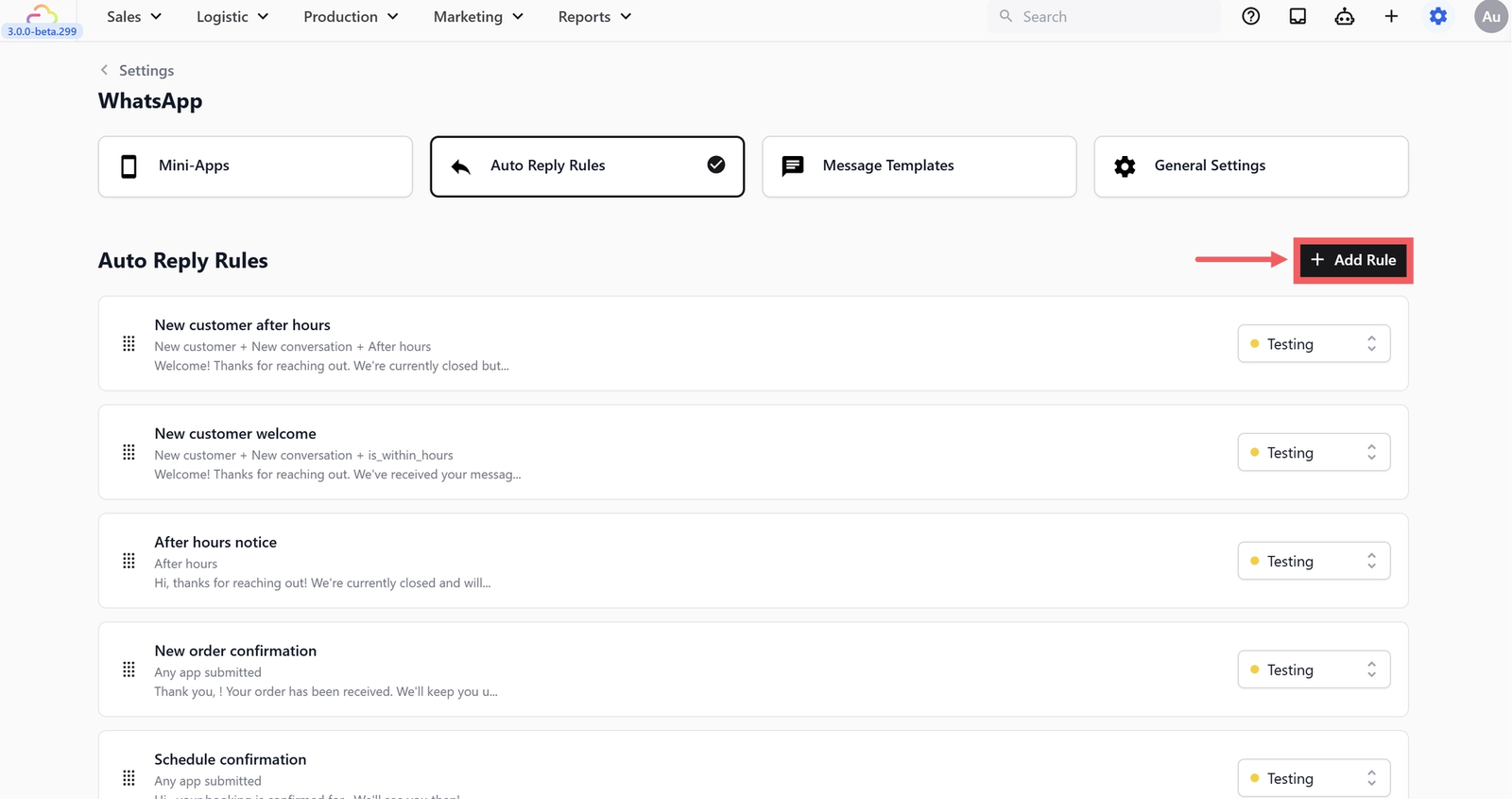
- Click + Add Rule
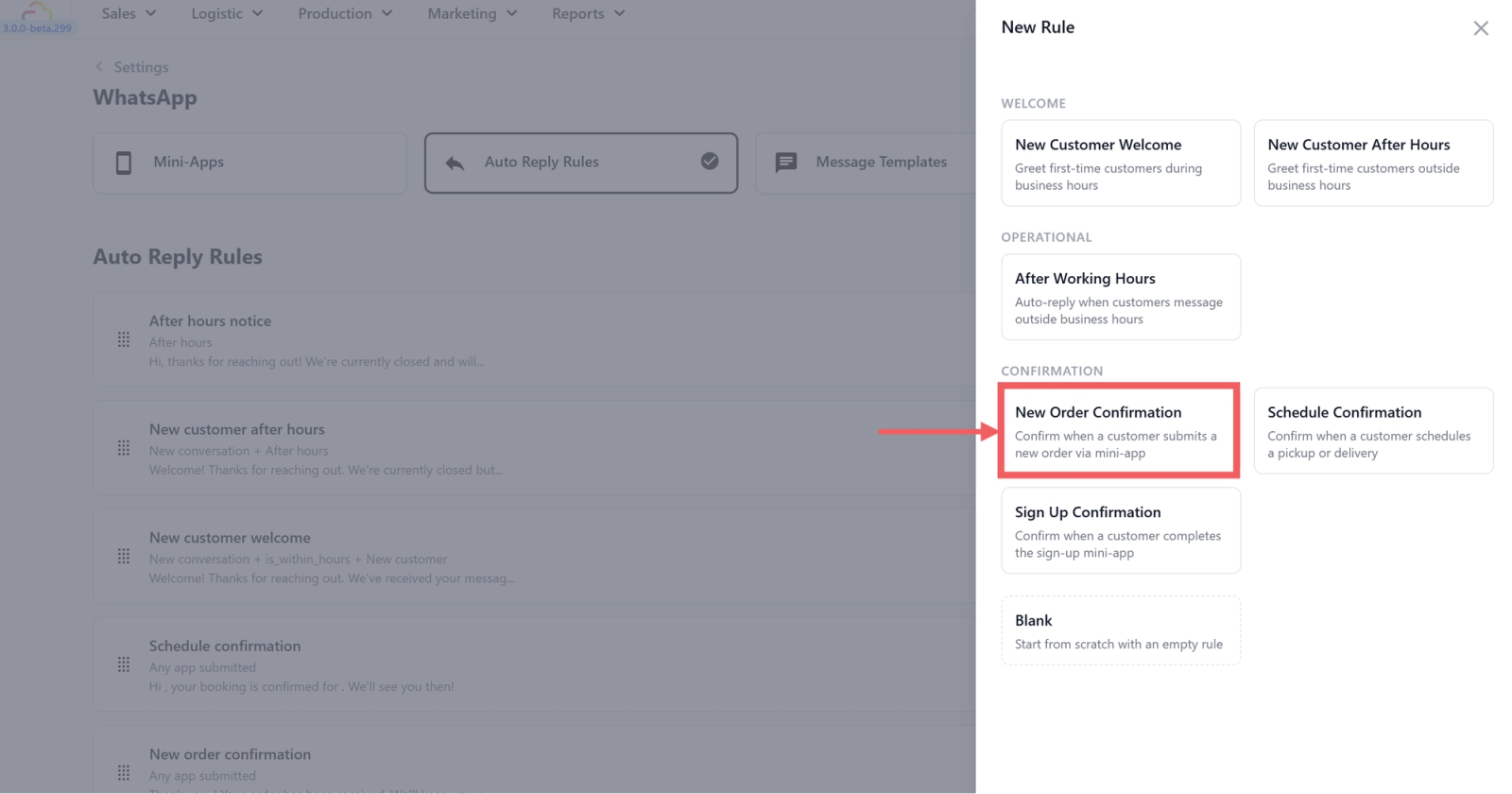
- Under Confirmation, select New Order Confirmation
- Set the app filter — click the app filter dropdown and select your order Mini App(s):
- New Order: Pickup Only
- New Order: Pickup & Delivery
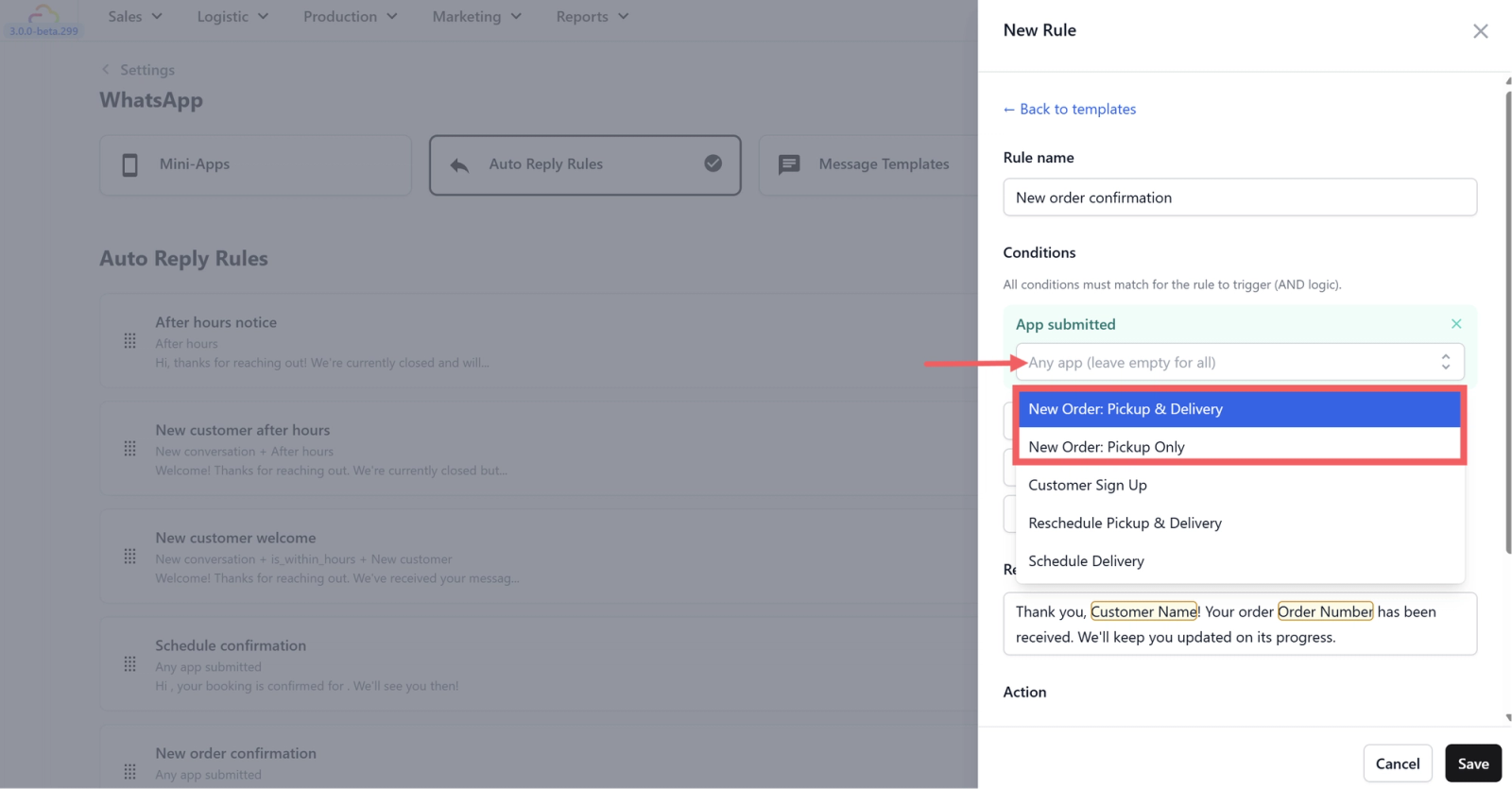
- Edit the reply message(optional). The default is:
"Thank you, @Customer Name! Your order @Order Number has been received. We'll keep you updated on its progress."
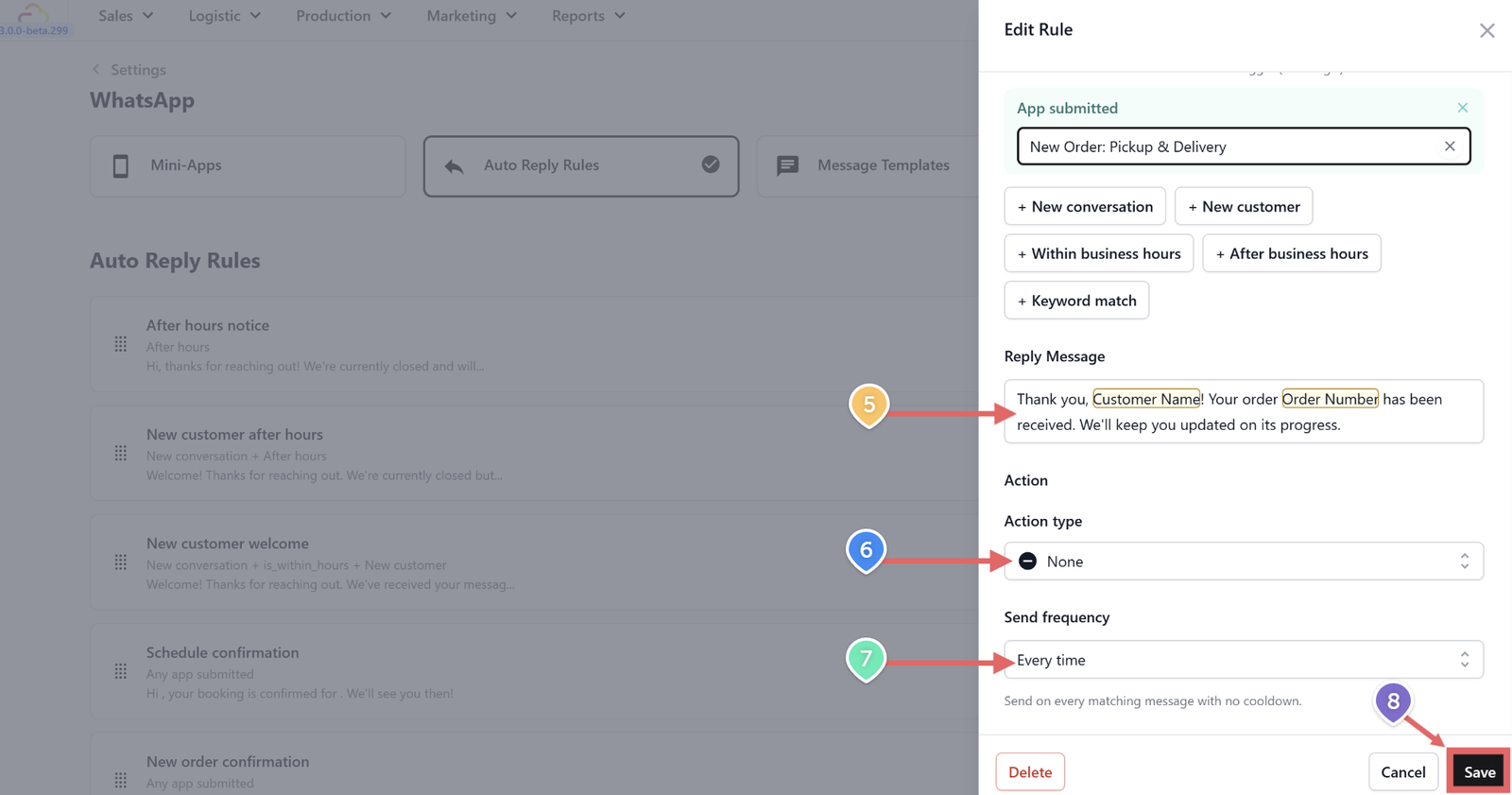
- Set Action type — the default is None.
- Set Send frequency to Every time — each order should get its own confirmation. A customer might place multiple orders in the same conversation.
- Click Save.
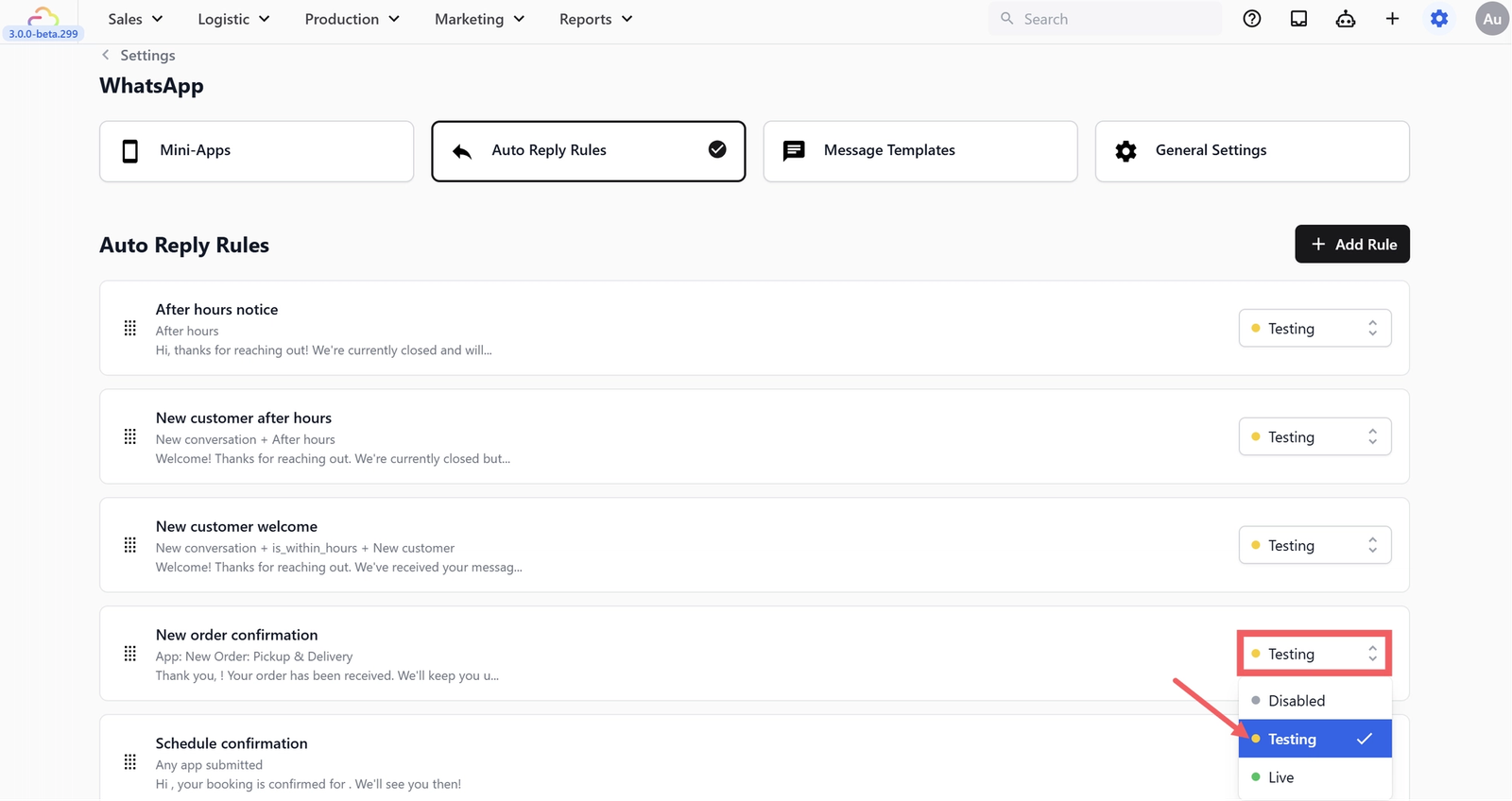
- Set Status to Testing.
Testing the Rule
- Make sure the rule is set to Testing status
- Confirm your test phone number is in the Test Group (General Settings)
- From your test number, open your order Mini App on WhatsApp and submit a test order
- You should receive the order confirmation with your name and order number filled in
- Verify you only receive this confirmation — not a schedule or sign-up confirmation on top of it
If you receive multiple confirmations for a single order, check that your other confirmation rules (Schedule Confirmation, Sign Up Confirmation) each have their app filters set to specific Mini Apps too.
Once verified, switch the status from Testing to Live.
What's Next
Now that customers get an instant order confirmation, continue to [Schedule Confirmation] to set the follow-up that confirms their pickup or delivery time.
Give feedback
Up next
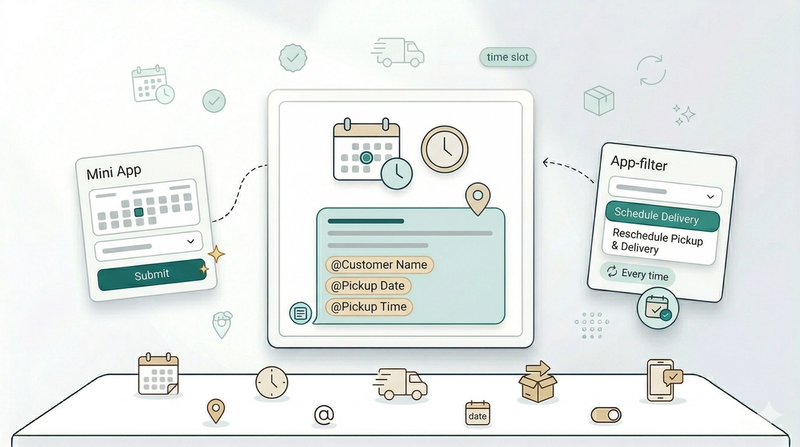
Schedule ConfirmationConfirm every booking instantly — send an automatic WhatsApp reply with the date and time when a customer schedules a pickup or delivery.
Read more