
WhatsApp General Settings
In this article
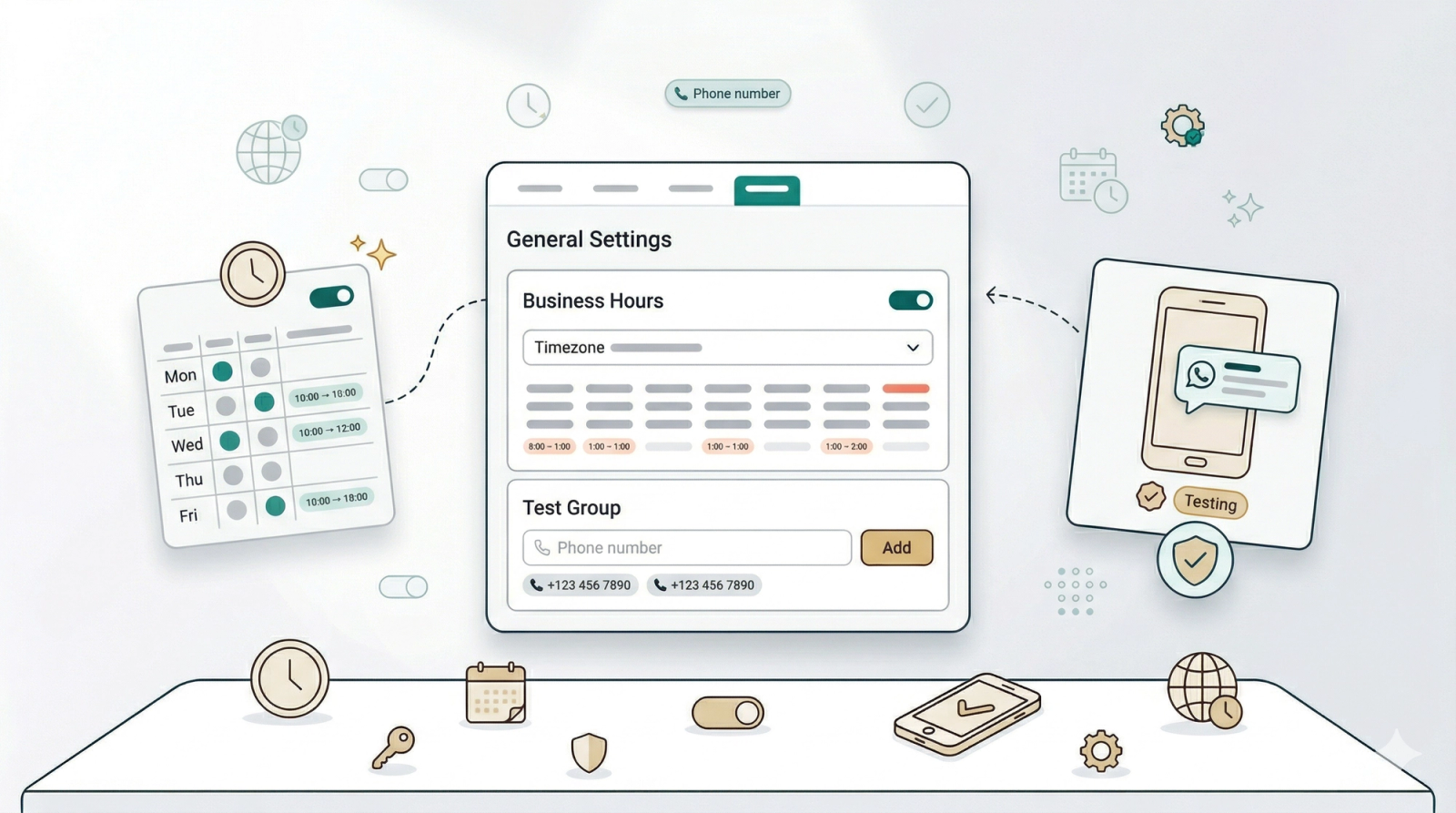
Before your auto reply rules can work properly, you need to configure two things in General Settings: your Business Hours (so EasyBiz knows when you are open and closed) and your Test Group (so you can verify rules before they reach real customers). Spend two minutes here before creating your first rule — it will save you troubleshooting later.
Contents
Contents
Where to Find General Settings
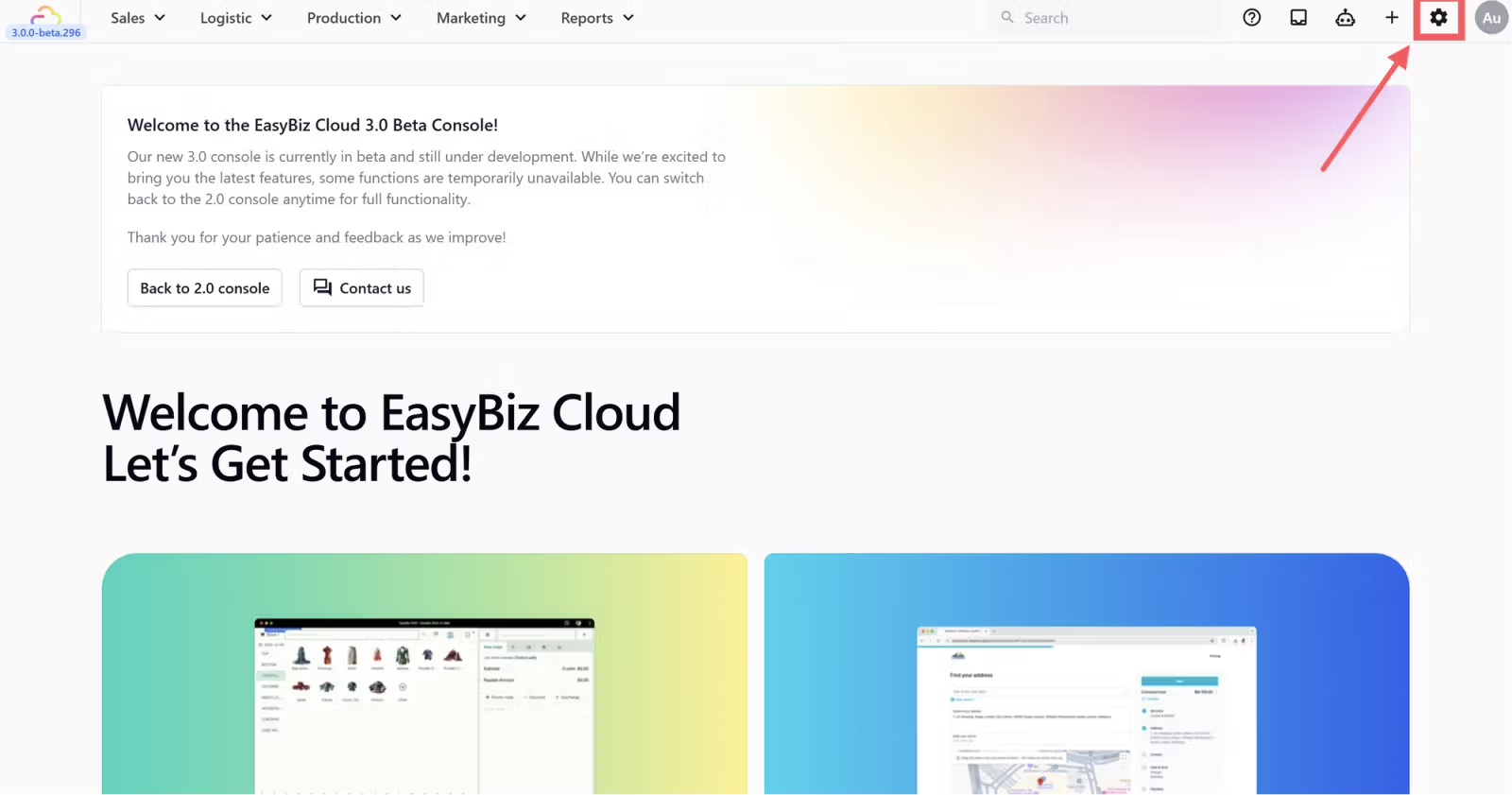
- Click the Settings icon at the top right of your EasyBiz Console
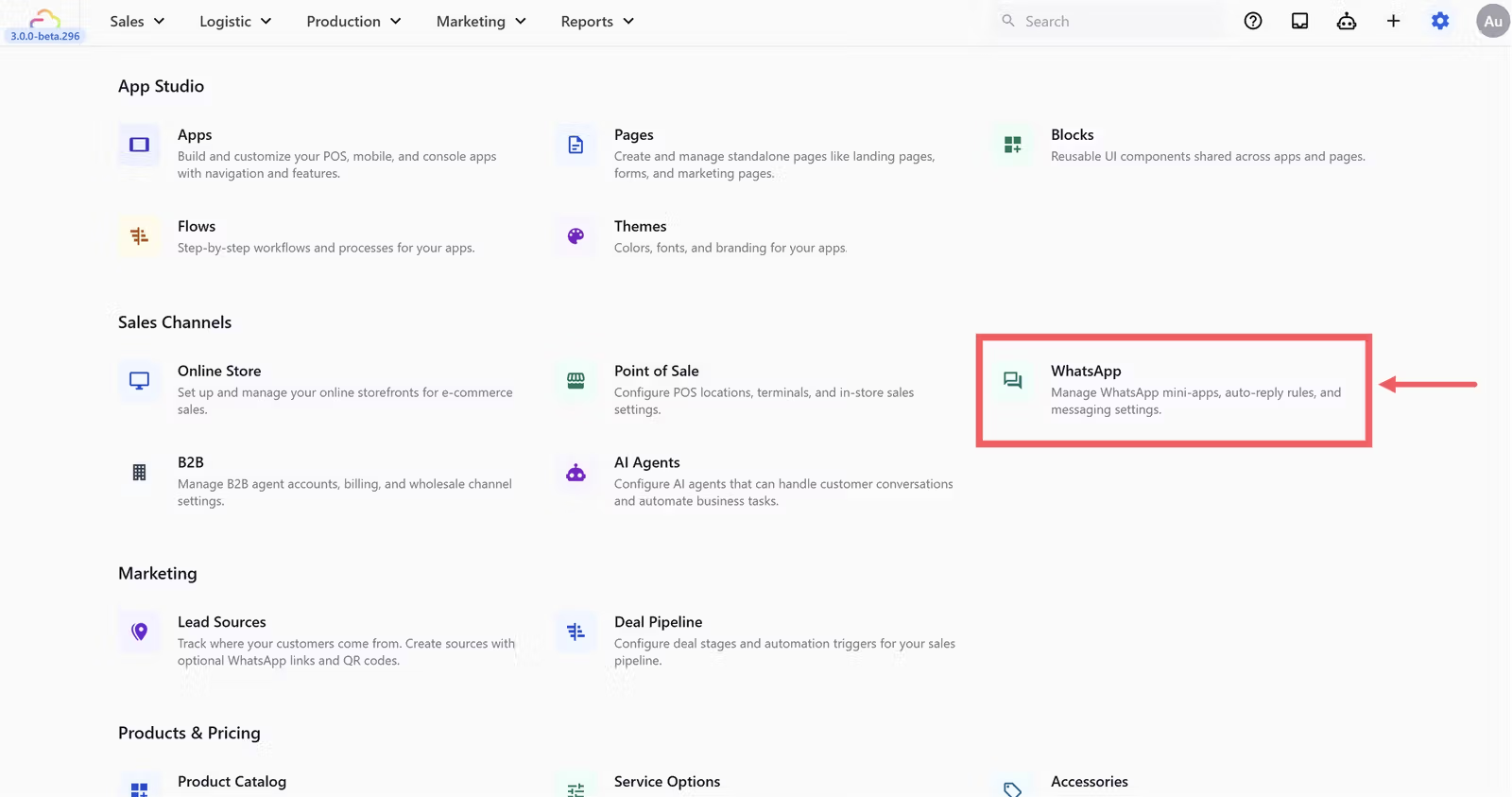
- Scroll down to the Sales Channels section and click WhatsApp
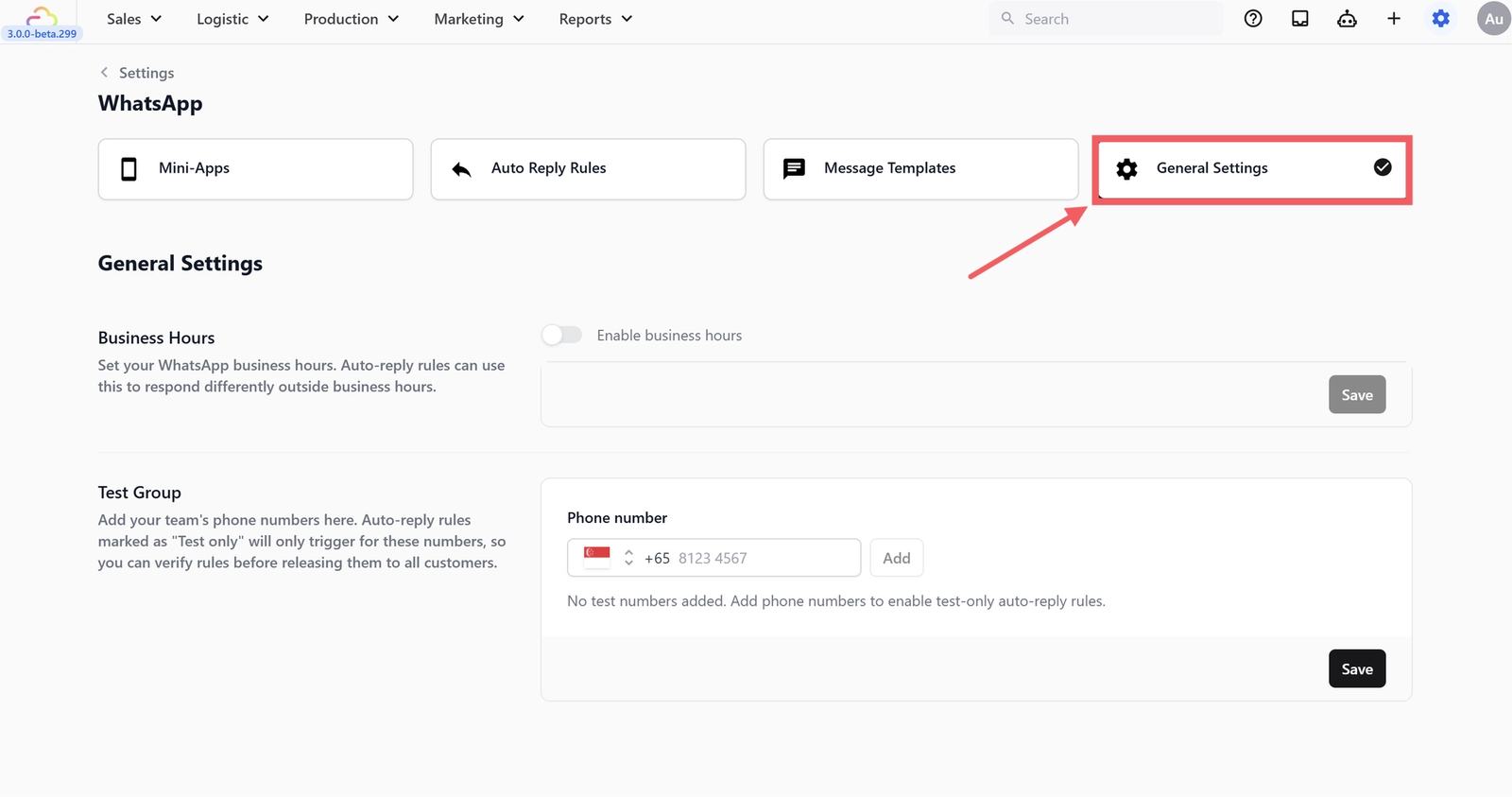
- Click the General Settings tab
Setting Up Business Hours
The Within business hours and After business hours conditions in your auto reply rules rely entirely on what you set here. Without this configured, those conditions will not work correctly.
Enabling Business Hours
- Toggle Enable business hours on.
- Select your timezone from the dropdown.
Make sure this matches your physical shop location. If your shop is in Singapore, select Asia/Singapore.
Configuring Your Weekly Schedule
For each day, toggle it on if you are open. Set your opening and closing times using the time dropdowns. If your team takes a lunch break, add a Break time as well.
Toggle a day completely off if your shop is closed that day — it will be treated as fully "after hours" for the entire day.
For example, a typical service business might set:
| Day | Hours | Break |
|---|---|---|
| Monday – Friday | 08:00 – 20:00 | - |
| Saturday | 08:00 – 17:00 | - |
| Sunday | 08:00 – 17:00 | - |
Click Save at the bottom of the Business Hours section.
Setting Up Your Test Group
The Test Group is a list of your own team's phone numbers. When you set a rule to Testing mode, it only fires for these numbers — not for real customers. This lets you safely test a rule on yourself before releasing it.
Adding a Test Number
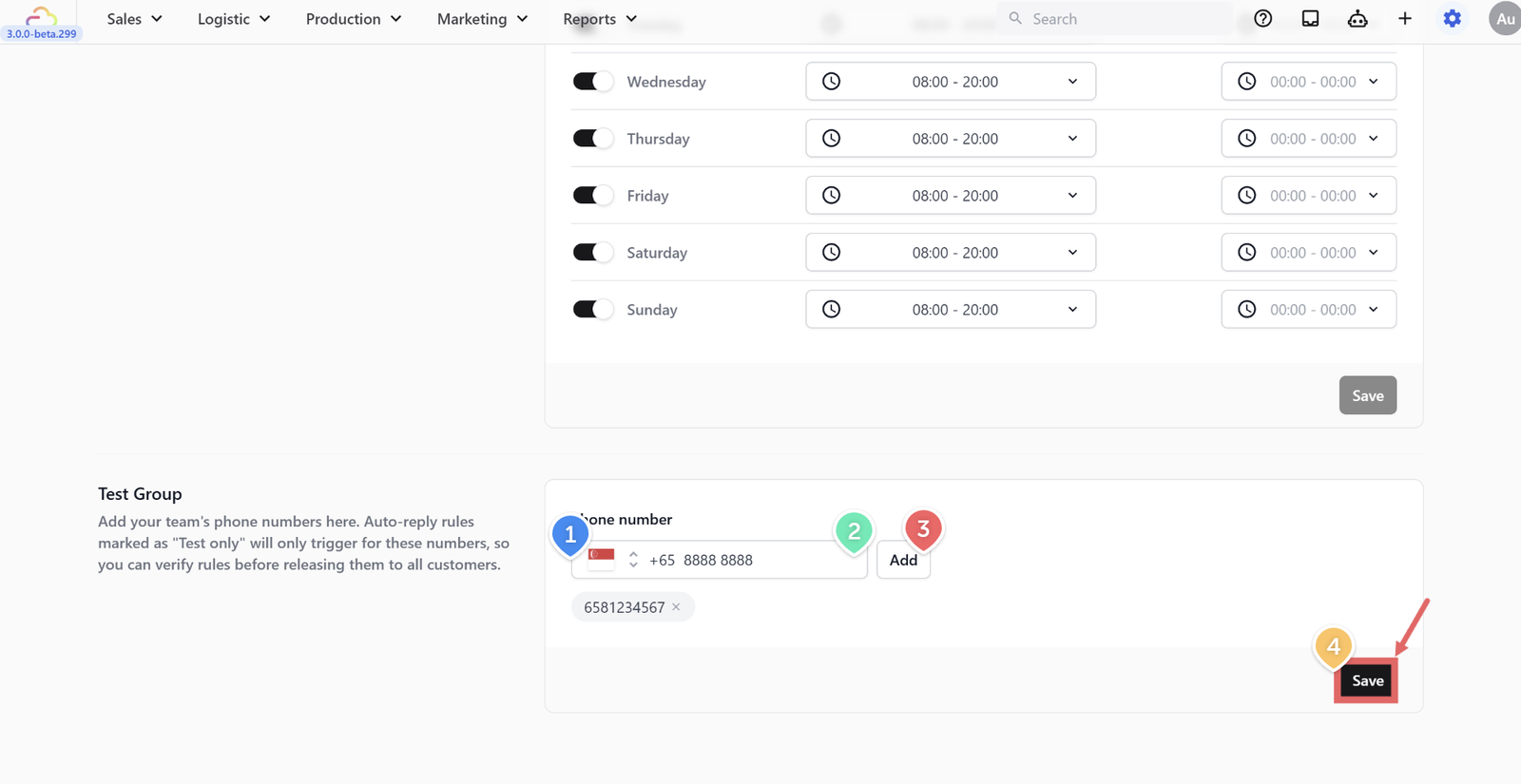
- Still in General Settings, scroll down to the Test Group section.
- Select your country code from the dropdown (e.g. +65 for Singapore, +60 for Malaysia, +62 for Indonesia).
- Type in a phone number and click
Add. - Click Save.
Removing a Test Number
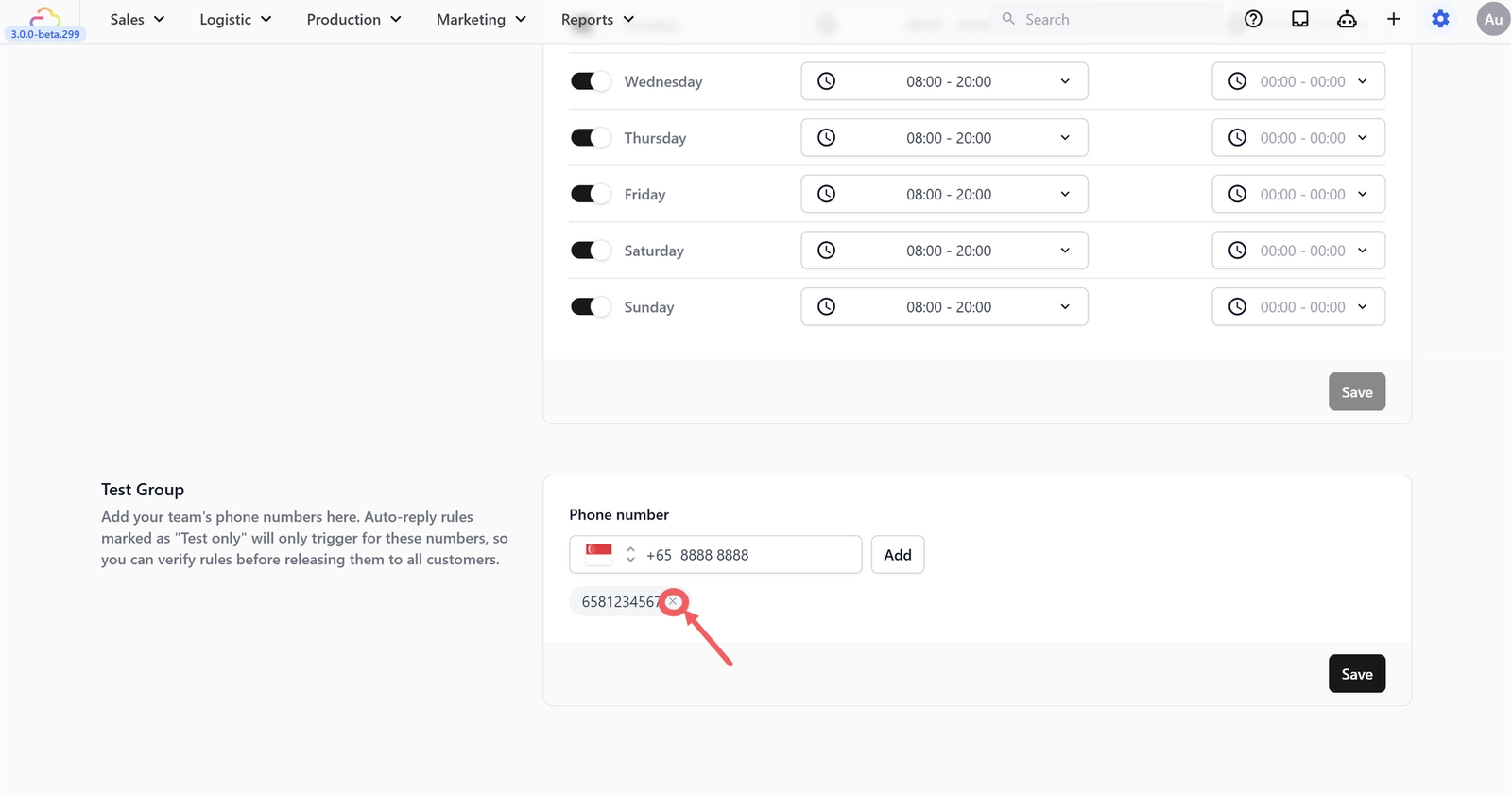
Click the × button next to any phone number chip to remove it from the test group.
How Testing Works
When a rule's status is set to Testing (yellow dot):
- Messages from numbers in the Test Group → auto reply fires
- Messages from numbers not in the Test Group → auto reply does not fire
This means you can test your entire auto reply setup without any real customers seeing the messages.
Checklist Before Going Live
Before switching any auto reply rule from "Testing" to "Live," run through this checklist:
| Checklist | What to Verify |
|---|---|
| ✅ Business Hours enabled | The toggle is ON |
| ✅ Hours are correct | Your daily schedule matches your real opening hours |
| ✅ Timezone is correct | Matches your shop's physical location |
| ✅ Closed days are toggled off | Any day you're closed has its toggle switched off |
| ✅ Test Group has numbers | At least one team phone number is added |
| ✅ Rules tested | You've sent test messages and verified the right replies come through at the right times |
What's Next
Now that your general WhatsApp settings are in place, continue to [New Customer Welcome] to set the first auto-reply that greets unknown numbers messaging your business.
Give feedback
Up next
New Customer WelcomeGreet first-time customers instantly — send an automatic welcome message the moment someone new messages your business during opening hours.
Read more