
New Customer Welcome
In this article
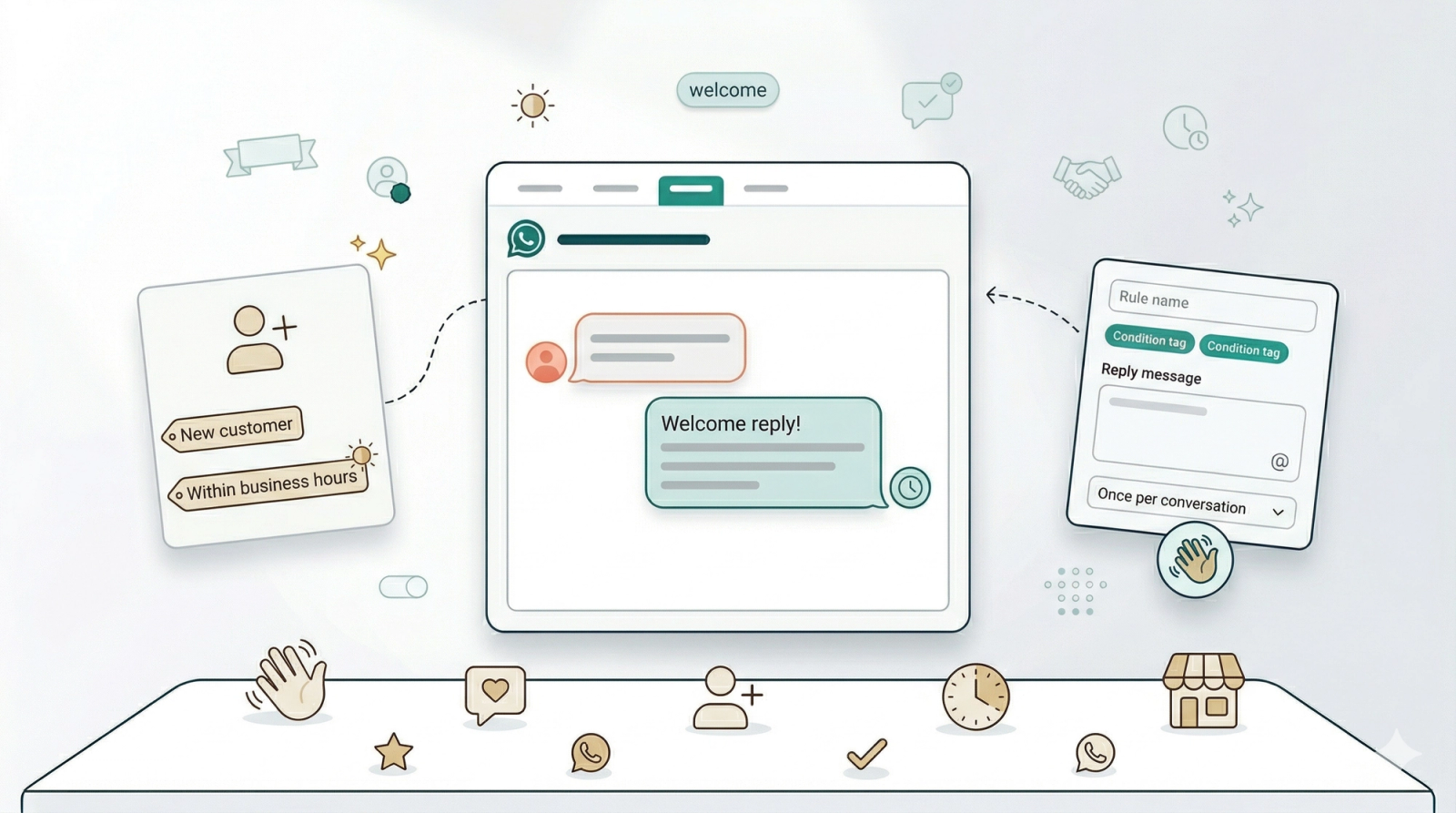
When a new customer messages your business on WhatsApp for the first time, a fast reply sets the tone. This rule sends an automatic welcome message during your business hours — so every first-time customer gets an instant, professional greeting without your team having to drop what they are doing.
Contents
Contents
Before You Start
- Business Hours must be enabled and configured in WhatsApp General Settings. This rule uses the "Within business hours" condition — it will not work correctly if Business Hours are disabled.
- Test Group — Add at least one phone number so you can verify the rule before going live. Also configured in General Settings.
If you are new to auto reply rules, read Setting Up Auto Reply Rules first to learn how conditions, priorities, and statuses work.
When This Rule Fires
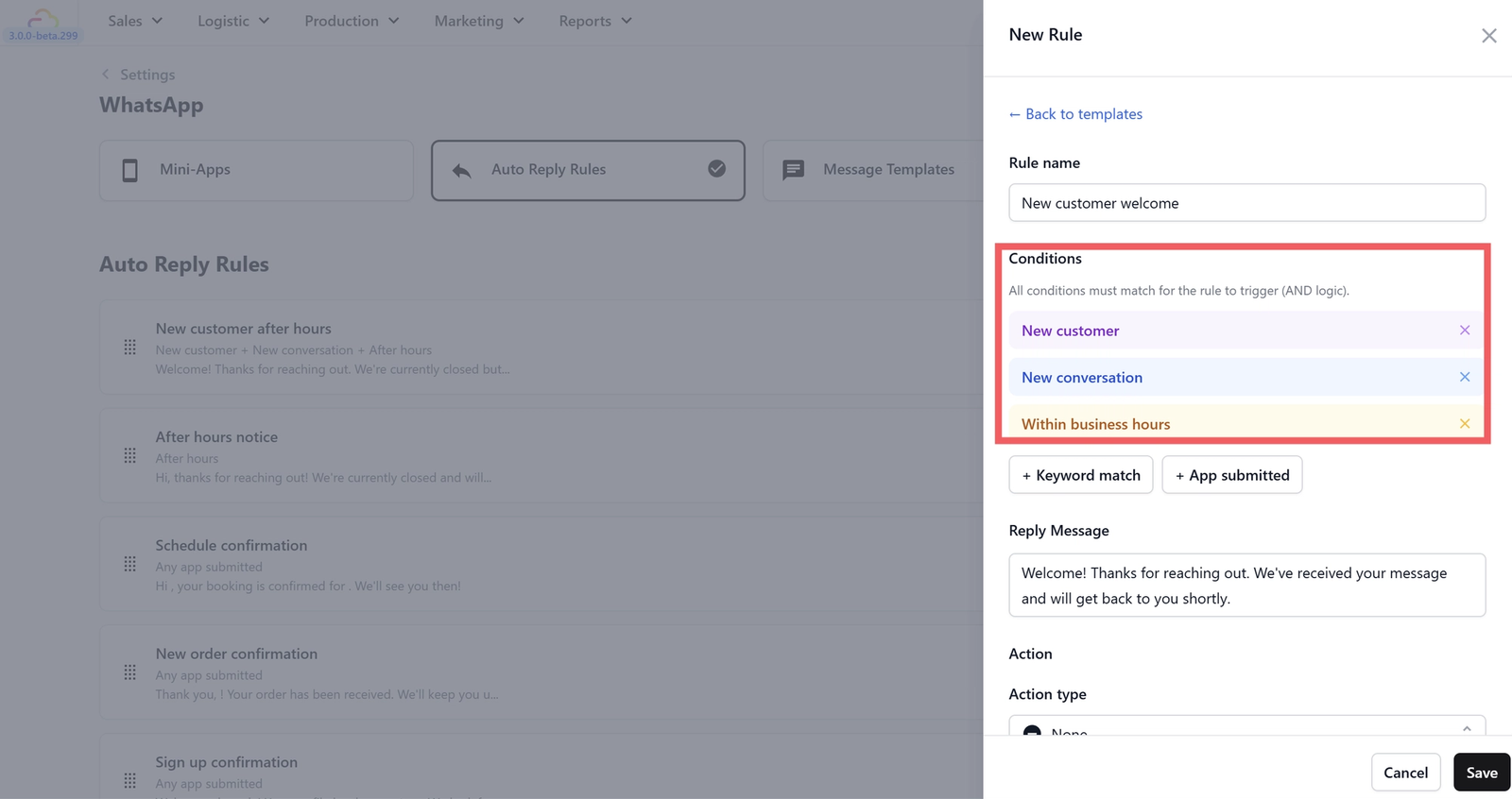
Pre-configured conditions (all must be true at the same time):
- New customer — The person has no existing profile in EasyBiz. This is their very first WhatsApp conversation with you.
- New conversation — It is the first message in a new conversation.
- Within business hours — The message arrives during your configured opening hours.
In plain terms: a brand-new customer messages you for the first time while your shop is open.
How to Set It Up
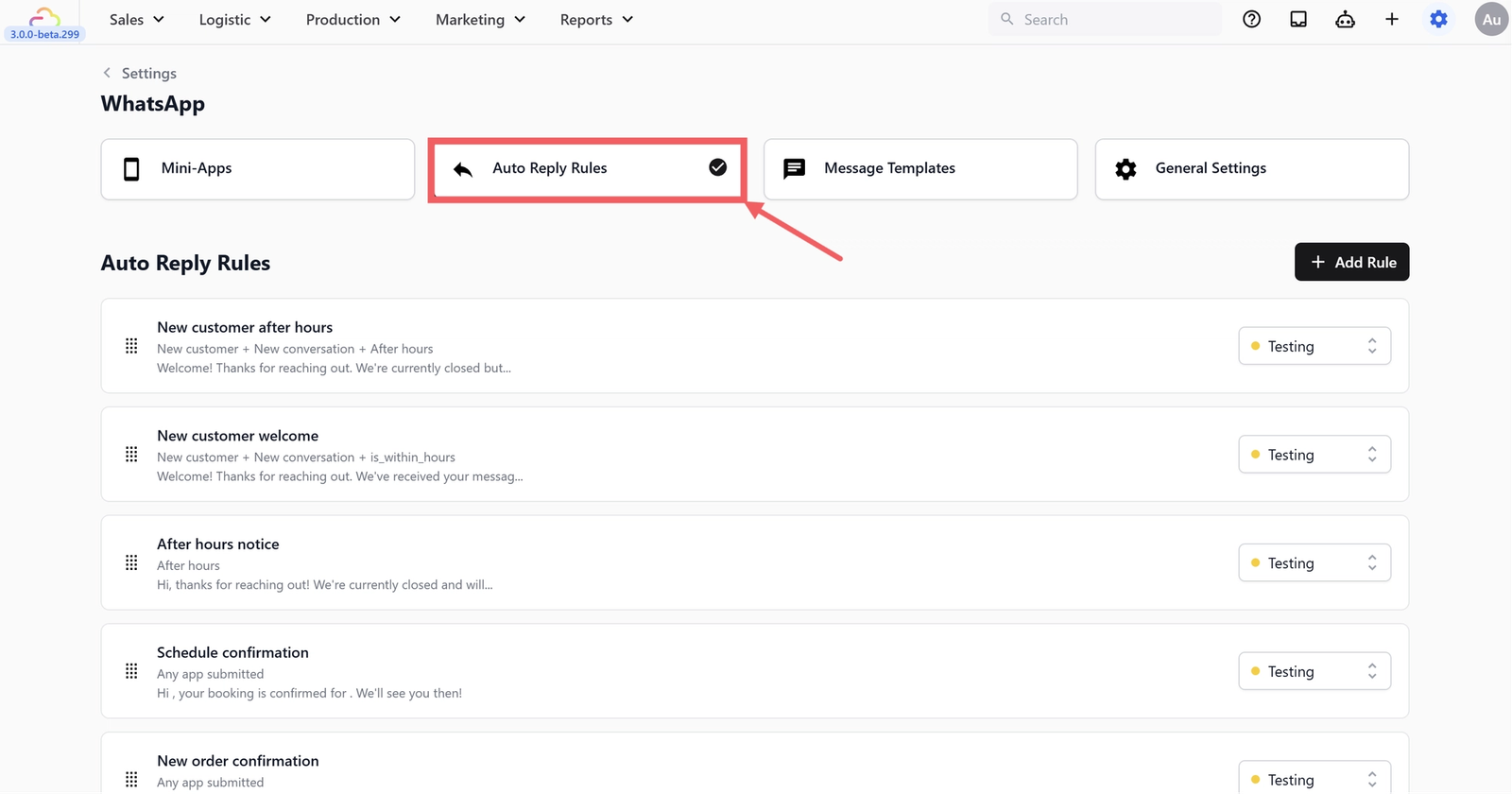
- Go to WhatsApp Settings > Auto Reply Rules tab
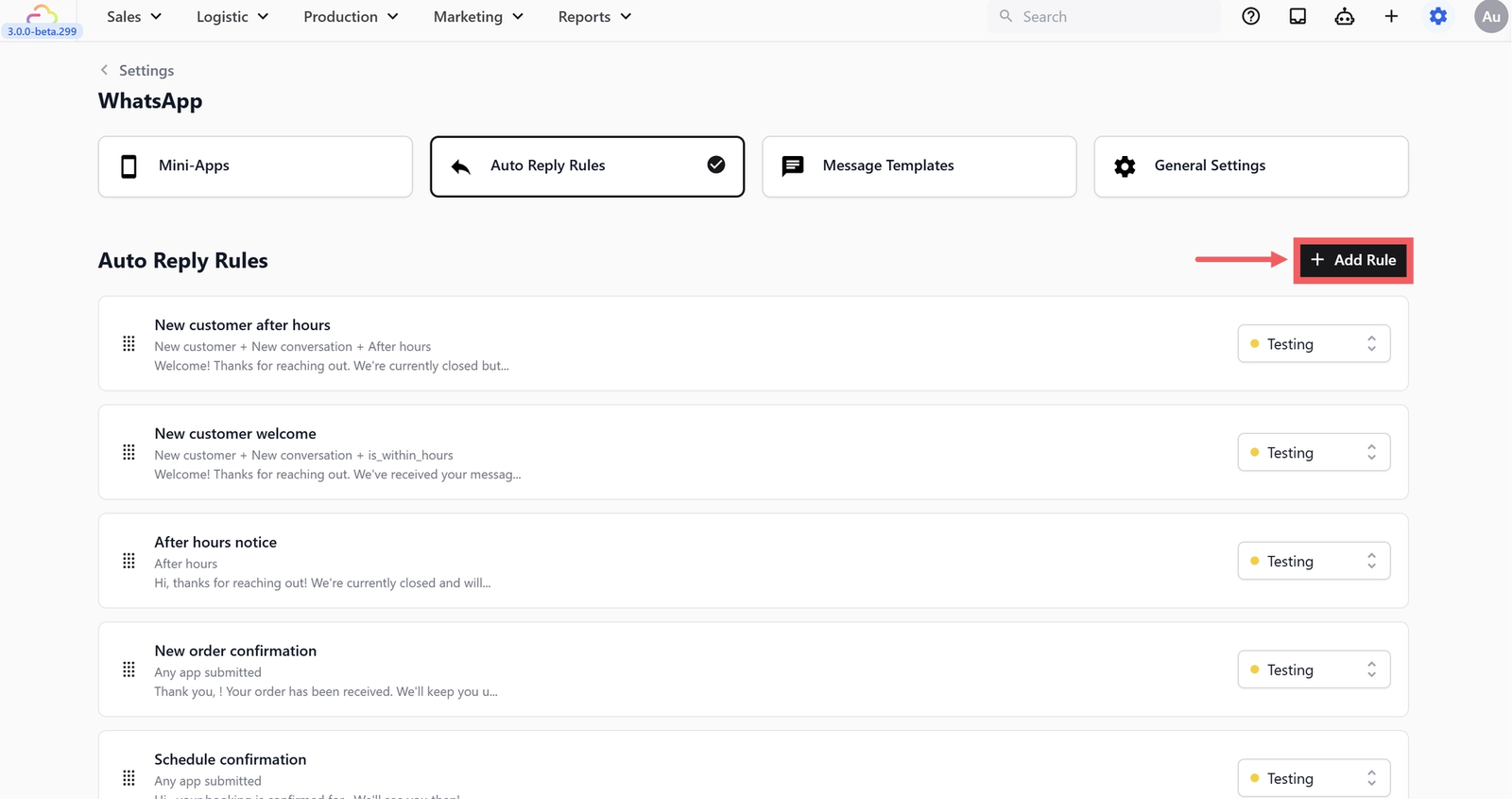
- Click + Add Rule
- Under Welcome, select New Customer Welcome
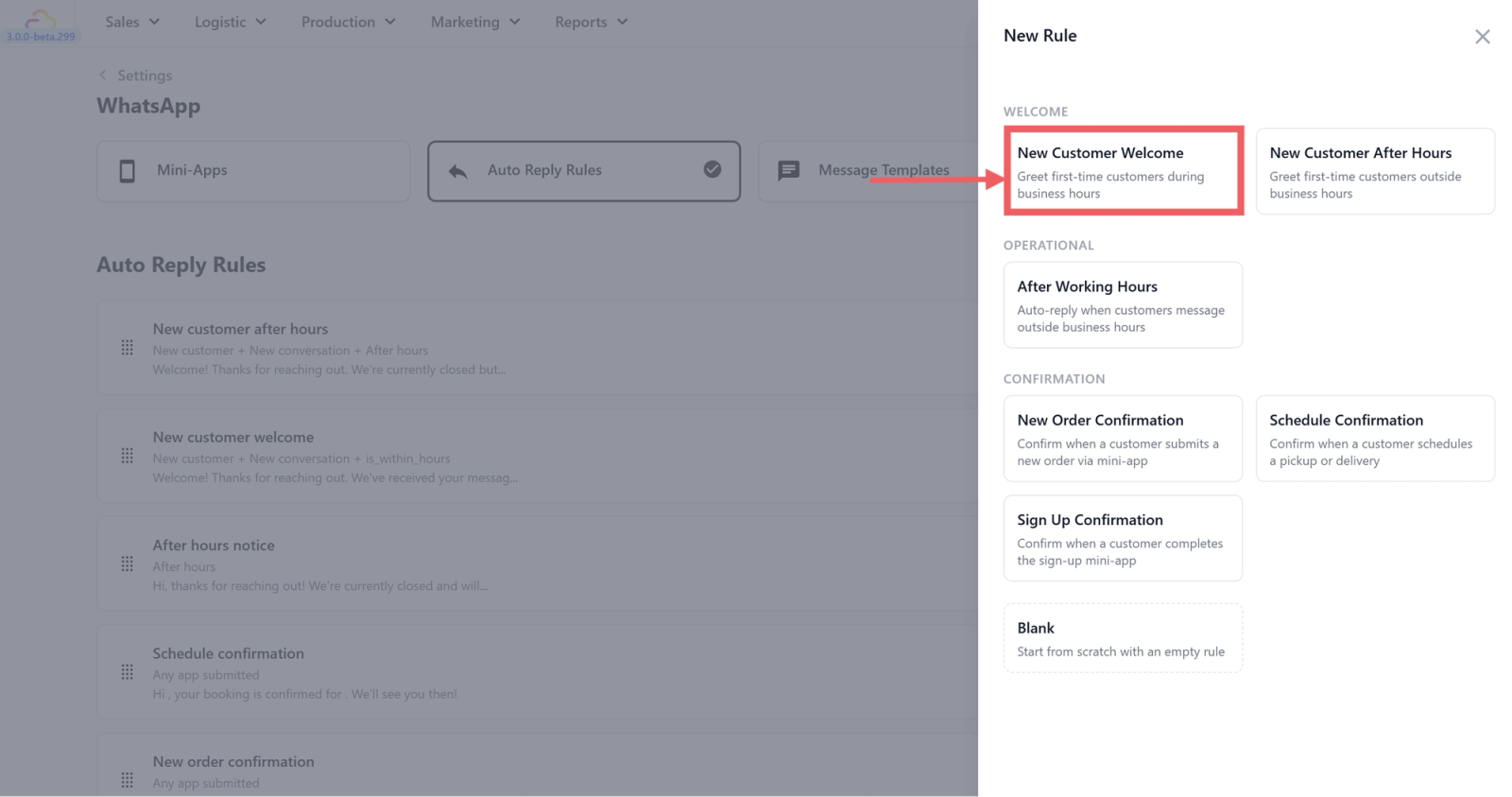
- The three conditions will be pre-configured for you.
- Edit the reply message to match your business (optional). The default is:
"Welcome! Thanks for reaching out. We've received your message and will get back to you shortly."
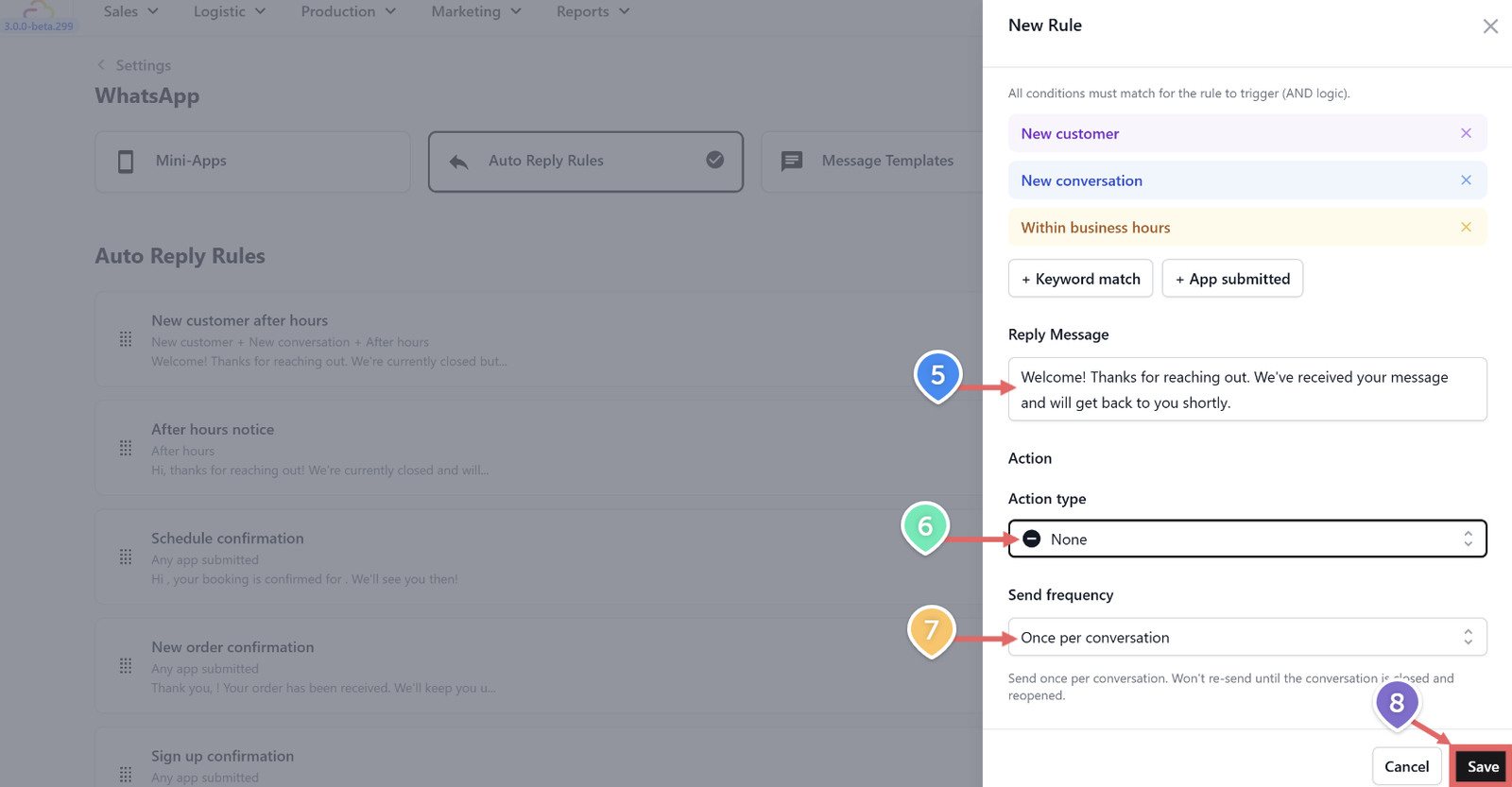
- Set Action type — the default is None (plain text, no button).
- Set Send frequency to Once per conversation — you only want this sent once, not on every message the customer sends.
- Click Save.
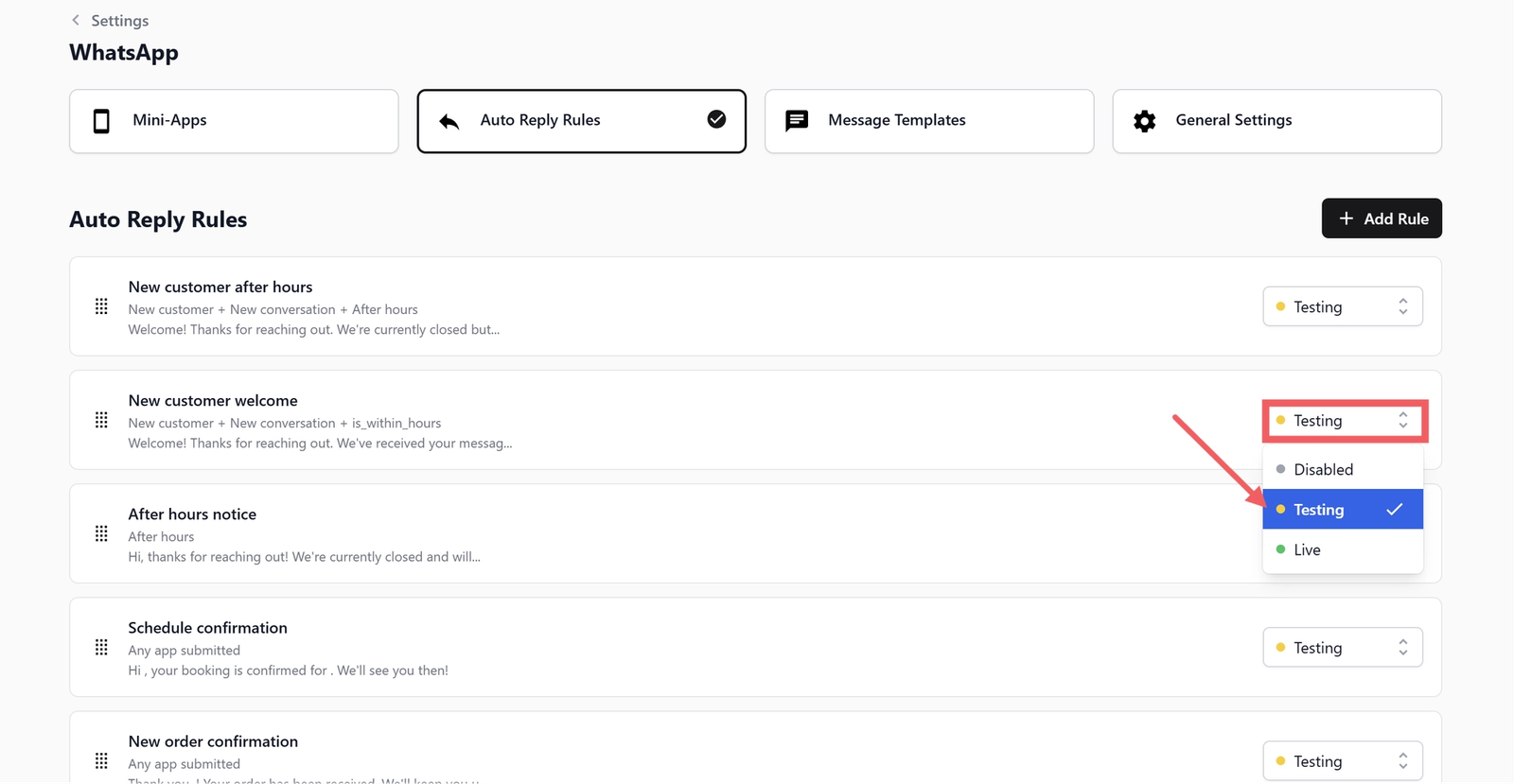
- Set Status to Testing.
Testing the Rule
- Make sure the rule is set to Testing status
- Confirm your test phone number is in the Test Group (General Settings)
- During your configured business hours, send a WhatsApp message to your business number from your test phone
- You should receive the welcome message instantly
If you do not receive the reply, check that:
- Business Hours are enabled in General Settings
- The current time falls within your configured opening hours
- Your test number is in the Test Group
Once verified, switch the status from Testing to Live.
Rule Priority
Place this rule below the New Customer After Hours rule and the After Hours Notice in your rules list. Time-sensitive after-hours rules must sit above greeting rules so that any customer messaging at night gets the after-hours message first.
Recommended order:
- After Hours Notice (top)
- New Customer After Hours
- New Customer Welcome (this rule)
Use the drag handle (⠿) on the left side of each rule card to reorder.
What's Next
Now that new customers get a welcome during business hours, continue to [New Customer After Hours] to set the version that runs when your shop is closed.
Give feedback
Up next
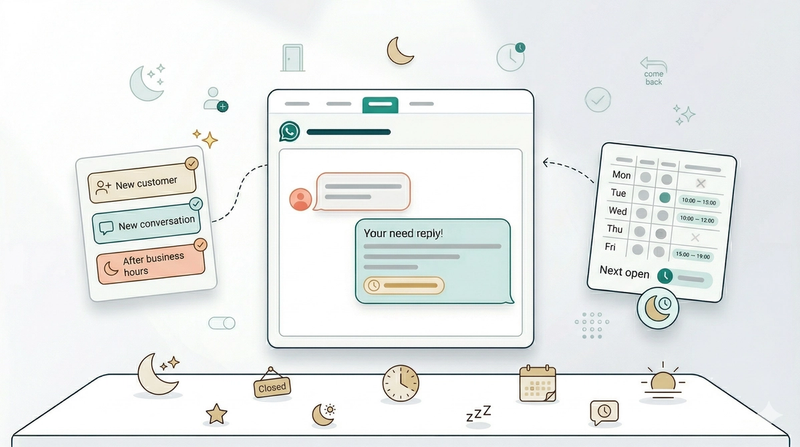
New Customer After HoursDon't leave new customers waiting — send an automatic after-hours welcome that tells them exactly when you'll be back.
Read more