
Adding Add-ons
In this article
Add-ons are small extras your shop charges on top of the main service or product, for example Gift Wrapping, Starch, or Folding. You define each one once in Product Catalog: a name, an optional short code for prints and reports, and the surcharge per unit. Once saved, the add-on is available across every business unit in your shop, so your staff can attach it to any order without any extra linking step. Add-ons are optional. If your shop does not charge for extras, you do not need them.
Contents
Contents
Before You Start
No setup is required before creating add-ons. You can add them at any time, even before you have finished setting up your service items or retail products. Each add-on is a standalone entry in your Product Catalog, so there is nothing else you need to configure first.
What Is an Add-on?
An add-on is a small extra your shop charges on top of the main service or product. It is not a service your shop performs or a product you sell on its own. Add-ons attach to an existing order item at checkout and add a fixed surcharge each time. Because they apply across every business unit, you set each one up once and your staff can use it anywhere.
How to Add an Add-on
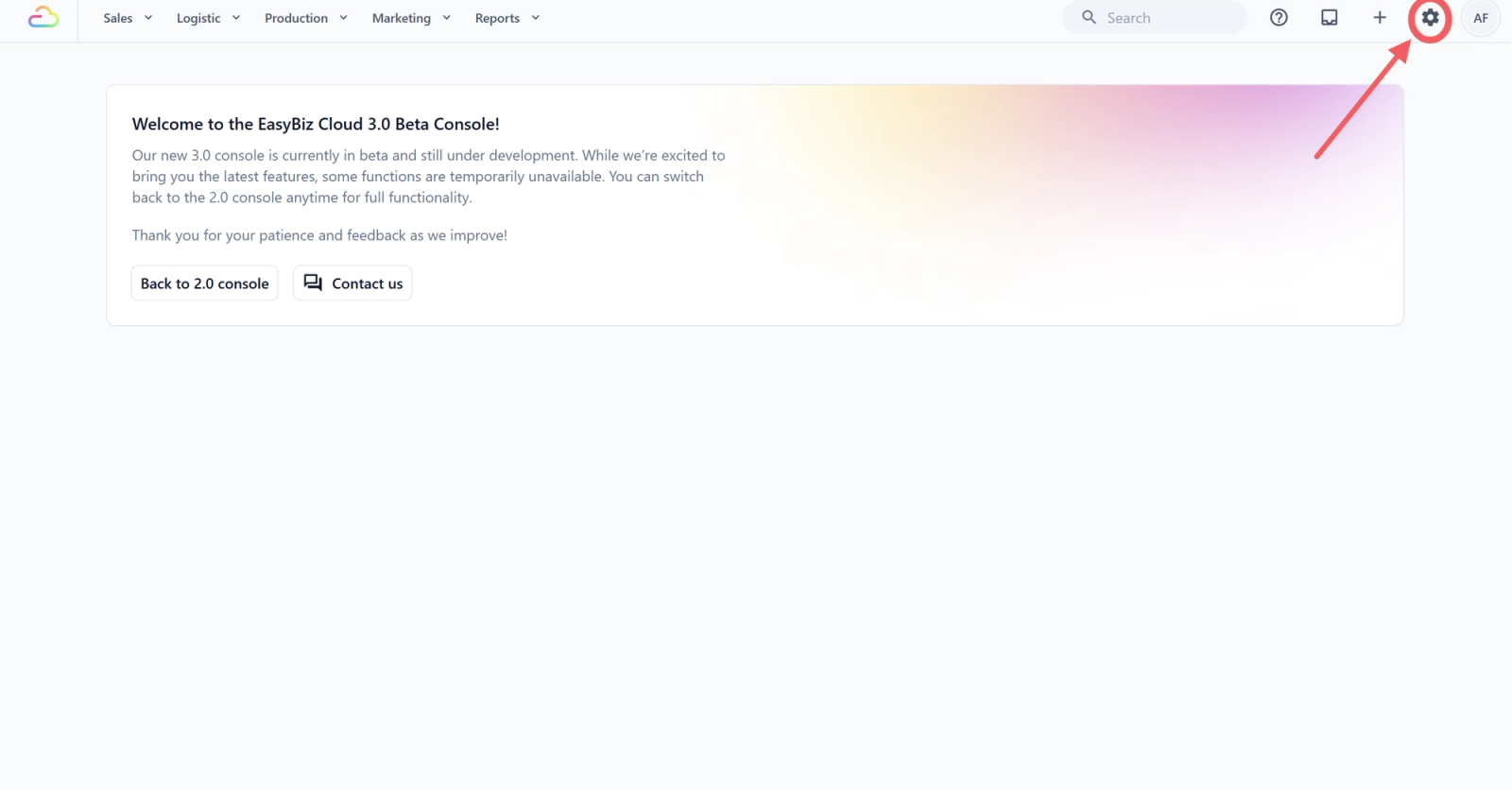
- Click the ⚙️ Settings icon in the top-right corner.
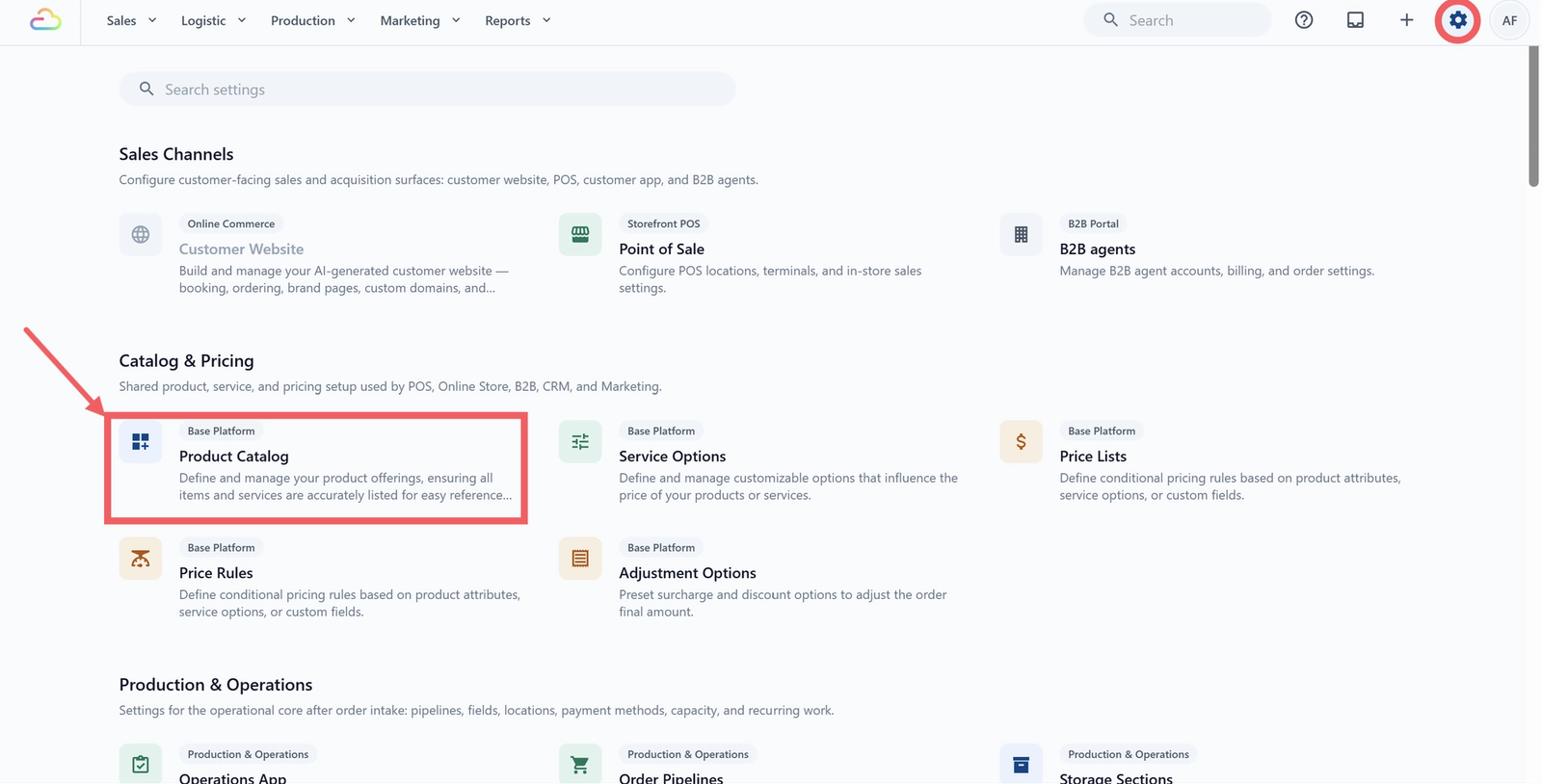
- Under the Catalog & Pricing section, click Product Catalog.
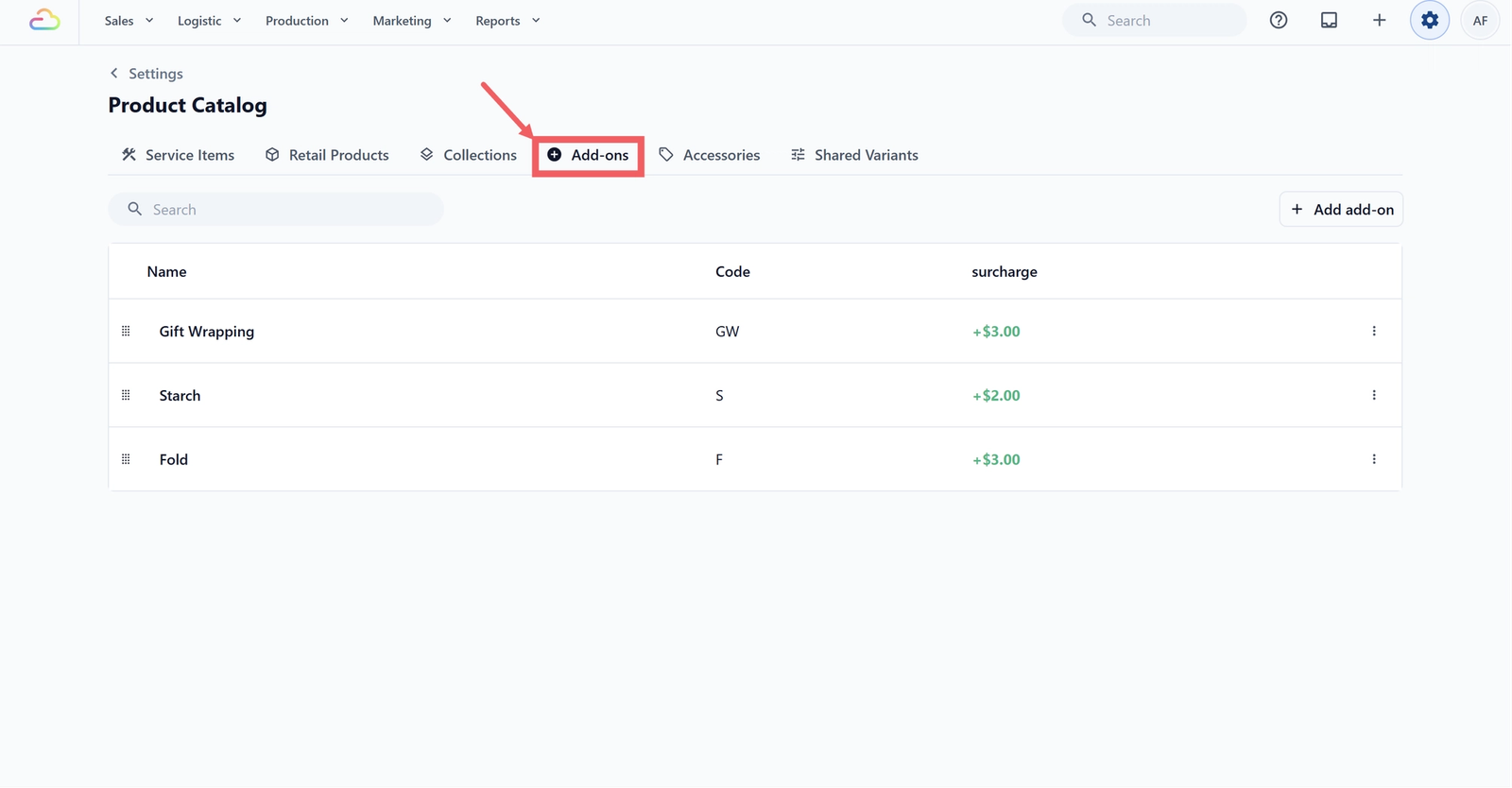
- Click the Add-ons tab.
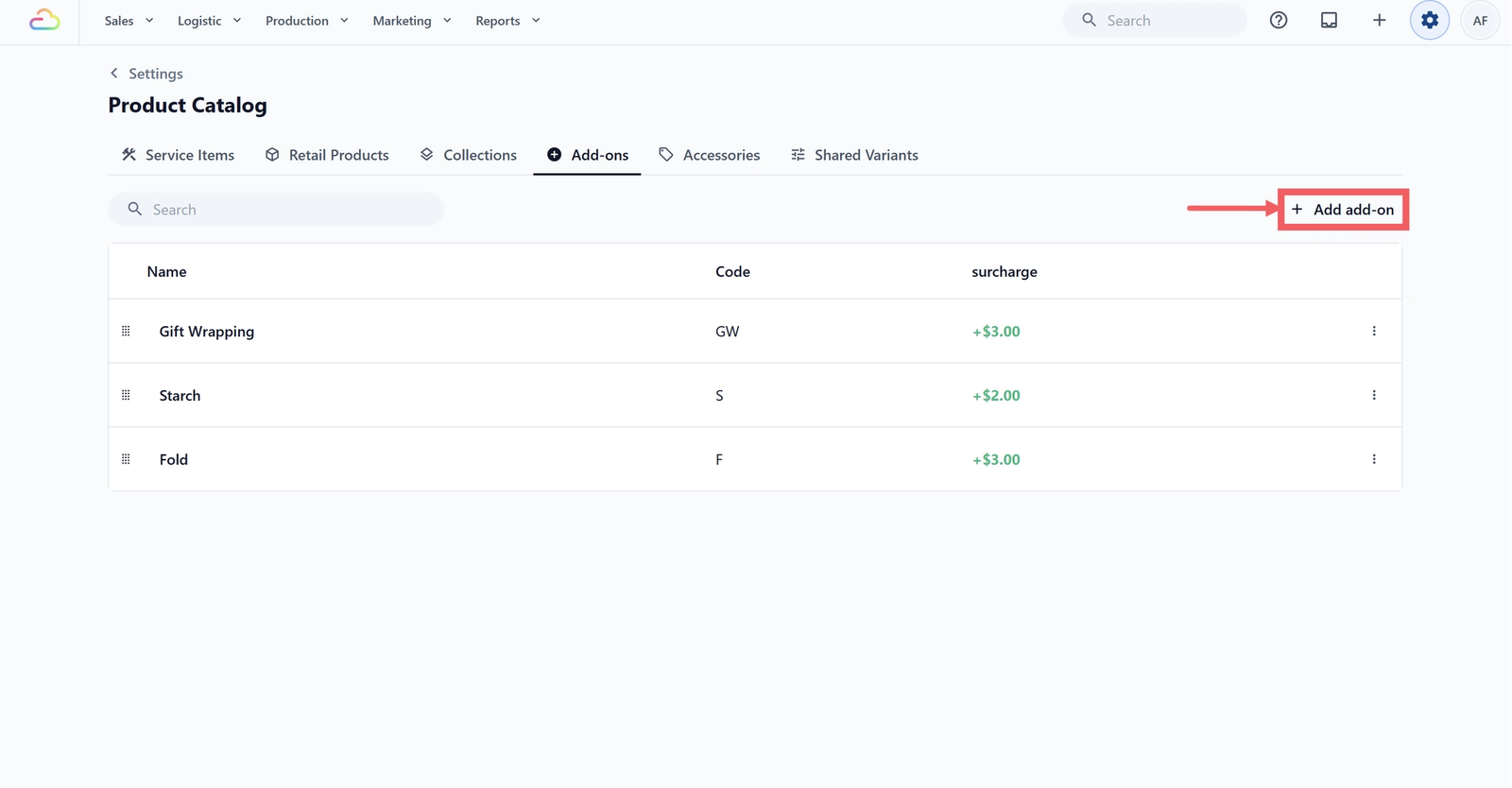
- Click Add add-on in the top-right of the toolbar.
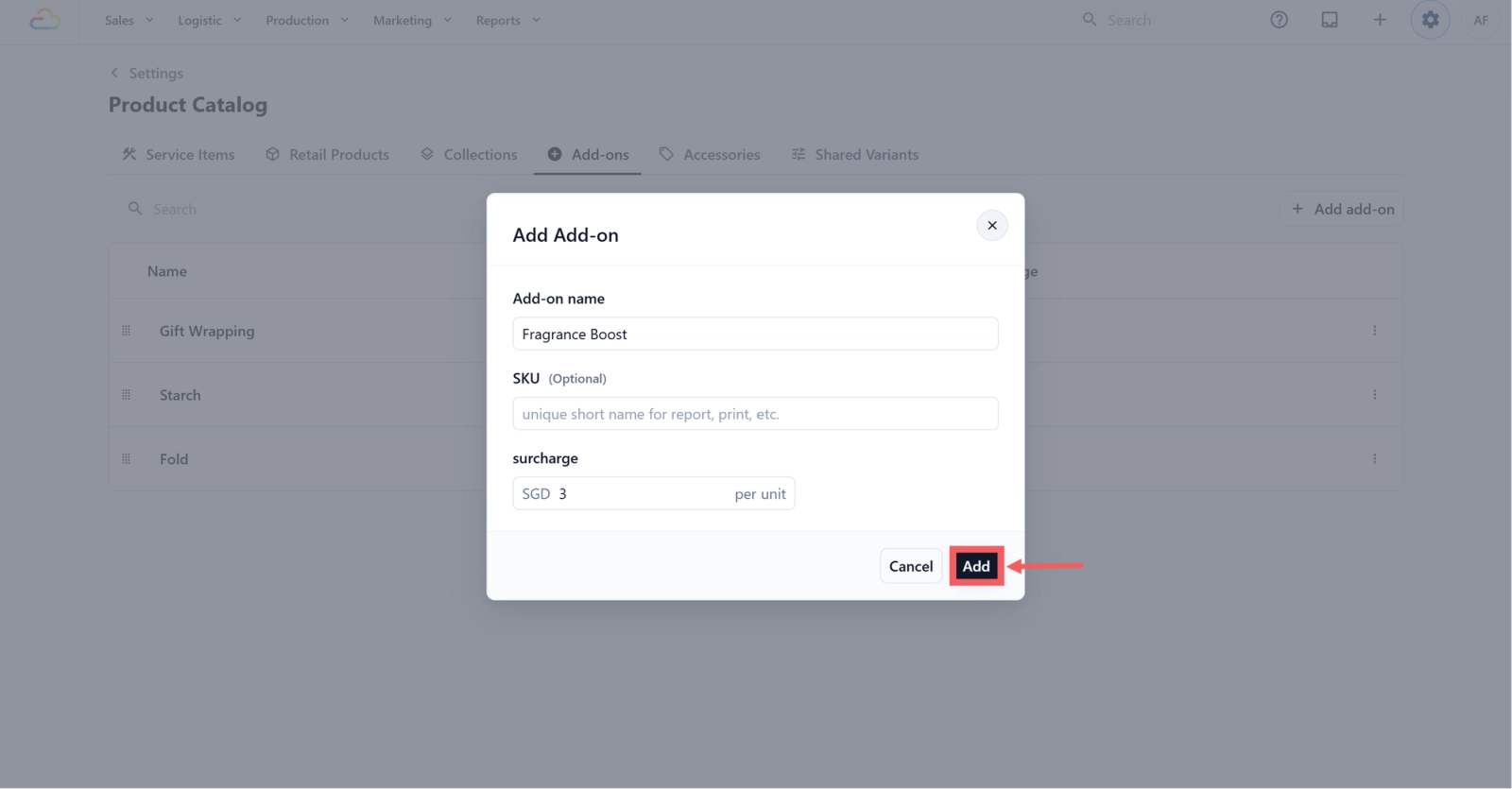
- Enter the Add-on name.
- Optional. Enter a SKU.
- Enter the Surcharge.
- Click Add to save.
Editing or deleting an Add-on
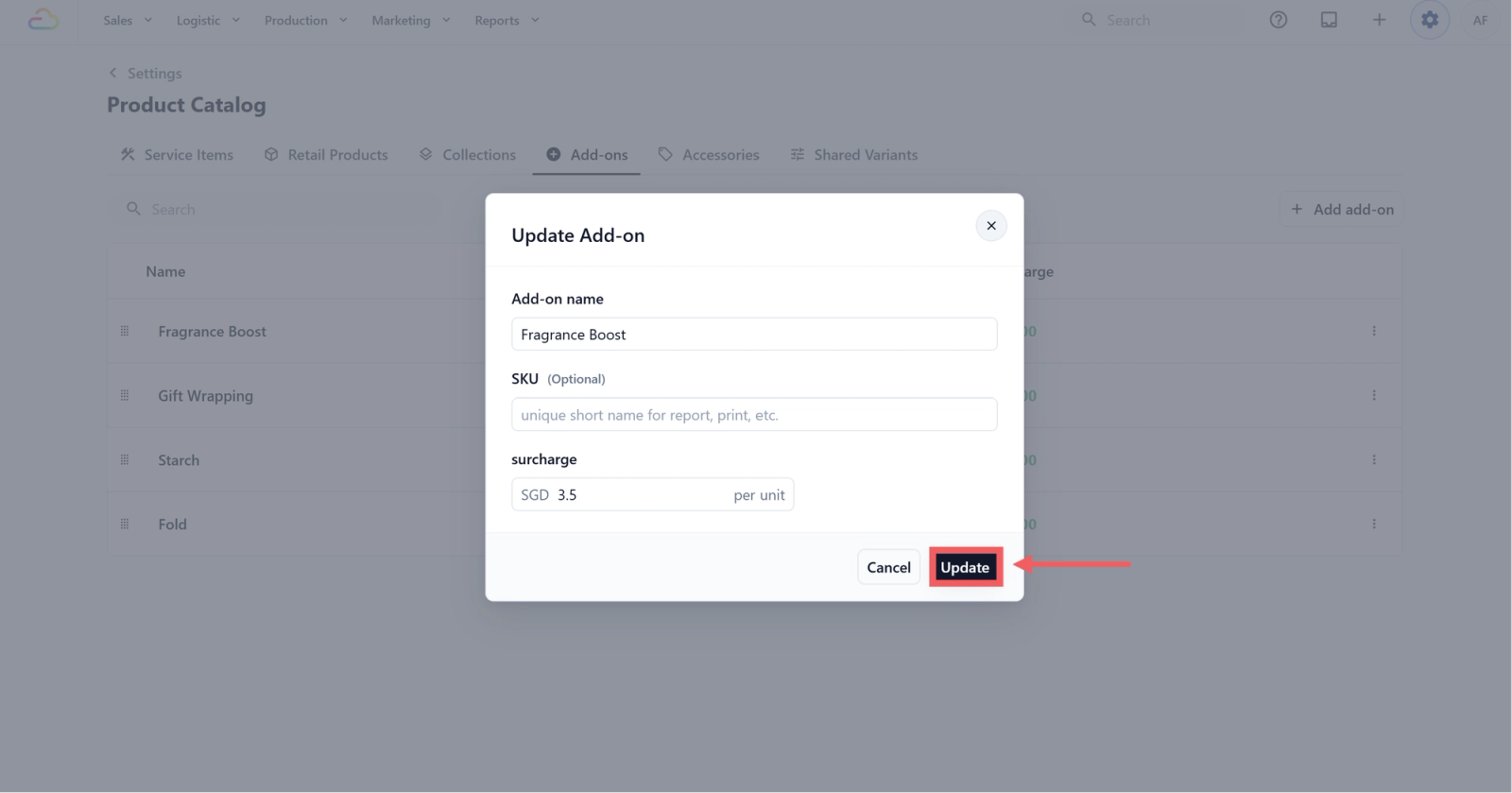
To edit an existing add-on, click anywhere on its row in the list. A dialog titled Update Add-on opens with the three fields pre-filled. Make your changes and click Update to save.
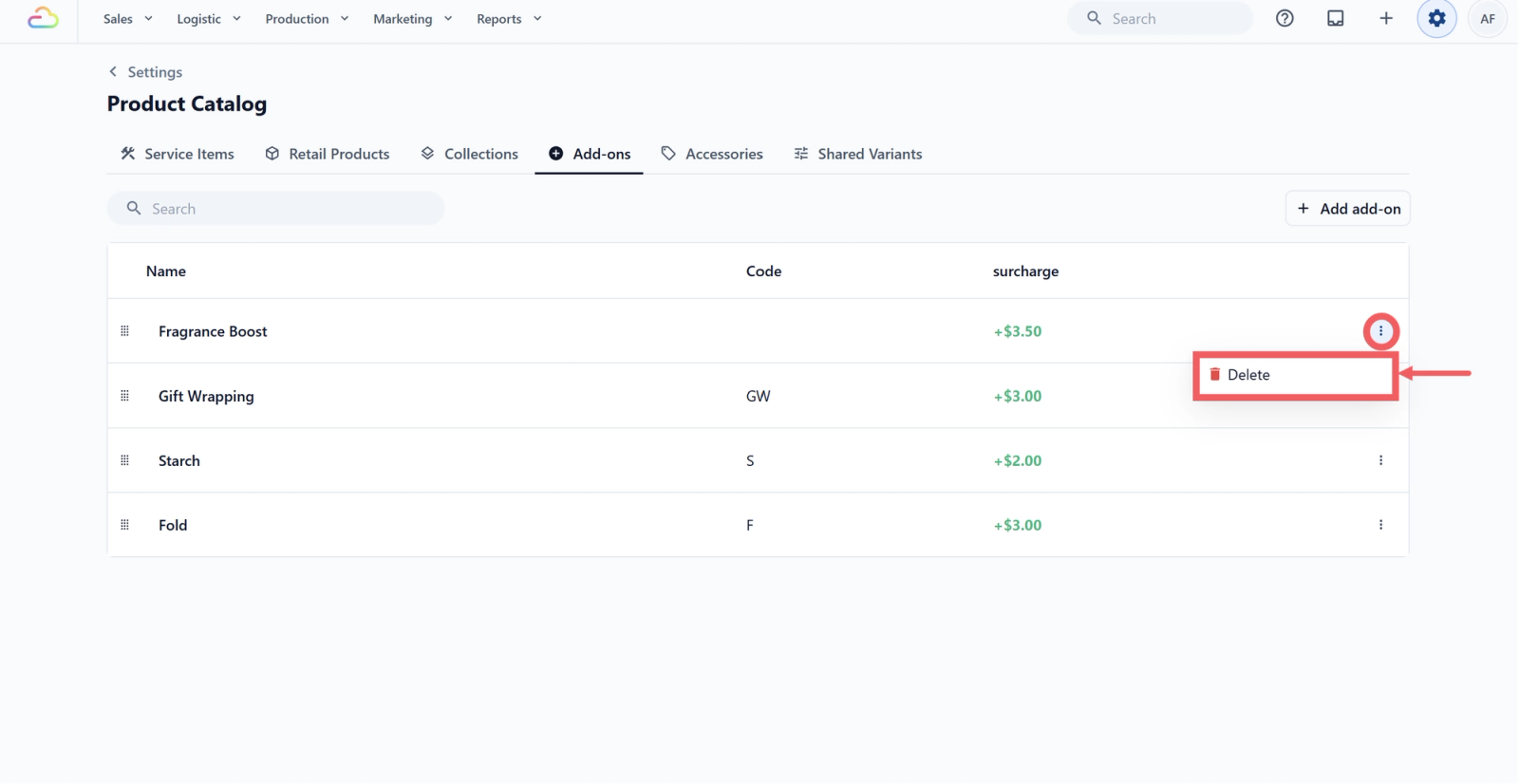
To delete an add-on, click the ••• three-dots menu at the far right of the row and choose Delete.
Where Add-ons Appear at the POS
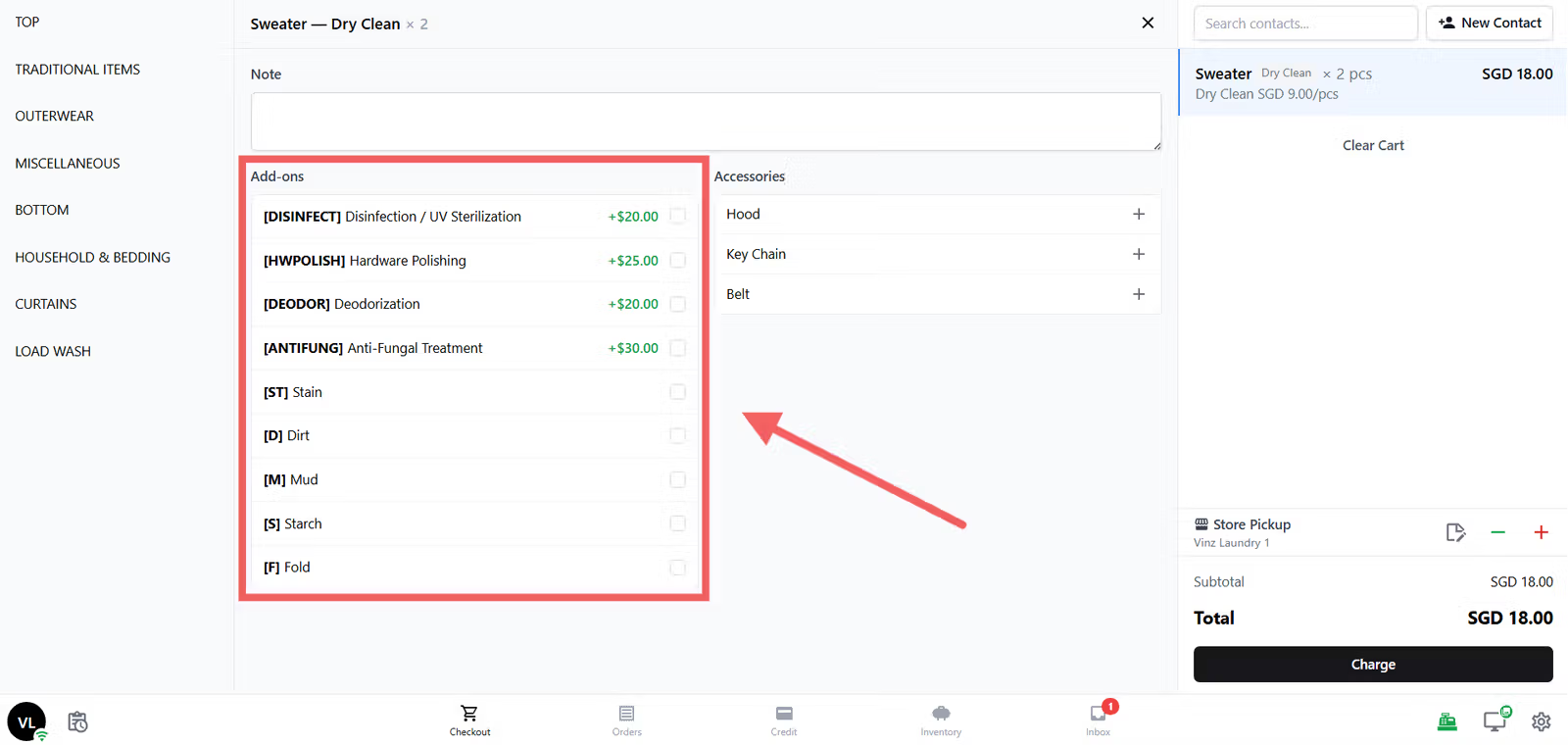
Add-ons appear when staff edit an item in the POS cart, next to Accessories. After adding a Service Item to the order, staff tap the line item in the cart, click Edit, and select the add-ons they want.
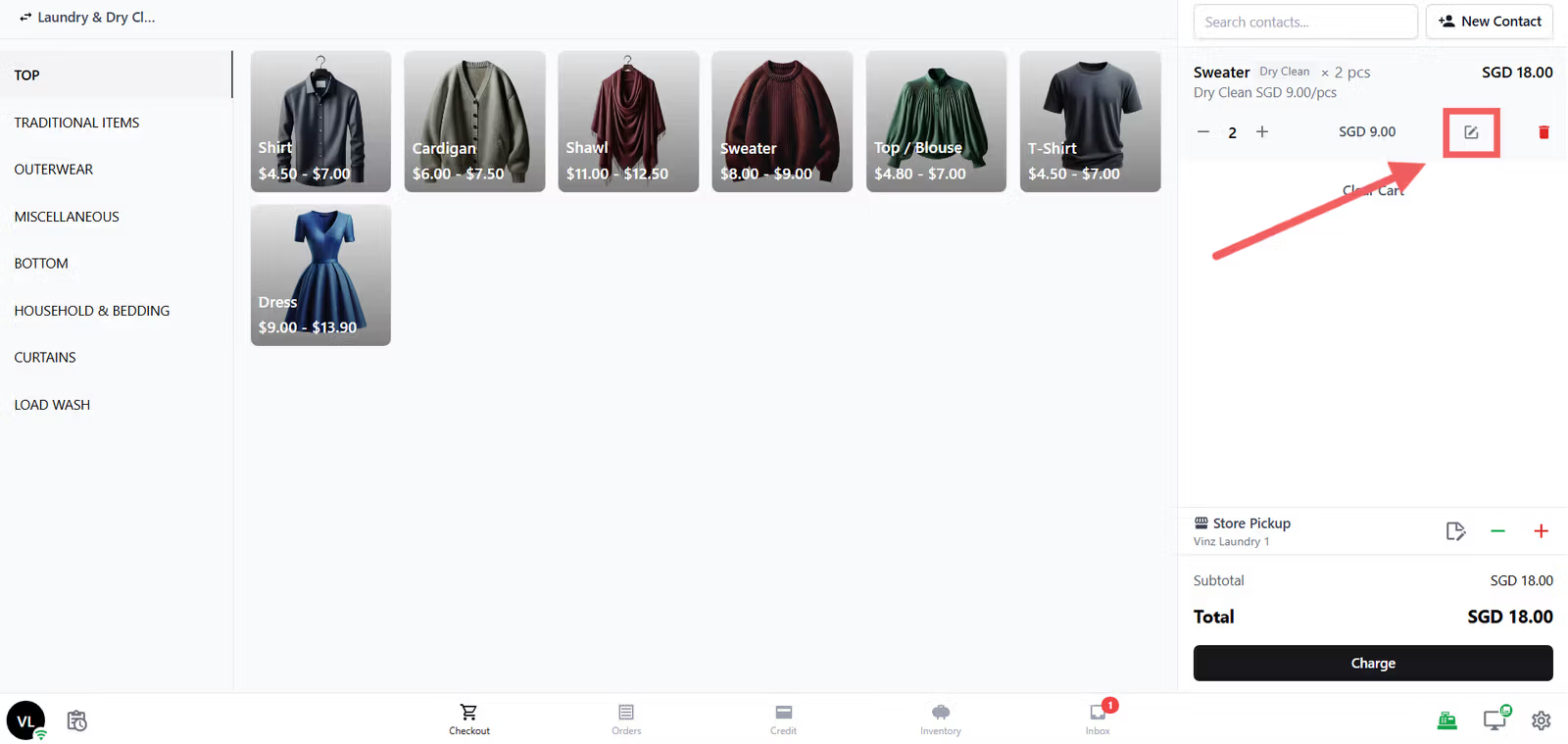
Each selected add-on is charged based on the item quantity.
FAQs
Do I need to link each add-on to a product or service?
No. Once you save an add-on here, it is automatically available across every business unit in your shop. Your staff can attach it to any order item at checkout without any extra linking step.
Can I change the currency on the surcharge?
Not from this dialog. The currency is locked to your shop's default currency, which is set in your overall account settings.
Is the SKU printed on receipts and work orders?
Yes. The SKU is the short code that appears on receipts, work orders, and reports. If you leave it blank, the add-on still works, but only the full name shows.
What happens to past orders if I delete an add-on?
Past orders that already used the add-on keep the charge in their history. Deleting only removes the add-on from the list of options your staff can pick going forward.
Why does the list say "Code" but the dialog say "SKU"?
They are the same field. The list column header reads Code and the form field reads SKU. Treat them as one value.
How is tax counted on add-on surcharges?
Add-on surcharges follow the same tax setup as the order’s price list/company tax setting. Add-ons do not have their own separate tax setting.
If prices are tax-inclusive, the add-on surcharge is treated as already including tax. For example, a 4.00 add-on total stays 4.00, and the tax portion is backed out from that amount.
If prices are tax-exclusive, the add-on surcharge is added before tax, then tax is charged on top. For example, a 4.00 add-on total with 9% GST adds 0.36 GST, so the customer pays 4.36 extra.
What's Next
Now that your add-ons are set up, the next step is to add any items your shop tracks alongside an order, such as hangers, belts, or buttons that come with a garment. Continue to Adding Accessories to finish the extras section of your catalog before you set up your Price Lists.
Give feedback
Up next
Adding AccessoriesSet up the list of small extra items your shop receives with each piece, like dust bags, straps, or hangers, so staff can record them.
Read more