
Adding Retail Products
In this article
Use Retail Products to add items your shop sells off the shelf, set their prices, manage variants, track bundle inventory, and organise them into Collections for POS or Online Store use. A Retail Product already has its own selling price, so staff can add it to an order without choosing a service first. This keeps the counter fast and your stock counts accurate.
Contents
Contents
Before You Start
If you plan to track stock, set up the Retail Product before recording inventory. For products with sizes, colours, or pack sizes, plan the variants first because stock can be tracked by variant.
What Is a Retail Product?
A Retail Product is a physical item your shop sells directly to customers. It is not something the customer brings in for cleaning, repair, or alteration. A Retail Product already has its own selling price, so staff can add it to an order without choosing a service first. This keeps the counter fast and your stock counts accurate.
How to Add a Retail Product
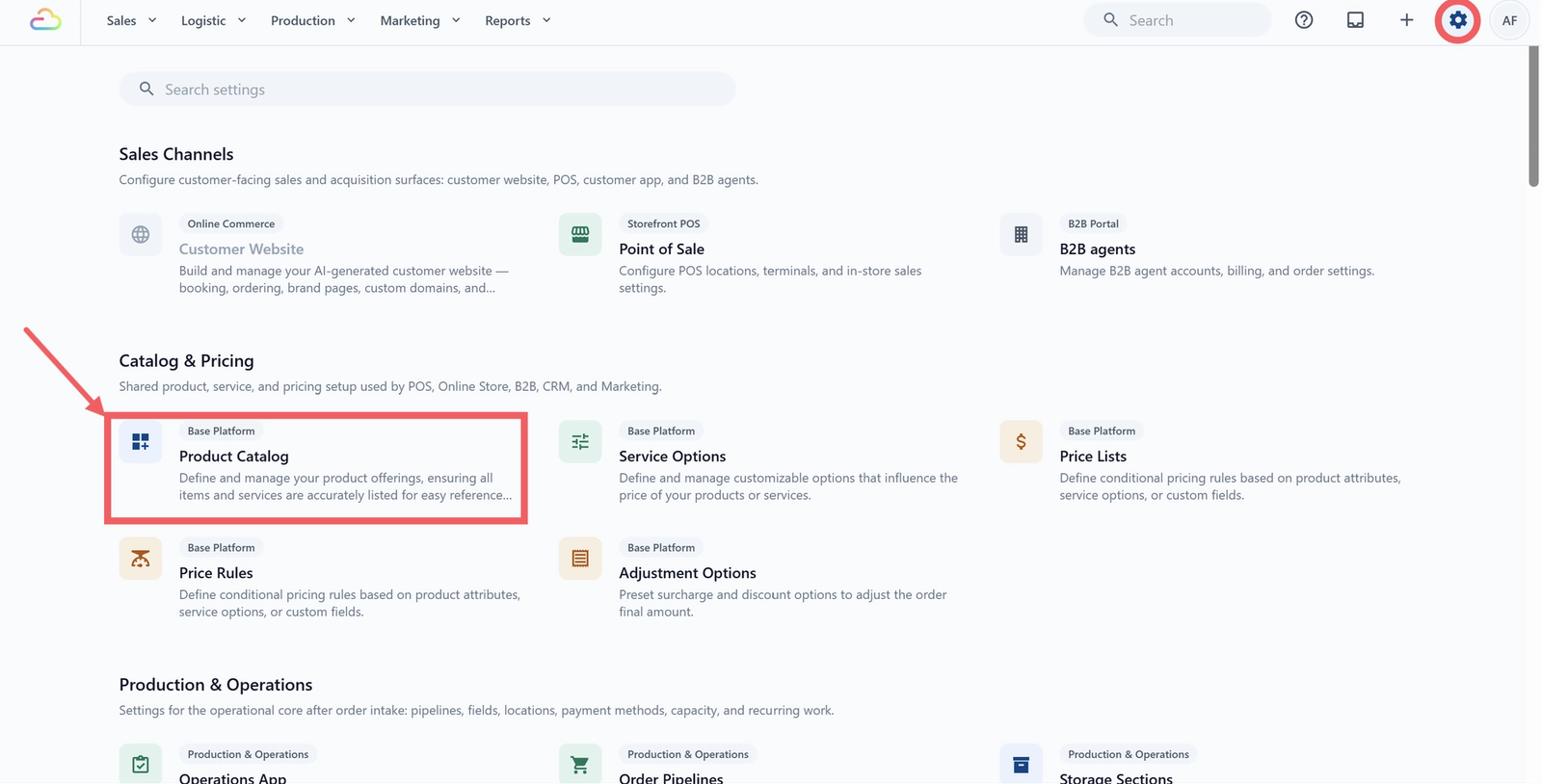
- Click the ⚙️ Settings icon in the top-right corner.
- Under the Catalog & Pricing section, click Product Catalog.
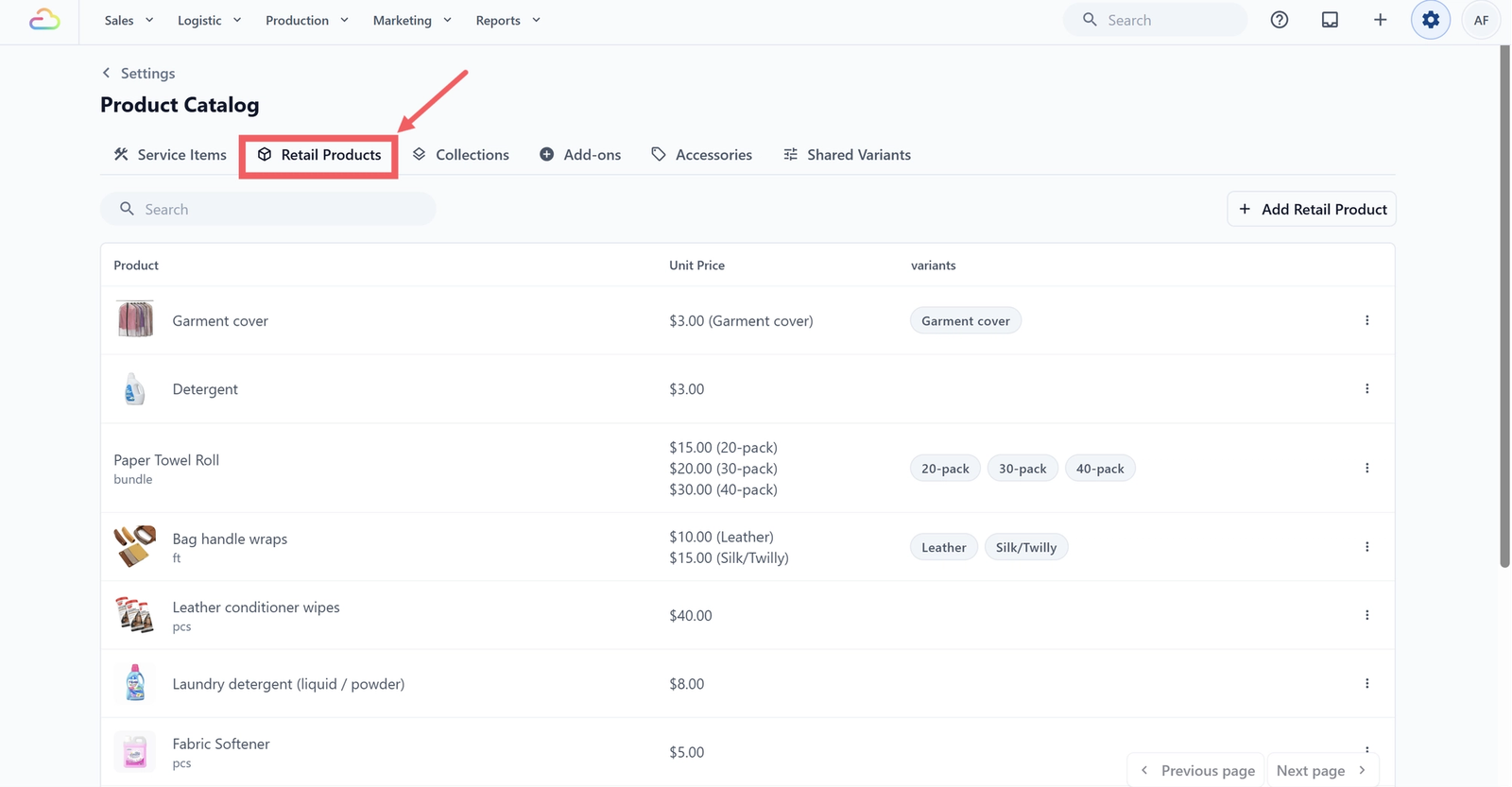
- Click the Retail Products tab.
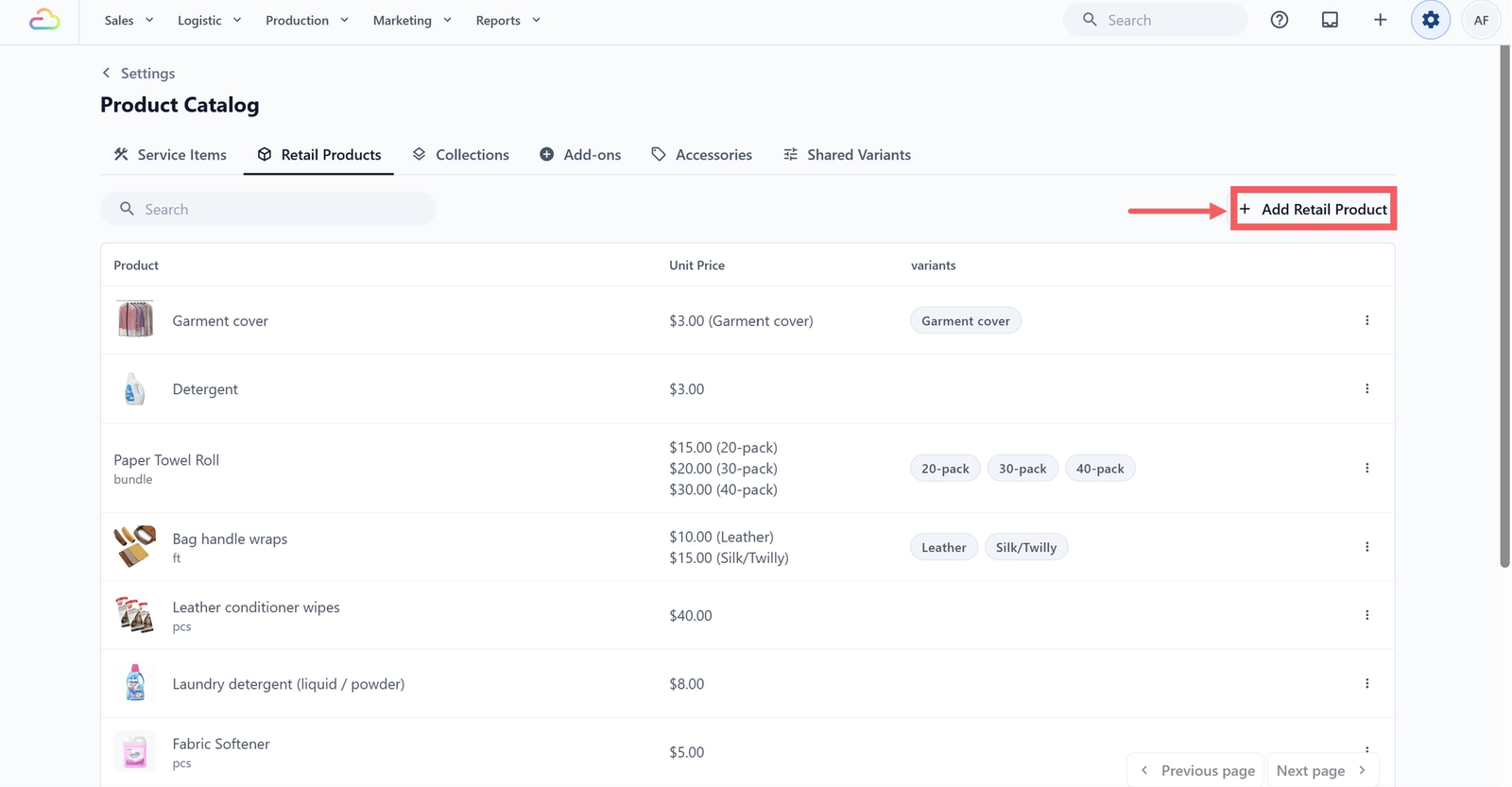
- Click Add Retail Product in the top-right corner.
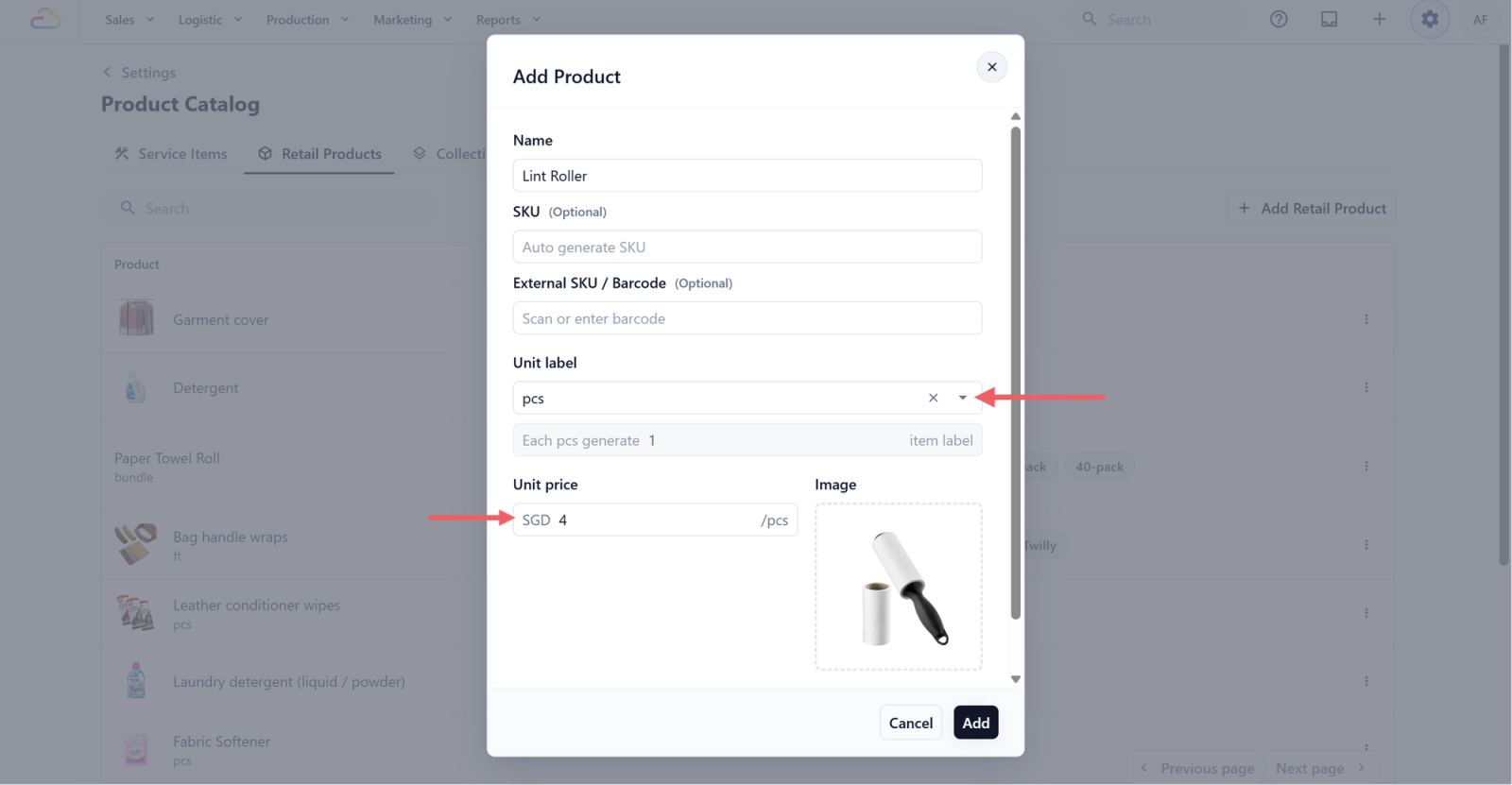
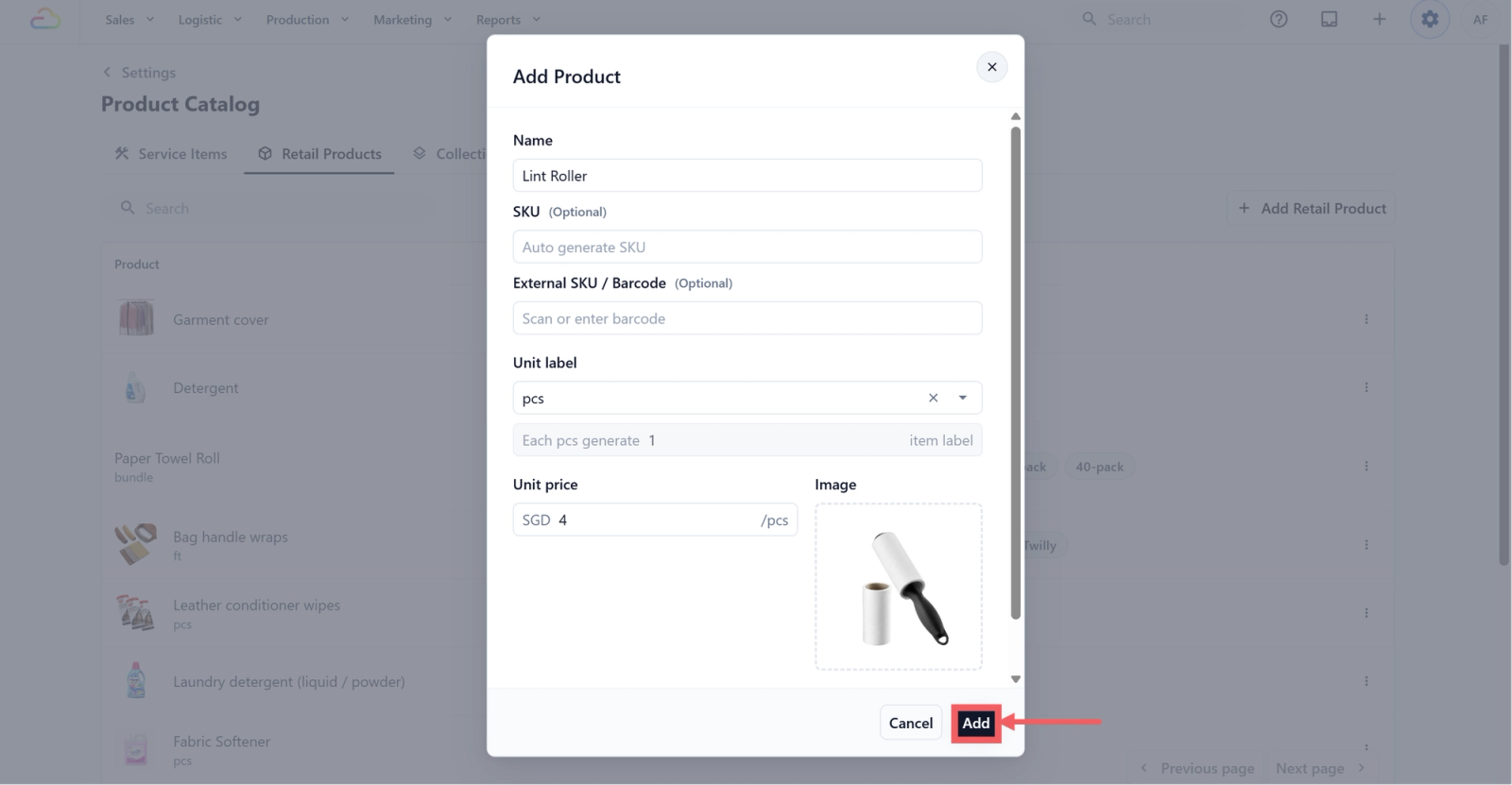
- Fill in the Add Product dialog. Here is what the optional fields do:
| SKU (Optional) | Your own internal code for finding and reporting on this product. Leave it blank and EasyBiz creates one for you automatically. |
| External SKU / Barcode (Optional) | Use this when items already arrive with a barcode or tag you want to scan at the counter. Scanning the same code later matches the item back to this product. |
- Set the Unit Label (see which unit label to choose below).
- Set how many labels each unit should print (see Item Labels below).
- Optionally add variants (see Variants below).
- Click Add to save.
Choosing a Unit
Most retail products are sold by piece, or as bundles for multi-packs. You can also type your own unit if you need one. The full list of ready-made units is the same as for service items. For the full unit list, see Choosing a Unit in Adding Service Items.
Item Labels
Labels are the tracking tags your shop prints to follow an item through the workshop. Most shops leave this at the default for retail, since shelf goods rarely need a workshop tag.
For countable units (pcs, pair, set, bundle, or a custom unit like hook), you set the number directly. For example, a pair of shoes defaults to 2 labels so each shoe gets its own tag, and a curtain set with two panels can be set to 2.
Variants
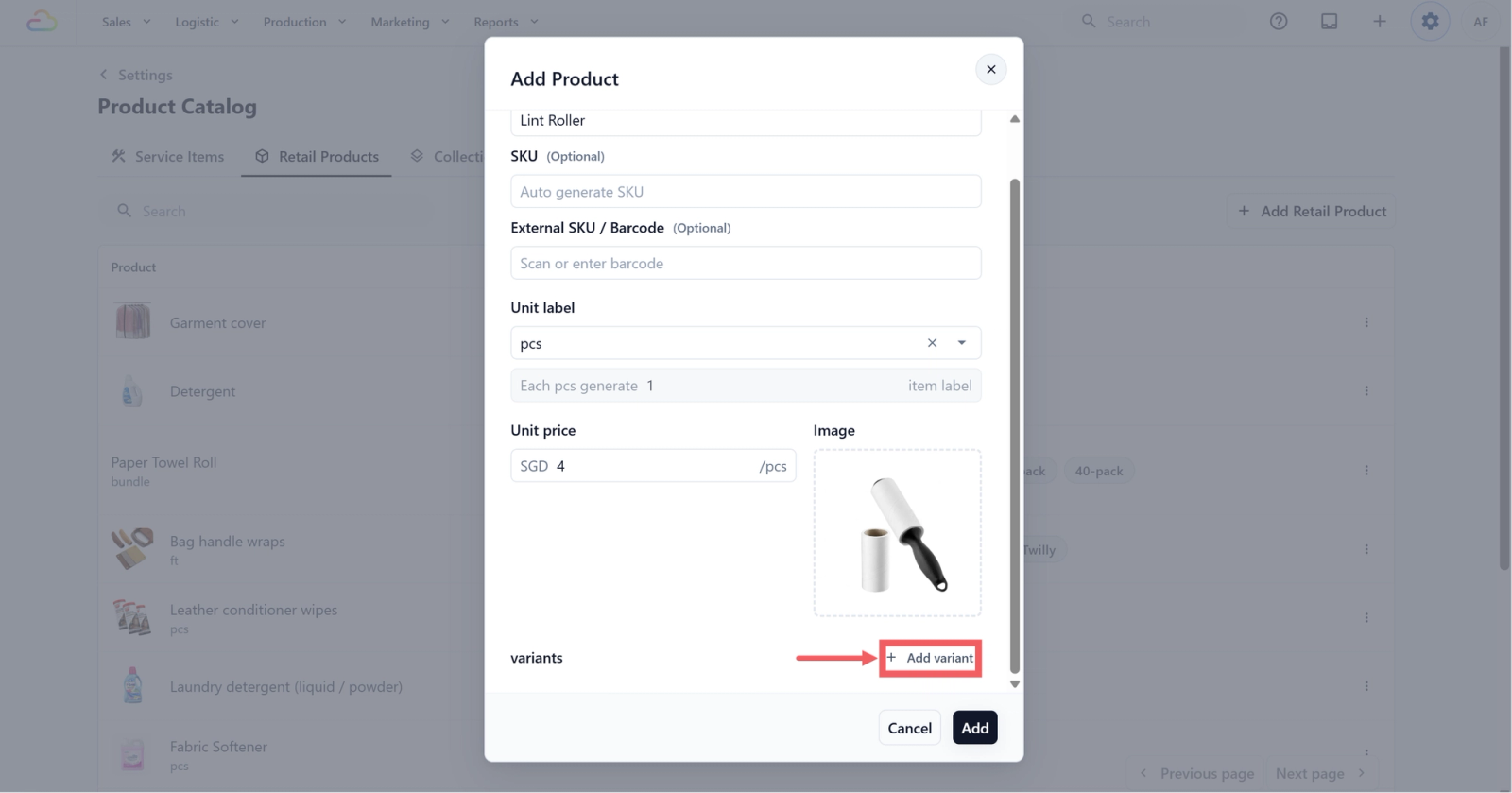
Variants are different versions of the same product, such as different sizes, colors, or pack sizes. Retail Product variants can each have their own Unit Price.
To add a variant:
- Open the Retail Product. Click Add variant.
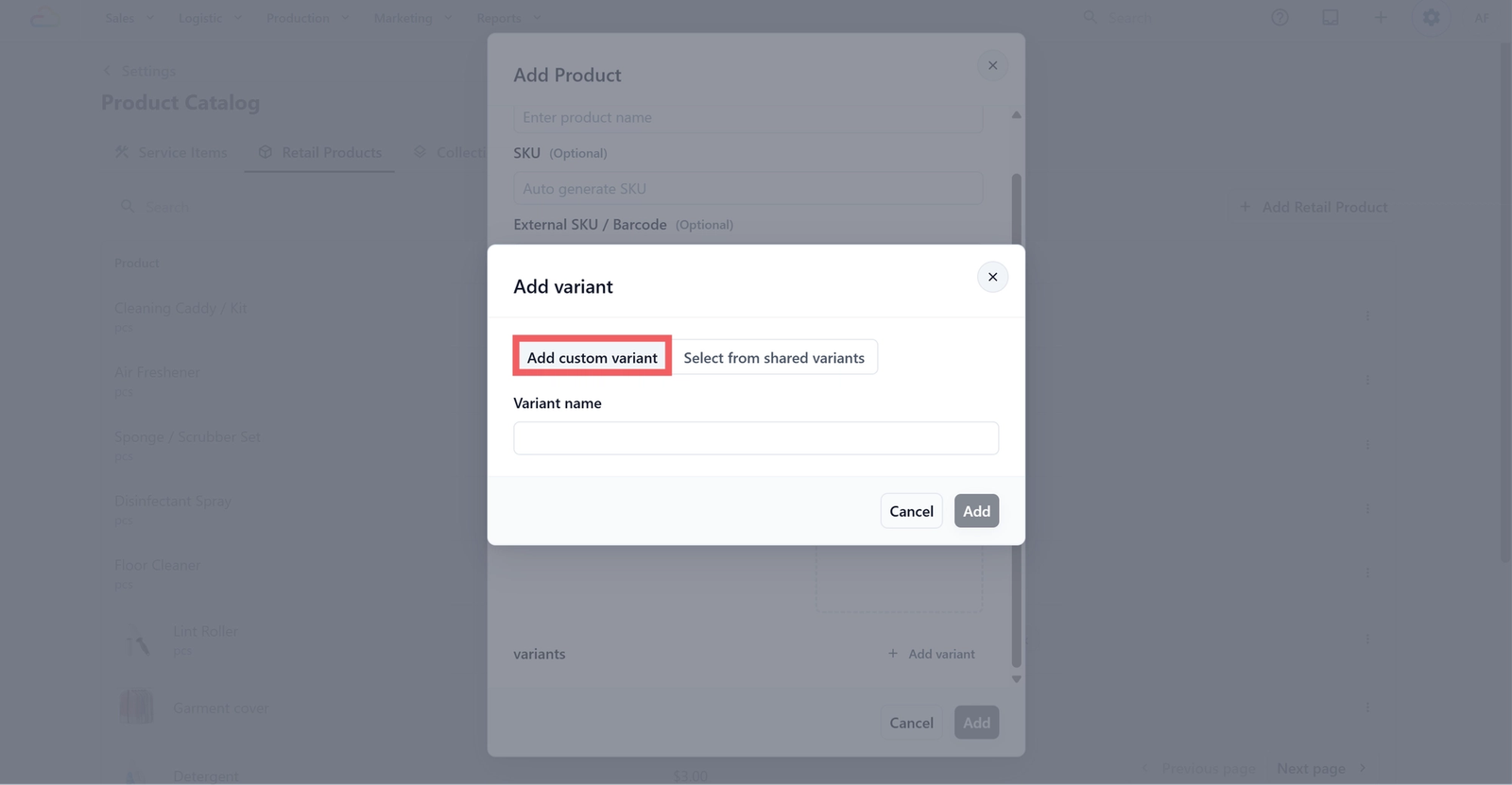
- Choose Add Custom Variant.
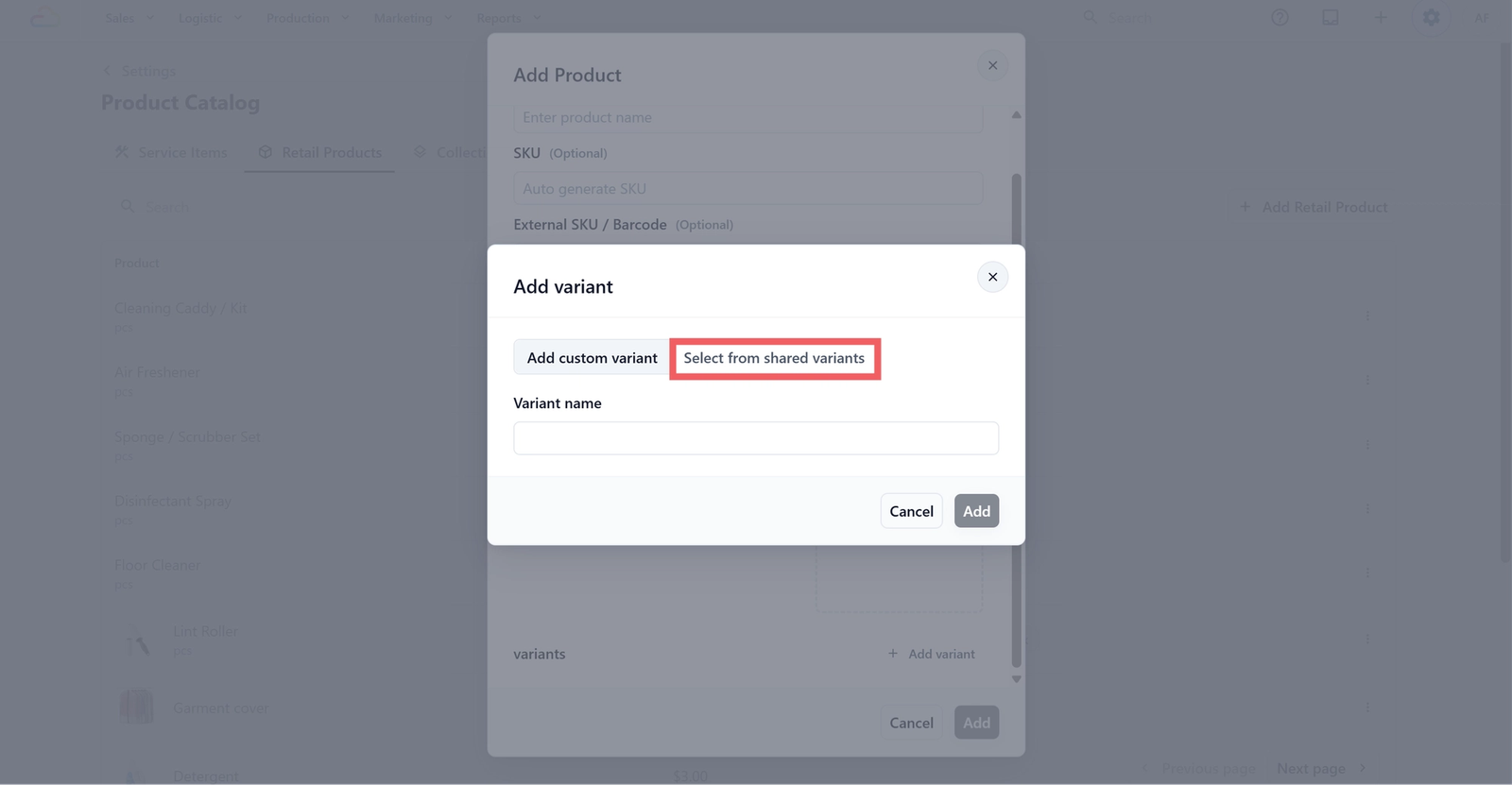
- Optional. Choose Select from Shared Variants to select the existing Shared Variant options you have set.
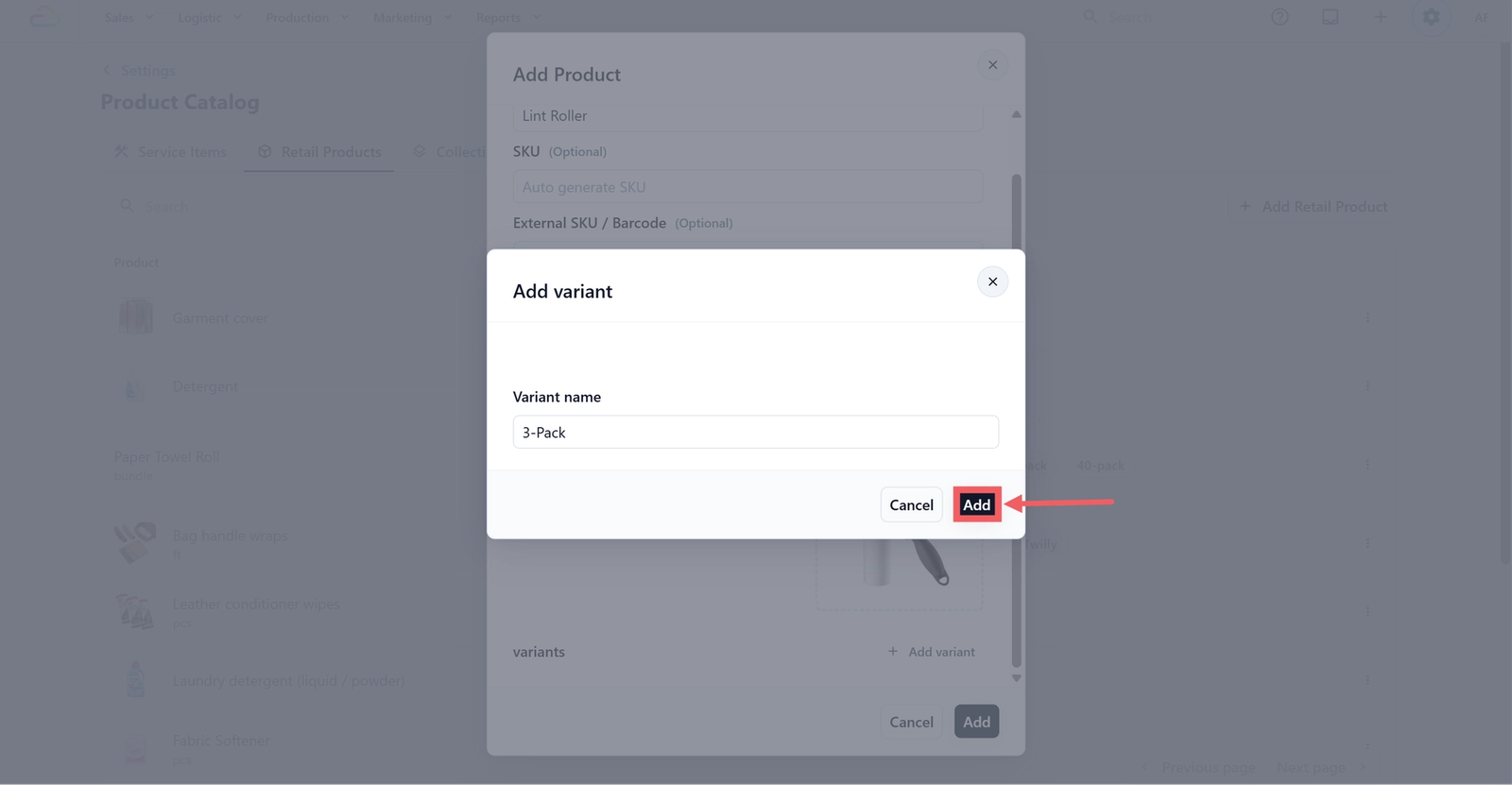
- Type the variant name, and click Add.
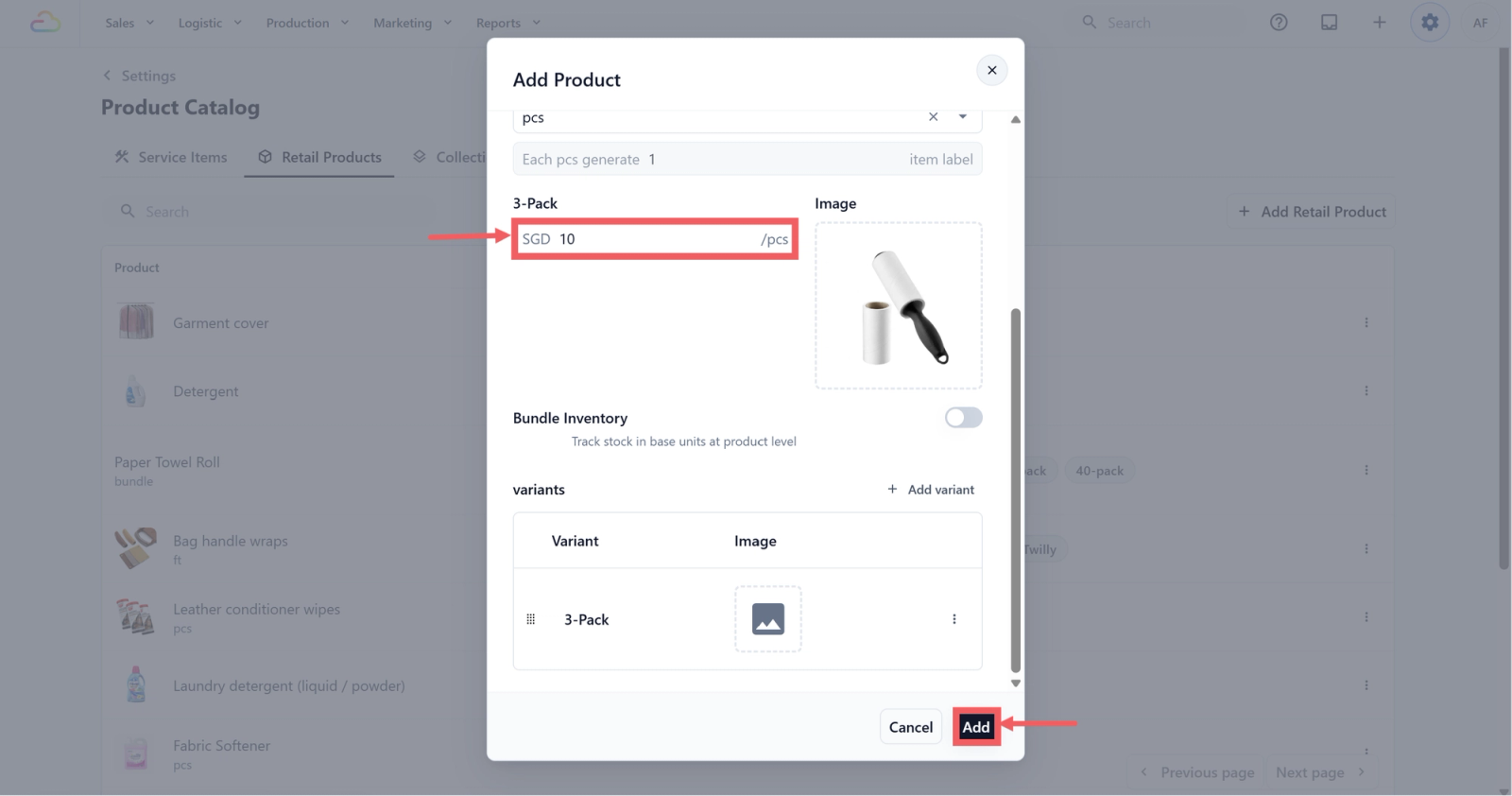
- Input the variant's price.
- Click Add to save.
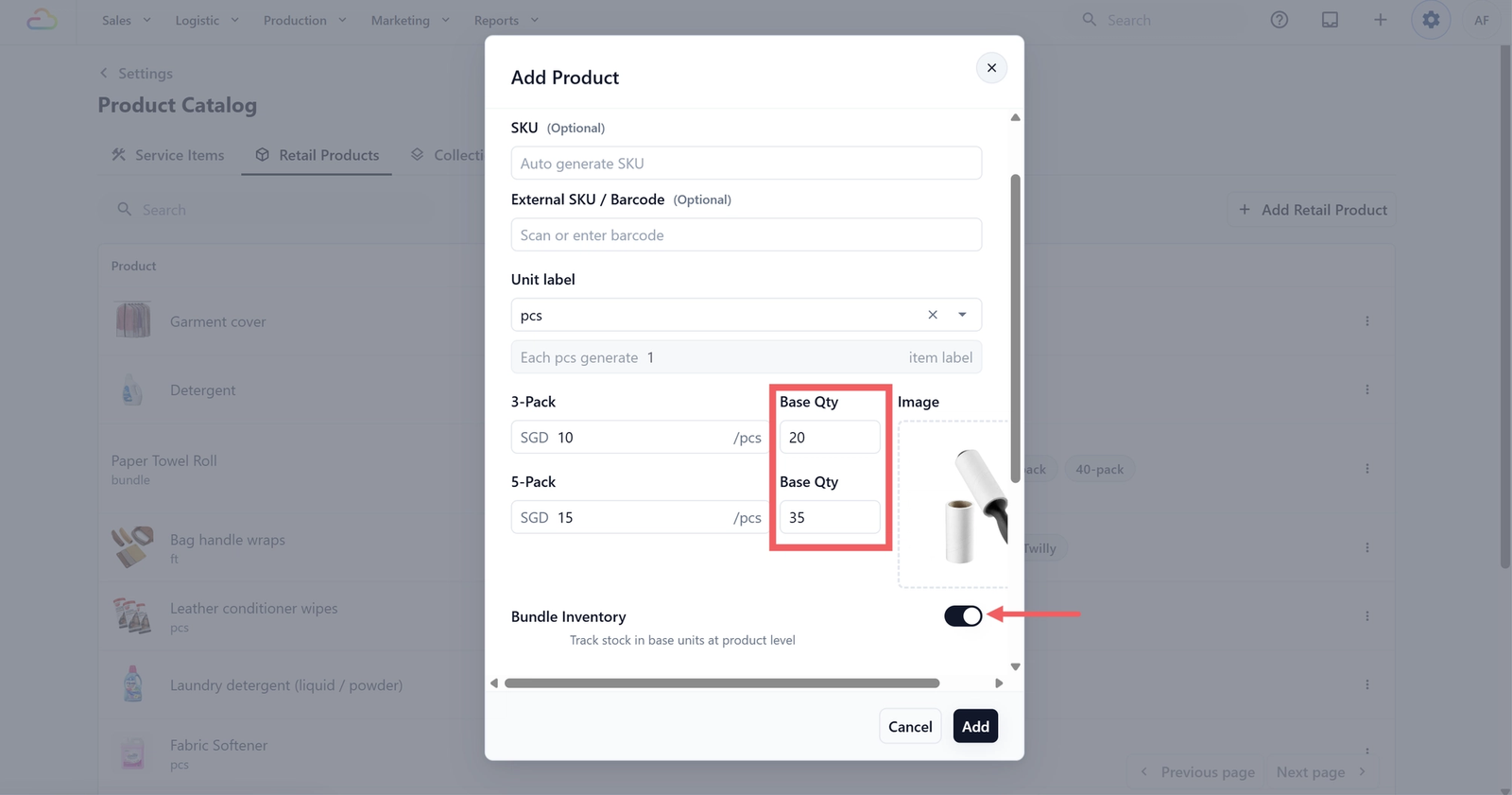
- Optionally toggle on Bundle Inventory (see Bundle Inventory below).
Bundle Inventory
Bundle Inventory appears when a Retail Product has variants. Use it when different variants are sold from the same stock pool.
| Bundle Inventory Toggle | What it does |
|---|---|
| Off | Each variant tracks its own stock separately. |
| On | All variants deduct from one shared stock count. Each variant needs a Base Qty so EasyBiz knows how much stock to deduct. |
What Retail Products Connect To
Retail Products are fixed-price items your shop sells directly, such as care kits, dust bags, accessories, or cleaning supplies. They can be sold at POS and, if stock tracking is enabled, connected to inventory.
Retail Products can connect to:
| Price Lists(Article coming soon) | Control the selling price used during checkout |
|---|---|
| Collections | Group retail products into POS browsing tabs |
| POS | Staff can add them to an order |
| Inventory Stock | Track available quantity by location |
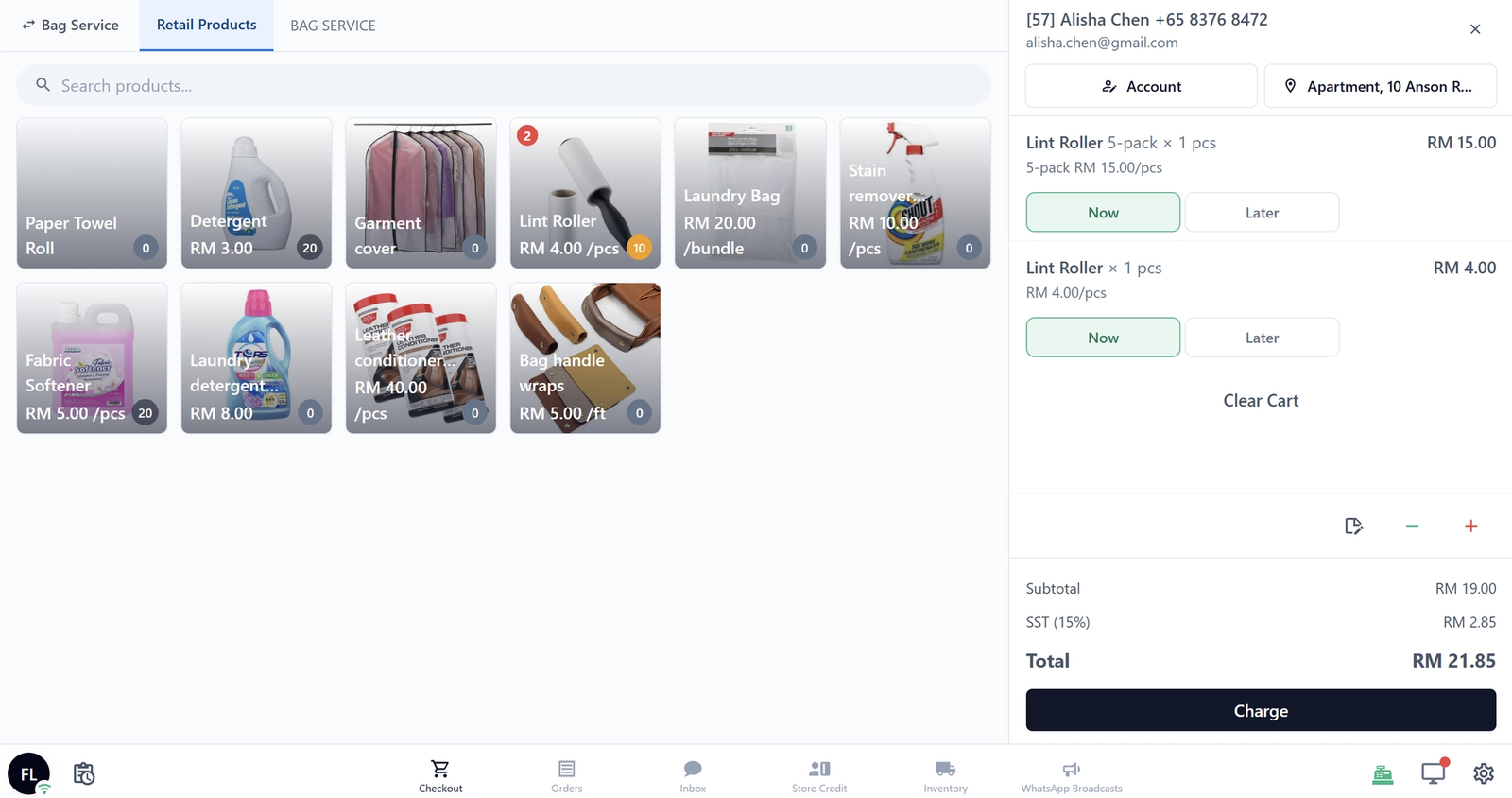
✅ Example: A retail product added to the POS cart
FAQs
Can I use a Retail Product for something my shop repairs or cleans?
No. Use a Service Item for anything the customer brings in for work, and a Retail Product for items your shop sells directly.
What is the difference between Unit Price and Price List price?
Unit Price is the product's default. If the product is in a published Price List, the Price List price is what staff and customers see for that sales channel.
I sold a pack but my stock didn't go down. Why?
Either Bundle Inventory is off, or the variant's Base Qty is blank. With Bundle Inventory on, set a Base Qty on every variant so the right number of units is deducted.
My staff rang up a 5-pack as a single. What happened?
They likely tapped the base product instead of the variant at the POS. The base stays sellable, so make sure staff tap the correct variant card.
Can EasyBiz print a barcode label for retail items?
No. The label count prints internal workshop tracking tags, not consumer barcodes.
What's Next
Now that your Retail Products are set up, continue to Adding Collections to organize what your staff sees at POS.
Give feedback
Up next
Adding CollectionsGroup your products into named tabs that show up in your order screen, so your staff and customers can find items faster.
Read more