
Adding Service Items
In this article
Service Items help your team identify what the customer is bringing in before selecting the service and pricing. Each one represents a type of garment or item your shop accepts, like a shirt, a suit, or a bag. You add it once here, and it becomes available across POS, Online Store, B2B, CRM, and Marketing. Pricing and the type of work are handled separately later, so staff only need to pick the right item at the counter.
Contents
Contents
Before You Start
Confirm with your team what services you want to sell and how each is measured (per piece, per kg, per pair). Choosing the right unit on day one avoids rework in Price Lists.
What is a Service Item?
A Service Item is the type of garment or item your shop accepts for a service. It is the "what" the customer hands over, not the work done to it. You list each kind of item once here, and staff pick it when taking an order. Pricing and the work type (wash, dry clean, press) are handled separately later.
How to Add a Service Item
- Click the ⚙️ Settings icon in the top-right corner.
- Under the Catalog & Pricing section, click Product Catalog.
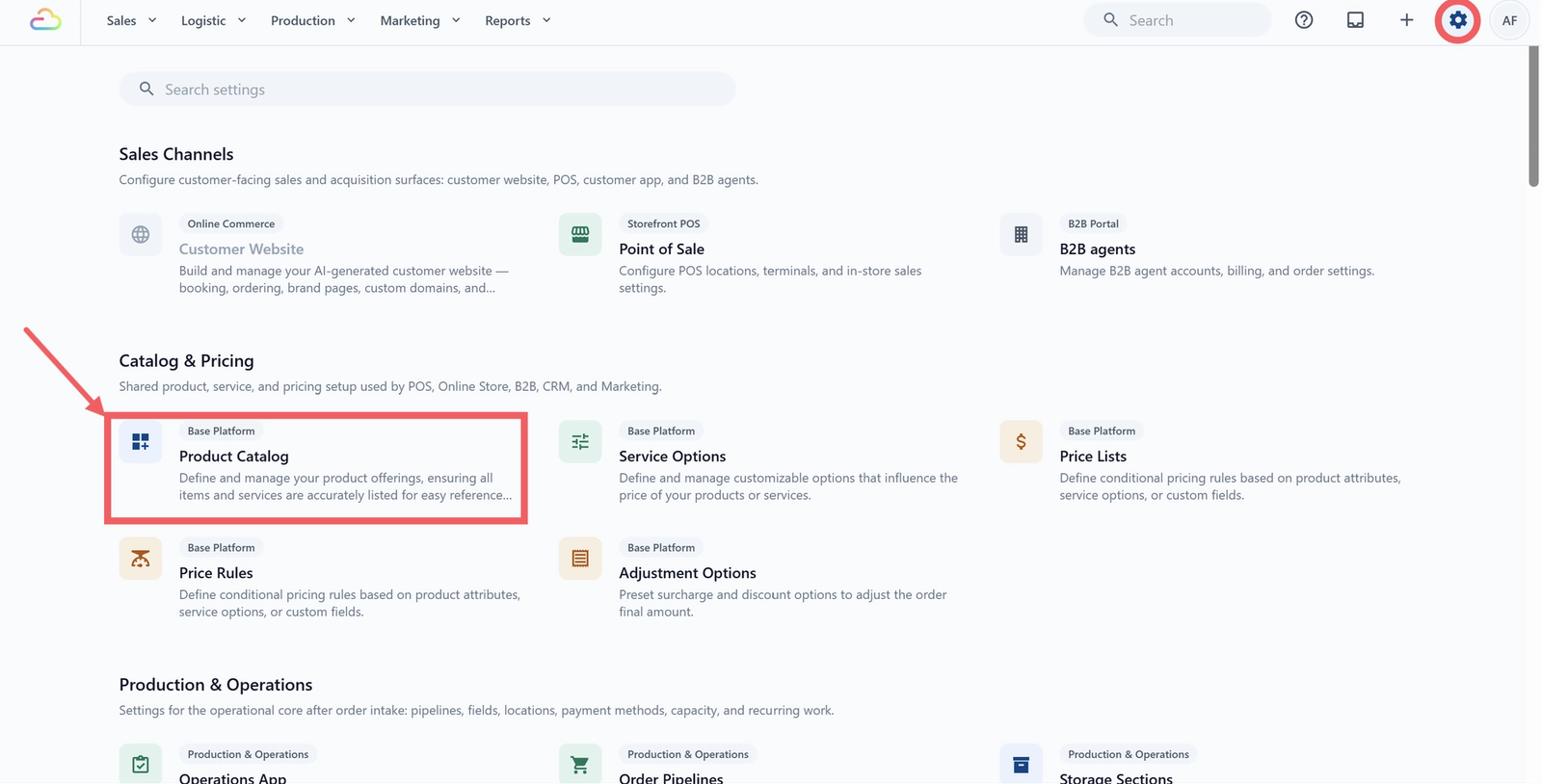
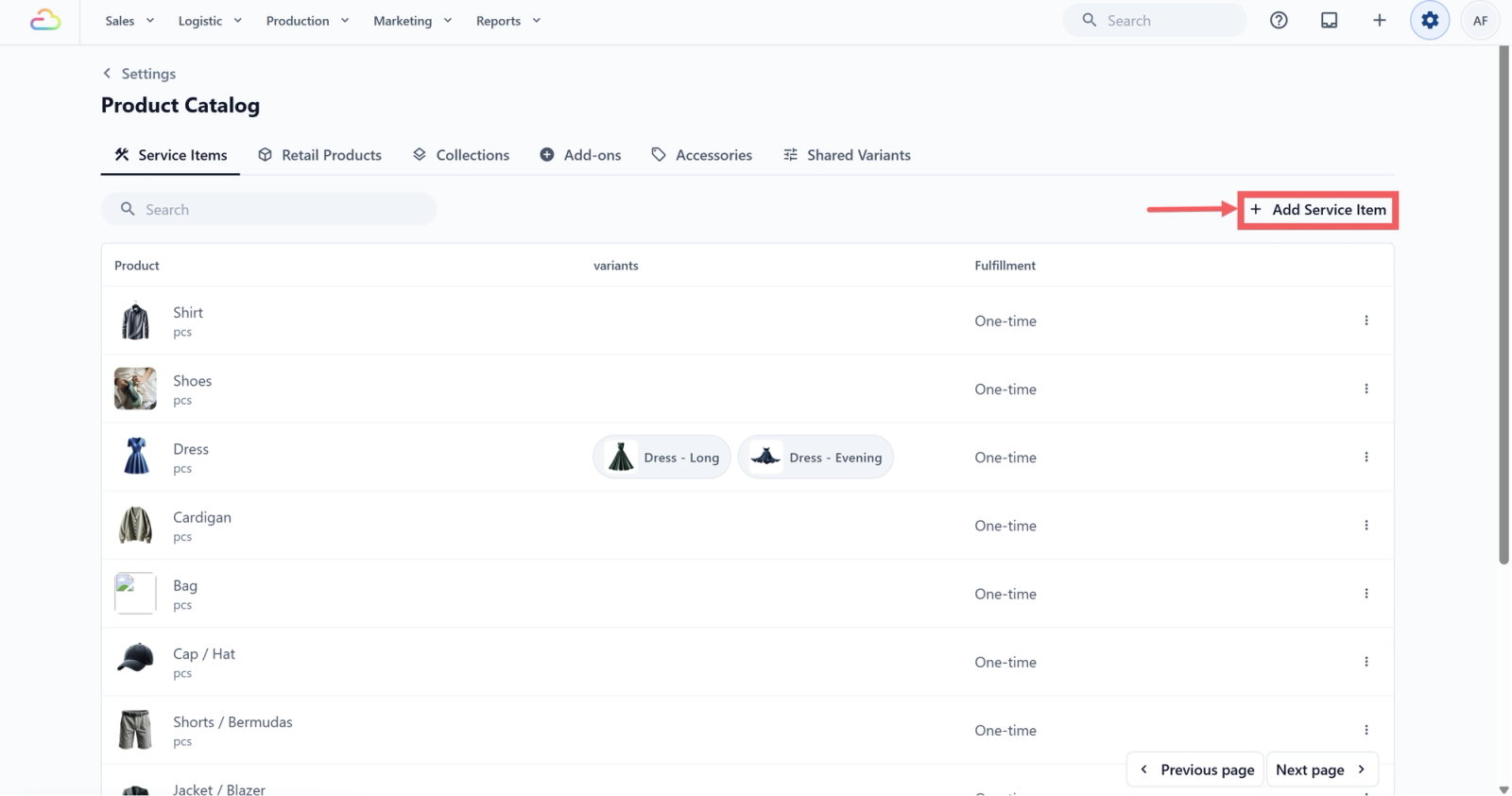
- The Service Items tab is open by default.
- Click Add Service Item in the top-right corner.
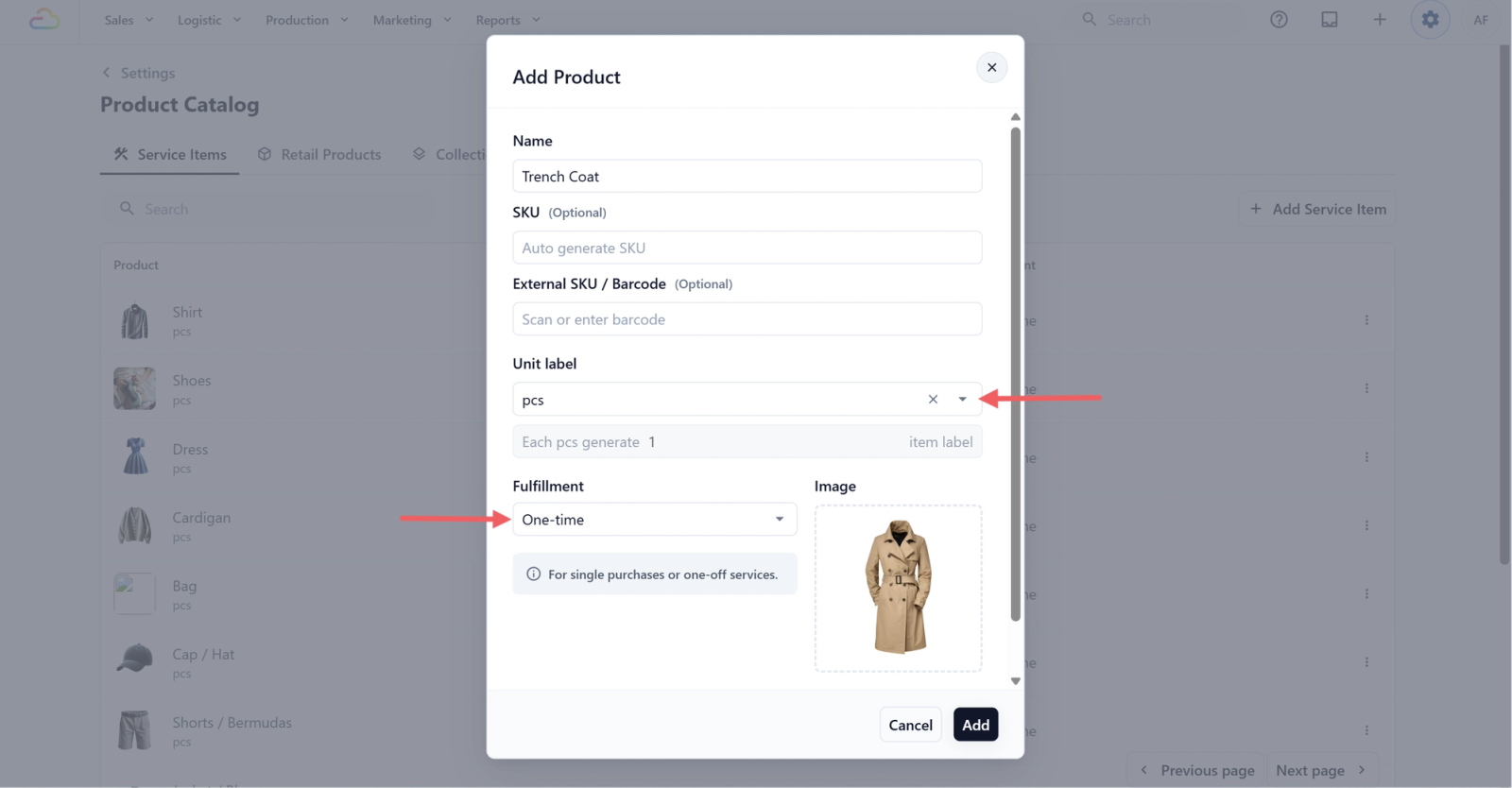
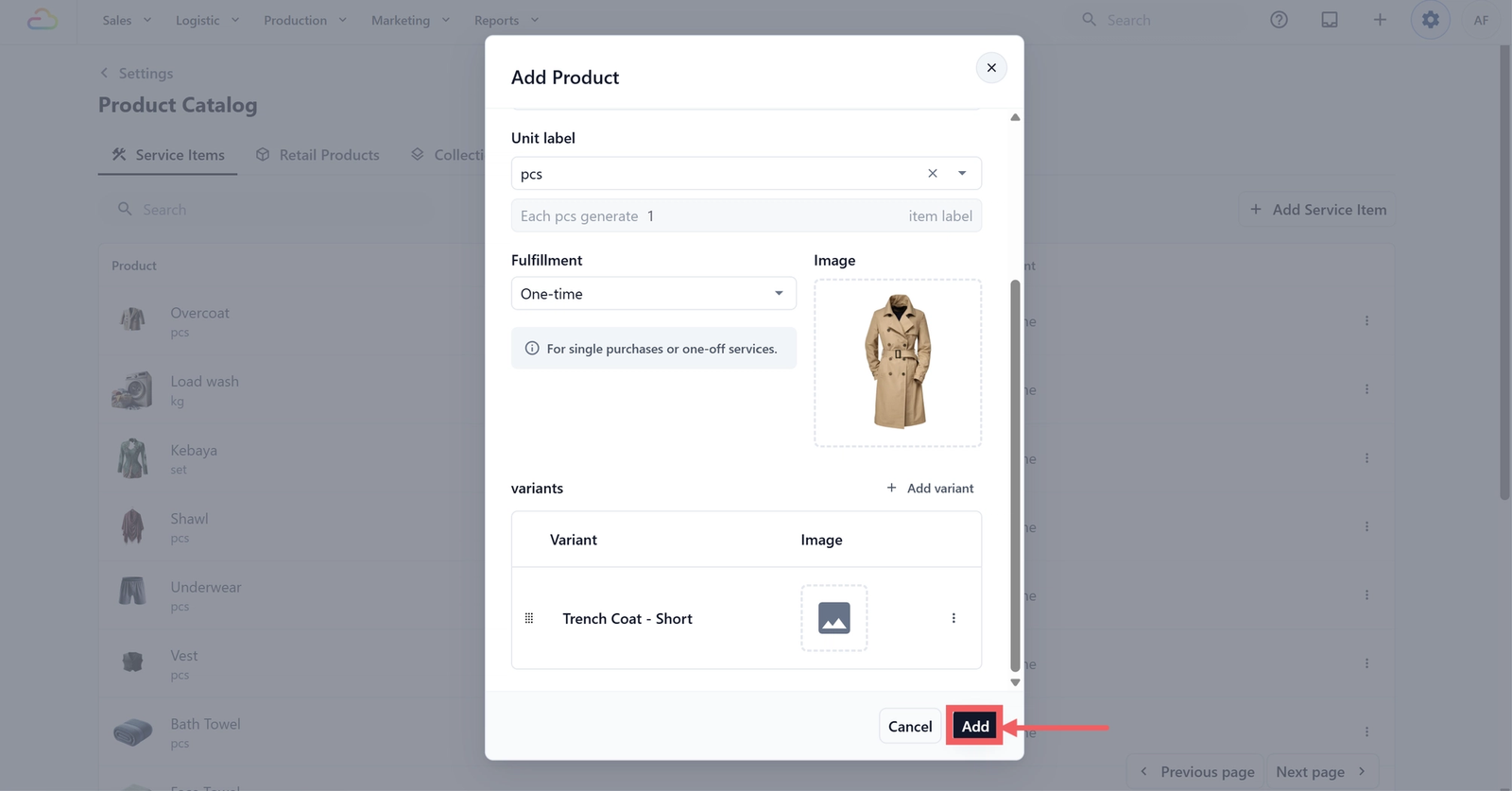
- Fill in the Add Service Item dialog. Here is what the optional fields do:
| SKU (Optional) | Your own internal code for finding and reporting on this product. Leave it blank and EasyBiz creates one for you automatically. |
| External SKU / Barcode (Optional) | Use this when items already arrive with a barcode or tag you want to scan at the counter. Scanning the same code later matches the item back to this product. |
- Set the Unit Label (see which unit label to choose below), then leave Fulfillment as One-time.
| Fulfillment Field | What it means |
|---|---|
| One-time | Default. Each order creates one job that runs once. |
| Recurring | Disabled. The option appears but cannot be selected. Use a Recurring Schedule on the order itself for repeating services. |
- Set how many labels each unit should print (see Item Labels below).
- Optionally add variants (see Variants below).
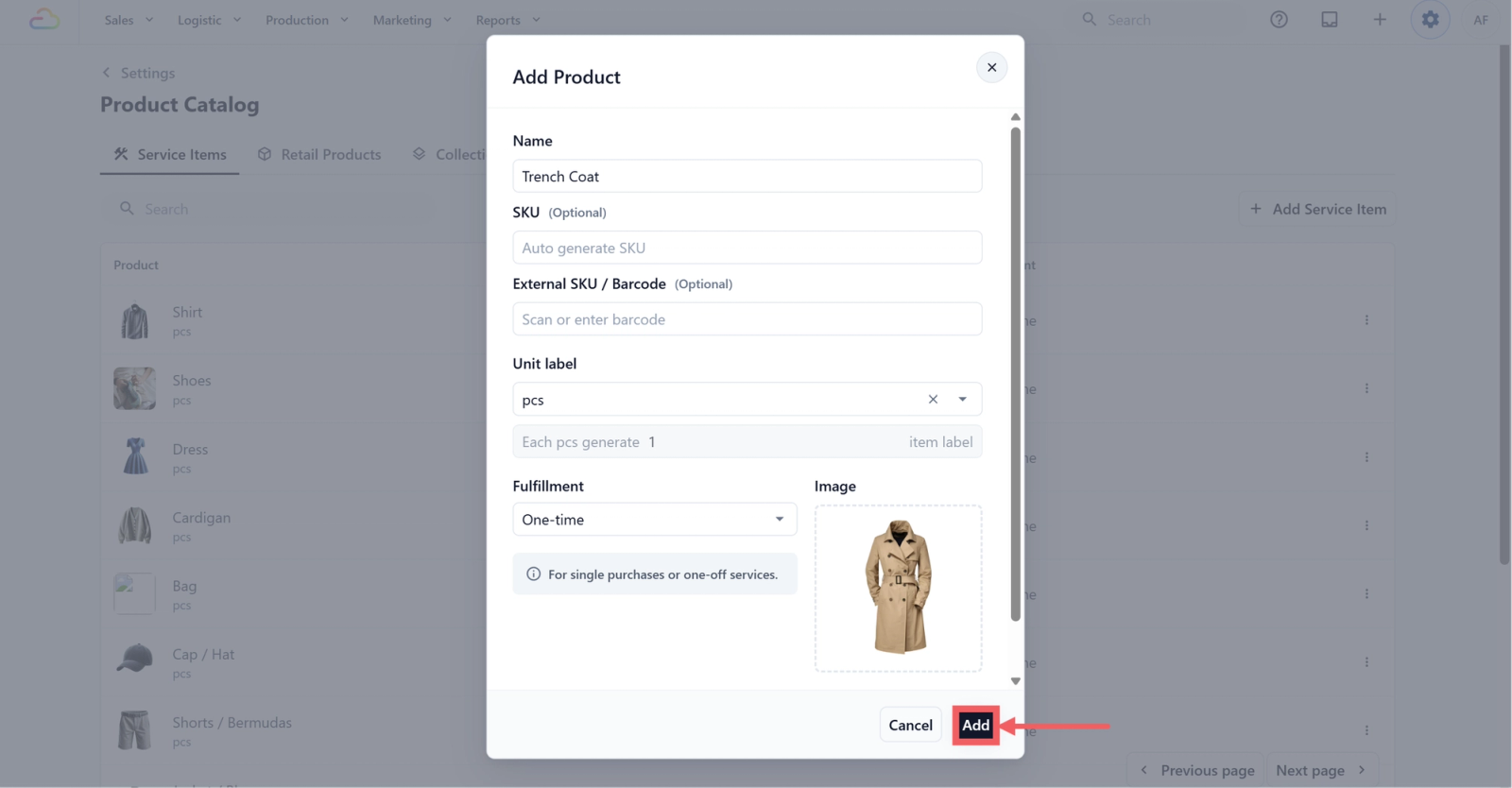
- Click Add to save.
Choosing a Unit
The Unit Label sets how this item is measured and priced. It also decides how labels are counted. You can pick one of the ready-made units, or type your own, for example "hook" for curtains or "bag" for bulk drop-offs. A typed unit sticks just like the built-in ones.
| Unit | What it measures | Typical use |
|---|---|---|
| pcs | Single countable garments | Shirt, dress, bag |
| pair | Two items handled as one | Shoes, gloves, socks |
| set | A fixed group | 3-piece suit, curtain set |
| bundle | A tied or wrapped batch | Bundled bedsheets |
| kg | Weight | Bulk wash, comforters |
| sqft | Area | Large drapes, rugs |
| ft | Length | Long curtains, blinds |
| inch | Small measurement | Alterations, narrow blinds |
Item Labels
Labels are the tracking tags your shop prints to follow each item through the workshop. They are not the customer receipt. The label count tells EasyBiz how many tags to print each time staff add one unit of this item.
For countable units (pcs, pair, set, bundle, or a custom unit like hook), you set the number directly. For example, a pair of shoes defaults to 2 labels so each shoe gets its own tag, and a curtain set with two panels can be set to 2.
Variants
Variants are different versions of the same service item, such as different sizes, colours, or pack sizes. Service Item variants help staff choose the correct version of the item. Pricing is handled separately in Price Lists.
To add a variant:
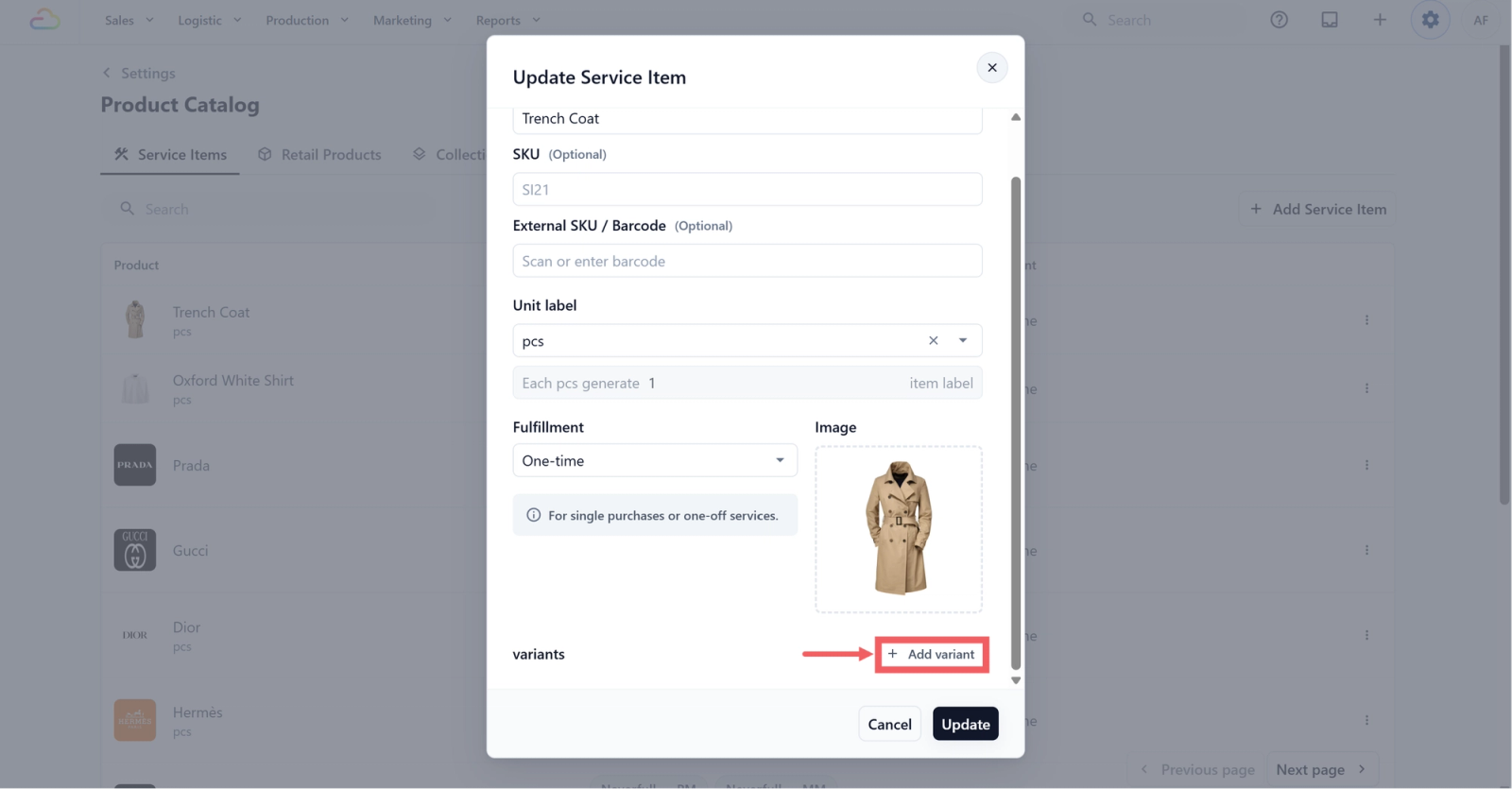
- Open the Service Item. Click Add variant.
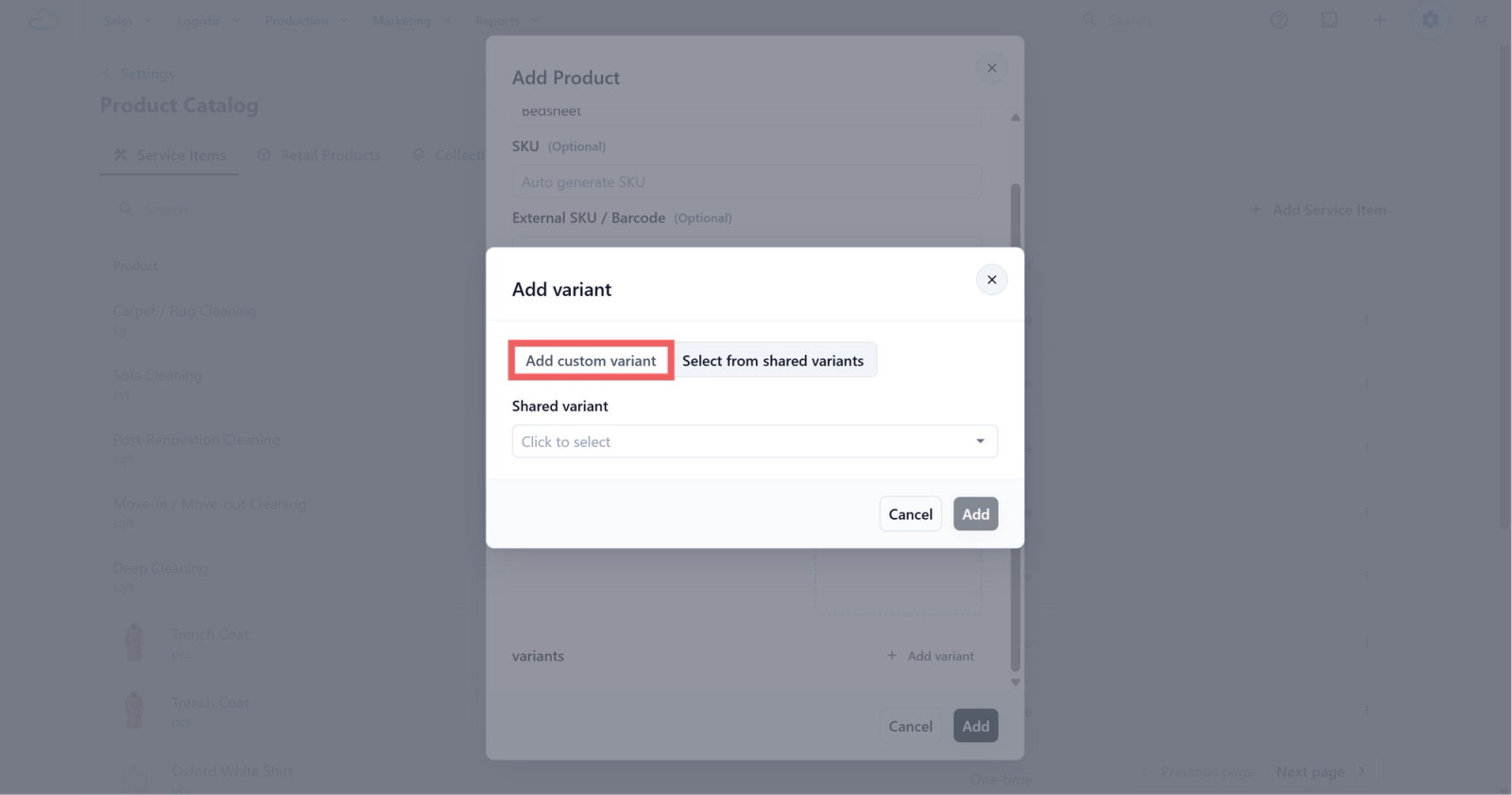
- Choose Add Custom Variant.
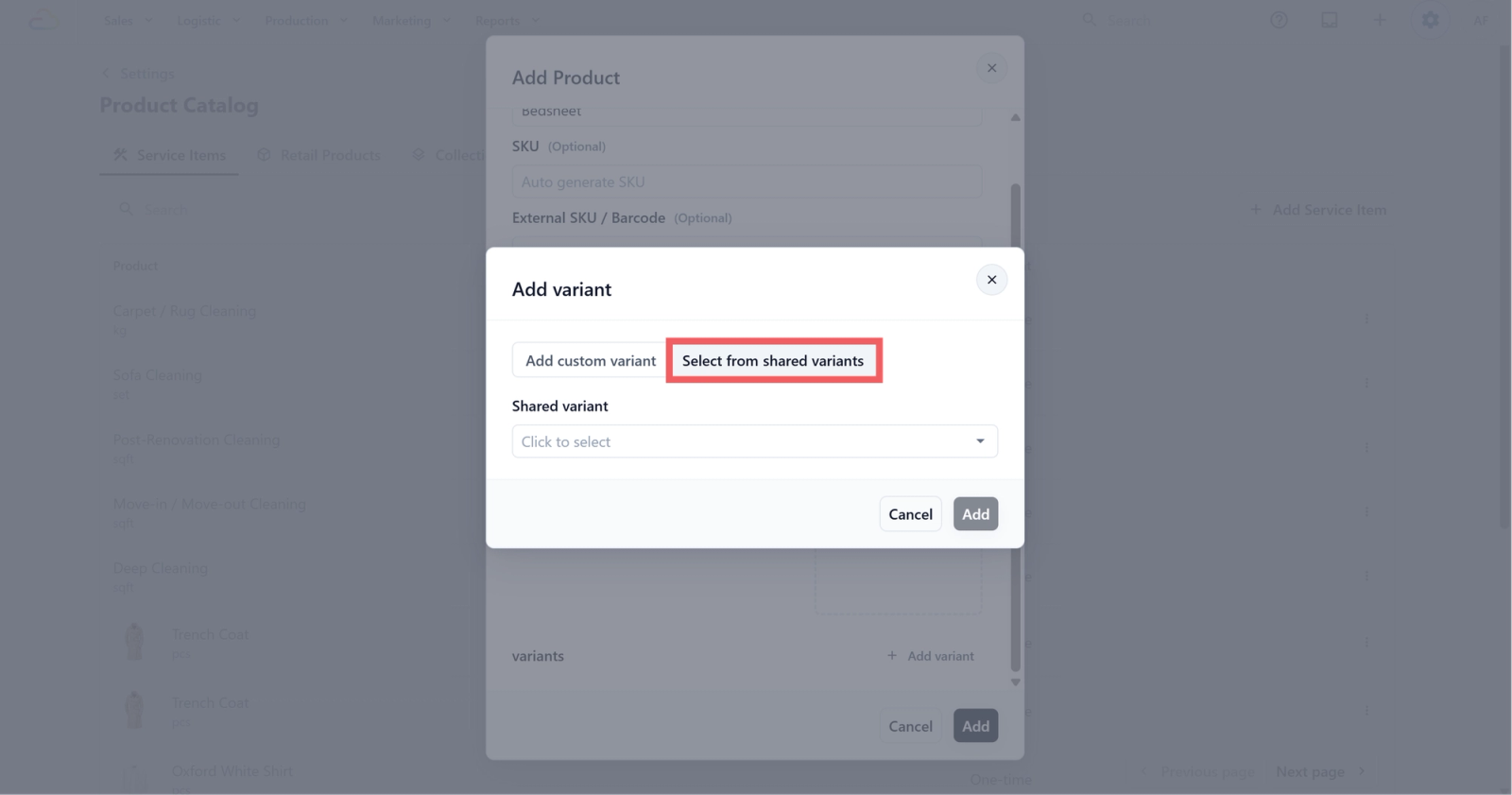
- Optional. Choose Select from Shared Variants to select the existing Shared Variant options you have set.
- Type the variant name, and click Add.
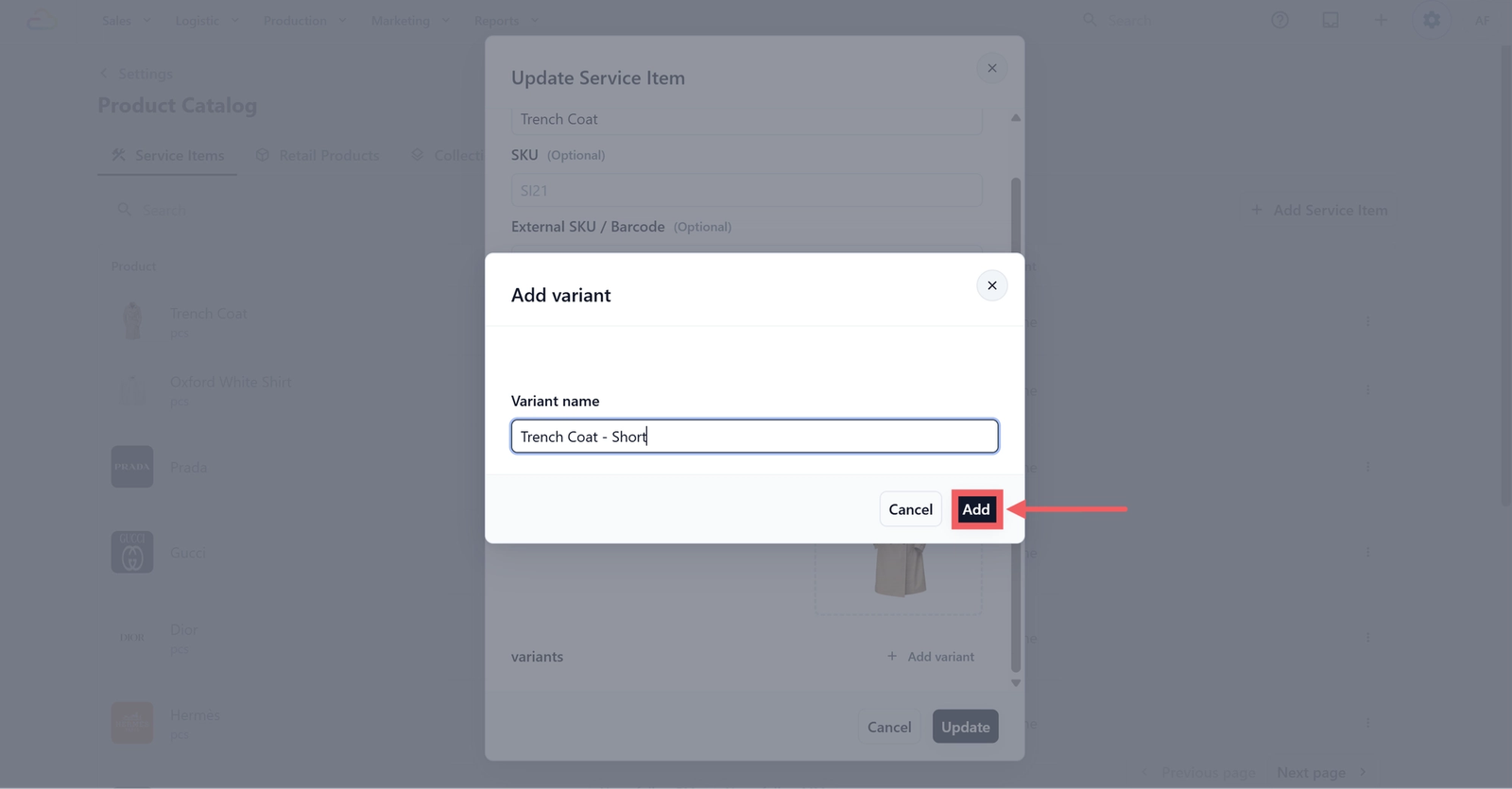
- Click Add again to save.
What Service Items Connect To
Service Items are the base items your team selects when creating a service order. They become useful after they are connected to the setup that controls pricing and where the item appears.
Service Items can connect to:
| Price Lists(Article coming soon) | Control the selling price used during checkout |
|---|---|
| Collections | Group items into POS-friendly tabs |
| POS | Staff can select the item while creating an order |
| Online Booking(Article coming soon) | Available for customers to book online |
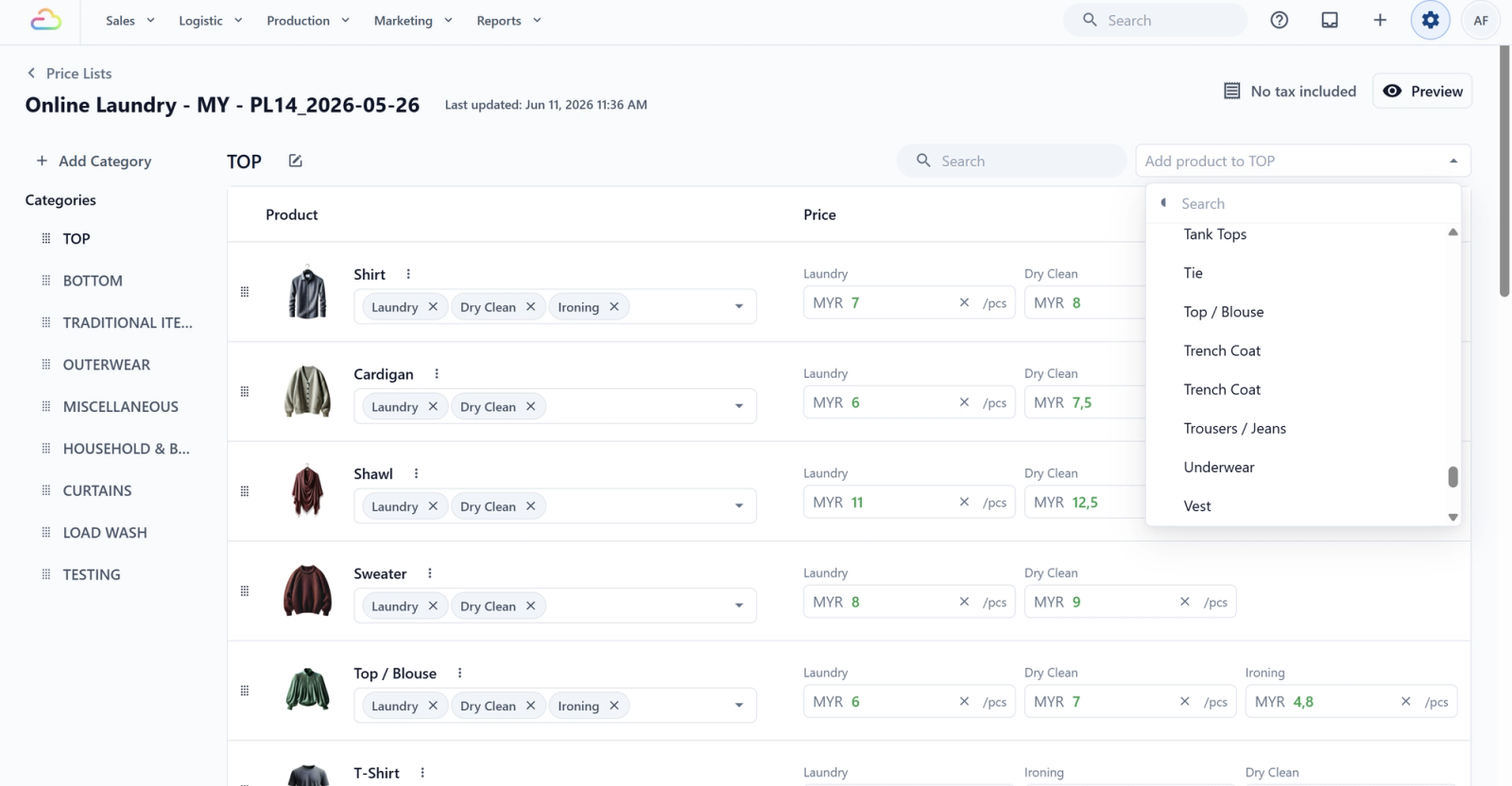
✅ Example: How a Service Item appears in a Price List, ready for you to set each service price.
FAQs
Why is there no price on the Add Service Item form?
Service Item only creates the item itself, such as Shirt or Dress. The price is set in Price Lists because the same item can have different prices for different customer types, service options, or business units.
Can I type my own unit, like "hook" or "bag"?
Yes. The Unit Label accepts a custom typed value as well as the ready-made ones, and your typed unit sticks.
My curtain is priced per hook but the customer drops 3 panels. How do I print 3 labels?
Use the Quantity and Pcs flow. Price follows the hook count, and labels follow the panel count, independently. See Setting Up the Quantity and Pcs Flow.
How do I sell the same item with different services, like wash versus dry clean?
Those are Service Options, not variants. Variants capture which version of the item came in, while Service Options capture the work done to it.
Will old orders break if I delete a variant?
No. Existing orders keep a snapshot of the variant as it was when the order was taken.
Do services appear in the Online Store automatically?
Not just from creating the Service Item. It must also be included in the relevant price list and exposed through the Online Store setup. To hide one, use your storefront settings.
What's Next
Now that your service items are in the catalog, the next step is to add any physical goods you sell over the counter, such as detergent, garment bags, or care kits. Continue to Adding Retail Products to complete your catalog before you set up your Price Lists.
Give feedback
Up next
Adding Retail ProductsAdd physical products you sell at a fixed price so your staff can ring them up quickly and track stock correctly.
Read more