
Introduction to Product Catalog
In this article
Product Catalog is the master list of every product, service, accessory, add-on, collection, and shared variant your shop offers. It is one page with six tabs. Pricing for catalog items is set separately in Price Lists. Once an item is in the catalog, POS, Online Store, B2B, CRM, and Marketing can all use the same catalog item without extra setup.
Contents
Contents
What is Product Catalog?
Product Catalog is the main list of items your business sells, services, or uses when creating orders. It can include service items like bags, shoes, shirts, or curtains, and retail products like care kits, accessories, or cleaning supplies.
Why We Need Product Catalog
Setting up the catalog helps your staff create orders faster and more consistently. Instead of typing item names manually, they can select the correct item from POS, apply the right price, choose variants, and avoid missing important order details.
Where Product Catalog appears later
Items from Product Catalog can appear in:
| Price Lists (Article coming soon) | Control item pricing |
| POS | Staff can select items when creating orders |
| Online Booking(Article coming soon) | Customer-facing booking uses published services |
| Inventory Stock | Retail products that need stock tracking |
Navigate to Product Catalog
- Click the ⚙️ Settings icon in the top-right corner.
- Under the Catalog & Pricing section, click Product Catalog.
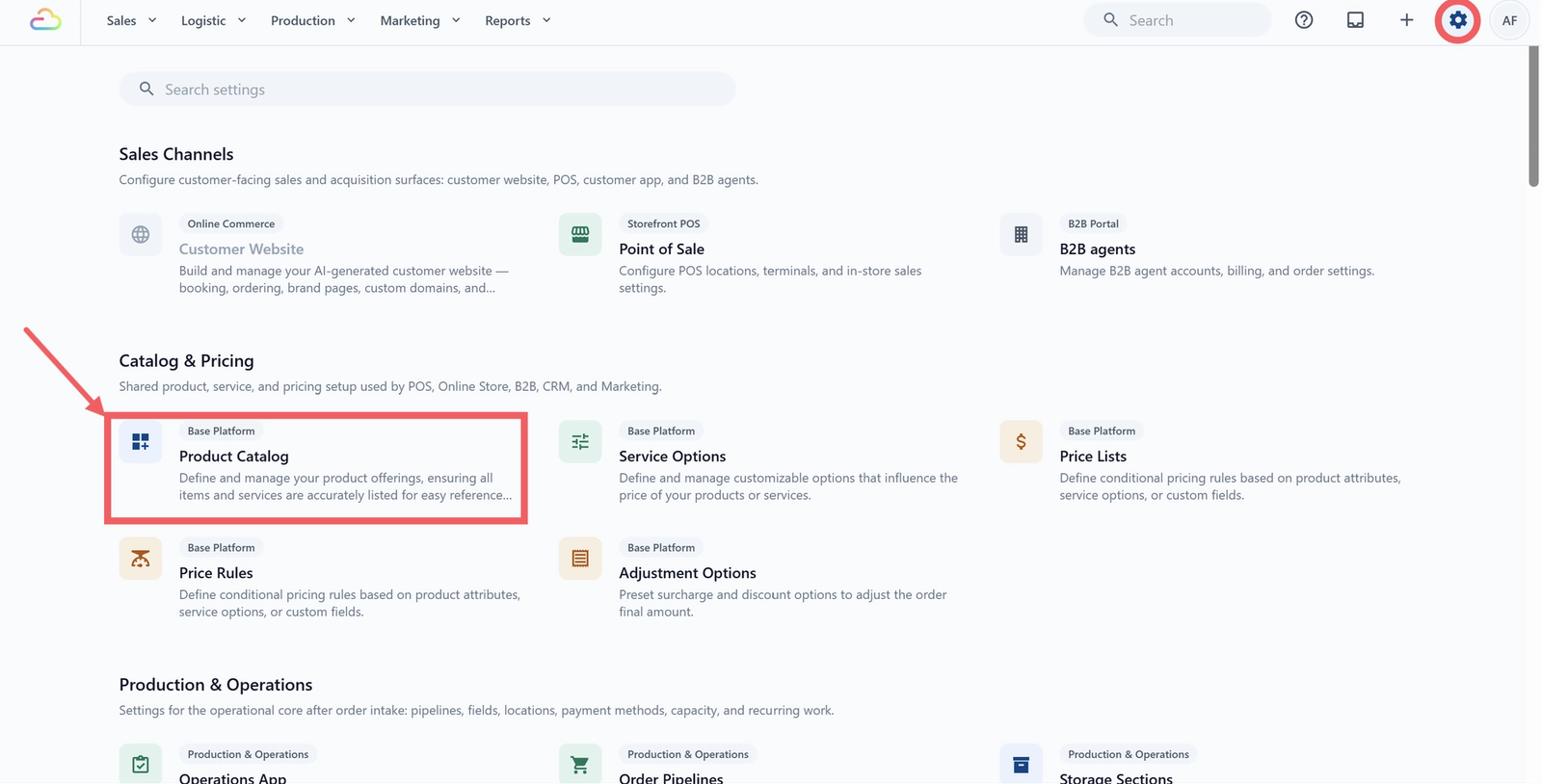
Product Catalog Tabs
| Tab | What you put here |
|---|---|
| Service Items | Items customers bring in / choose, like "Shirt" |
| Retail Products | A physical item you sell over the counter, like detergent. |
| Collections | A named group that pulls products from across the catalog, used for menus and online store sections. |
| Add-ons | A small surcharge option that attaches to a service, like Gift Wrapping or Starch. |
| Accessories | A lightweight reference item attached during production, like Belt or Hood. |
| Shared Variants | A reusable set of options (e.g. a "Size" set with Small / Medium / Large) you can apply to many products. |
FAQs
Do I need to set up Price Lists before I add products?
No. Add products first, then go to Price Lists to set prices. The catalog is what you sell; Price Lists decide how much each item costs for each customer group.
Why are services and products in the same catalog?
So every channel pulls from one list. A service item like "Shirt" can be priced with service options such as Laundry or Dry Clean.
Do products appear on POS immediately?
Not always. Products must be connected through the correct price list, collection, or business unit and POS setup before staff can use them in orders.
What is the difference between a Service Item and a Retail Product?
Use a Service Item when the customer brings something for your team to service. Use a Retail Product when you sell a fixed-price item directly.
Do I need Price Lists after setting up Product Catalog?
Yes, for most businesses. Product Catalog stores the item details, while Price Lists control how much those items cost.
Can I edit products later?
Yes. You can update product names, images, variants, and other details. If the product is already used in a price list, EasyBiz may ask you to confirm before applying the update.
Give feedback
Up next
Adding Service ItemsAdd the items your customers bring in for service so they can be selected in POS, Online Store, B2B, CRM, and Marketing.
Read more