
Adding Collections
In this article
Collections are named groups of products that act as tabs in your ordering screen. You decide which products belong together, for example all bag service items in one tab and all counter retail in another, and the system shows those tabs whenever a business unit is set to use Product Catalog as its catalog source. Each collection can hold a mix of service items and retail products. Collections are optional. If your shop uses a Price List or shows all service items in one tab, you do not need them.
Contents
Contents
Before You Start
Add your products first. A collection groups products that already exist in your catalog. If you have not added any products yet, set up Service Items and Retail Products under Product Catalog before creating collections.
What is a Collection?
A collection is a named group of products that becomes a tab in your order screen. Think of it as a folder you fill with items that belong together, so your staff can find them quickly when taking an order.
How to Add a Collection
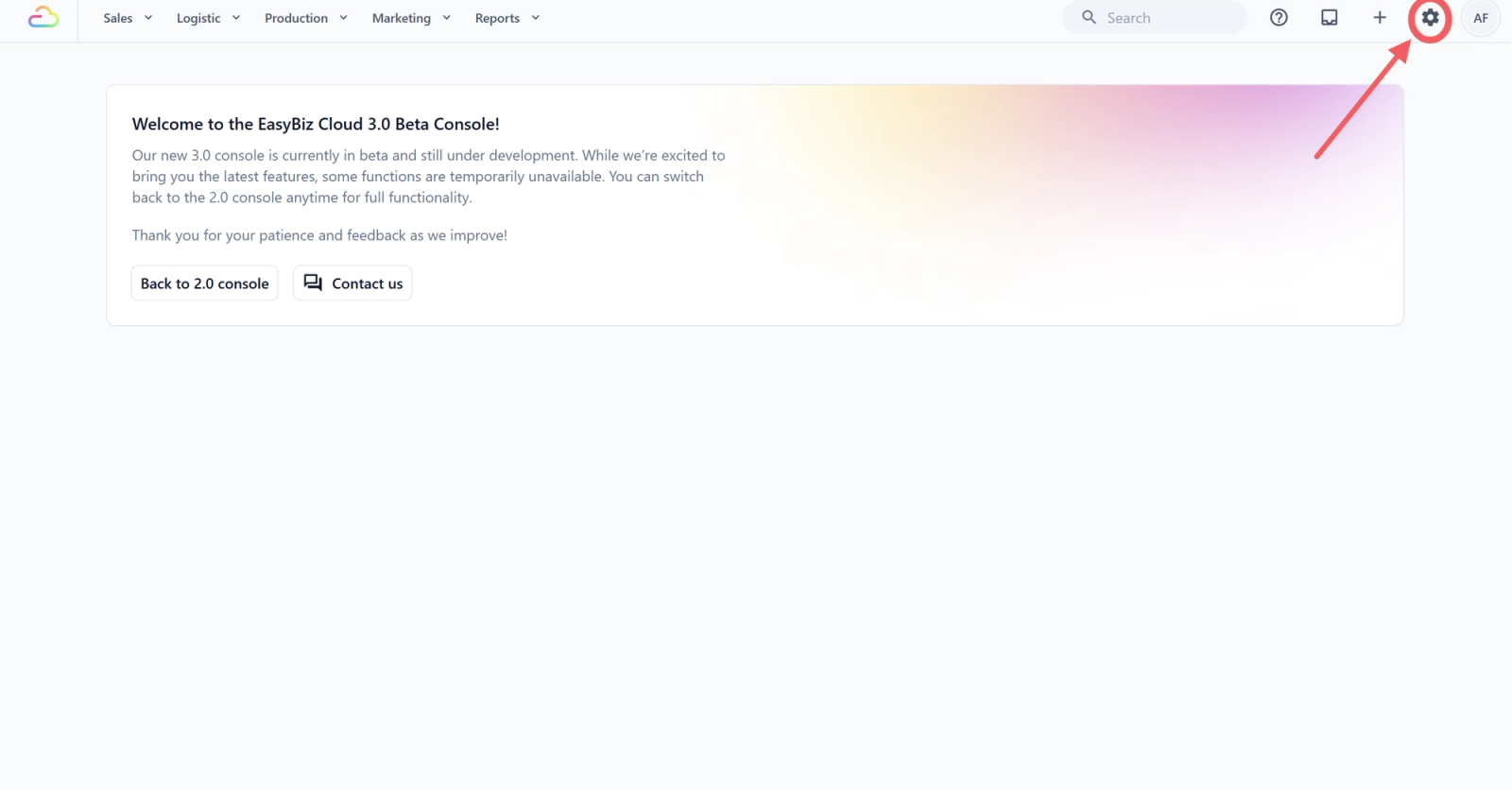
- Click the ⚙️ Settings icon in the top-right corner.
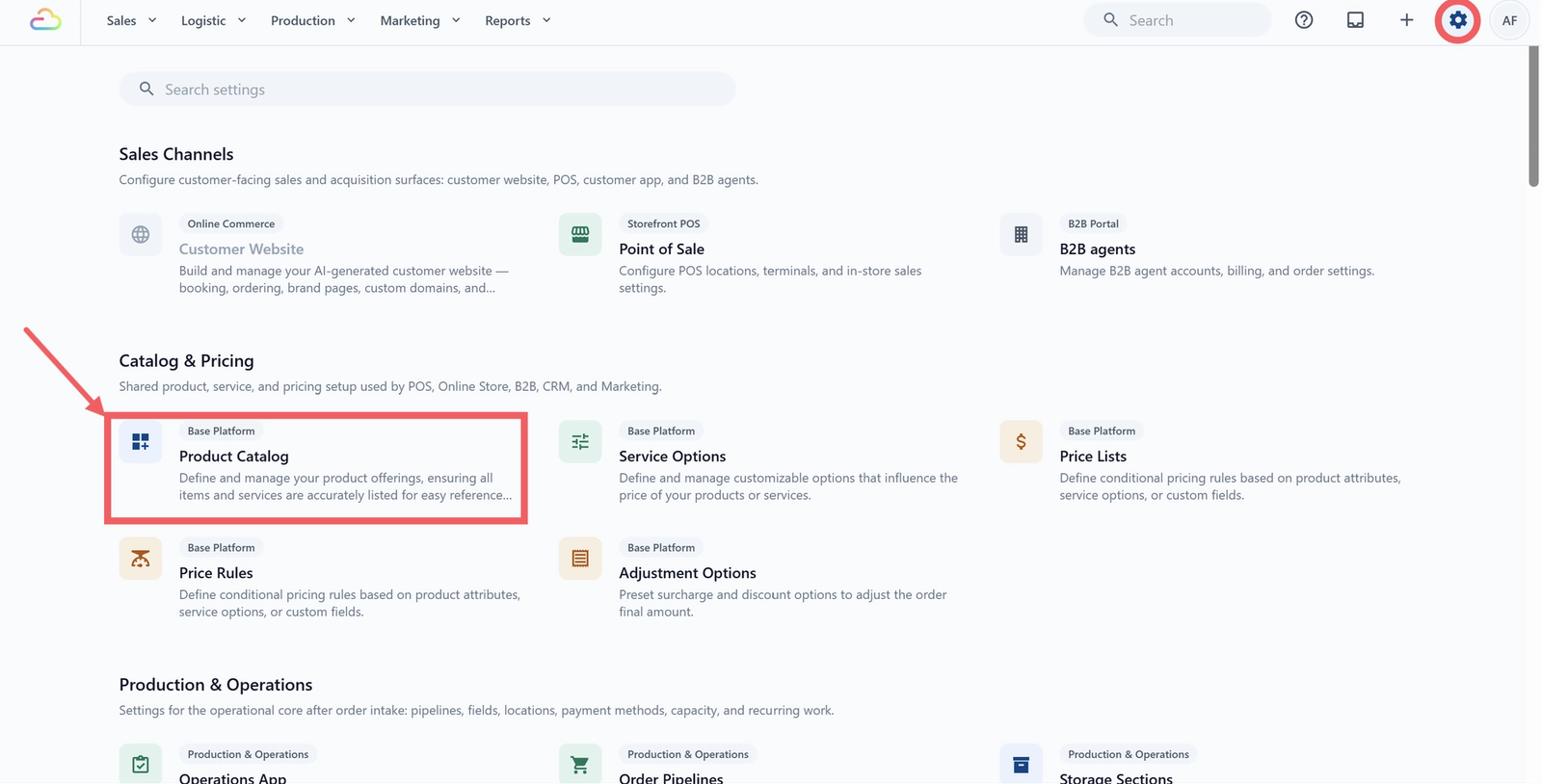
- Under the Catalog & Pricing section, click Product Catalog.
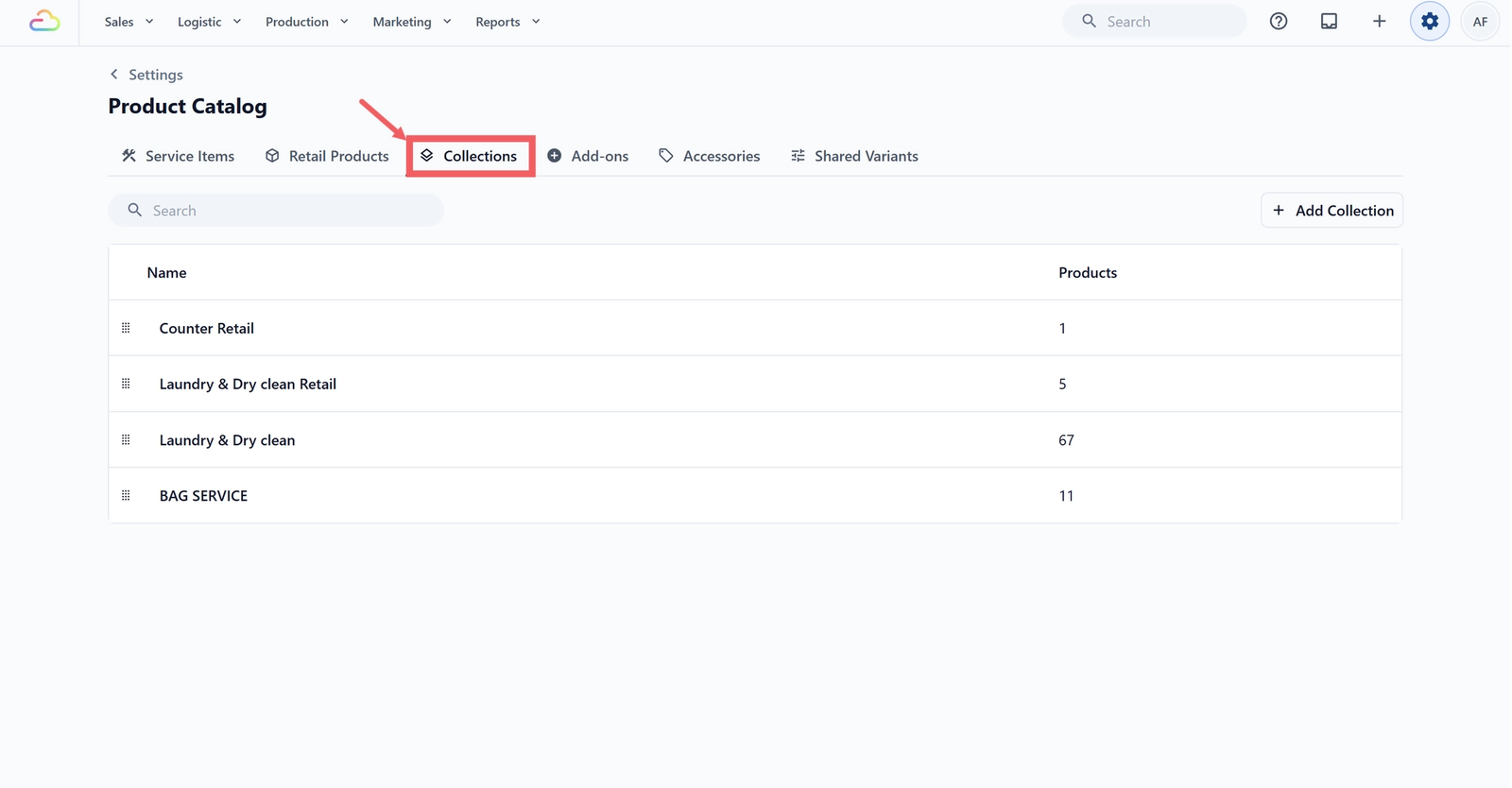
- Click the Collections tab.
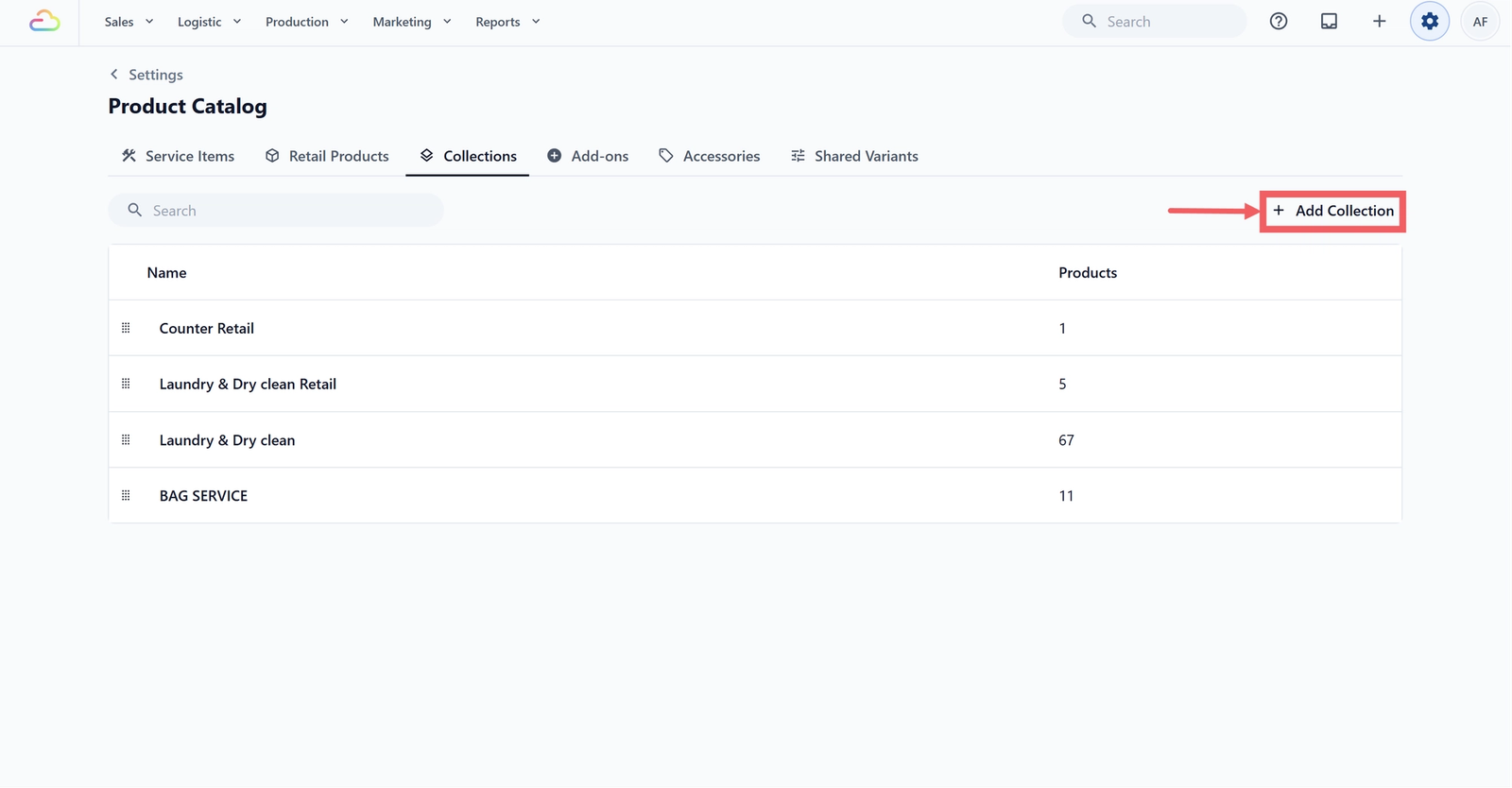
- Click + Add Collection in the top-right of the toolbar.
- Type a name in Collection name.
- In Add Product, search and pick products to include.
- Click Add.
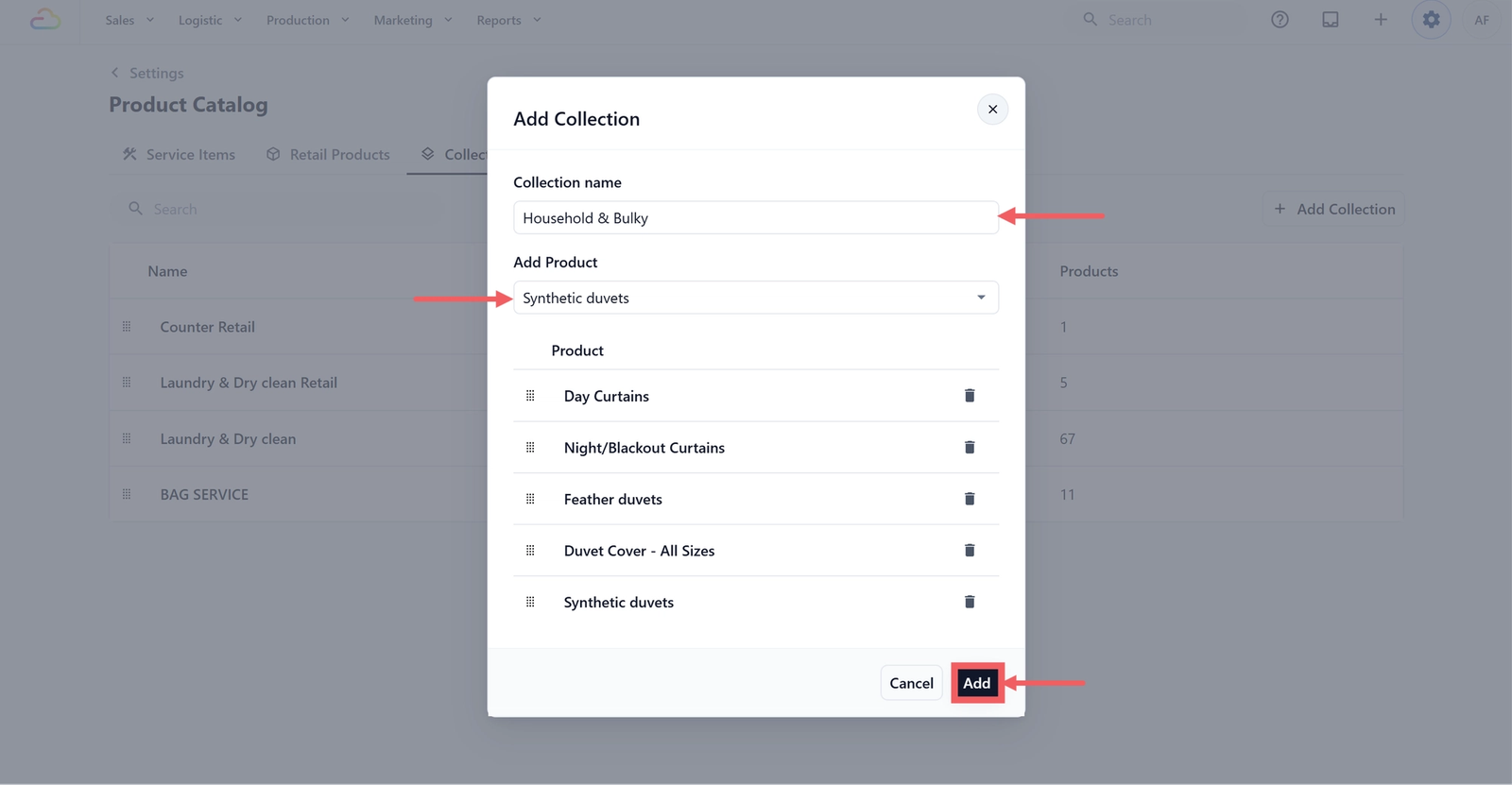
Edit a collection
Click any row in the Collections table to open the Update Collection dialog. From here you can:
- Rename the collection.
- Add more products using the Add Product search.
- Remove a product by clicking the 🗑️ trash icon next to it.
- Drag products by the dots handle to change their order inside the collection.
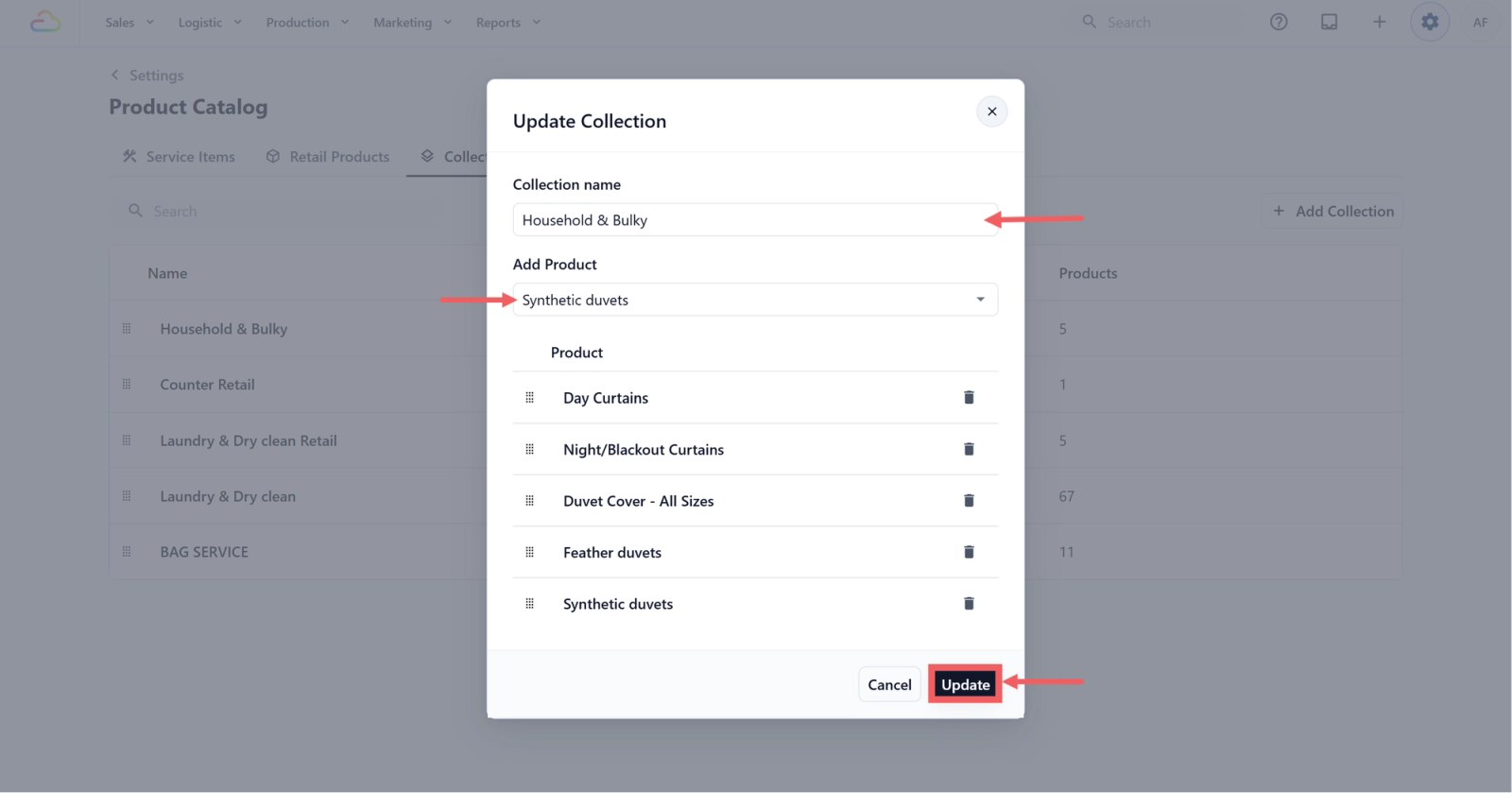
Click Update to save.
How collections appear in orders
Collections only show up in the order screen when a business unit is set to use Product Catalog as its catalog source.
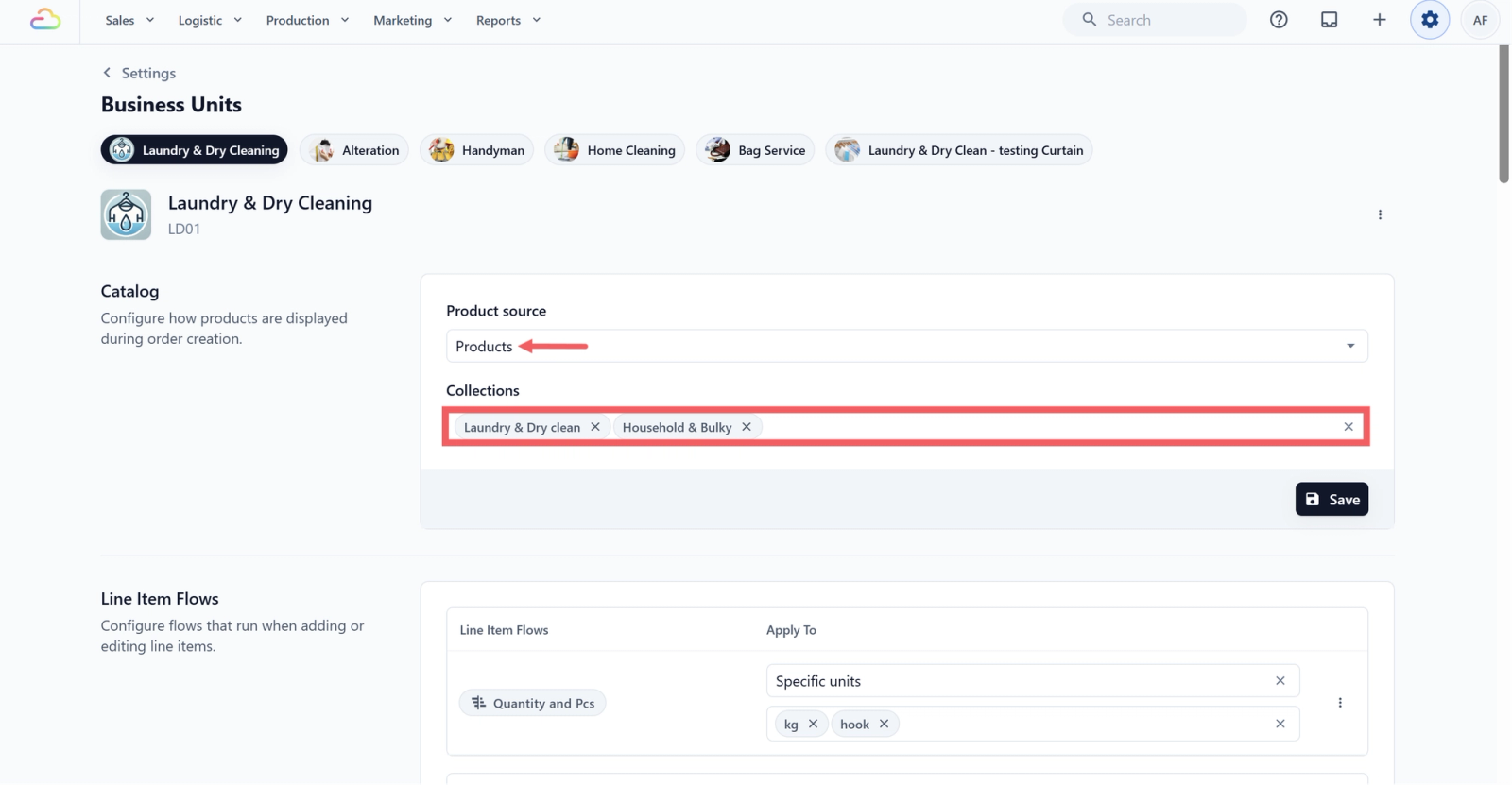
Each collection assigned to that business unit becomes one tab in the catalog, in the order you set above. Business units that use a Price List, all Service Items, all Retail Products, or Service Options as their source do not use collections.
FAQs
Can a product belong to more than one collection?
Yes. The same product can appear in any number of collections. Adding it to one collection does not remove it from another.
Do I have to add products when I create a collection?
No. You can create a collection with just a name and add products later by clicking its row in the table.
Why does my collection not show up in the order screen?
Check the business unit using that catalog. Collections only appear when that business unit's catalog source is set to Product Catalog and the collection is assigned to it.
Will the trash icon next to a product delete the product itself?
No. It only removes that product from this collection. The product stays in your Service Items or Retail Products list.
Can I rename a collection after creating it?
Yes. Click the row to open Update Collection, change the name, and click Update.
Can a collection mix service items and retail products?
Yes. The Add Product picker lists both types and you can add any combination to one collection.
What's Next
Now that your collections are grouped and ordered, the next step is to set up the optional extras your staff can attach to an order, such as express handling, fold and pack, or stain treatment. Continue to Adding Add-ons to give your team more ways to upsell at the counter.
Give feedback
Up next
Adding Add-onsSet up the small extras your customers can add to any order, like Gift Wrapping or Starch, so your staff can attach them at checkout with the surcharge already in place.
Read more