
Create your Online Store
In this article
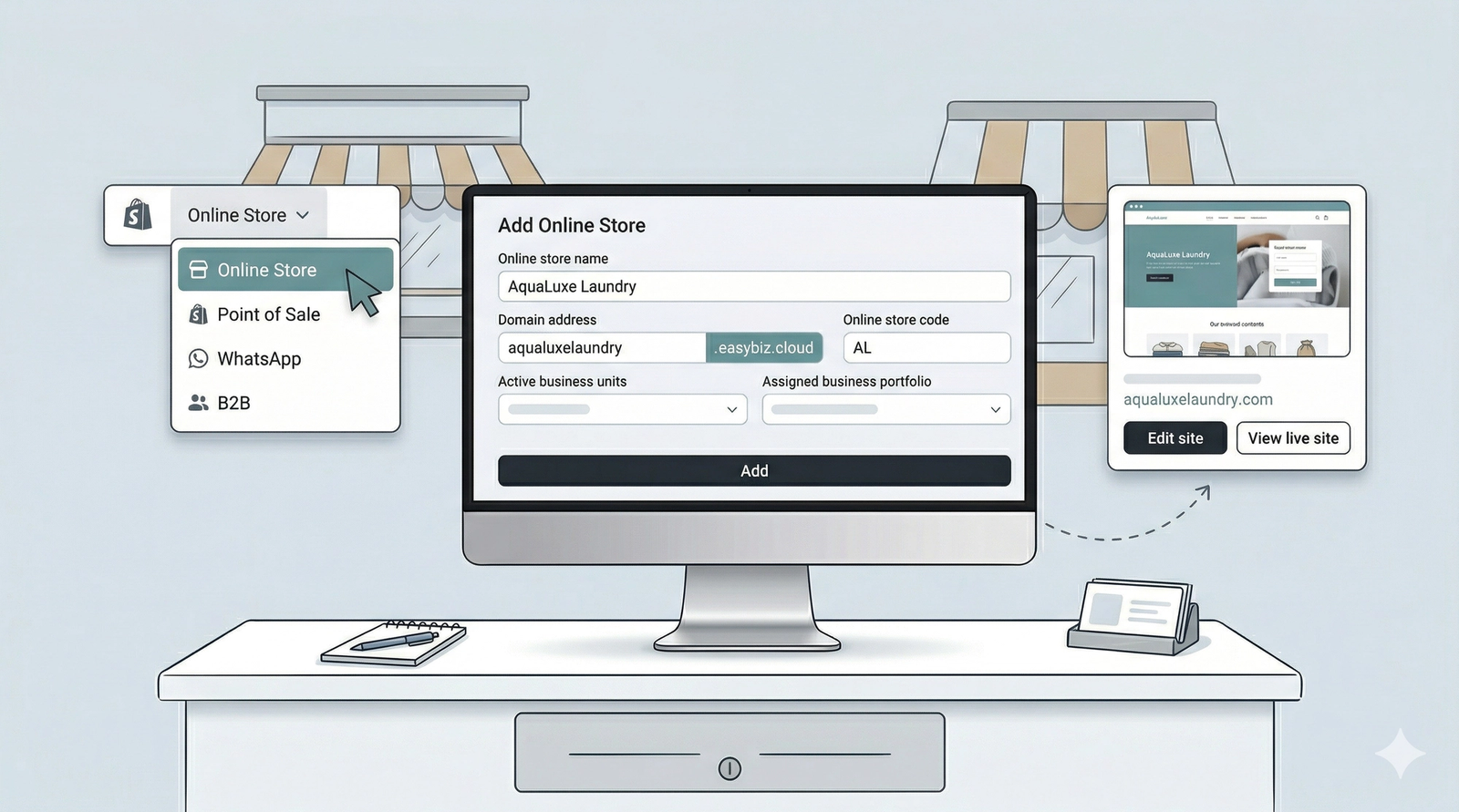
Setting up your digital storefront is the first step toward automating how you interact with your customers online. Our system handles the heavy lifting of building the site structure so you can focus on providing your services.
Contents
Contents
Find the Online Store Page
To start setting up your Online Store, you would need to locate where to start adding one.
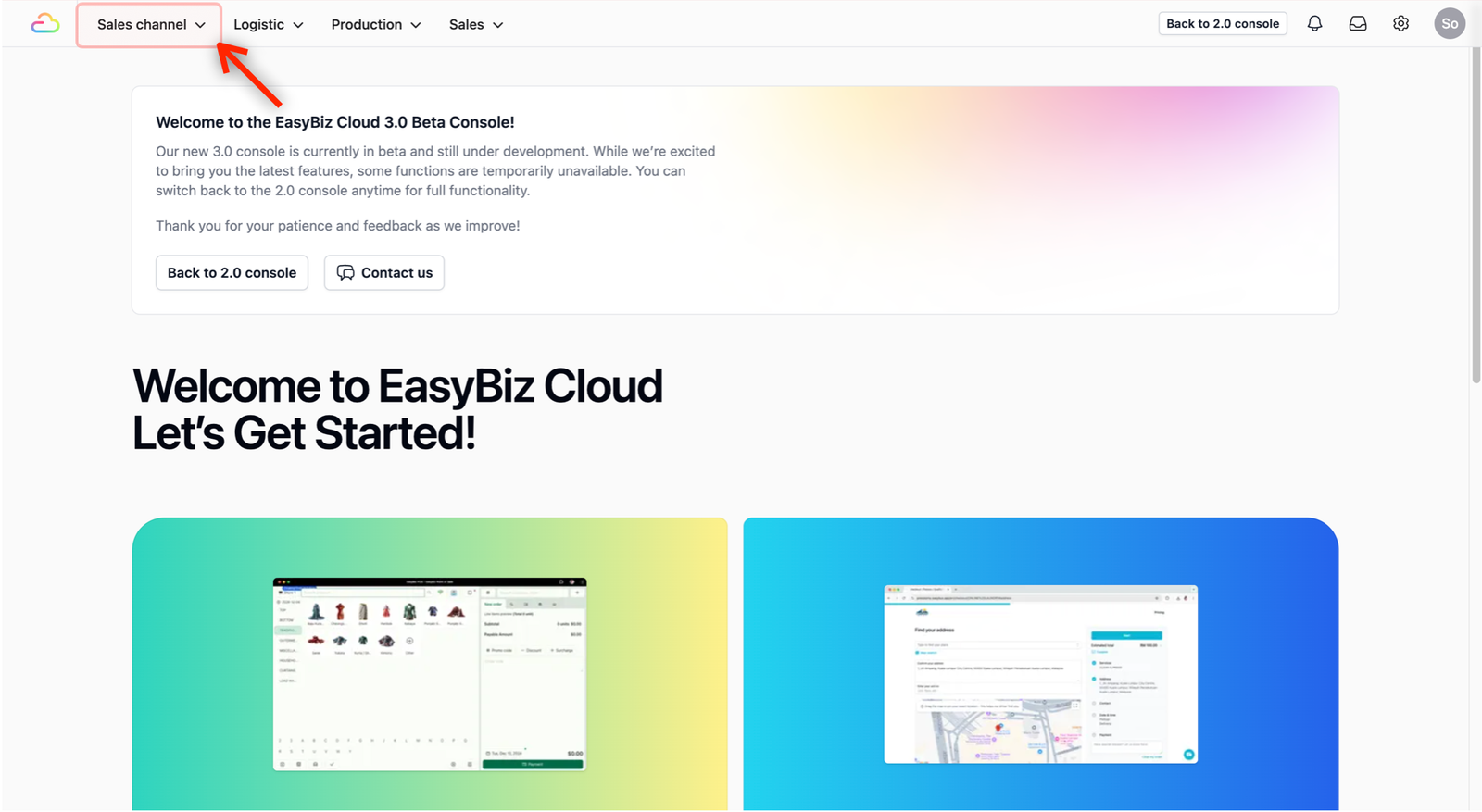
In your console, on the top navigation bar, click on Sales channel.
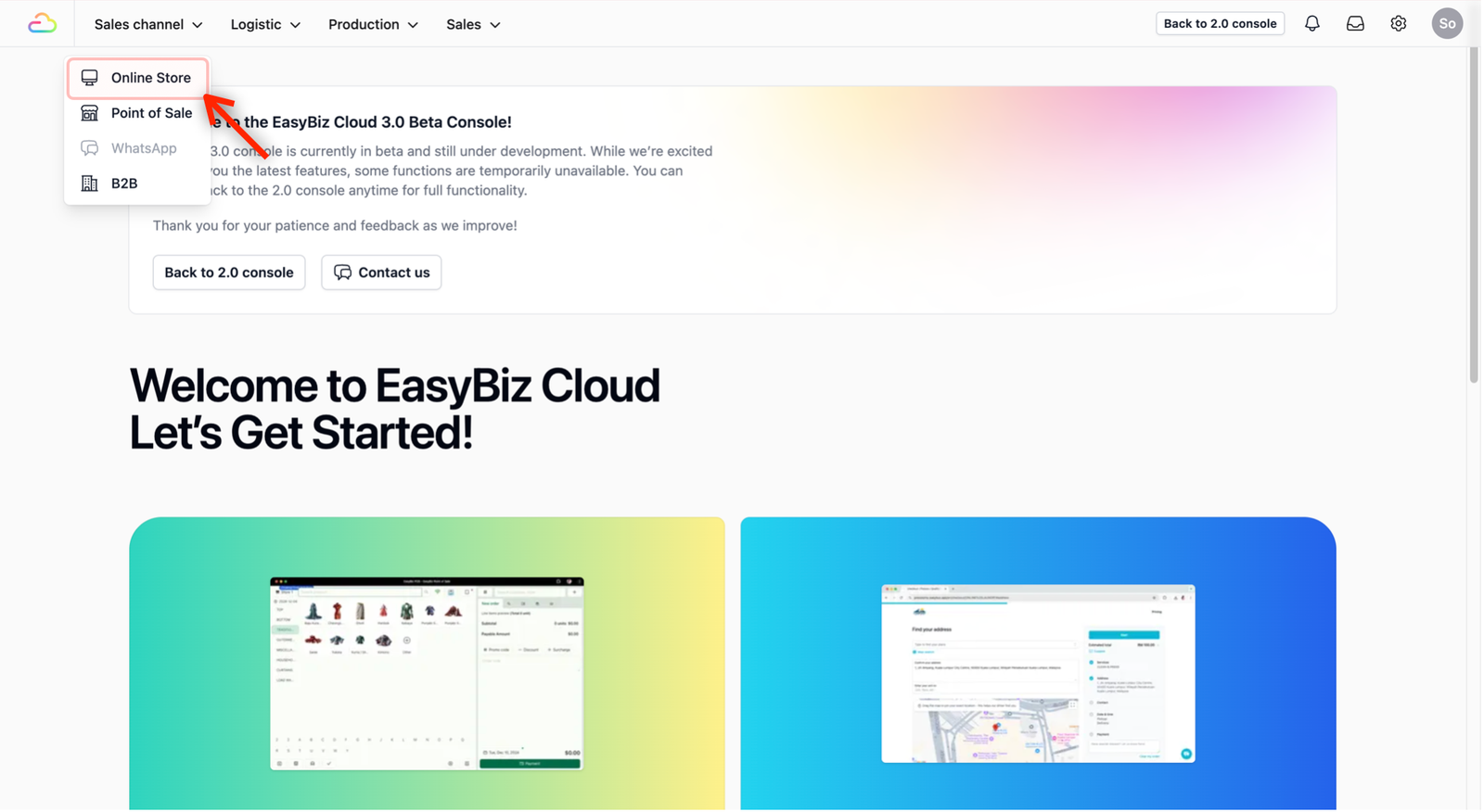
Select Online Store from the dropdown menu.
Enter your store information
Provide the basic information the system needs to link the store to your business operations.
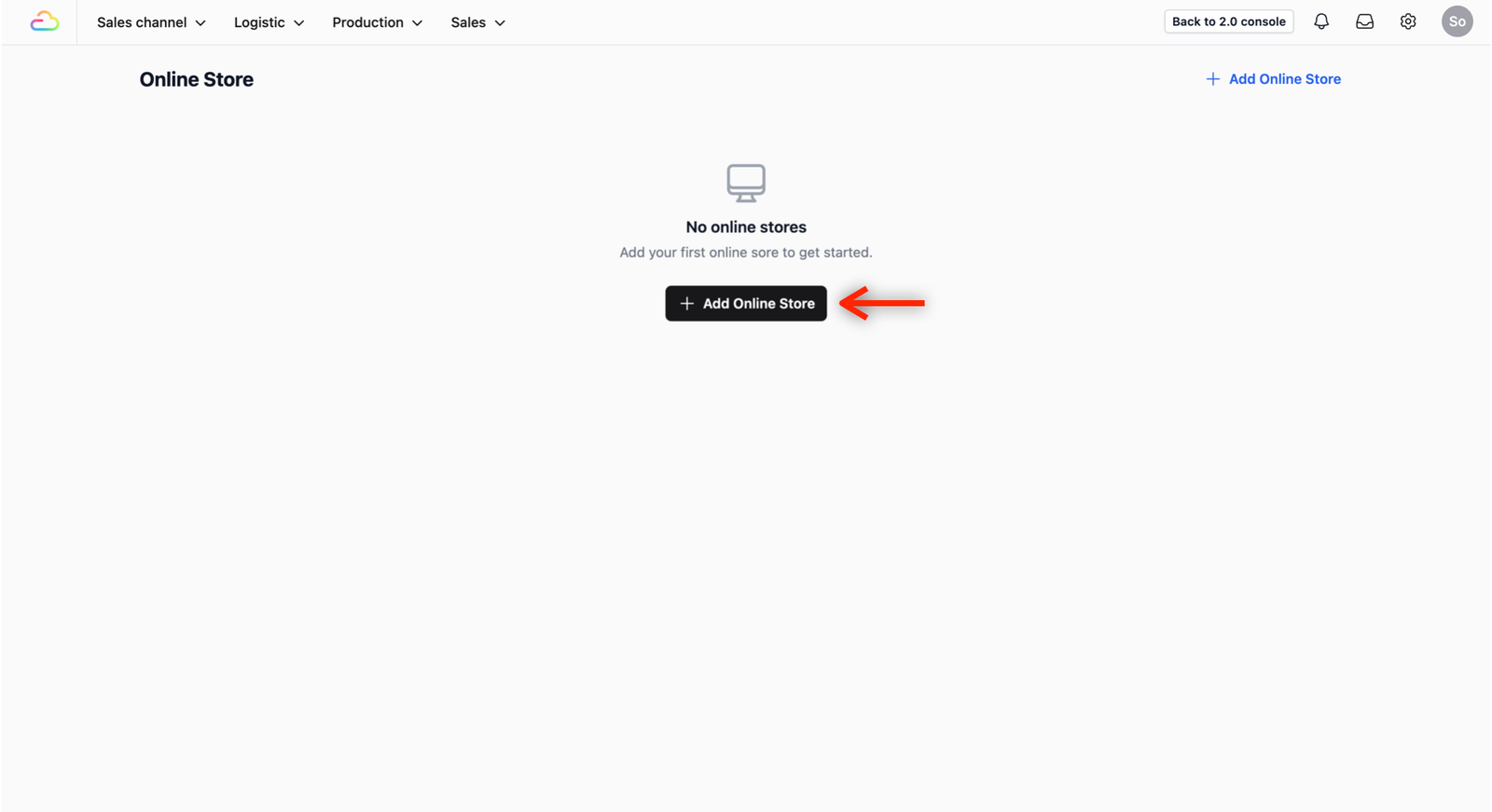
In Online Store Page, click on the + Add Online Store button.
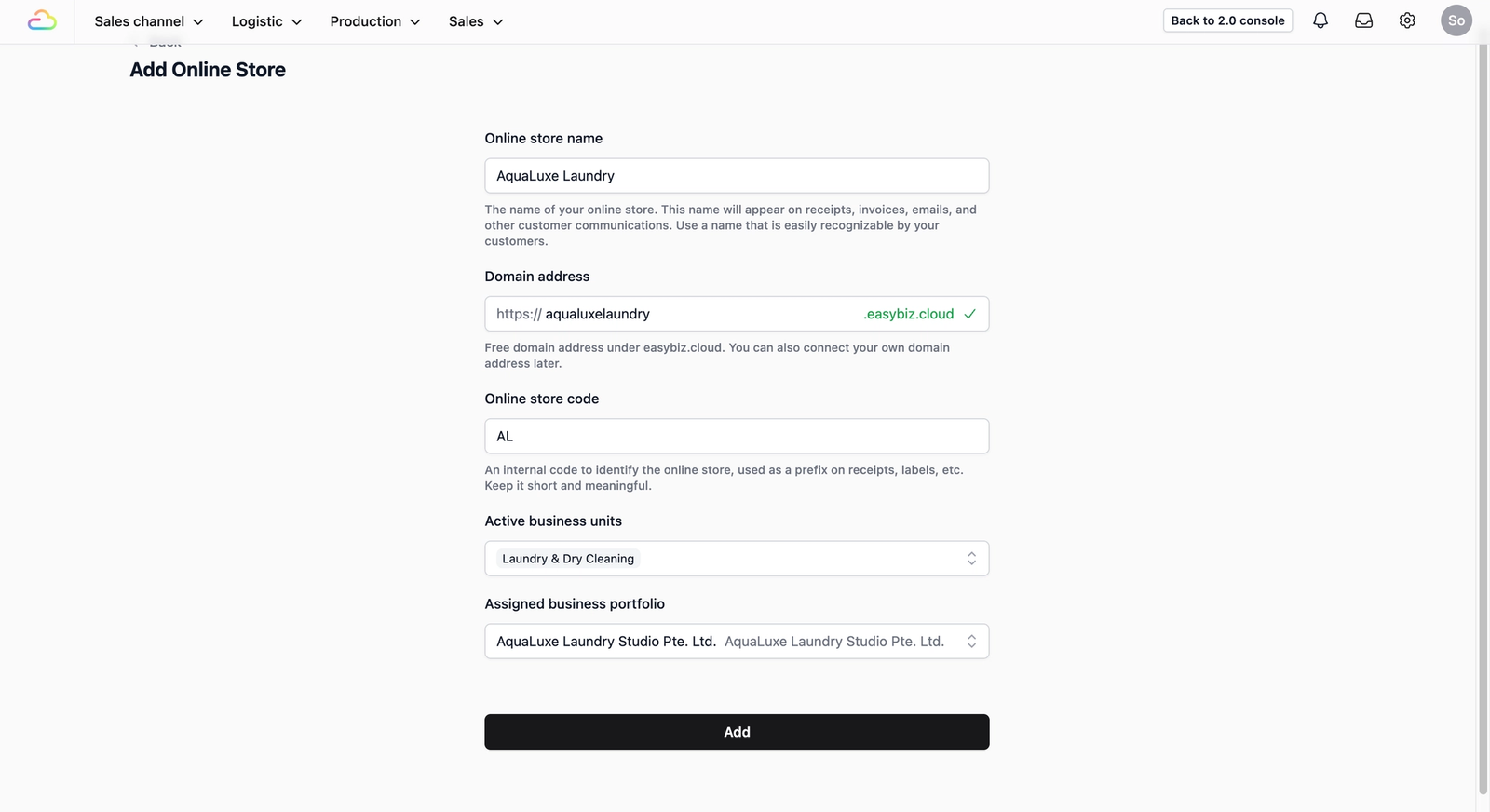
- You will see a pre-configure screen. This is where you define the identity of your website and establish the basic rules the system needs to start building it:
- Online store name: Enter the name of your store (e.g., Pro Cleaners Main Site).
- Domain address: This is the web link customers will use to visit you. This is the link you will eventually copy and paste into the "Book Now" button on your existing website.
- If you don't have a website: The system generates the domain address for you, which you can choose to stick to or rename to another domain address.
- If you already have a website: Enter the main part of your address found after the www. and before the .com (e.g., if your site is www.prolaundry.com, just enter prolaundry). The system will then create a specific link (like prolaundry.easybiz.cloud) for your booking page.
- Online store code: A short nickname for the system to identify this store (e.g., PC01). This code will appear on your receipts and labels, so keep it short and easy to recognize.
- Active business units: Select which part of your business this store belongs to.
- Why this matters: Choosing the right unit ensures that the correct pricing, service lists, and customer records are used. If you offer multiple services across different units, you have the option to select more than one.
- Assigned business portfolio: Select your business portfolio from the dropdown list. If you only have one, it will likely be selected for you. In that case, you can just leave it as it is.
Finish and start building your Website
Complete the steps above to open your website editor.
Once you have filled in the necessary fields, click on the Add button.
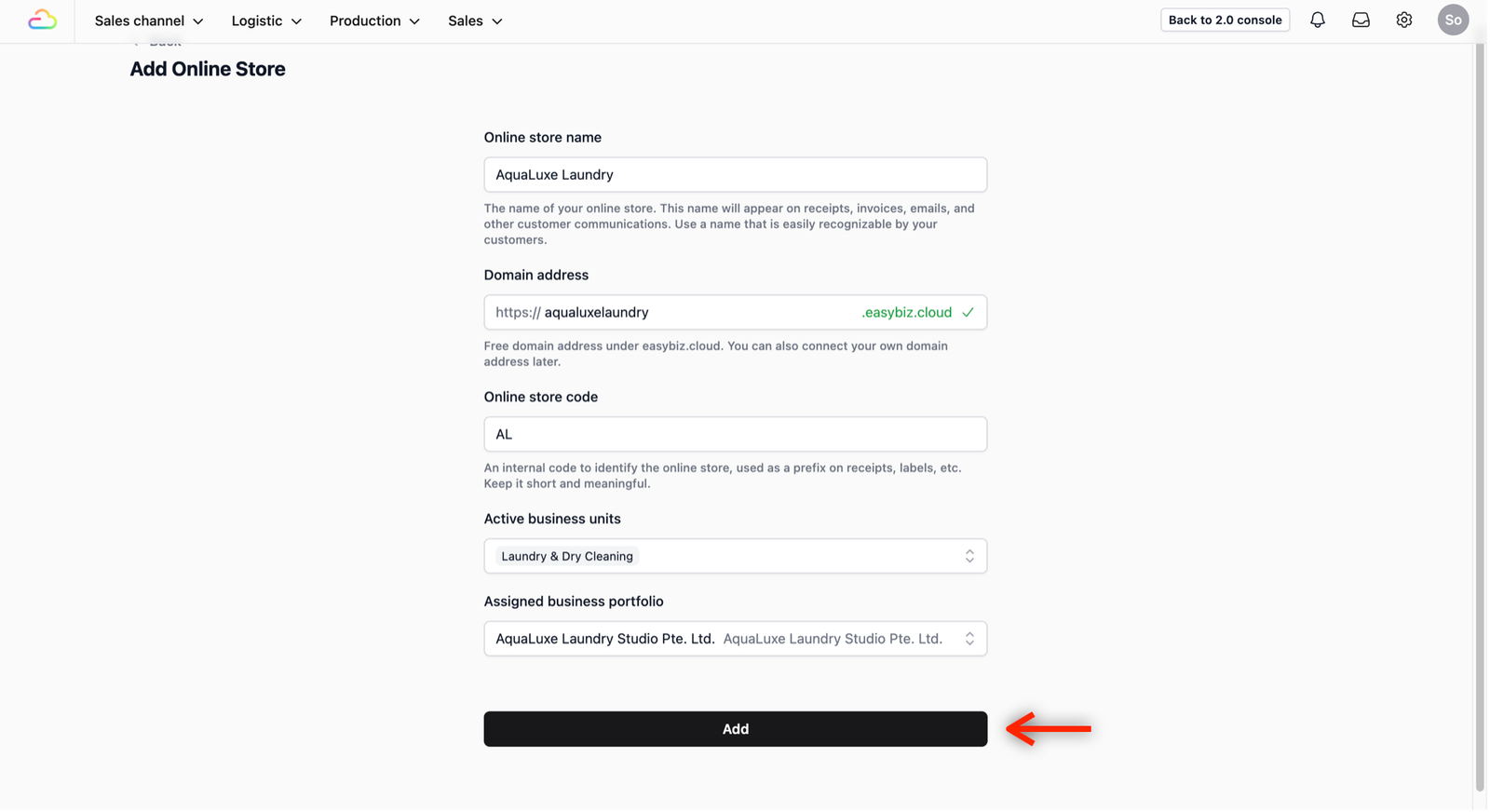
Please wait a few seconds while the system builds your website foundation. Once it finishes loading, your page will refresh, and you will be redirected to the Online Store page, where a notification will appear on the bottom right confirming the successful creation. You should now see your new online store.
Give feedback
Up next
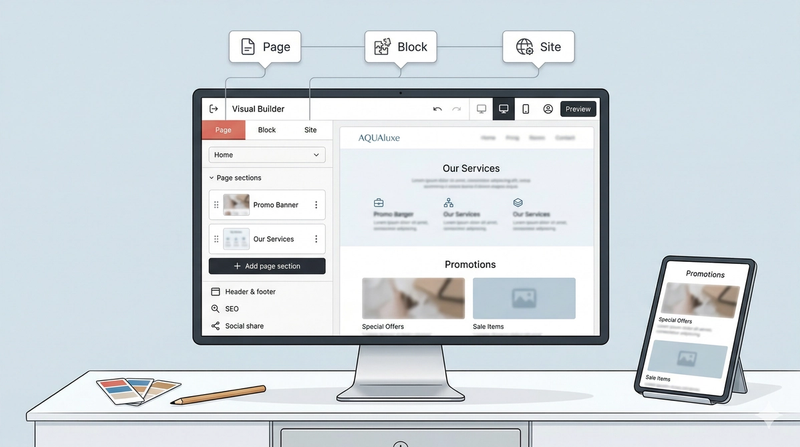
Navigating the Visual BuilderThe Visual Builder is where you design your Online Store.
Read more